
How to configure SMS providers in SurveySparrow?

Set up an SMS provider in SurveySparrow to send survey invitations by text from your own Twilio, Telnyx or custom SMS gateway account. Your invitations go out from your own number, under the sender registration you already maintain with that provider, and you can keep several providers connected and choose one for each SMS share. Connecting a provider is optional, because SMS shares can also use SurveySparrow's default provider.
1. Click the Settings icon (the gear) in the top-right corner.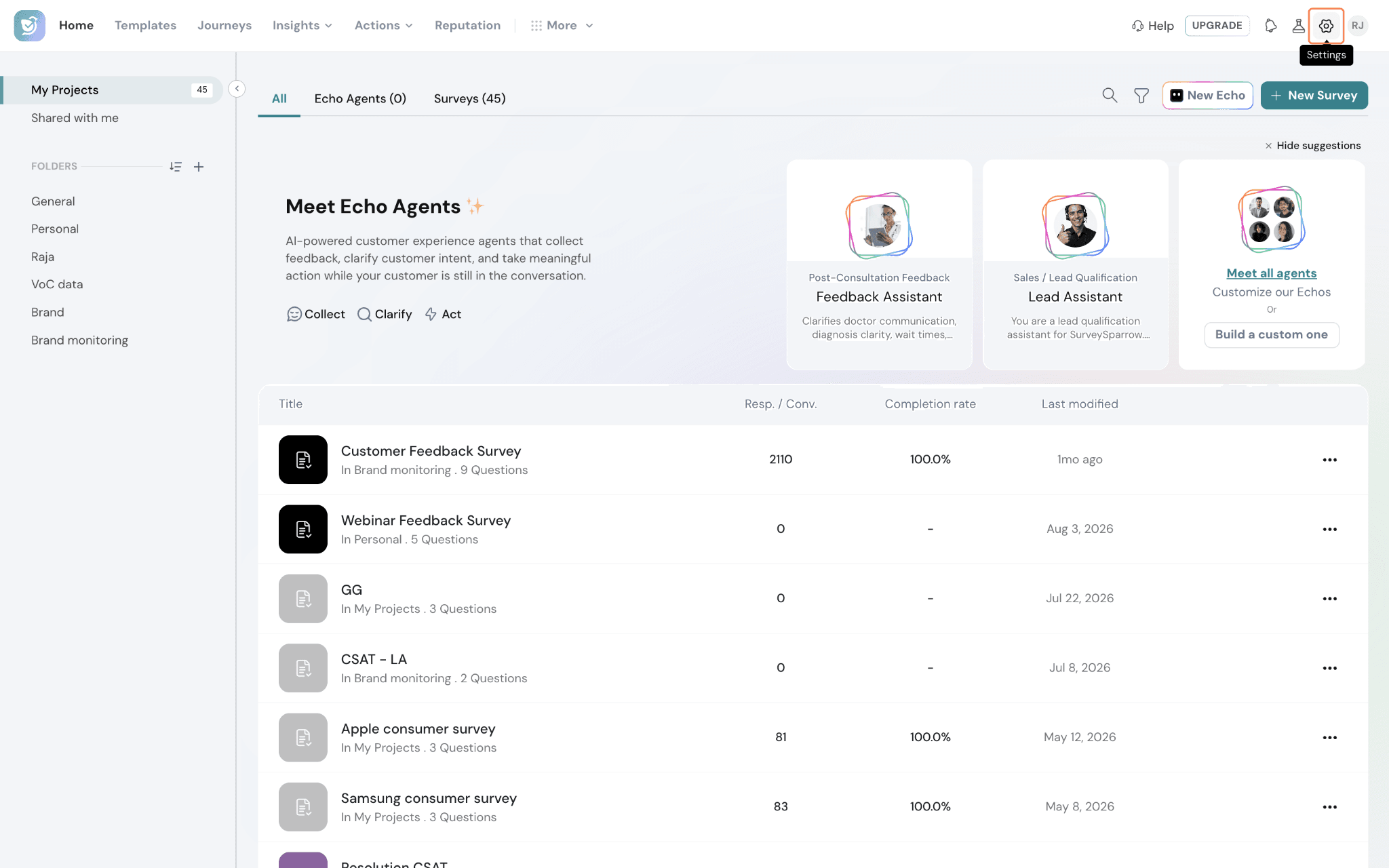
2. In the sidebar, under MESSAGING, select Text, then click Add New Provider.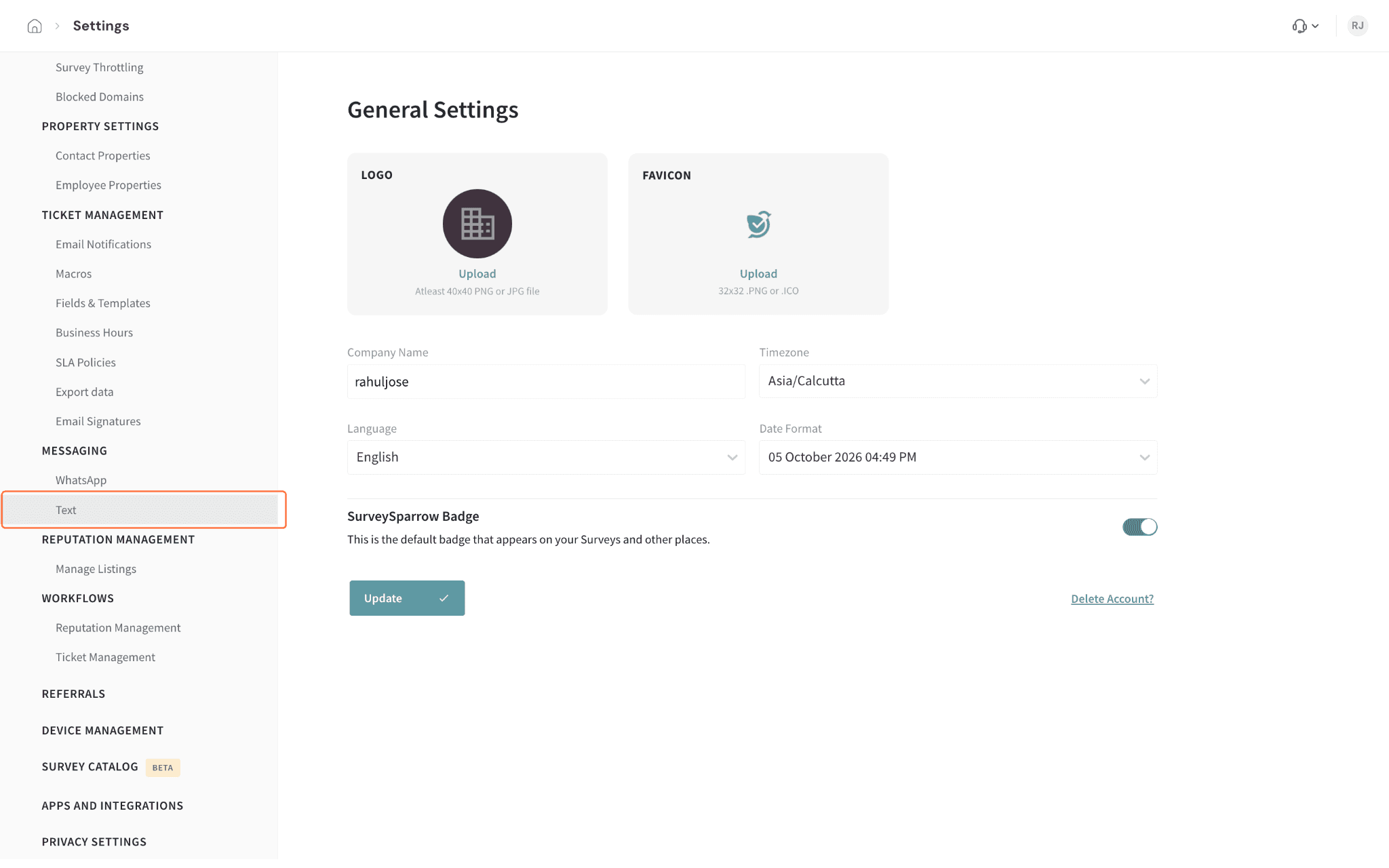
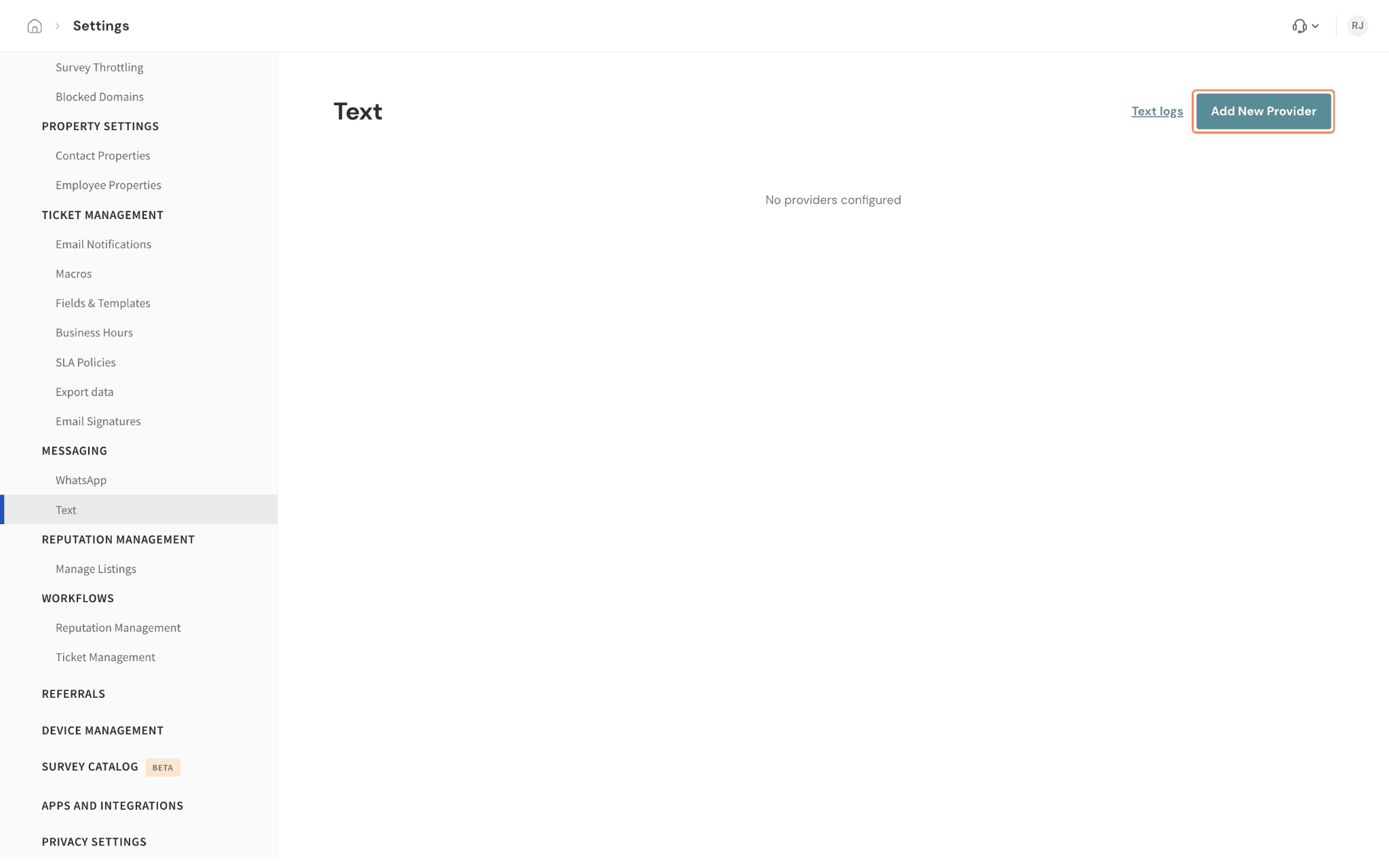
Note: You can also start from a survey. On its Distribute page, click SMS. If no provider is connected yet, the same provider choice opens.
3. Choose your provider. Pick Twilio or Telnyx if you already have an account with them, or Custom for any other SMS gateway that accepts HTTP requests. Then follow Connect Twilio, Connect Telnyx or Connect a custom provider below.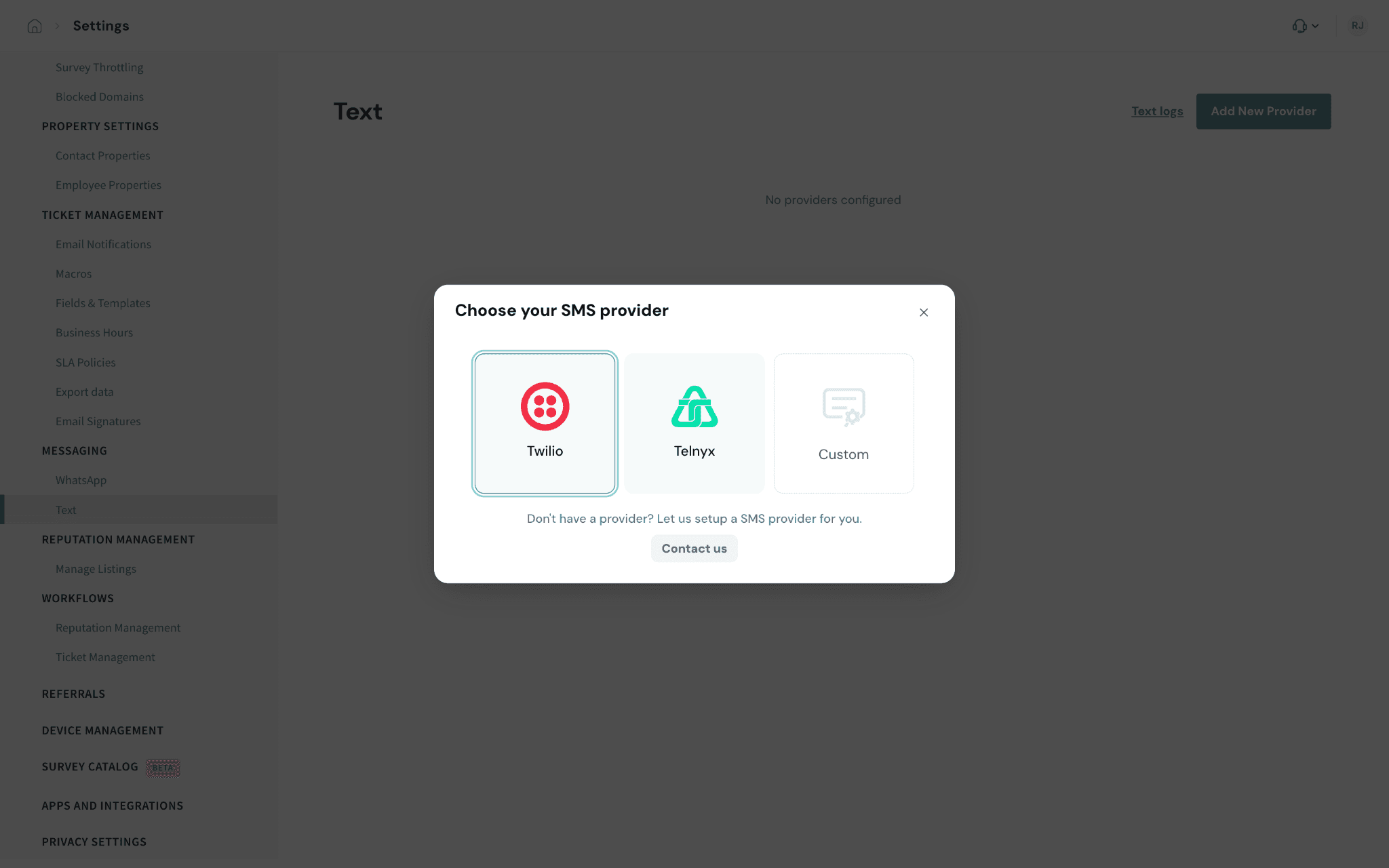
Connect Twilio
In Settings ▸ Text, click Add New Provider and select Twilio to open the form.
1. Enter an Account Name and, if you like, a short description.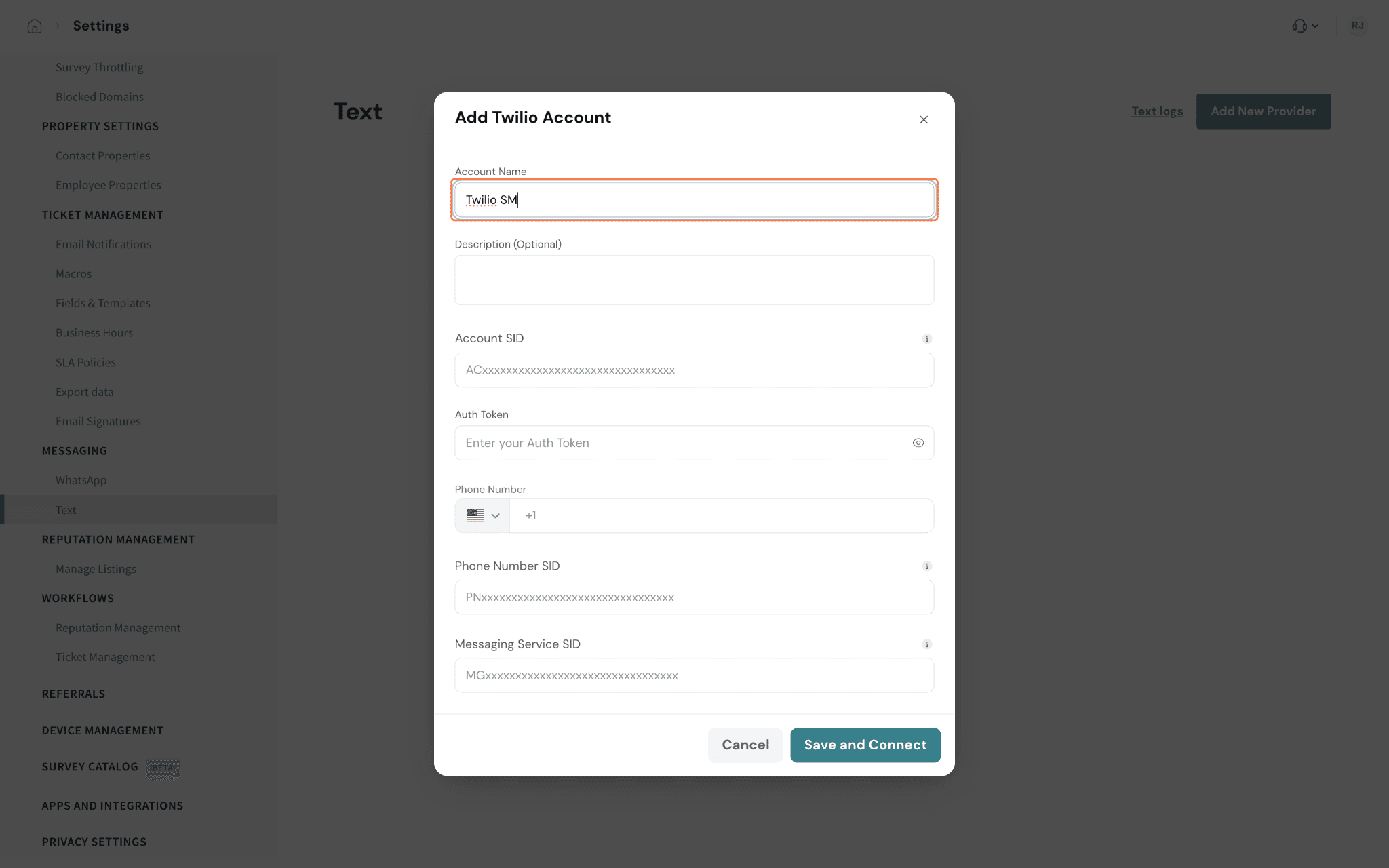
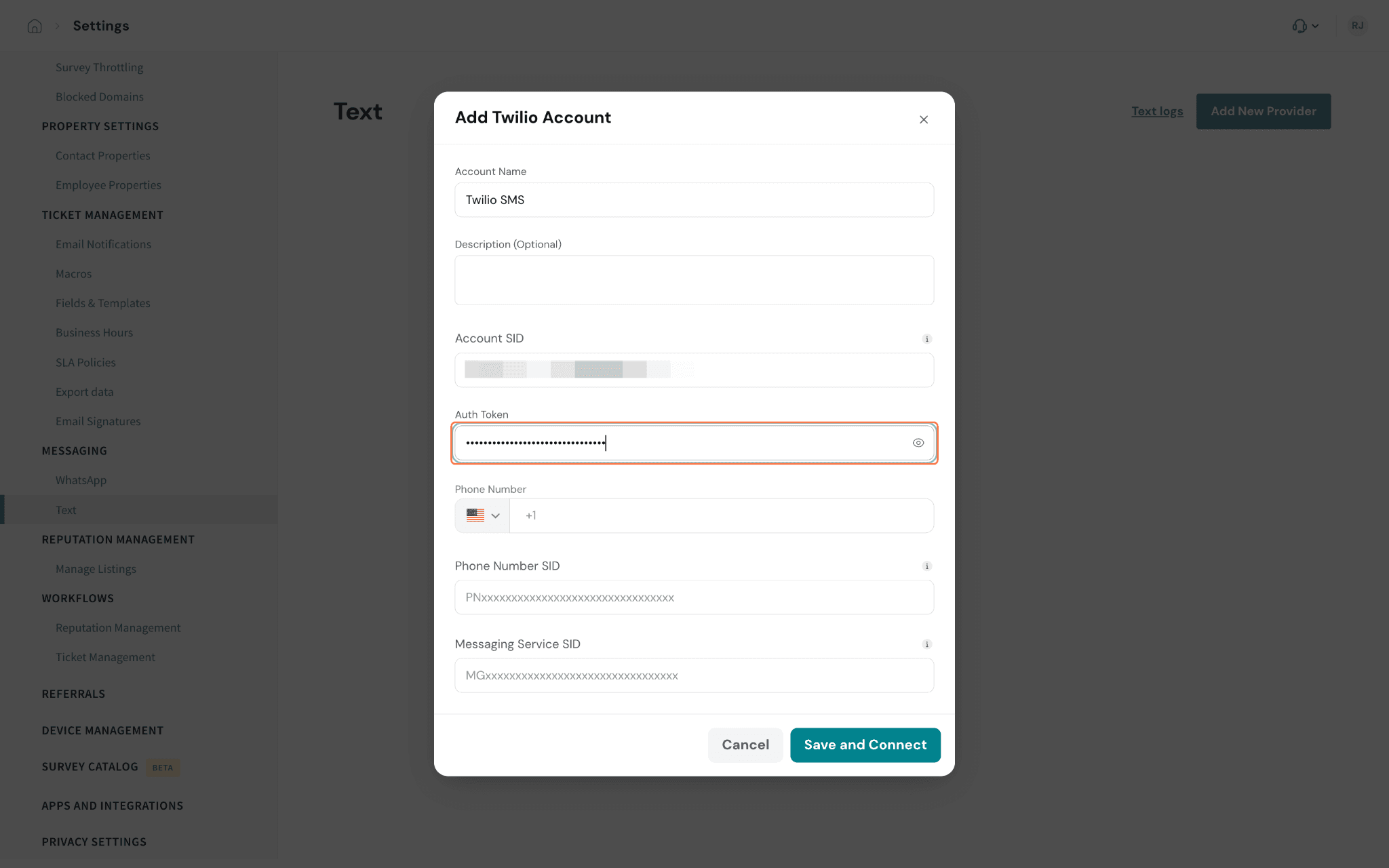
2. Copy the Account SID and the Auth Token from Account Info on your Twilio Console dashboard, and paste them in. See Twilio's guide to finding your Account SID and Auth Token.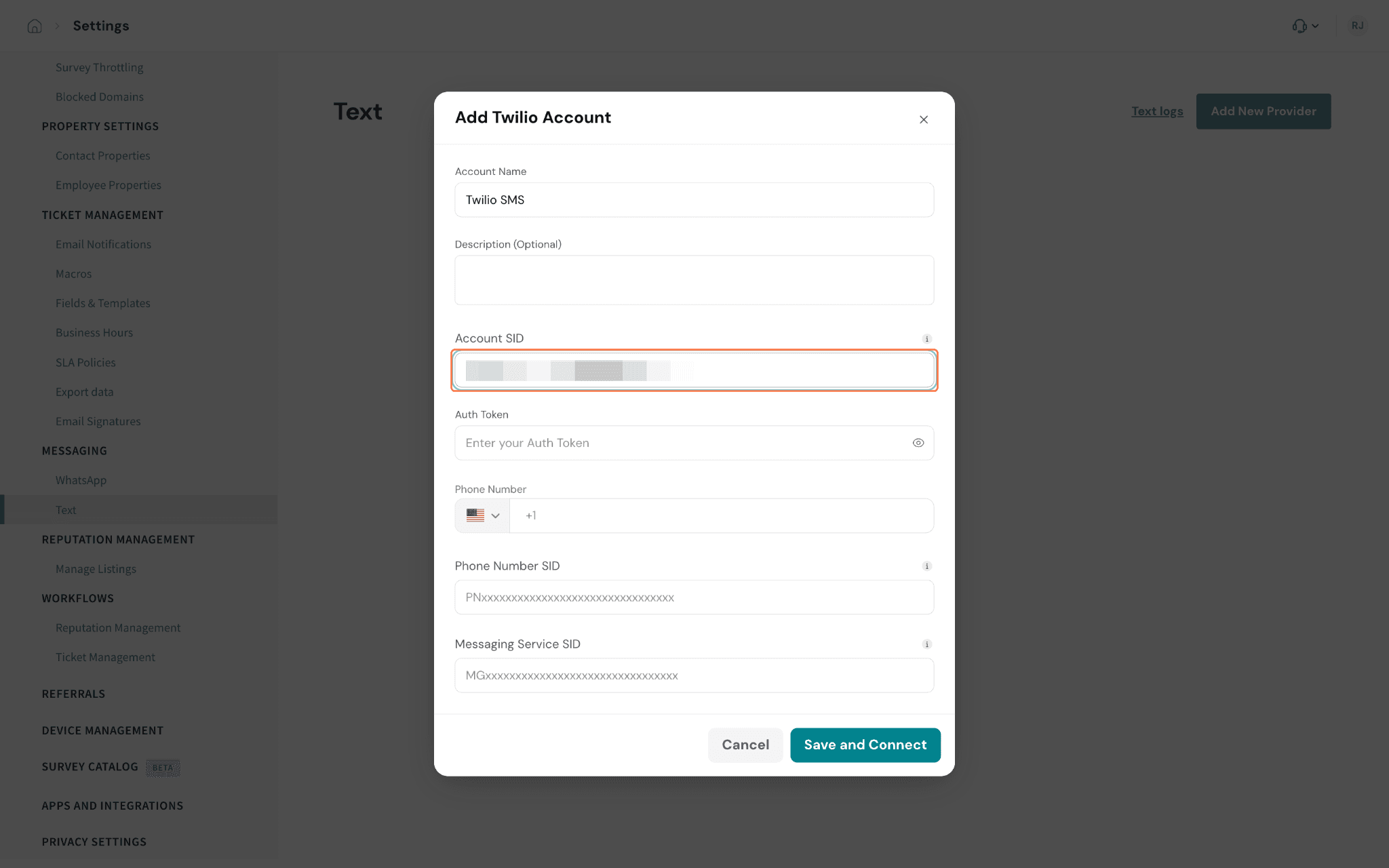
3. Select the country code and enter your Twilio Phone Number.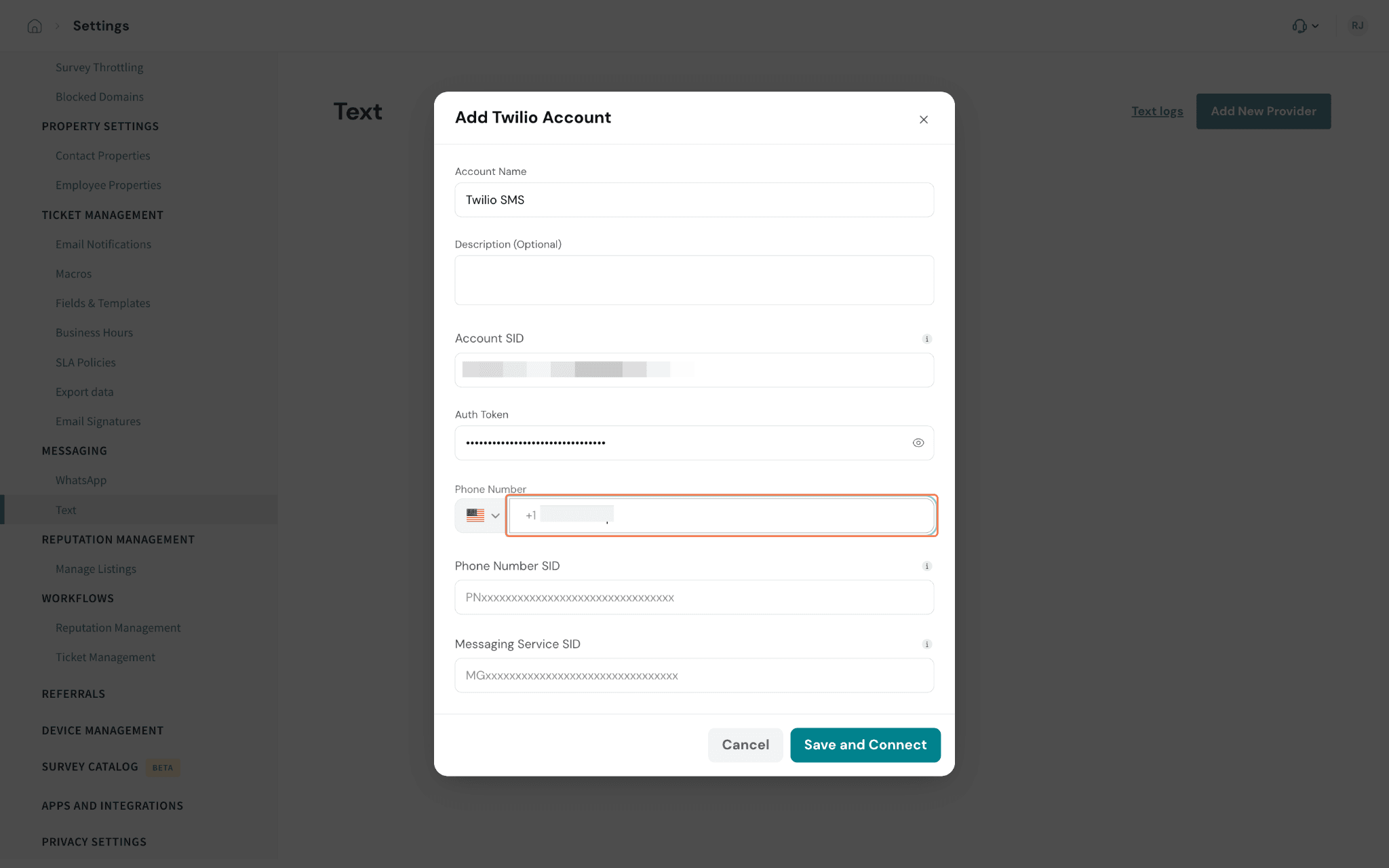
4. Enter the Phone Number SID, shown when you open the number in the Twilio Console.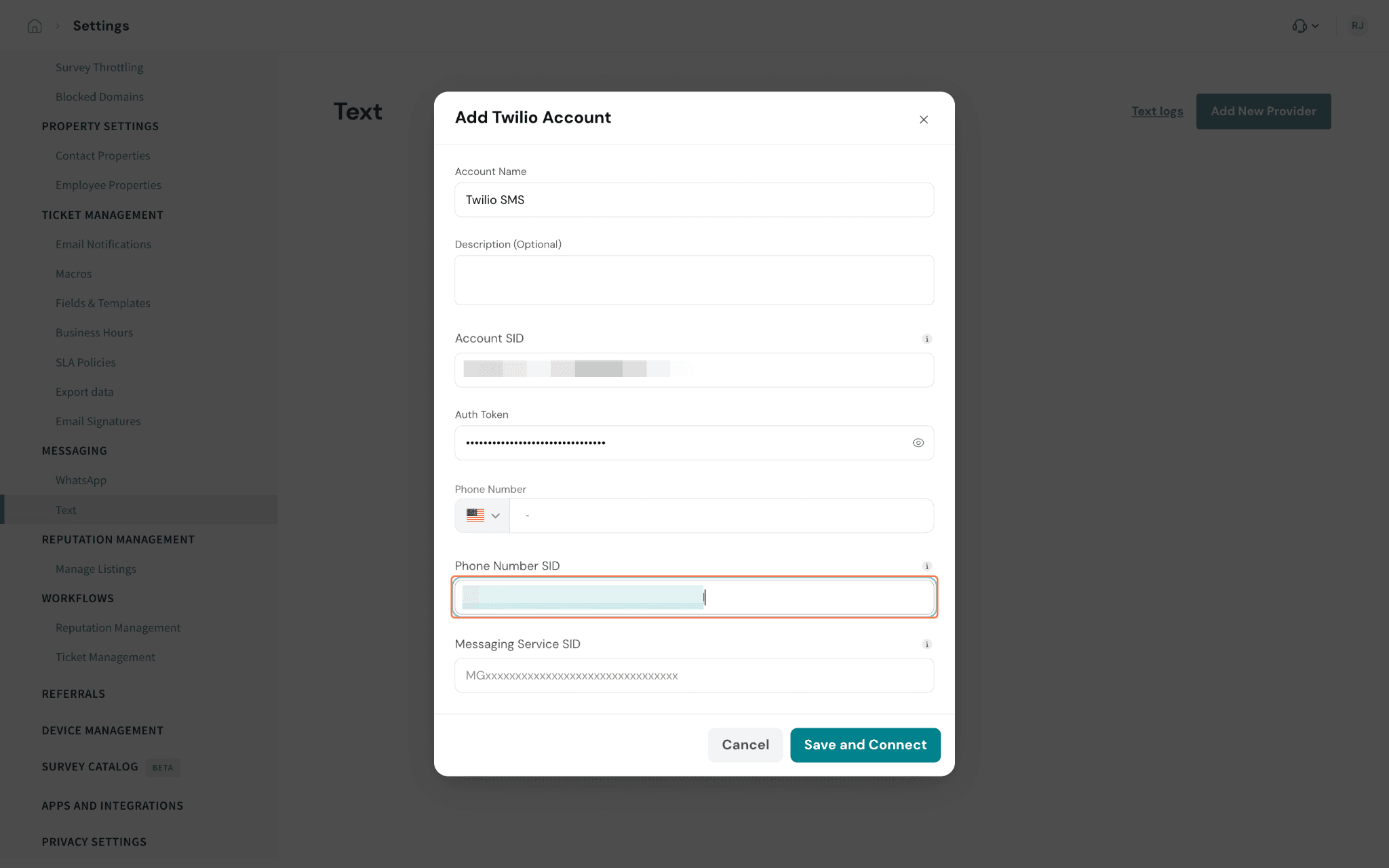
5. Enter the Messaging Service SID (it starts with MG), found under Messaging ▸ Services.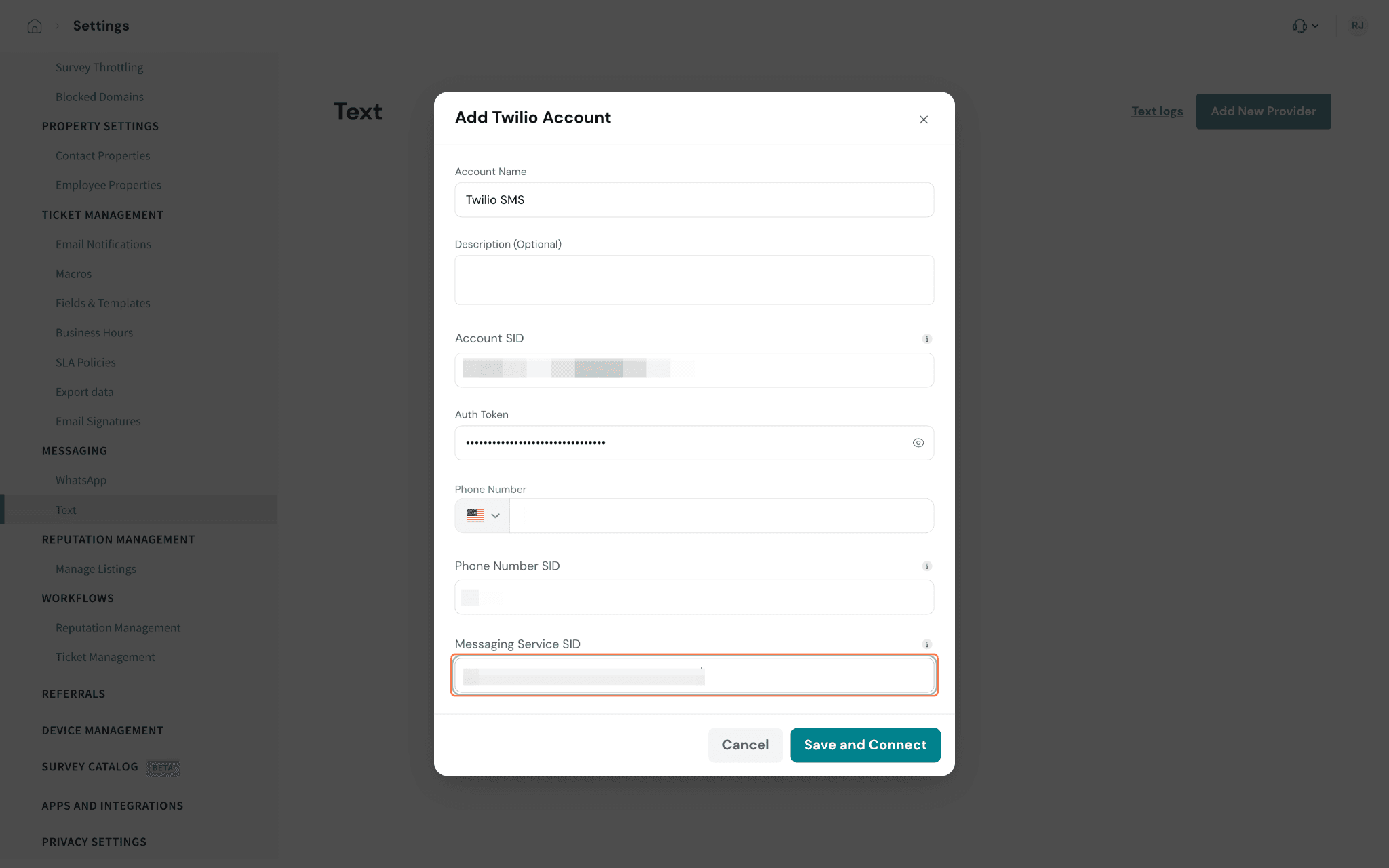
6. Click Save and Connect. A confirmation message appears, and the provider shows up as a card on the Text page.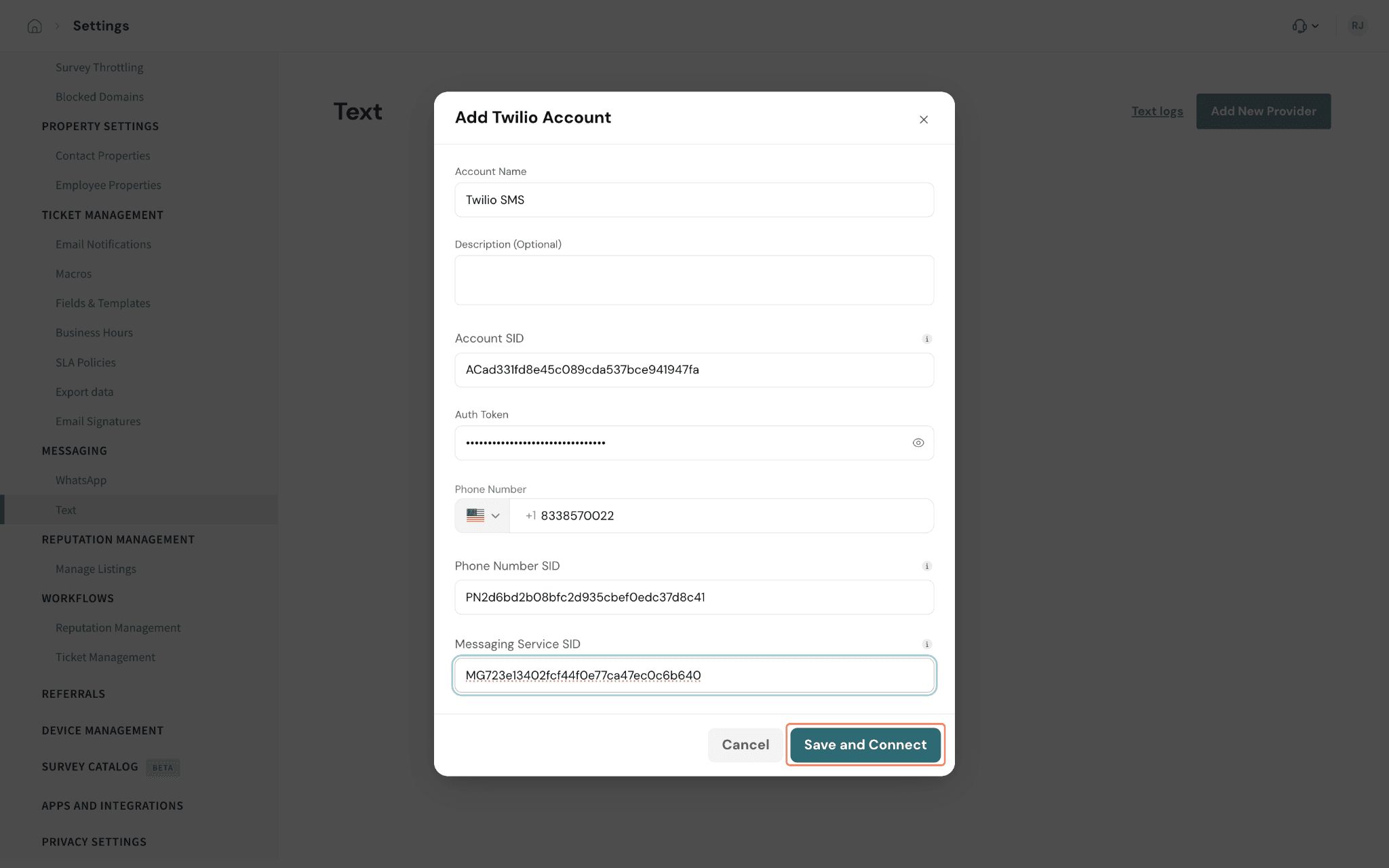
Connect Telnyx
In Settings ▸ Text, click Add New Provider and select Telnyx to open the form.
1. Enter an Account Name and, if you like, a short description.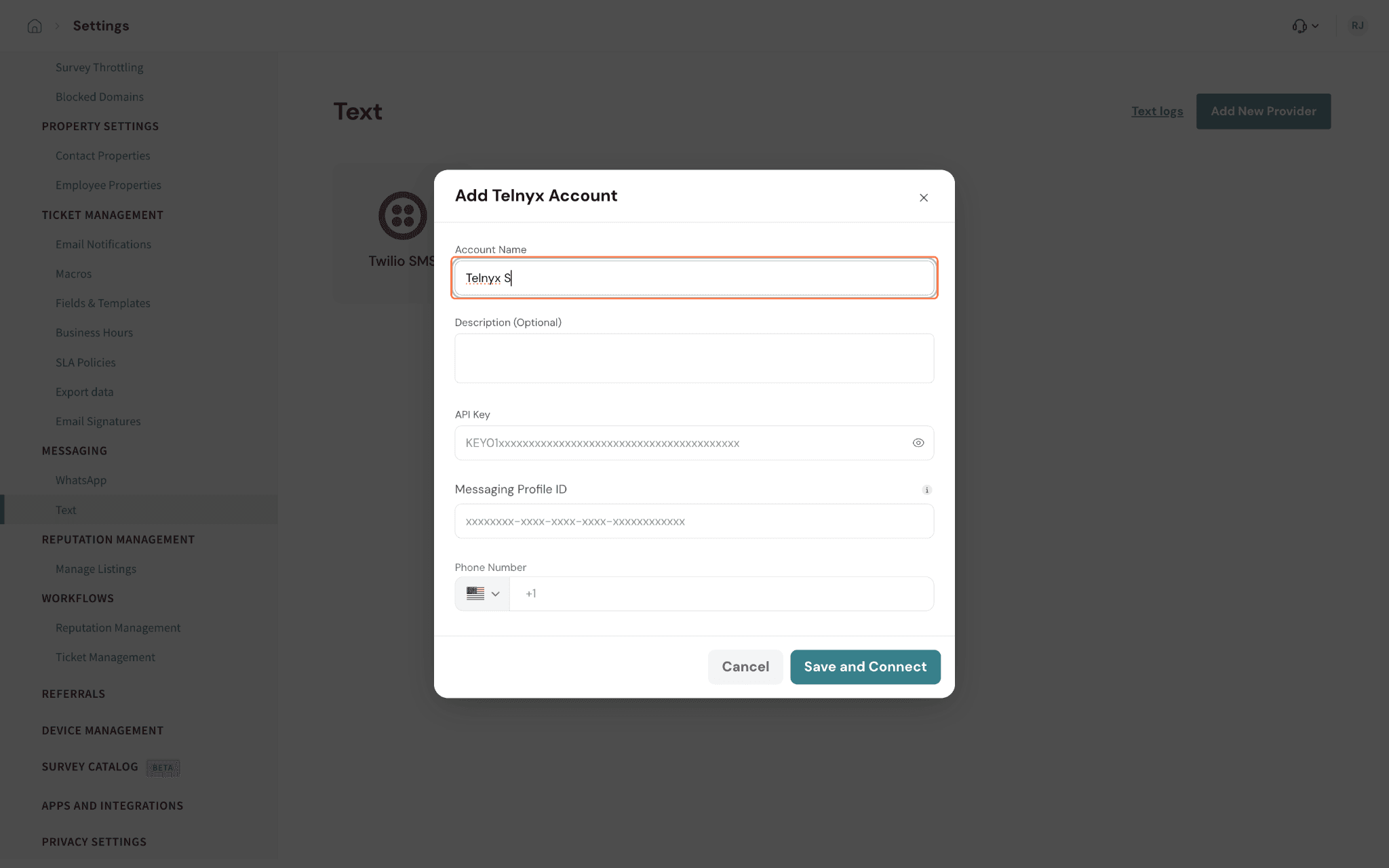
2. Paste an API Key created in the Telnyx Portal under Account Settings ▸ API Keys. Telnyx shows a new key only once, so copy it when you create it.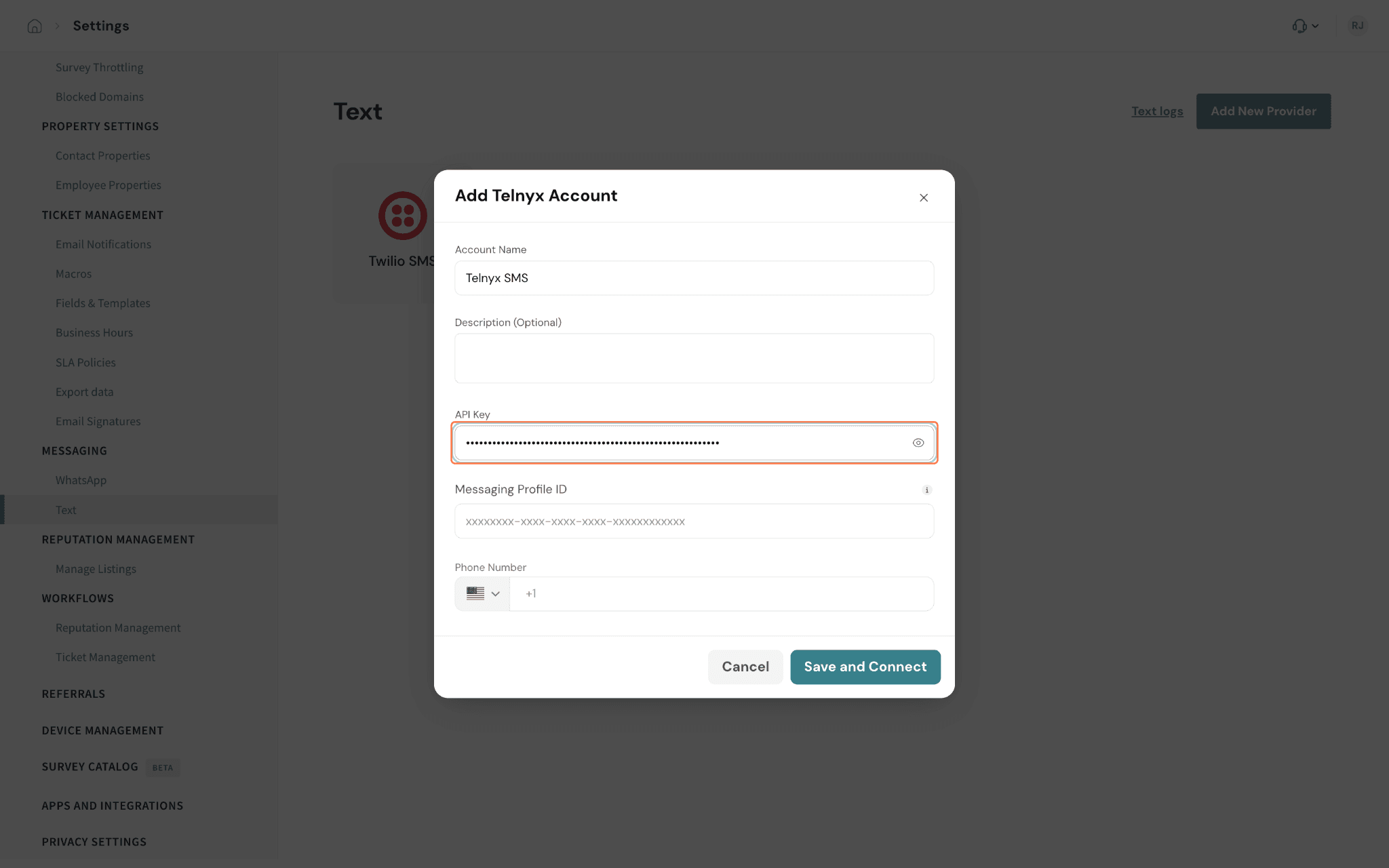
3. Enter the Messaging Profile ID from Messaging Suite ▸ Messaging Profiles in the Telnyx Portal.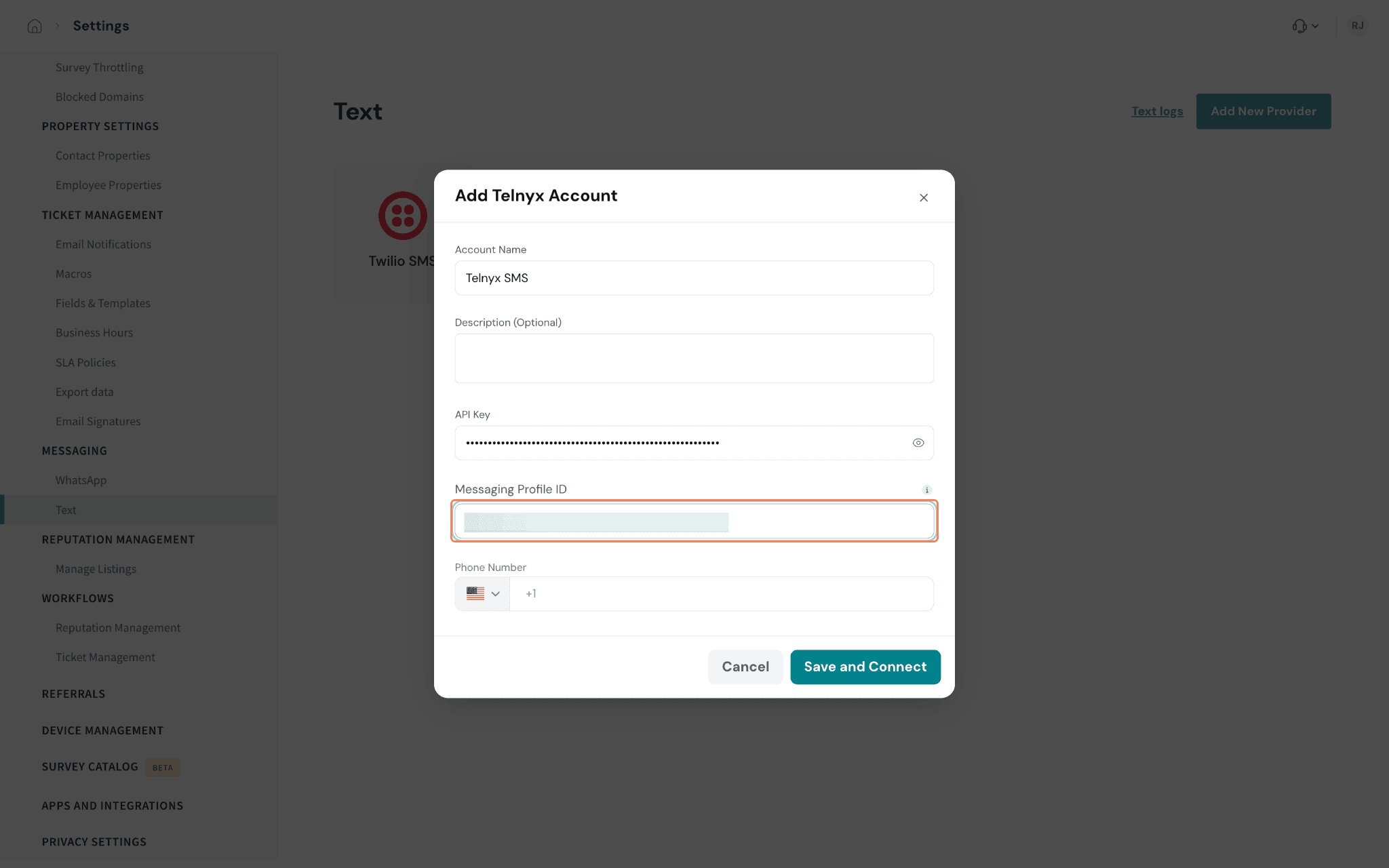
4. Select the country code and enter the Phone Number assigned to that messaging profile.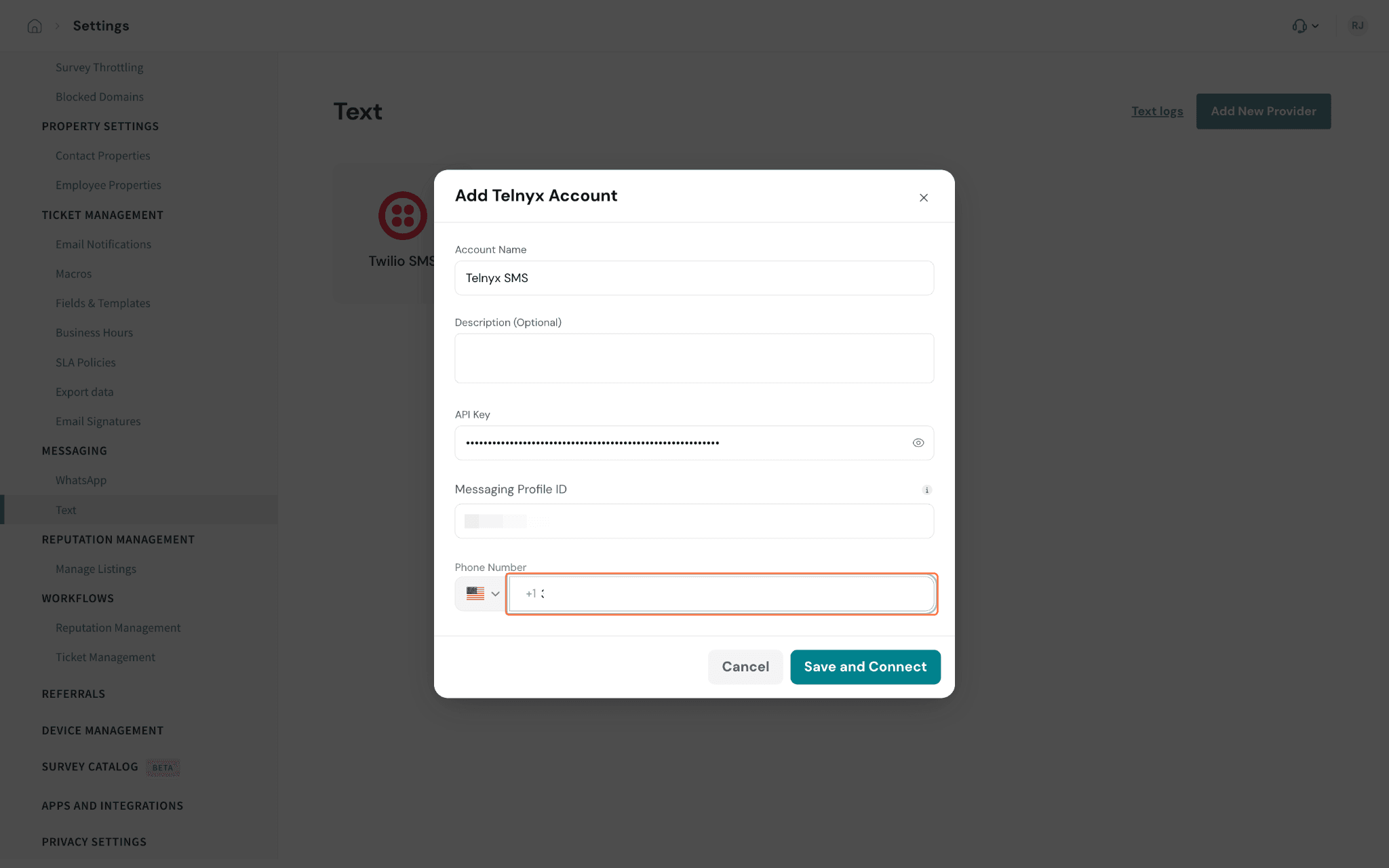
5. Click Save and Connect. A confirmation message appears, and the provider shows up as a card on the Text page.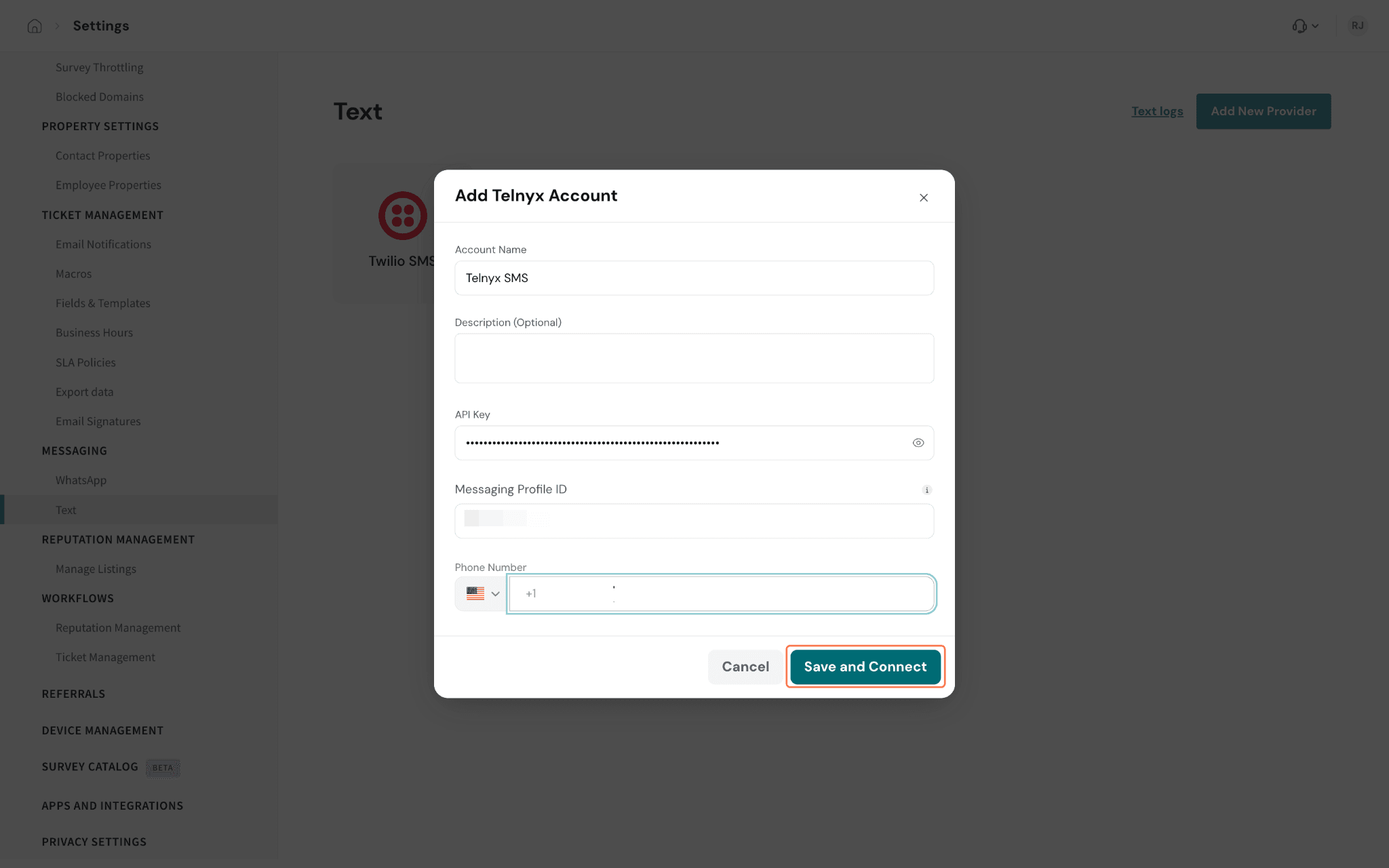
Connect a custom provider
In Settings ▸ Text, click Add New Provider and select Custom to open the form.
1. On the Outbound tab, enter a Provider Name, an optional description and an optional app icon (PNG, JPG or SVG, up to 1 MB).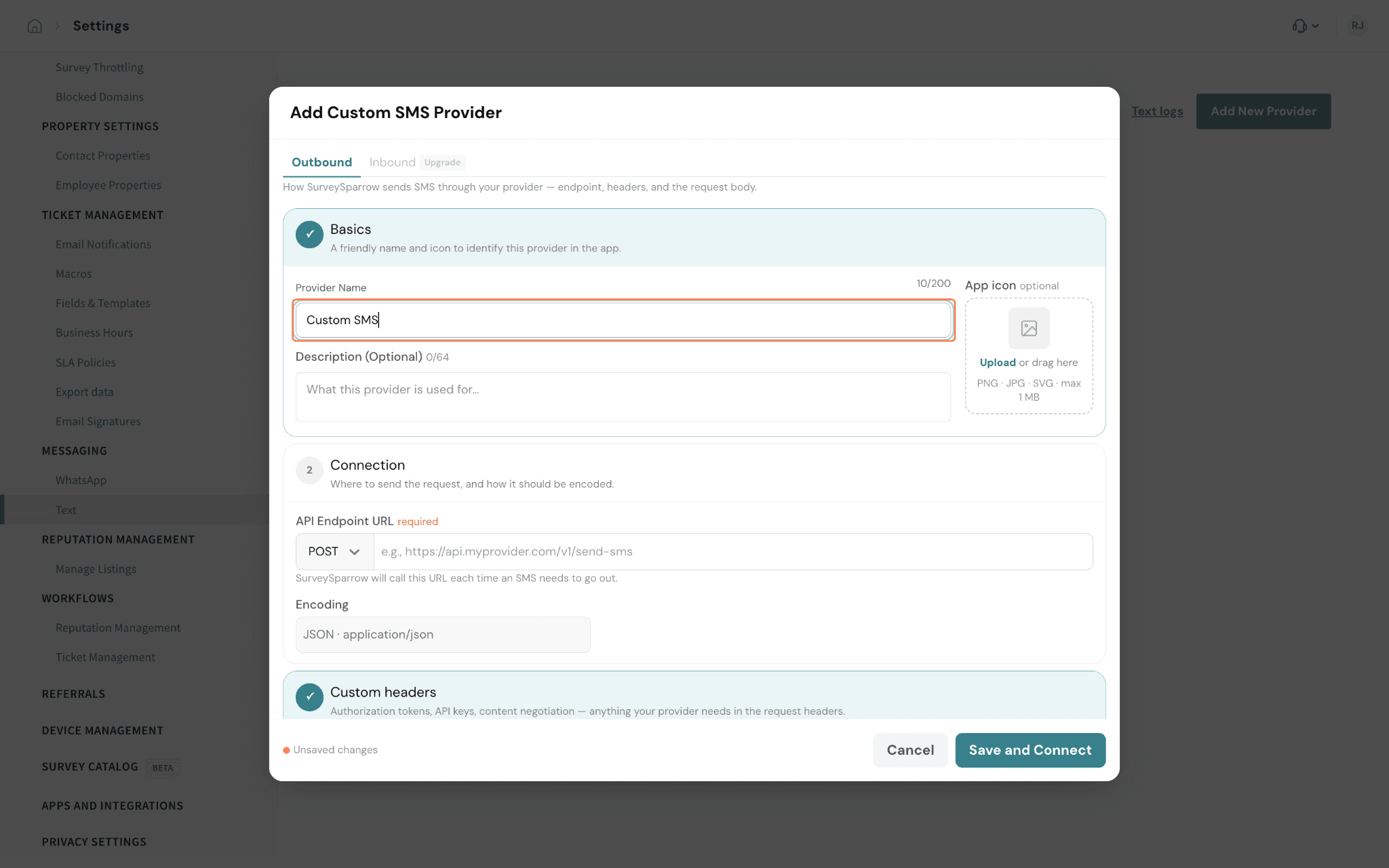
2. In API Endpoint URL, enter your gateway's send-SMS URL. SurveySparrow calls this URL, with a JSON body, each time a message goes out.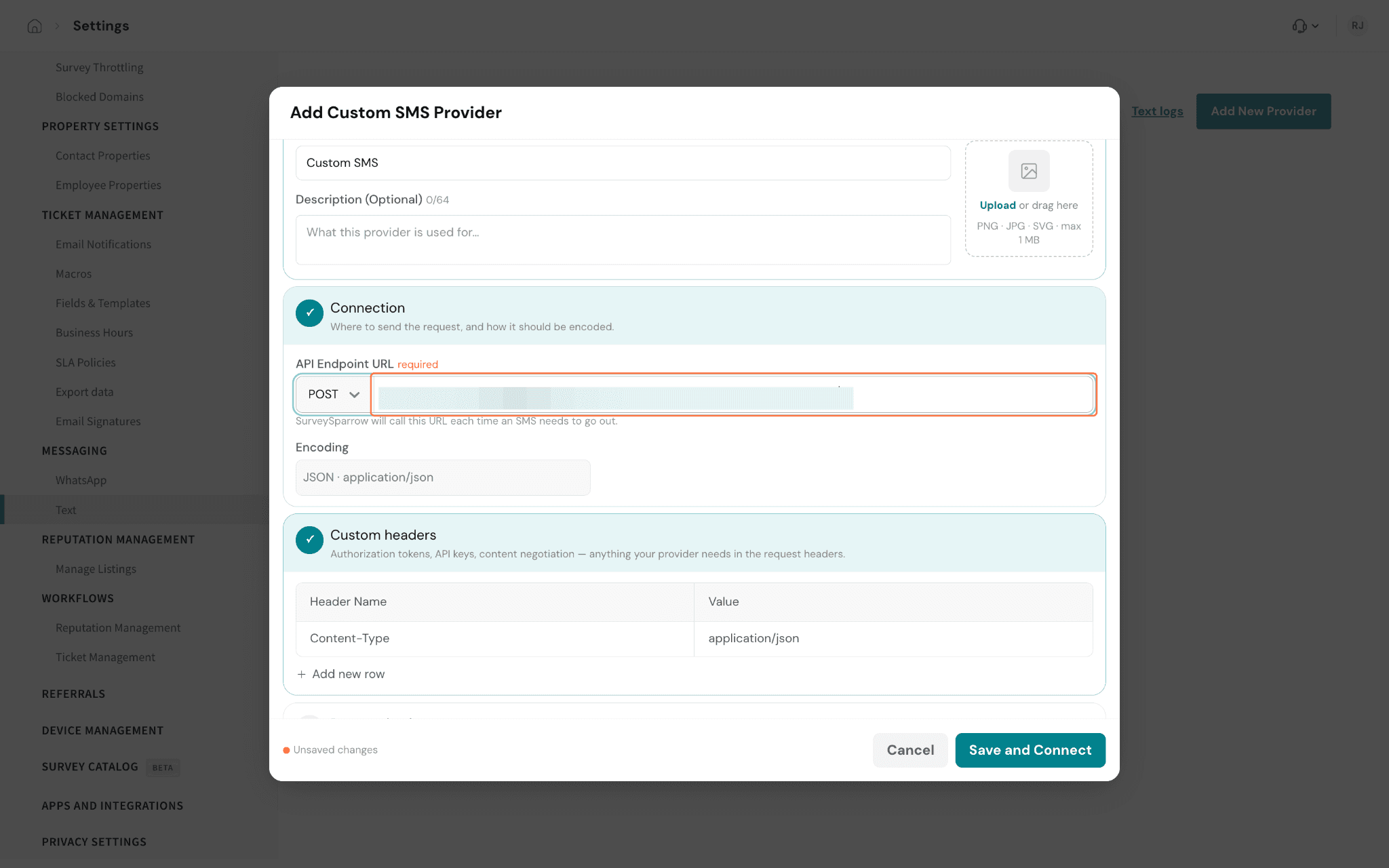
3. Under Custom headers, the Content-Type header is already set to application/json. Click Add new row to add any authorization header your gateway needs, such as an API key or bearer token.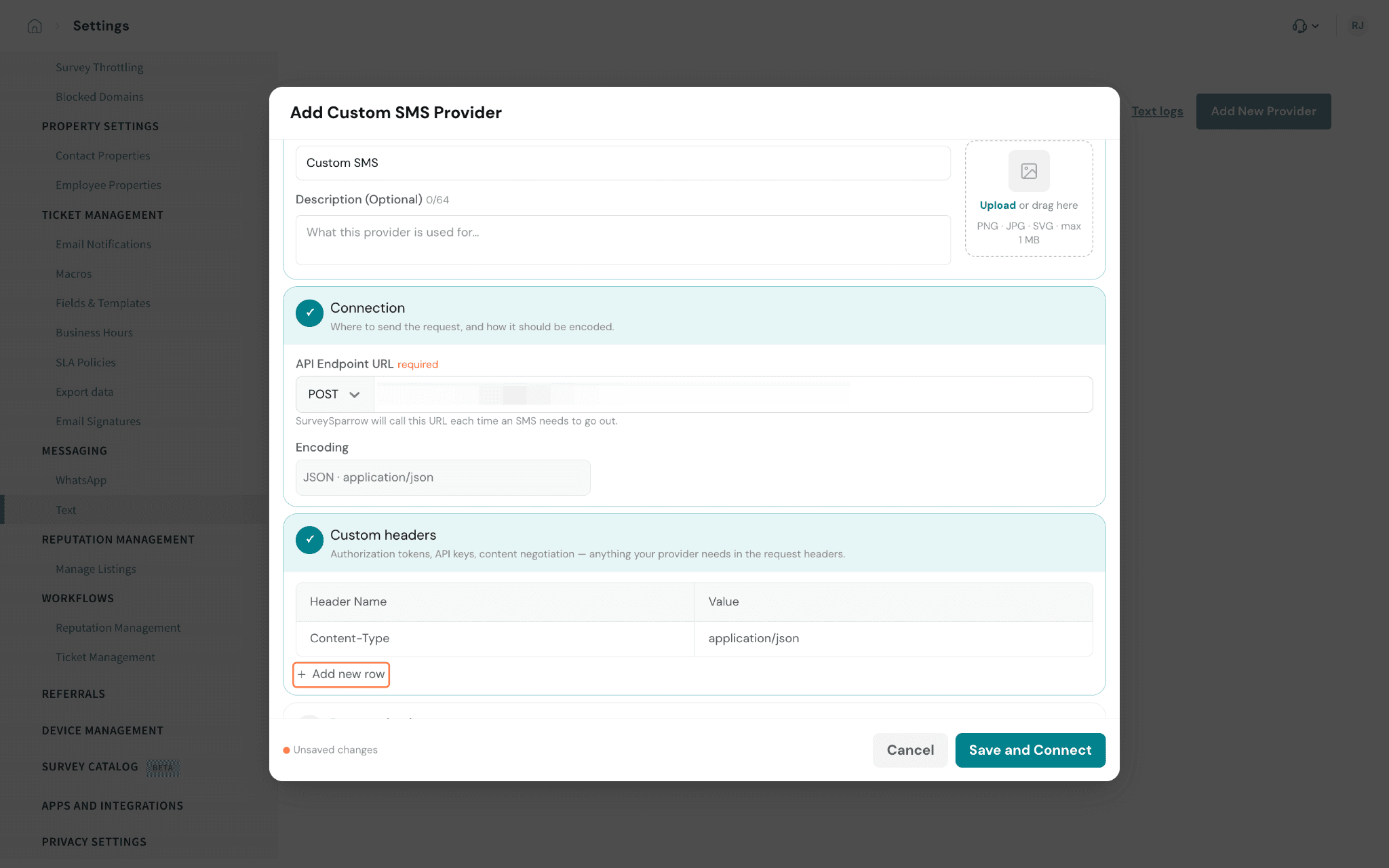
4. In the request body, enter the JSON payload. You can also add placeholders like + Message and + Mobile to insert the message text and the contact's mobile number.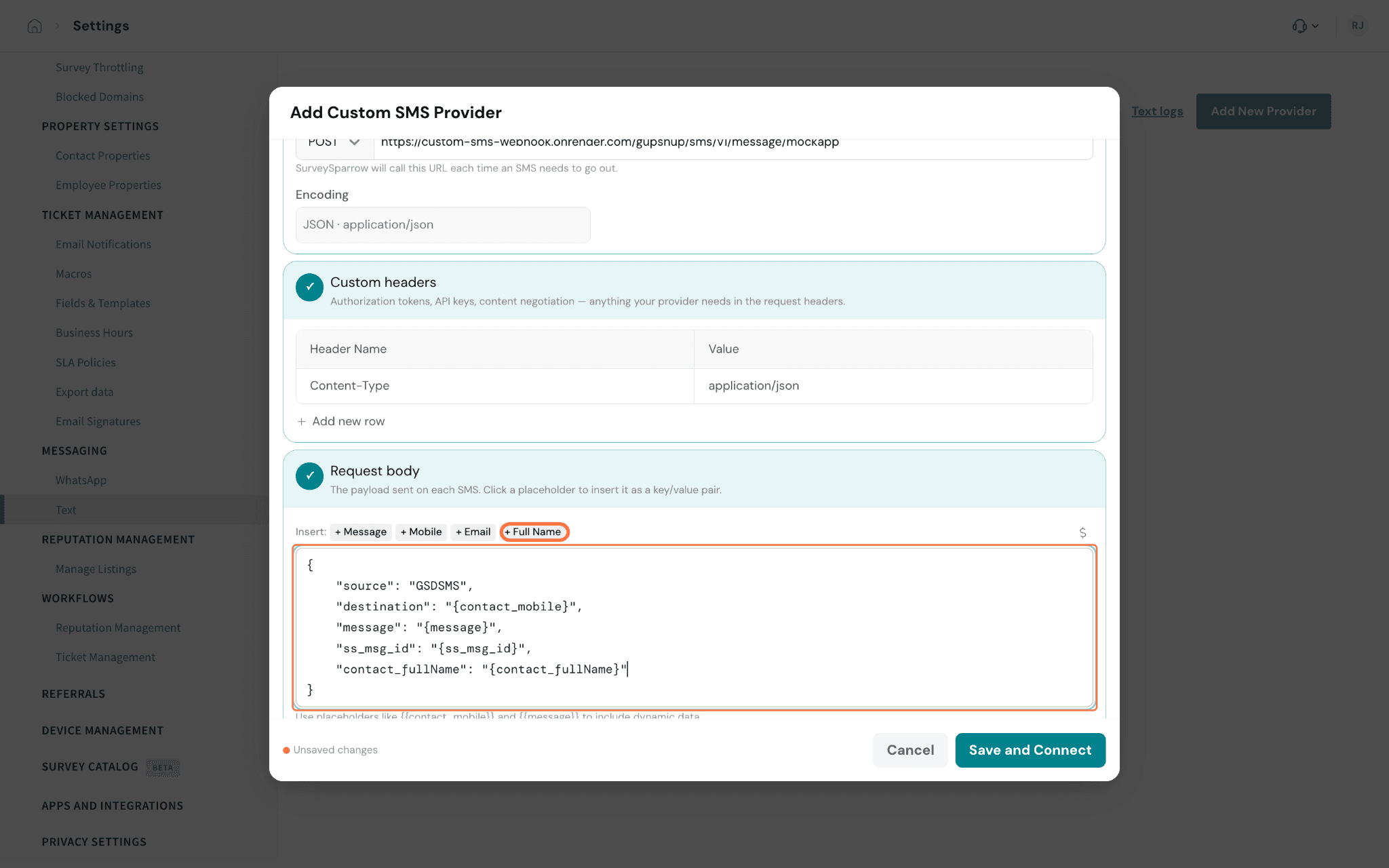
Note: Rename the keys to the ones your gateway expects, and keep the placeholder values exactly as the buttons insert them.
5. Add any fields your gateway requires, such as a sender ID. The $ menu next to the body lists more contact properties, including your custom ones.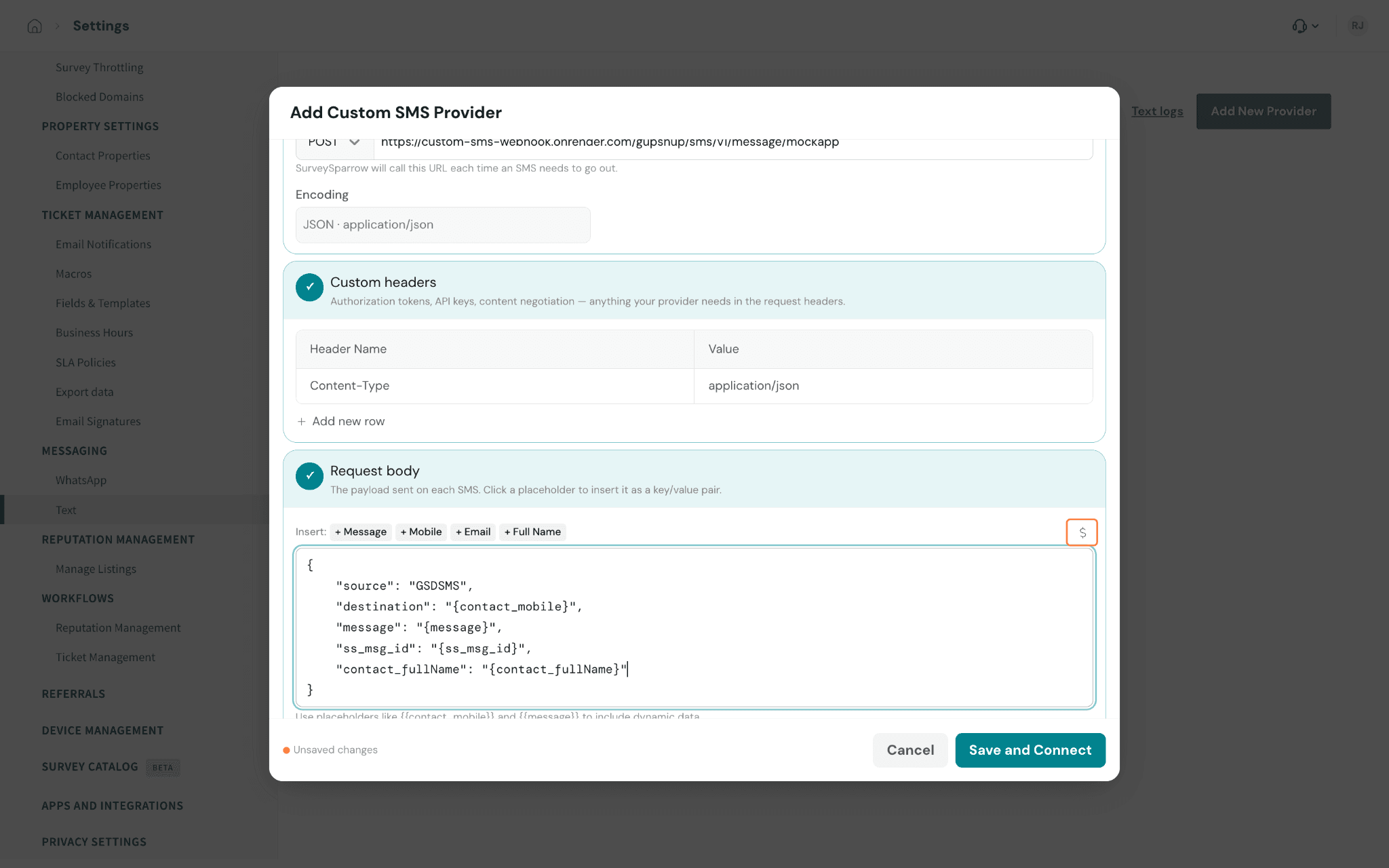
6. Click Save and Connect. A confirmation message appears, and the provider shows up as a card on the Text page.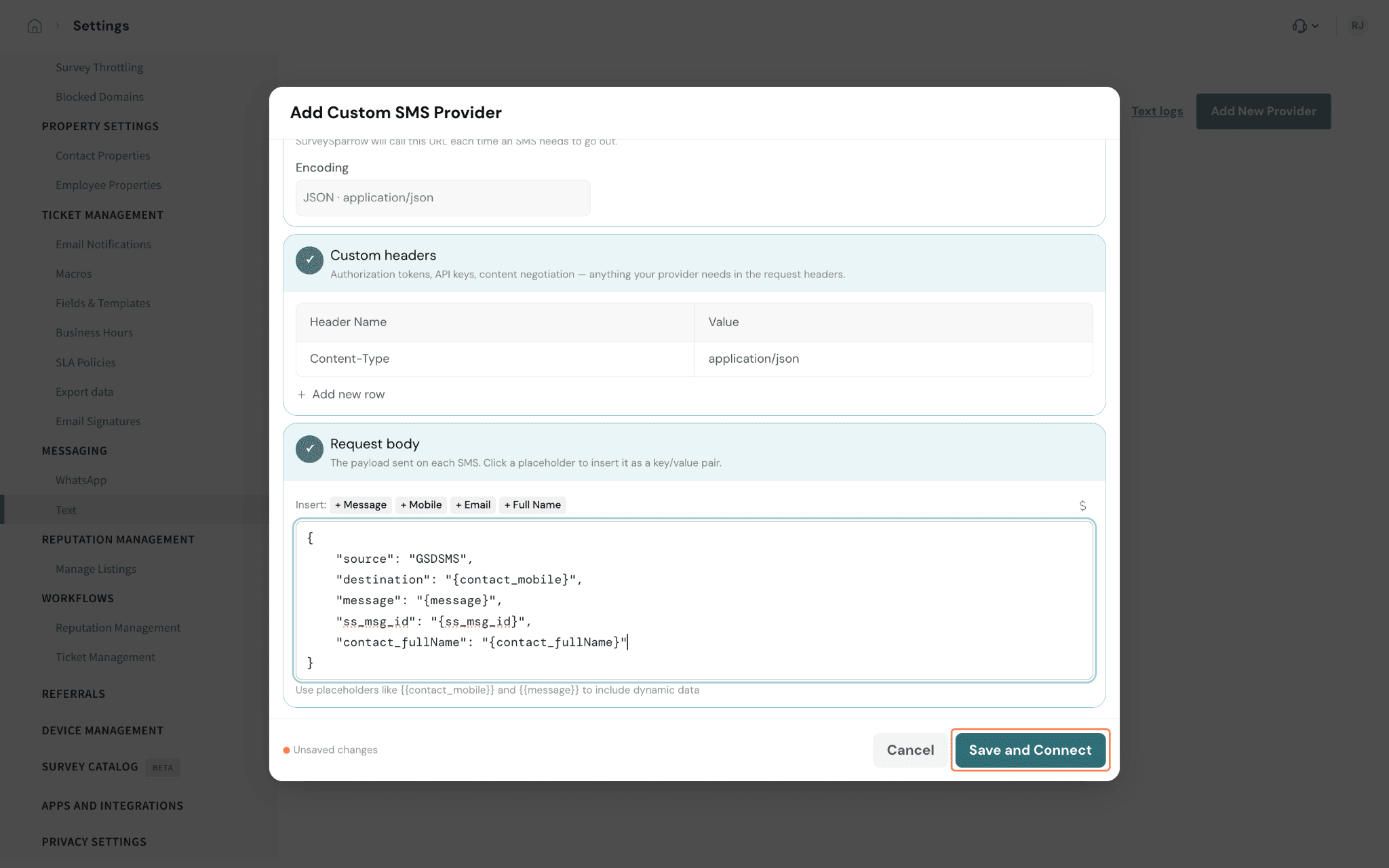
Connect SMSGlobal
You will have to connect SMSGlobal as a custom provider, so follow the same steps from the section. But enter the following values in the respective fields of the custom provider:
- URL endpoint: https://api.smsglobal.com/http-api.php
- Inside the custom header, Header: Content-Type; Value: application/x-www-form-urlencoded
Inside the request body, use this:{
"action": "sendsms",
"user": "master user name",
"password": "master password",
"from": "SMSG",
"to": "{contact_mobile}",
"text": "{message}"
}
To get the API key, refer to: https://knowledgebase.smsglobal.com/rest-api-keys-smsglobal-help-center
Note:
- You can choose not to fill in the "origin" field, allowing the use of a number from SMSGlobal's Shared Pool of numbers.
- In the case of Australian numbers, you can use either the format 61426509248 or 0426509248.
Connect Direct7
You will have to connect Direct7 as a custom provider, so follow the same steps from the section. But enter the following values in the respective fields of the custom provider:
- URL endpoint: https://api.d7networks.com/messages/v1/send
- Inside the custom header, add two headers:
- Header: Content-Type; Value: application/x-www-form-urlencoded
- Header: Authorization; Value: Bearer <your bearer token>
Inside the request body, use this:
{
"messages": [
{
"channel": "sms",
"recipients": ["{contact_mobile}"],
"content": "{message}",
"msg_type": "text",
"data_coding": "text"
}
]
}
To learn how to use the Direct7SMS API, use this: https://documenter.getpostman.com/view/2513454/SzS4QmSr#8bdf3231-9677-4f8b-b3cd-fcea6eaa135f
Connect Infobip
You will have to connect Infobip as a custom provider, so follow the same steps from the section. But enter the following values in the respective fields of the custom provider:
- URL endpoint: https://zj324k.api.infobip.com/sms/2/text/advanced
- Inside the custom header, add two headers:
- Header: Content-Type; Value: application/json
- Header: Authorization; Value: App <API_KEY>
Inside the request body, use this:
{
"messages": [
{
"destinations": [
{
"to": "{contact_mobile}"
}
],
"from": "Homzmart",
"text": "{message}"
}
]
}
To get your API key, check: https://www.infobip.com/docs/essentials/api-essentials/api-authentication
To understand how Infobips’ API documentation works, visit: https://www.infobip.com/docs/api/channels/sms
Manage your providers
1. To make a provider your default, click the ⋮ icon on its card on the Text page and select Set as Default.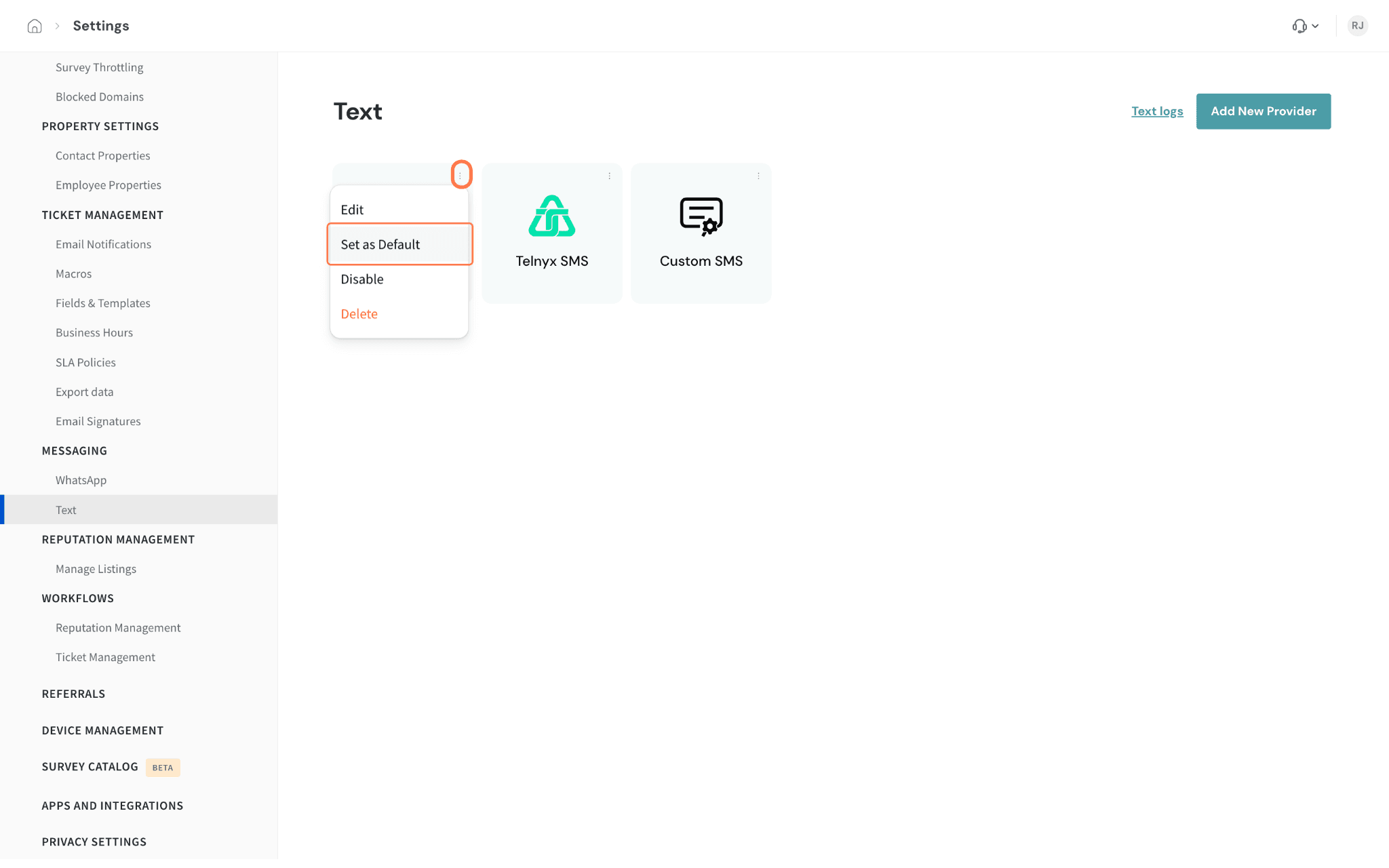
The same menu lets you Edit the credentials, Disable a provider without deleting it, or Delete it.
Send a survey with your provider
Once a provider is connected, open a survey's Distribute page and click SMS. In the share's Provider menu, choose the provider to send from, then set up the message and recipients. Each SMS share has its own Provider menu. For the full sending steps, see SMS Share of Surveys.
Troubleshooting
- Save and Connect doesn't succeed. Recheck each value against your provider console and paste it again without leading or trailing spaces. For Twilio, the Account SID starts with AC, the Phone Number SID with PN and the Messaging Service SID with MG. If you have changed your Twilio Auth Token or created a new Telnyx API key, enter the new value.
- The share says the messages were sent, but nobody received them. Open Text logs on the Text page to see each message SurveySparrow sent, then check the same messages in your provider's own message logs. See How to Access Various Logs in SurveySparrow for how to read them. Common causes:
- Messages from US local numbers without approved A2P 10DLC registration can be filtered by carriers. Complete the registration in your Twilio or Telnyx account.
- A Twilio trial account can only send to phone numbers you have verified in Twilio.
- The contact has no mobile number, or it is missing its country code. Check the contact in Contacts Management.
- A custom provider accepts the request, but no SMS arrives. A success response from your gateway only means it accepted the request, not that the message was delivered. Check the gateway's own delivery reports. If your endpoint returns an error status, the message is marked as failed in SurveySparrow.
- A long message never goes out. Twilio rejects messages longer than 1,600 characters. Shorten the message text in the SMS share.
- The share says there are no active contacts. Survey throttling may be excluding contacts who were surveyed recently. See
FAQ
Do I need my own SMS provider to send surveys by text? No. SMS shares can use SurveySparrow's default provider. Connect your own when you want messages to go out from your own number and provider account.
Can I connect more than one provider? Yes. Each provider appears as its own card on the Text page, and you choose which one to use in each SMS share.
Can recipients see my company name instead of a phone number? The sender that recipients see comes from your provider account, either the number or a sender ID you have registered with that provider. Sender ID rules vary by country, so check them with your provider.
How do I update credentials or stop using a provider? On the Text page, click the ⋮ icon on the provider's card. Select Edit to change its details, Disable to pause it, or Delete to remove it.
Which details can I include in a custom provider's request body? Use + Message, + Mobile, + Email and + Full Name for the most common fields. The $ menu lists the rest of your contact properties, including custom properties.
Still have questions about connecting your SMS provider? Reach out to us. We are just a chat away!