
SMS Share of Surveys

Send surveys directly to respondents through SMS. SurveySparrow lets you send a survey link or run a two-way SMS survey where respondents answer questions through text messages. You can personalize the message, choose who receives it, schedule the send, and set up reminders.
This article explains how to start an SMS share, customize the message, choose a survey sharing method, add recipients, schedule delivery, and set up SMS reminders.
Share a survey via SMS
Follow these steps to create an SMS share for your survey.
1. Open your survey and click Distribute.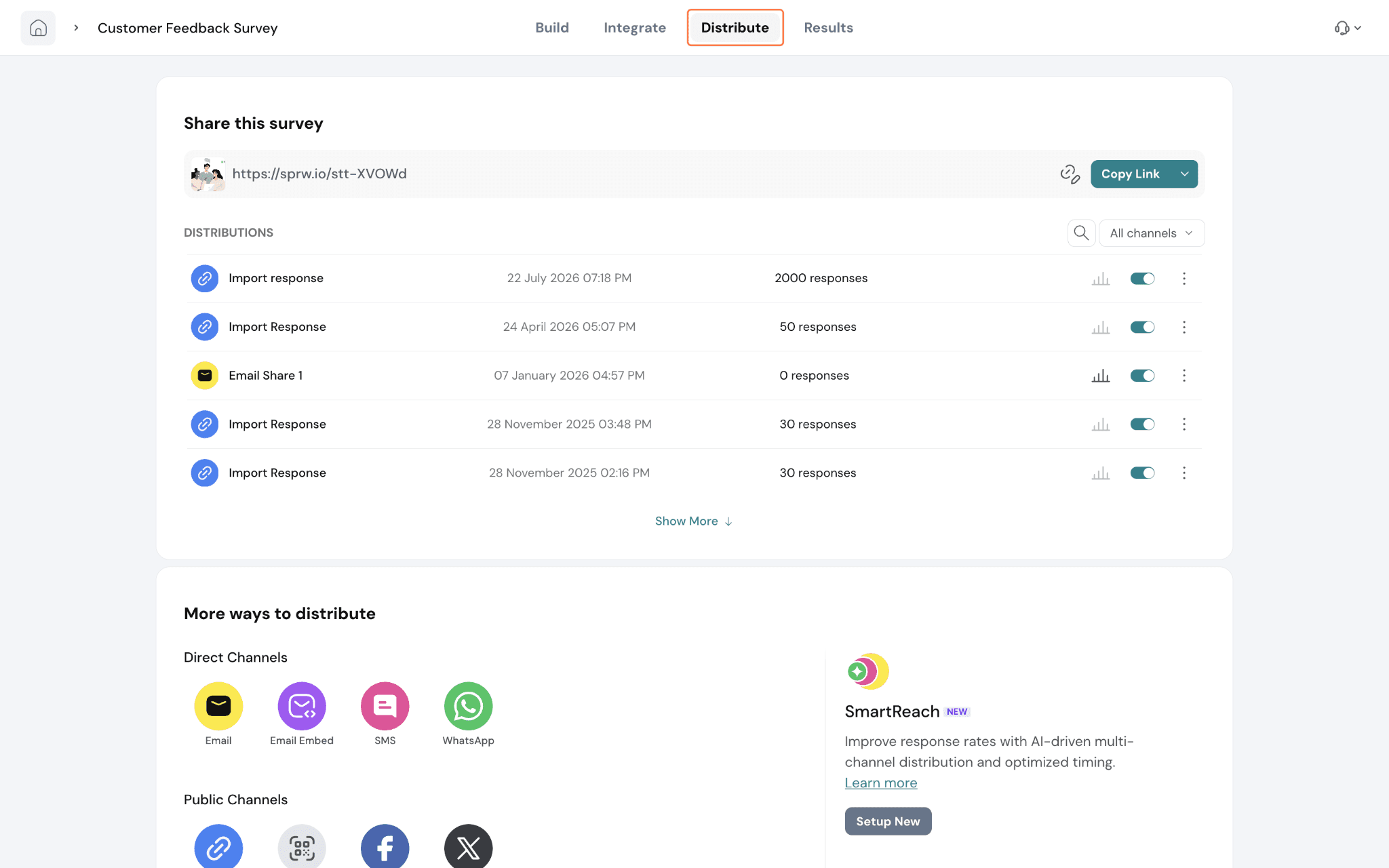
2. Scroll to More ways to distribute and click SMS.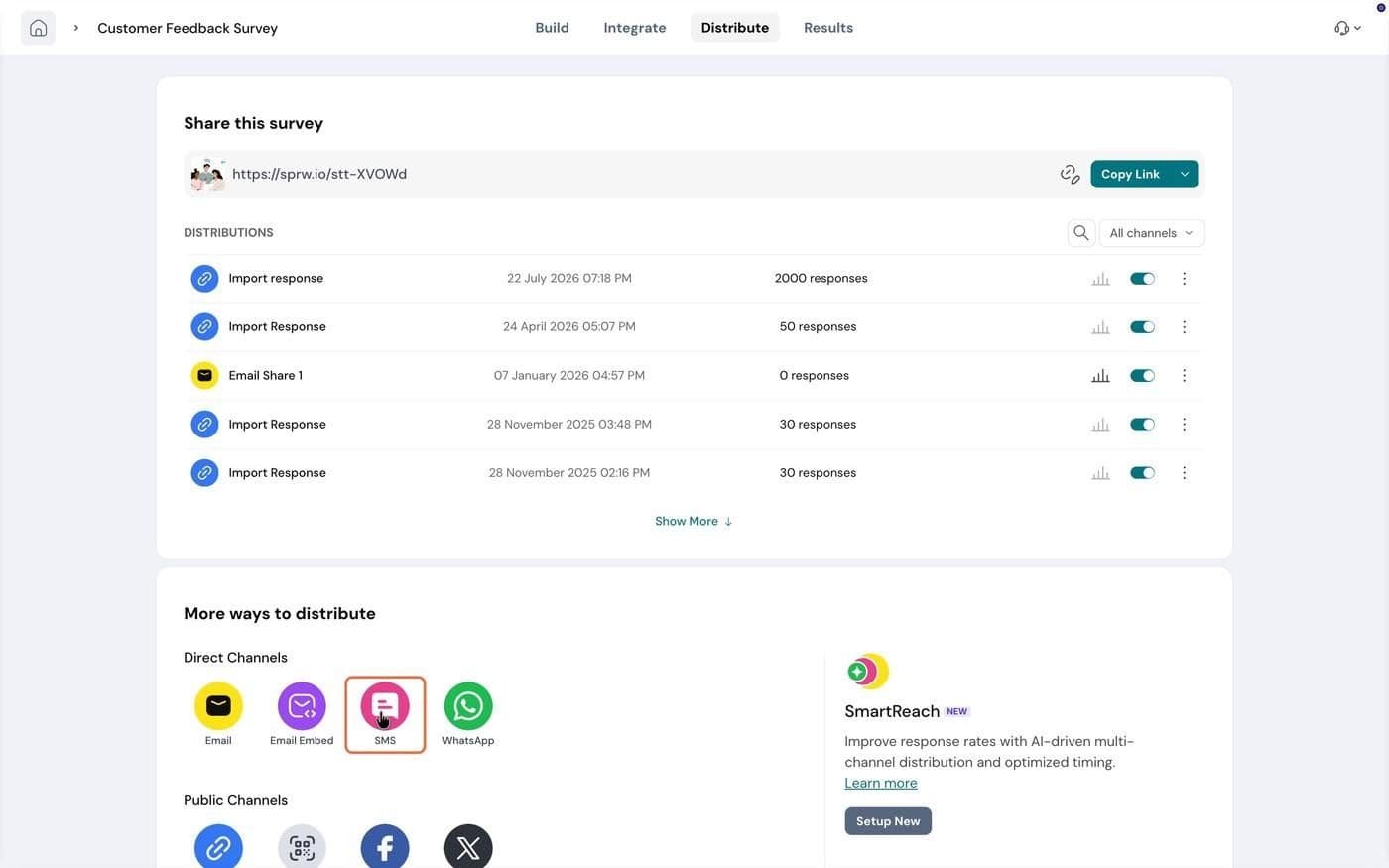
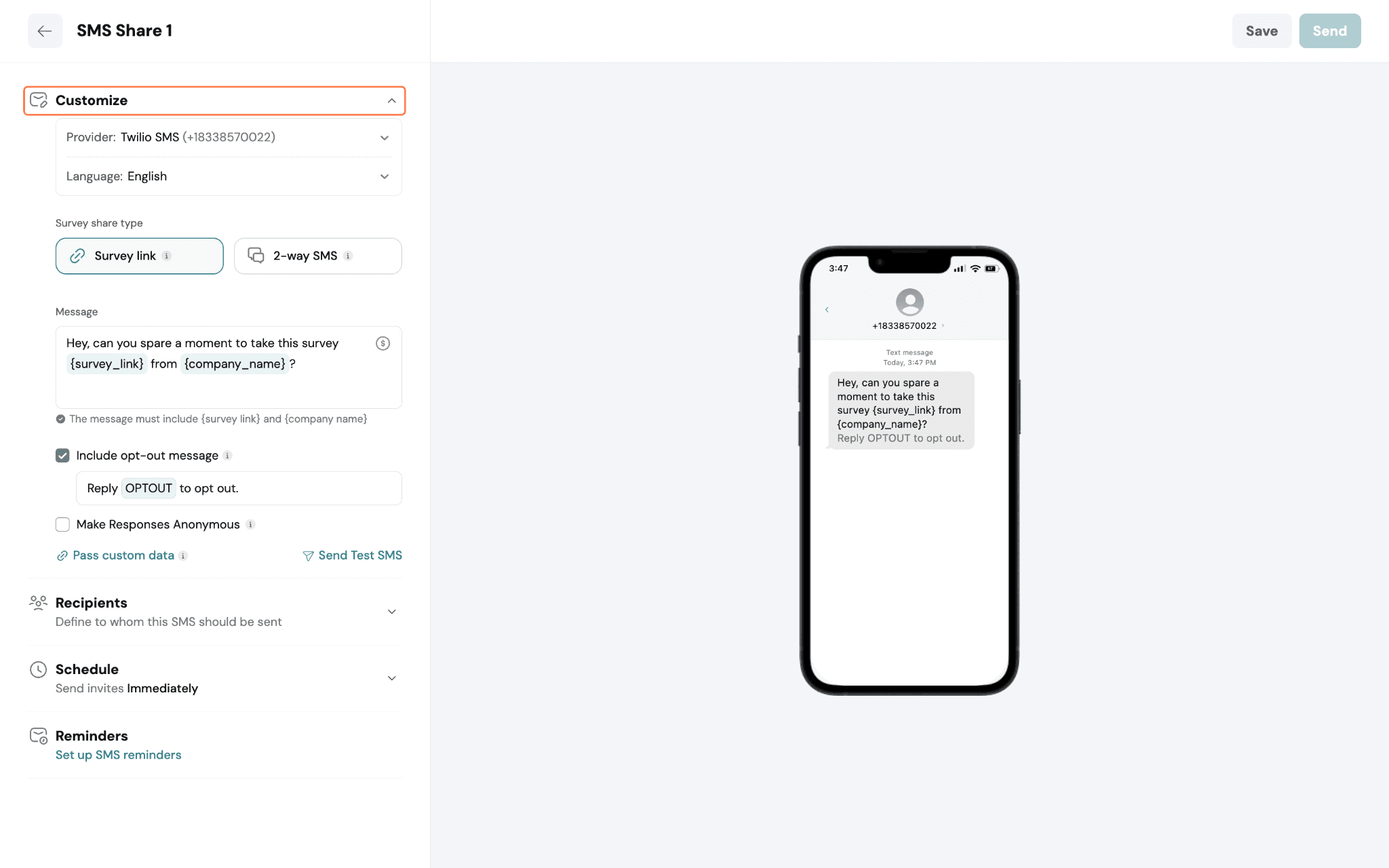
3. The SMS Share screen opens. Use the Customize section to configure the SMS before choosing your recipients.
Customize the SMS
The Customize section controls the sender setup, language, message, and survey experience.
1. Under Provider, select the SMS provider you want to use. 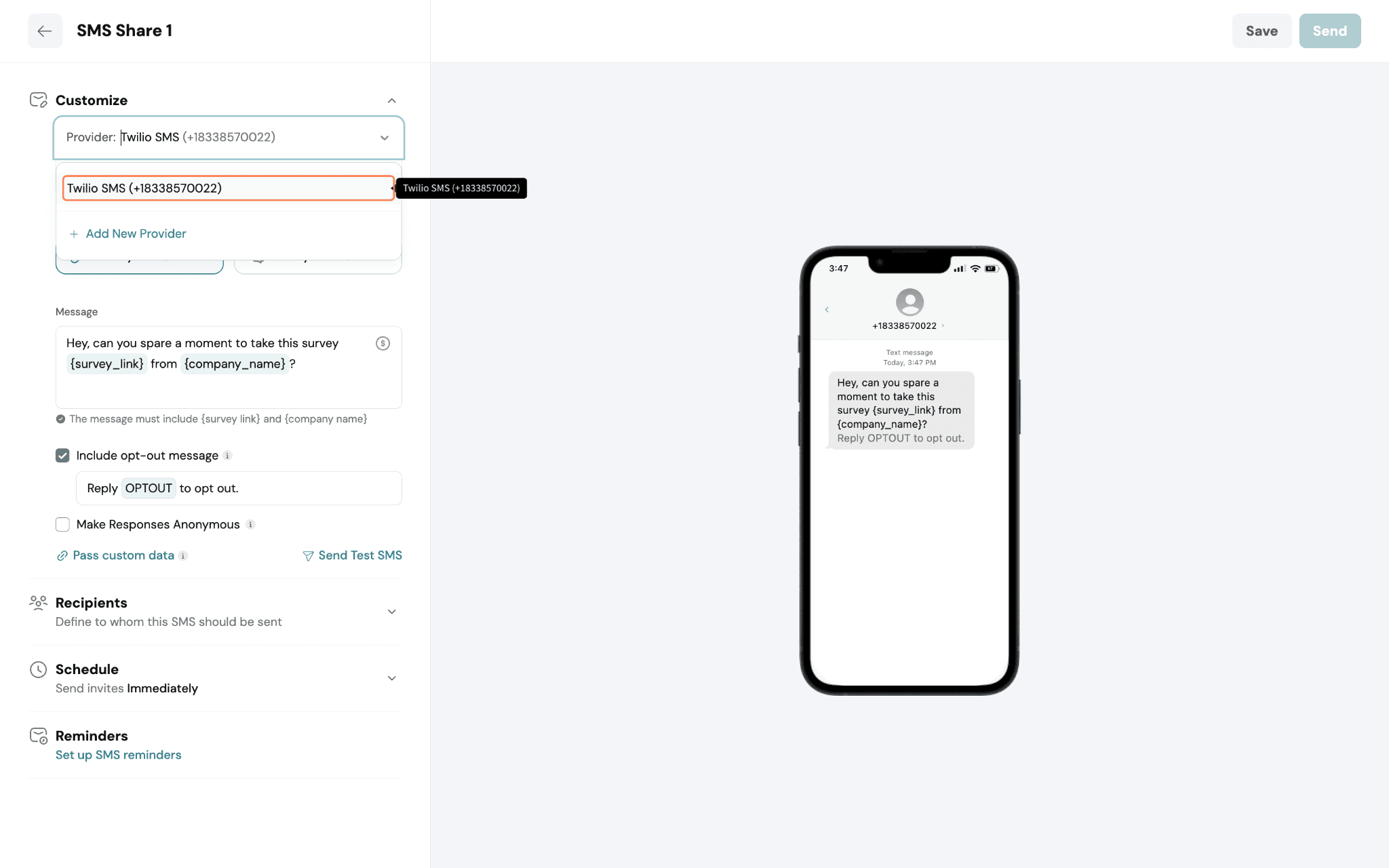
2. Under Survey share type, you can either choose to share the survey link in the SMS or create a two-way conversation, wherein the respondent replies to each question within the conversation itself. We’ll cover two-way SMS in the next section.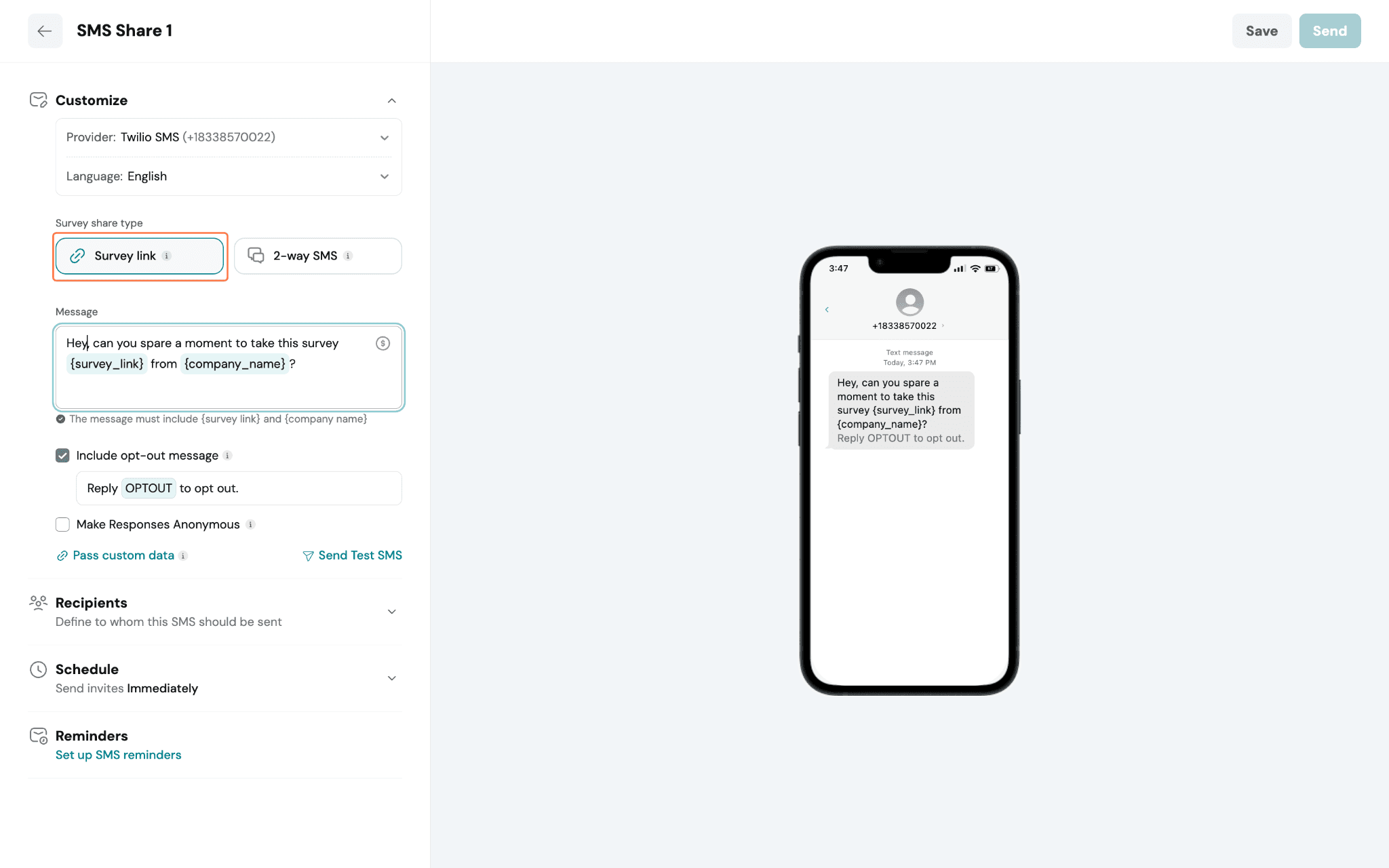
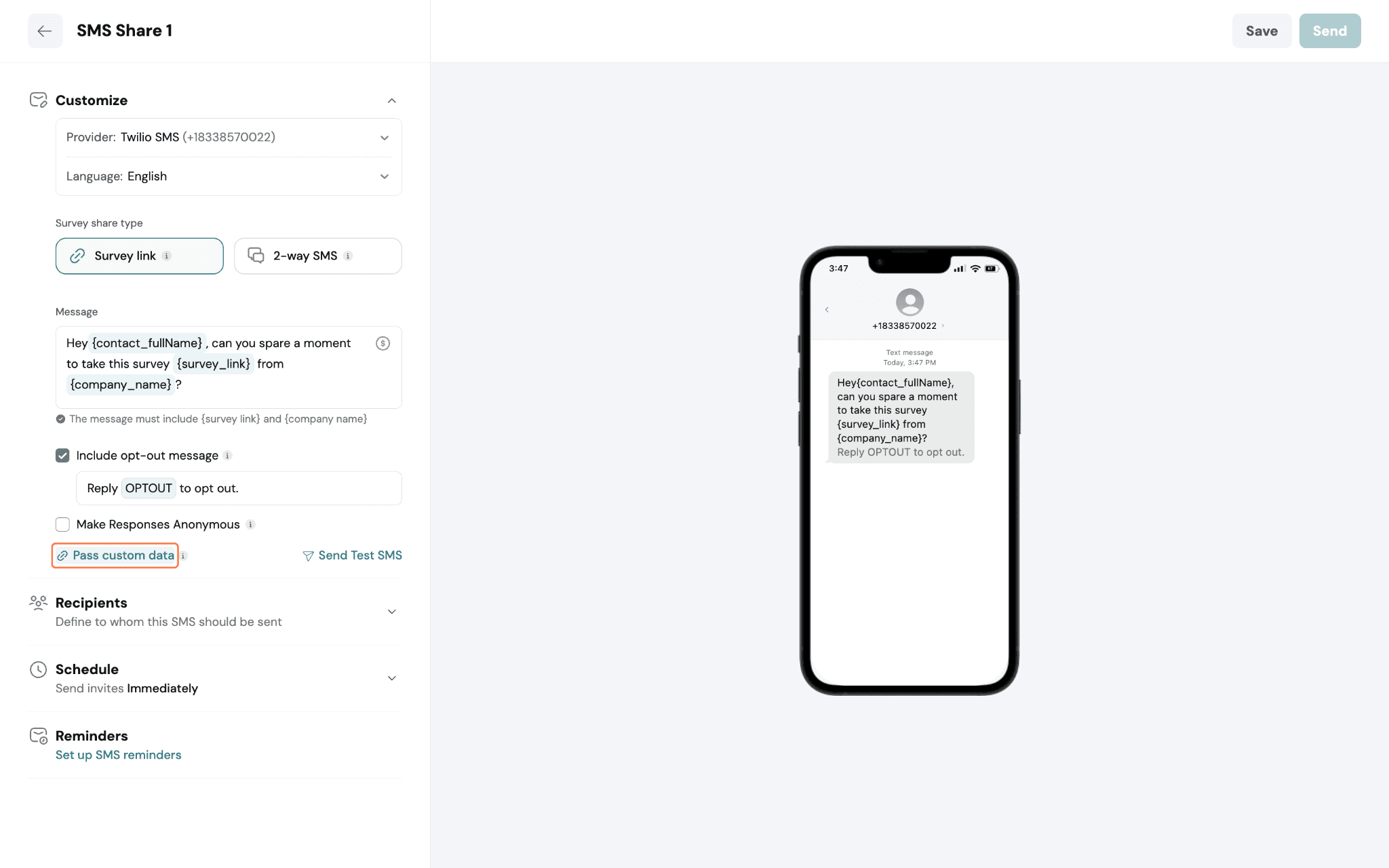
3. Edit the opening message as needed. You must always keep the {survey_link} and {company_name} variables in the message. Optionally, you can further personalize the message with other variables by clicking on the $ icon. In this example, we’re adding the {contact_fullName} variable.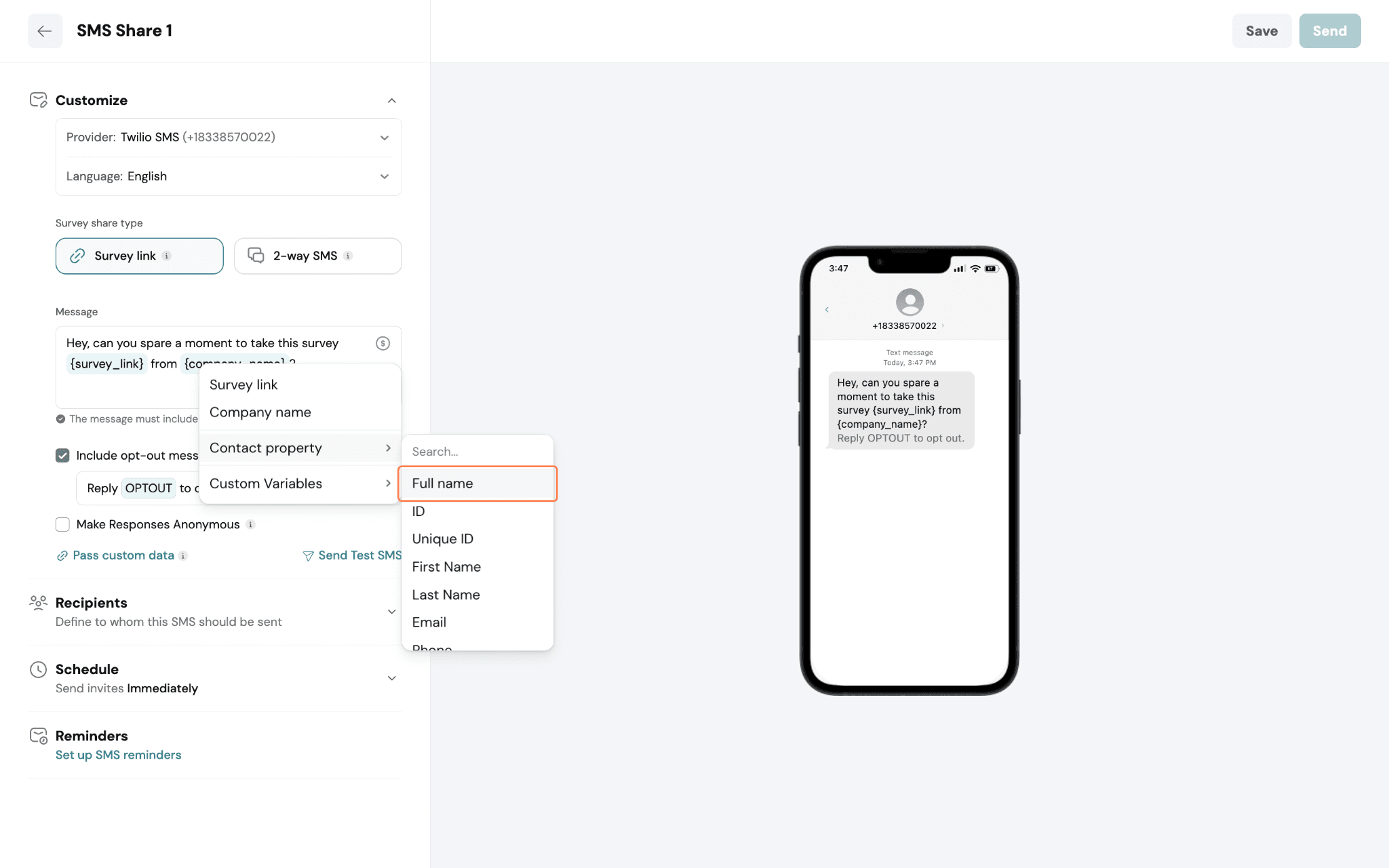
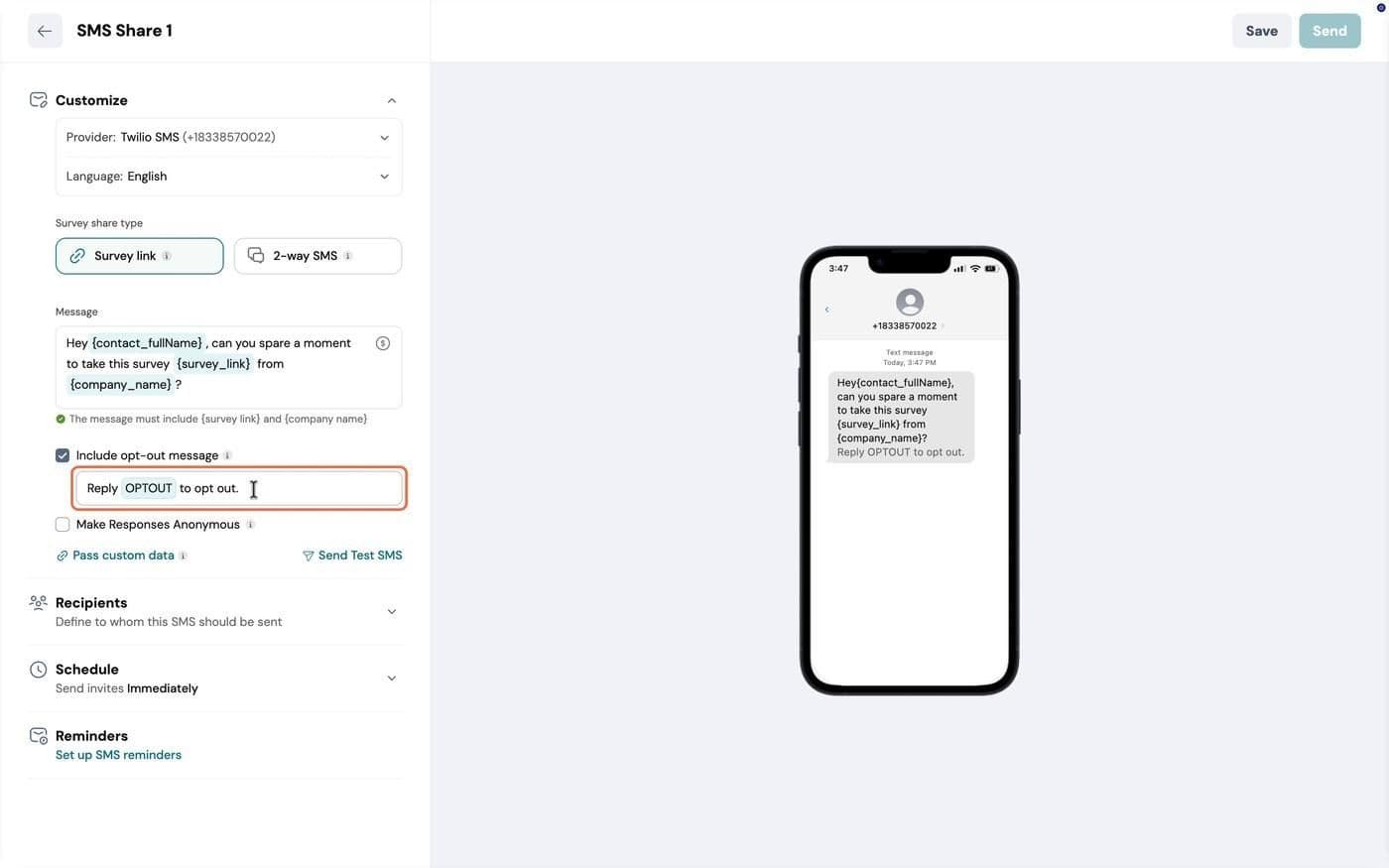
4. An opt-out message is provided by default. You can disable it by clicking on the checkbox. You can also edit the text.
5. If you do not want responses linked to individual respondents, select Make Responses Anonymous.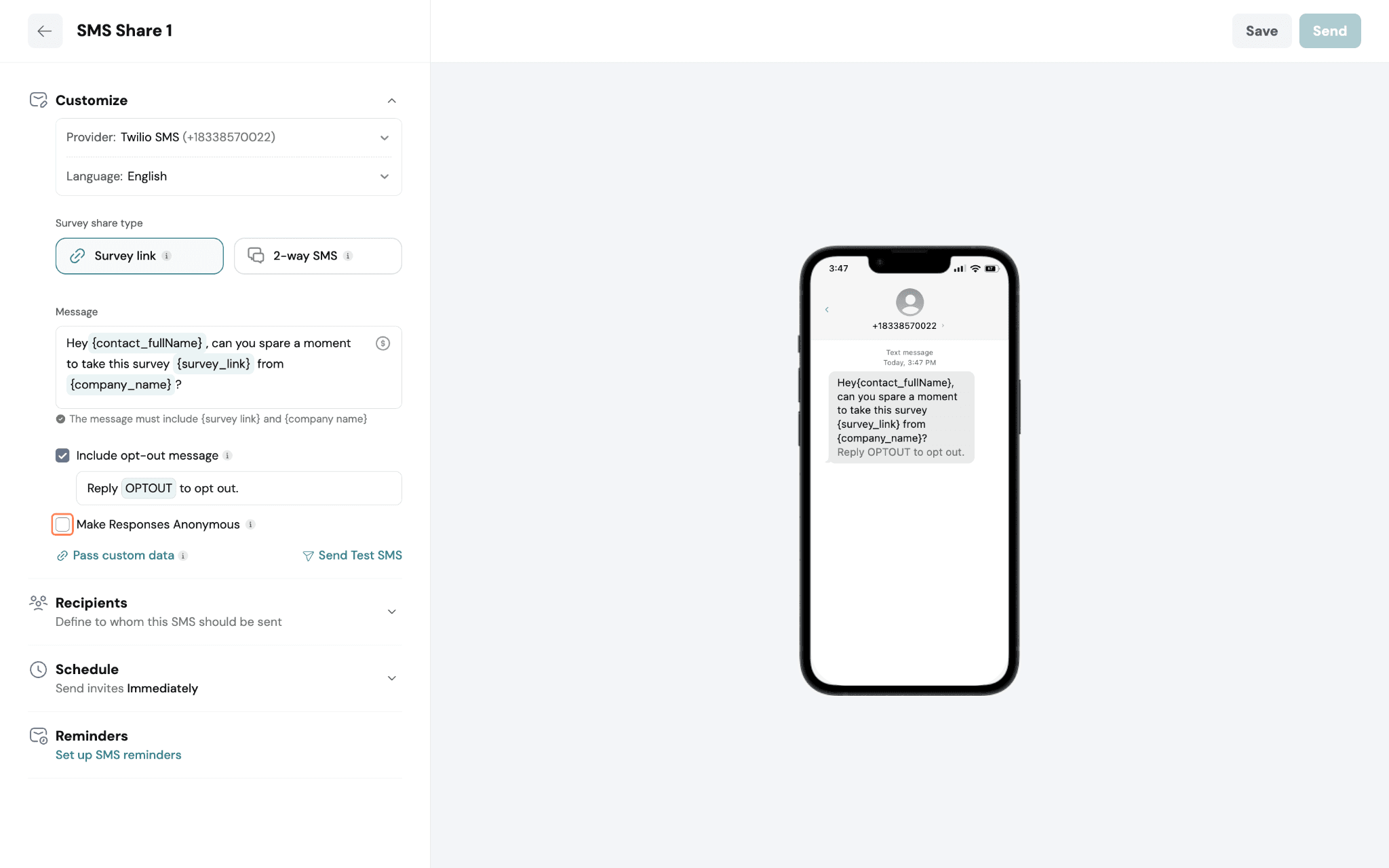
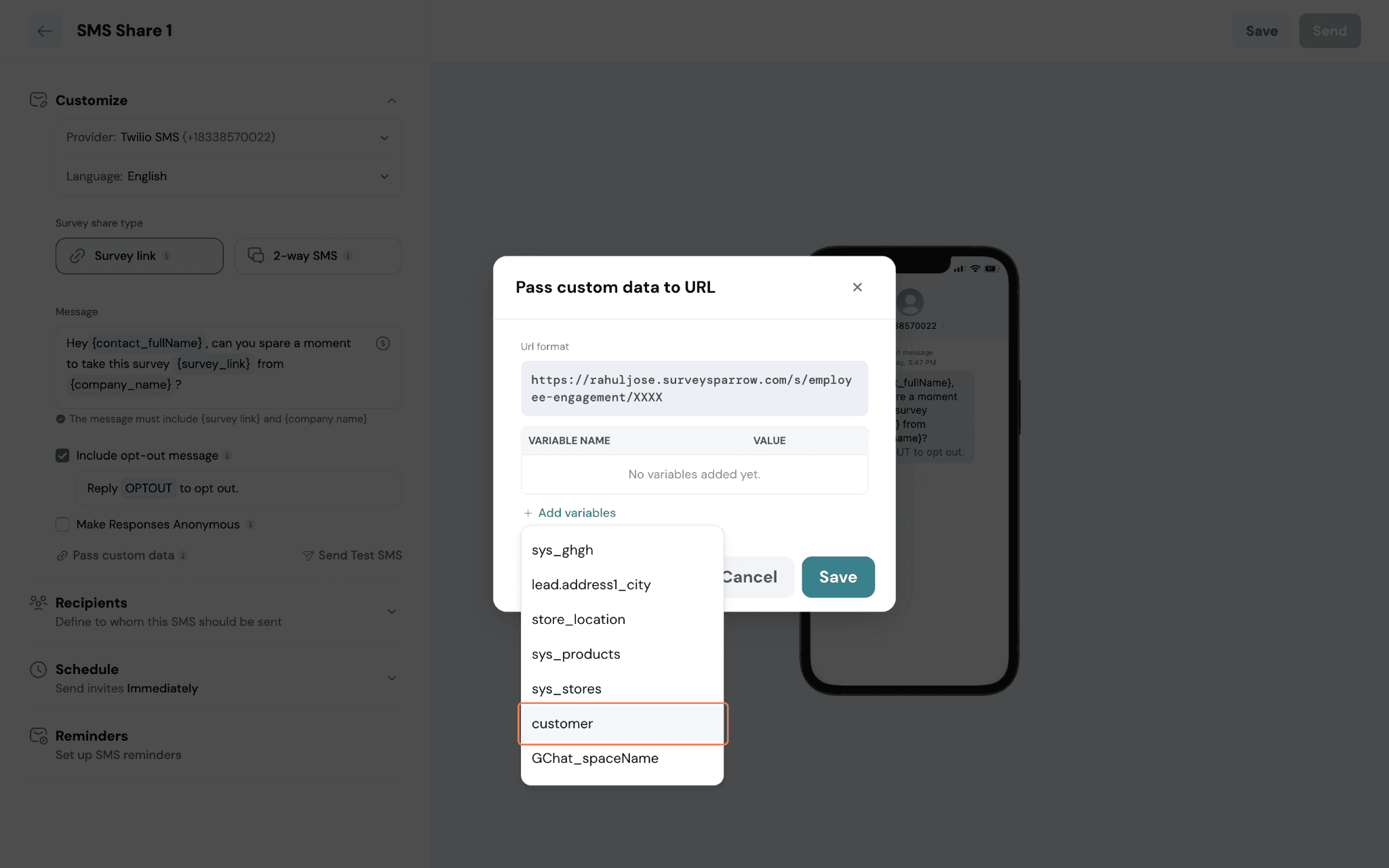
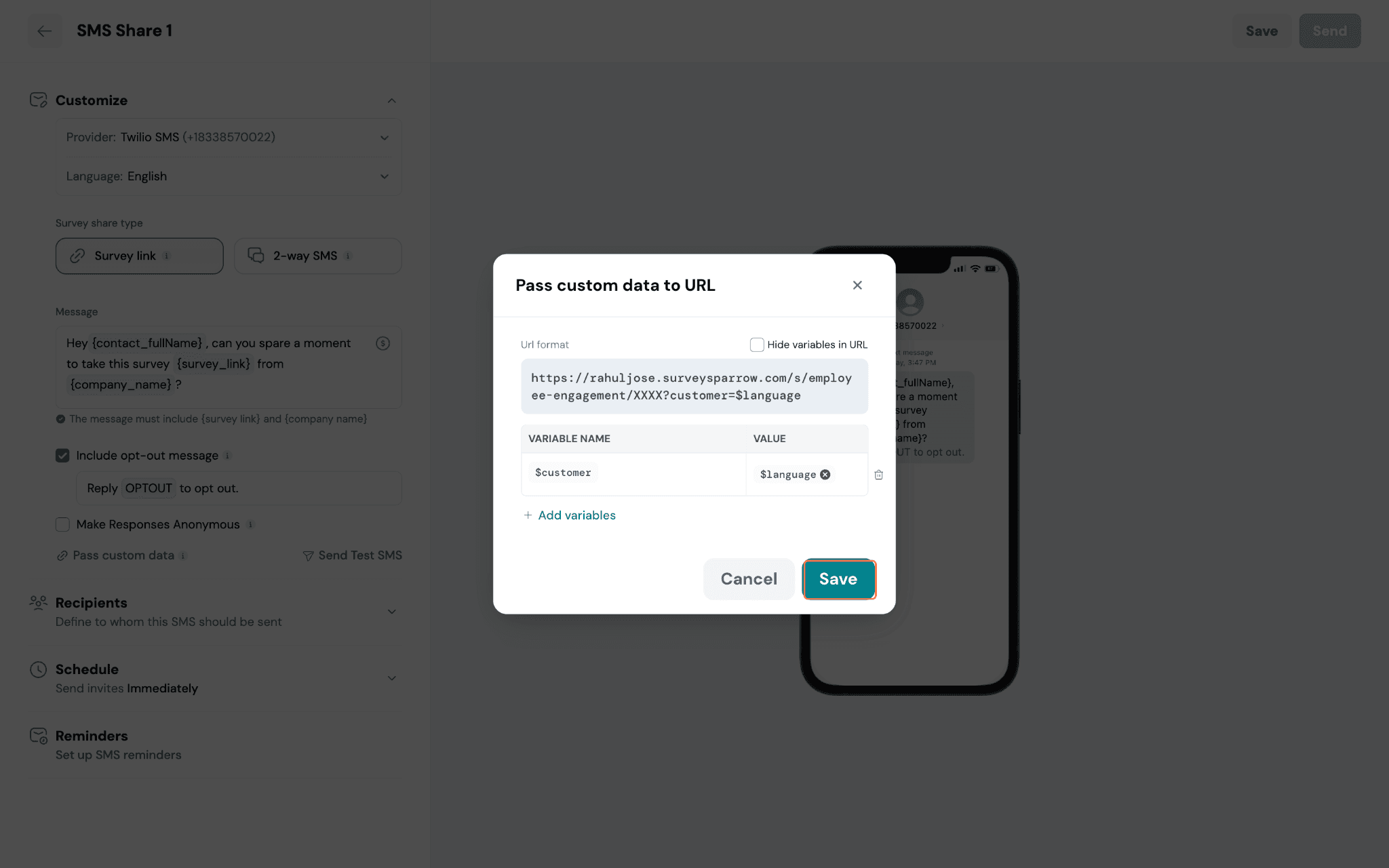
6. If you want to add variables and values that should be passed to the survey URL, click Pass custom data. Add the variables you need along with the corresponding values, then click Save.
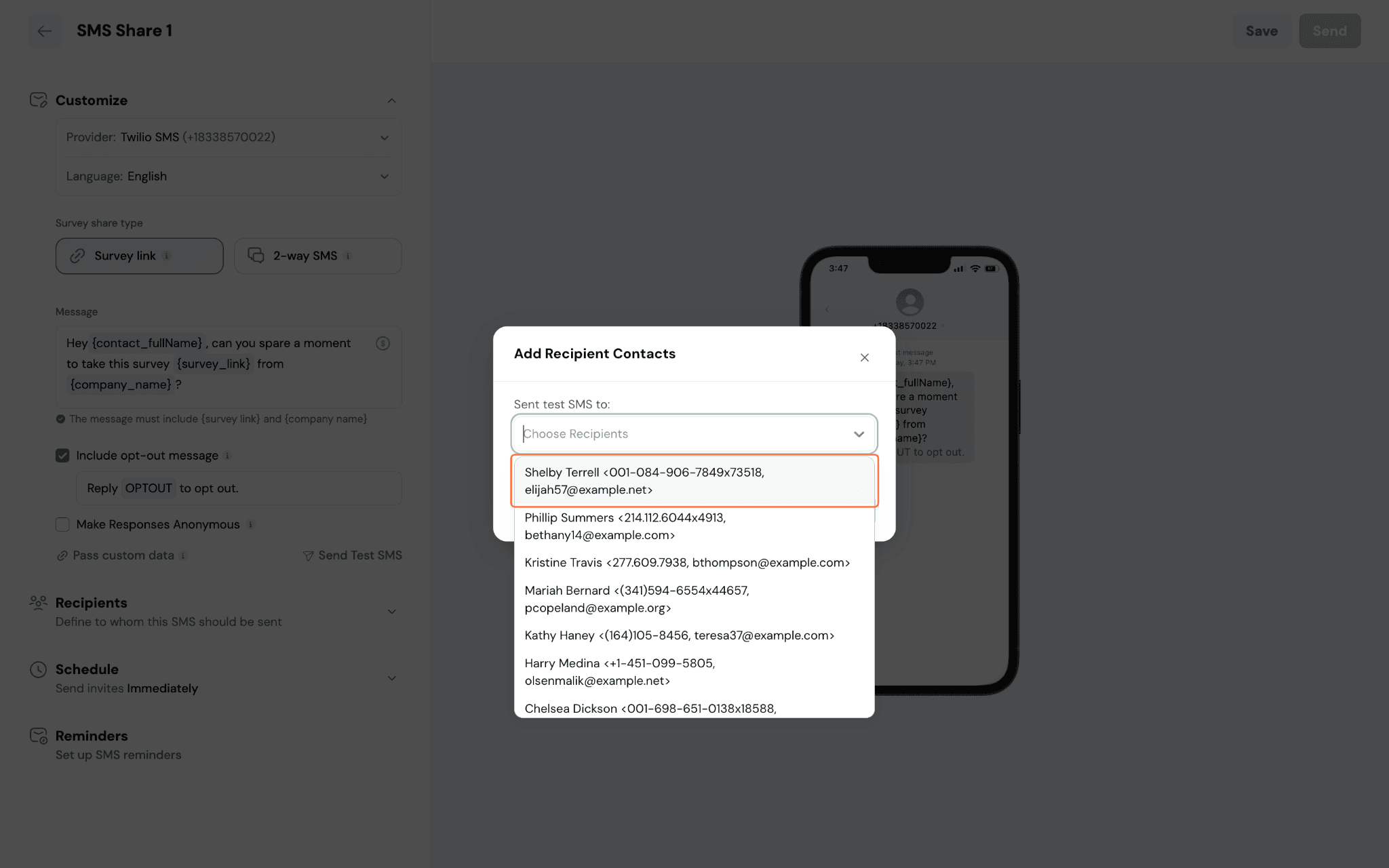
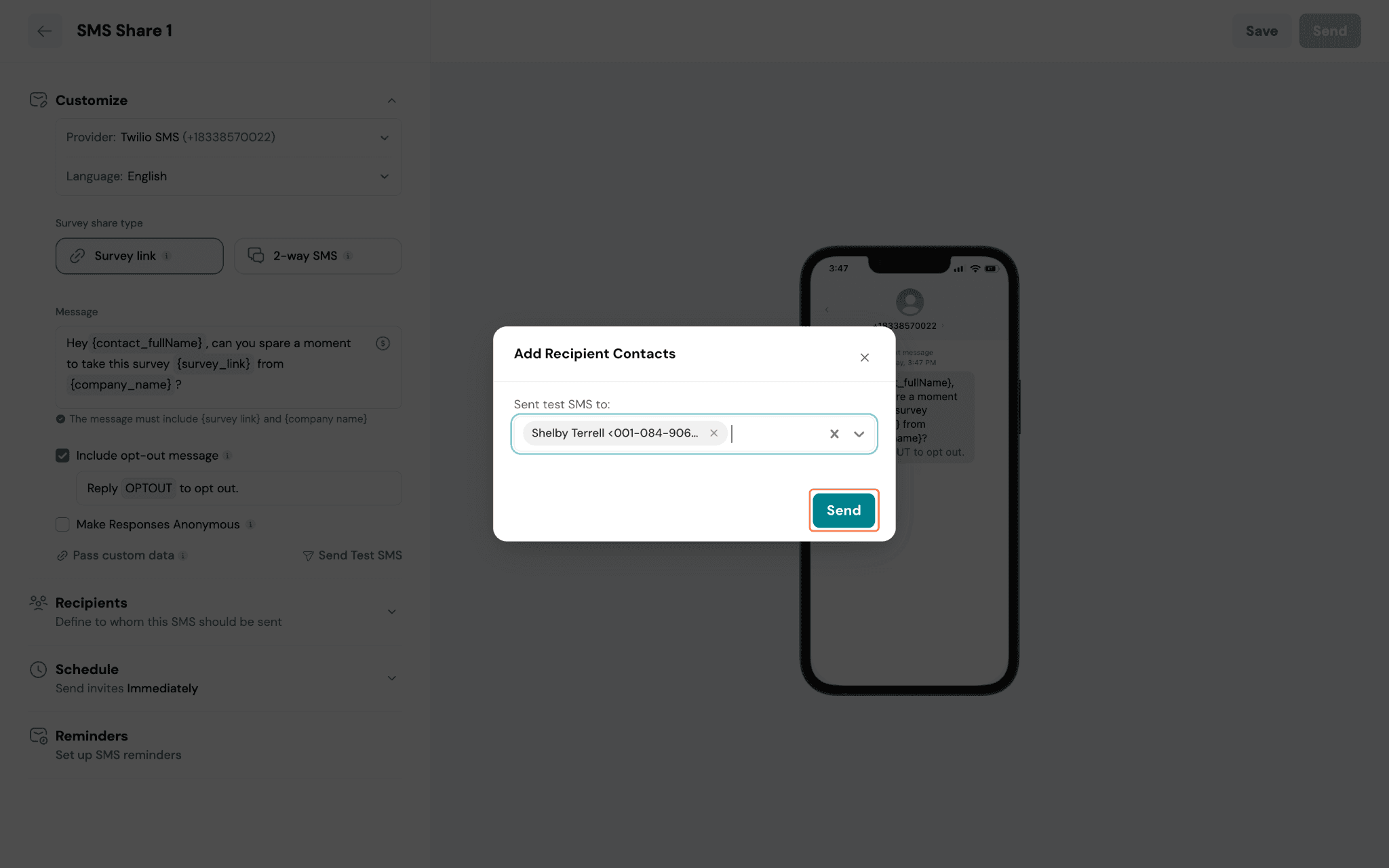
7. If you want an actual preview of the SMS, click Send Test SMS to send a test message to a selected recipient before sending the survey. Select a recipient and click Send.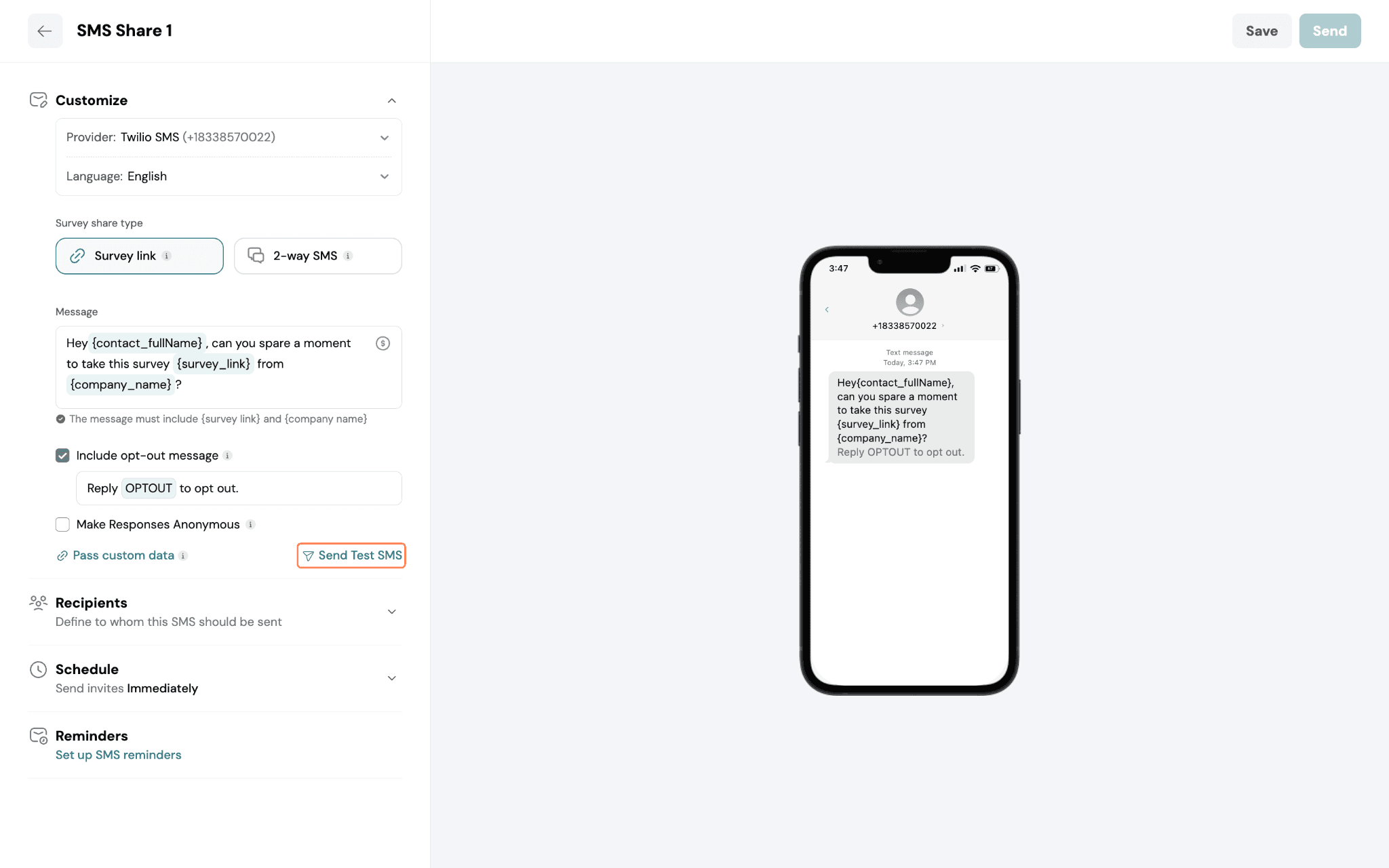
Use two-way SMS
Two-way SMS lets respondents answer the survey directly through text messages instead of opening a survey link.
1. Under Survey share type, select 2-way SMS.
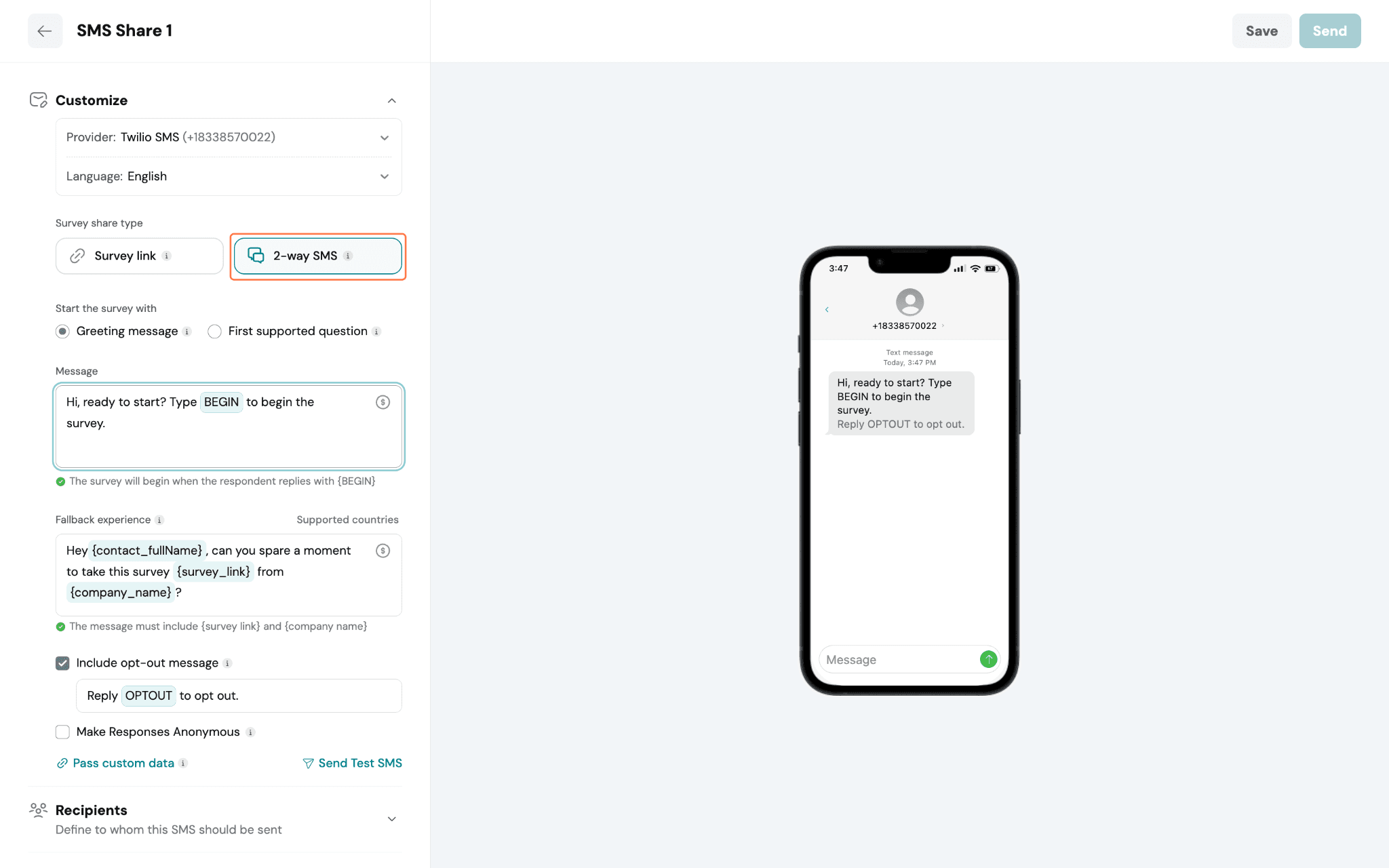
2. Under Start the survey with, choose Greeting message to ask respondents to start the survey by replying with BEGIN, or choose First supported question to send the first supported survey question directly.
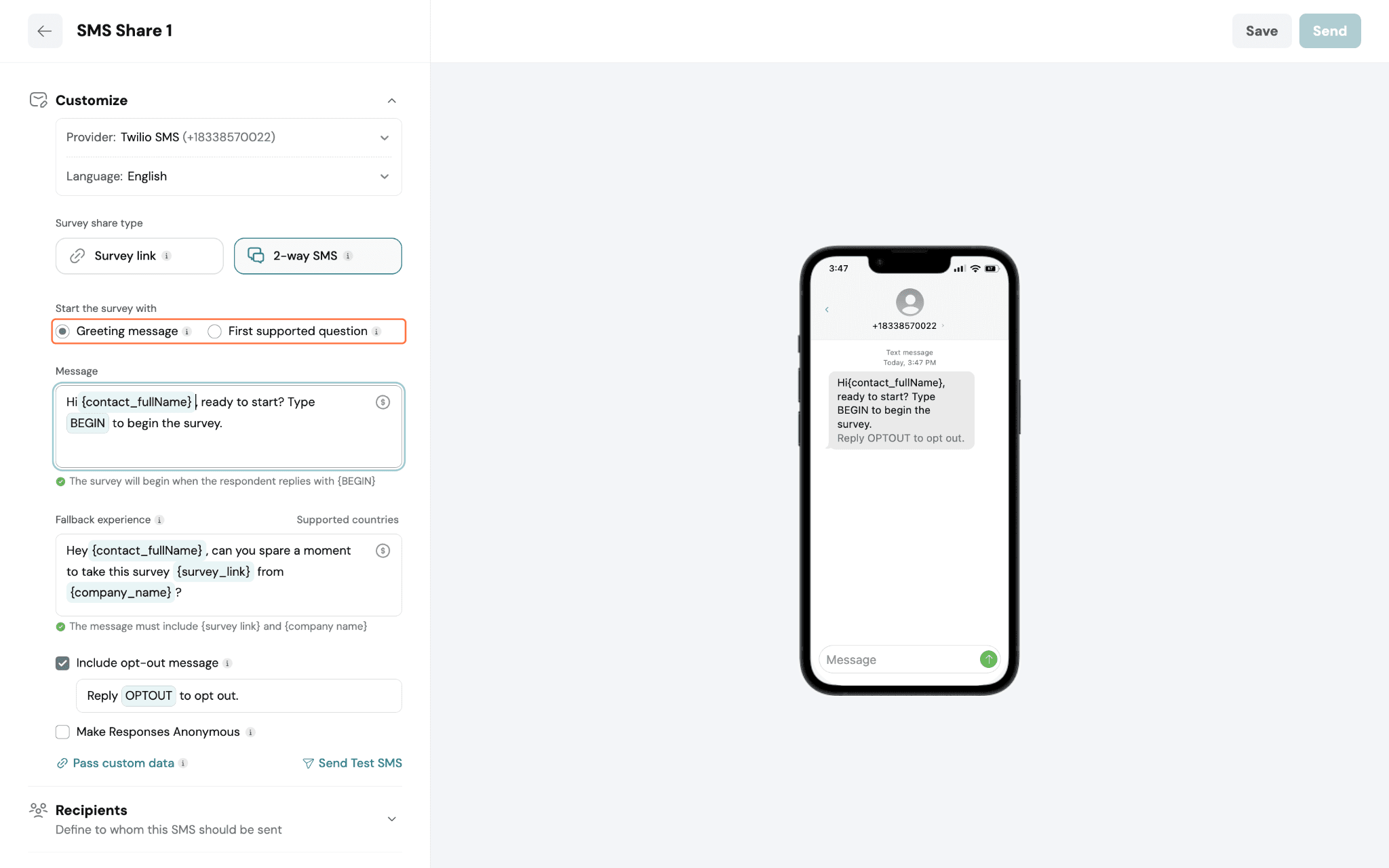
3. If you choose Greeting message, a starting message appears that you can edit and add variables to.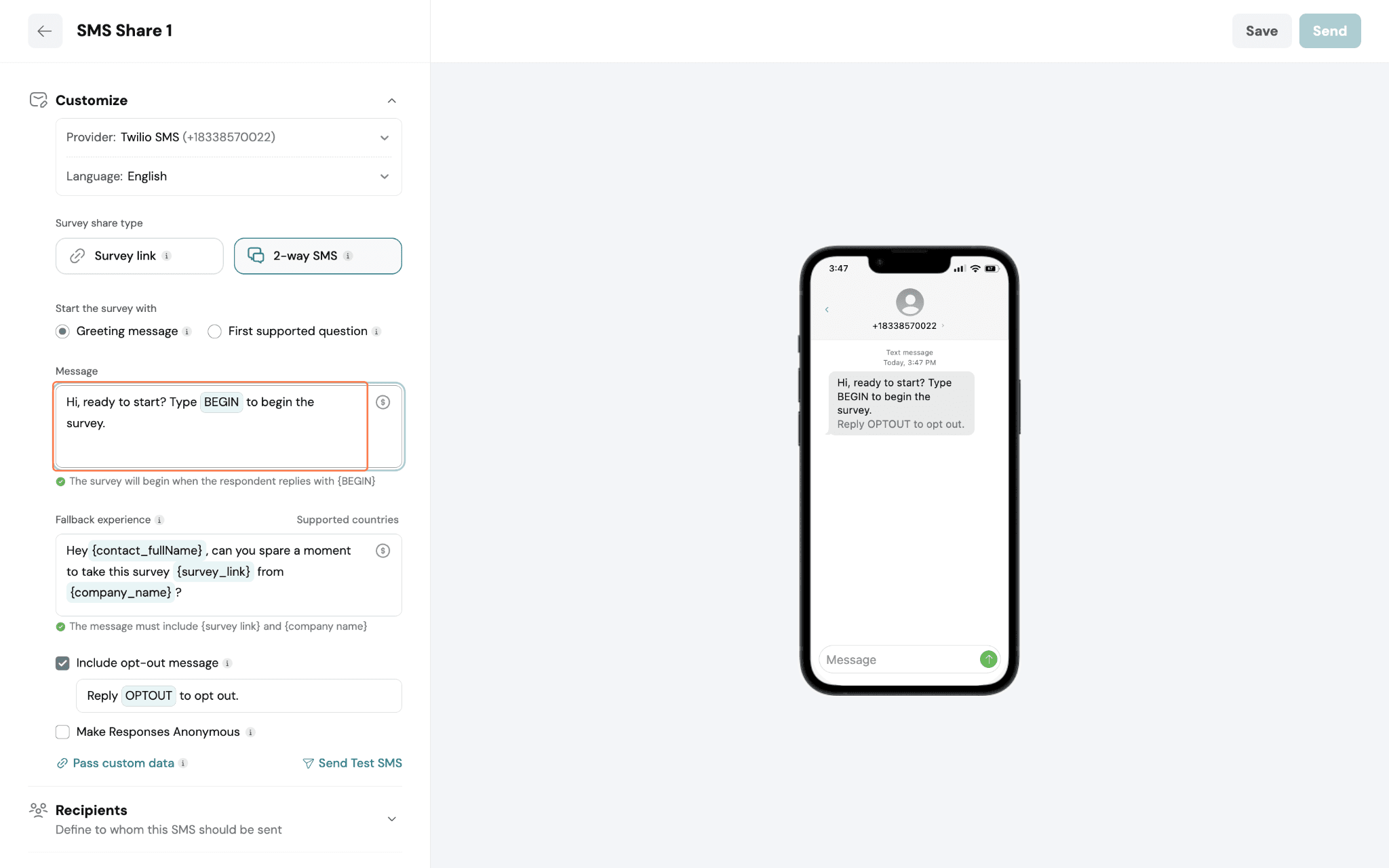
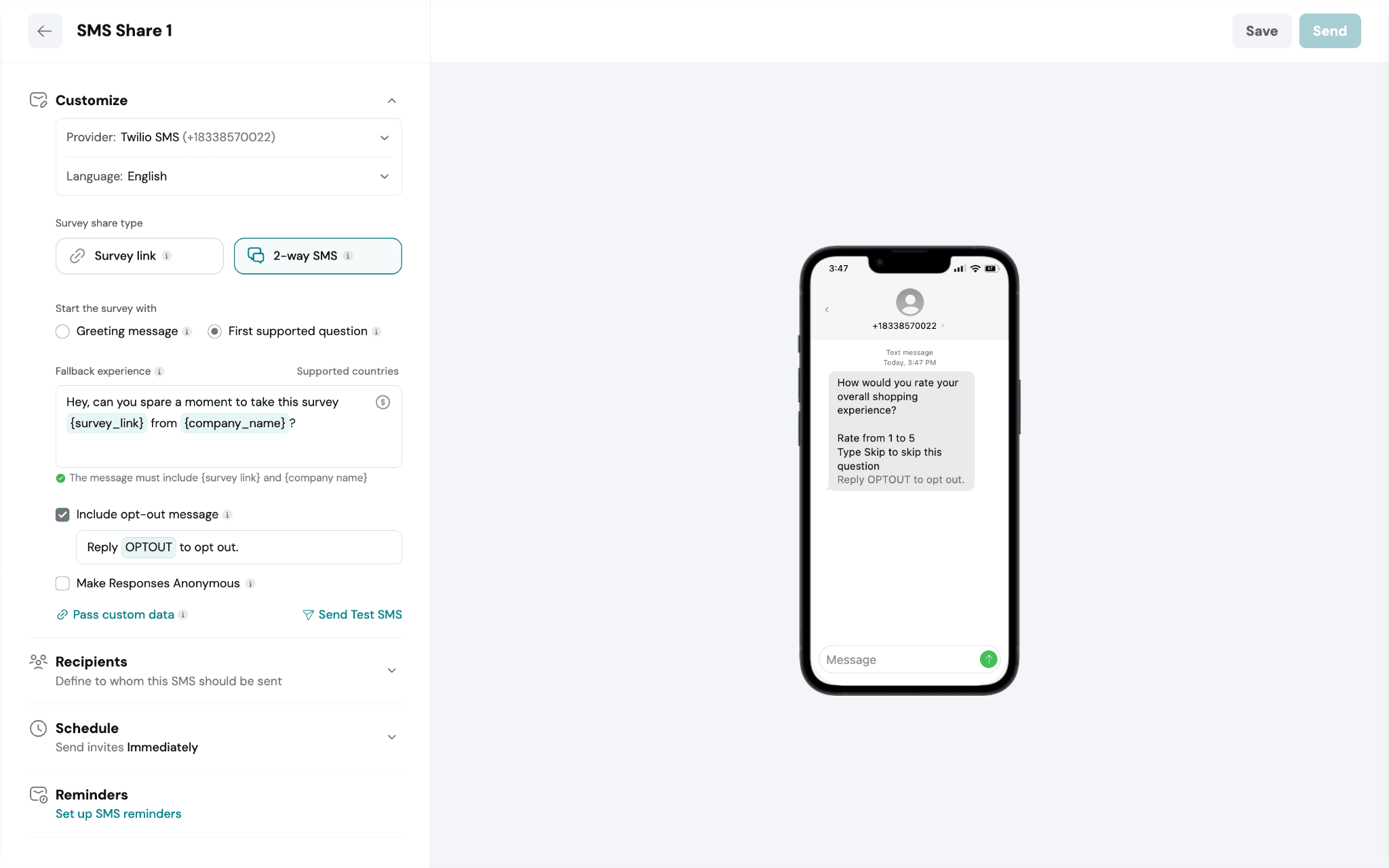
4. Review the Fallback experience message. This message is used when the two-way SMS experience is not available for a respondent.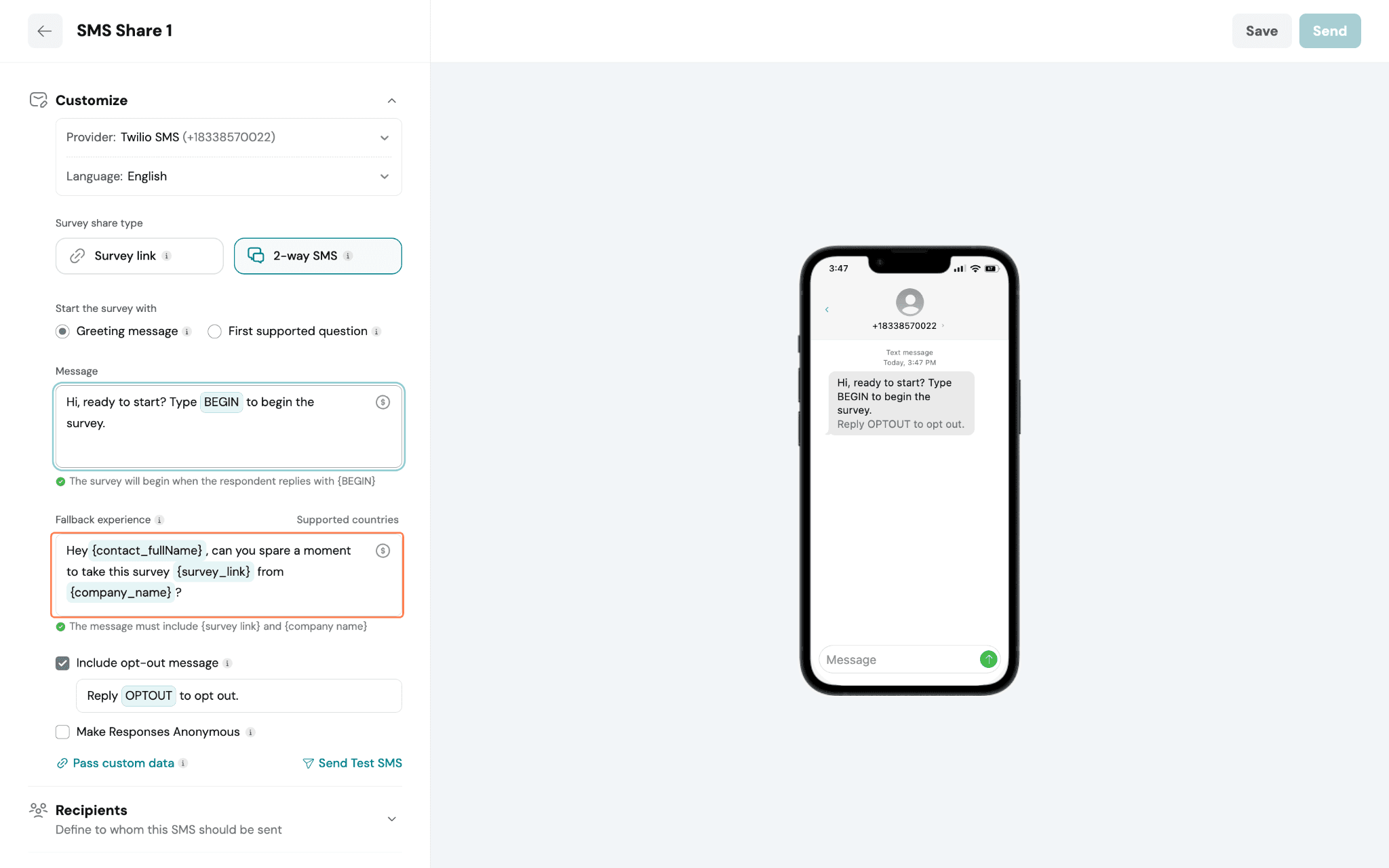
Note: Click on Supported countries to check where two-way SMS is available.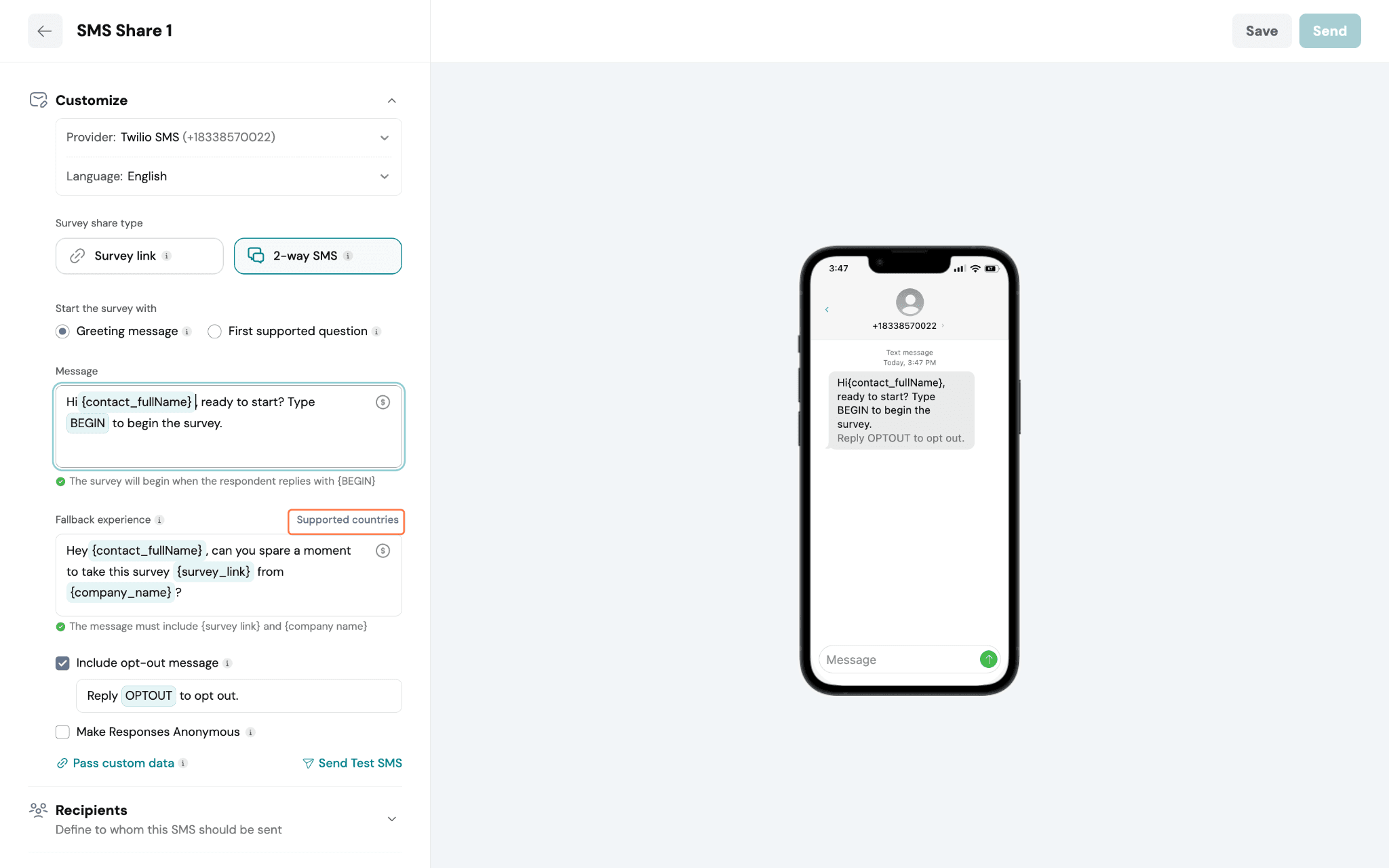
Add recipients
Choose the people who should receive the SMS.
1. Expand Recipients.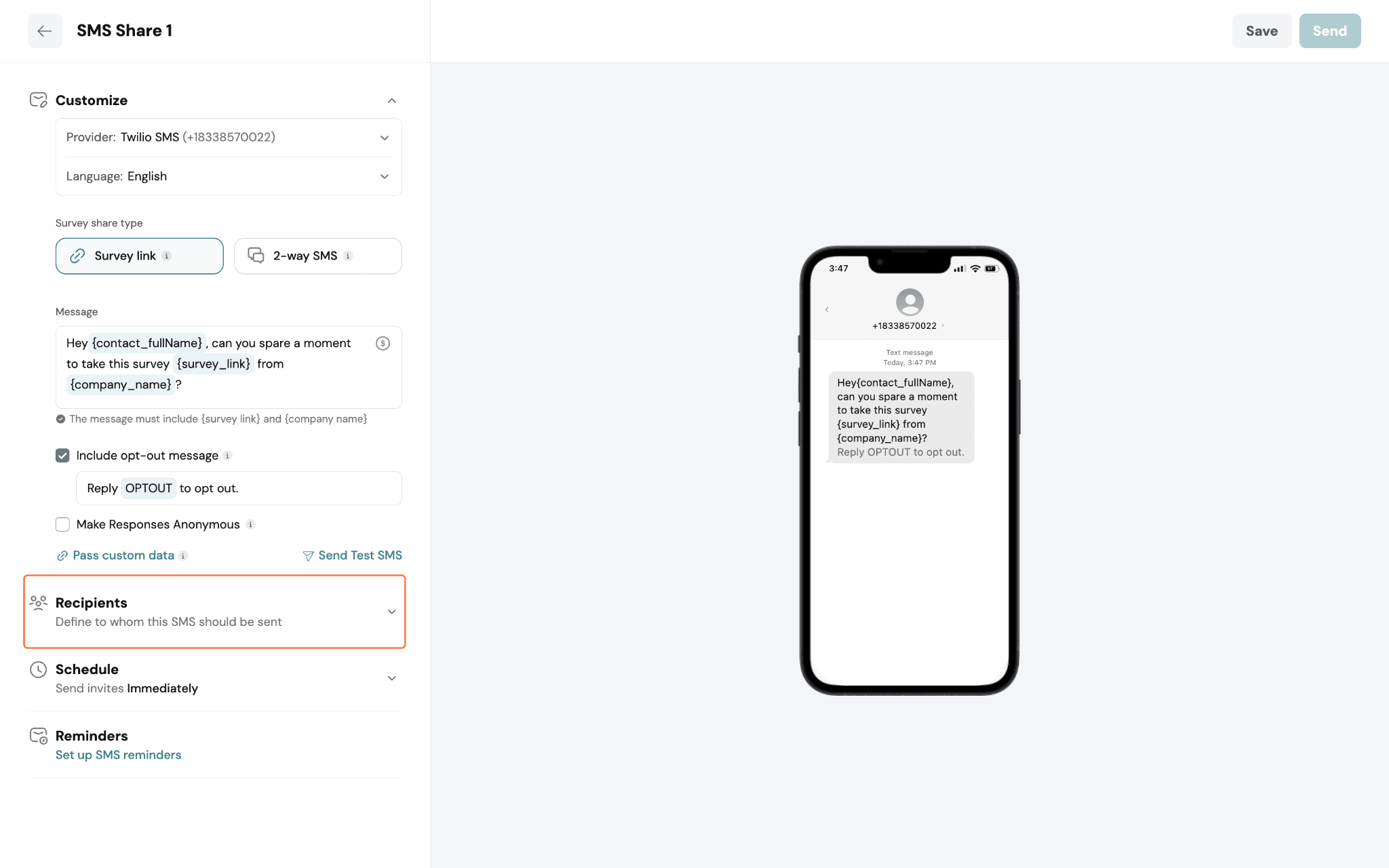
2. In Send to, you can either choose entire contact lists, select available contacts, or enter the recipients' phone numbers.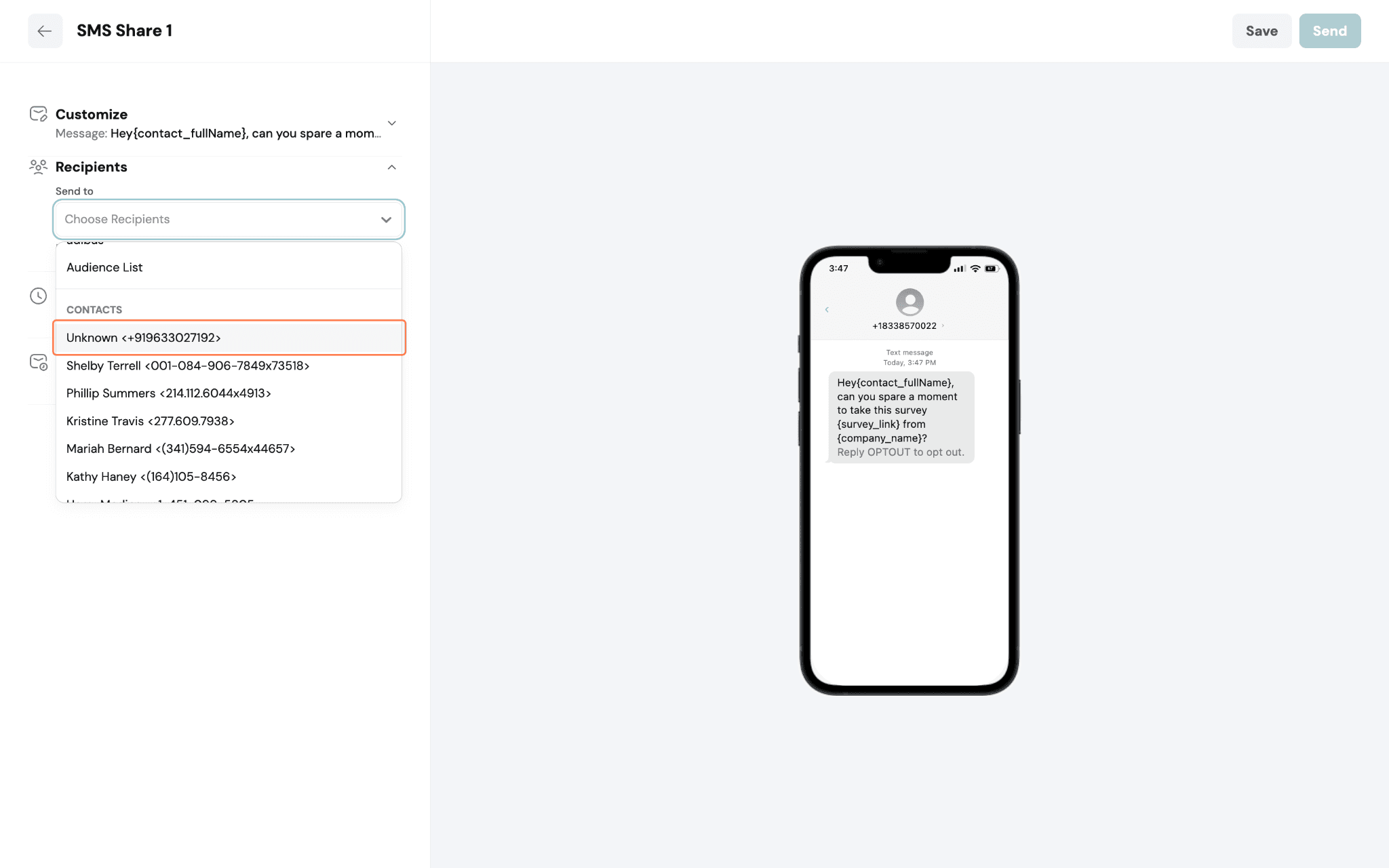
Note: Enter phone numbers in E.164 format. For example, a US number should look like +14155552671.
4. If you only want to send the SMS only to recipients who meet specific conditions, click Add Filter Conditions.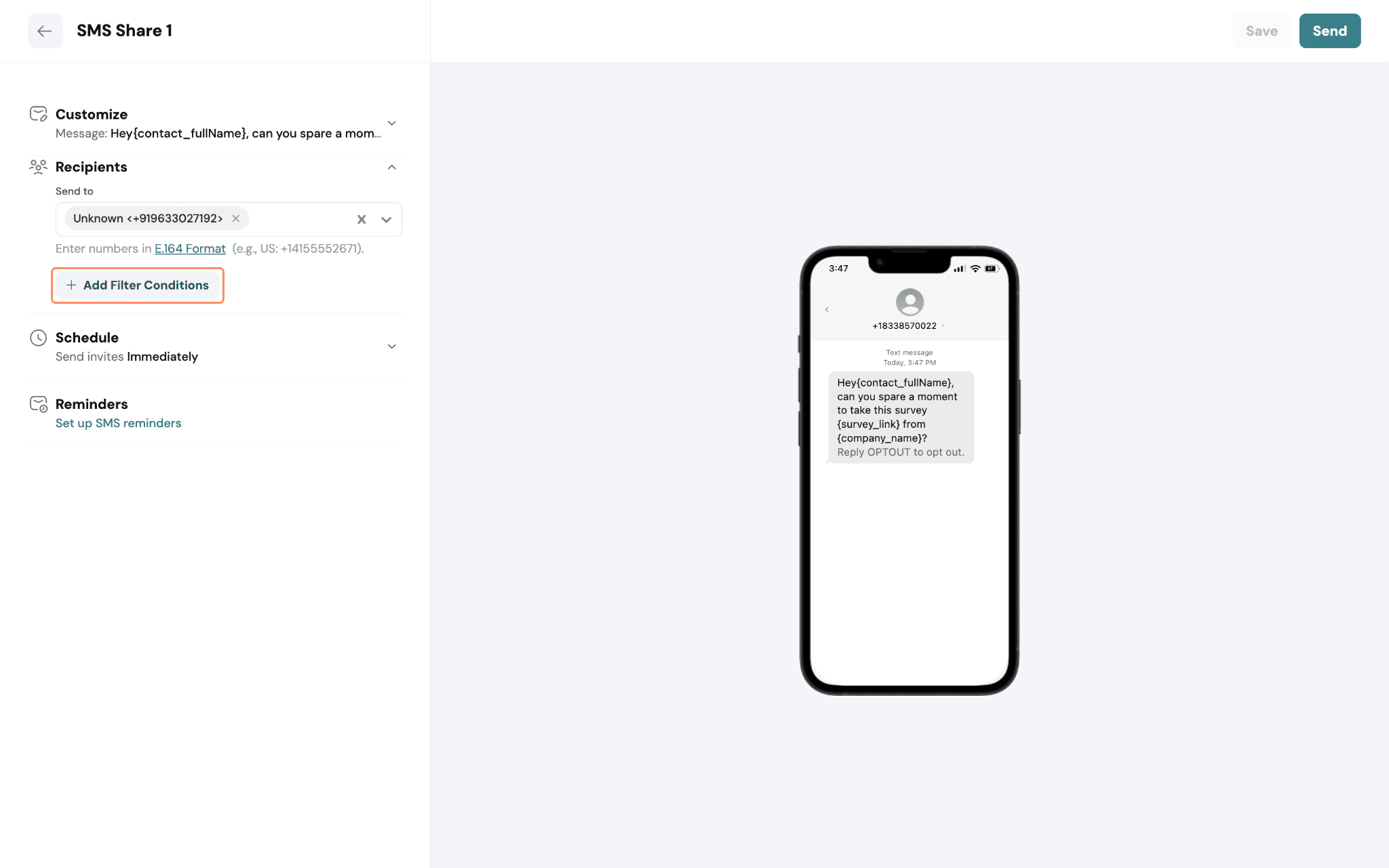
5. Configure the condition or conditions, then click Save.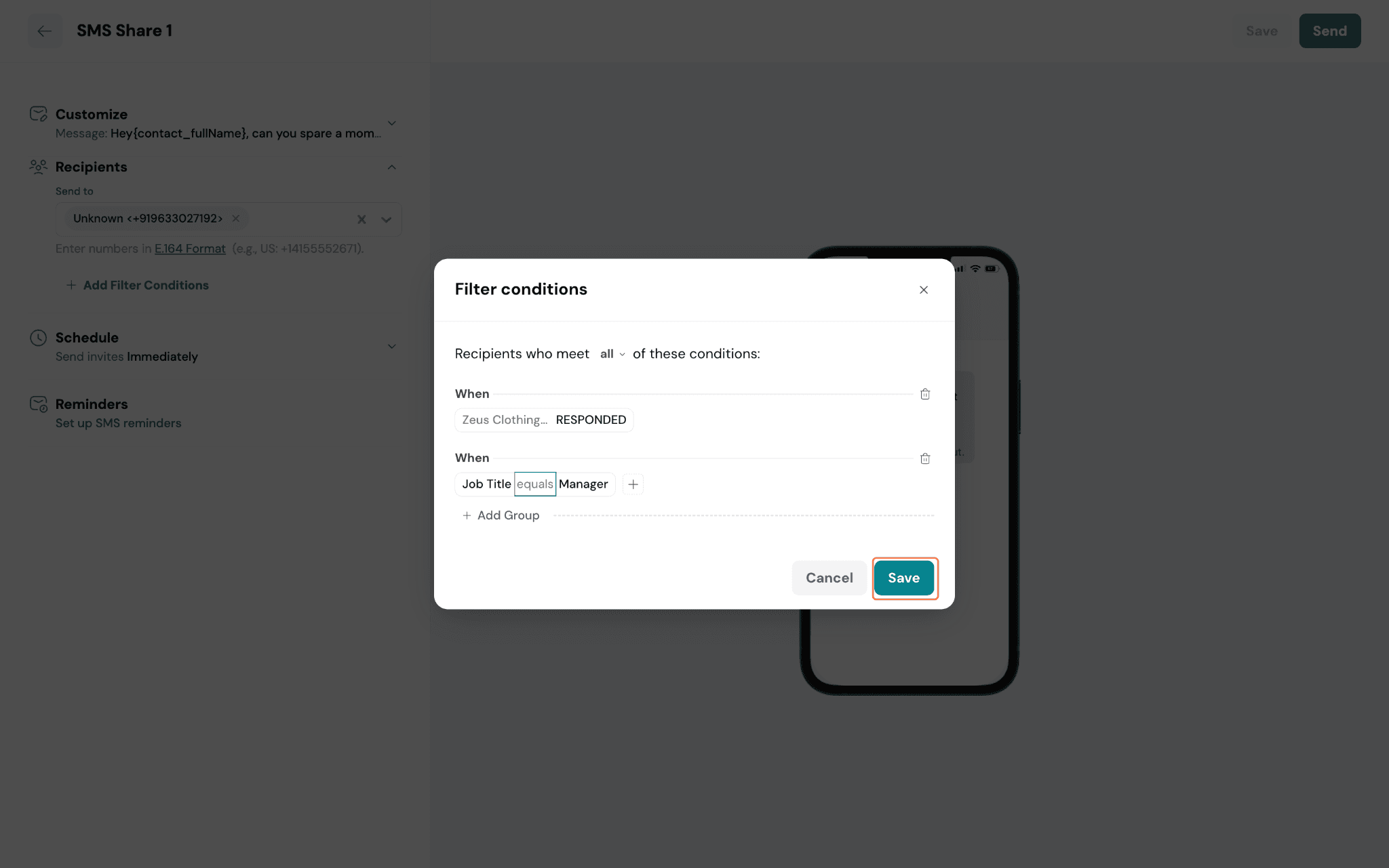
Schedule the SMS
You can send the SMS immediately, send it at a specific time, or trigger it based on a condition.
1. Expand Schedule.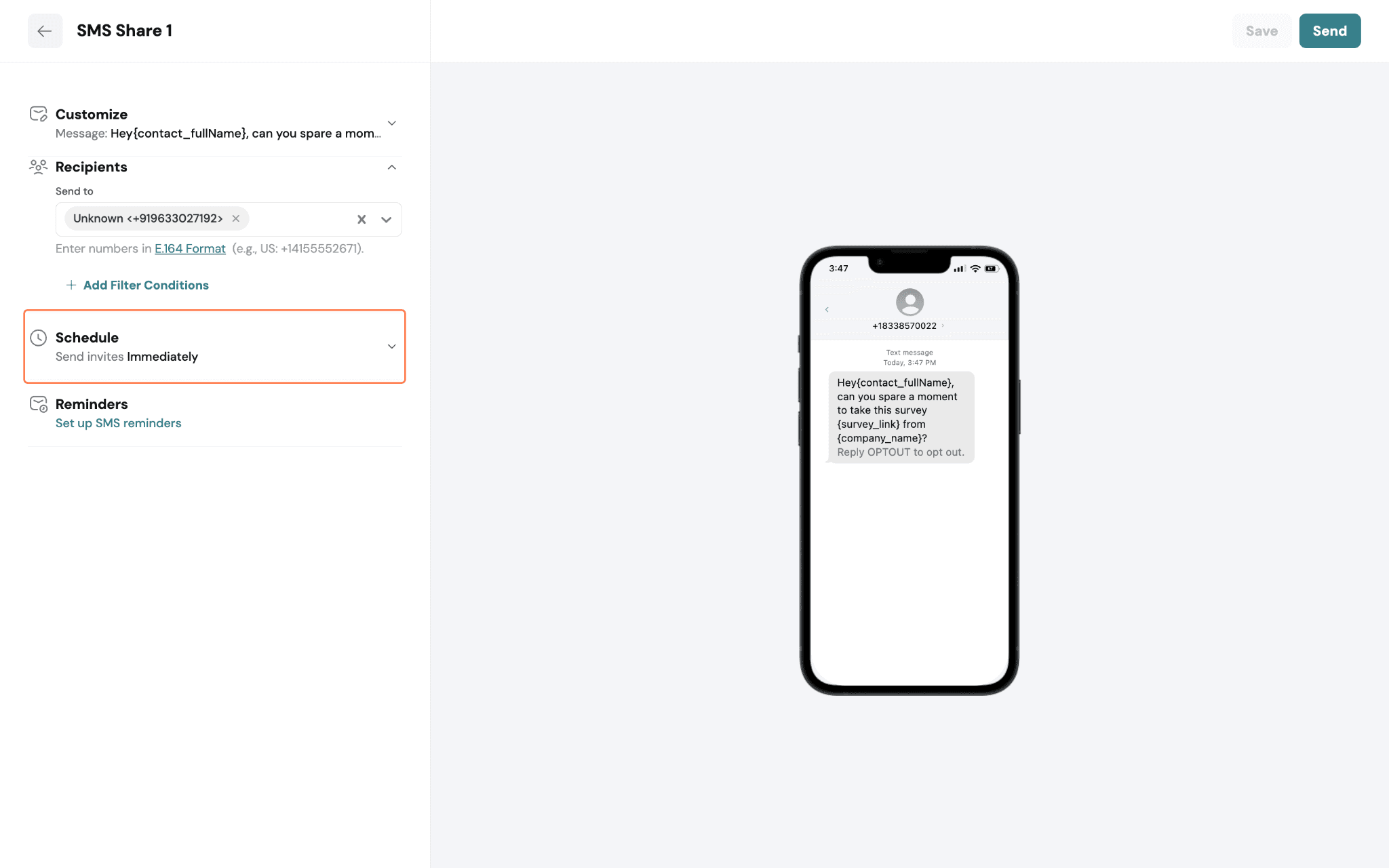
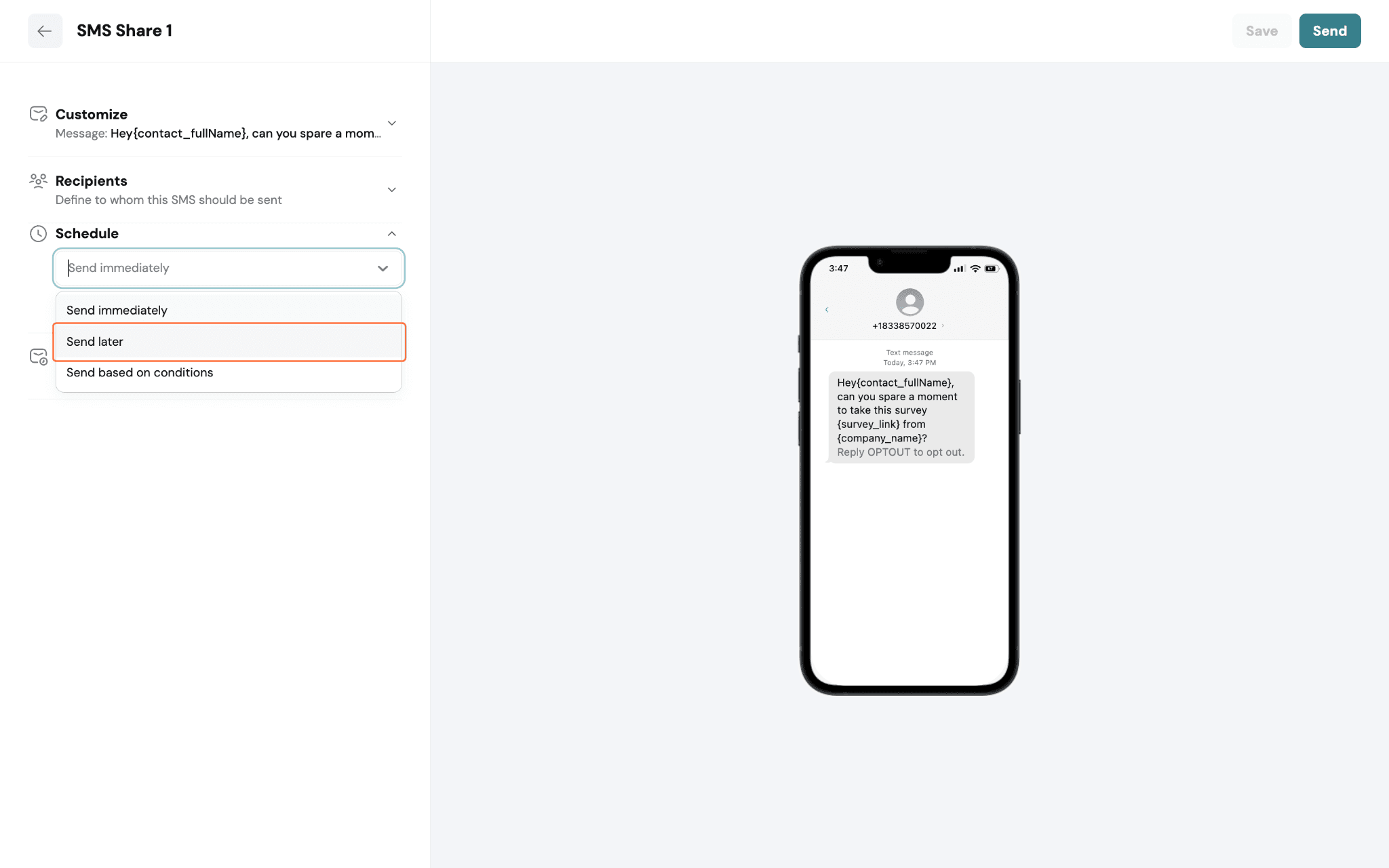
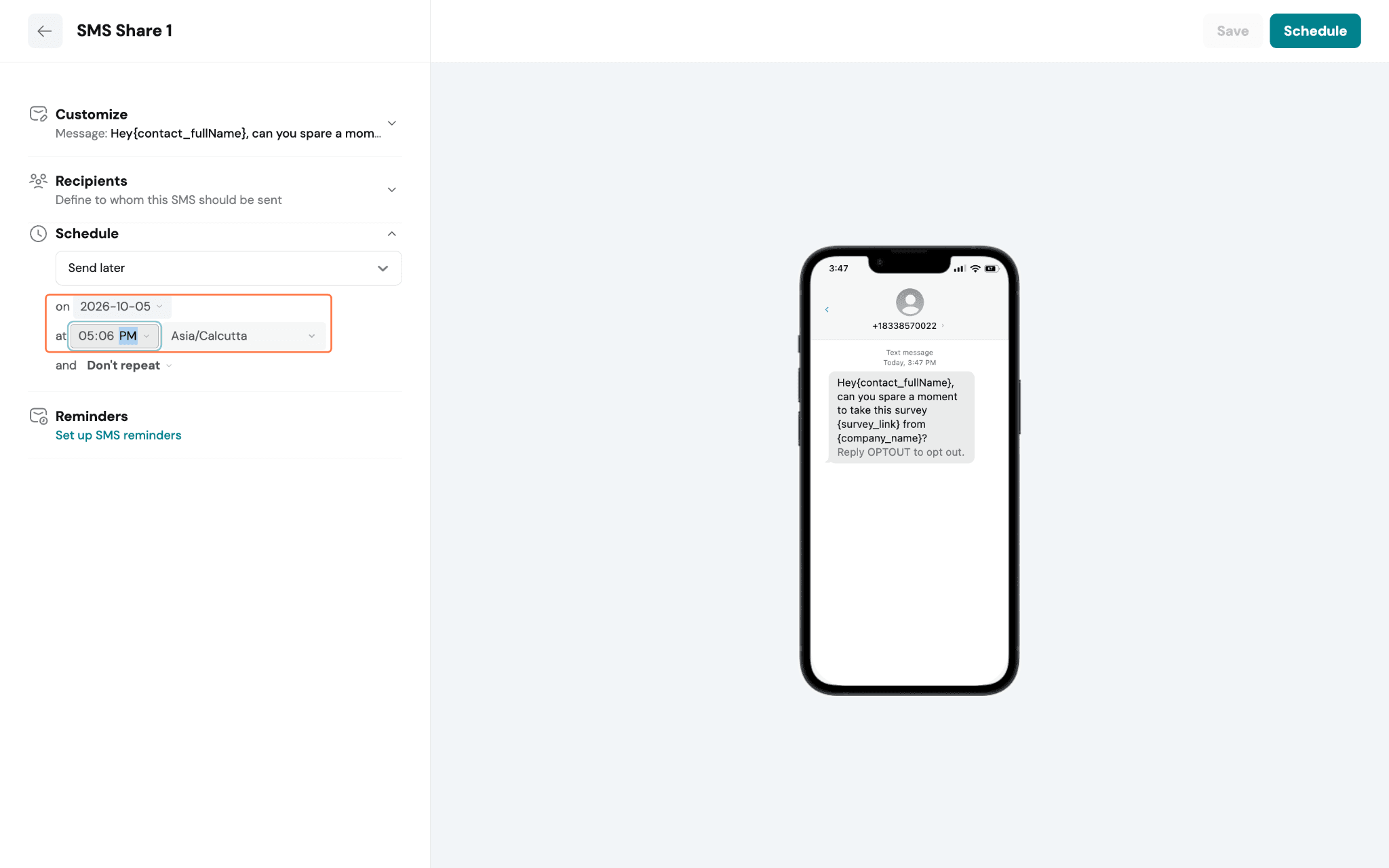
2. The default option is Send immediately. But you can also schedule it by clicking Send later. Choose a date and time, and select the appropriate time zone.
3. If you want the SMS to repeat, change the setting to Repeat. Select the repeat frequency, time and cut-off limit.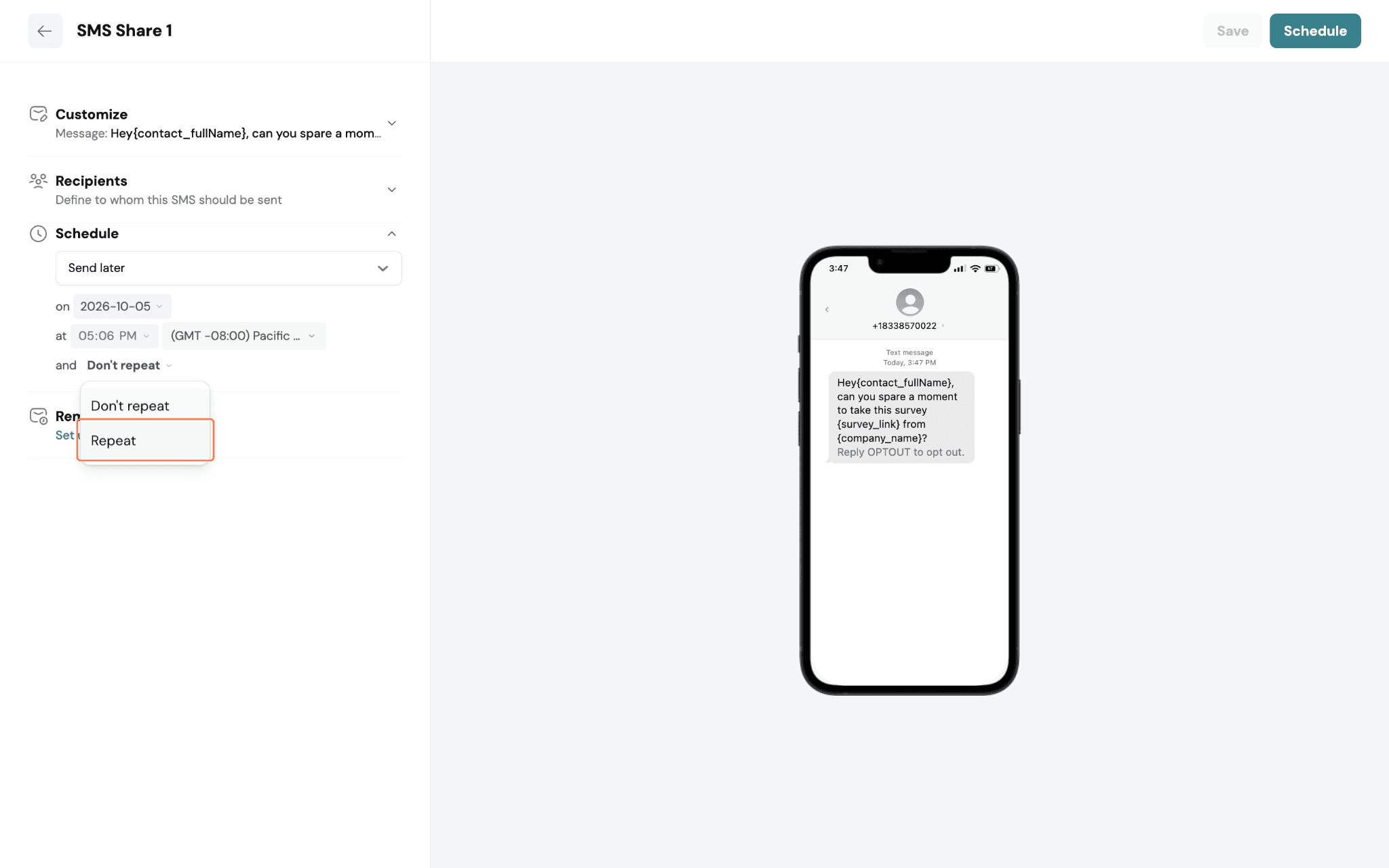
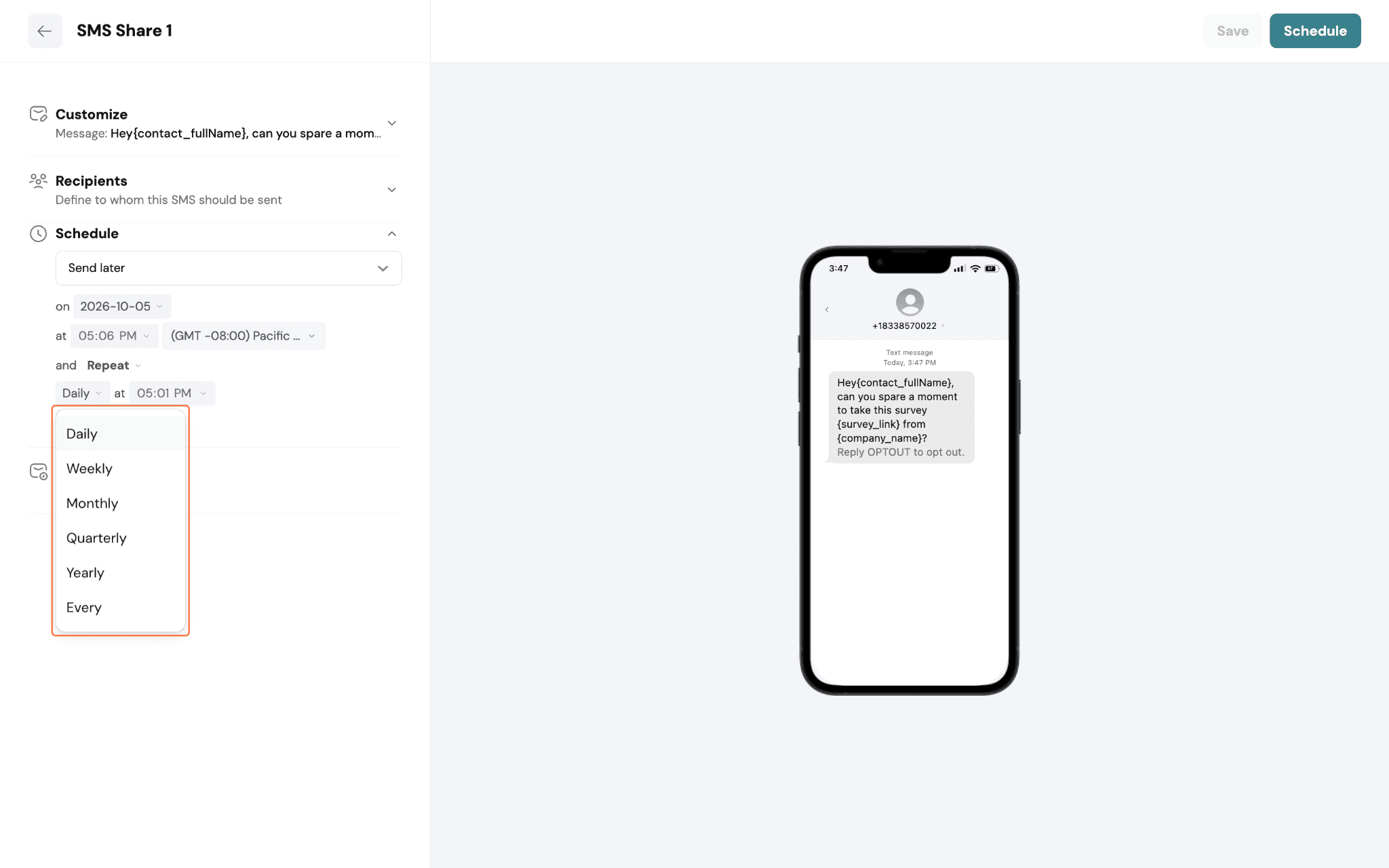
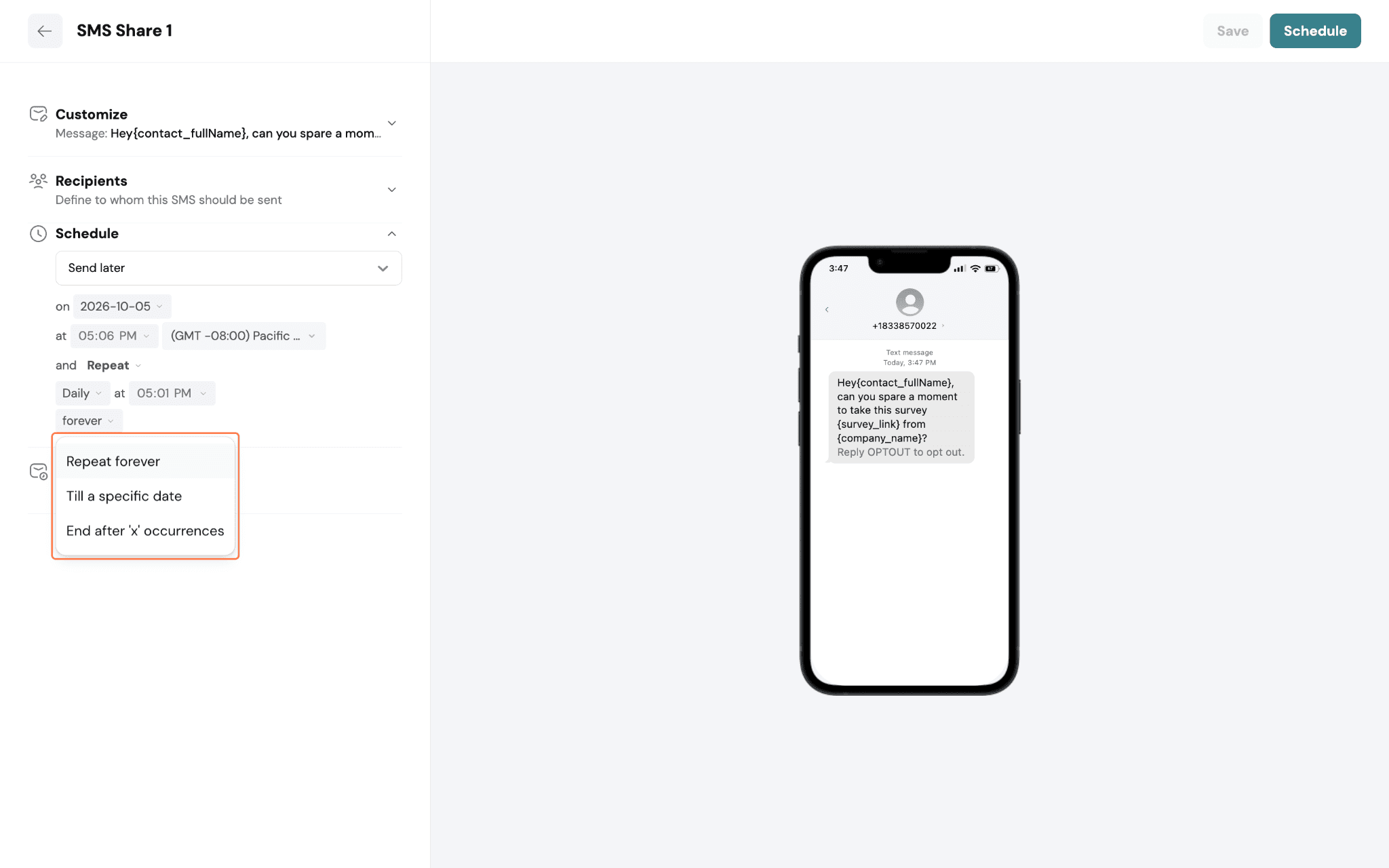
4. To trigger the SMS based on an event, select Send based on conditions. Choose the delay, unit of time, event, and time zone.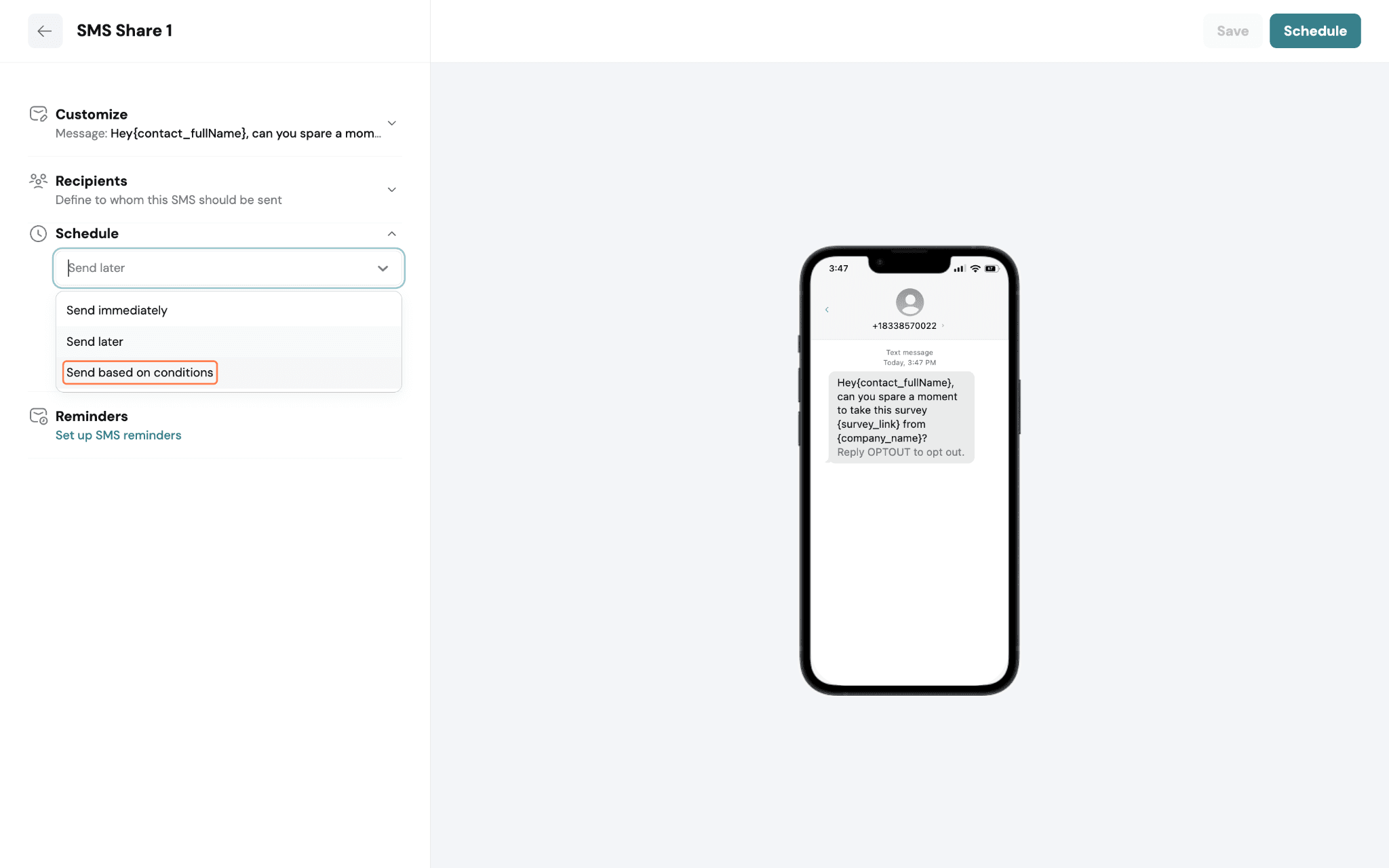
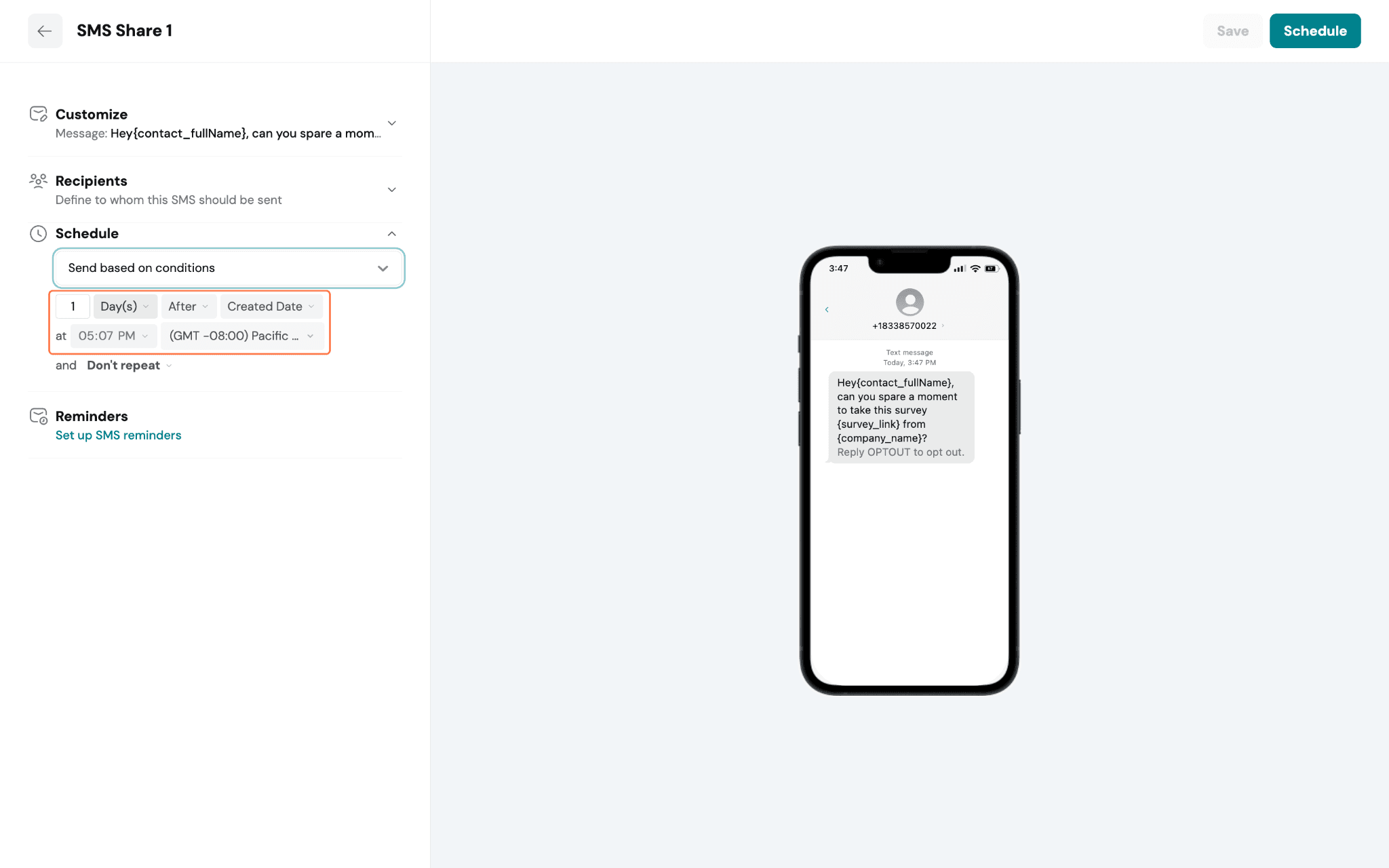
5. Review the schedule and click Send/Schedule in the top-right corner, depending on the option you selected. If you’d also like to set up reminders, check out the section below and then return to this step.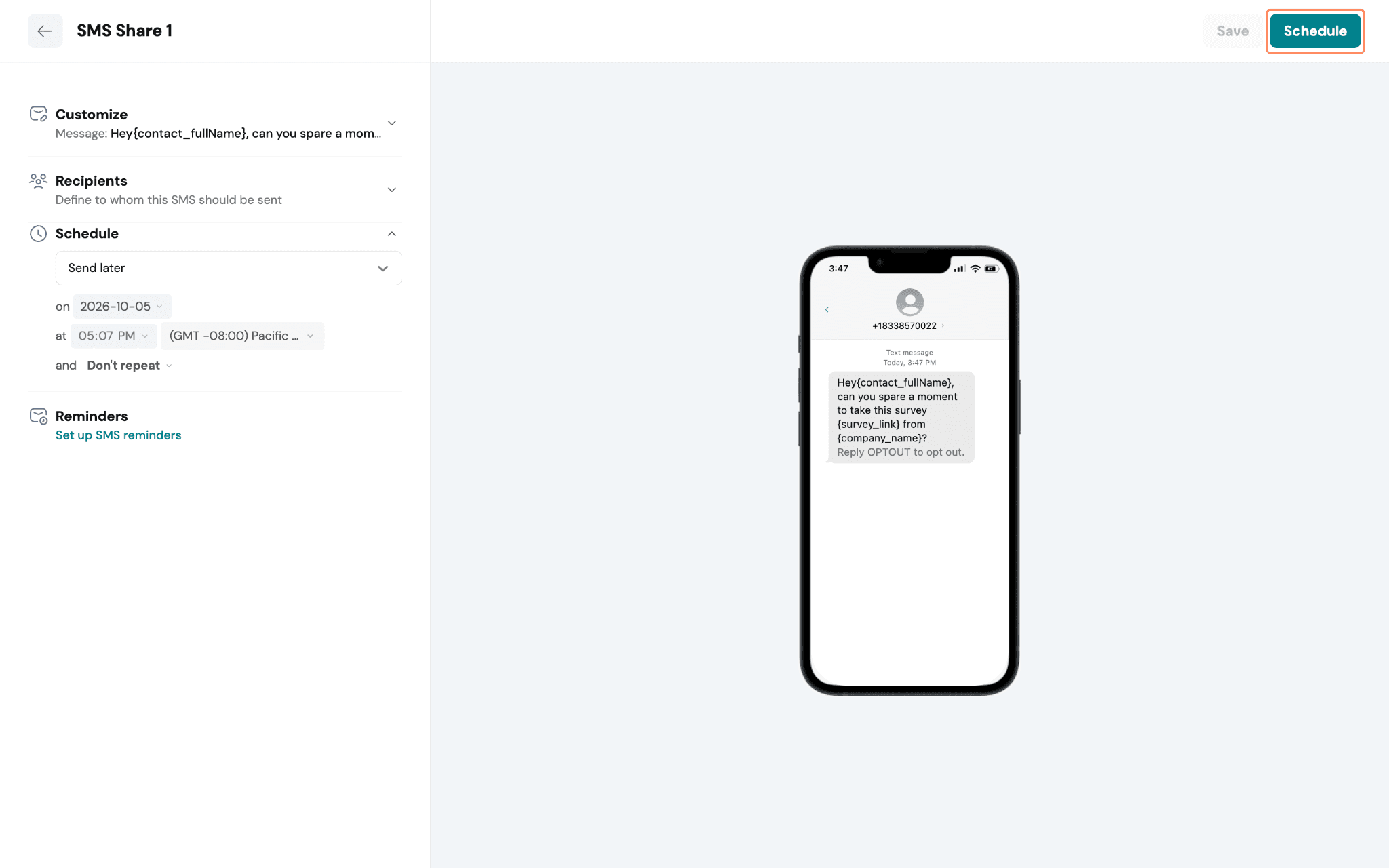
Set up SMS reminders
Reminders help you follow up with respondents who have not completed or have only partially completed the survey.
1. In the SMS Share screen, click Set up SMS reminders under Reminders.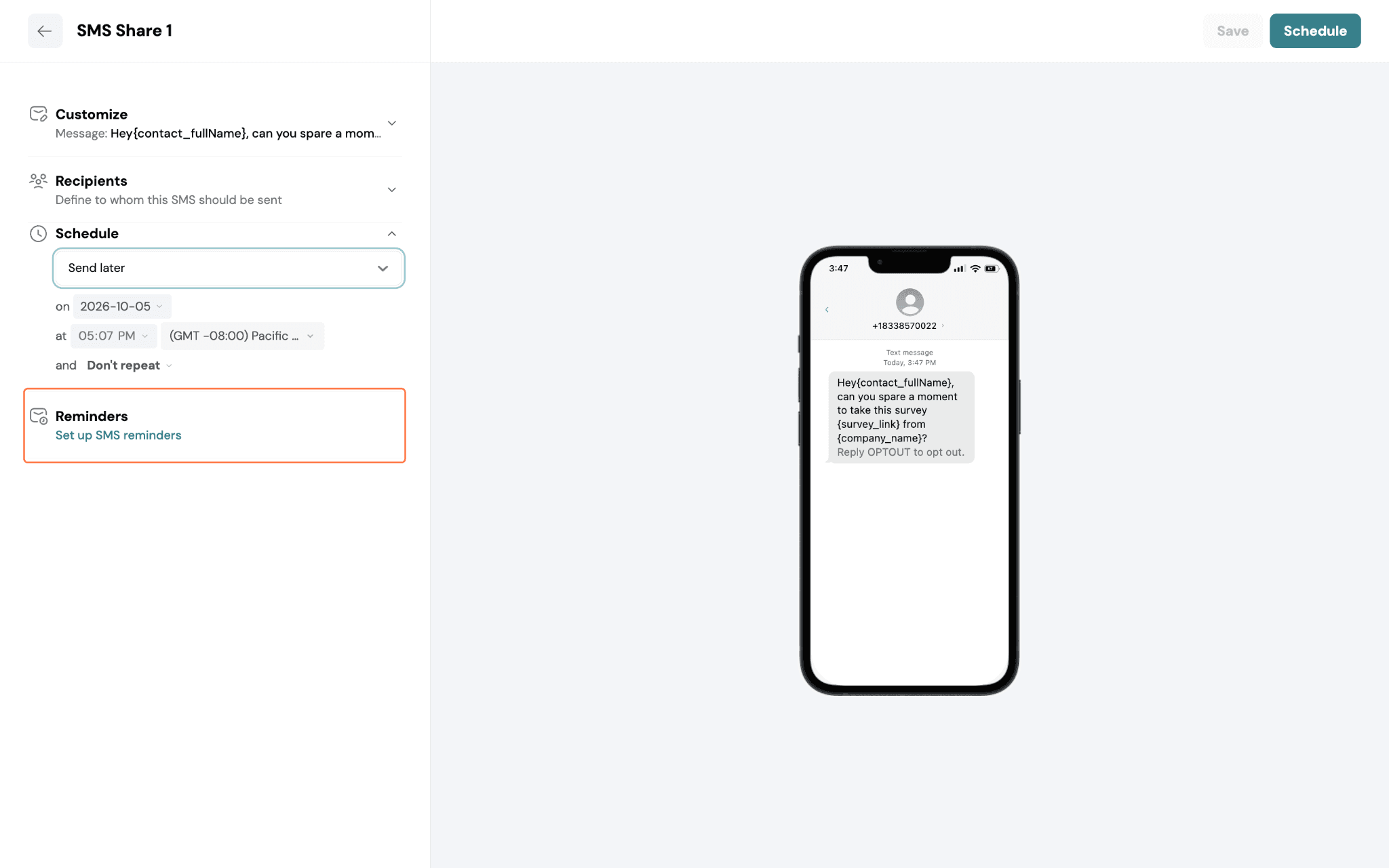
2. Customize the language and edit the reminder message. Under Schedule, choose who should receive the reminder, such as people who did not respond or partially responded.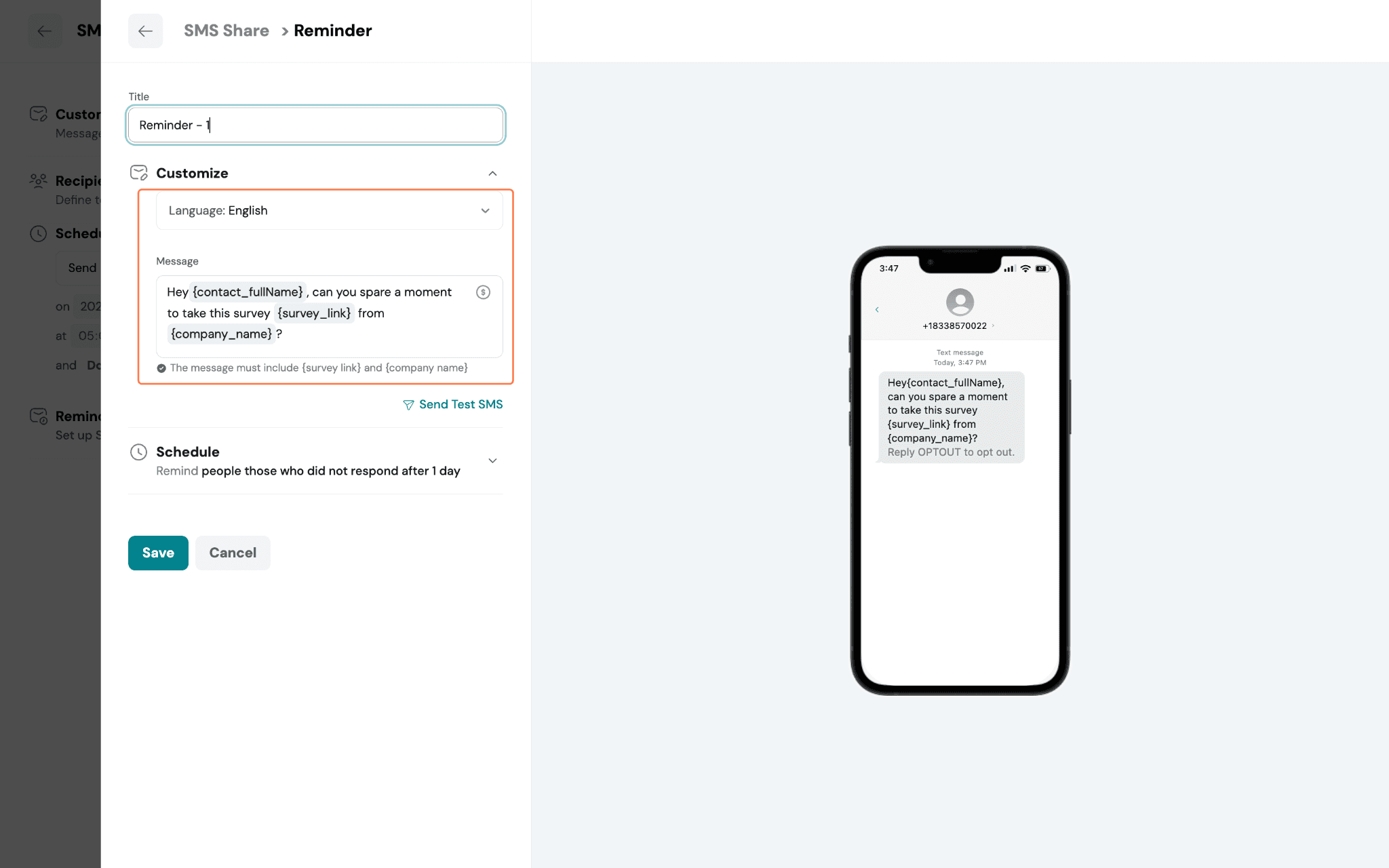
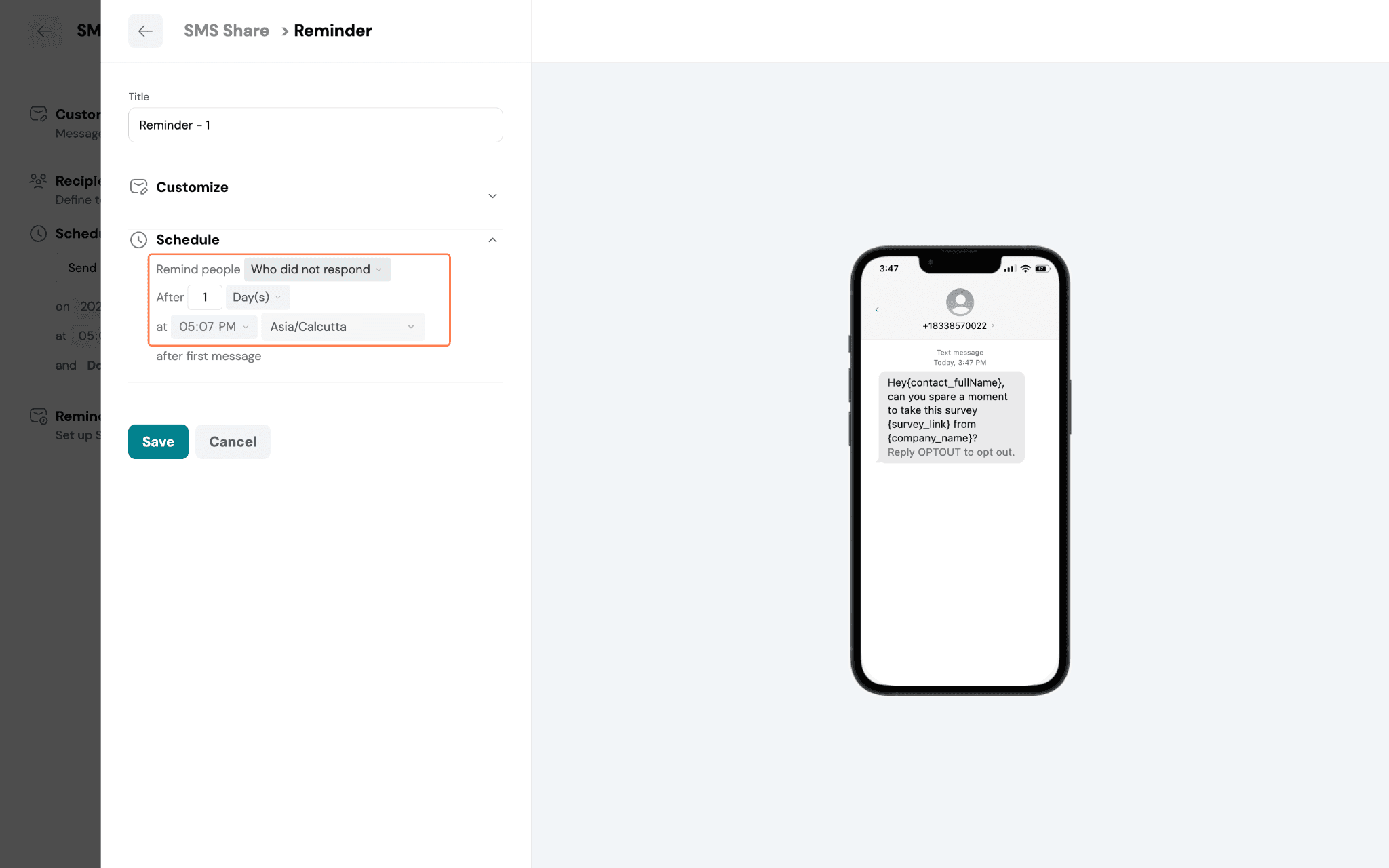
3. Once everything is done, click Save.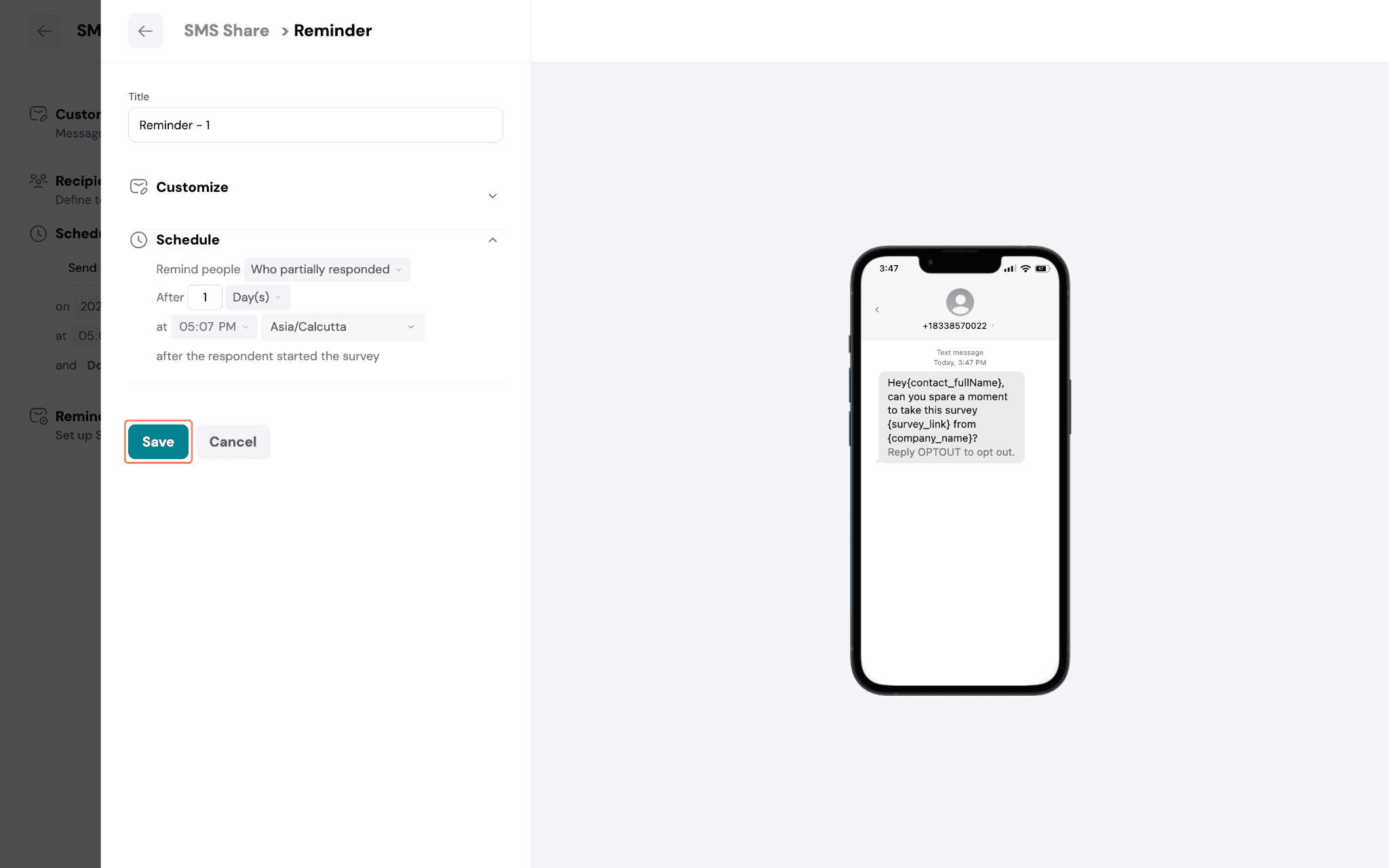
Conclusion
SMS sharing gives you a direct way to reach respondents and collect feedback where they are most likely to see it. You can send a survey link, collect responses through two-way SMS, target specific recipients, and control when follow-ups are sent. Use the message preview and test SMS option to verify your setup before sending. Try SMS sharing for your next survey and make it easier for respondents to take part.