
Search

Google Chat is a communication platform for one-to-one messaging, group chats and collaboration, available to both Google Workspace users and anyone else with a Google account. SurveySparrow now integrates with Google Chat via its own Workspace app, meaning that users can share surveys with others, individually or in groups. Users can collect quick feedback from colleagues and teams without dropping out of the conversation. This leads to faster clarity, alignment and decisions. Situations where this works include:
In this article, we’ll run through the steps of installing the SurveySparrow app for Google Chat and setting it up to send surveys.
1. Inside your Google chat account (chat.google.com or mail.google.com/chat), hover over the Apps section (in the left hand panel). When the 3-dot vertical button appears to the right, click on it. 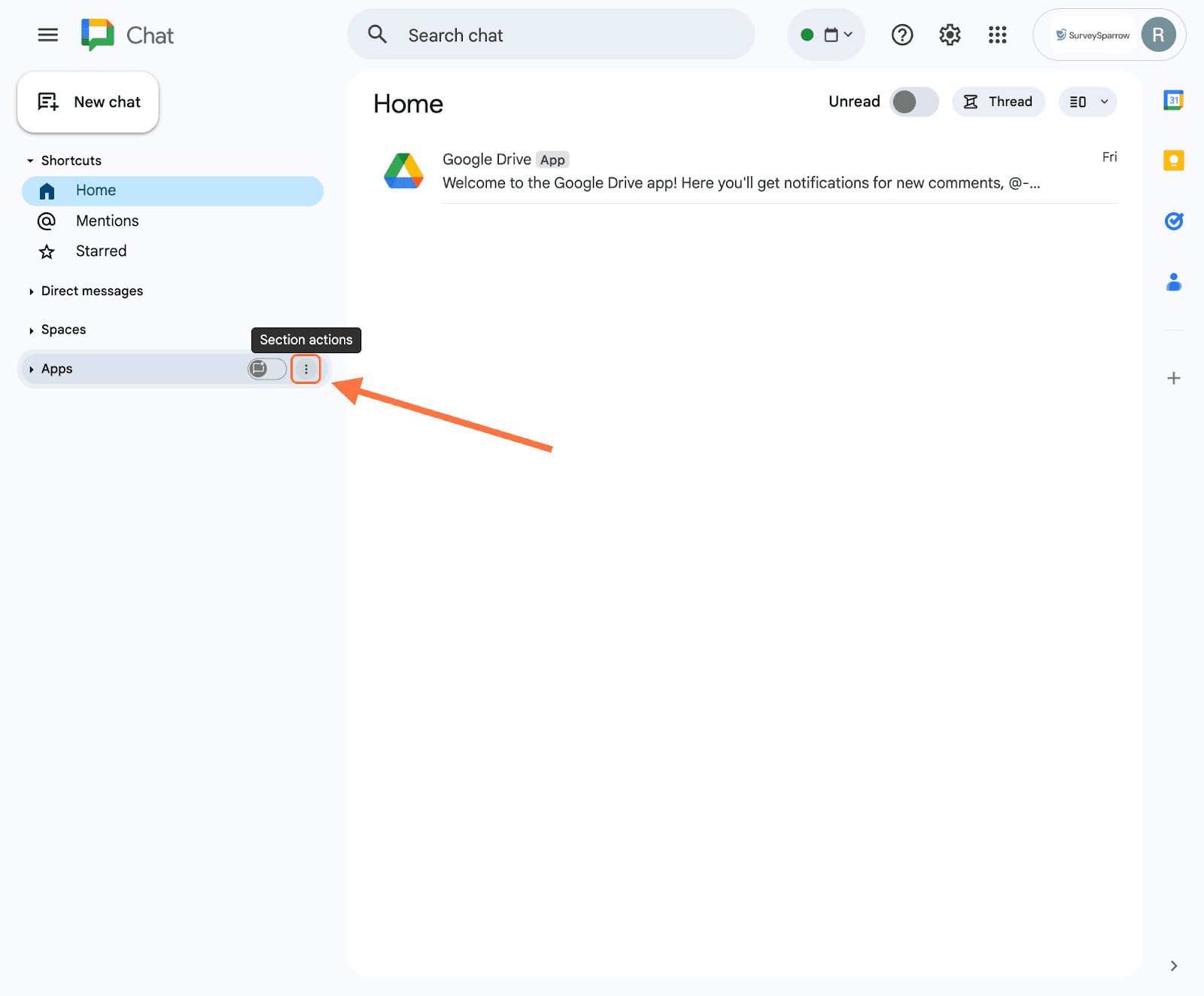
2. When the drop-down menu appears, click on Find apps.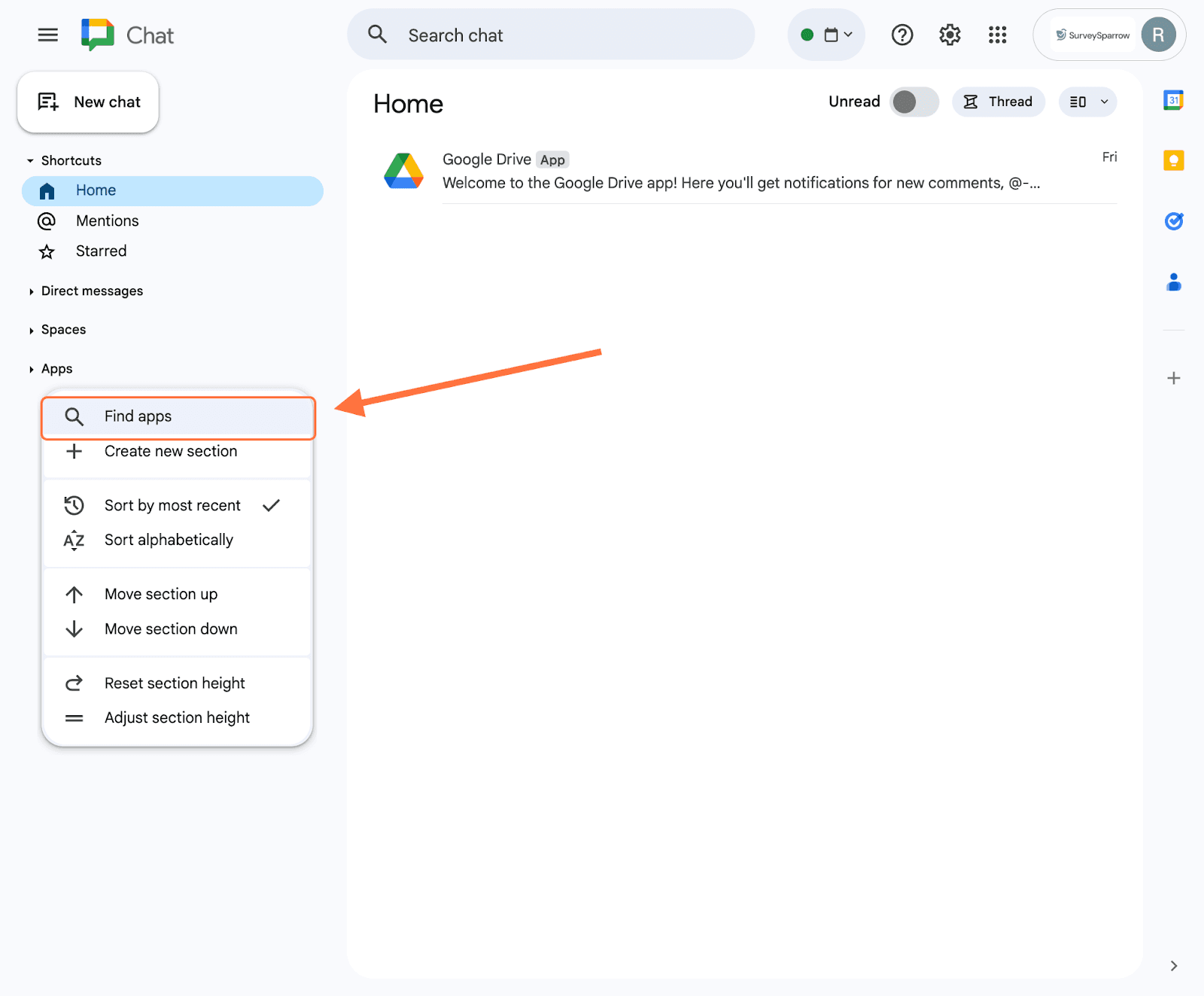
3. When the app marketplace opens, search for the SurveySparrow app. When the app appears, click on the Install button.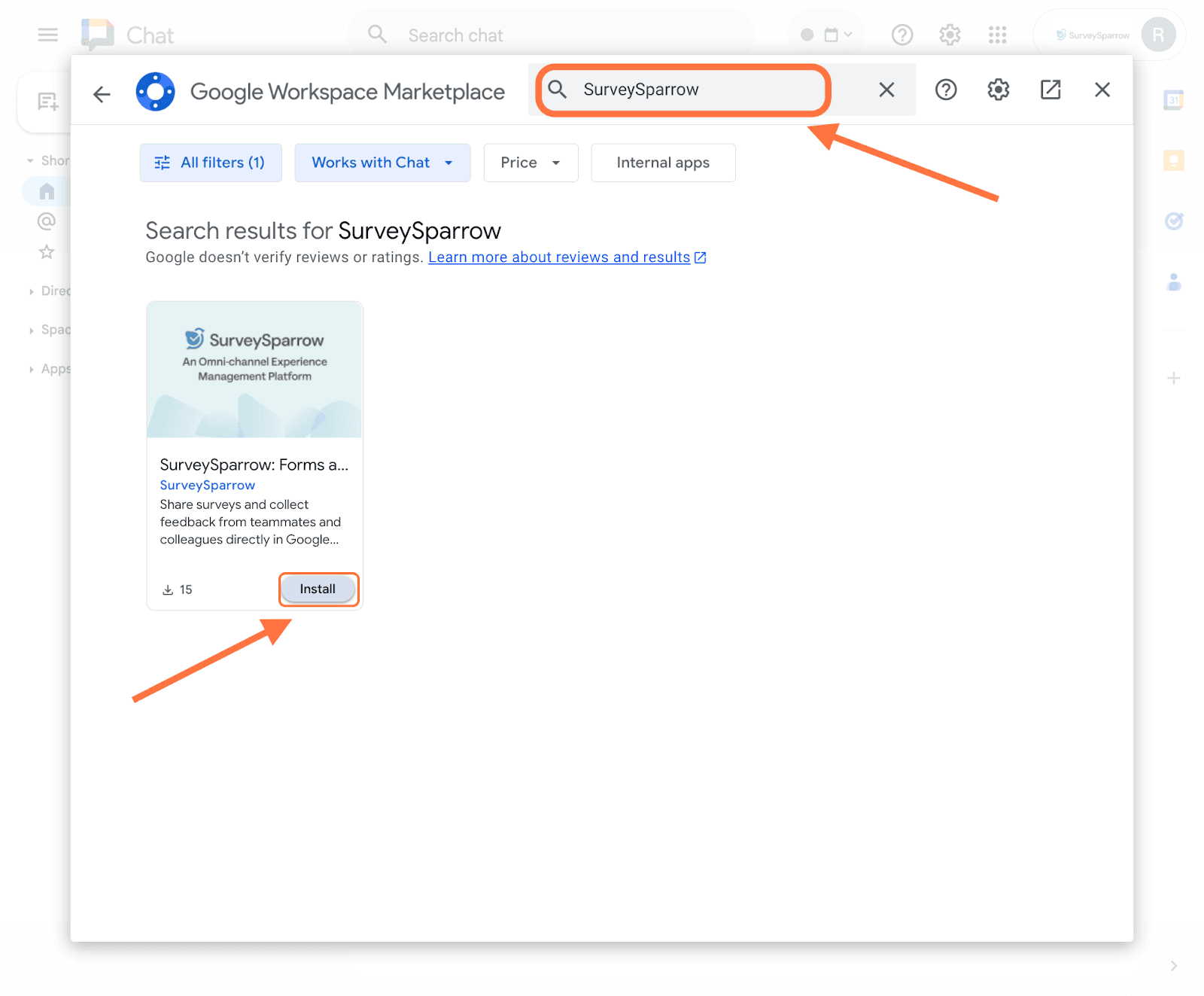
Note: Users can also go to the Google Workspace marketplace and install the app.
4. A confirmation message appears. Click on Continue.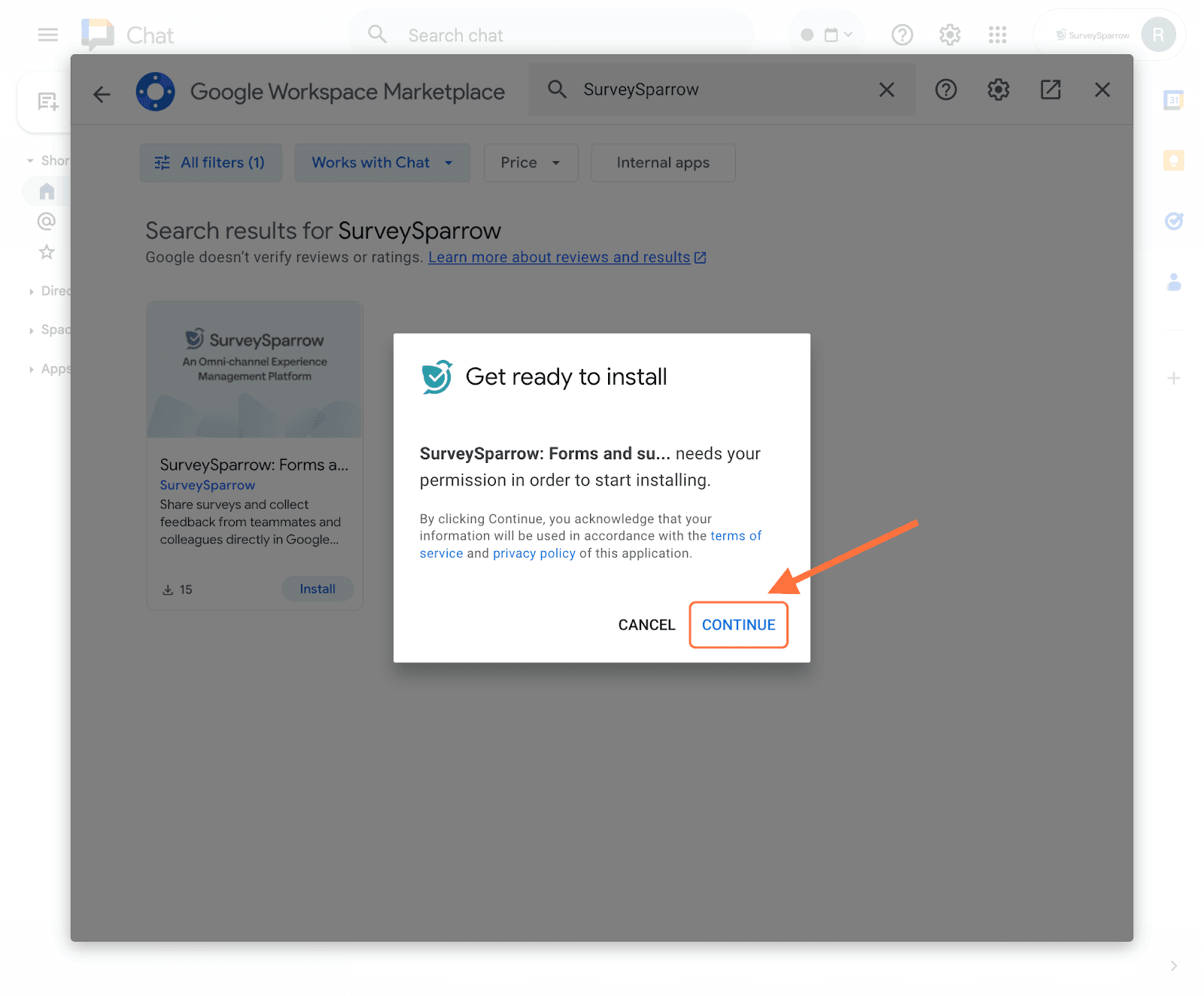
5. Next, you must select a Google account to authorize the installation.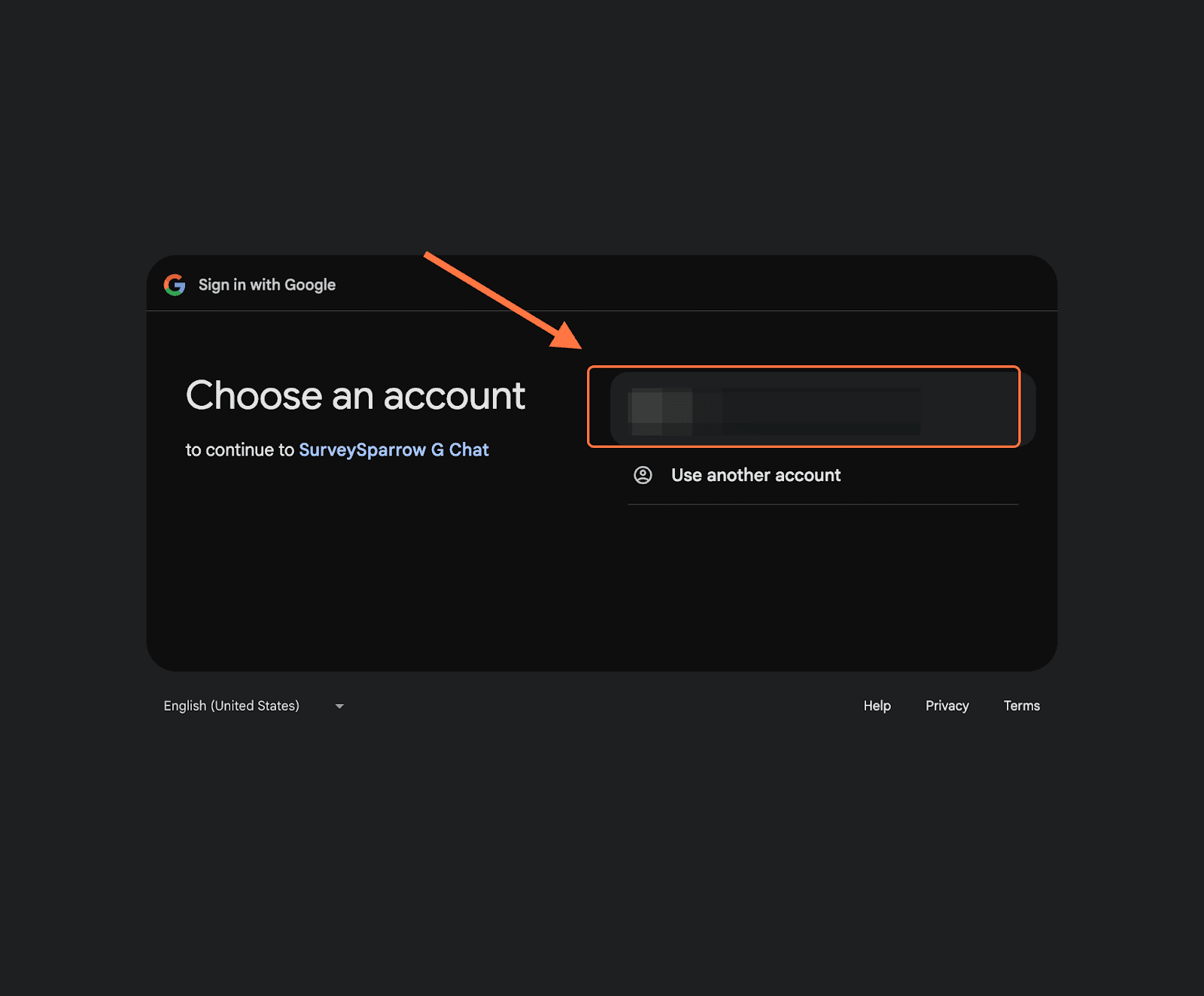
6. Click on Continue to confirm the account sign-in.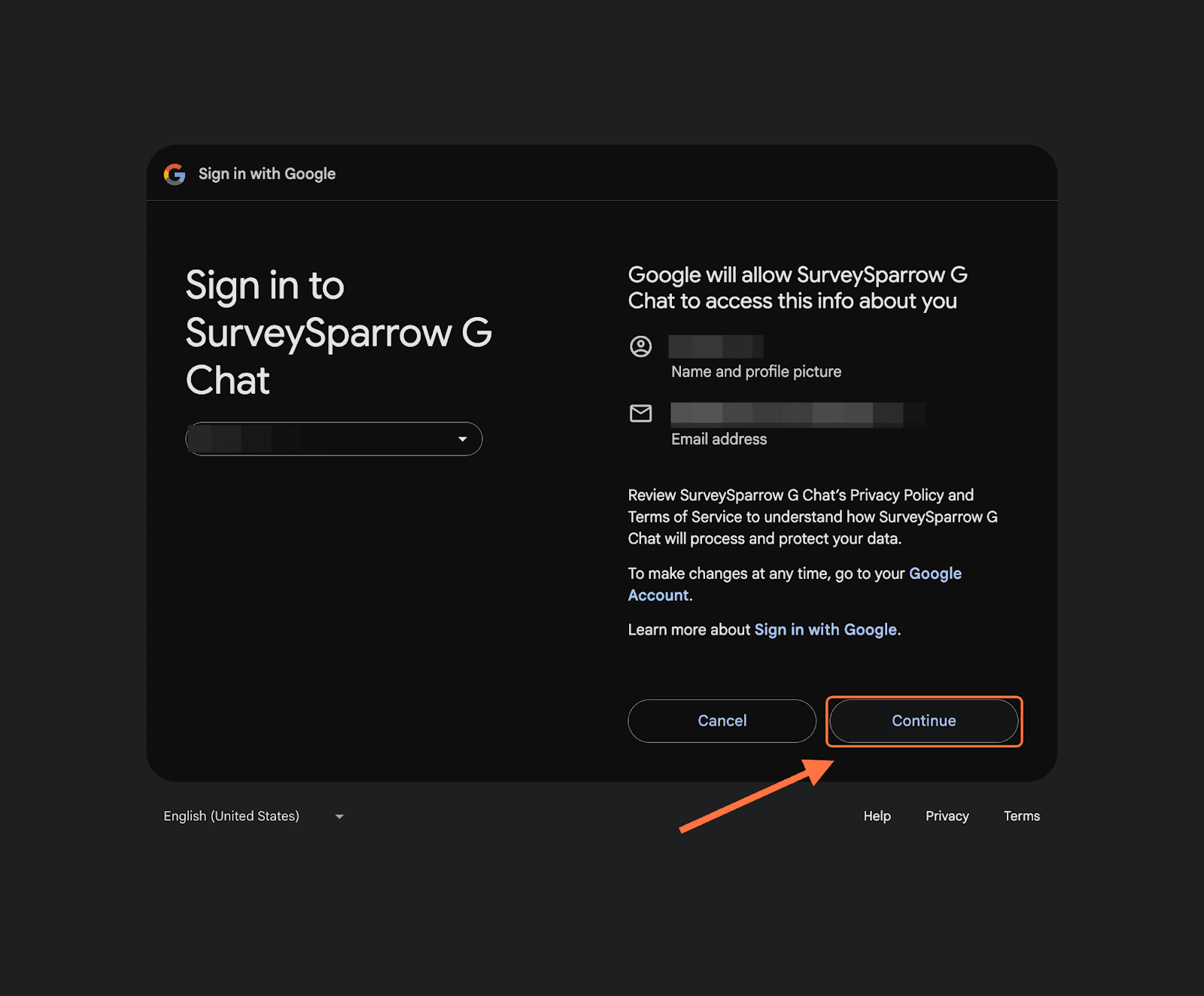
7. Next, click on Allow to complete the installation.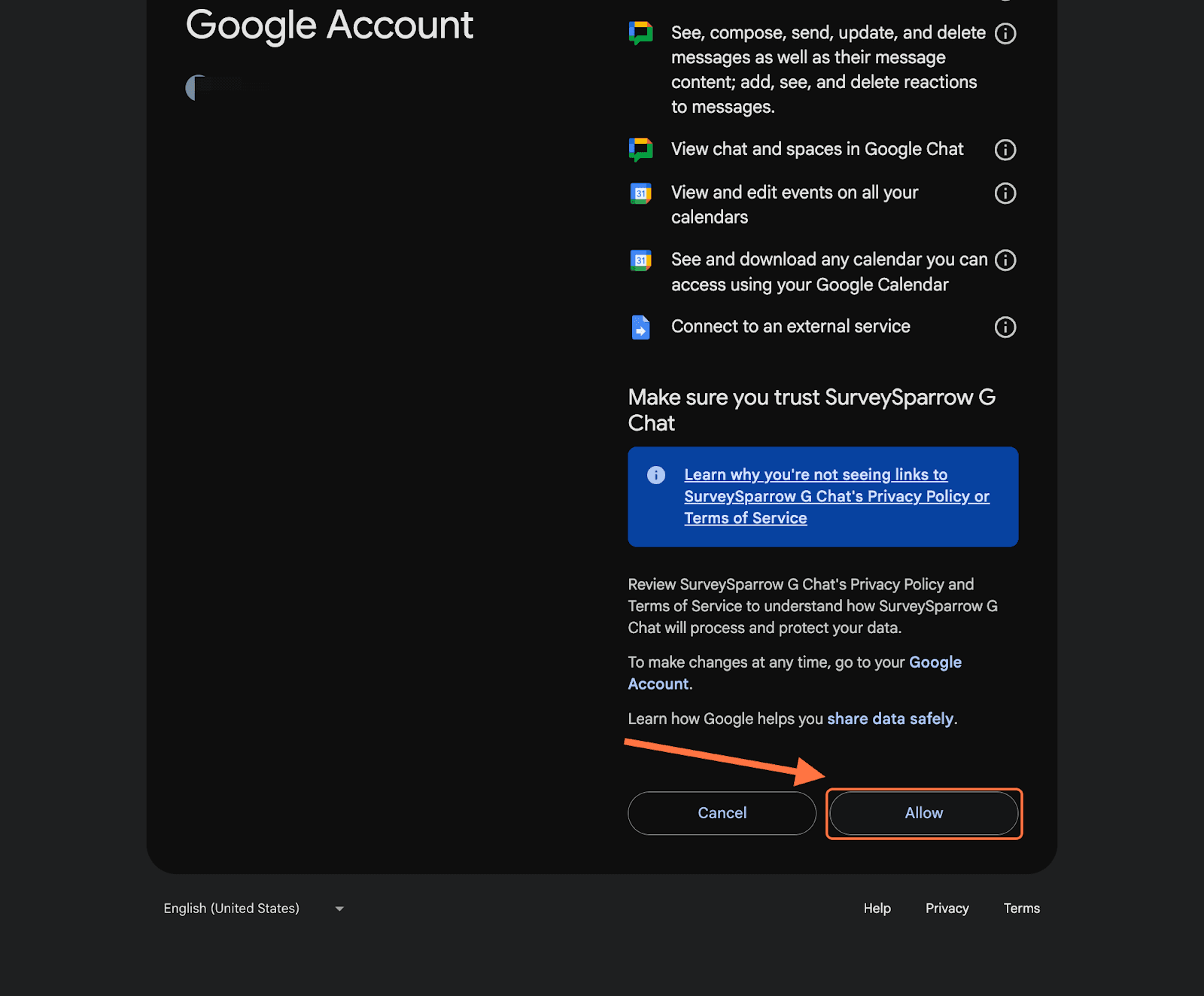
8. You will be returned back to the app marketplace. Click on Done.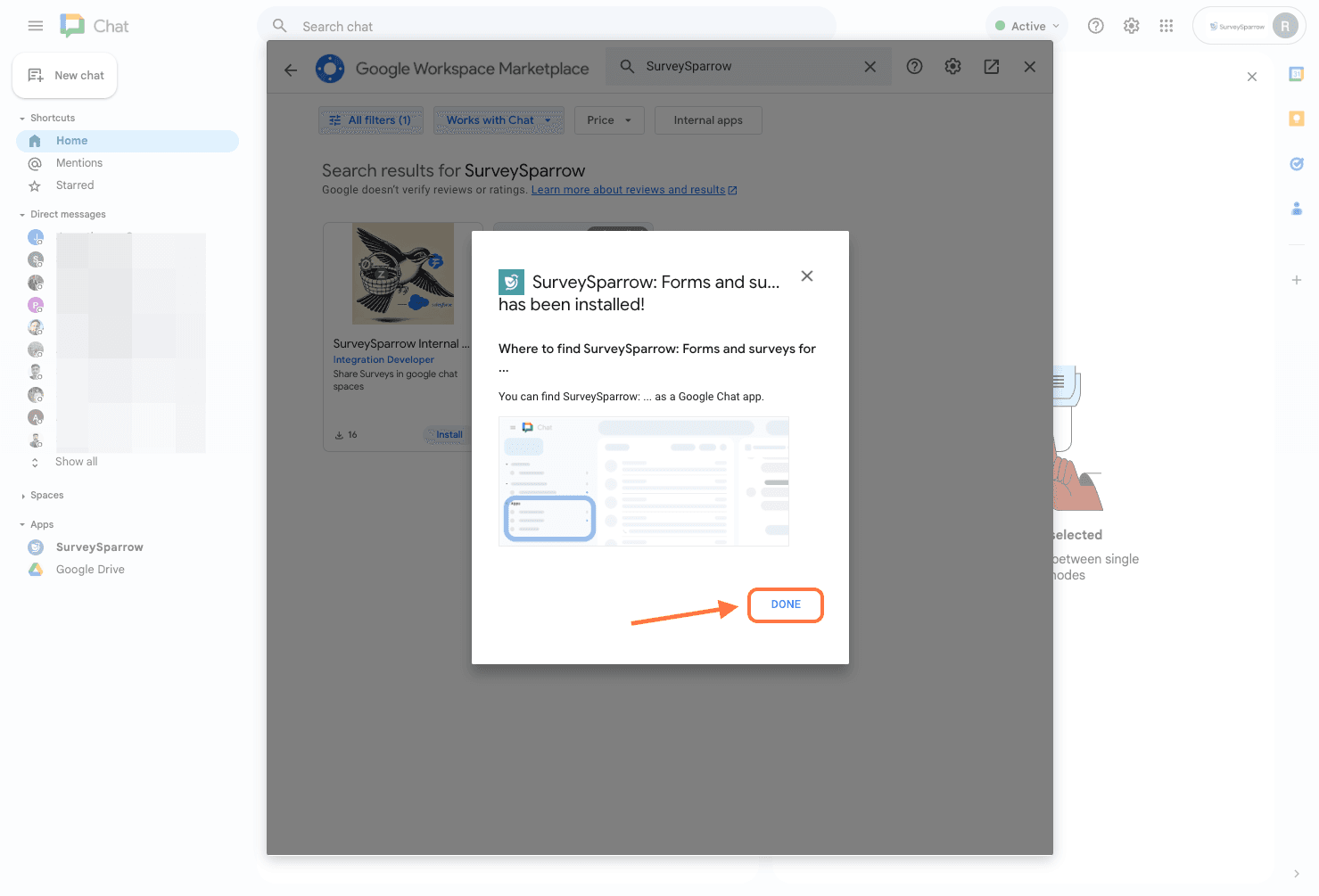
9. Now the SurveySparrow app has been installed, and will appear under the Apps section. But you need to connect the app to your SurveySparrow account. When you open the app’s chat box, an introductory message appears. Click on Connect.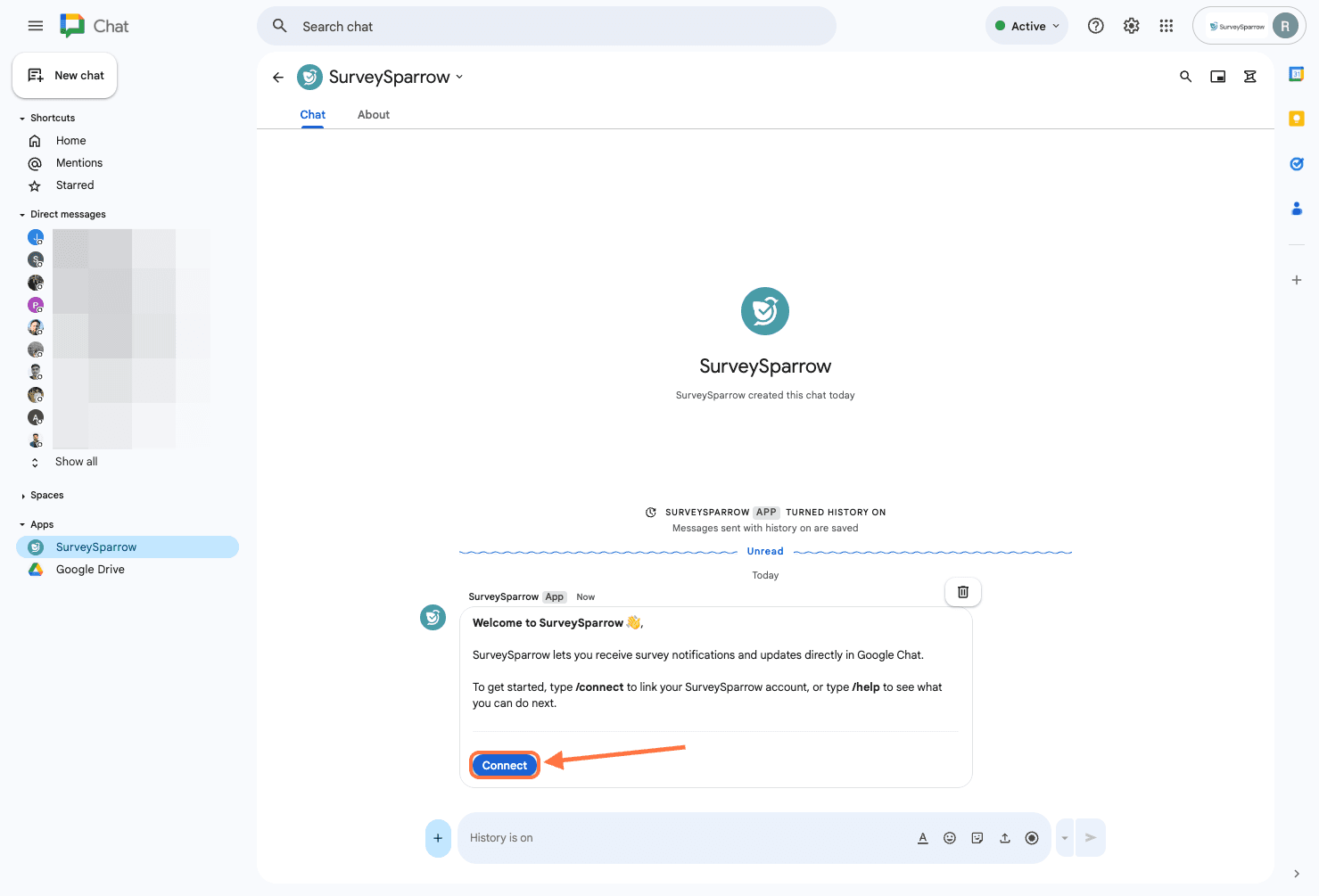
10. In another browser tab, the SurveySparrow sign-up page opens. If you don’t already have an account, you can sign up as usual. If you have an account, click on Login at the bottom of the screen. Then you will be taken to the login page, where you can login as usual.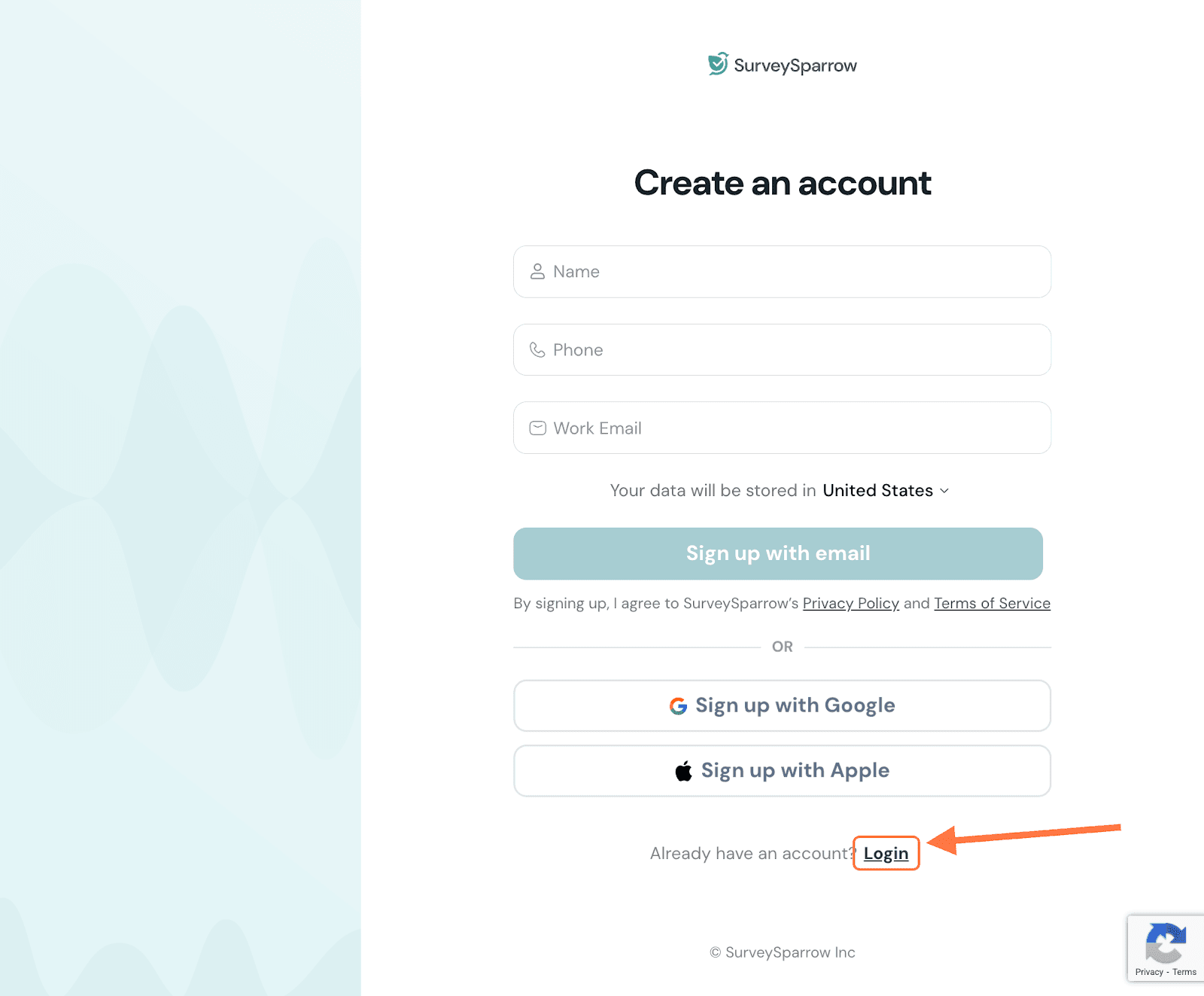
11. Type in your email address and account password and complete the login. You can also login via Google or Apple.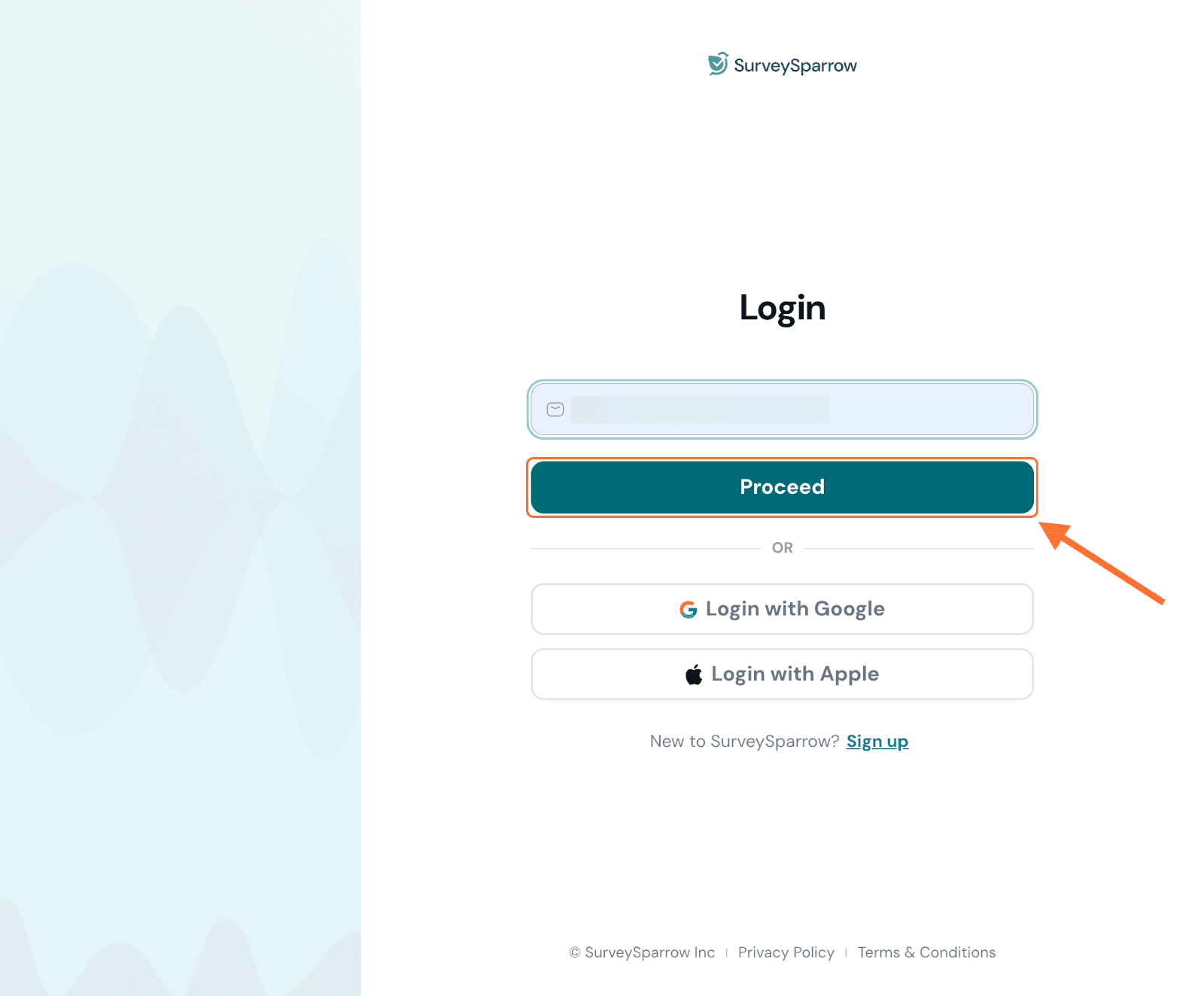
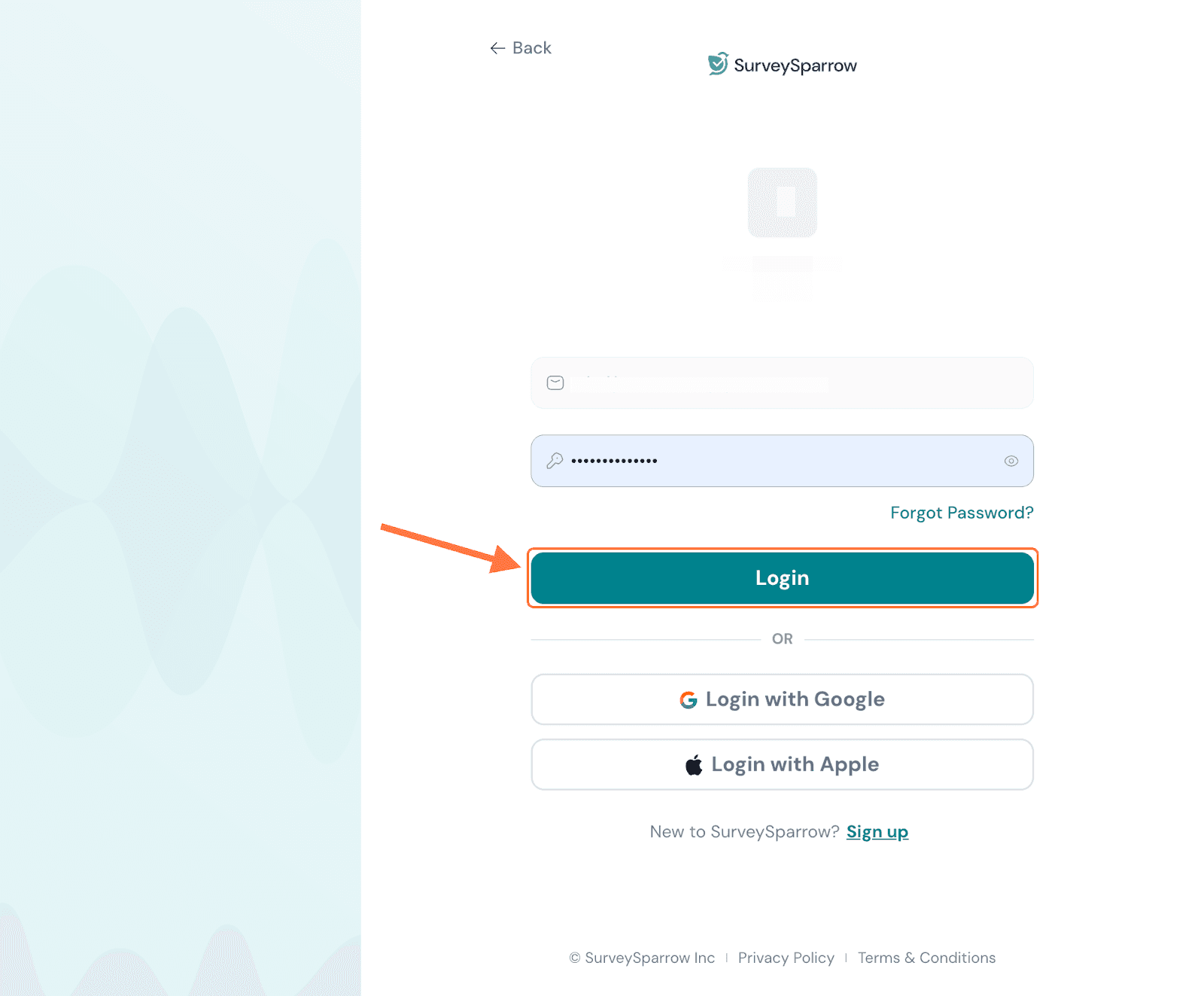
Note: If you have multiple SurveySparrow accounts connected to your email, you must choose one.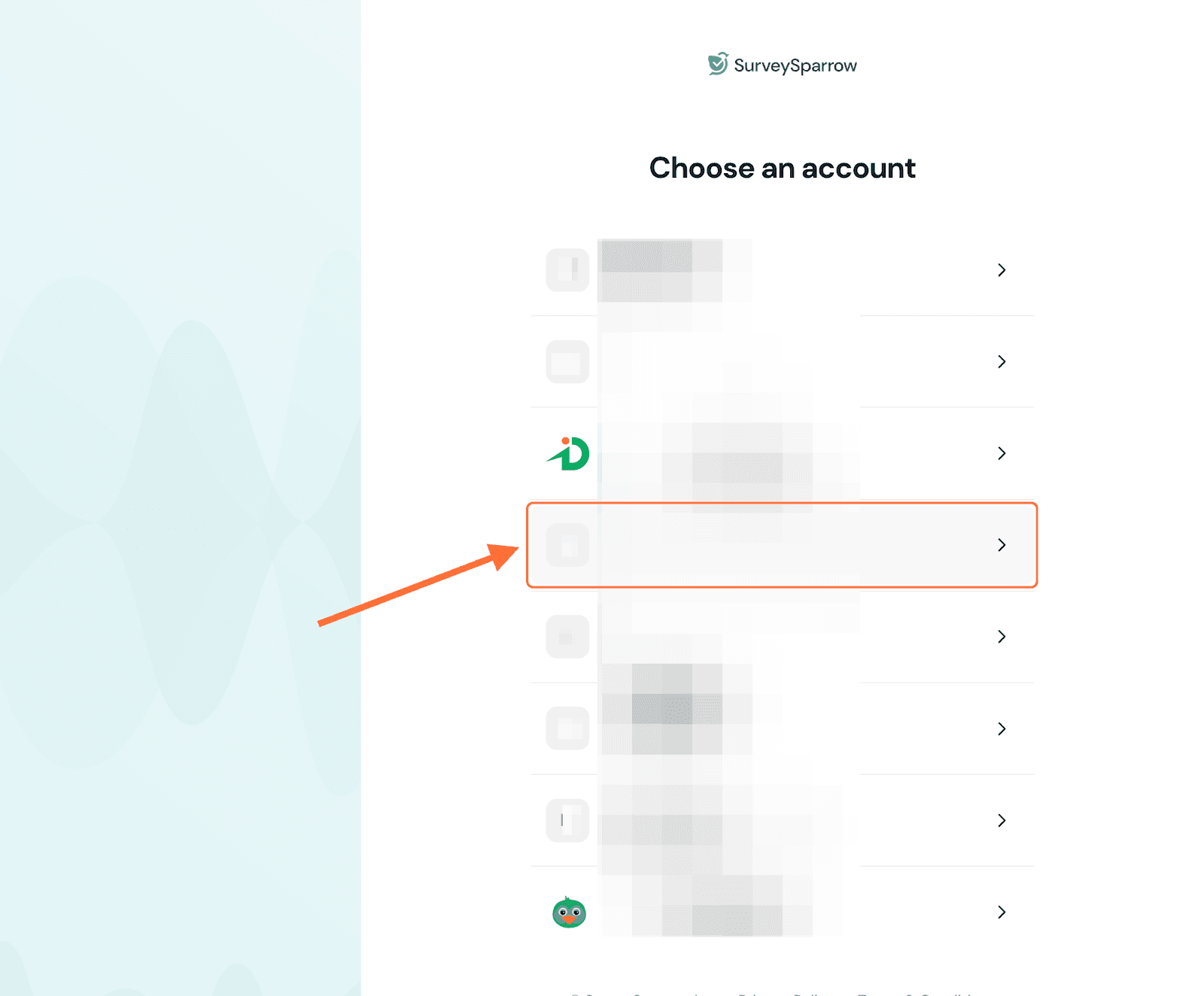
12. A final authentication screen appears, listing the required app permissions. Click on Authorize.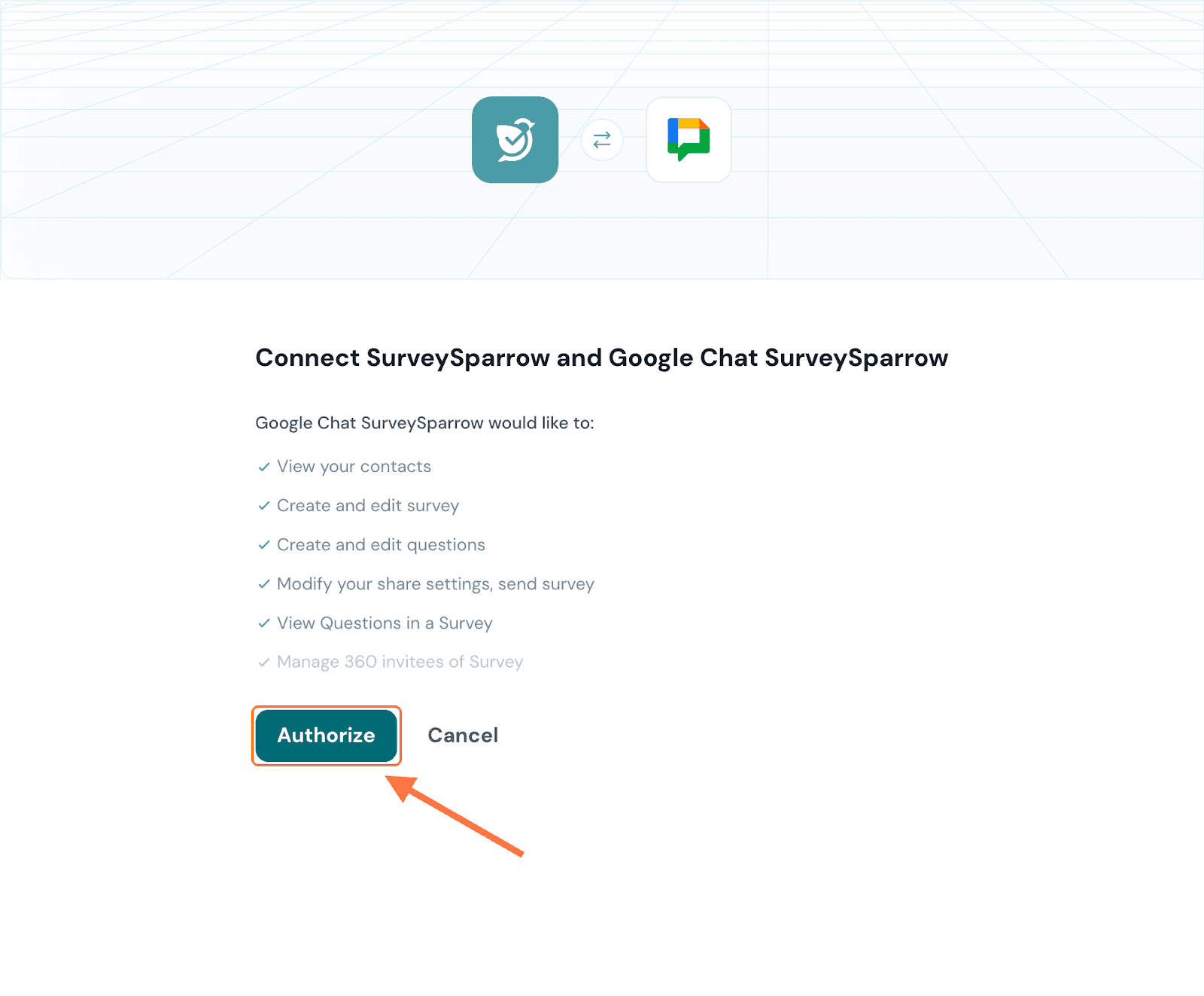
13. When the authentication success message appears, return to Google Chat or close the tab (by clicking on the button named likewise).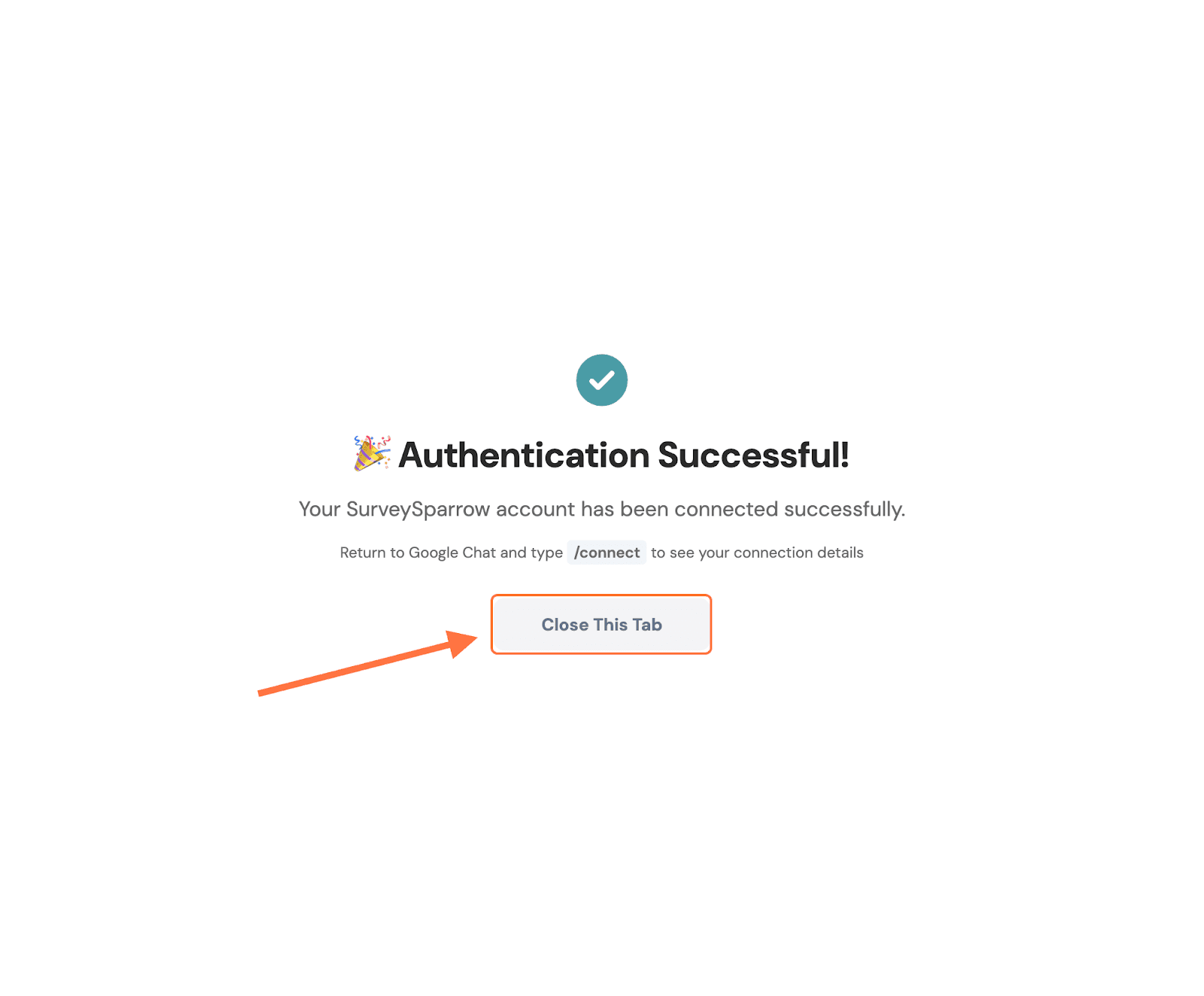
14. To verify that the app has been installed, type /connect in the text box of any chat, select the corresponding option from the pop-up menu and hit send.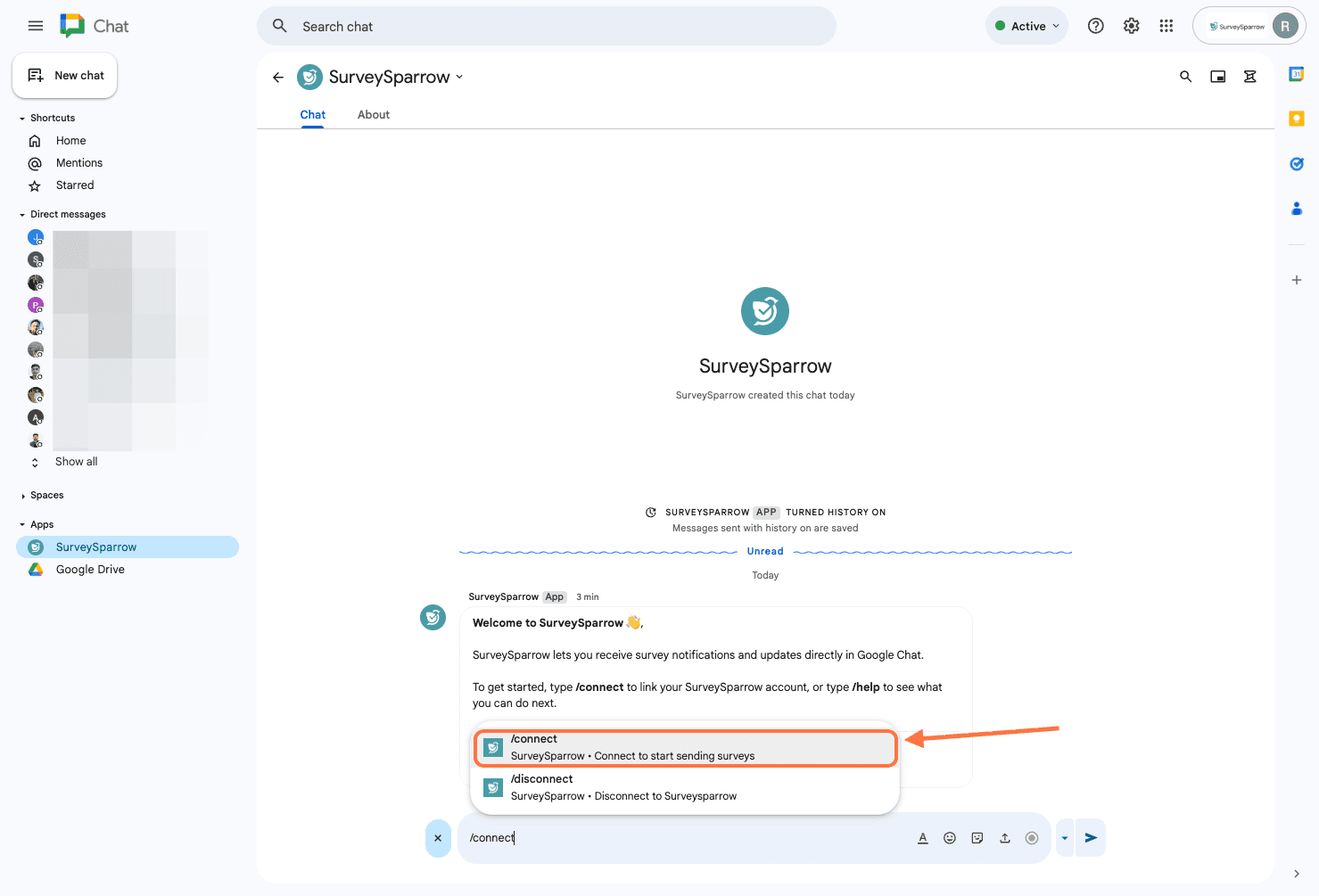
Note: There are 4 slash commands that users can use:
15. A pop-up will appear, confirming that you have connected your account to the app. There will also be two actions available: sharing surveys and creating a new survey.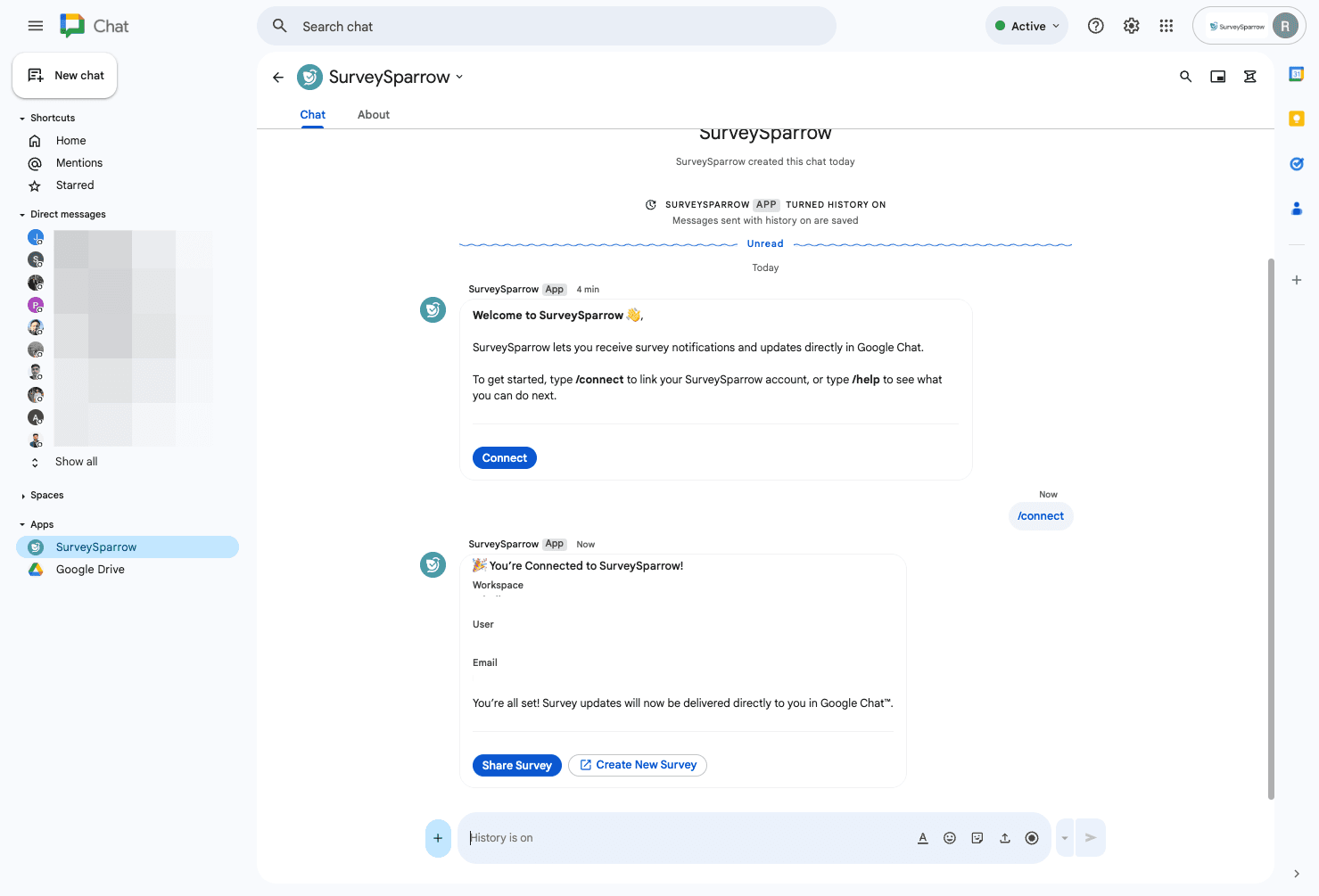
Note: If you click on Create New Survey, you will be taken to your SurveySparrow account inside another tab.
Note: If you uninstall the app without disconnecting your account, your account will remain connected when you reinstall it later. You do not need to connect it again.
16. Now head to a chat (individual or group) and send /share in the same manner as described above.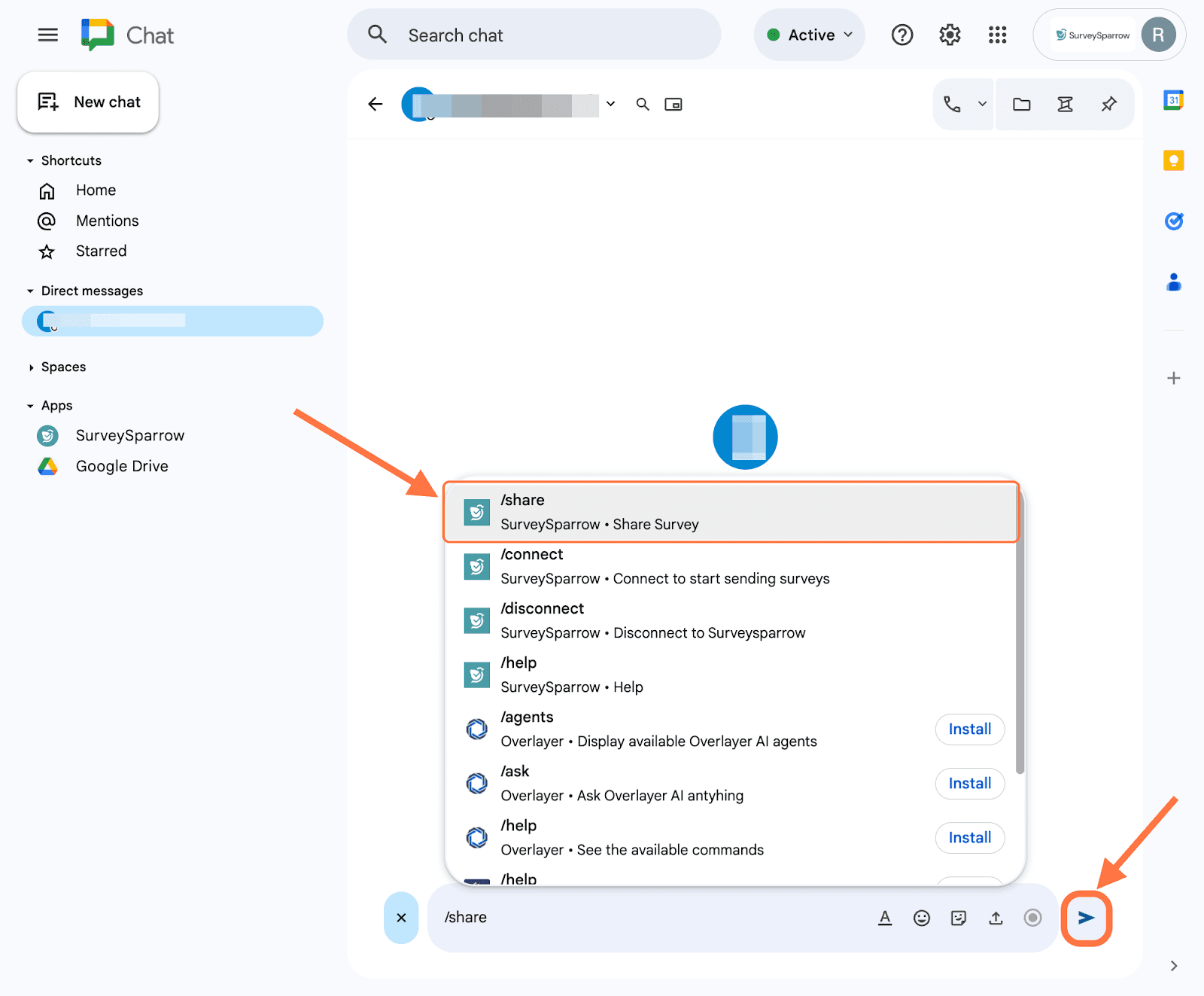
Note: When you send any of the slash commands into a chat, the commands and the resulting messages from the app will only be visible to you.
17. The app replies with a survey configuration card with 3 settings. The first setting is mandatory: it decides which survey from your account you want to send. Click on the drop-down menu and select any of the available surveys.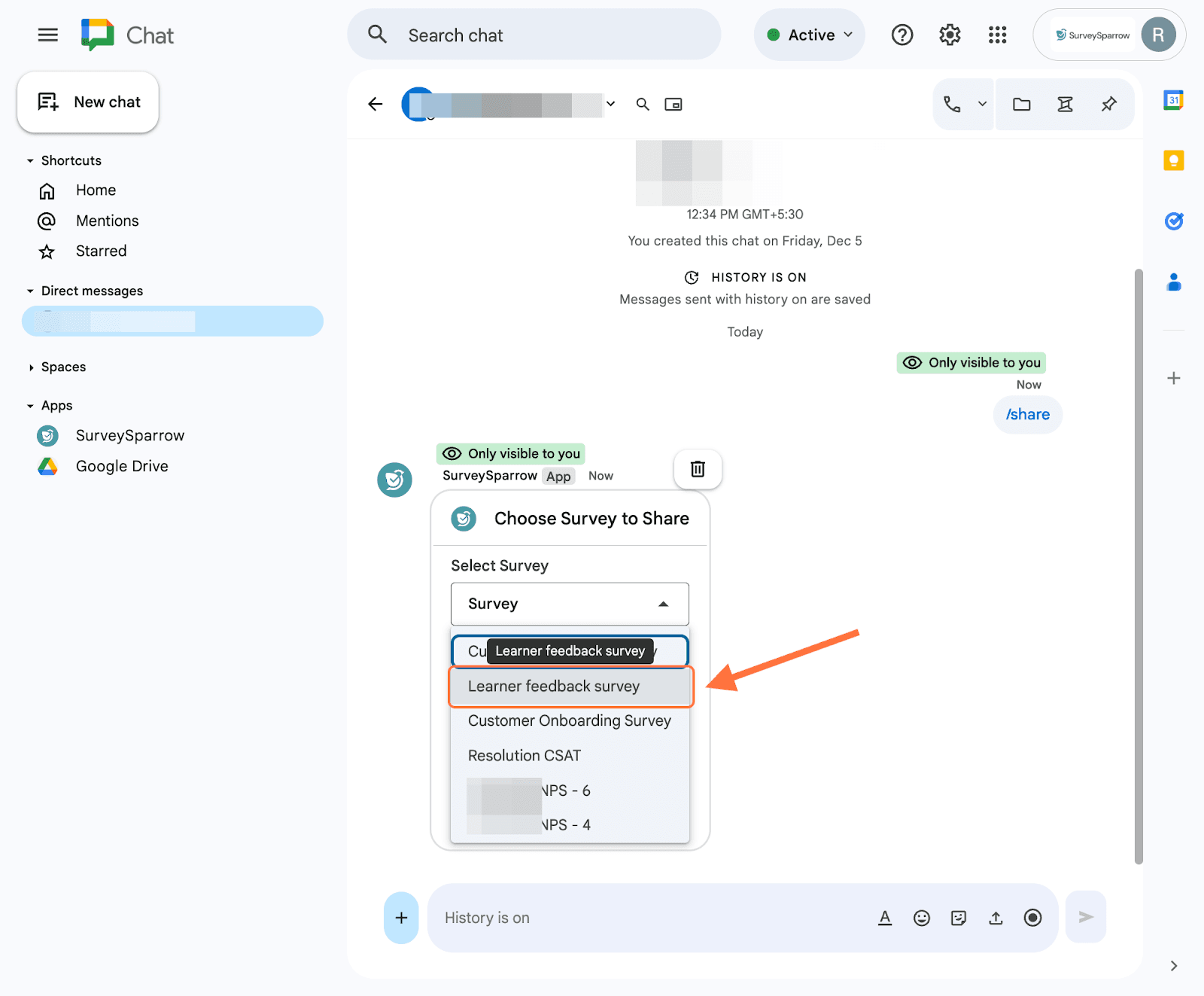
Note: You can only select and send one survey at a time.
18. The second setting is optional: it lets you select the variables to send along with the survey. These variables will capture additional information and enrich the responses. Click on the second drop-down menu and choose the variables. You can select multiple options.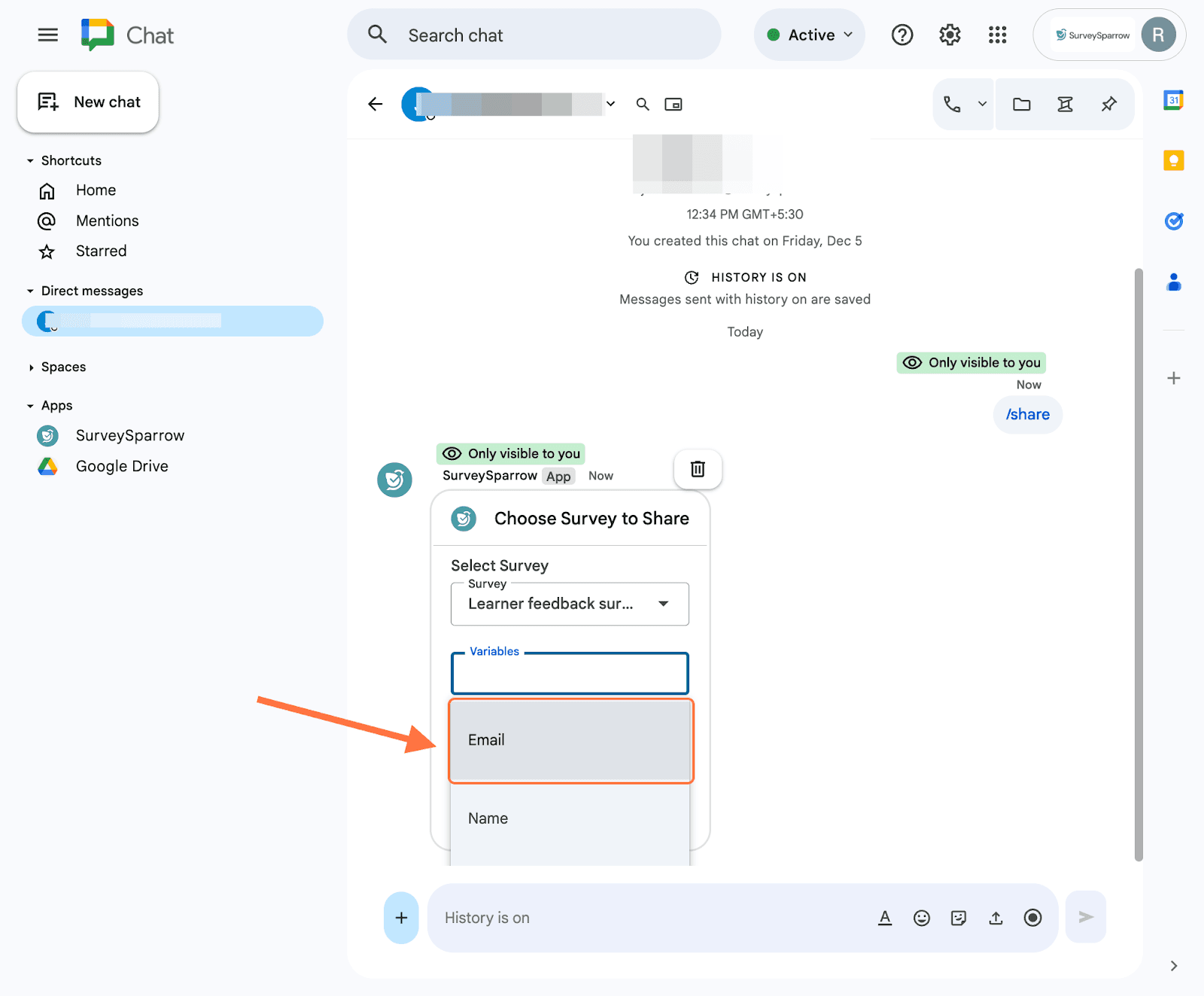
19. The third setting is also optional: it lets you type in a description for the survey. This description will appear with the survey, and it’s useful to set context for the receiver. After typing it out in the text box, proceed to send the survey by clicking on Share Now.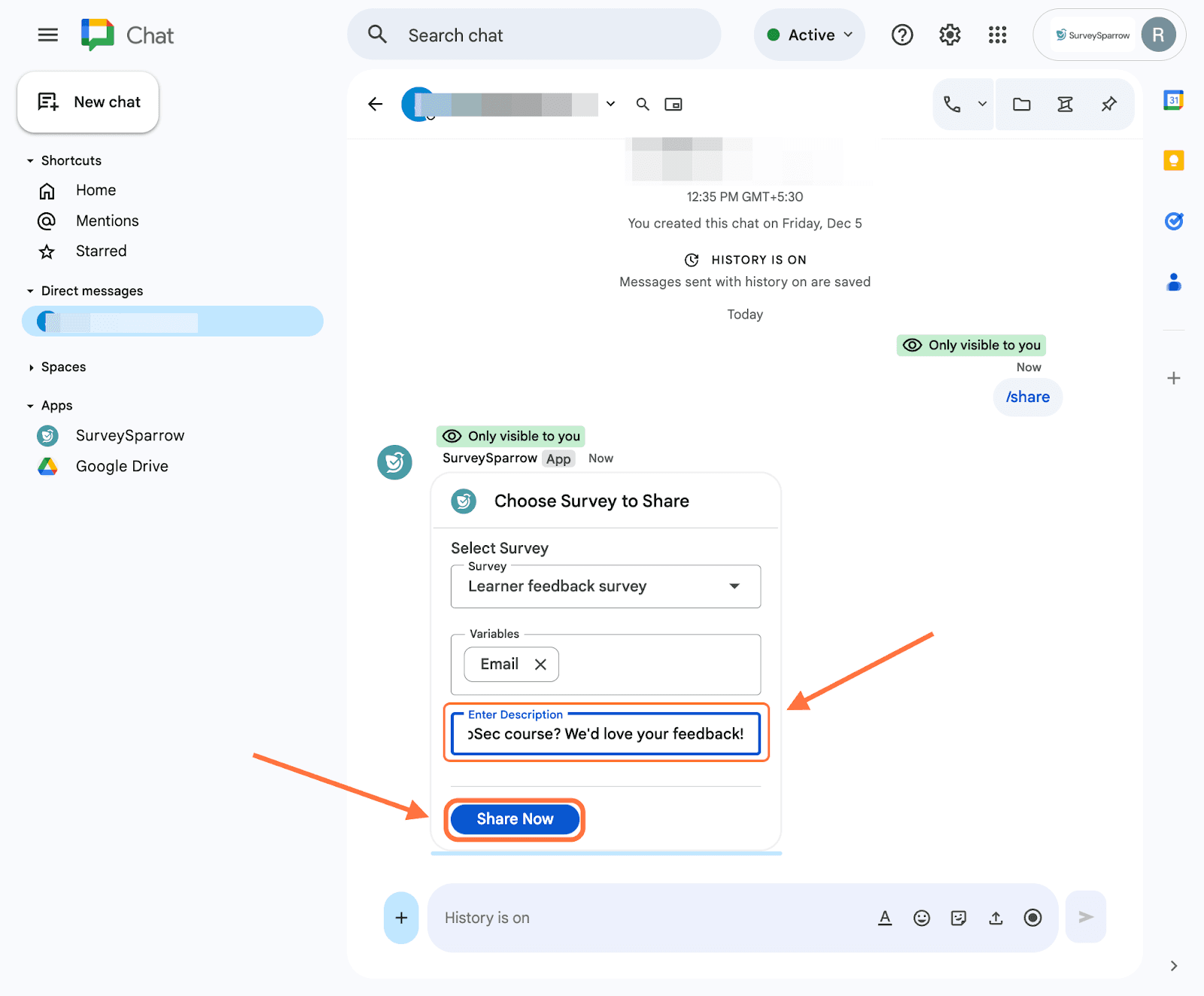
20. The survey has been shared. If the receiver clicks on Take Survey, they will be taken to the survey in another tab.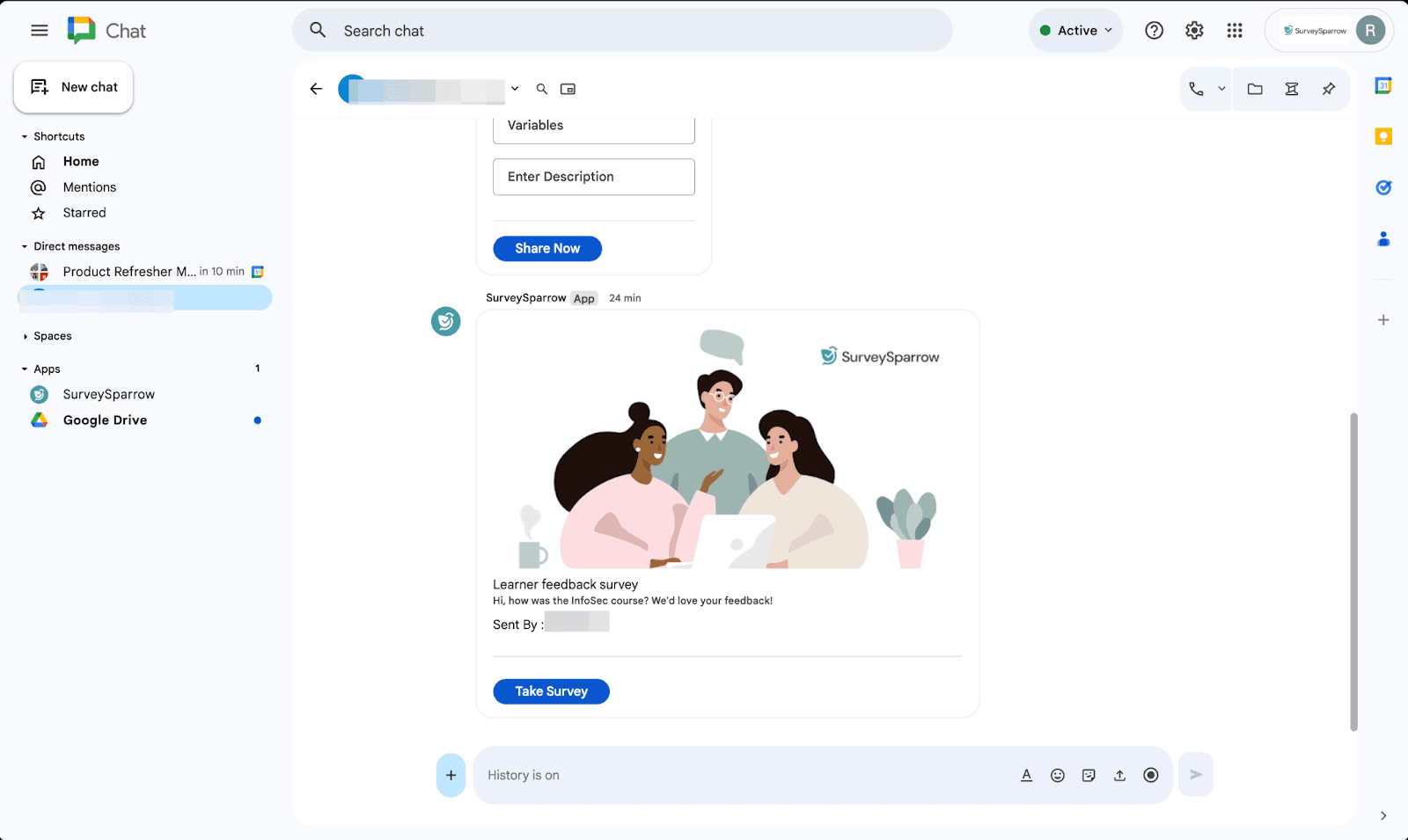
Note: Users can send further surveys by reusing the initial configuration card that was created, or by summoning a new card with the /share command.
21. In case you need clarity on the slash commands to use, type and send /help. You'll get an overview of the existing slash commands.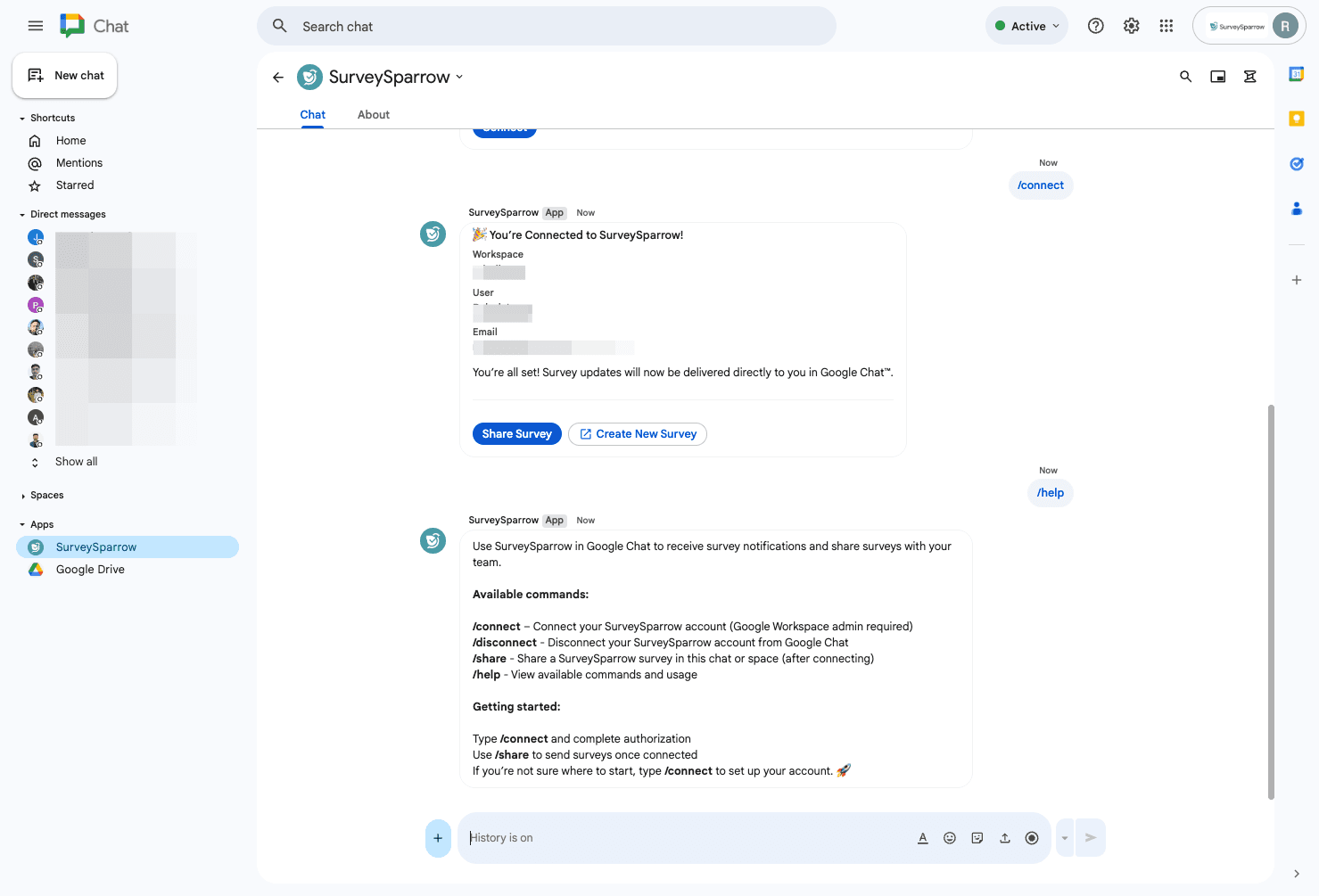
Now, you’re good to go! The SurveySparrow app for Google Chat is easy to set up and easier to use, so it only takes a few minutes to get everything up and running. Install the app today and start collecting quick feedback right where your teams chat and collaborate.
Feel free to reach out to our community, if you have any questions!
Powered By SparrowDesk