With a Randomizer in your survey flow, you can randomly present question blocks to your respondents. This ensures that each participant sees the questions in a different order, helping you reduce order bias and collect more reliable data.
Randomization helps you:
Minimize response bias caused by question order
Test different messages or experiences fairly
Improve the quality and credibility of your results
It’s especially useful for A/B testing, concept testing, and long surveys where order can influence how people respond.
Let's look at an example to understand this better
A retail brand wants to understand how customers feel about three different service experiences: in-store support, delivery experience, and returns.
They don’t want one experience to always appear first, because the first question can shape how people think and respond to the next ones.
For example, if customers start with a negative experience, they may rate the rest more harshly. If they start with a positive one, they may rate everything more favorably and result in order bias.
By changing the order for each respondent, the brand gets more balanced and reliable feedback.
Let’s see how to randomize questions.
Navigate to Configuration under Build.
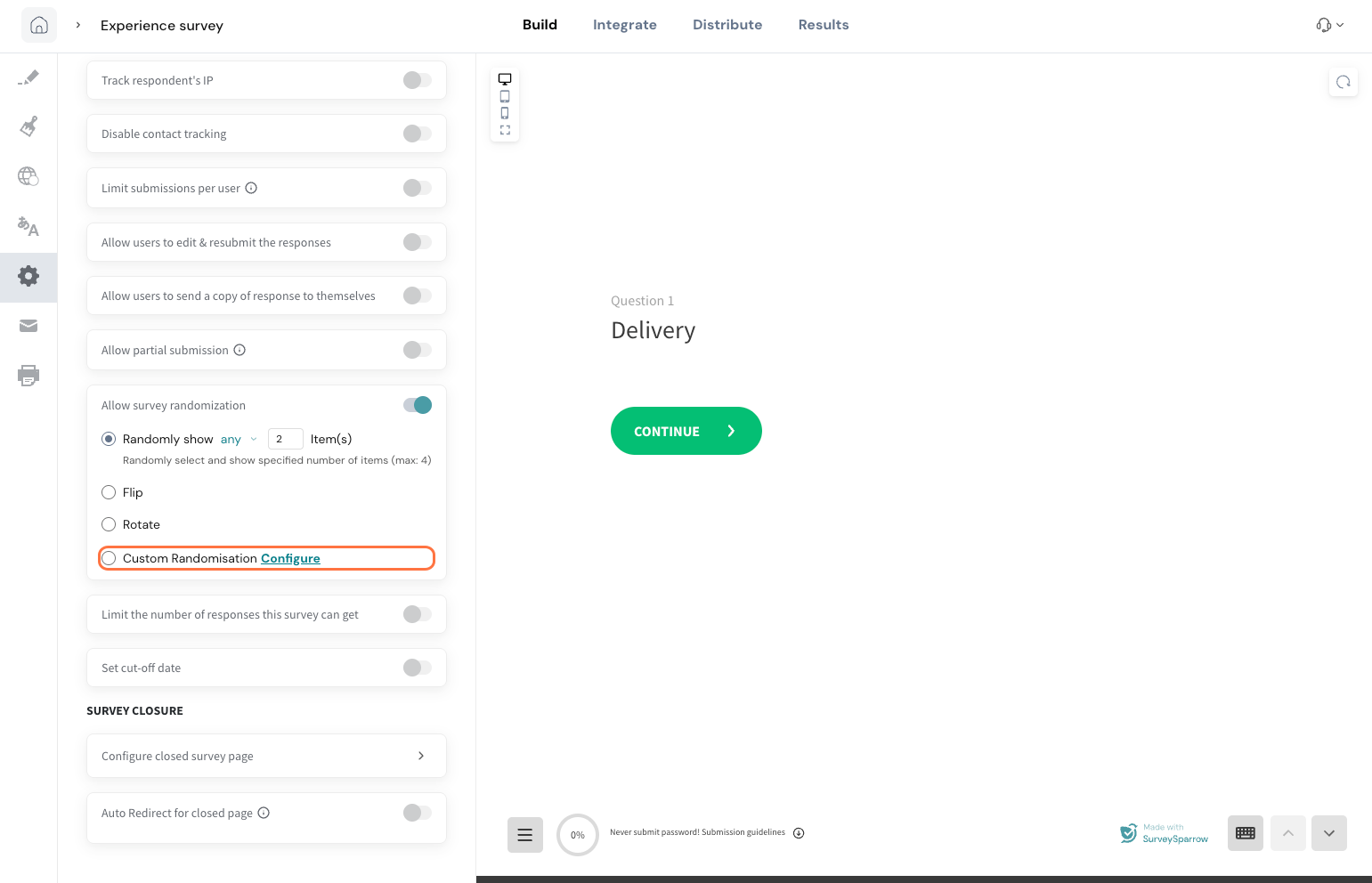
Turn on Allow survey randomization. By default, this setting is turned off.
Select Randomly show all if you want all the questions in the survey to appear in a random order.
To ask only a specific number of questions, use the dropdown and choose Any. With this option, you can enter the number of questions you want to ask, and the system will randomly select and show that many items.
Flip randomize: With Flip, the order of questions is reversed for half of your audience. For example:
50% of respondents see: Q1, Q2, Q3
The other 50% see: Q3, Q2, Q1
This helps balance any bias caused by the first or last question in a sequence.
Rotate randomize: With Rotate, the starting question changes for each respondent, while the order continues in a loop. For example:
1st respondent: Q1, Q2, Q3, Q4, Q5
2nd respondent: Q2, Q3, Q4, Q5, Q1
3rd respondent: Q3, Q4, Q5, Q1, Q2 and so on
This ensures that every question appears equally in each position across respondents.
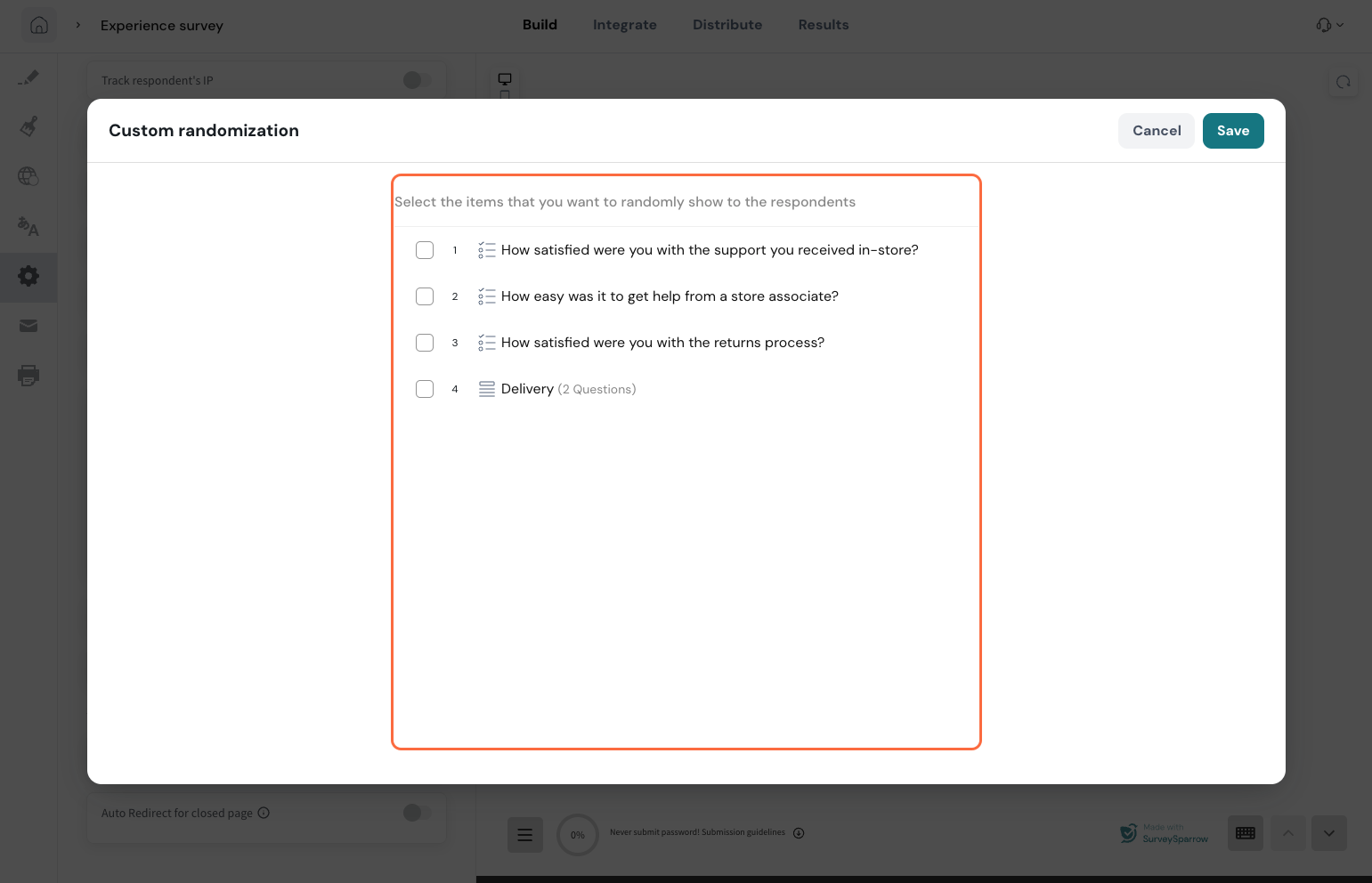
Custom randomization: With Custom randomization, you can group questions into multiple blocks and randomize within those blocks.
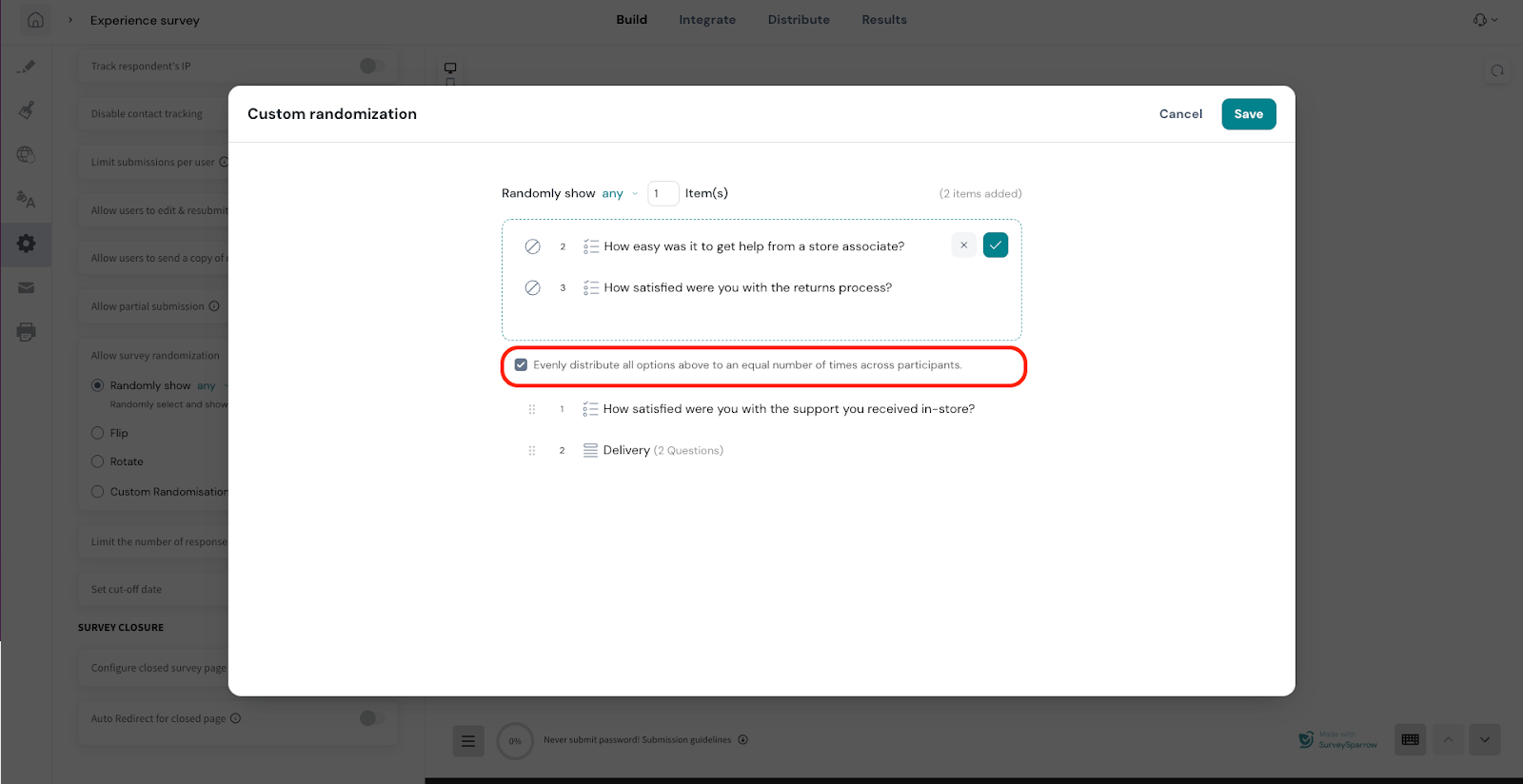
You can select exactly which items should be randomized and control how they are shown to respondents.You can also choose the questions to be randomized in a specific order and evenly distribute all options, so each one is shown the same number of times across participants. This ensures a fair and balanced distribution of responses.Section randomisation
In randomisation, a section is treated as a single element. This means that when you randomize your survey, the other questions may move around, but the questions inside a section will still appear in the same order, because the section itself is handled like one question.
However, the section as a whole will move based on the randomisation option you choose.
For example, let’s say your section is placed fourth in the survey:
If you choose Flip, the section may appear first for some respondents.
If you choose Random, all survey questions and sections can appear in any order. But when the section appears, the questions inside it will still follow the original sequence.
If you also want to randomize the questions inside a section, you can enable randomisation at the section level as well.
Follow these steps:
Turn on the Randomize questions toggle for the section.
Once enabled, you will see options to:
Rotate questions – The first question inside the section changes for each respondent, while the rest follow in order.
Flip questions – Half of the respondents see the section questions in the original order, and the other half see them in reverse order.
Randomly show all / any – All questions in the section can appear in a random order, or you can choose to show only a specific number of them.
Custom randomization – Select specific questions inside a section and control how they are randomly shown. You can also evenly distribute them so each question appears the same number of times across respondents.
This lets you control not just where the section appears in the survey, but also how the questions inside the section are presented.
Responses section
In the Responses section, each question is shown as a separate column in the responses table.
Because of randomization, not every respondent sees every question. So:
The questions that were shown to a respondent will have answers in their row.
The questions that were not shown will remain blank for that respondent.
This makes it easy to see exactly which questions each person answered, even when different respondents saw different question orders or only a subset of questions.
Randomization sequence: This column shows the exact order in which questions were displayed to each respondent while taking the survey. It helps you see how the survey flow was presented for that particular respondent.



 You can also choose the questions to be randomized in a specific order and evenly distribute all options, so each one is shown the same number of times across participants. This ensures a fair and balanced distribution of responses.
 Section randomisation


