How to set the appearance of the Echo agent?

Click on the Appearance tab to customize the visual theme of your agent. You can select different themes, choose fonts, and set primary colors to match your brand's aesthetic and create a cohesive user experience.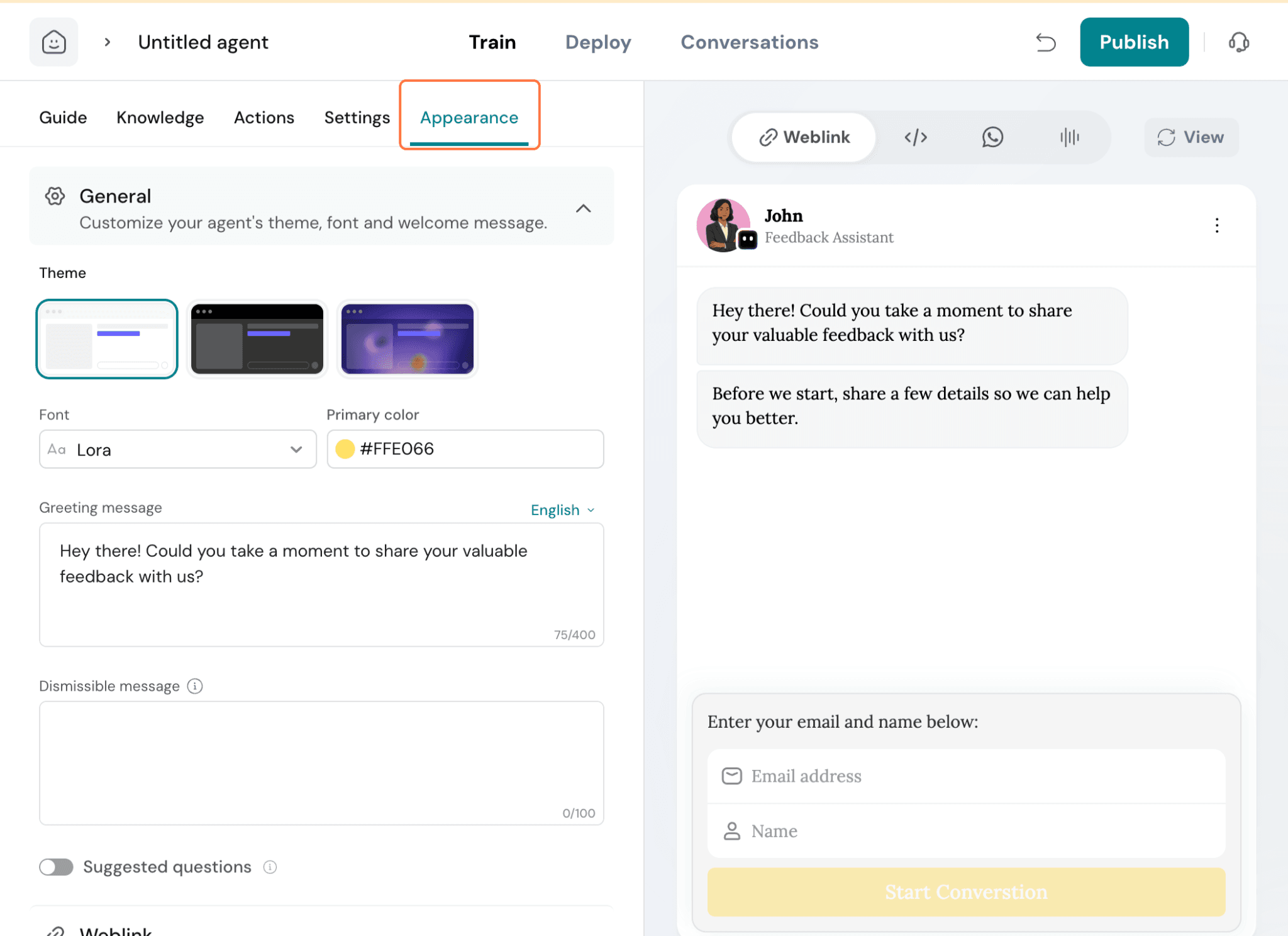
Theme – Choose the appearance of the chat widget to match your brand or preference. You can select from Light, Dark, or System theme. The System theme automatically adapts to the user's device settings.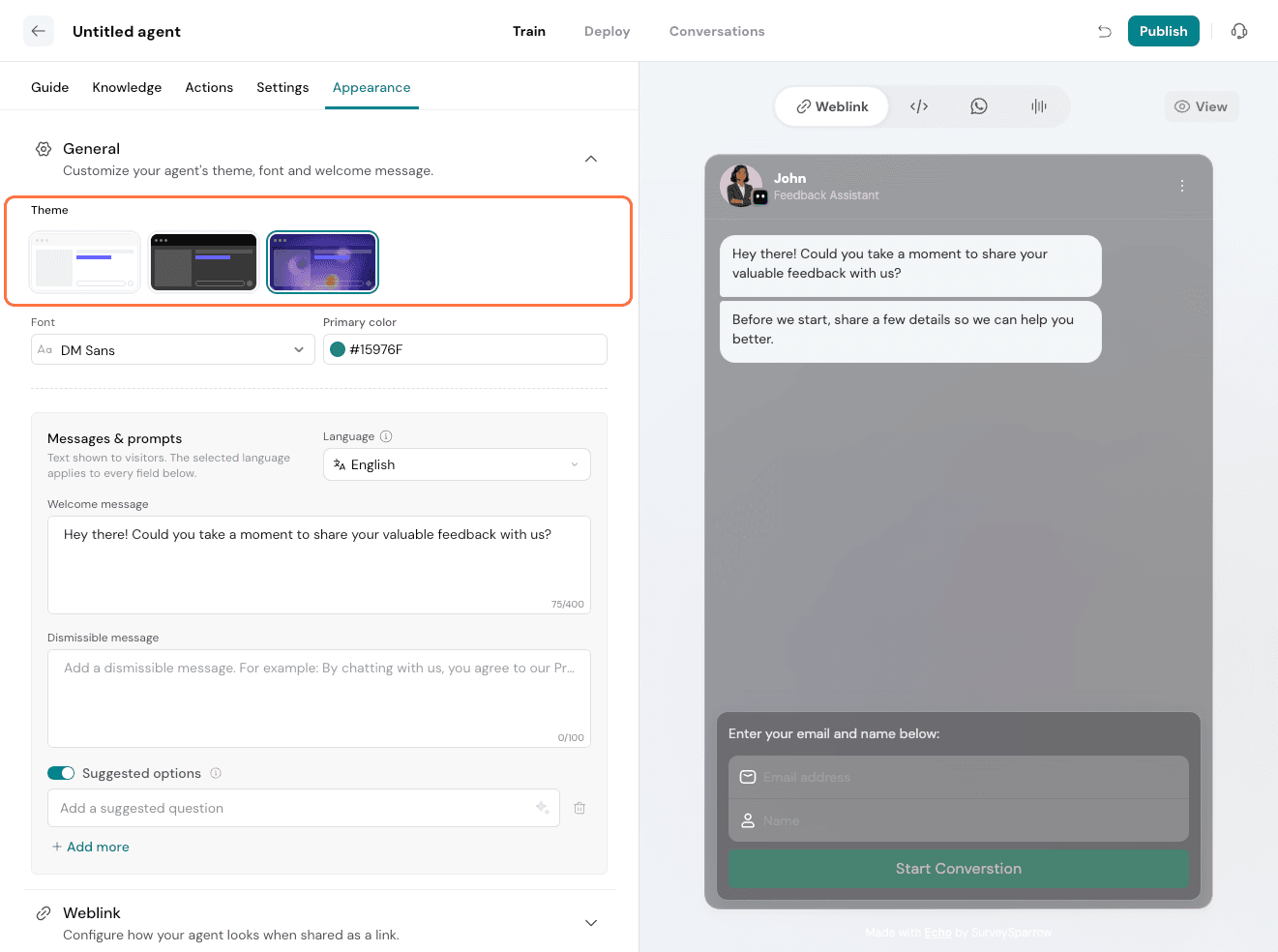
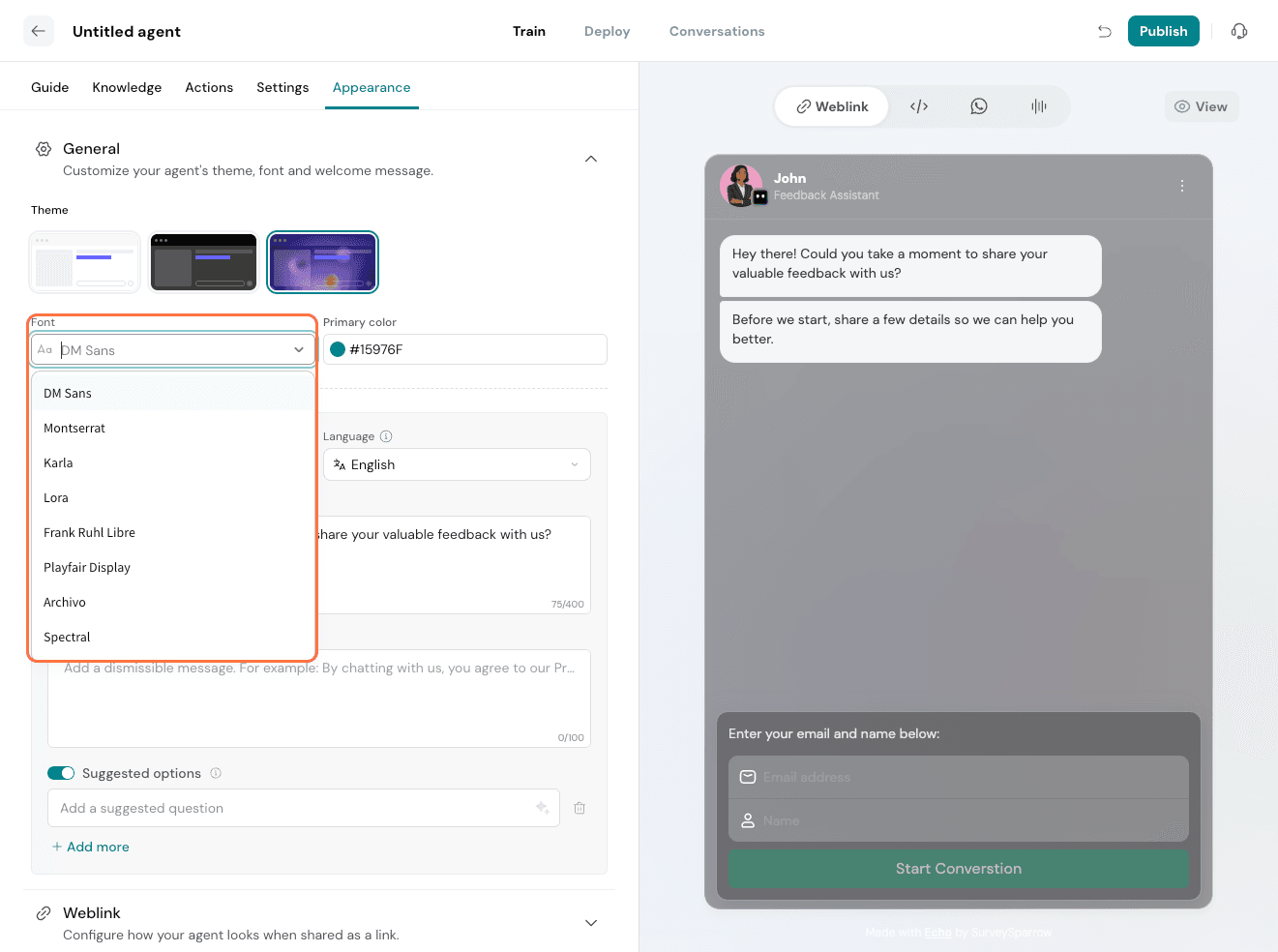
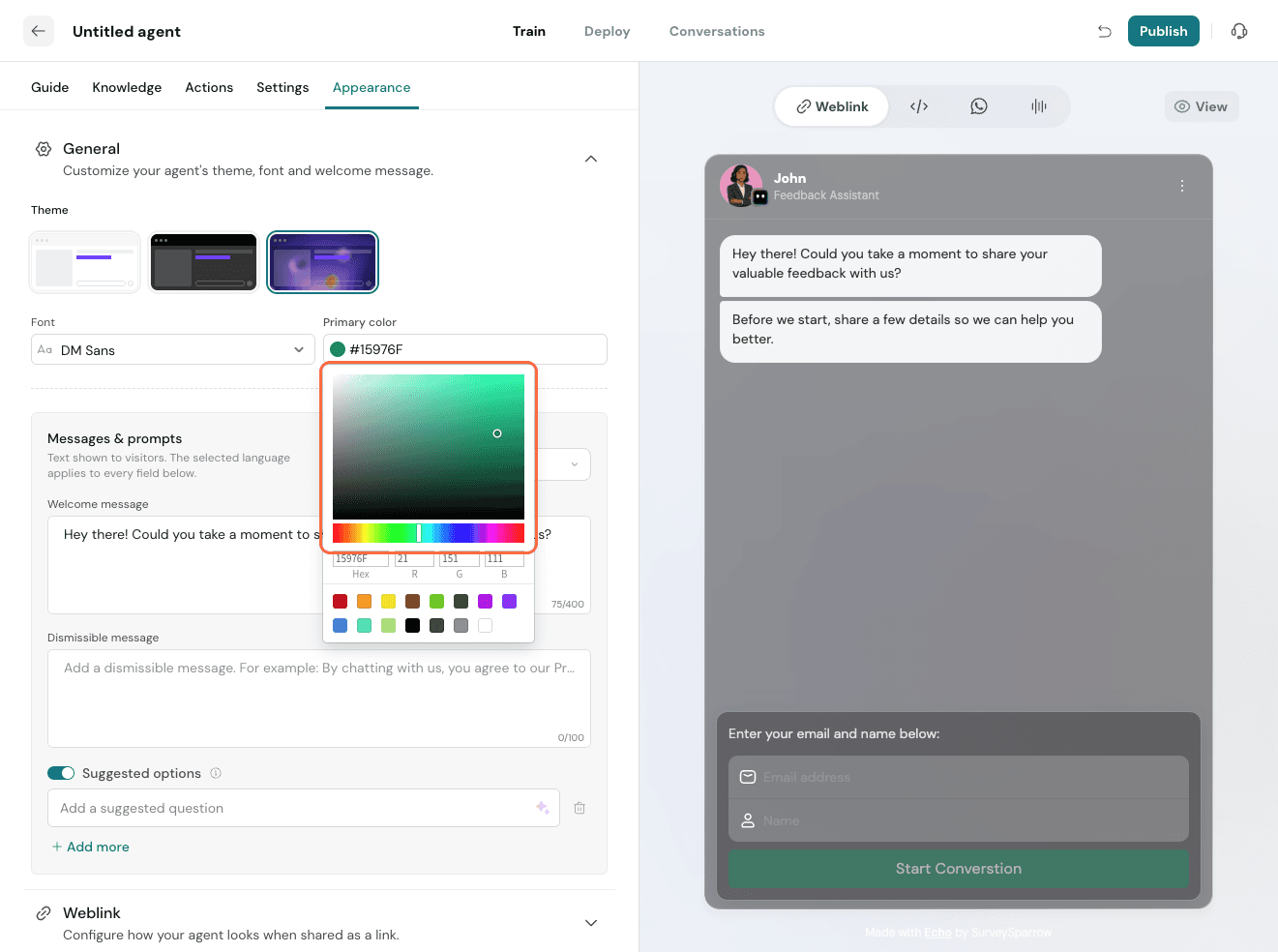
Message and Prompts-
- Greeting Message – Configure the message displayed before the conversation begins. Use this message to welcome respondents, introduce the agent, or provide any initial instructions.
- Dismissible Message – Configure a message that is displayed at the start of the conversation and automatically disappears after the respondent sends their first message. Use it to share brief information, announcements, or reminders without interrupting the conversation flow.
Within the Appearance section, locate and expand the Weblink configuration area. This panel allows you to control how your agent looks when shared as a direct link, ensuring a consistent brand experience.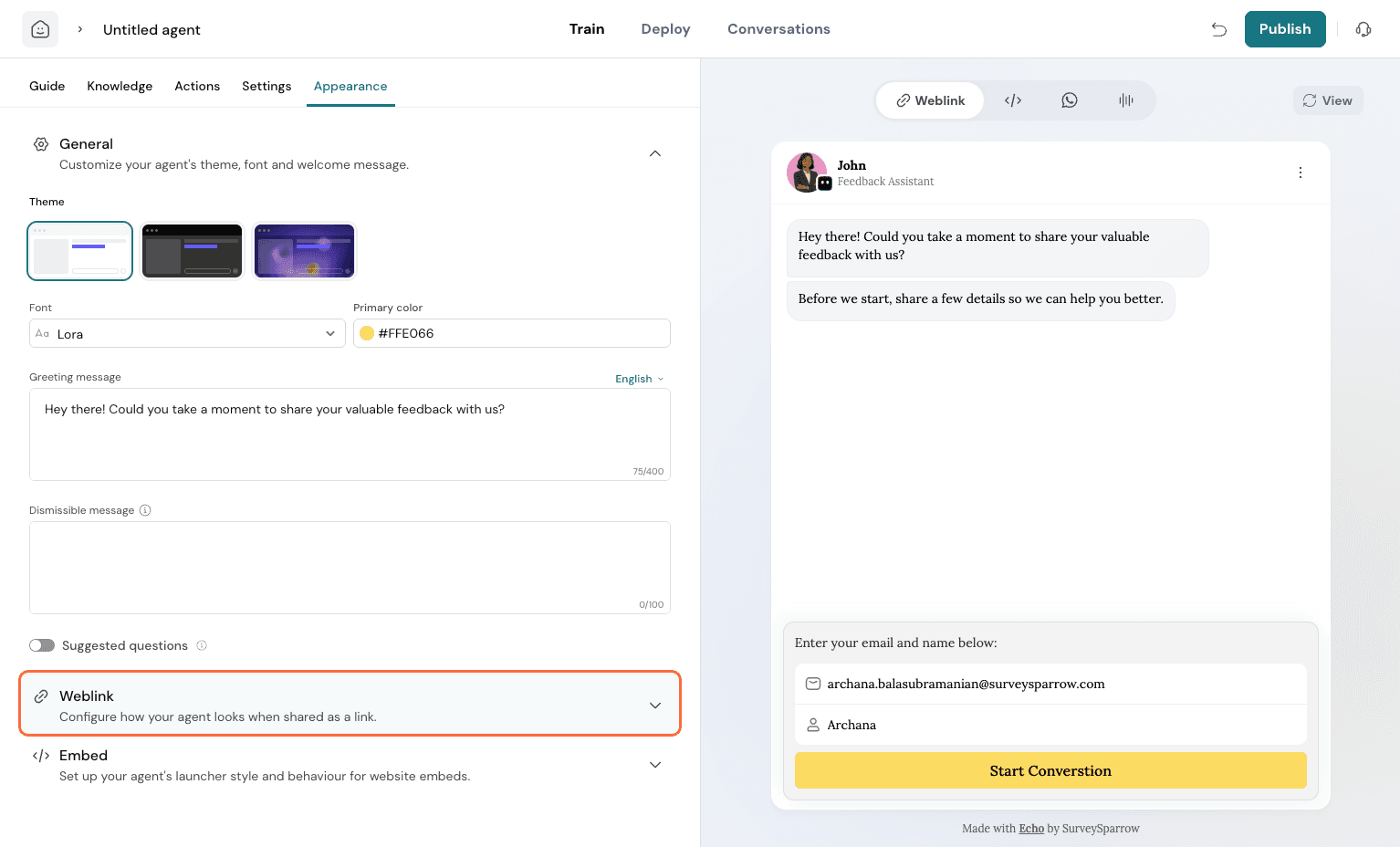
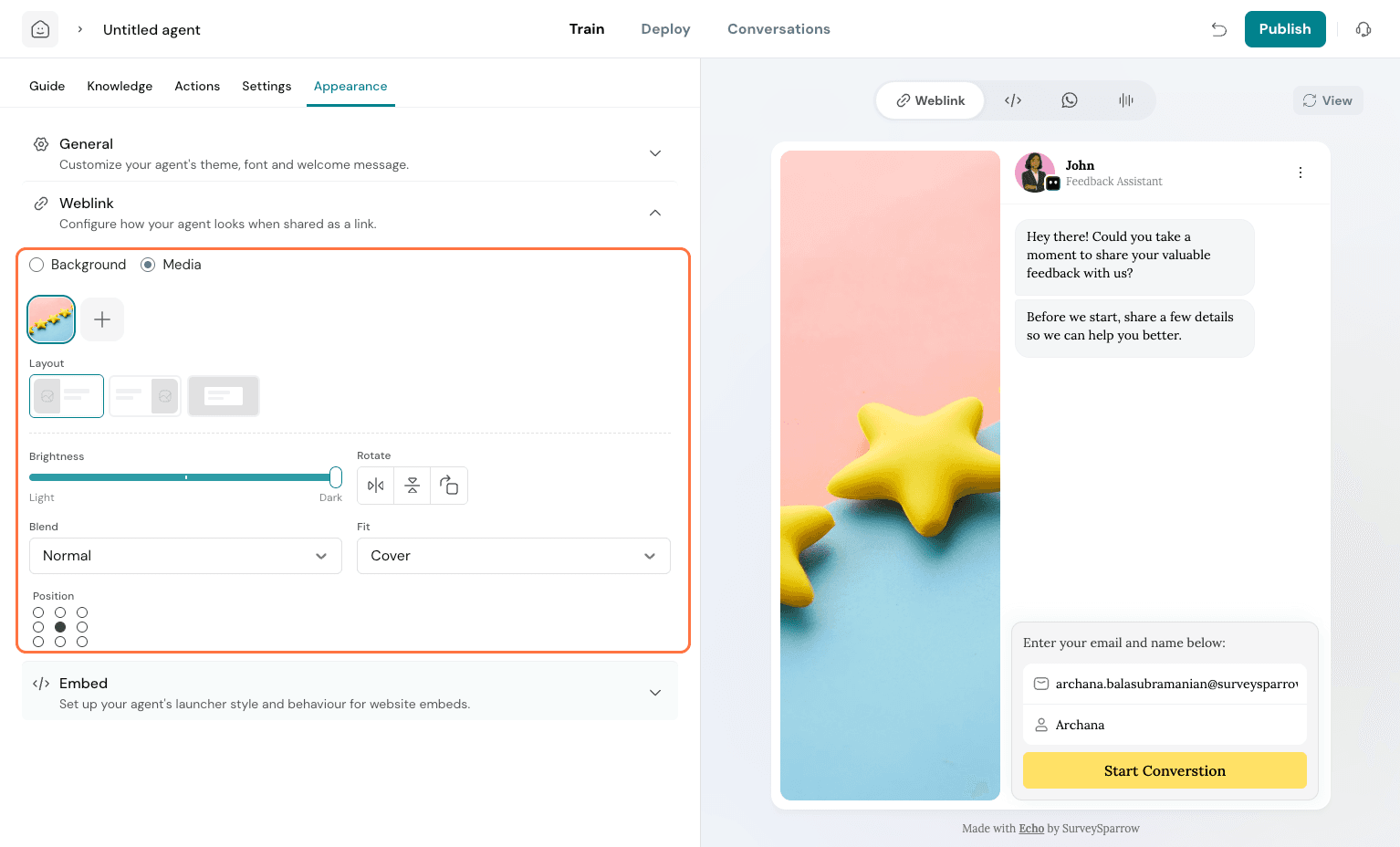
Under the Weblink settings, click the Background radio button. This option is where you can set the visual backdrop for your agent's chat window, typically by uploading a custom image or choosing a solid color to align with your branding.
Next, click the Media radio button. This section is used for incorporating visual media, such as your company logo, into the agent's interface. This helps reinforce brand identity within the chat experience.
You can also explore the layout and visual adjustment options available within the Weblink section. You can select different Layout presets, adjust the Brightness of the agent window, choose how images Fit (e.g., Cover or Contain), and set the Position of the agent on the screen. Experiment with these settings to achieve the desired aesthetic.
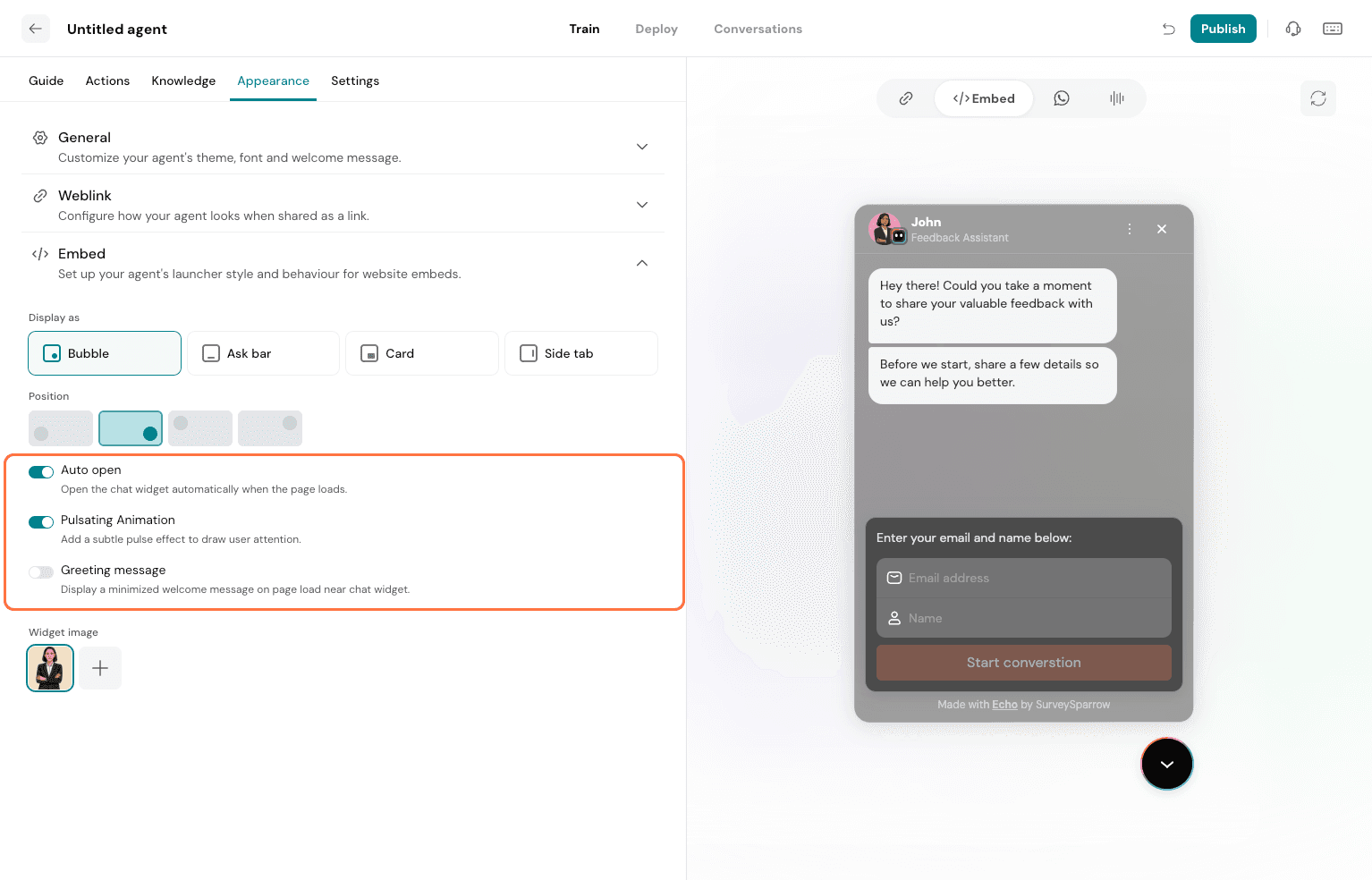
Within the Appearance section, go to Embed settings. This is specifically designed for configuring how your chatbot will function and appear when integrated into your website. Clicking on Embed reveals options for display style, position, and other behaviors relevant to website deployment.
Under the Embed settings, you can choose the visual presentation of your chatbot widget. Select Bubble to use the classic chat interface, or choose Ask Bar for a more compact launcher, or Card for a different presentation or or Side tab to open the Echo experience from the side of a webpage. As you make your selection, observe the preview pane on the right to see how your chosen style will look to website visitors.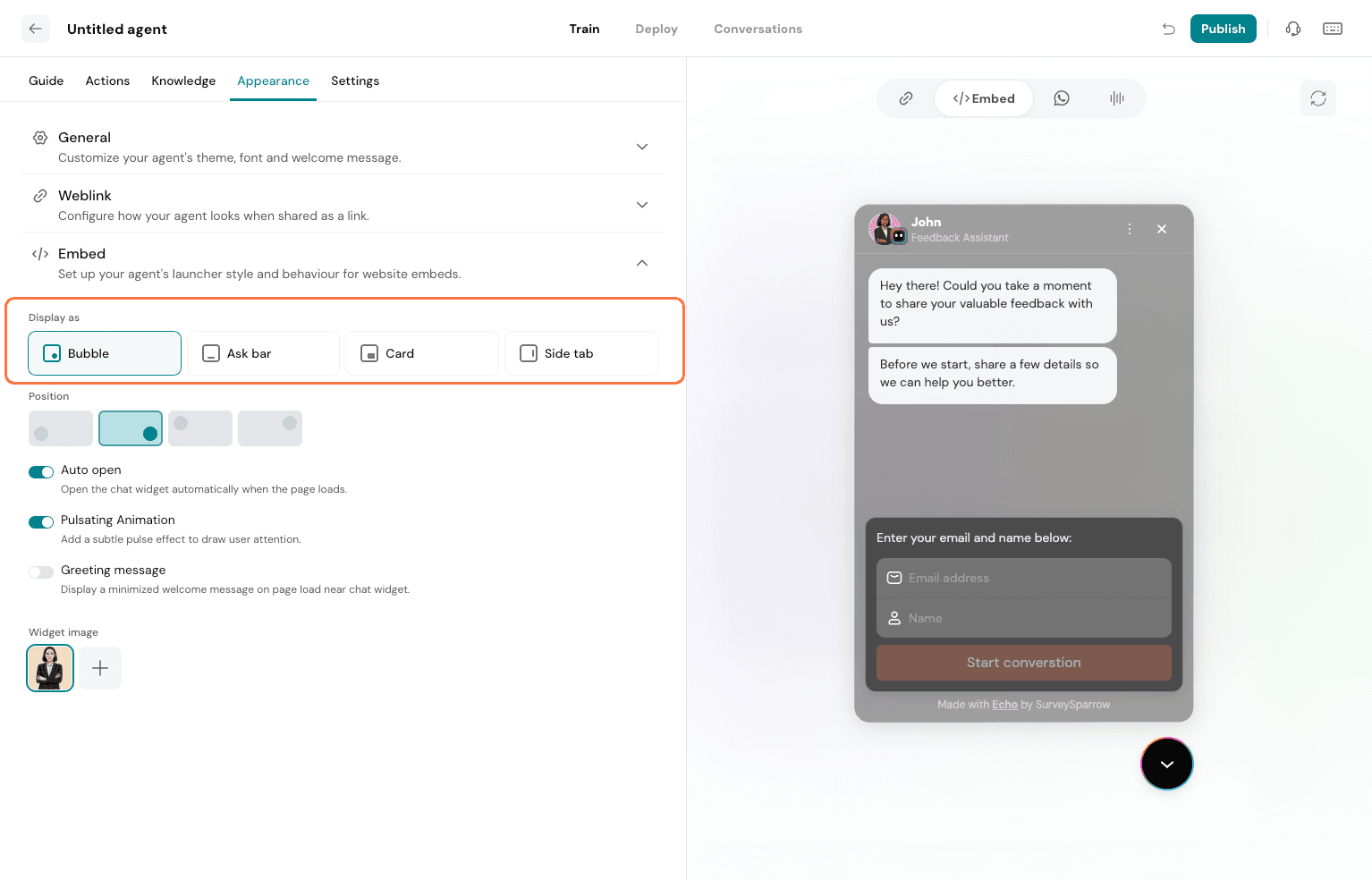
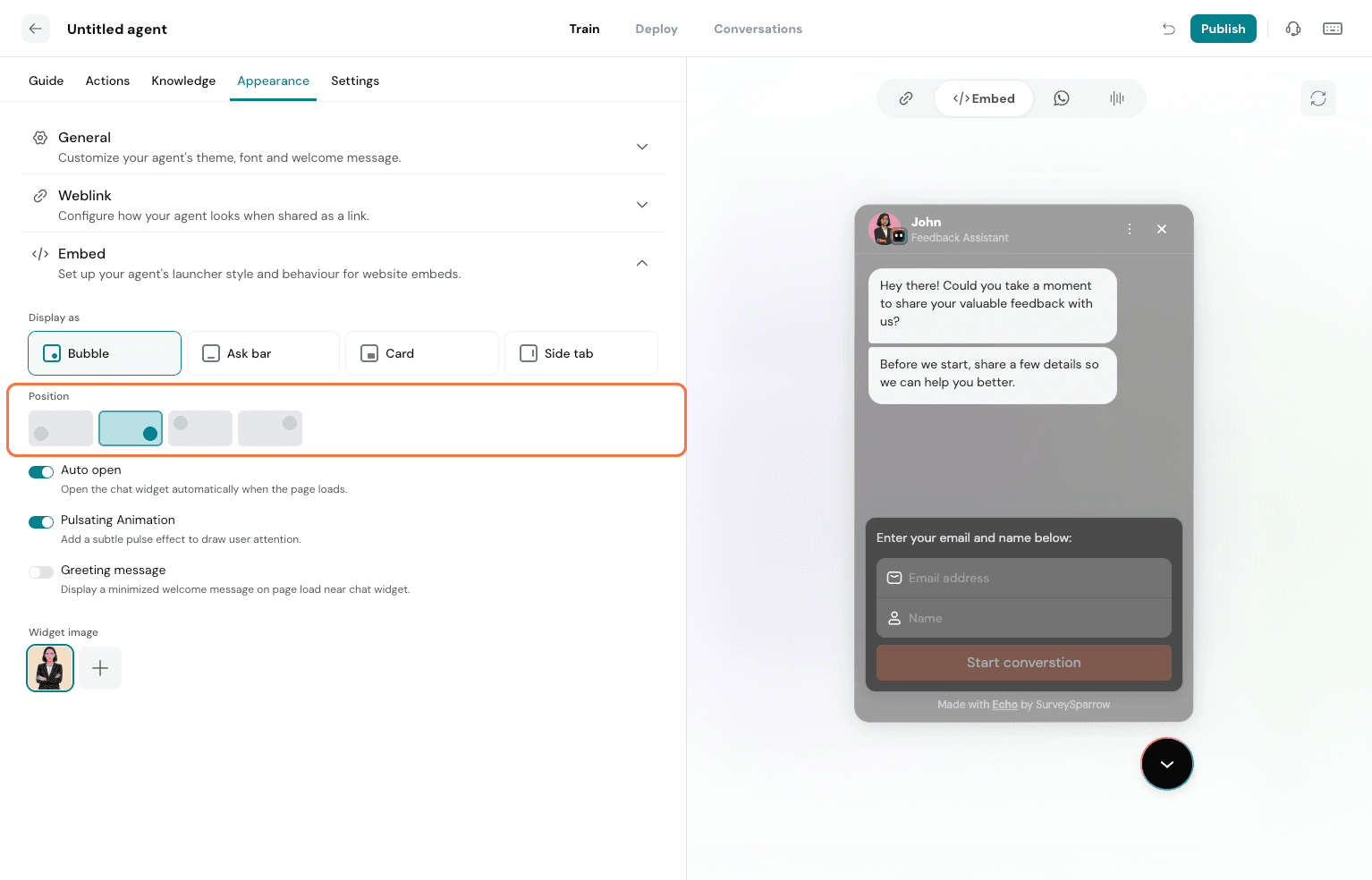
- Auto Open- Automatically open the chat widget when the page loads, so visitors can start a conversation right away.
- Pulsating Animation- Add a subtle pulse to the widget to draw attention without being disruptive.
- Greeting Message- Show a short welcome message next to the minimized widget when the page loads, inviting visitors to start a conversation.