
Change or Remove a Survey Background Image

You can change or remove the background image of a survey in SurveySparrow by following these steps:
- Log in to your SurveySparrow account and select the survey you want to modify.
- You can change or remove the background image of a survey in SurveySparrow by following these steps:
- Scroll down to the ‘Advanced Background Settings’ section.
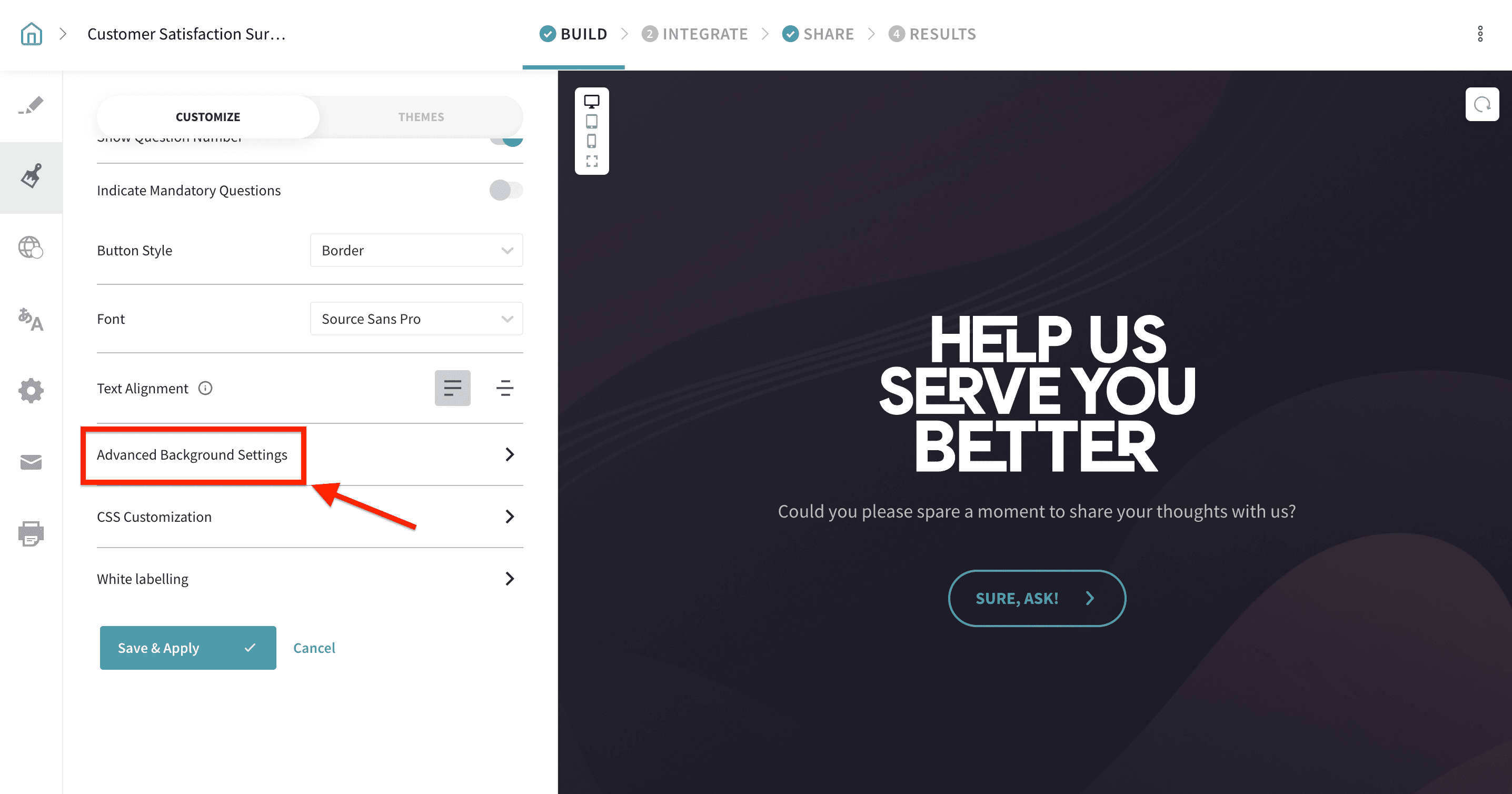
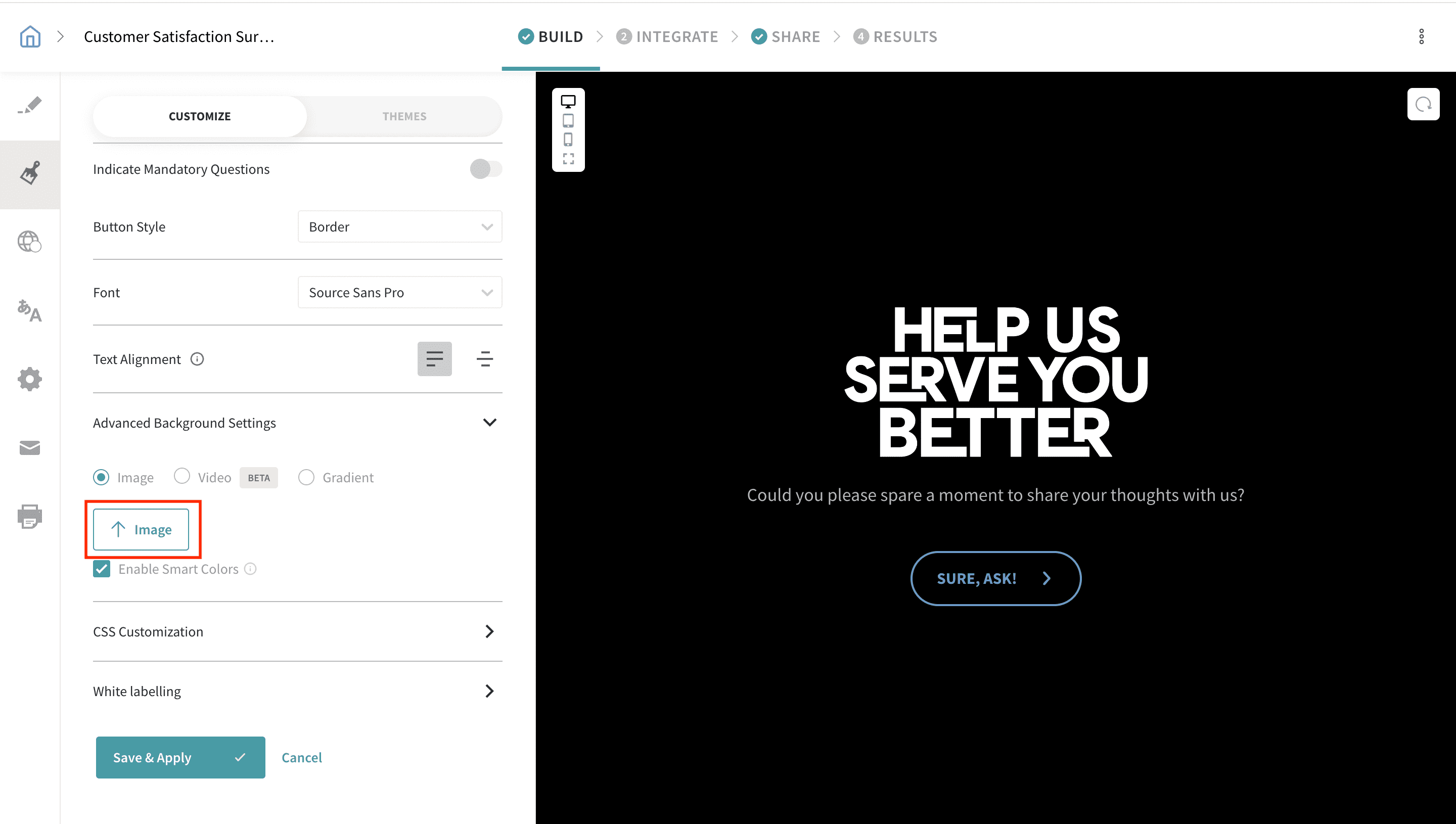
- Click the ‘Add Image’ button and select the image you want to use as the background.
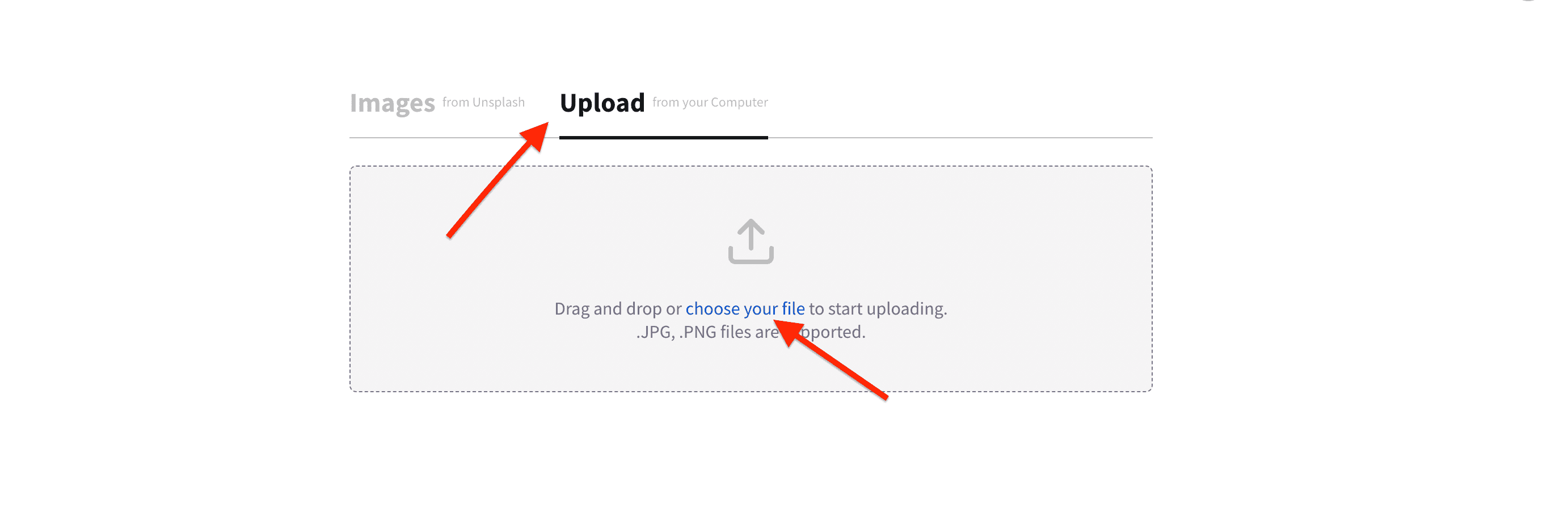
- Upload the image from your computer or use stock images from Unsplash.
- You can also adjust the background image's brightness, fit, and position.
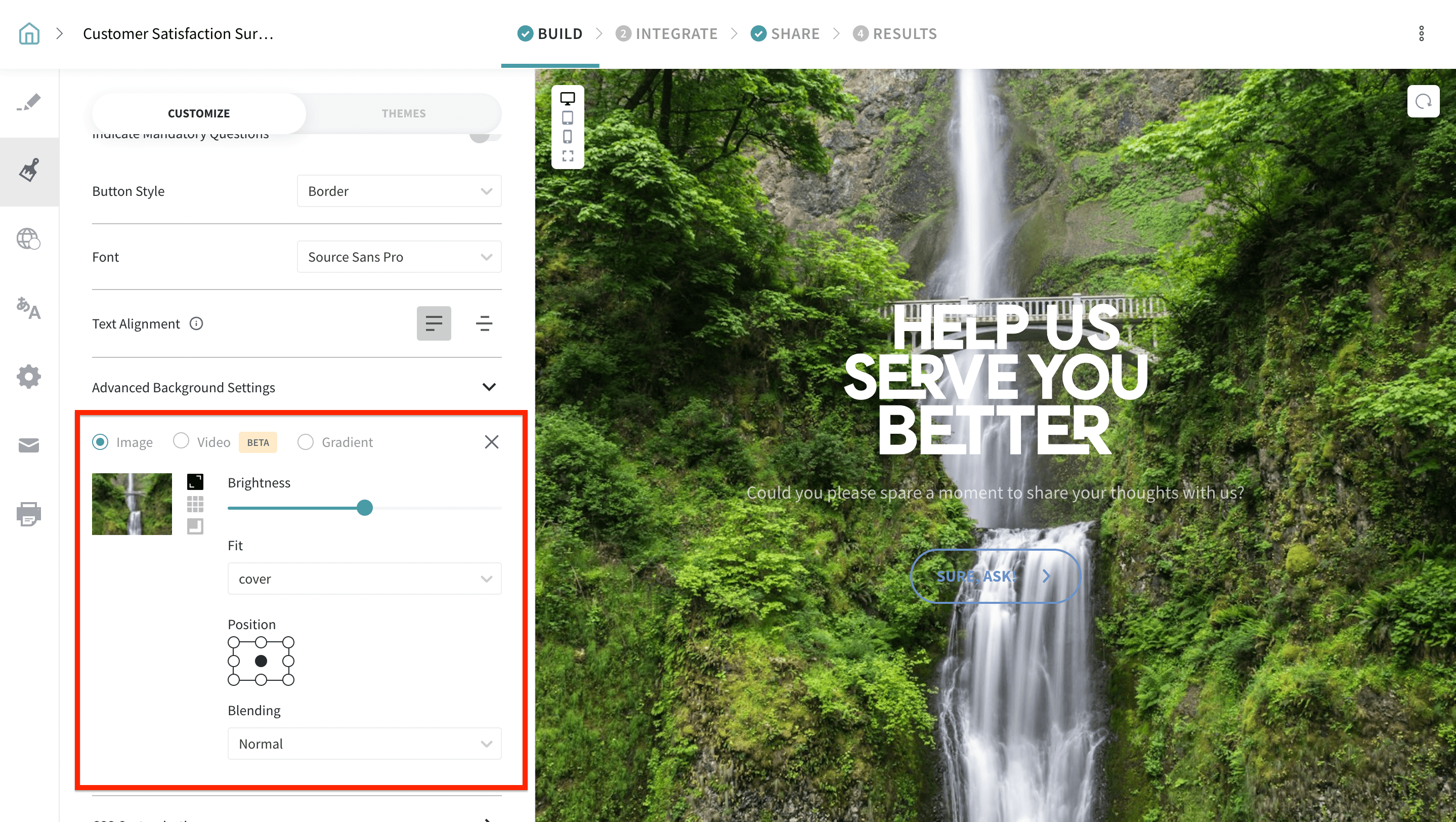
- ‘Save & Apply’ to see the updated background image.
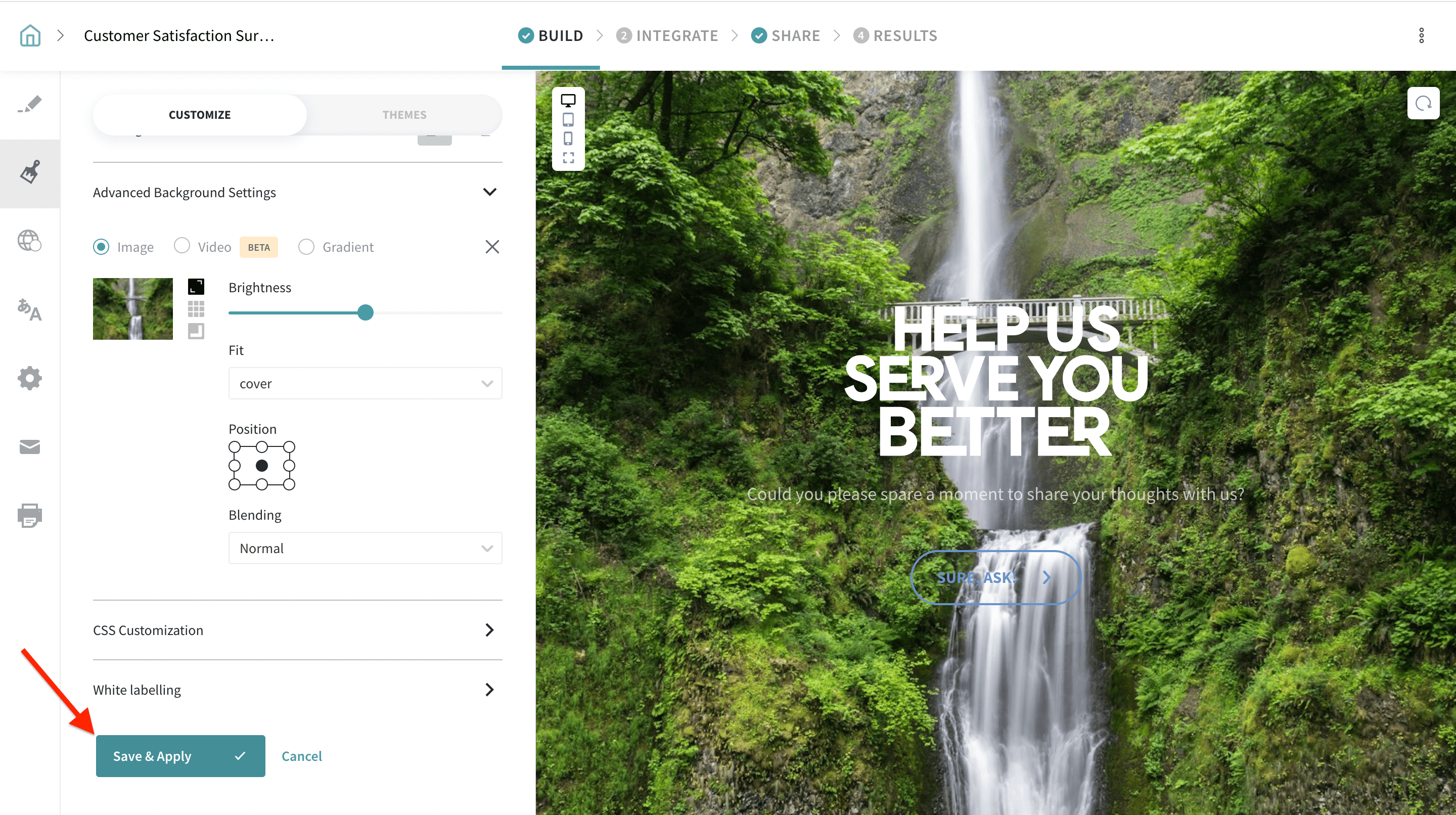
- To remove a previously added background image (for example, on a Classic survey Welcome Page), go to the ‘Design’ tab, scroll down to ‘Advanced Background Settings’, clear/remove the background image that was added via ‘Add Image’, and click ‘Save & Apply’.
Hope you are all set, Please reach out to us if you have any questions. We are just a chat away!
P.S.: It would be ideal if you could use a JPEG or PNG file with dimensions not exceeding 1720 x 1070 pixels.