
Organizing Surveys With Folders

You may have created different surveys for different respondent groups which, if unorganized, will be littered all over the place. This could limit easy navigation and dilute your experience with the product.
SurveySparrow lets you organize all your surveys by categorizing them into customized folders of your choice. You can also create subfolders within folders to nest related surveys together.
To add your survey to the suitable folder, follow these steps:
1. Go to your SurveySparrow Homepage and click on the plus button highlighted next to FOLDERS in the left sidebar.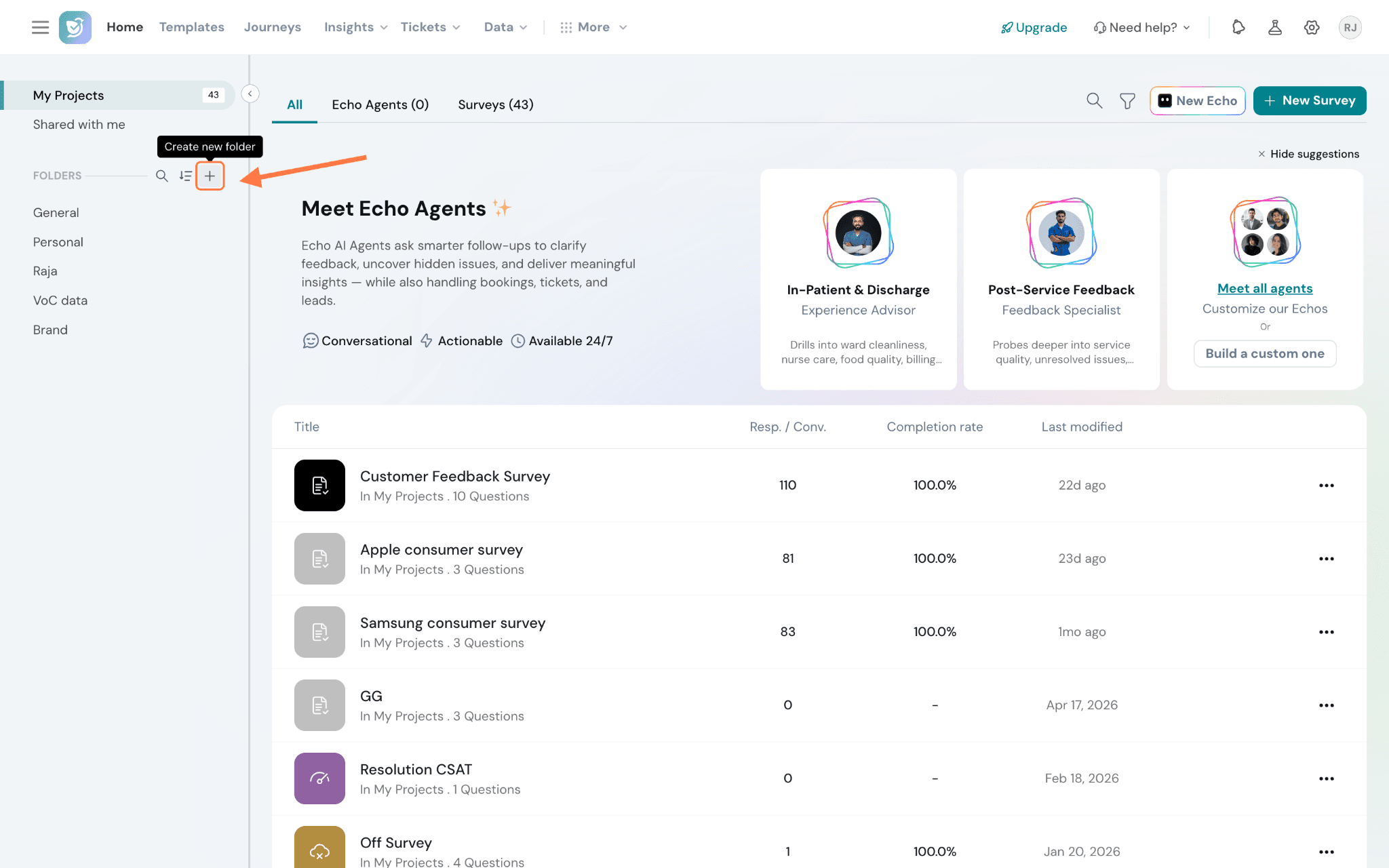
2. Type your desired folder name into the space provided. You can keep it private and share it with specific users alone using the Invite option.
Or you can keep it public and show the survey to all admins in your account.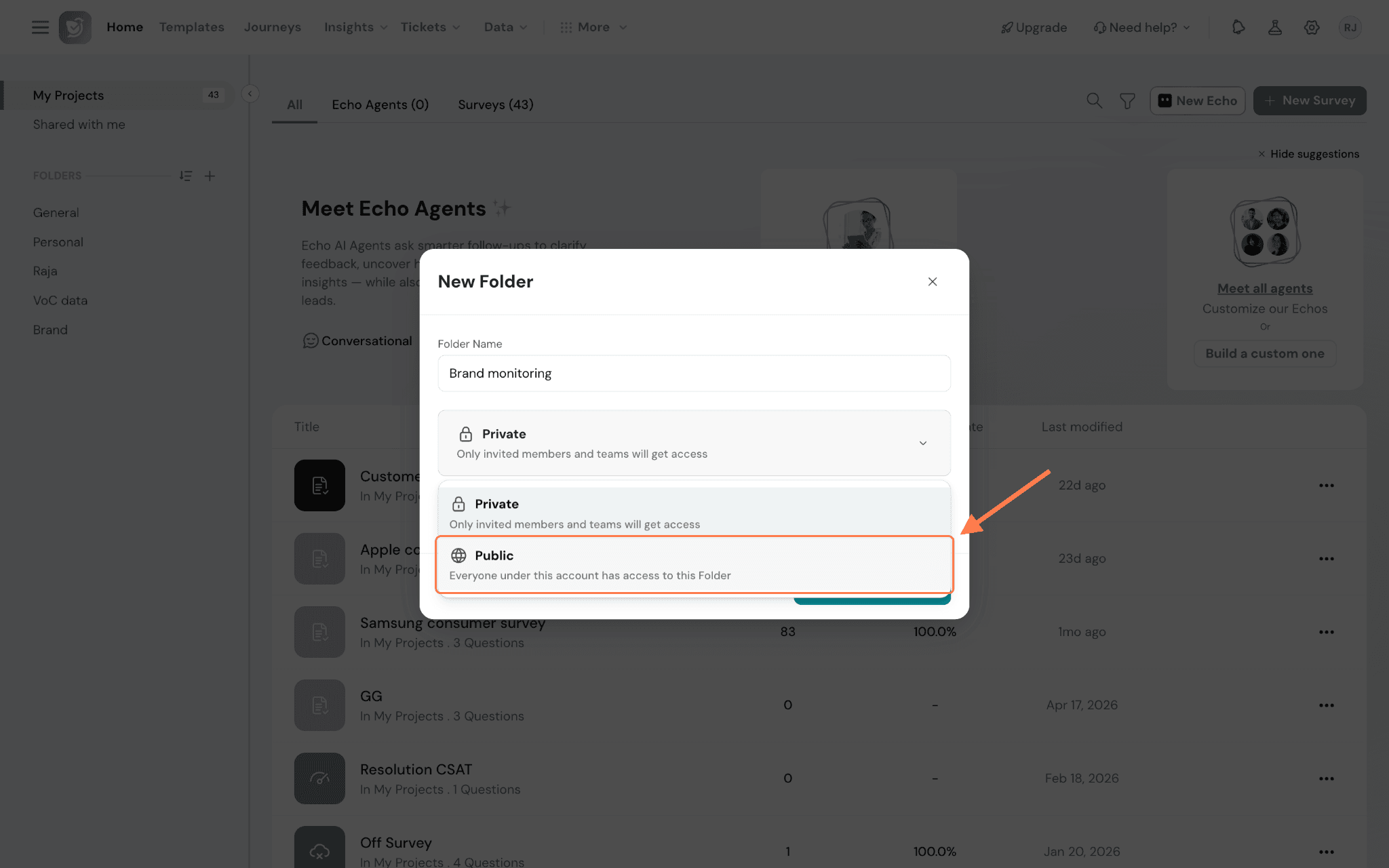
3. When you’re done, click on Create New Folder.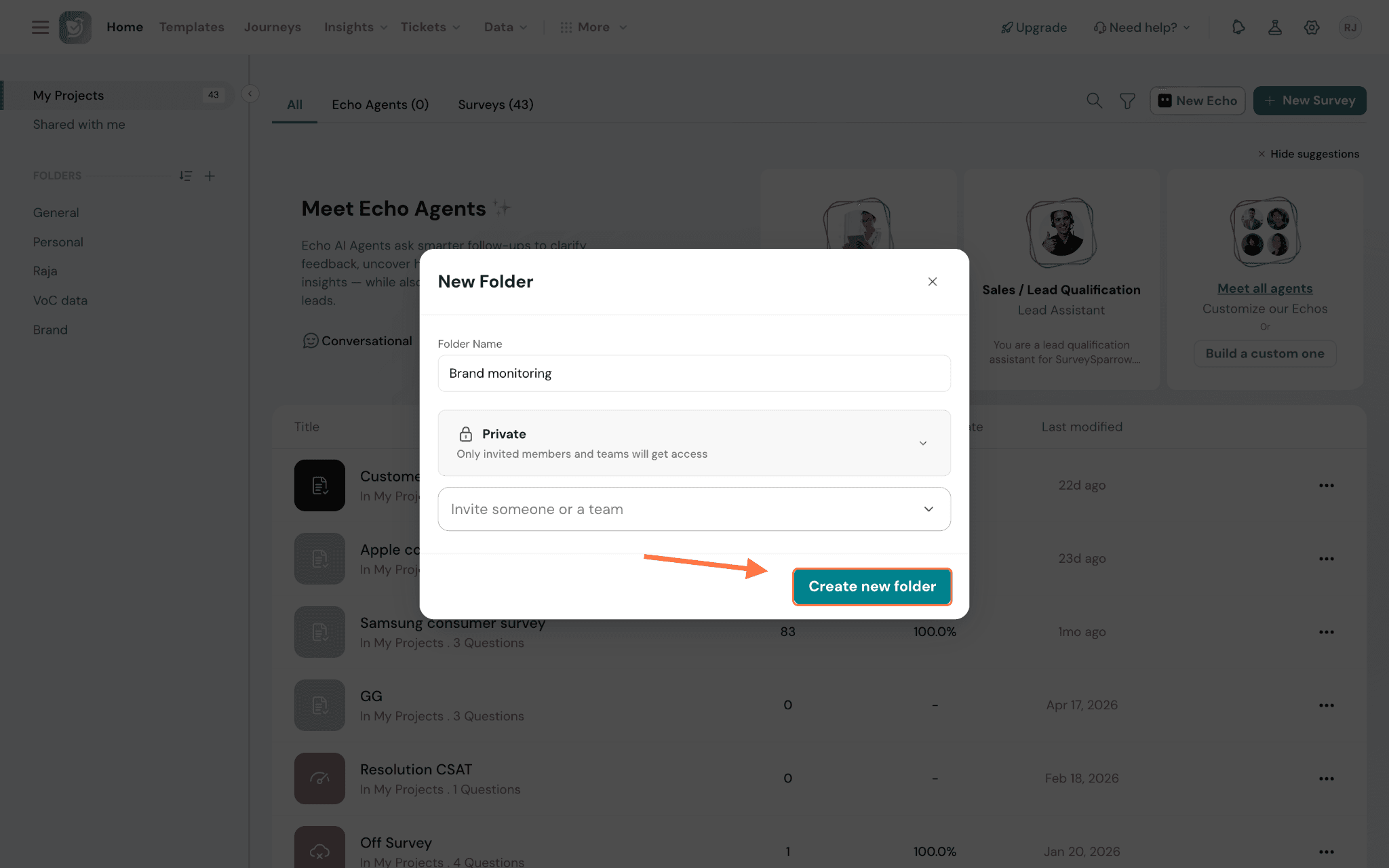
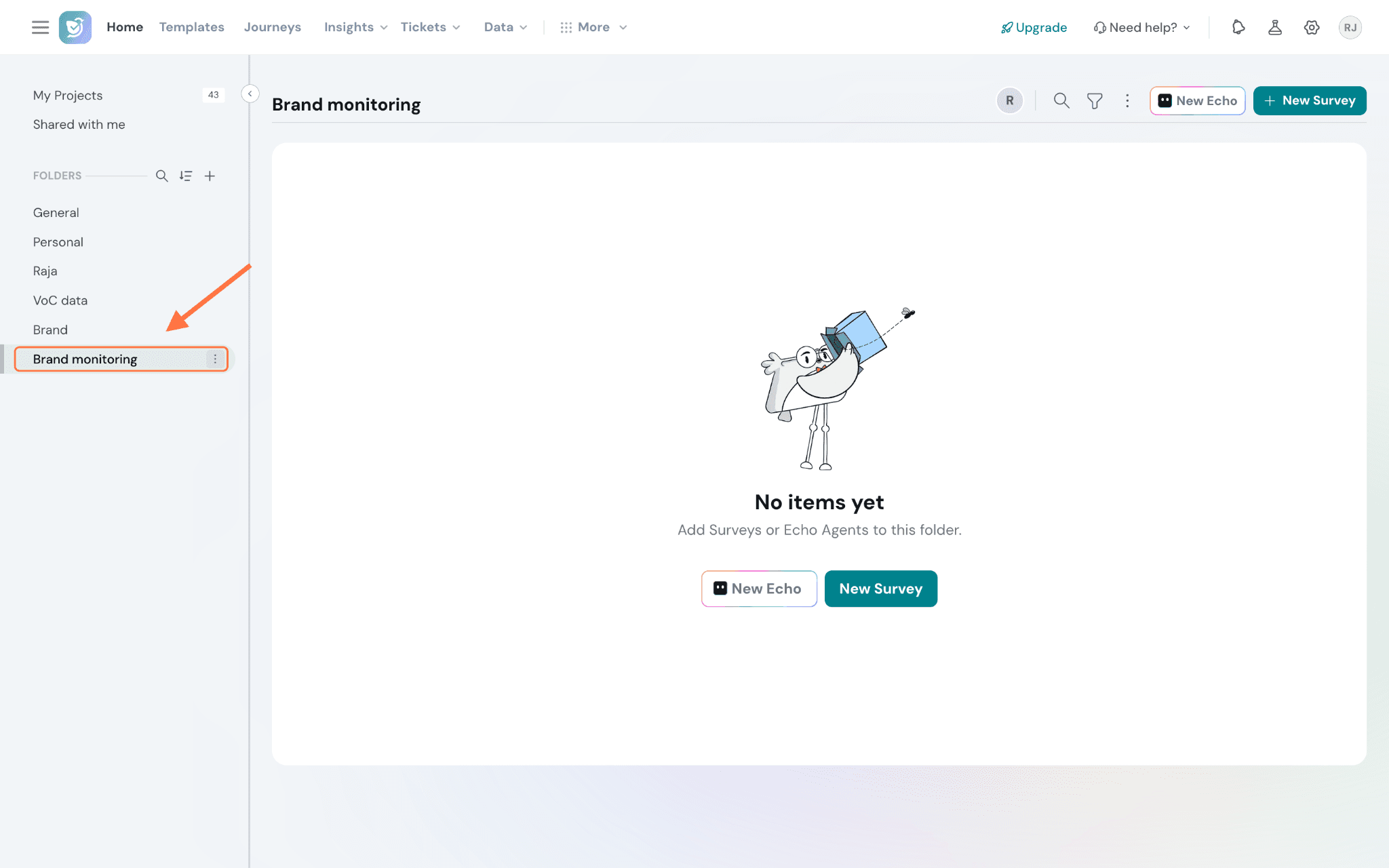
4. You can also add subfolders within folders for simpler organization. To create a subfolder inside an existing folder, hover over the parent folder in the sidebar, click the three dots that appear next to its name, and choose New sub-folder.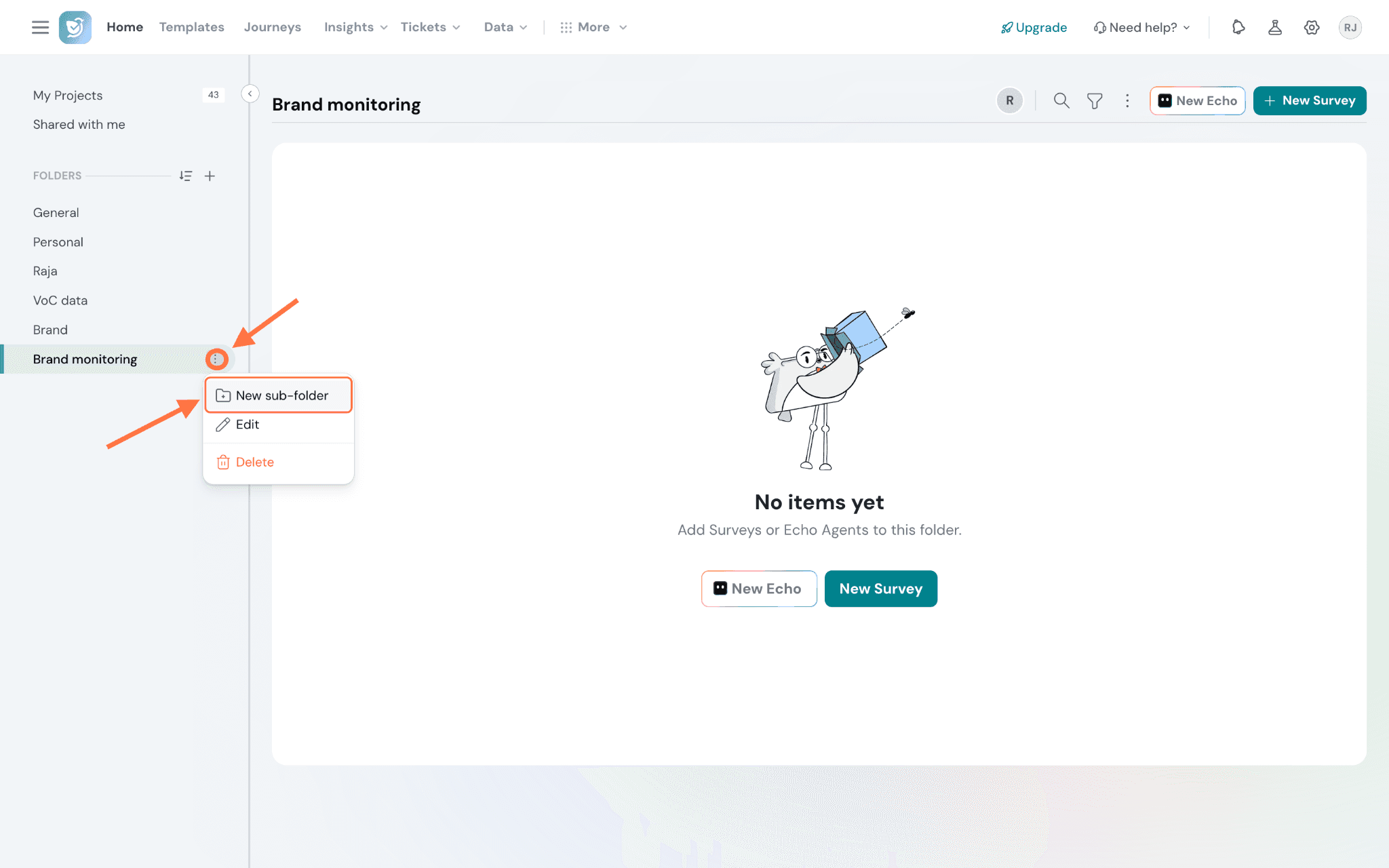
5. Enter the subfolder name in the New sub-folder dialog. If the parent folder is private, the subfolder automatically inherits that access — only invited members and teams will be able to see it.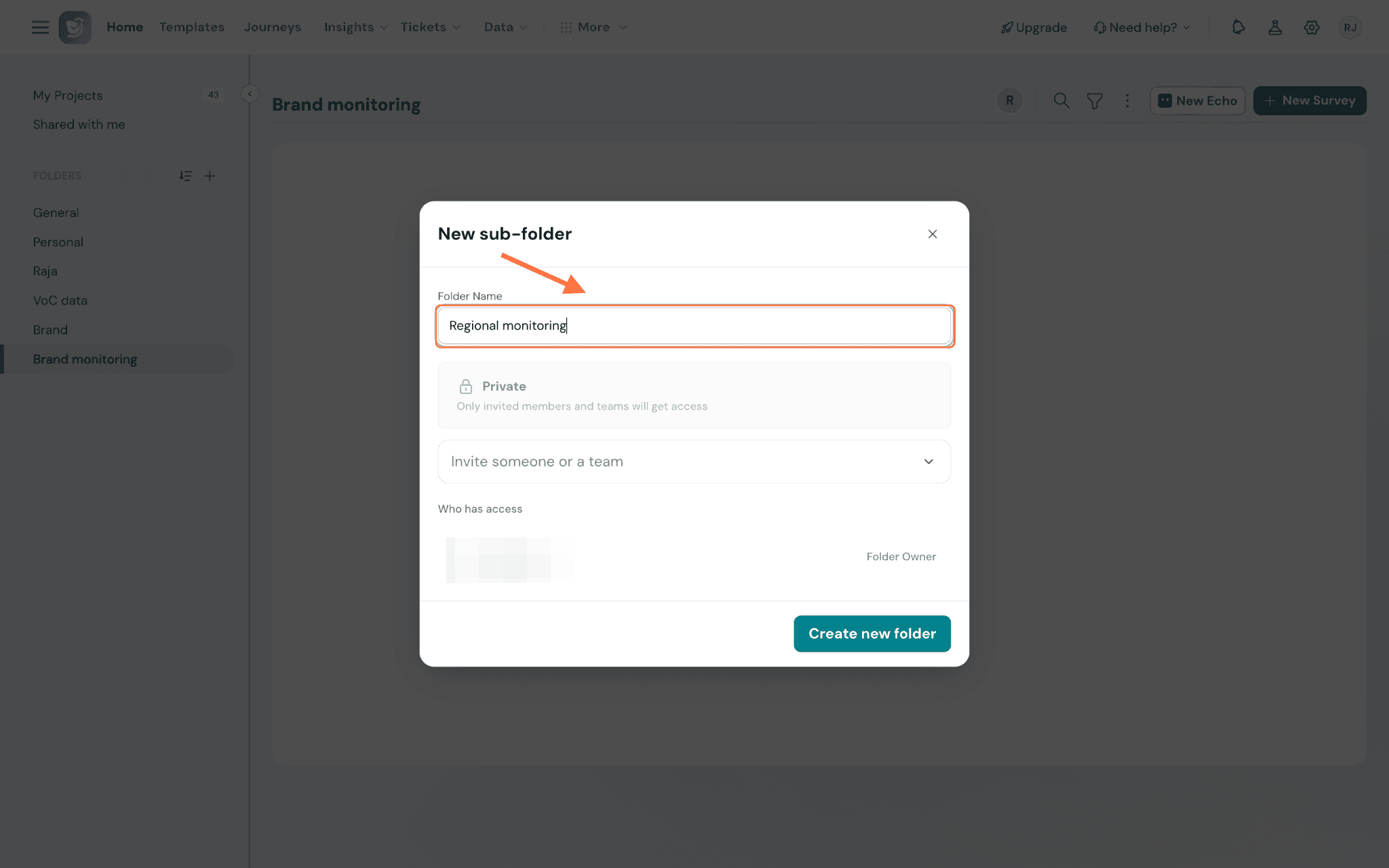
6. Click Create new folder. The subfolder opens up, and the breadcrumb at the top will show the full path.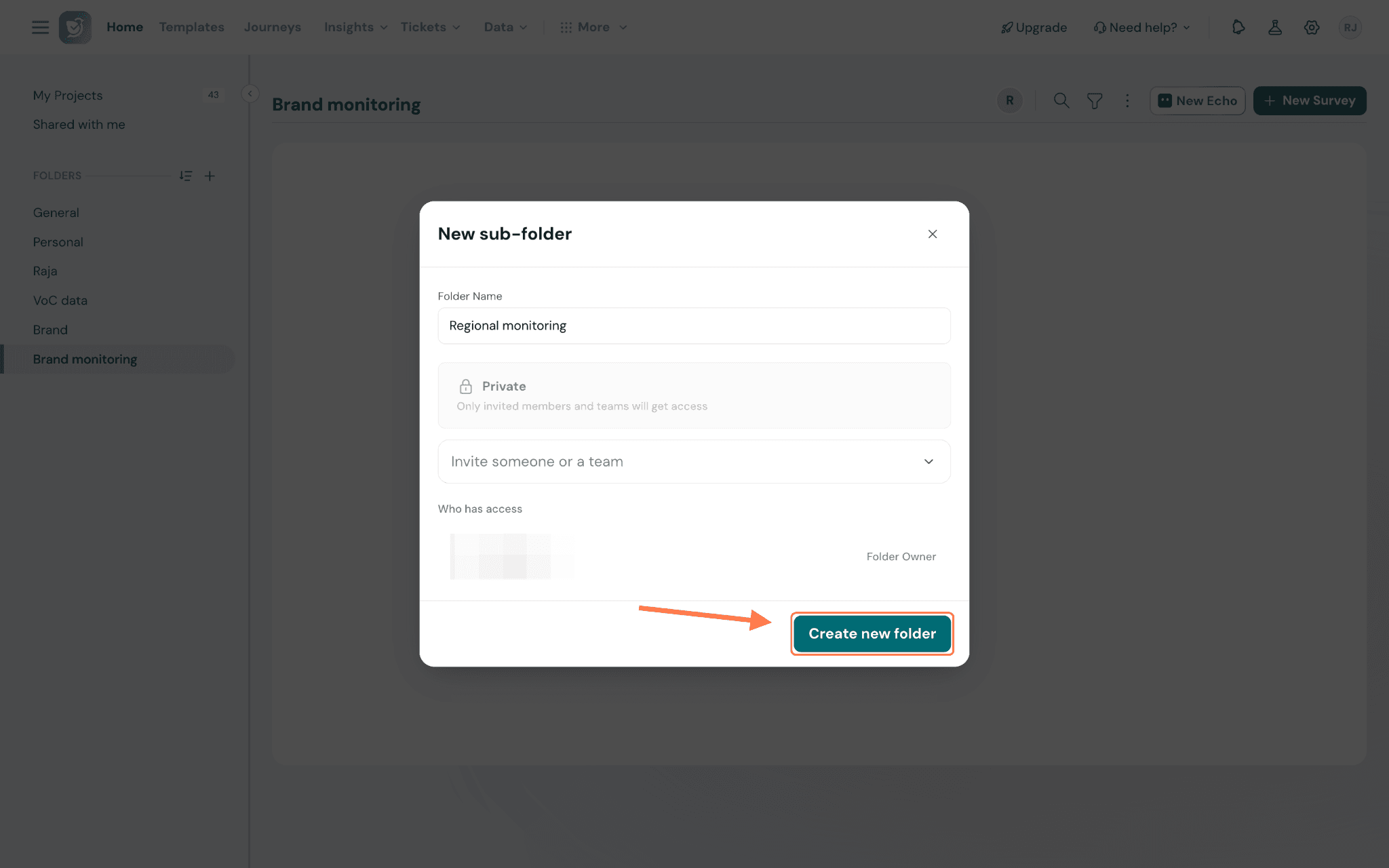
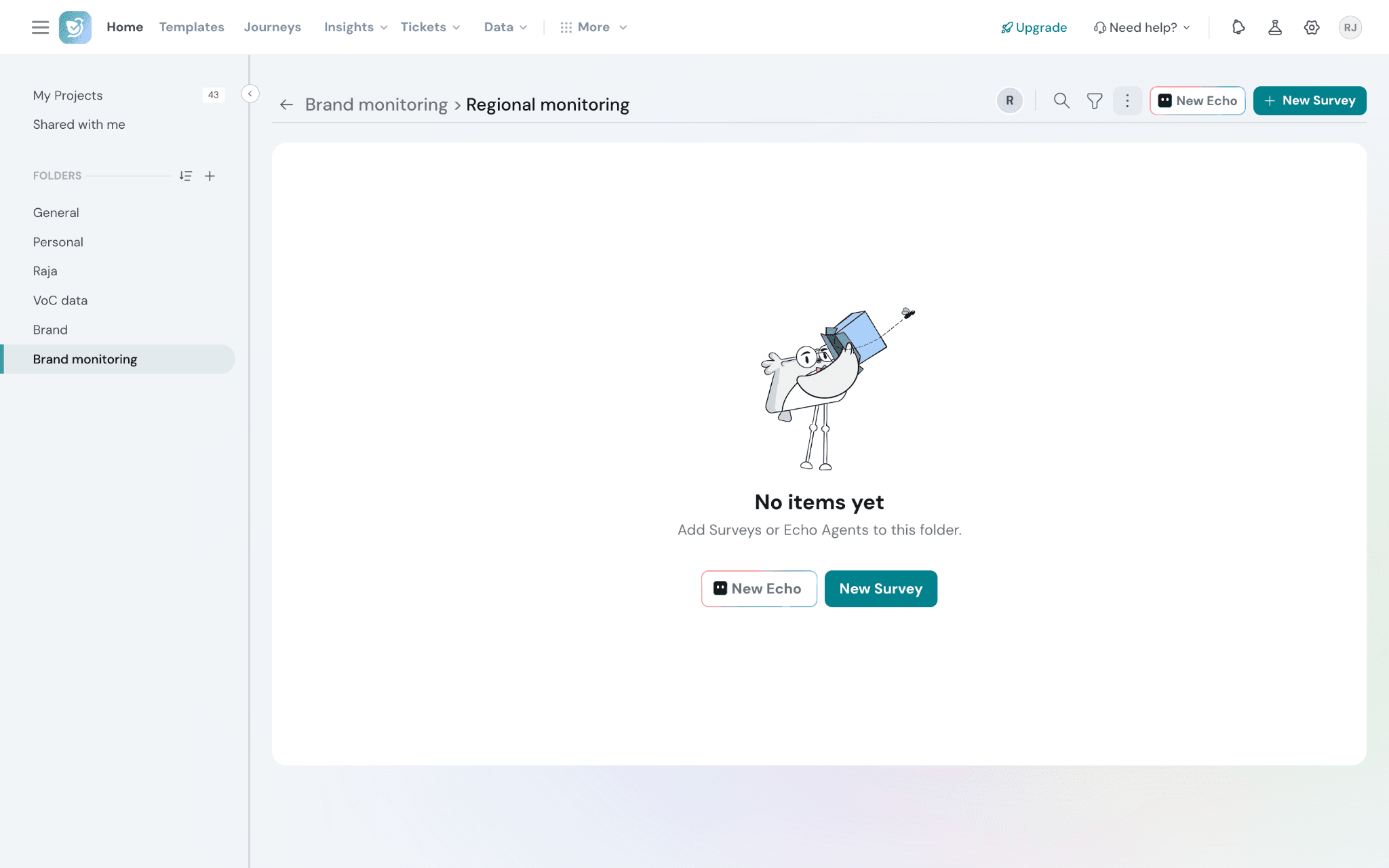
7. To go deeper, repeat the same steps on the subfolder itself — open its three-dot menu and choose New sub-folder again to nest another level. You can nest sub-folders up to 5 levels.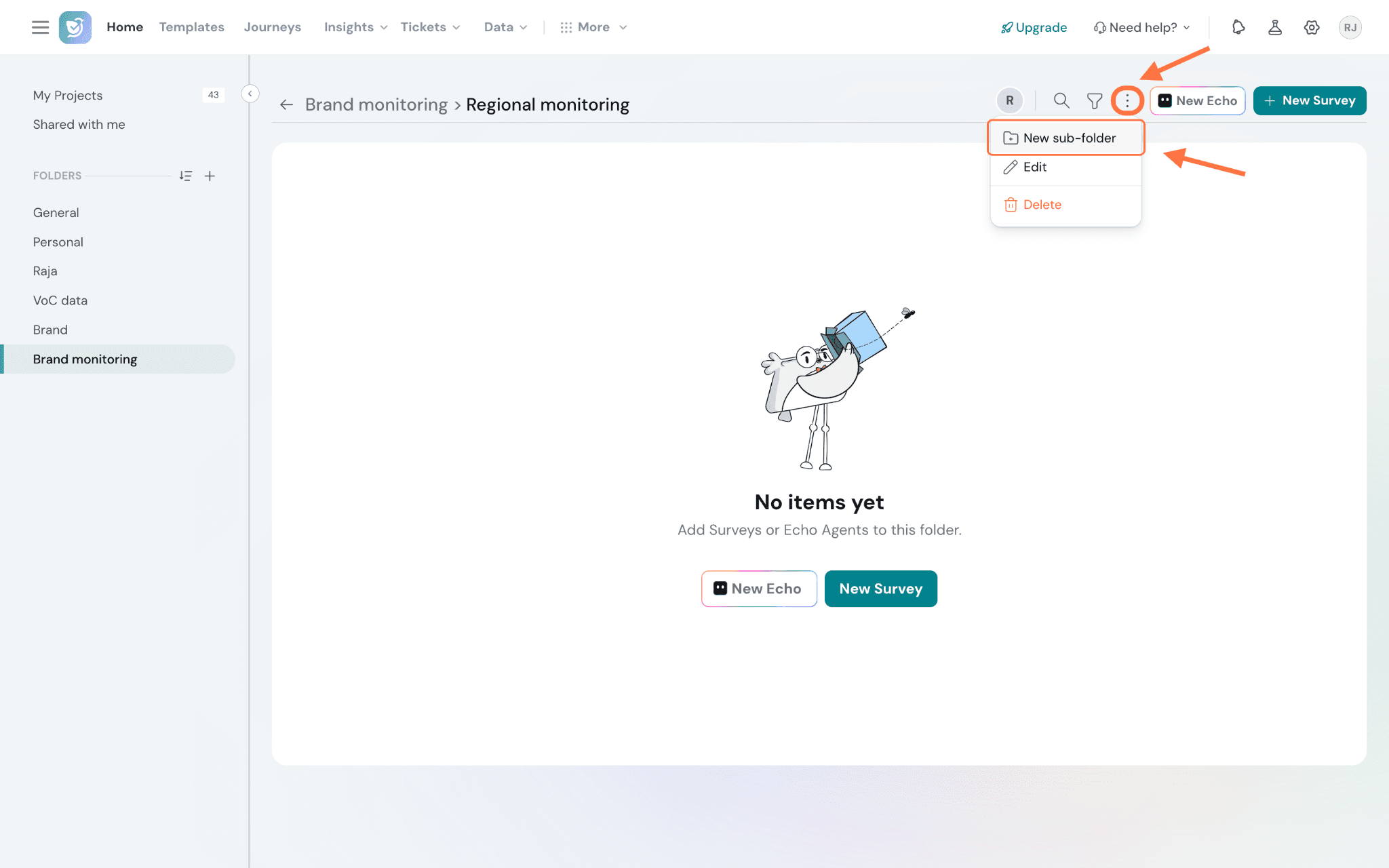
8. Every new survey is saved into the My Projects folder by default. To move them to the desired folder, click on the three dots highlighted and choose Move to.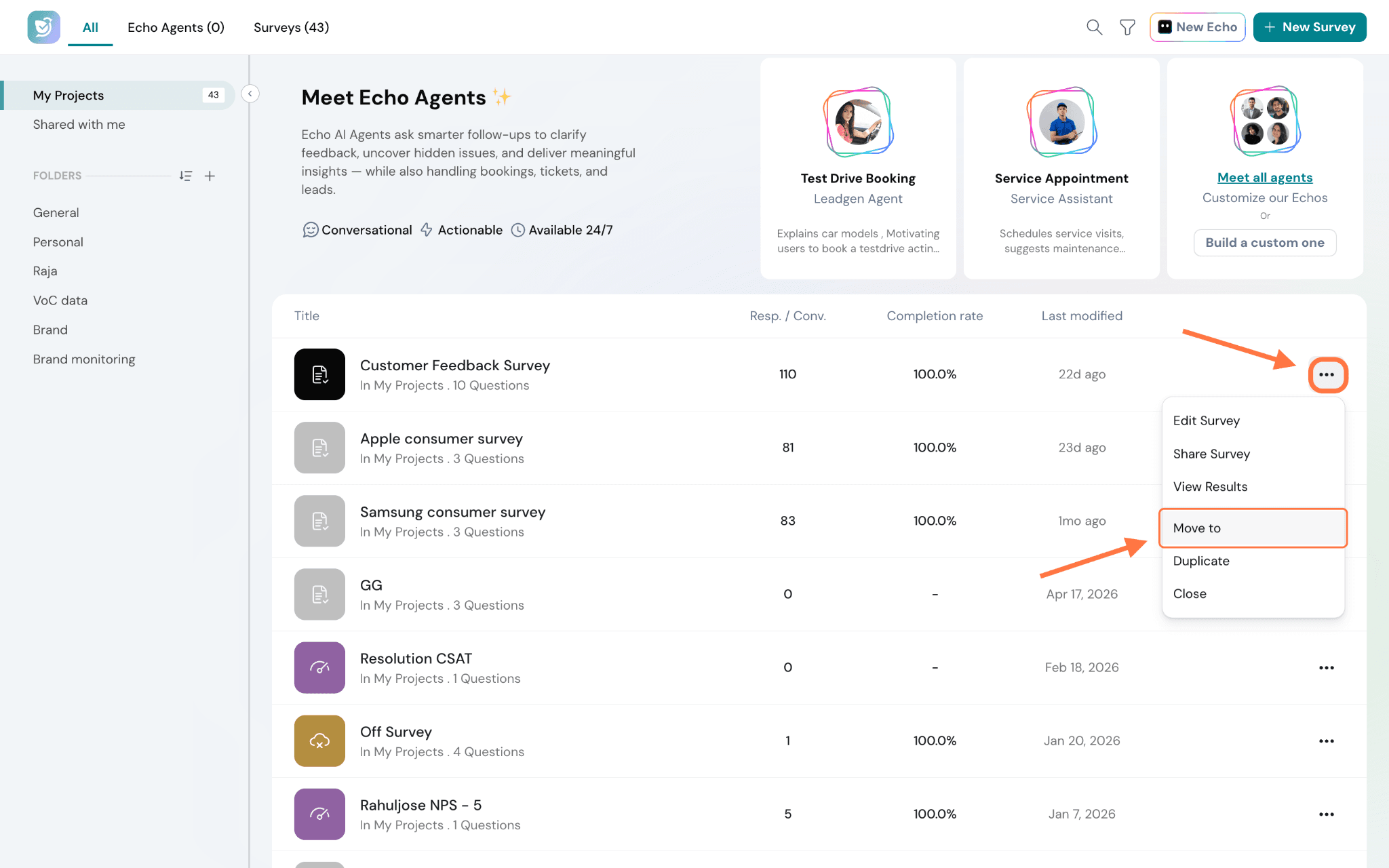
9. Select the folder/sub-folder you want and click on Choose. Folders that contain subfolders are marked with a small arrow. When you click on them, the sub-folders within will appear in another pane.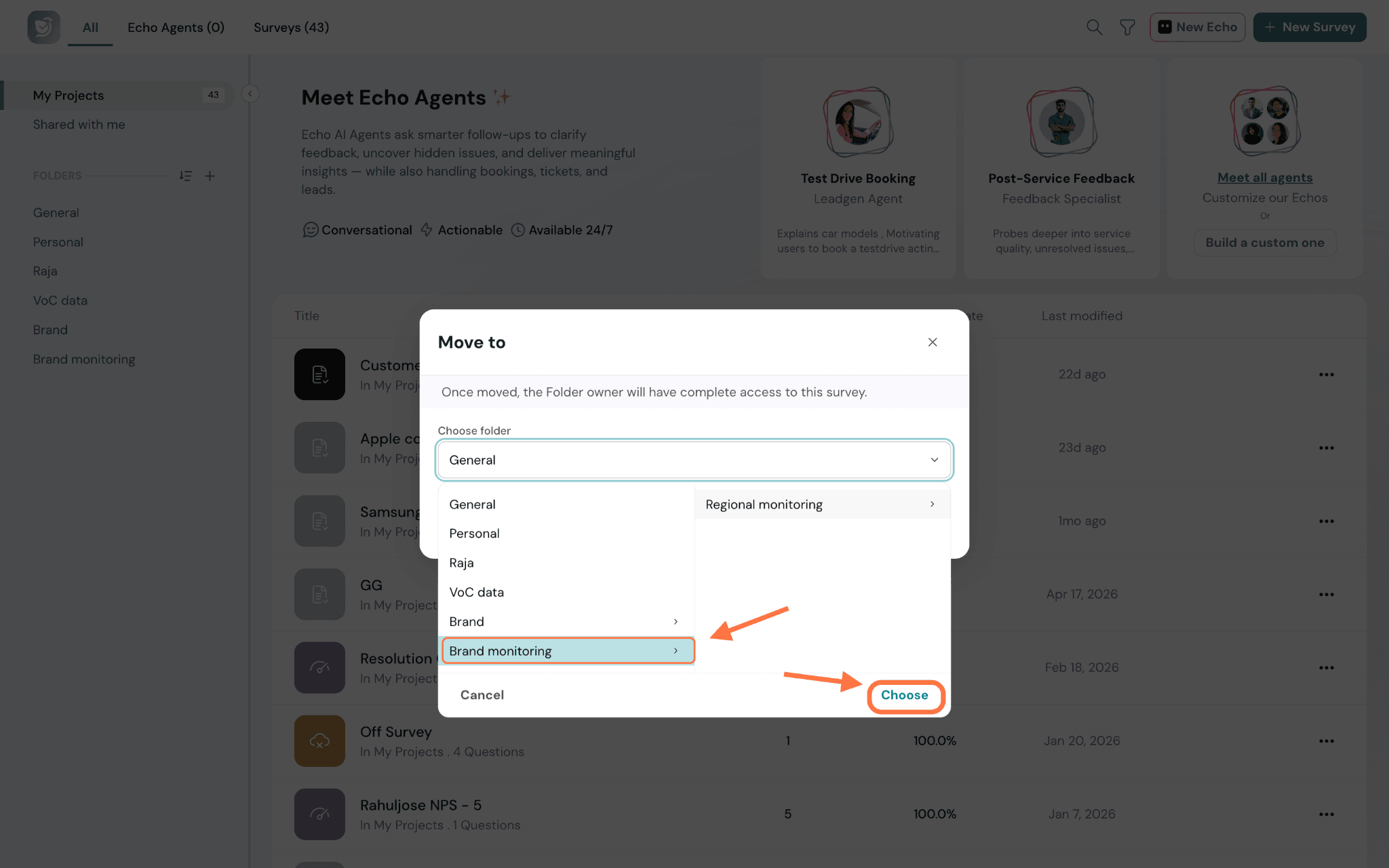
10. You can also set the folder location when creating a new survey. When you are creating a new survey, a modal appears. You can change the folder name from here as well, and the same hierarchical dropdown is available to pick any folder or subfolder.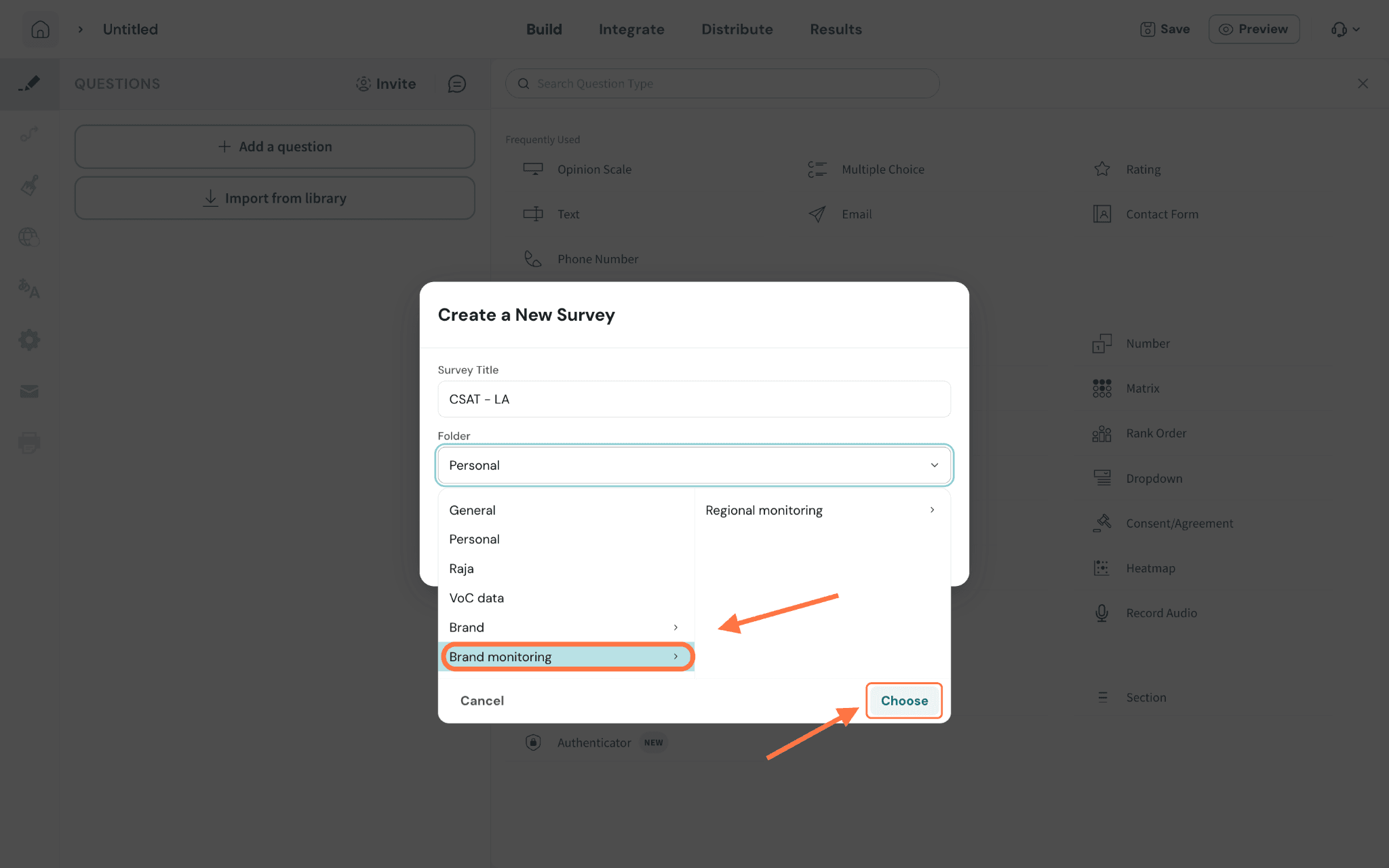
Your surveys are perfectly organized now :)
Note: If you don’t see the “Move to” option in the three-dots menu on the surveys list, you can move the survey from inside the survey instead. Open the survey, go to Config > Survey Settings, and use the Folders option to assign the survey to a different folder.