
Setting Email Notification When A User Completes A Survey

Get updated when a user completes a survey
Suppose you have sent out an employee pulse survey or customer satisfaction survey and are awaiting the survey responses. SurveySparrow offers the email notification feature which alerts you once a respondent completes a survey. You can also send these emails to multiple recipients to alert them of the same. In addition, you can customize the subject & content of the notification email.
To enable this feature, please follow the steps mentioned below:
1. In your survey builder page, click on the email notification icon.
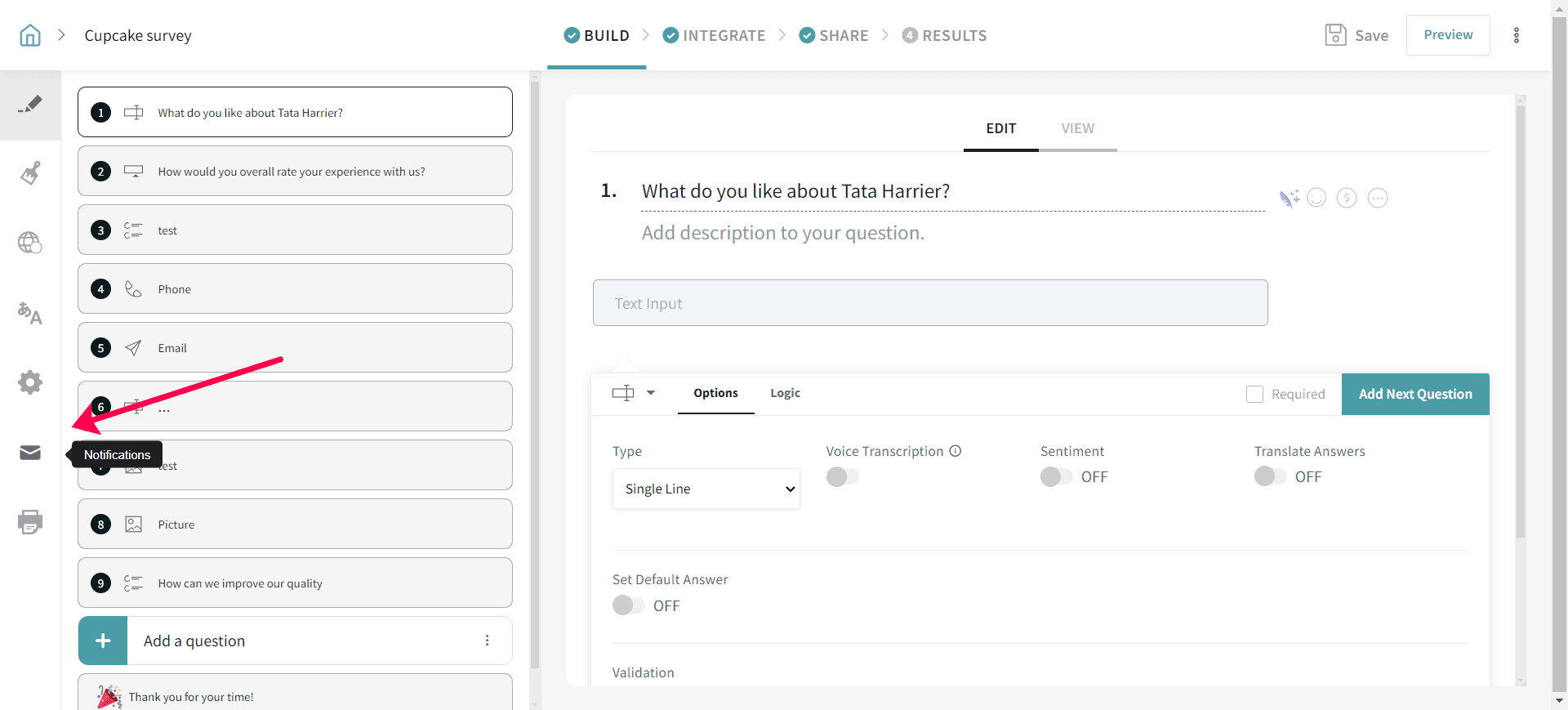
2. You will be redirected to the Email Notifications page. Switch on the required toggles and click on the Customize button.
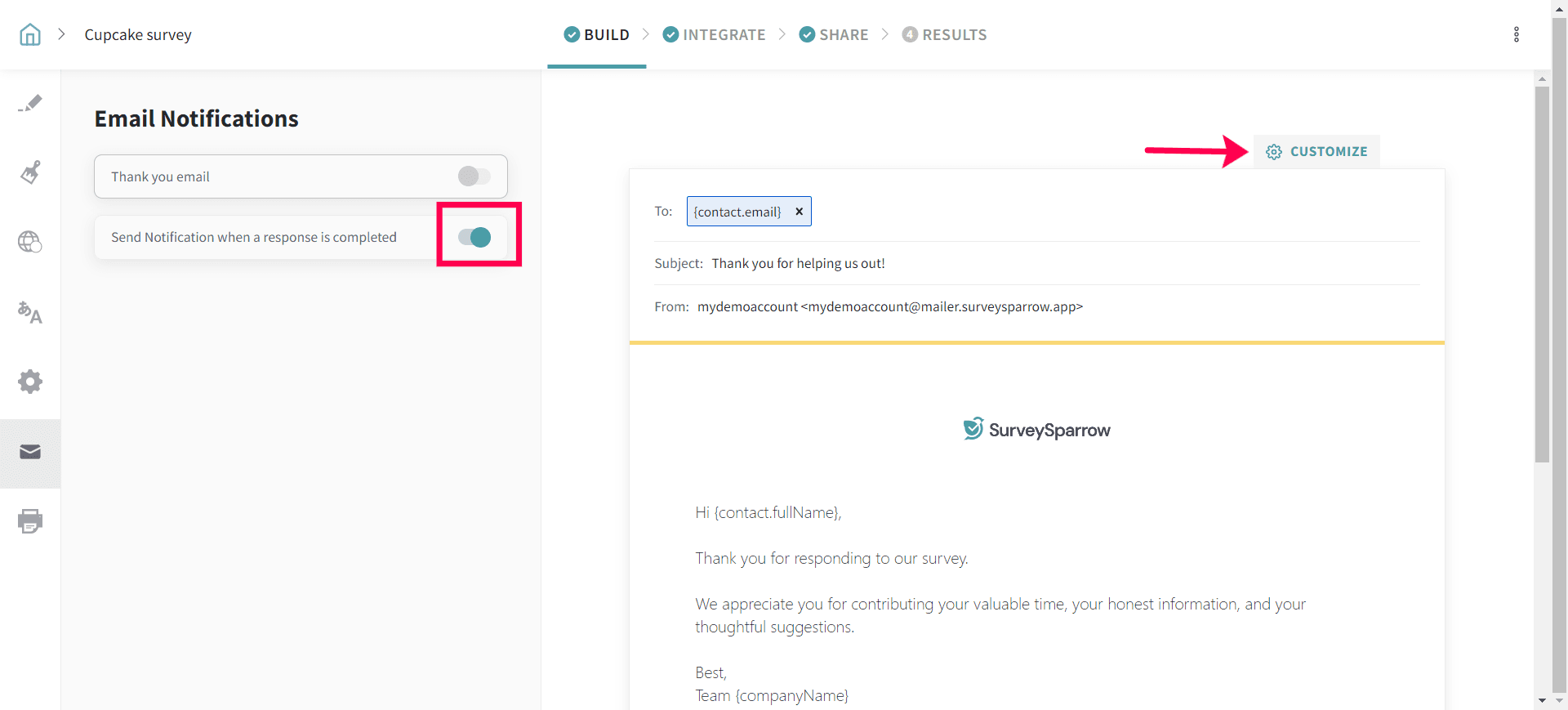
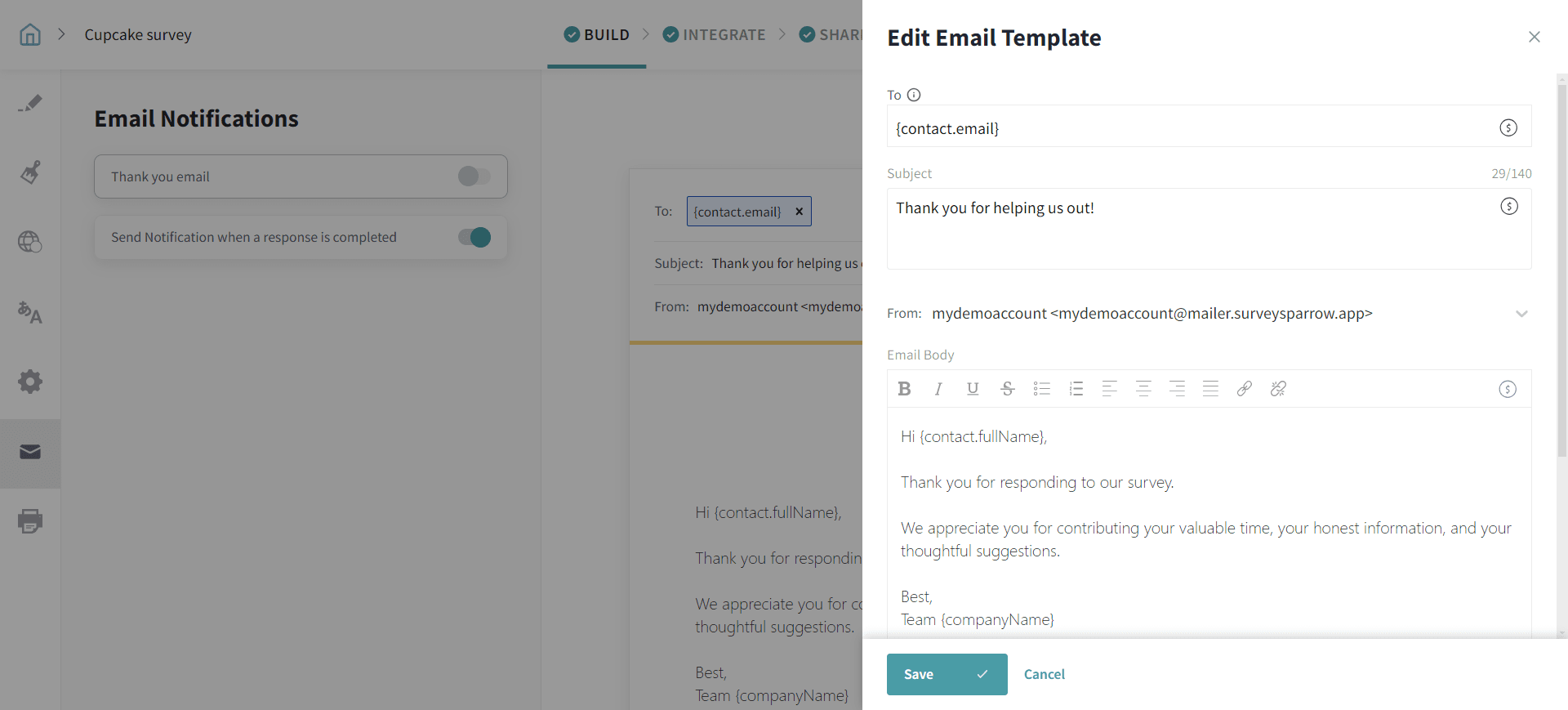
The following window appears. Enter the To, Subject and the body of the email. Click on the Save icon to save the changes. Now, you will start getting notified whenever a new survey response has been entered.
Note: To verify which email address(es) will receive the completion notification, go to Email Notifications and click Customize. The recipient address(es) are shown in the “To” field. In some surveys, the “To” field may show a variable (for example, {contact.email}) instead of a fixed email address.
When such {contact.email} is used as the recipient, the notification is sent only if the survey is shared through a non-anonymous channel (such as Email, SMS, or WhatsApp) where the respondent's contact details are tracked and an email address is available.
For anonymous surveys, you can instead select an Email question from your survey as the recipient using the dollar symbol. As long as the respondent enters a valid email address in that question, the completion notification will be sent to that address.
To know more about the survey editing options, you can refer to this article.