
Adding 'Other Option' to Your Survey

The Other option lets respondents give their own answer when none of the choices you've listed fit. When a respondent selects Other, a text box opens where they can type their custom answer. This helps you capture responses you didn't anticipate and get a clearer idea of what respondents want to convey.
Note: The Other option is available for the Multiple Choice Question (MCQ) question type. It isn't available for the Rank Order question type.
How to add the Other option
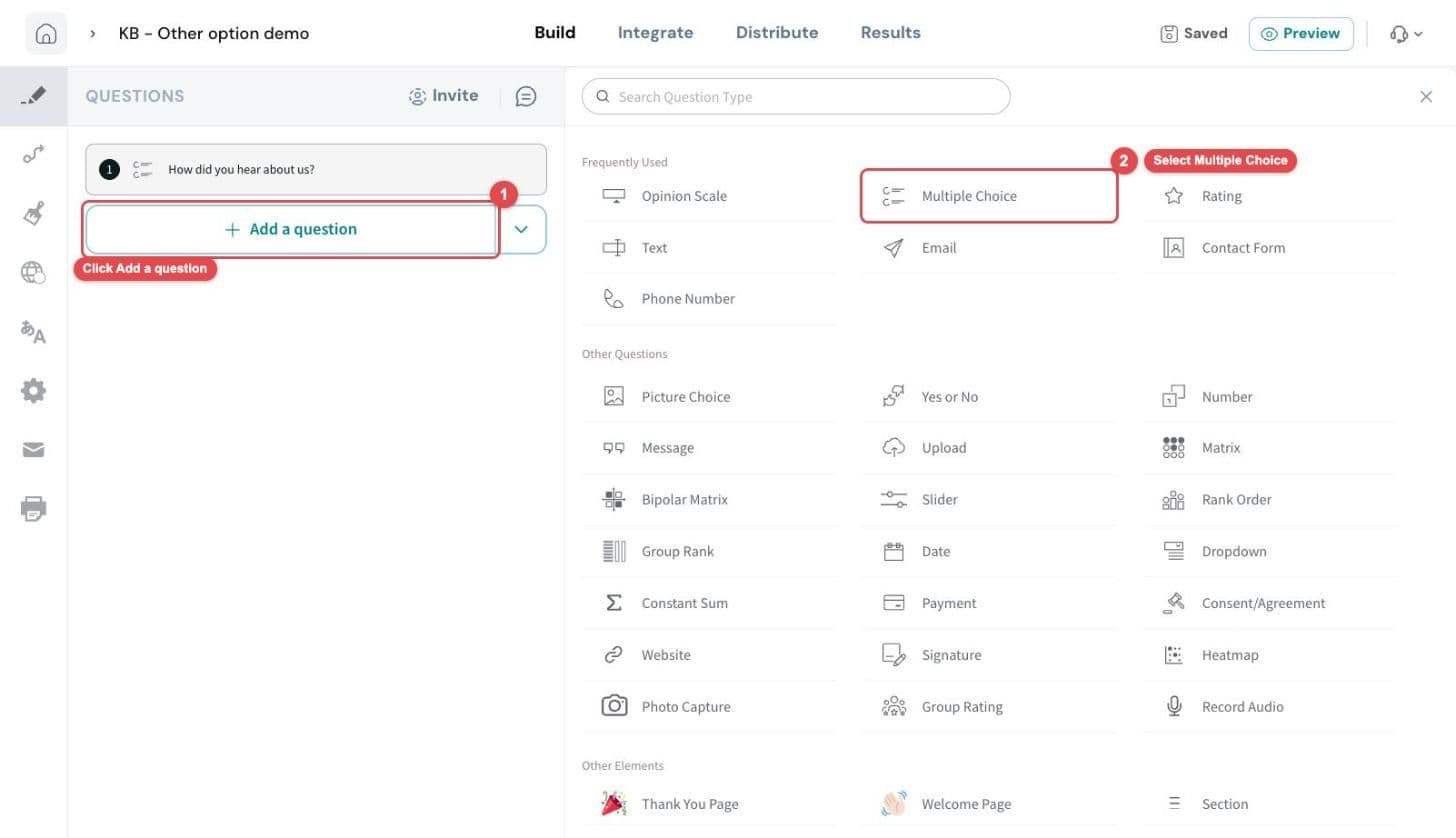
Step 1: Open your survey in the survey builder (the Build tab), click Add a question in the left panel (1), and select Multiple Choice from the list of question types (2). If you already have a Multiple Choice question, simply click it in the left panel to open it instead.
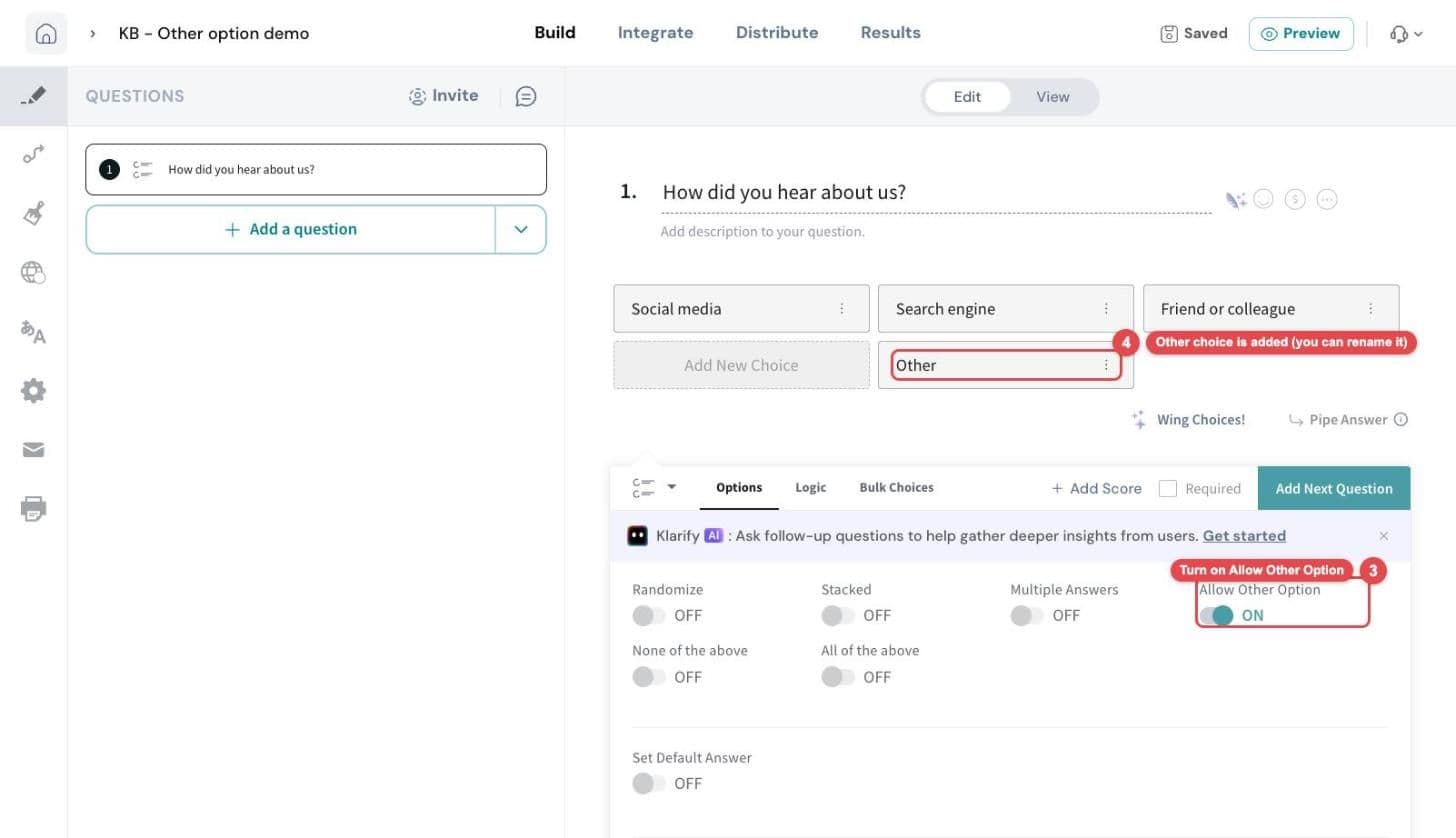
Step 2: Type your question and add your answer choices. Then, in the Options tab of the question settings panel below, turn on the Allow Other Option toggle (3). An Other choice is automatically added after your existing choices (4). The label is editable, so you can click it and rename it to suit your survey (for example, "Something else" or "Please specify"). Respondents will see the label you set.
Your changes are saved automatically. Click Preview at the top right of the builder to check how the question looks to respondents.
What respondents see
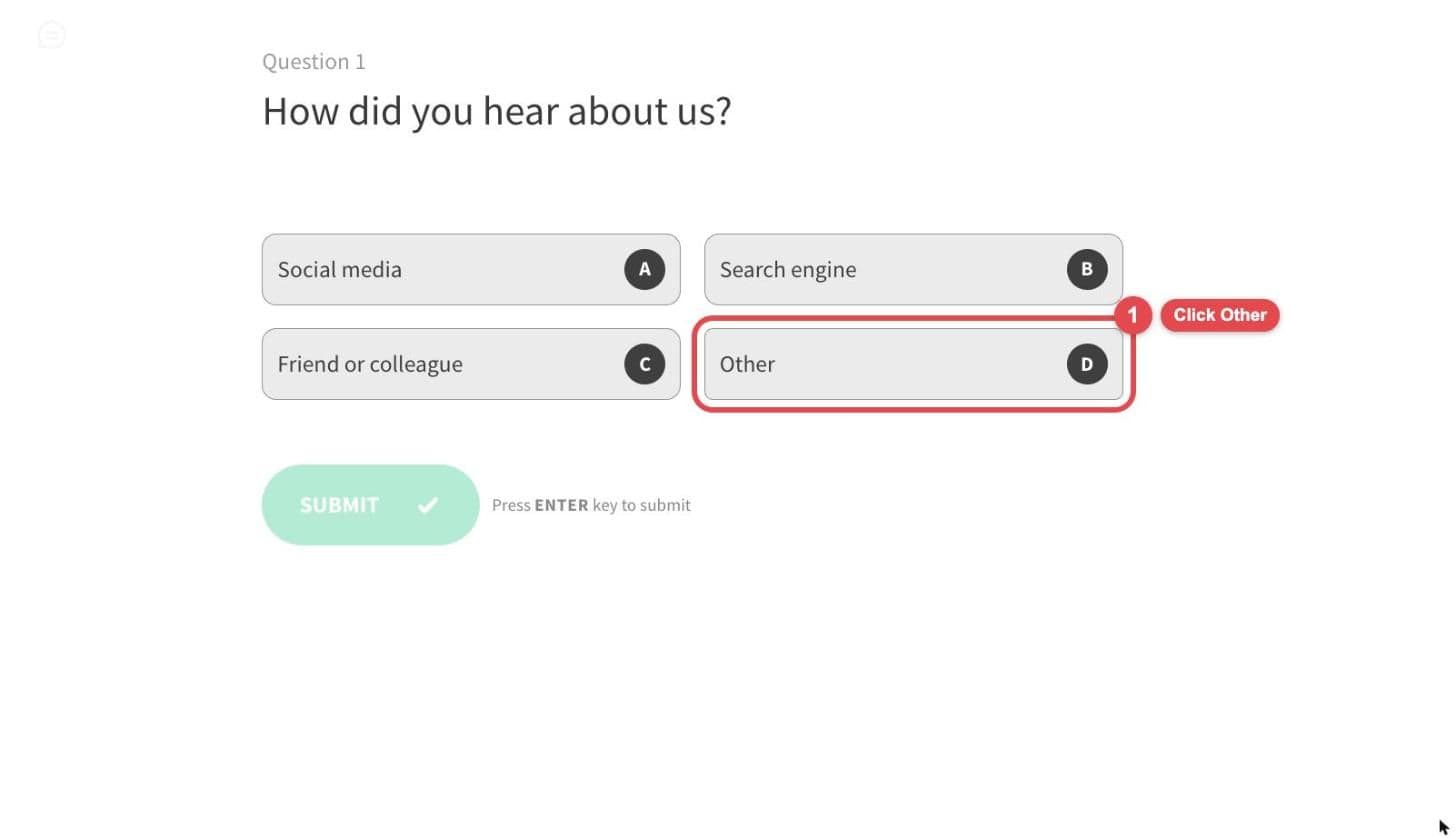
The Other choice appears alongside the rest of your options. When a respondent clicks it (1)...
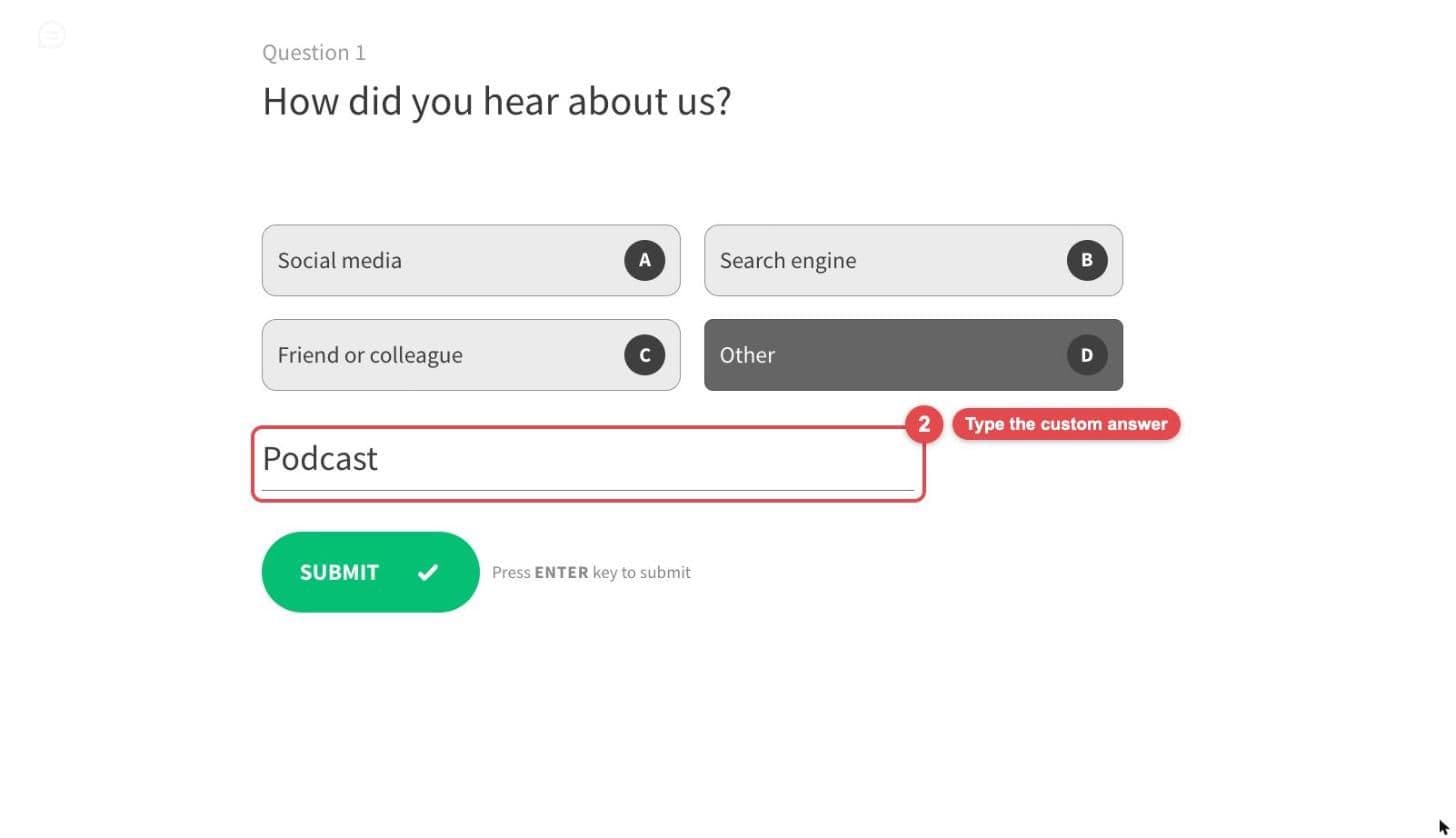
...a text box opens below the choices where they can type their own answer (2), and then click Submit to continue.
Please reach out to us if you have any questions. We are just a chat away!
Was this helpful?