
How to use SurveySparrow Webhooks?

Send data from your survey to the URLs specified using Webhooks
Wish you could deliver real-time data to other applications? Let’s introduce you to Webhooks!
Webhooks help you communicate with third-party applications by pushing your survey data to a configured URL called the Webhook URL. Every new survey response triggers a request to the configured webhook URL along with the survey response data.
For instance, webhooks are extremely useful for integrating with online ticketing software like Freshdesk and Zendesk. Survey responses can be tracked and monitored without the hassle of switching between two software.
So with webhooks, you get real-time, instant information which saves you a ton of stress and effort!
Let’s see how Webhooks are configured:
1. On your survey page, click on the Integrate icon.
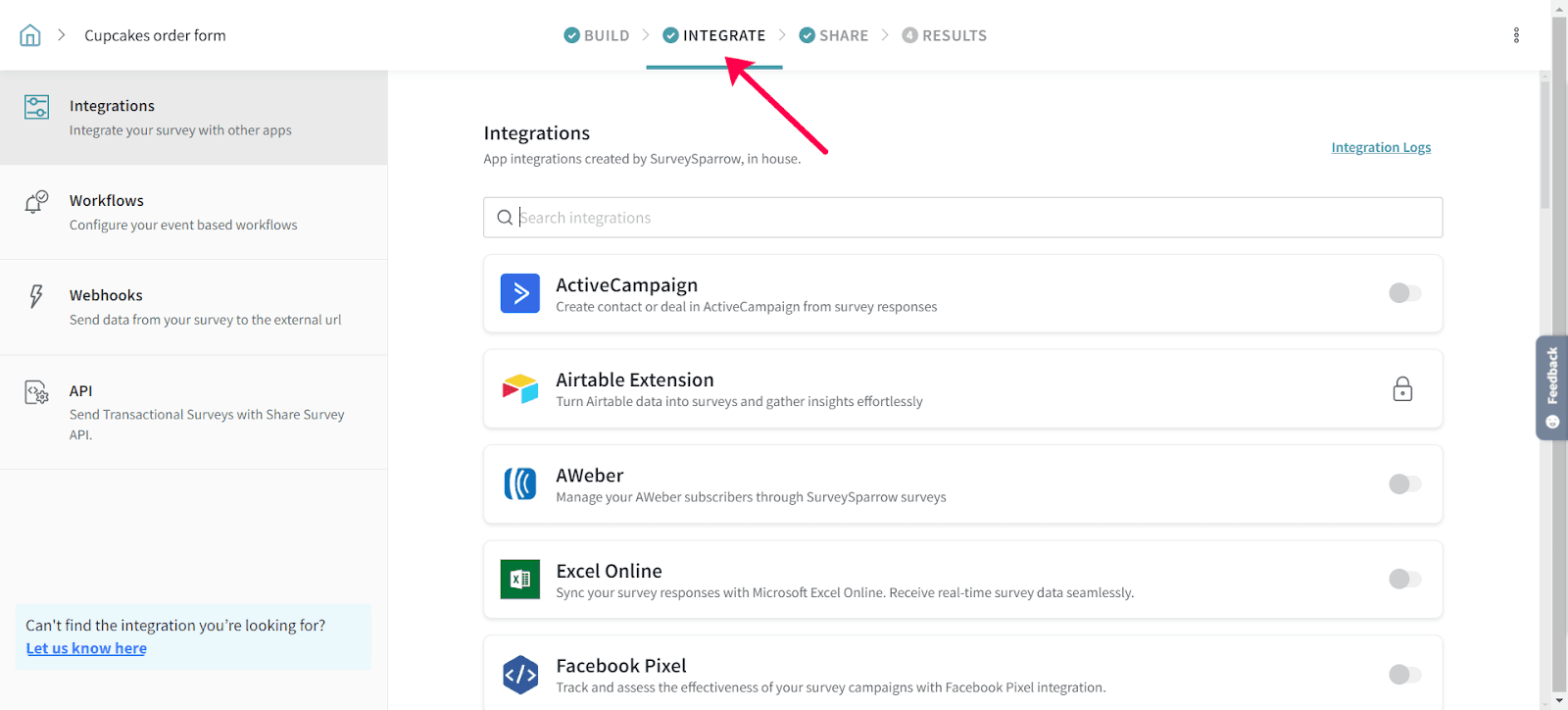
2. The Survey Integration page opens, click on Webhooks tab.
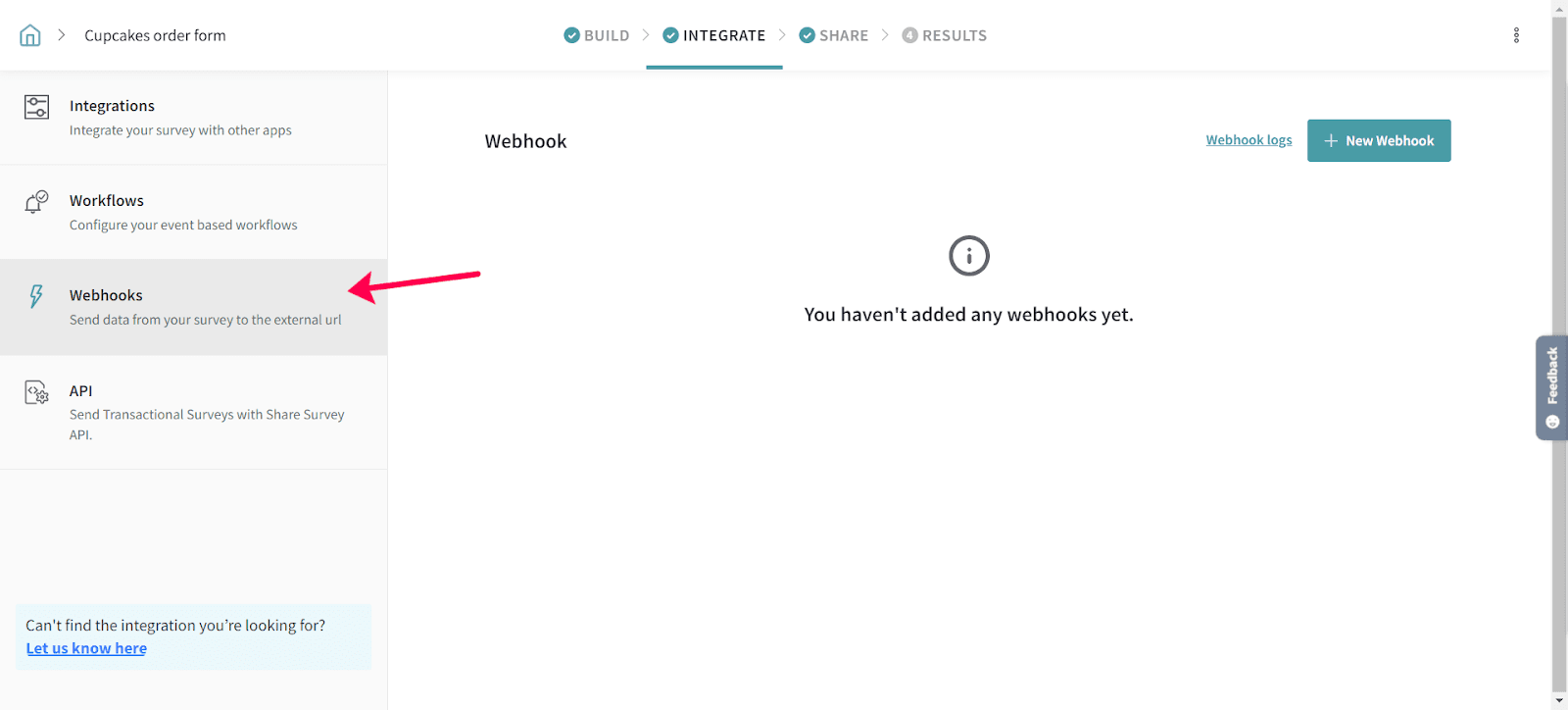
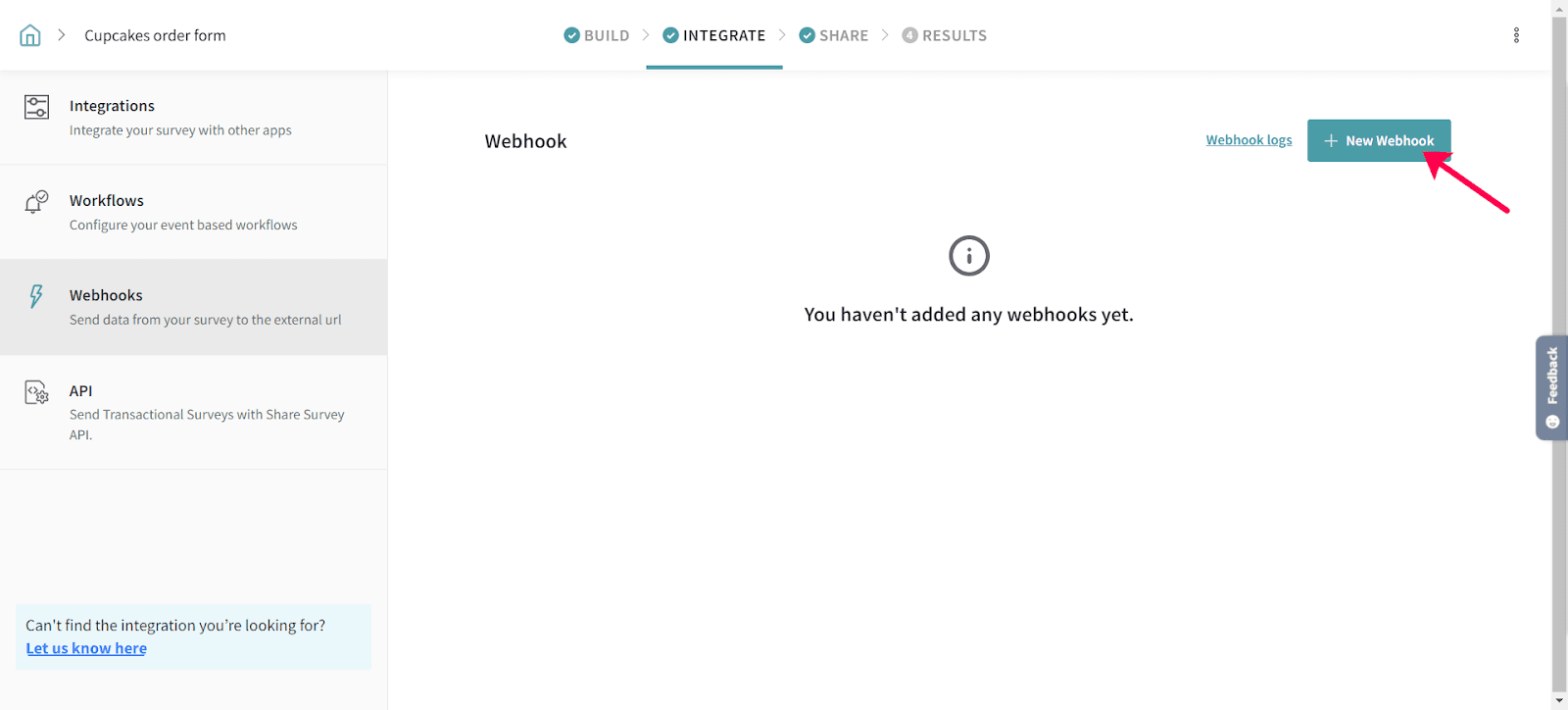
3. To create a new Webhook, click on the Add New Webhook Icon.
4. On the Webhooks page, you will find all the configurations required to set up your Webhook. Enter your Webhook URL under the ‘Call Back URL’ field. The survey data is sent to this URL.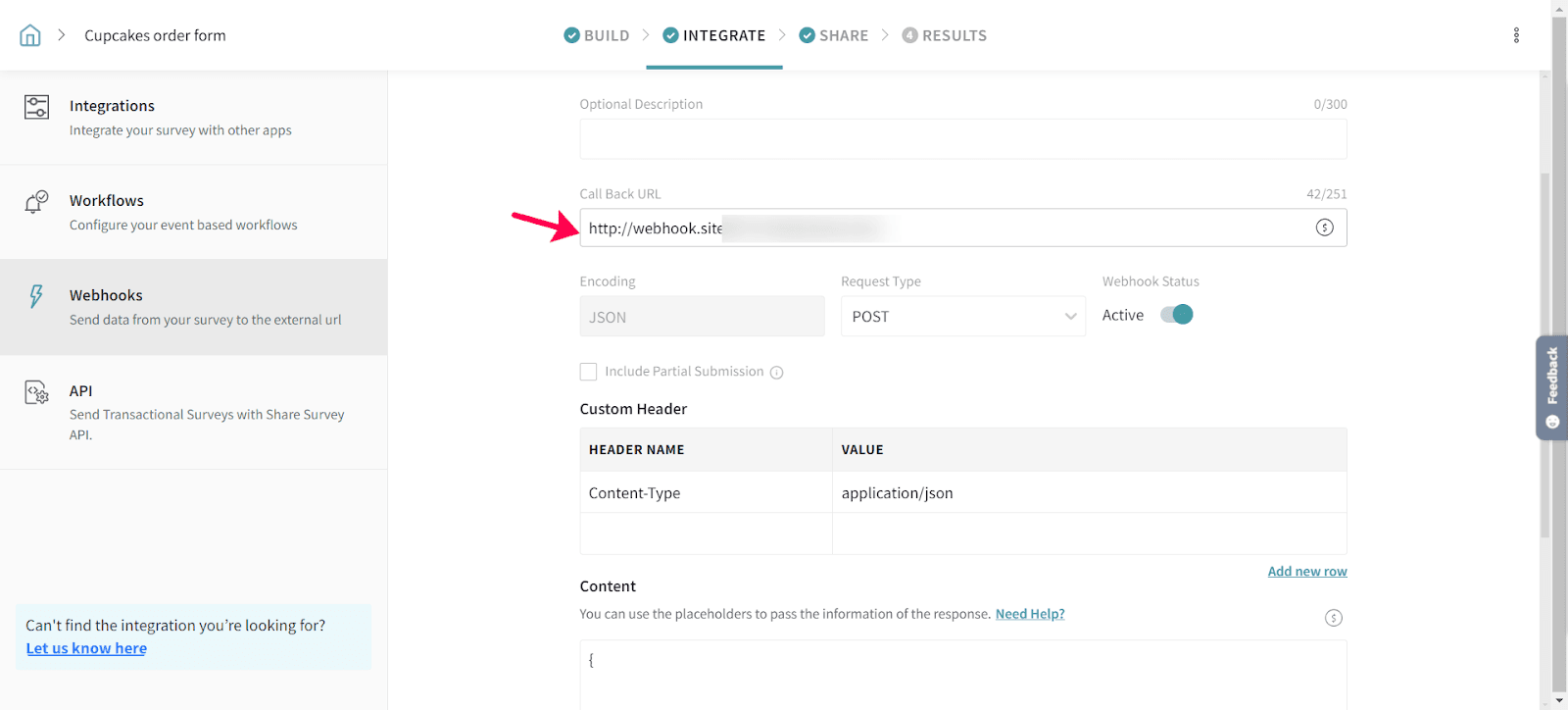
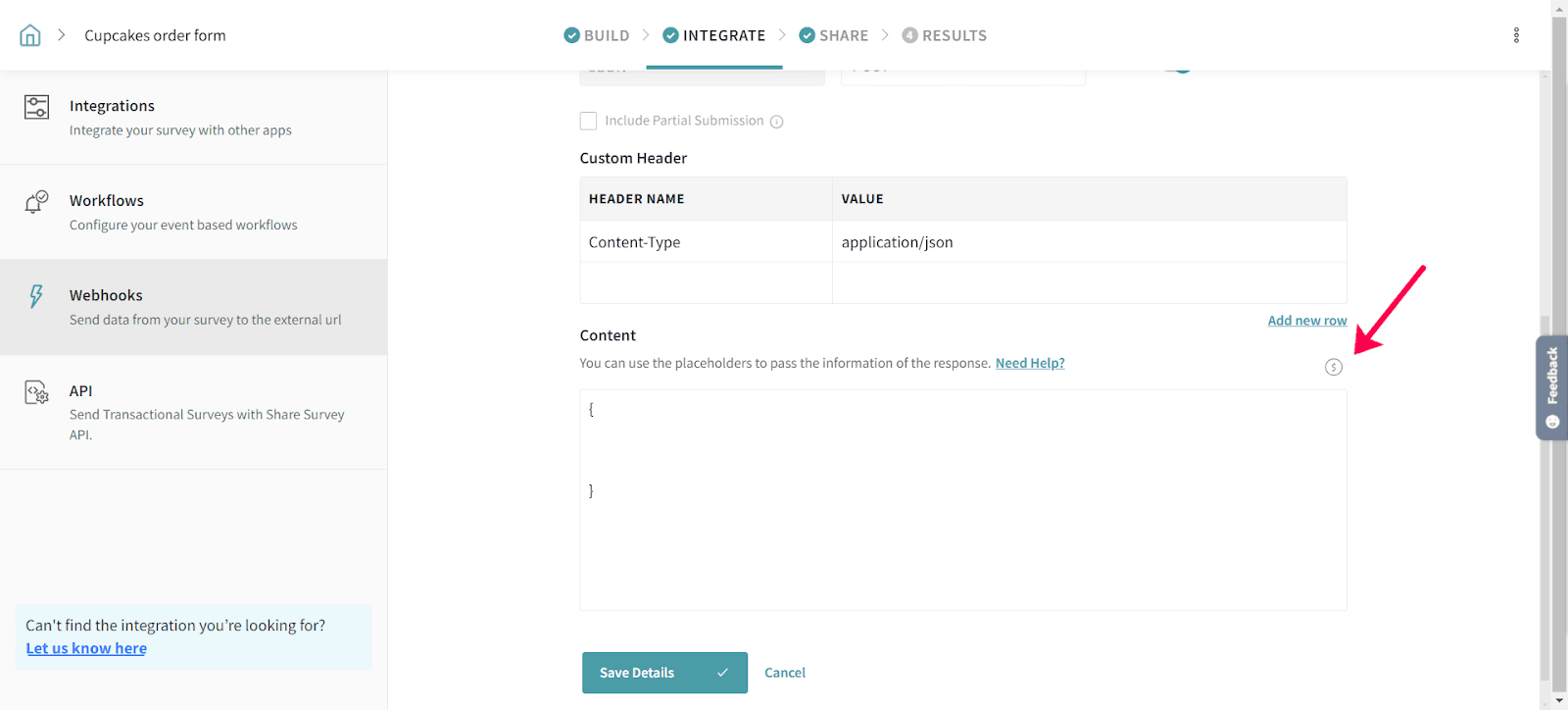
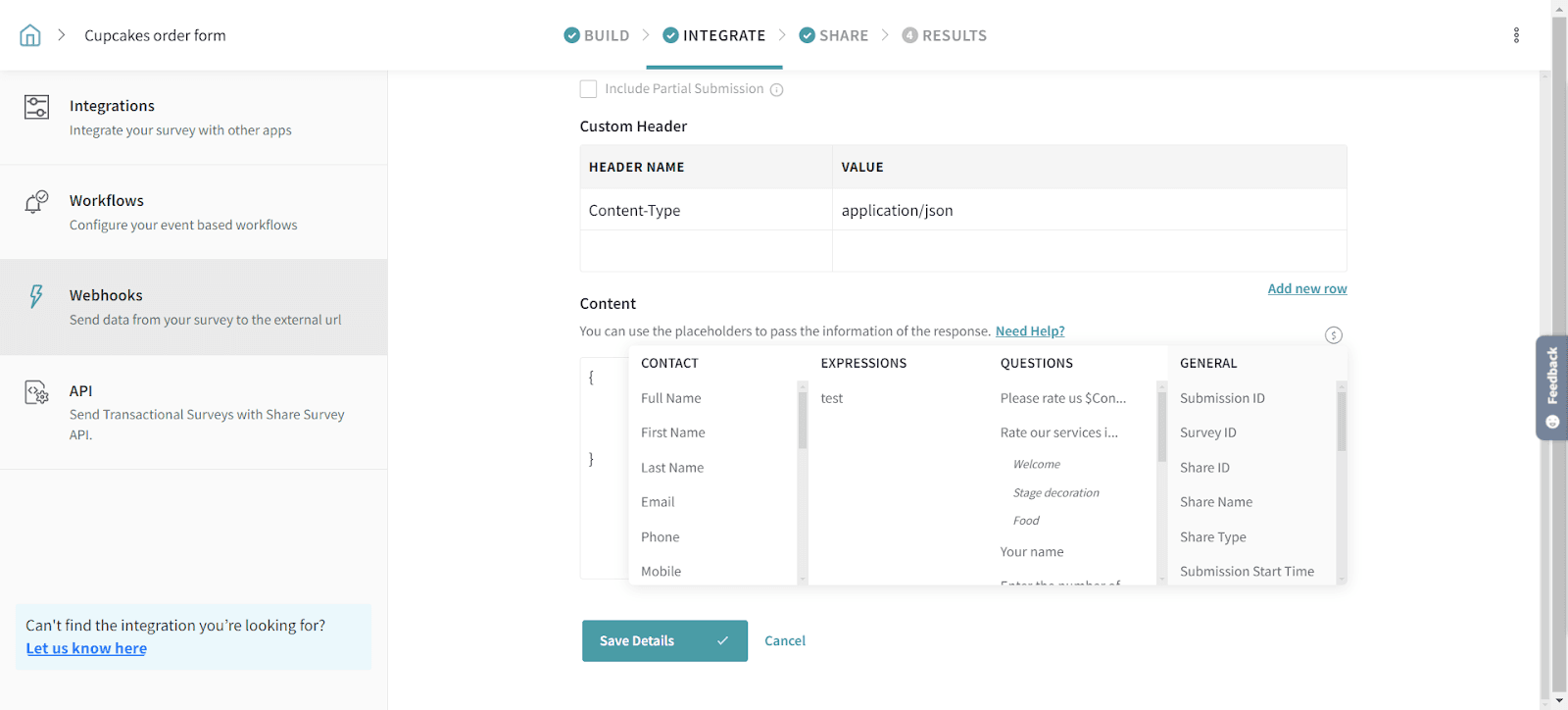
5. You can also choose the placeholders according to your preferences. Click on Dollar option to select one.
Here's a preview of the list of placeholders you can make use of to pull and pass the details:
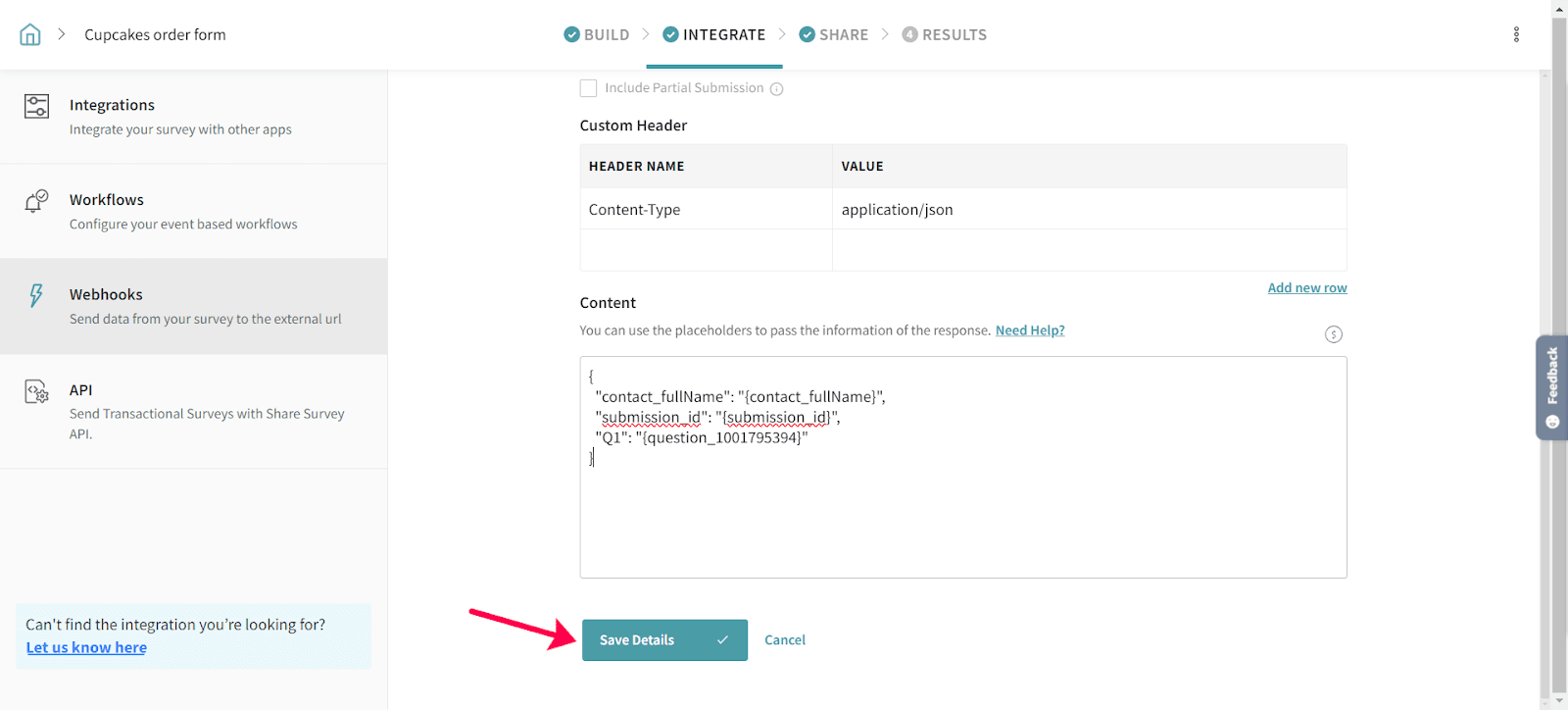
6. Hit Save Details once you have entered all the necessary details in the webhooks page. The webhook URL is mandatory.
Everything set up but still not receiving data? Try the troubleshooting steps below.
Why your webhook may not be triggering
- Verify that the webhook is configured under Integrate → Webhooks, the Callback URL is correct, and Save Details has been clicked.
- Submit a test response and check the Webhook Logs to confirm whether the webhook was triggered.
- If the logs show Success, SurveySparrow has successfully delivered the request. In that case, verify the configuration on your receiving application.
- If your endpoint is protected by a firewall, ensure all required outbound IP addresses for your region are allowlisted. If you need the IP addresses, please reach out to us via chat.
Troubleshooting webhooks for Started responses
- Webhooks are triggered only after a response is recorded. Simply opening a survey (status: Started) does not trigger a webhook.
- When Partial Submission is enabled, webhook delivery for partial responses may be delayed briefly to avoid multiple triggers while the respondent is still completing the survey.
- To test this, answer at least one question, wait a few minutes, and then check your receiving application or the Webhook Logs.
Please feel free to reach out to us if you have any questions or need any assistance. We are just a chat away !