SMTP Email Configuration

SMTP email lets you send survey invitations through your own email service provider, such as SendGrid, Mailchimp or your company's mail server, instead of SurveySparrow's servers. This article shows how to configure SMTP in SurveySparrow and use it as a survey's sender. Invitations come from your own address, and your team owns deliverability and the sending reputation, and every email transaction is managed and tracked at your own end. Use it when your IT team requires outgoing mail to pass through company servers, or when you want respondents to recognise the sender. All you need are your email service provider's SMTP server details and the login for the sending mailbox.
Which method should I use?
SurveySparrow offers four ways to connect a sending email.
- Connect Google account — using Gmail or Google Workspace? Follow Configuring Google SMTP to send emails from SurveySparrow instead.
- Connect MS account — using Outlook or Microsoft 365? Follow Configuring Microsoft SMTP to send emails from SurveySparrow instead.
- Email via SurveySparrow — happy to send from SurveySparrow's own servers? You don't need SMTP at all.
- Configure SMTP — any other provider (SendGrid, Mailchimp, or your company's own mail server): continue with this article.
Before you start
- Email connections are account-level configuration, so you need the Manage Settings permission. The Account Owner and Admin roles carry it by default; if Settings will not open for you, ask an administrator to grant it.
- Get your provider's SMTP details: the outgoing mail server address and port. For example, Gmail's SMTP server address is
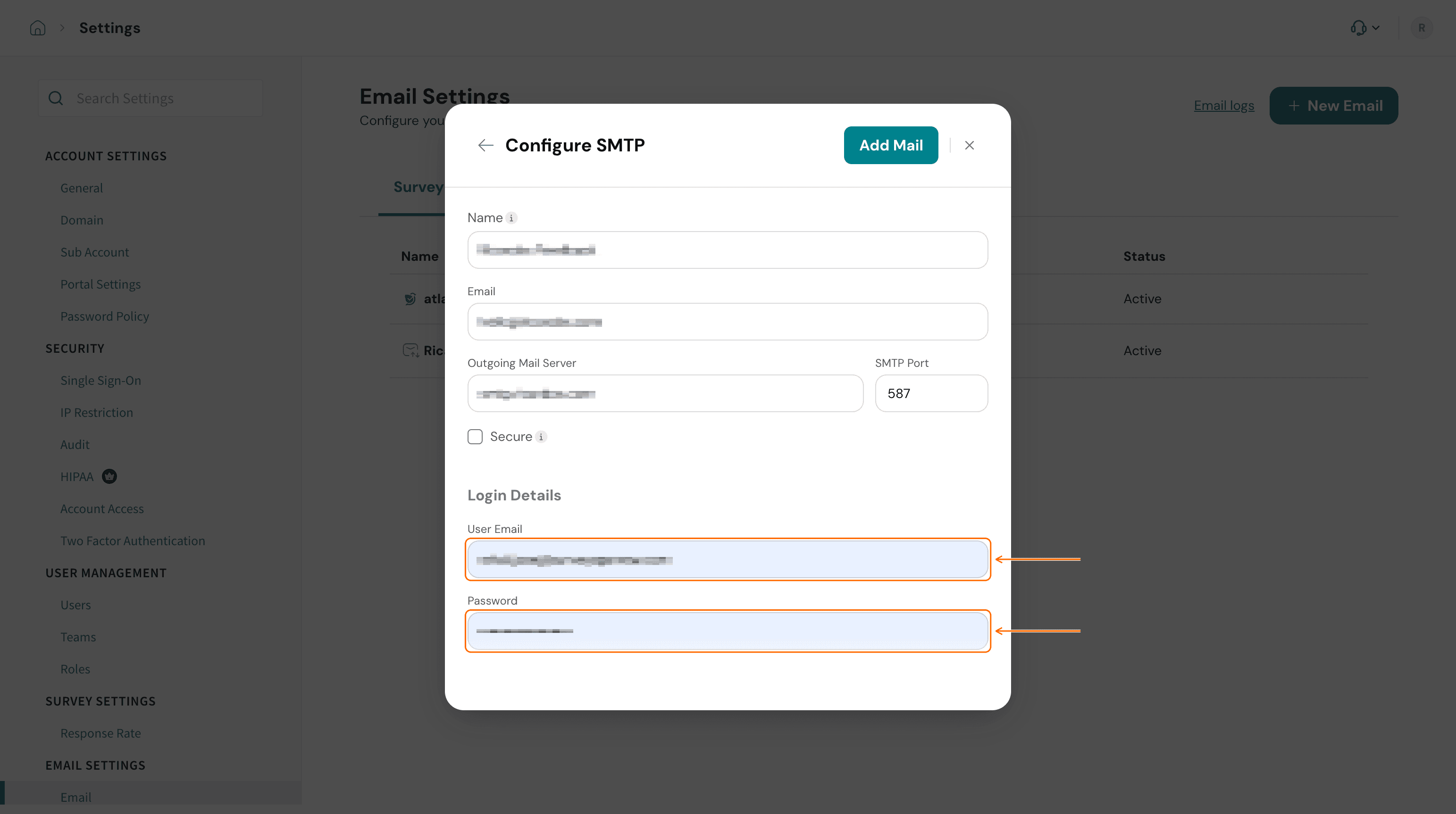
smtp.gmail.com— this address varies for every email service provider. - Have the login details for the sending mailbox. If your provider has multi-factor authentication (MFA) enabled, you'll need an app password rather than the regular one — your provider's security settings page is where you create it.
- Make sure your provider allows authenticated SMTP connections; some providers switch it off by default.
Connect your SMTP server
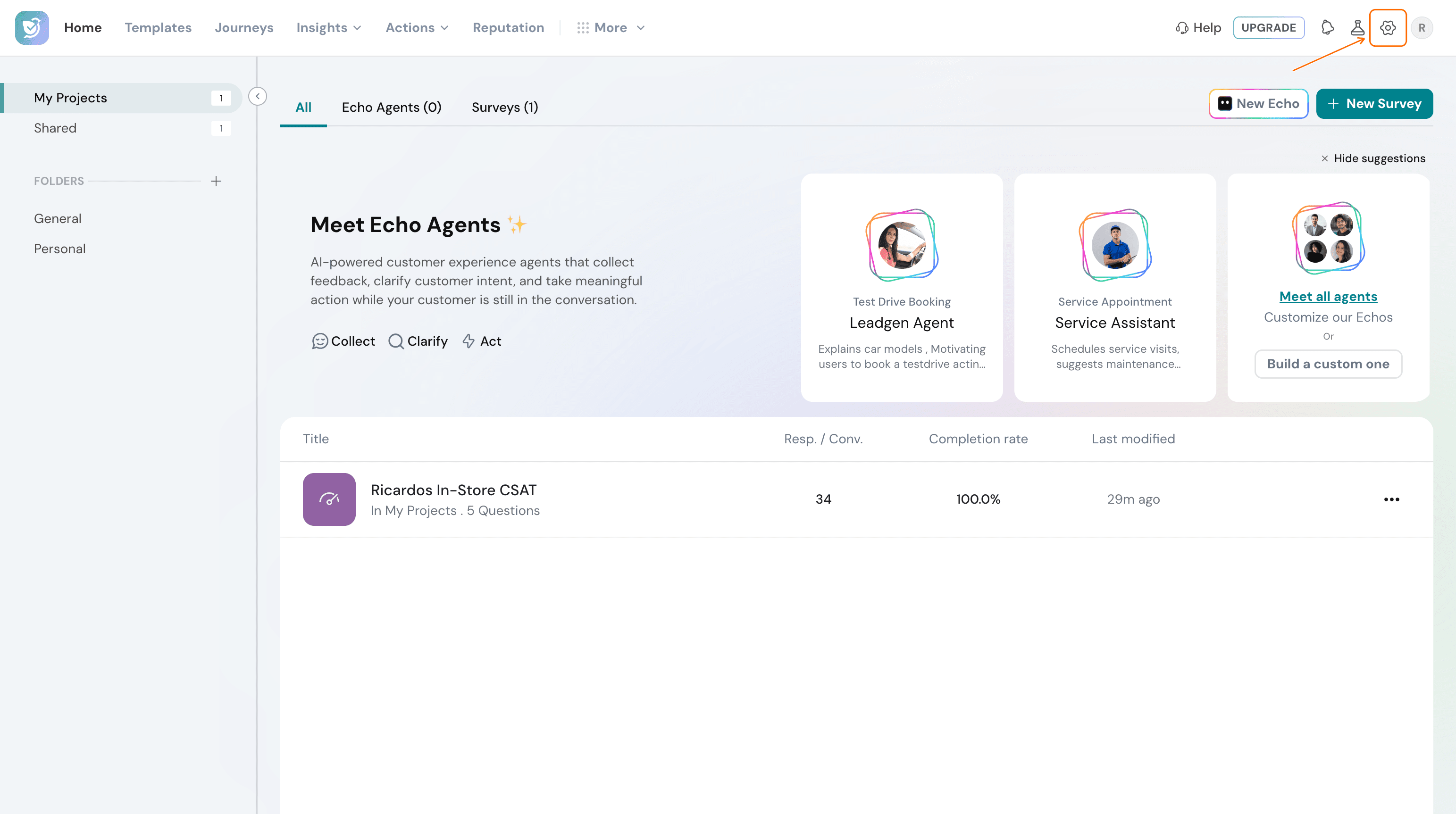
- Click the Settings icon in the top navigation.
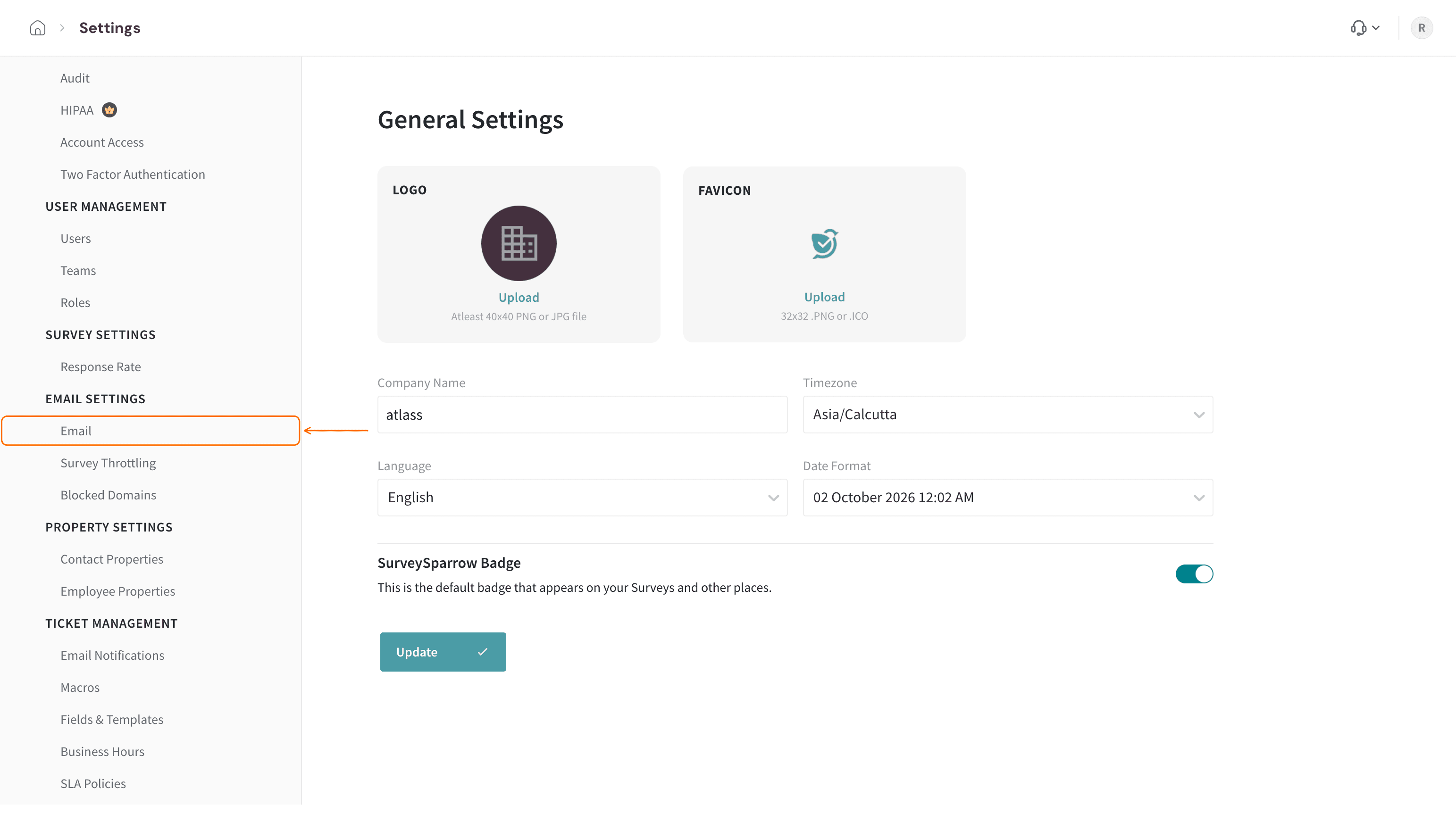
- Under EMAIL SETTINGS in the left menu, click Email.
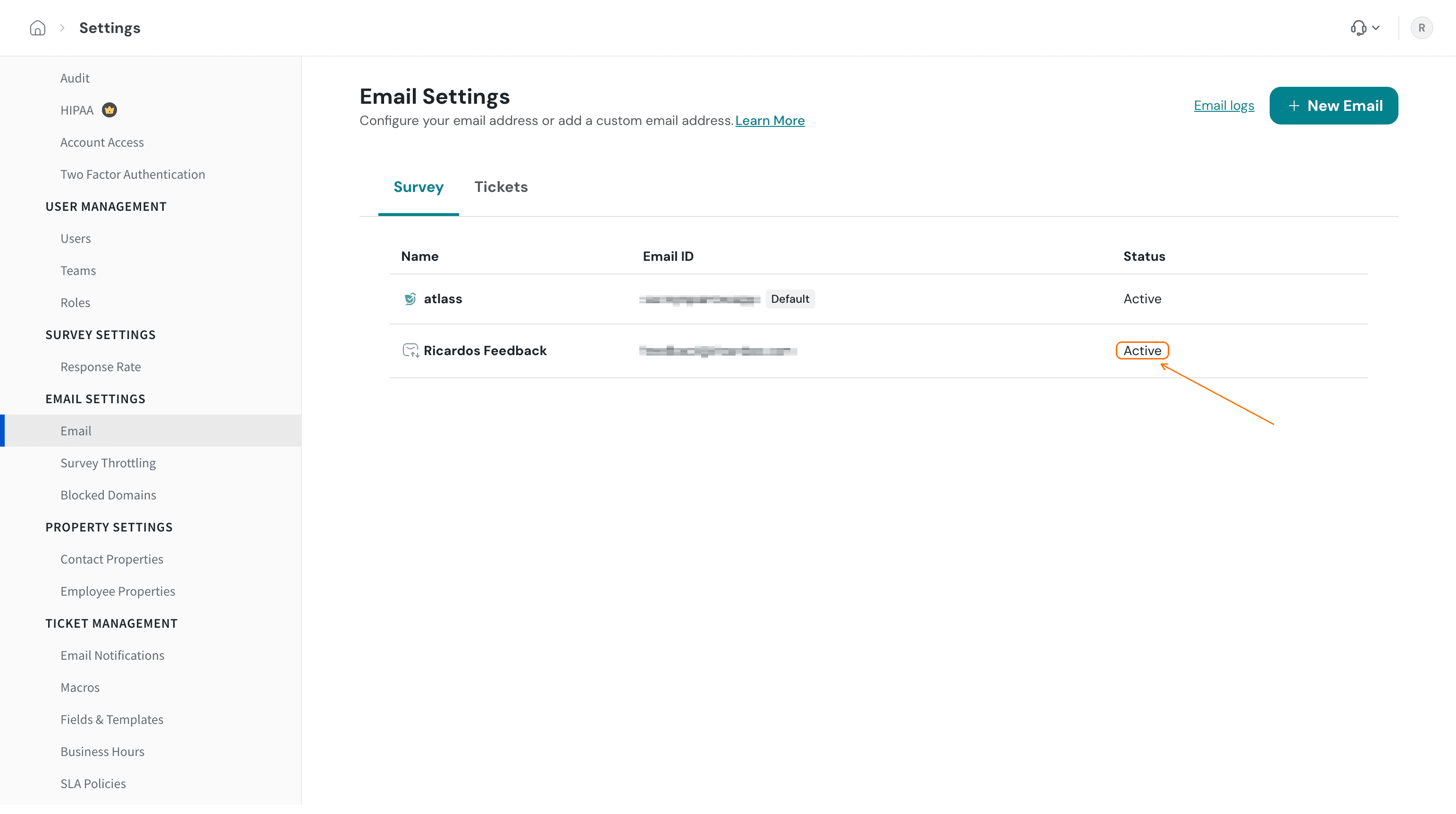
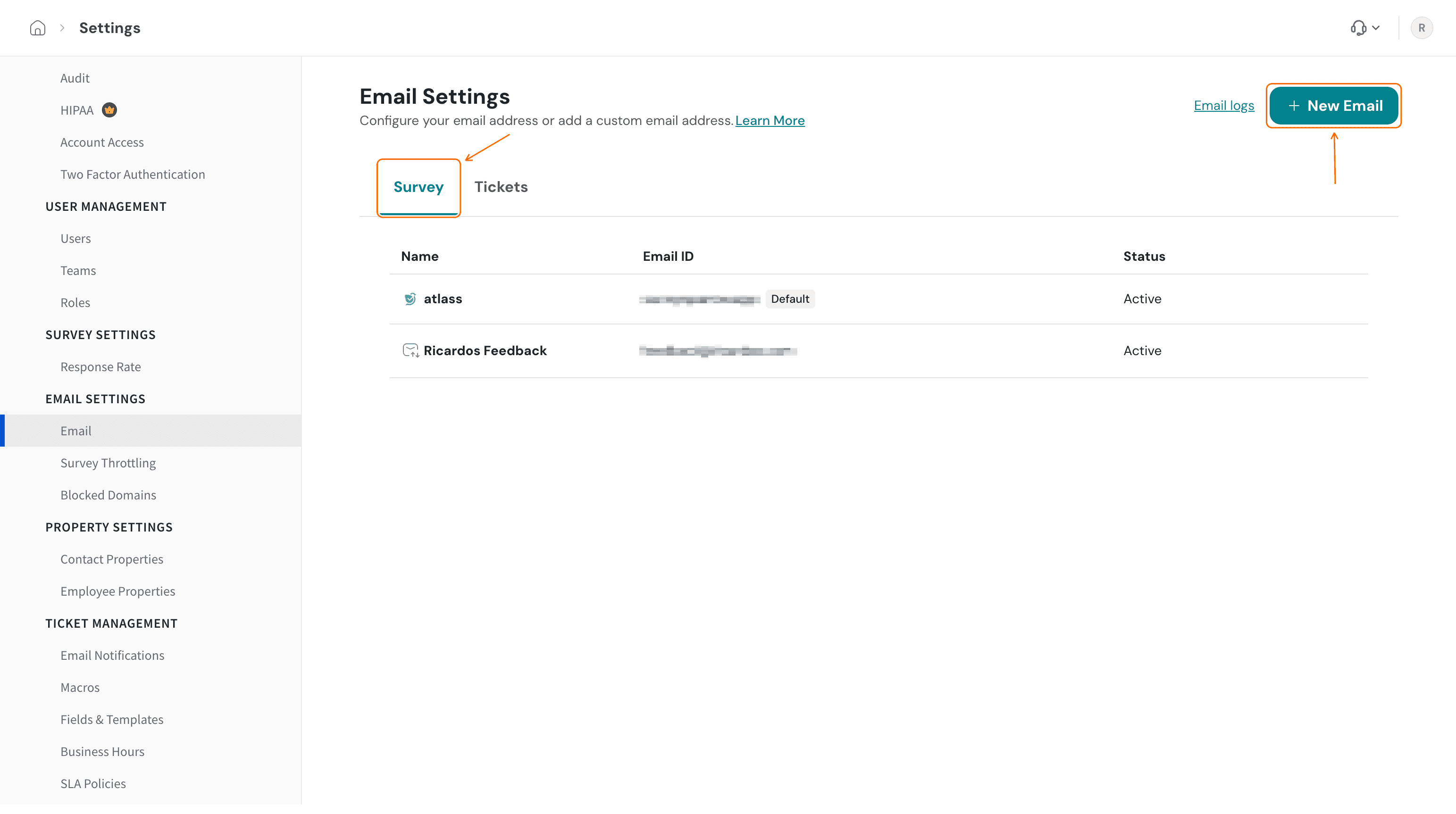
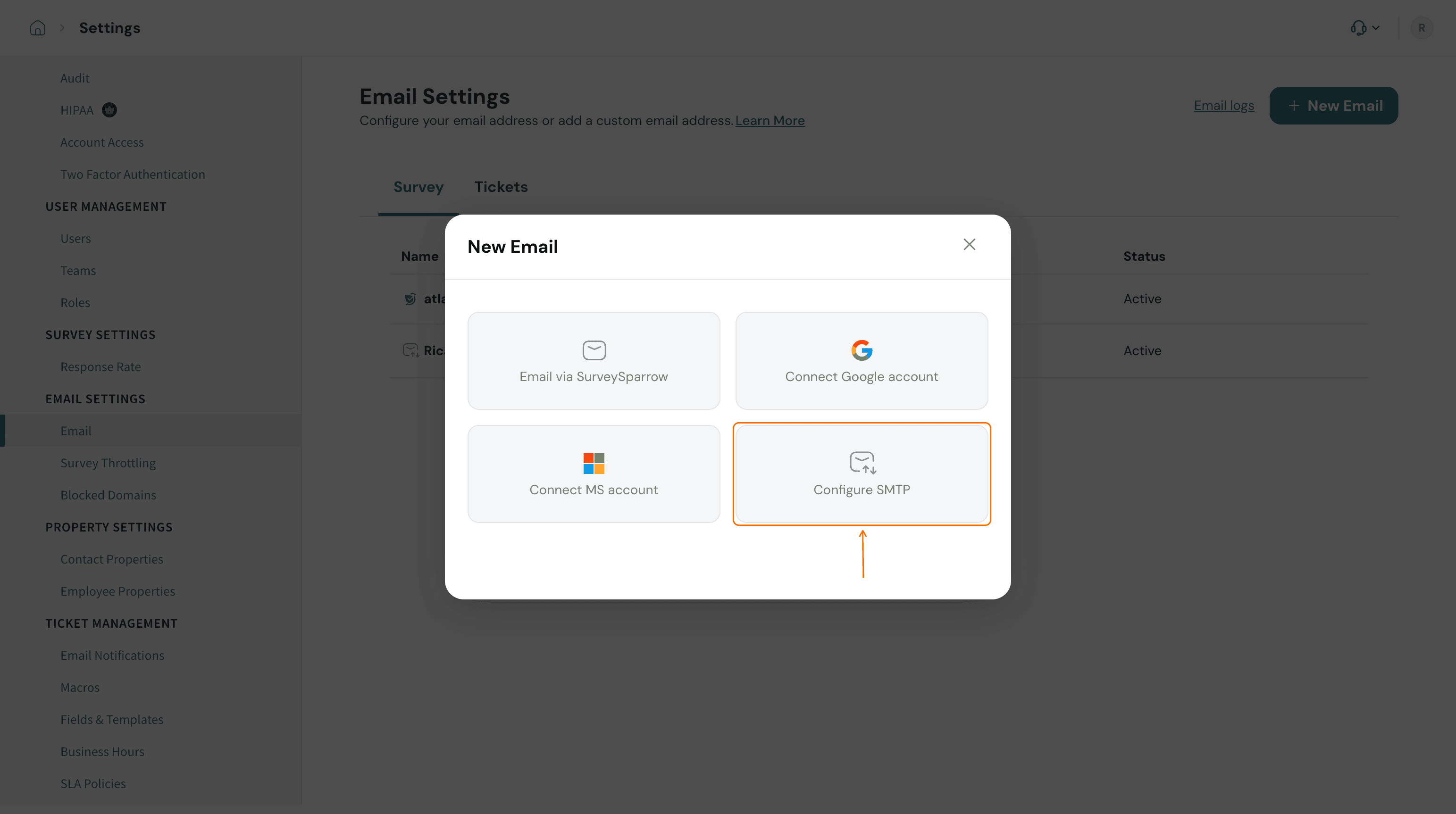
- Choose the tab you need, then click New Email. Servers listed under the Survey tab are used to share surveys via email, and servers listed under the Tickets tab are used to send notification emails to ticket reporters, assignees and customers.
- Choose Configure SMTP.
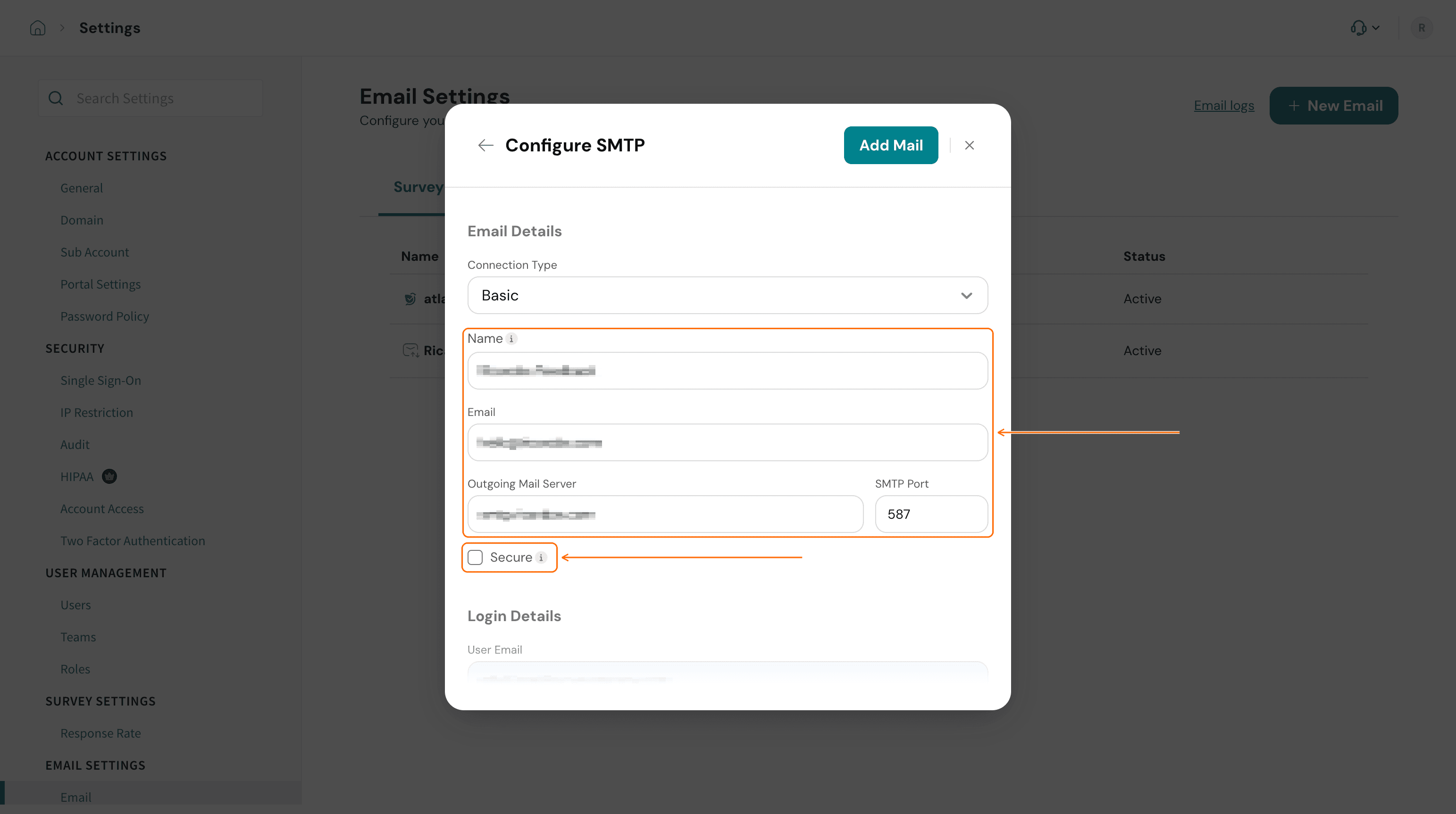
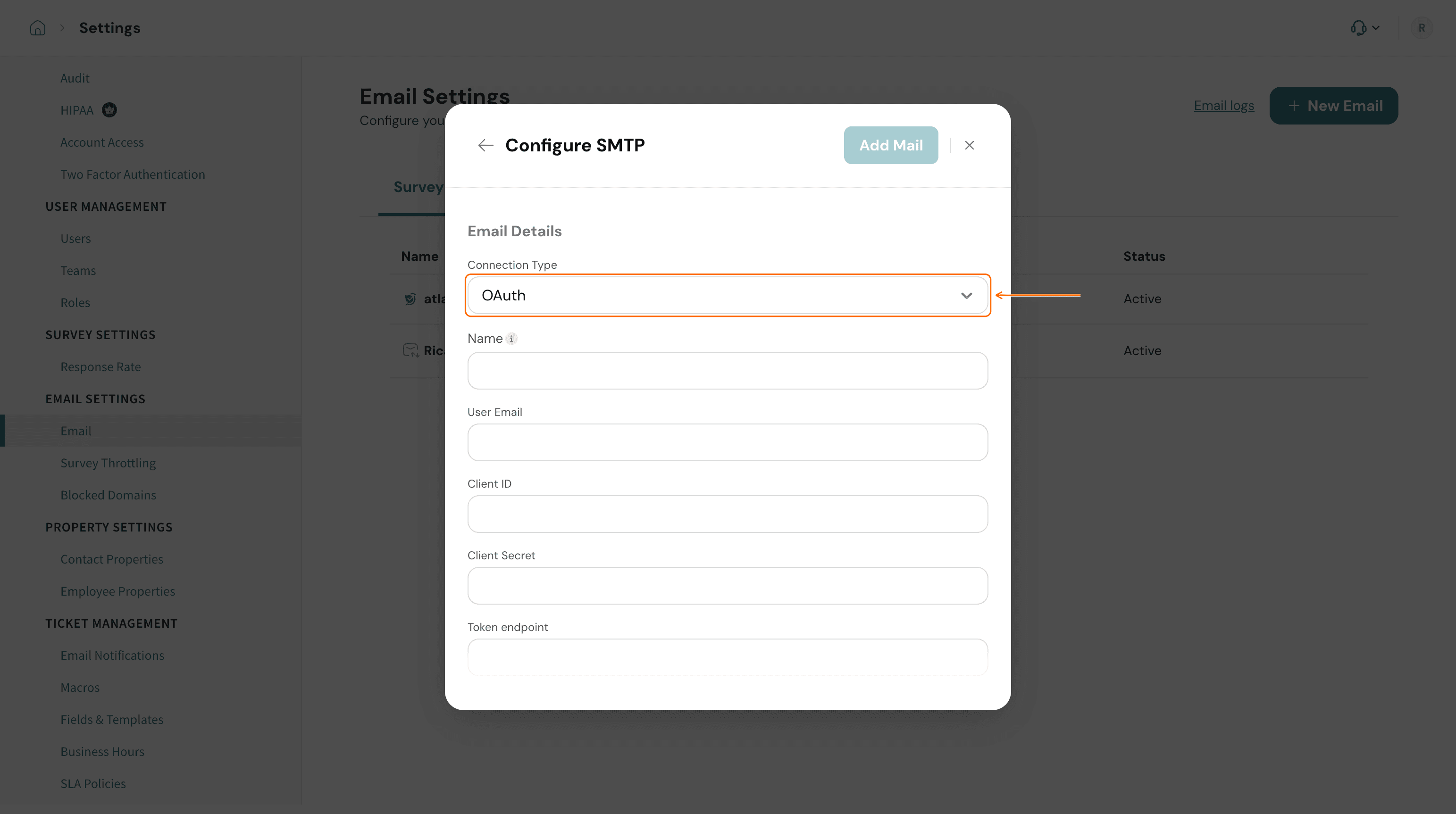
- Pick a Connection Type. It decides how SurveySparrow signs in to your mail server, and it changes which fields the form asks for.
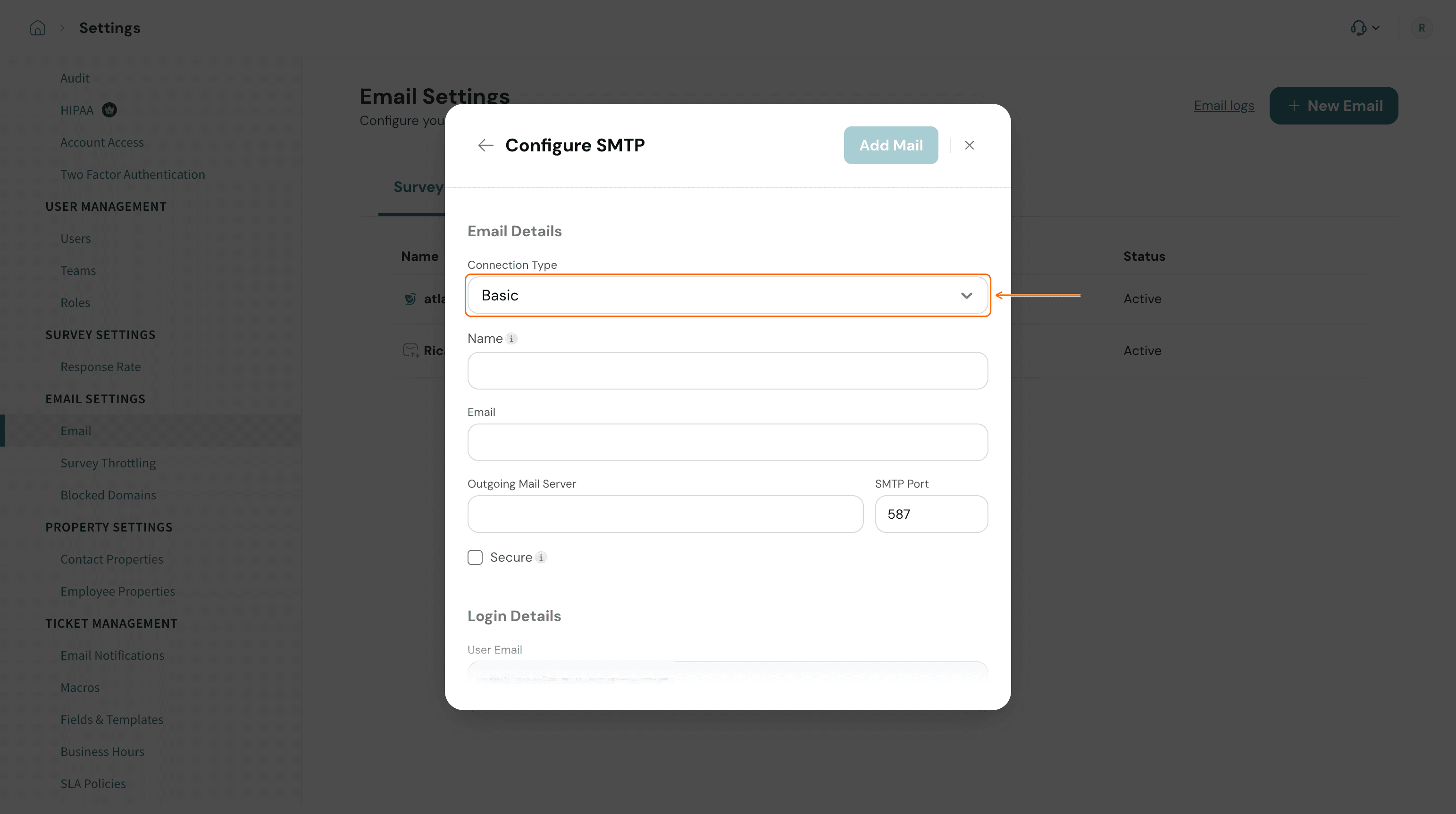
- Basic — a mailbox username and password. This is what most providers use.
- OAuth — a token-based connection you register with your provider instead of storing a password. Choose it when your provider requires OAuth for SMTP.
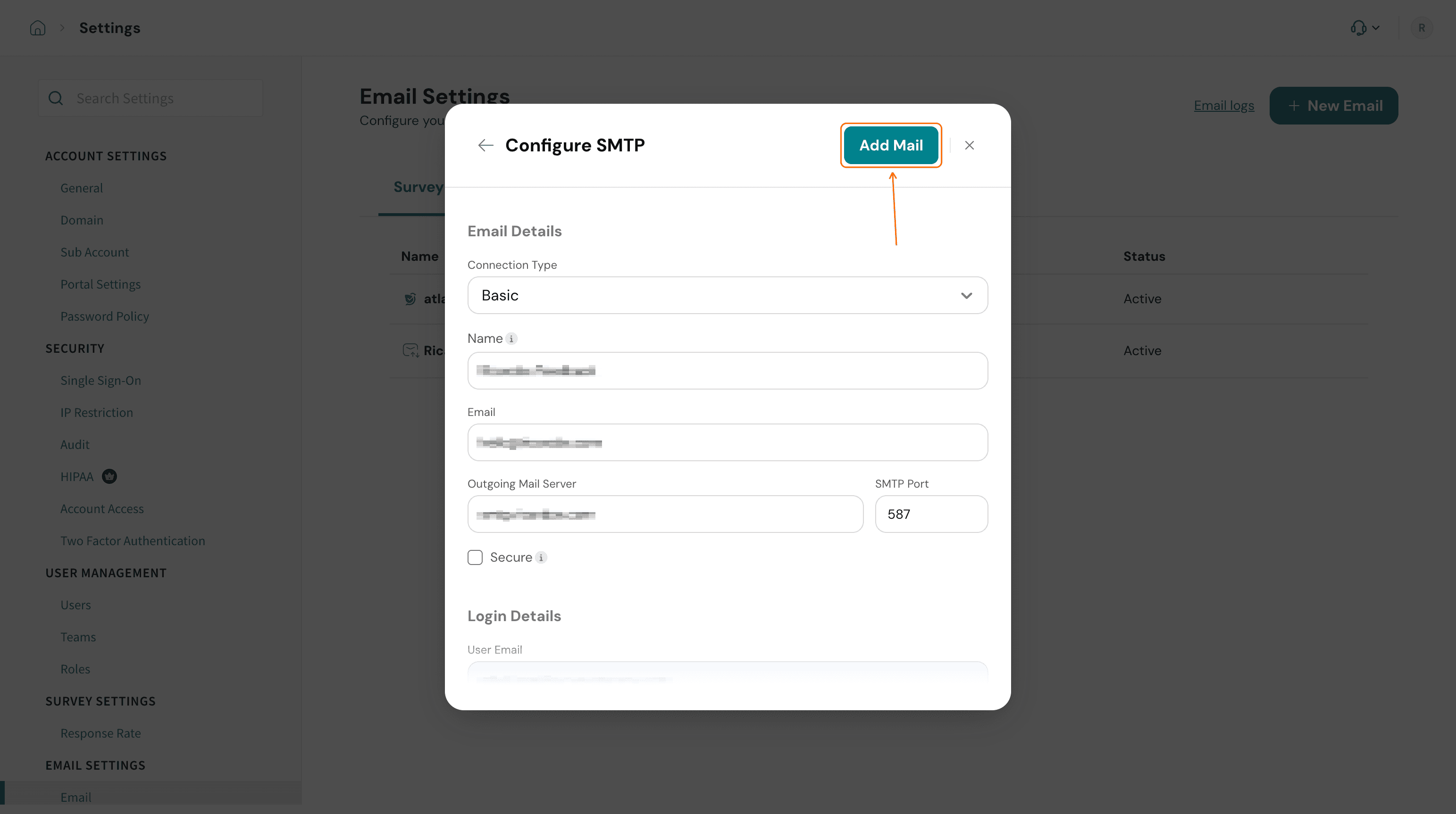
- Fill in the Email Details section: the Name
💡 💡 The configuration values vary between email providers — fill each field with the details your provider documents, and contact them if you're unsure of a value.
Send a survey from your SMTP address
Once the connection is Active, choose it as the sender in a survey's email share.
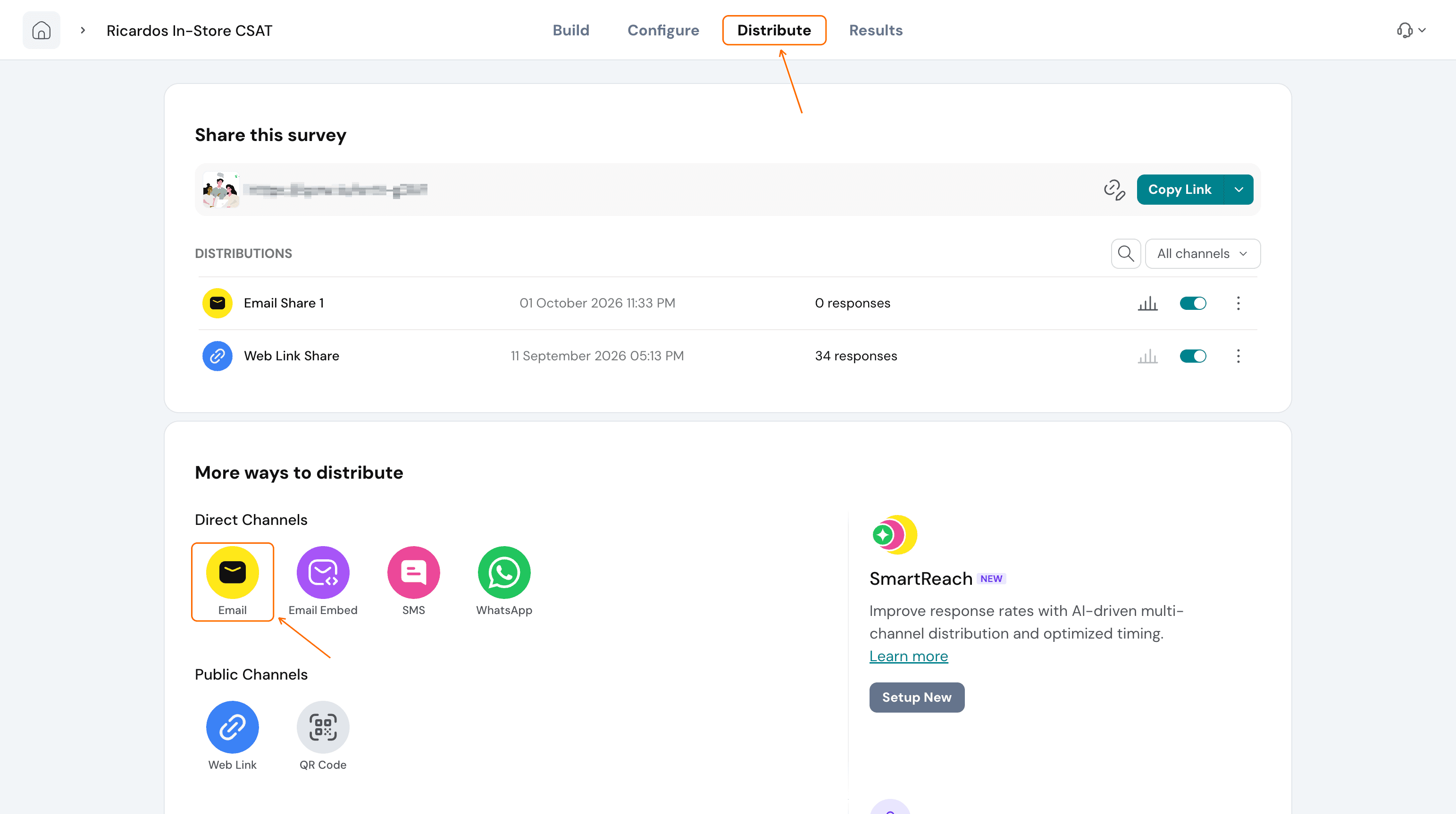
- In your survey, open the Distribute tab and click Email under Direct Channels.
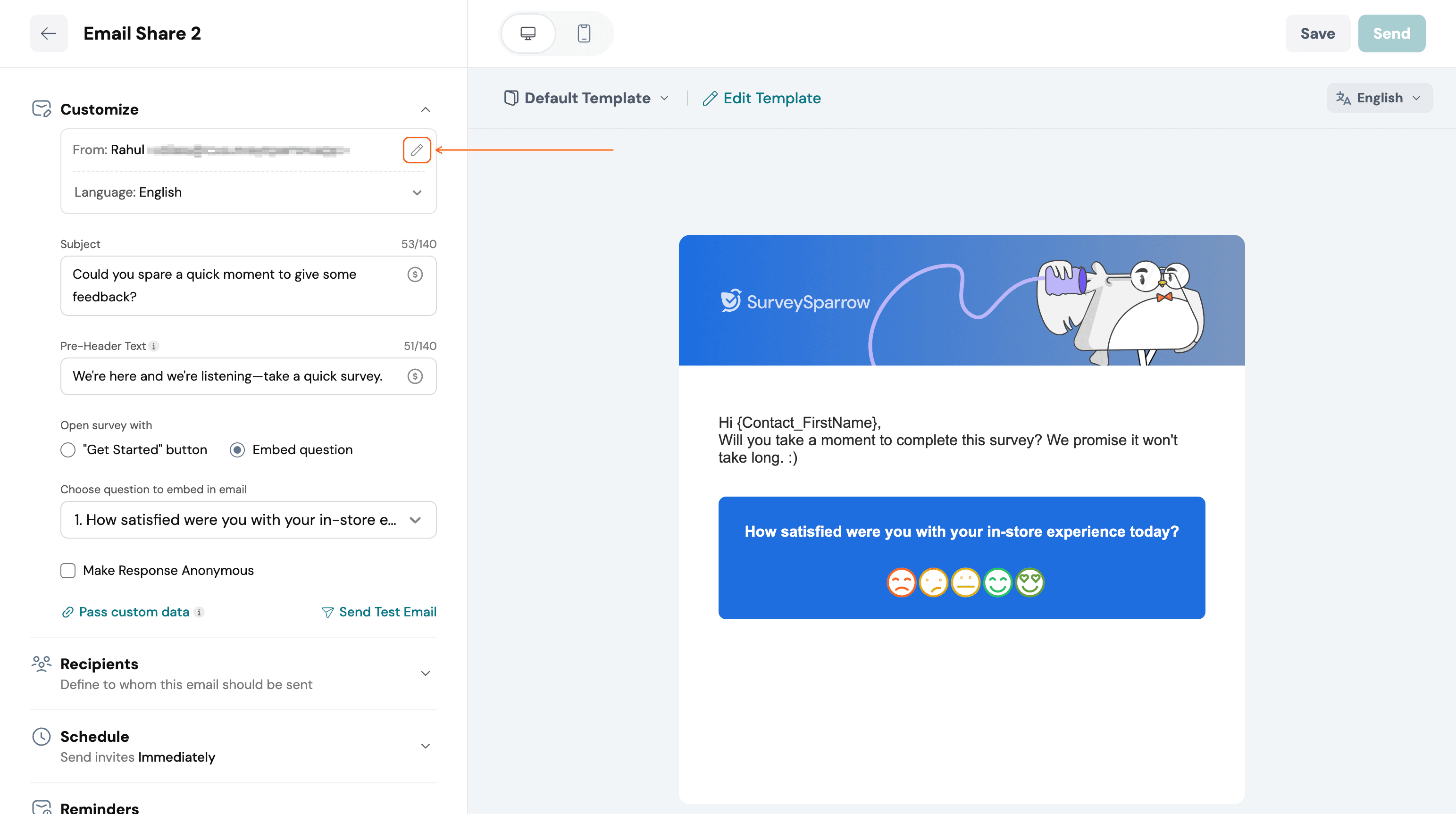
- In the Customize section, click the pencil icon next to From.
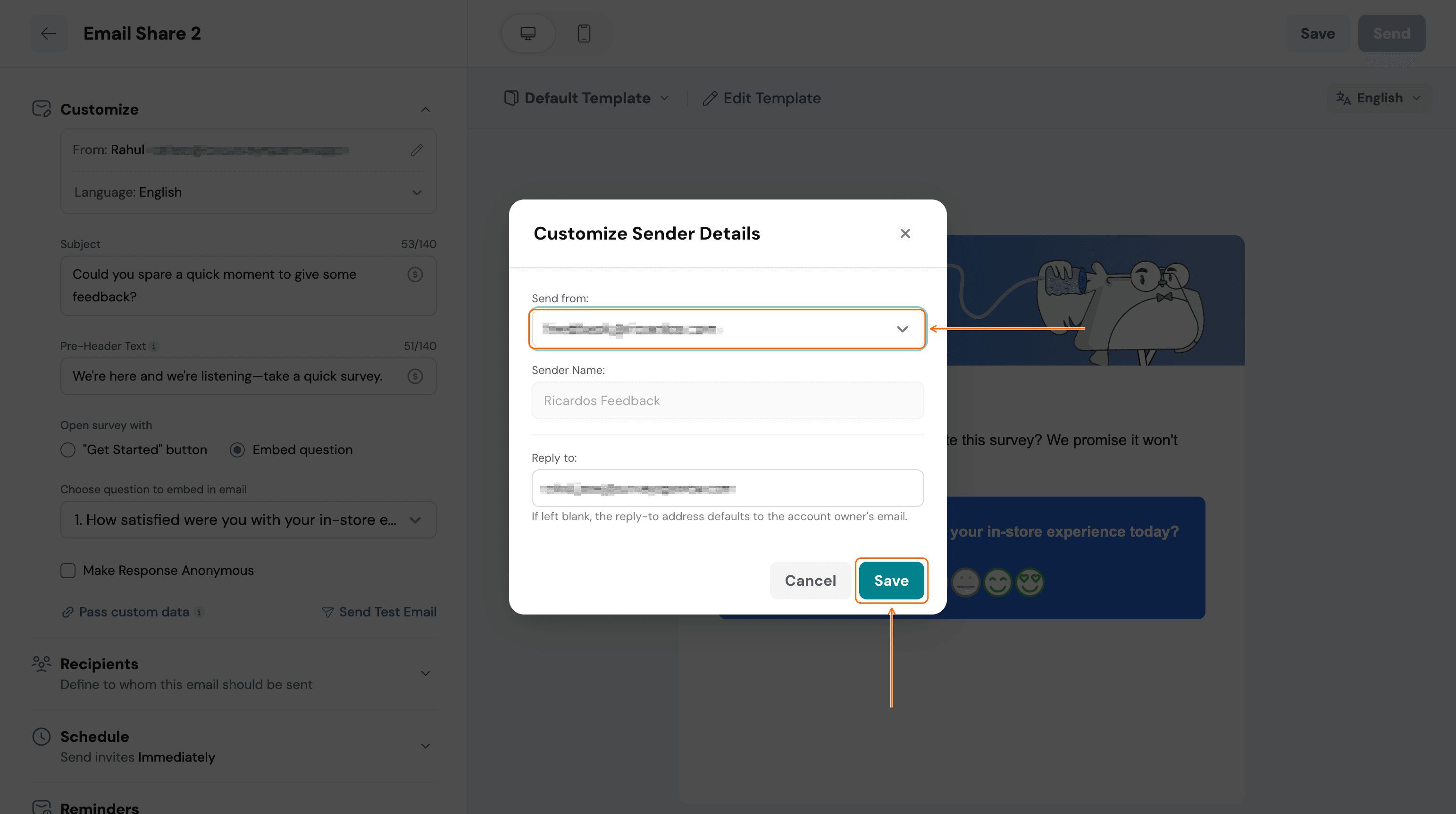
- In Customize Sender Details, open the Send from: dropdown and choose your SMTP connection.
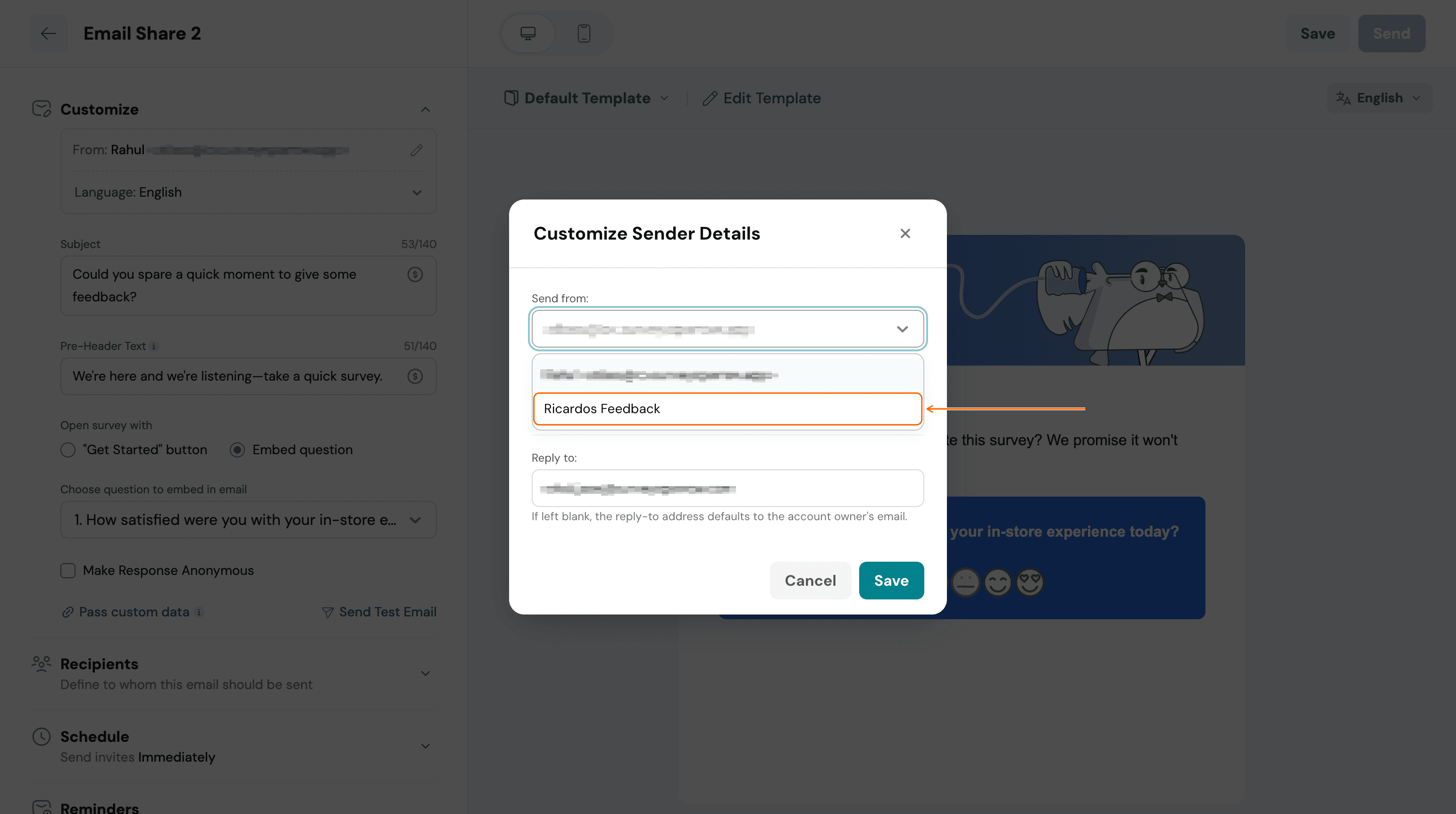
- Sender Name: fills in from the connection's name. Reply to: is separate: if you leave it blank, replies go to the account owner's email, so enter your own reply address if you want replies elsewhere. Click Save, then finish the email share as usual. See How to Share Surveys Via Email? for the rest of the setup.
Troubleshooting
"Error while connecting to the Provider"
SurveySparrow could not reach or sign in to your mail server, so the connection was not added. Recheck the server address, port, Secure setting, and login details against your provider's documentation, then try again.
Invitations still come from a SurveySparrow address
Share any survey via email to your own inbox, open the received email, and check the From address. If it shows a SurveySparrow sender instead of the address you configured, check that the email share's Send from: is set to your SMTP connection, then open the Email section under Settings and confirm the connection is Active and listed under the Survey tab.
The connection saved but no emails arrive
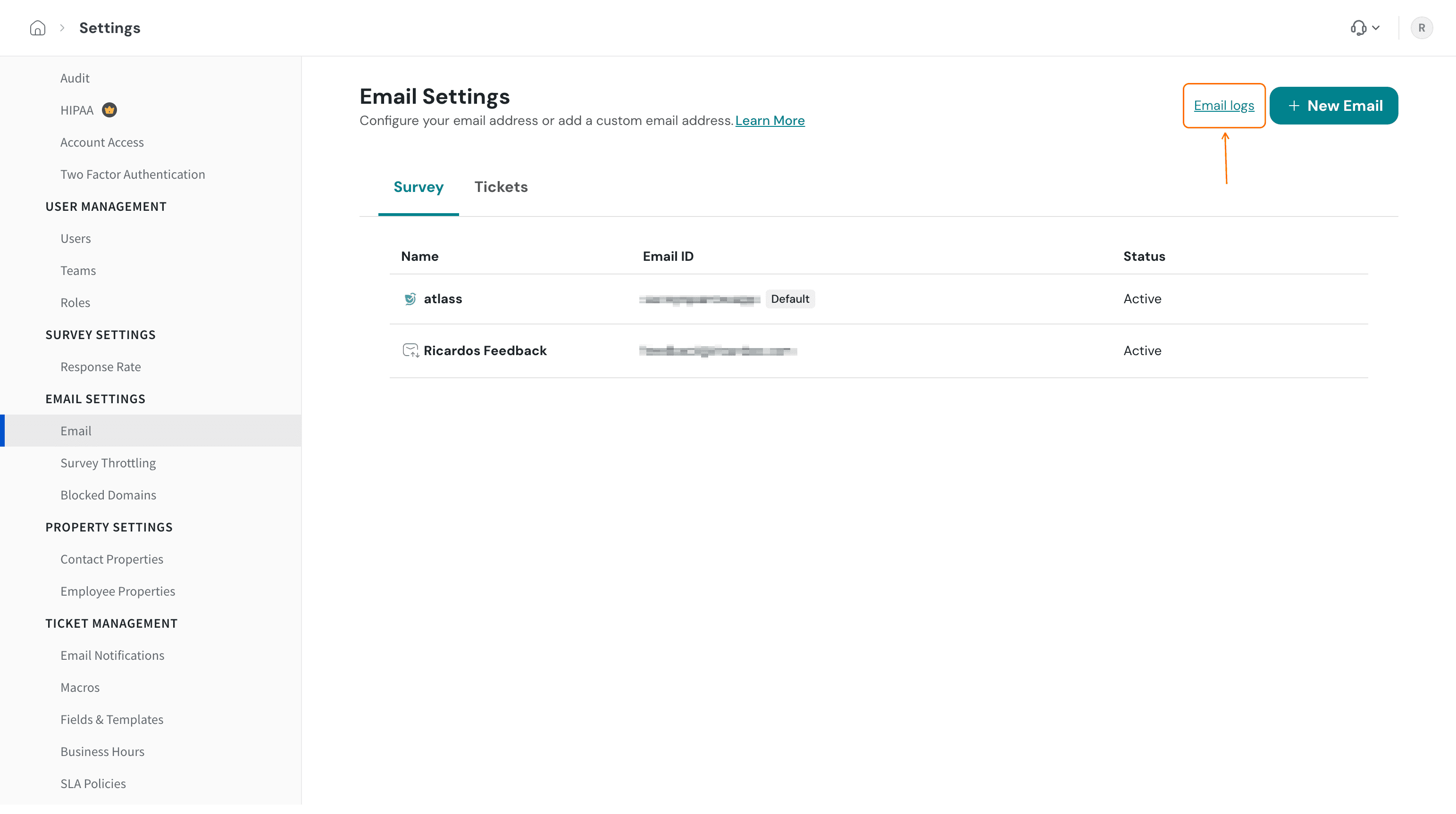
Click Email logs on the Email Settings page. Every email sent from your account is recorded there with its recipient, sender, type and send date, so it shows whether a send went out.
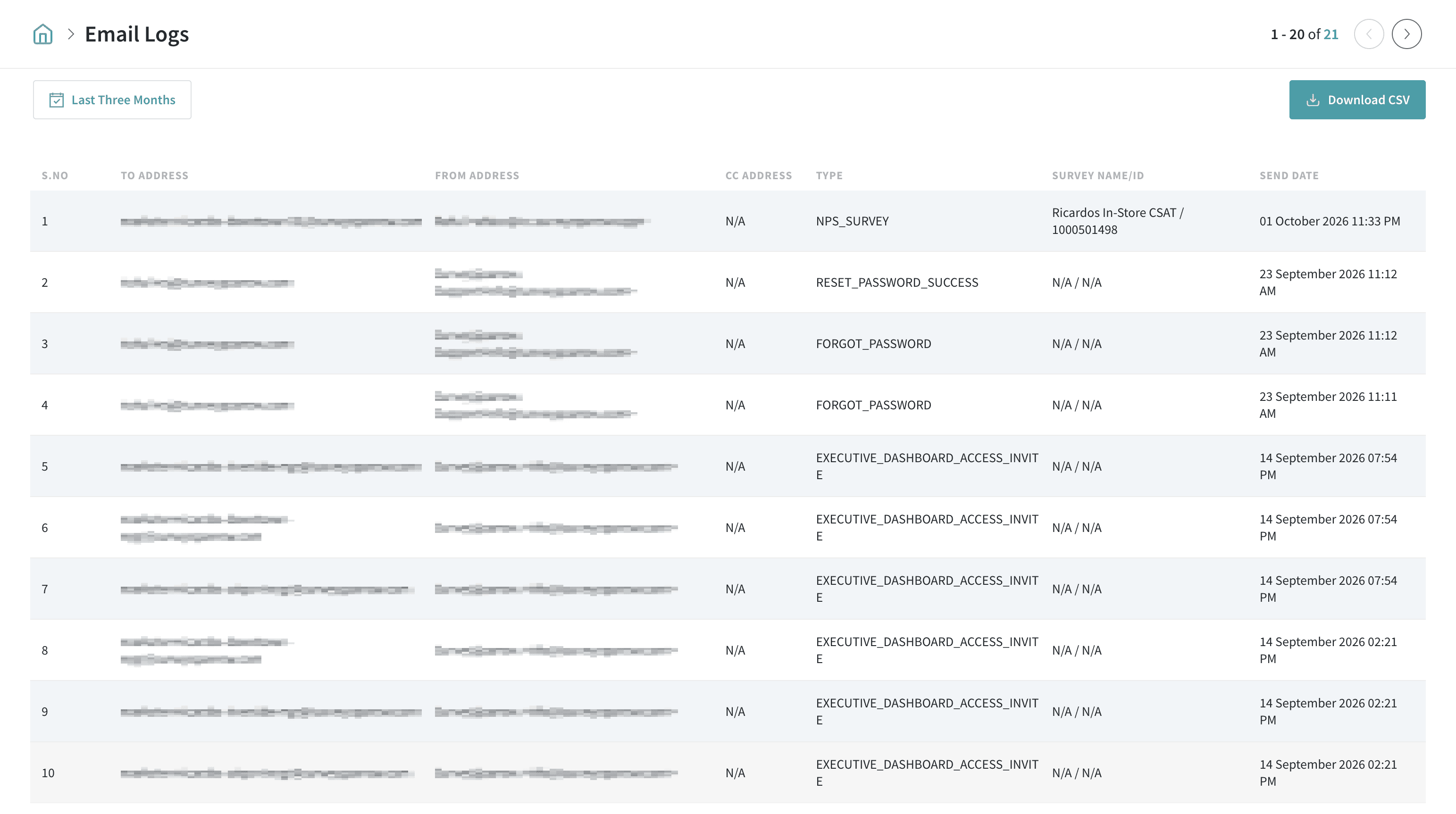
If a send never reaches the log, the share itself did not go out. If it reaches the log but not the inbox, the delivery failed after your server accepted it — check the receiving end and the Bounced list below.
"Action Needed: SMTP Server Connection Issue"
This alert means your email connection hit an authentication problem — most often because access was revoked or the credentials were changed at your provider, outside SurveySparrow.
A banner also appears at the top of the Email settings page when a connection is broken.
To fix it, open the Email section under Settings, re-enter the current mailbox credentials on the affected connection, and check whether they were changed at your provider — a rotated password is the usual cause.
Emails stopped sending after working before
If the connection shows an error, re-enter the current credentials from the Email settings page.
If it keeps failing, confirm the host, port, and Secure setting against your provider's current documentation — providers occasionally change their requirements.
Contacts marked as Bounced
Even when you send through your own SMTP server, contacts can land in the Bounced list if delivery fails at the receiving end.
Check whether your sending IP addresses need to be whitelisted on your side, and whether the sending IP is on a block list maintained by the email provider — both are known causes of recurring bounces.
As an immediate workaround, move the affected contacts from Bounced back to Active or Subscribed so they can receive future surveys.
FAQ
Do I need to set up SPF or DKIM as well?
SPF (Sender Policy Framework) and DKIM (DomainKeys Identified Mail) live in your domain's DNS records at your provider, not inside SurveySparrow — sending through your own server means your existing DNS authentication applies.
If you want a custom From address on SurveySparrow's own sending path instead, see Custom Email Address to Share Surveys.
Why do some emails show "Enqueued"?
Invitations are queued and sent progressively rather than all in one burst, so a share can show Enqueued while the queue drains — the emails go out; they're on their way.
Can I change the sender name later?
Yes — edit the connection's Name and the From name on future invitations updates with it.
Does SendGrid (or another email service) work with this?
Yes — any provider that gives you SMTP server details works, including SendGrid and Mailchimp; enter their documented host, port, and credentials exactly as above.
Related articles
- Configuring Emails
- Understanding Email Surveys
- How to Share Surveys Via Email?
- SFTP Email Share — a different feature from the SMTP setup described here.
Questions we haven't covered? Reach out to us — we're just a chat away.