
How to manage account settings in SurveySparrow

You manage account settings in SurveySparrow from one place: the Settings page. Use it to update your company details, domain, sub-accounts, portal and password rules, and to reach the pages for security, users, email, messaging and billing. This guide shows where each setting lives and links to the full guide where there is one.
Open the Settings page
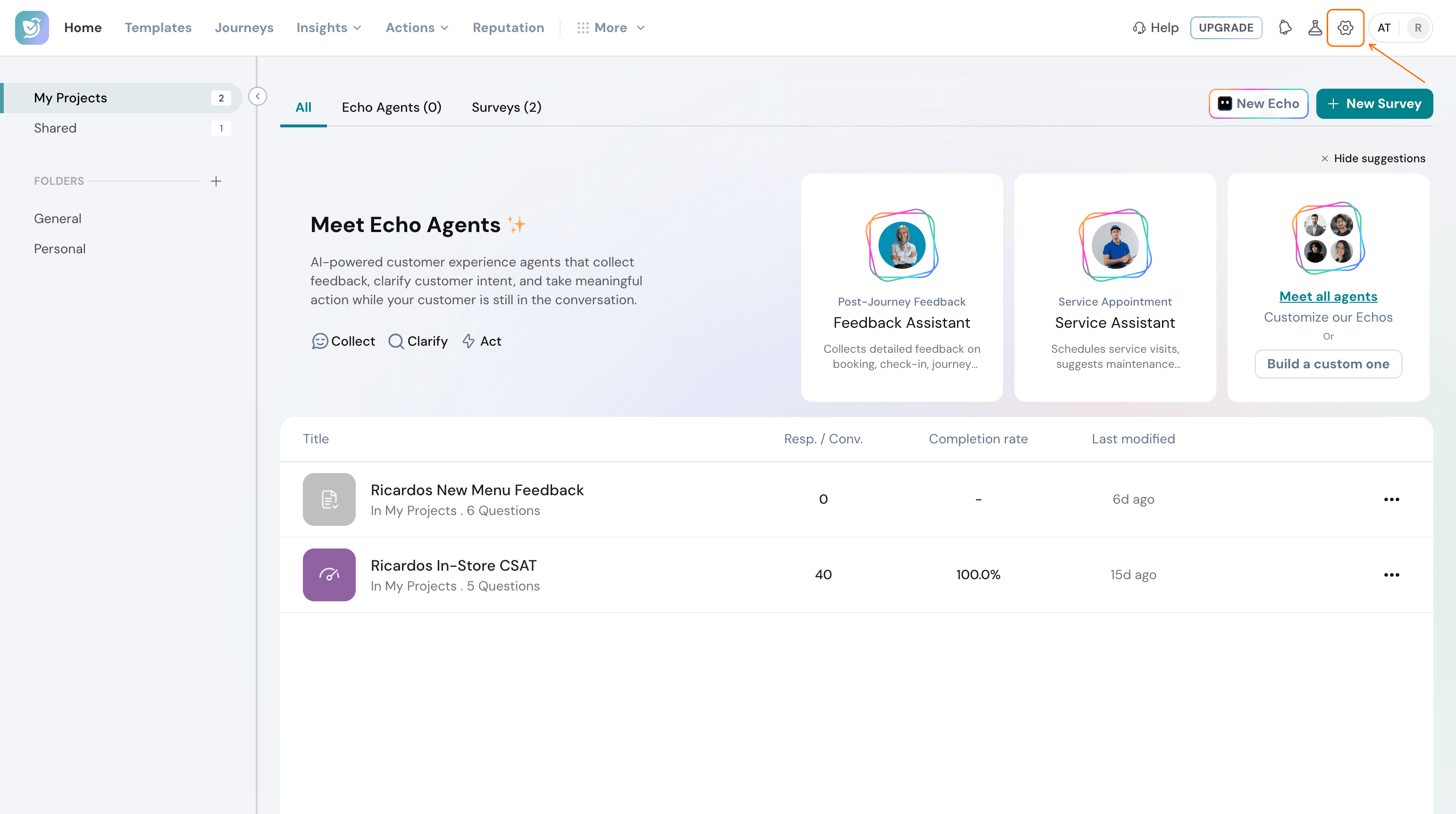
- Click the Settings icon in the top bar.
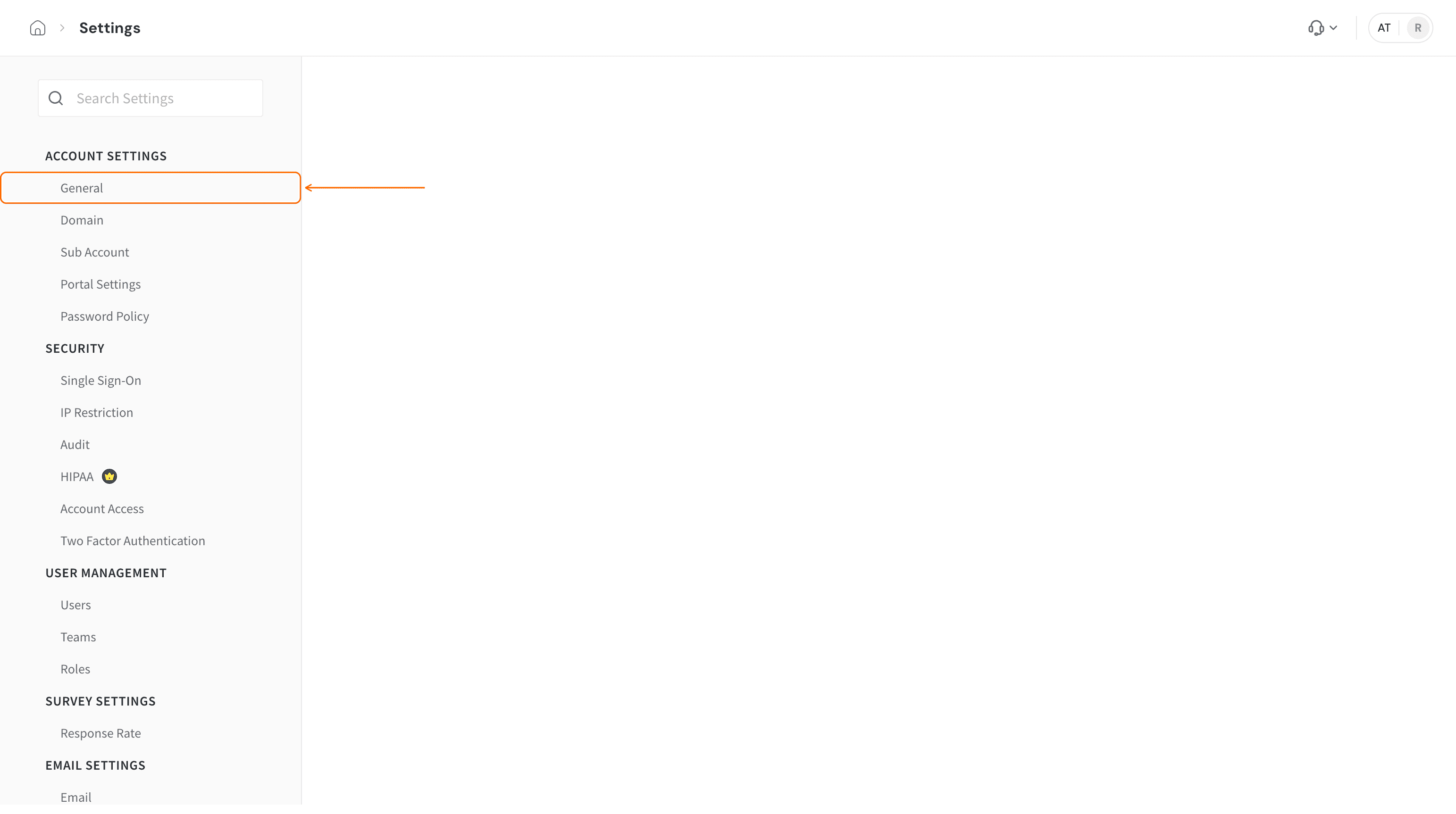
- In the left menu, pick a group and then a page. Use the search box at the top of the menu to jump to a page by name.
What each Settings group is for
The five pages under Account Settings are covered in the sections below. For every other page, the table says what it does and links to its guide.
Group | Setting | What you do there | Guide |
|---|---|---|---|
Security | Single Sign-On | Enter your identity provider's login URL, optional logout URL and certificate. | |
Security | IP Restriction | Limit access to trusted networks by adding allowed IP ranges for survey admins, or for survey admins and end users. | |
Security | Audit | Review account, email and survey activity logs, filter by date, and email them as a CSV. | |
Security | HIPAA | Open the HIPAA settings page. | |
Security | Account Access | Give SurveySparrow support temporary access to your account so they can diagnose and resolve account issues. If the page does not open, see the Troubleshooting section at the end of this article. | — |
Security | Two Factor Authentication | Two-factor sign-in settings. If the page does not open, see the Troubleshooting section at the end of this article. | |
User Management | Users | Invite, edit and remove team members and assign each a role. | |
User Management | Teams | Create teams for surveys and for tickets. | |
User Management | Roles | See the built-in roles and create custom ones. | |
Survey Settings | Response Rate | Choose how the response rate is calculated across the account, or create a custom calculation. | |
Email Settings | Add and manage the sender addresses used for surveys and tickets, and view email logs. | ||
Email Settings | Survey Throttling | Limit how often surveys are shared with the same contacts; survey-level limits override the global ones. | |
Email Settings | Blocked Domains | Add rules for email domains so that matching addresses are blocked, individually or with Bulk Import. | |
Property Settings | Contact Properties | View default contact properties and add your own. | |
Property Settings | Employee Properties | View and add the properties used for employees. | |
Ticket Management | Email Notifications | Manage the content of system emails sent for ticket events. | |
Ticket Management | Macros | Create predefined replies and actions for common ticket scenarios. | |
Ticket Management | Fields & Templates | Create ticket fields and templates. | |
Ticket Management | Business Hours | Define your organization's working hours. | |
Ticket Management | SLA Policies | Set response and resolution goals with reminders and escalation. | |
Ticket Management | Export data | Export ticket data to Excel or JSON. | |
Ticket Management | Email Signatures | Add branded signatures for ticket replies. | |
Messaging | Connect and manage WhatsApp providers and view WhatsApp logs. | ||
Messaging | Text | Connect and manage text message providers and view text logs. | |
Reputation Management | Manage Listings | Add business listings to fetch reviews and track your online reputation. | |
Workflows | Reputation Management | Set up event-based workflows for reviews. | |
Workflows | Ticket Management | Set up event-based workflows for tickets. | |
Referrals | Referrals | Invite friends and track the responses you have earned. | |
Device Management | Device Management | Add devices and create device keys for offline surveys. | |
Survey Catalog | Survey Catalog | Choose which surveys are included in your catalog. | |
Apps and Integrations | Apps and Integrations | Connect apps, view integration logs and open the developer portal. | Integrating with Third-party applications using SurveySparrow API |
Privacy Settings | PII Anonymisation | Mask personal data in responses. | |
Pricing | Billing Details | See your subscriptions, upcoming payments, usage and wallet. |
Change your company details
- Select General under Account Settings.
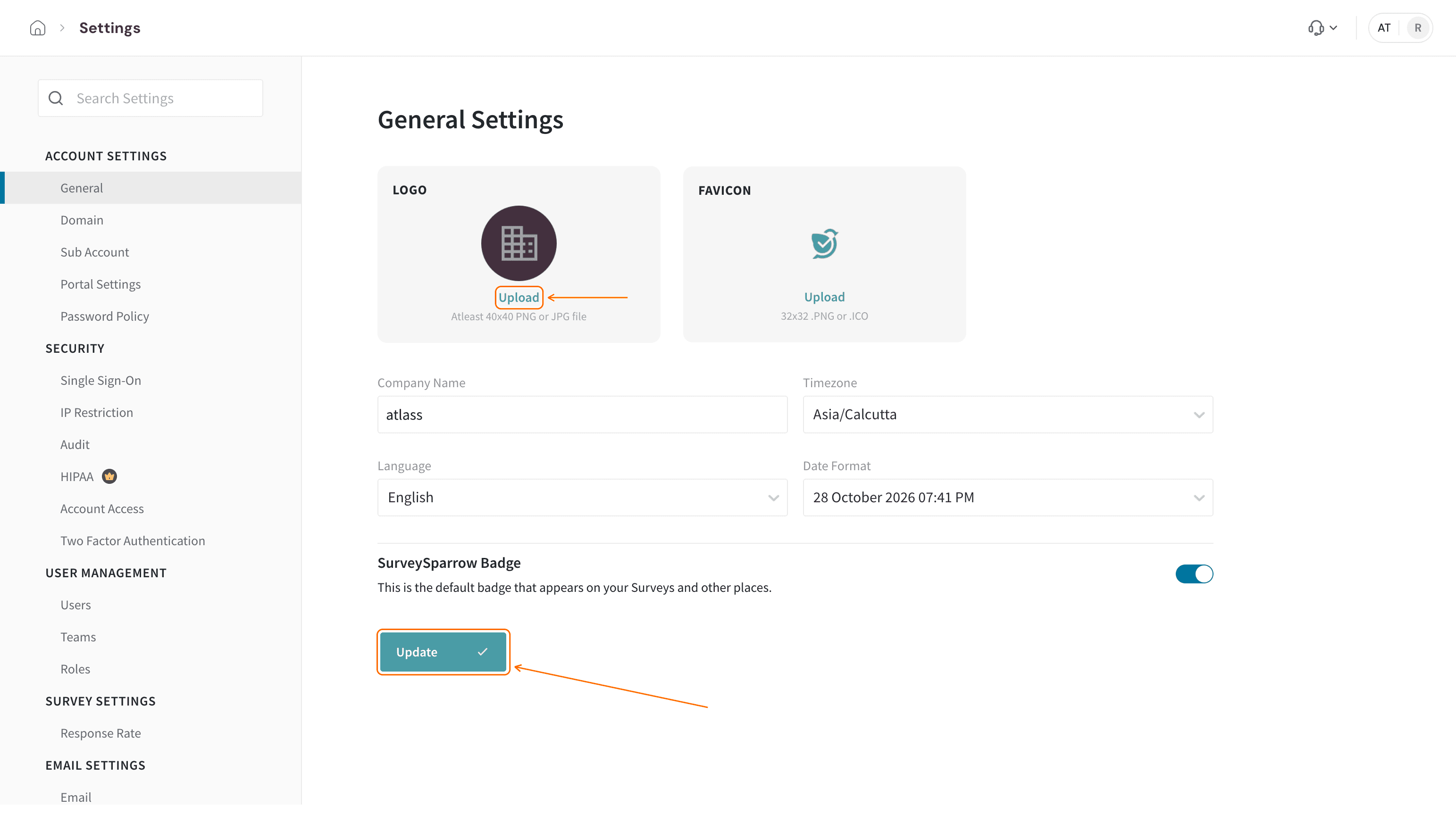
- Add or replace your Logo (at least 40x40, PNG or JPG) and Favicon (32x32, PNG or ICO) with Upload.
- Edit Company Name, Timezone, Language and Date Format. The SurveySparrow Badge option controls the default badge shown on your surveys and other places.
- Click Update to save.
Use your own domain
- Select Domain under Account Settings. Account Domain is your primary SurveySparrow address, and Custom Domain is a personalized alternative such as feedback.yourcompany.com. Both can be used at the same time.
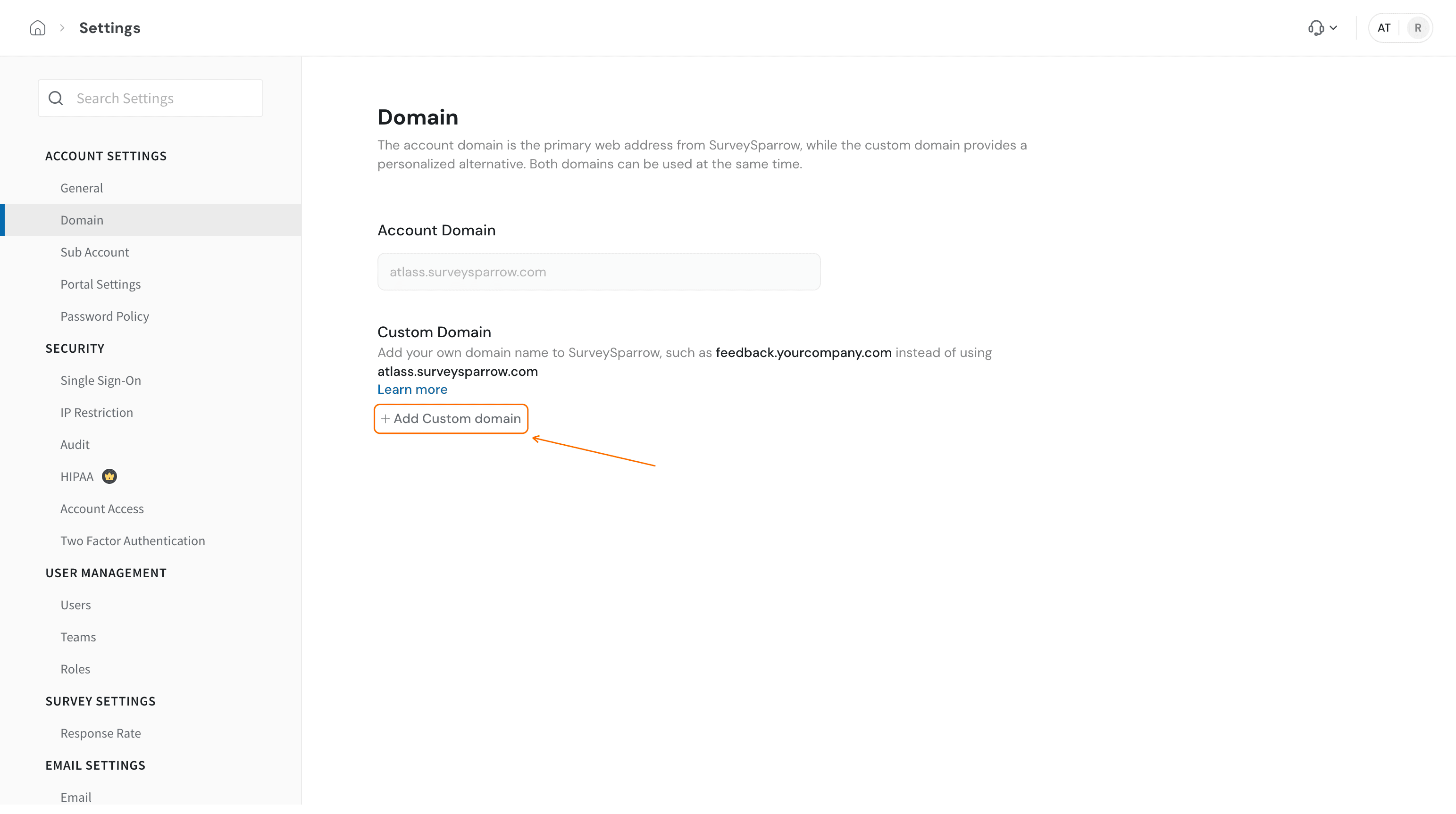
- Click Add Custom domain and follow the steps in Configuring a custom domain of your choice for your survey URL.
Manage sub-accounts
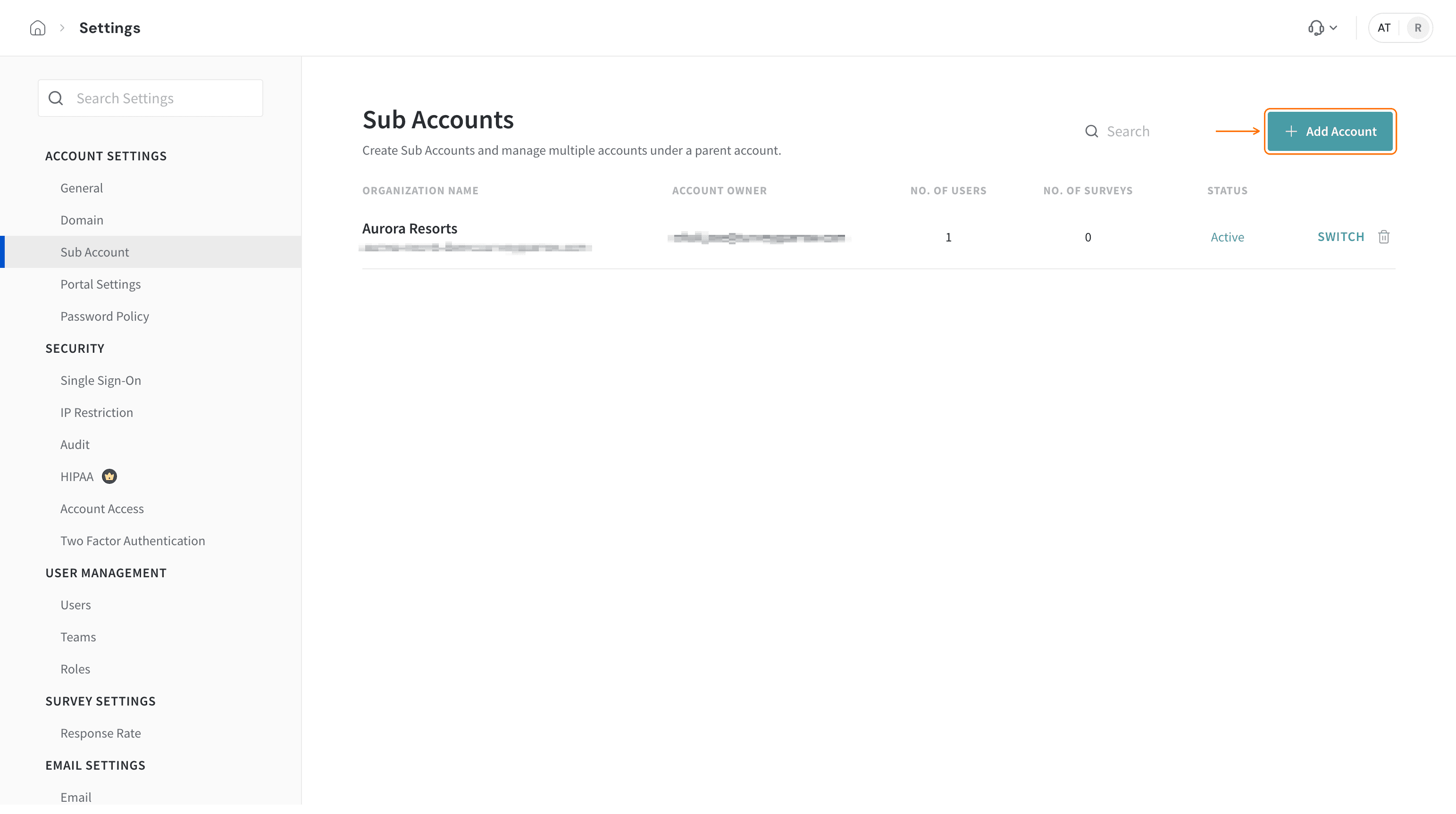
- Select Sub Account under Account Settings to see your existing sub-accounts, their owner, number of users and surveys, and status.
- Click Add Account to create a new one. The steps are in How do I create a Sub Account?.
Set up the contact portal invite
A portal lets you survey your respondents by inviting them all to one place. Portal Settings controls whether each new contact is invited to the portal automatically. To share a survey through a portal, see Portal Share.
- Select Portal Settings under Account Settings.
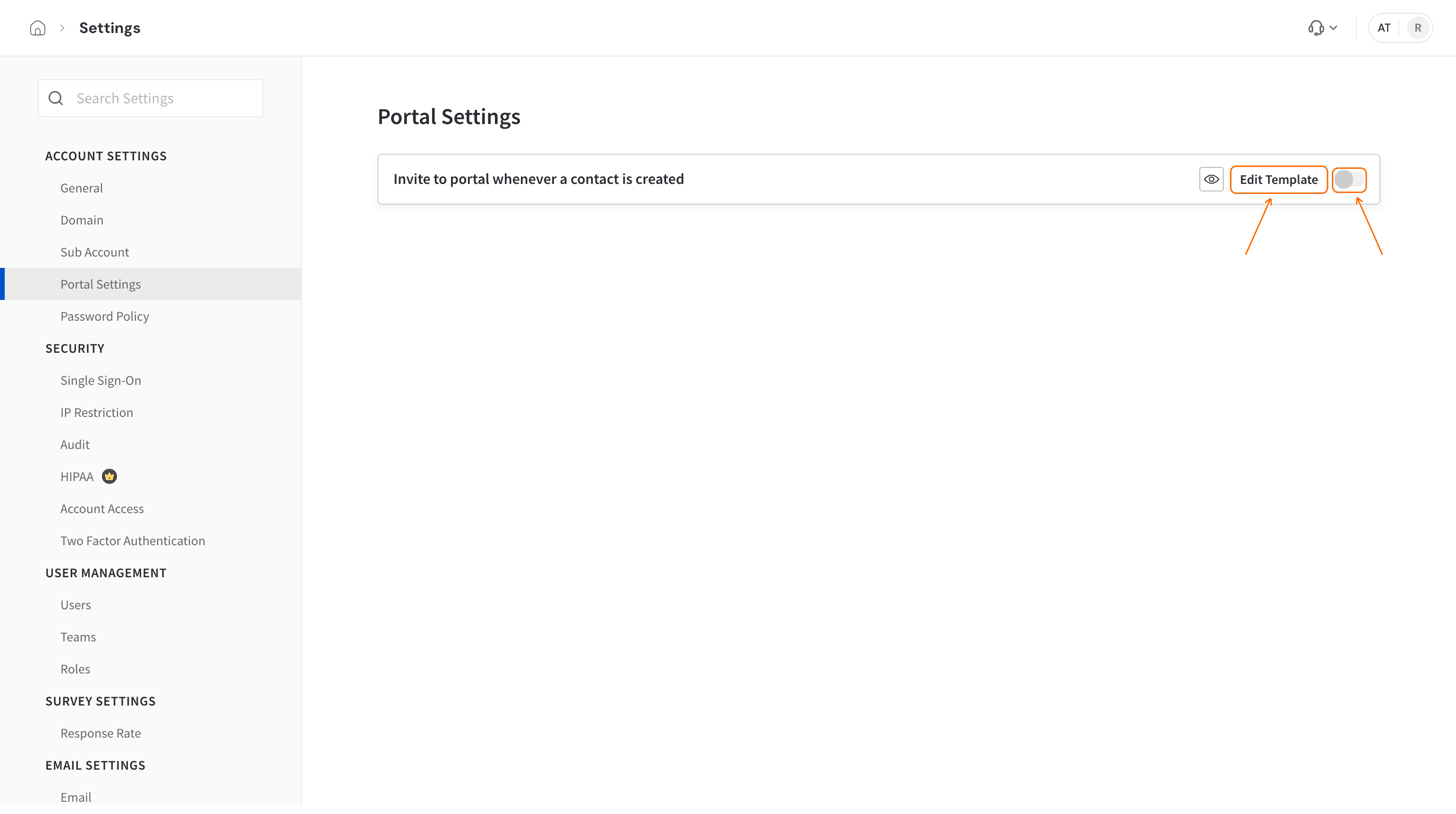
- Turn on Invite to portal whenever a contact is created to invite each new contact to the portal.
- Click Edit Template to change the invitation email.
Set your password rules
- Select Password Policy under Account Settings. Changes you make to the password policy take effect within 8 hours.
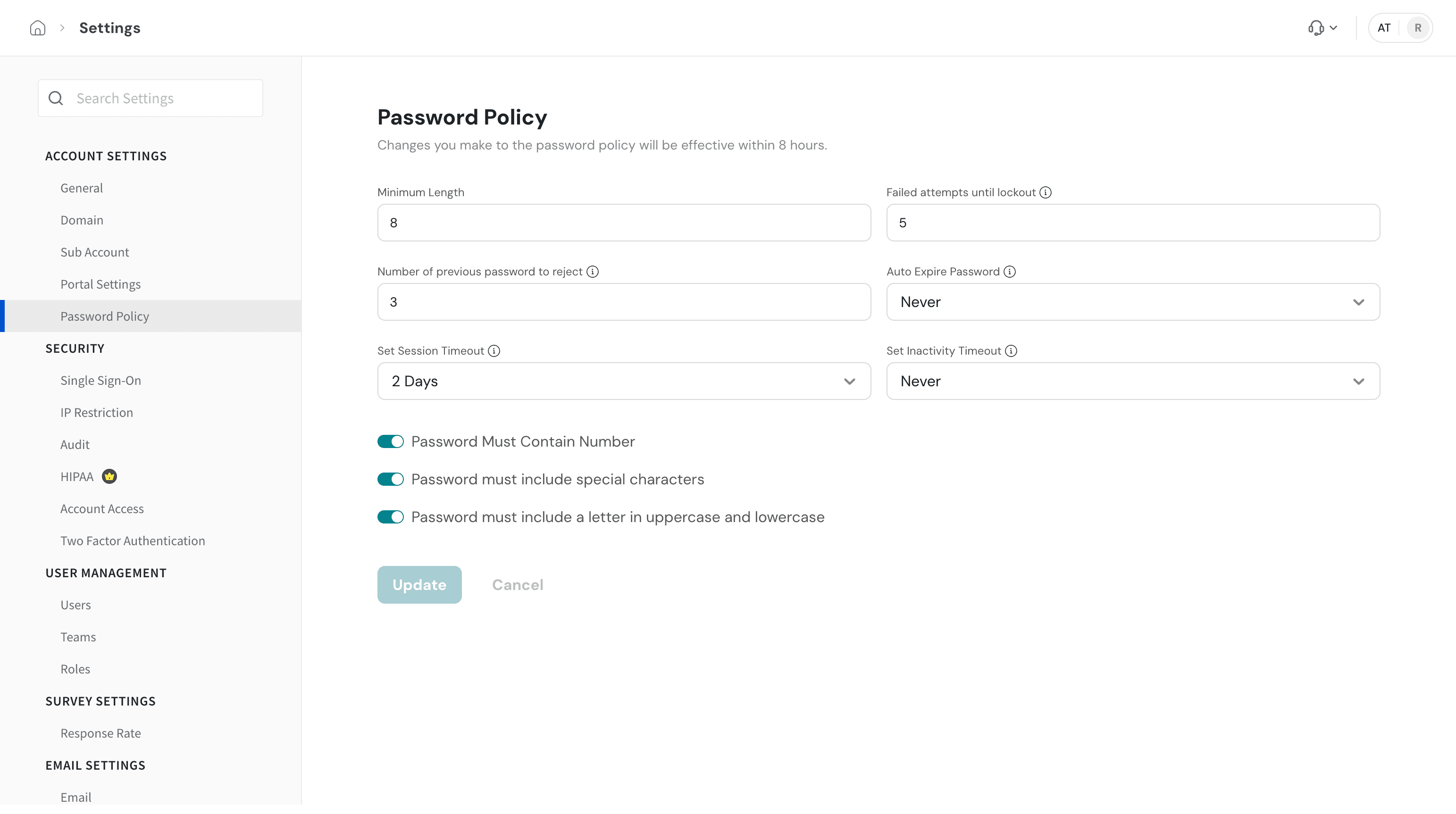
- Set Minimum Length, Failed attempts until lockout and Number of previous password to reject.
- Set Auto Expire Password, Set Session Timeout and Set Inactivity Timeout.
- Choose whether passwords must contain a number, a special character, and both uppercase and lowercase letters, then click Update.
Troubleshooting
A Settings page says I am not authorized or does not open
Contact your SurveySparrow administrator. This can happen on pages such as Account Access and Two Factor Authentication.
I cannot find a setting
Use the search box at the top of the Settings menu, or check the table in the Settings groups section above.
FAQ
Can I use my own domain and the SurveySparrow domain at the same time?
Yes. The Domain page notes that the account domain and the custom domain can both be used at the same time.
How do I change the account owner?
See Step-by-step guide to changing the Account Owner email in SurveySparrow.
How do I reset my password?
See How to reset my password?.
How do I cancel my account?
See How do I cancel my account?.
Related articles
- How do I create a Sub Account?
- Configuring a custom domain of your choice for your survey URL
- Inviting your team members in User Management
- Custom Roles and Permissions
- Single Sign-On
- Audit Logs in SurveySparrow
Still stuck? Reach out to us. We are just a chat away.
Was this helpful?