
How to use Formulas in Workflows

To use formulas in workflows, build a workflow that starts when a response is received, optionally filters on a formula, and inserts the formula result into an email. This guide uses a scored quiz, where a TotalScore formula adds the points and a workflow sends an email that includes the score.
Prerequisites
- A survey with a saved formula, such as a quiz total. Saved formulas are listed on the FORMULA tab, where Create a Formula adds a new one. See Formulas (formerly Expressions) for the formula builder and How to use Scoring? for quiz scores.
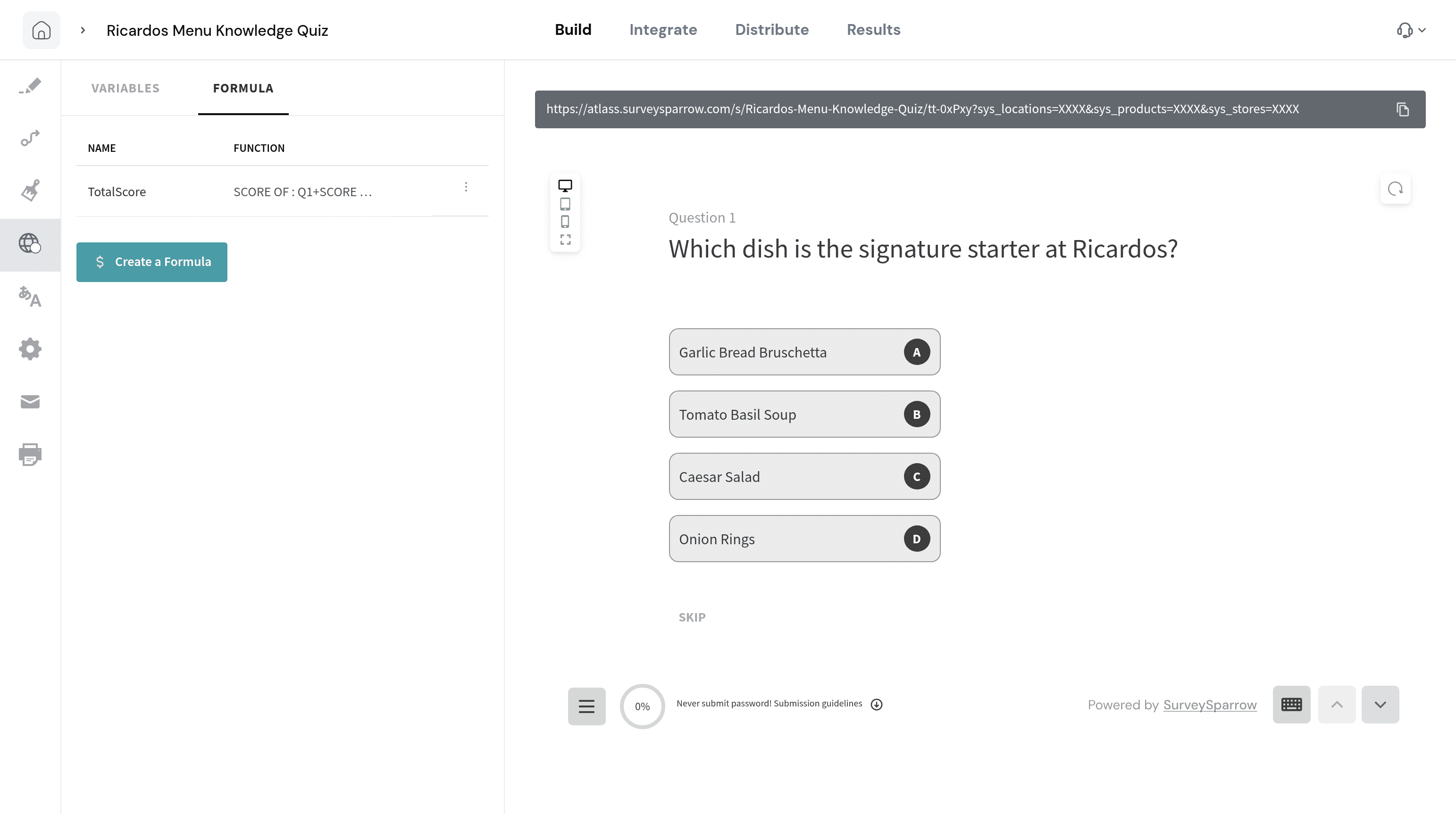
Steps
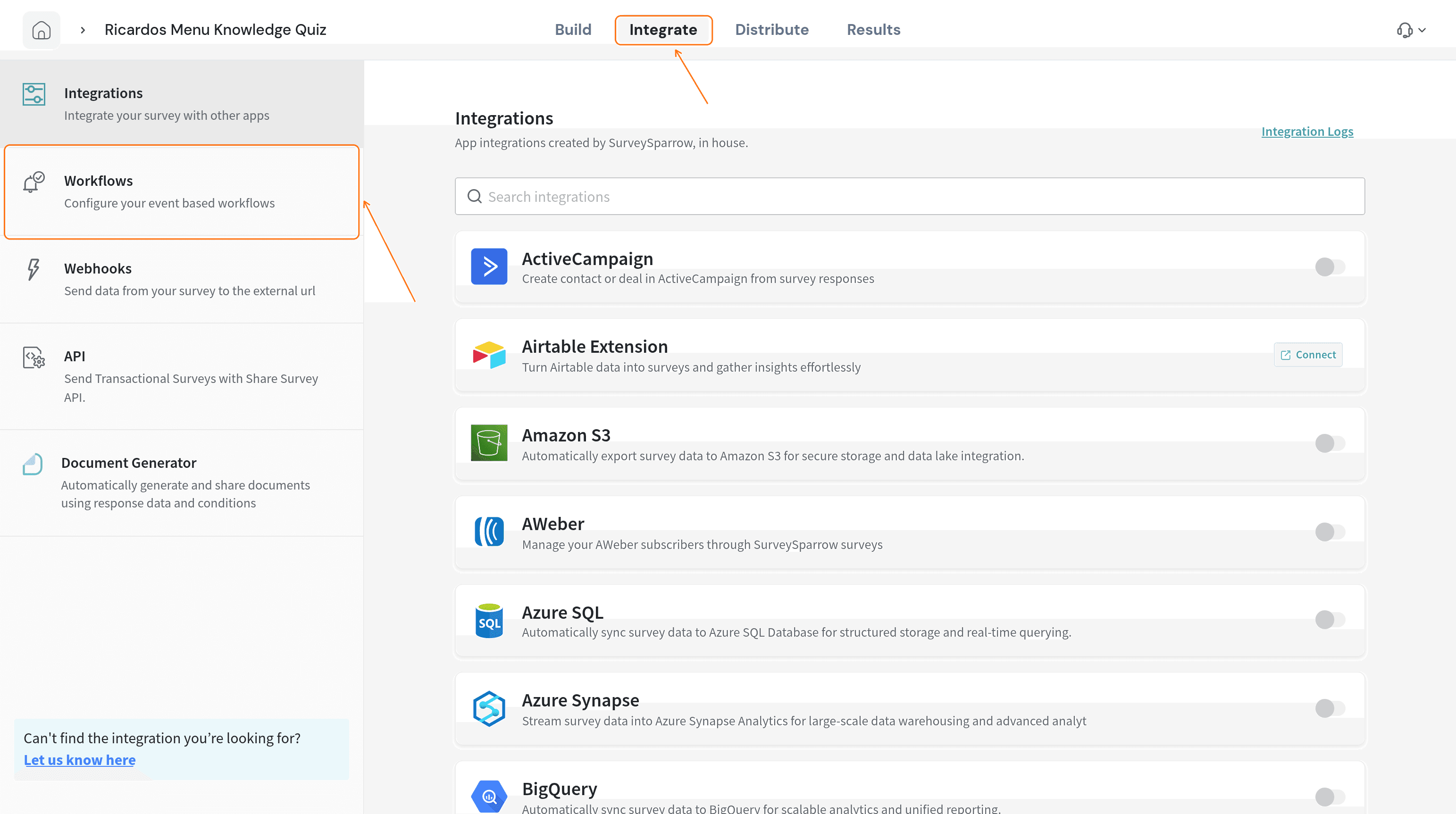
- Open the survey, select the Integrate tab, then select Workflows in the left list.
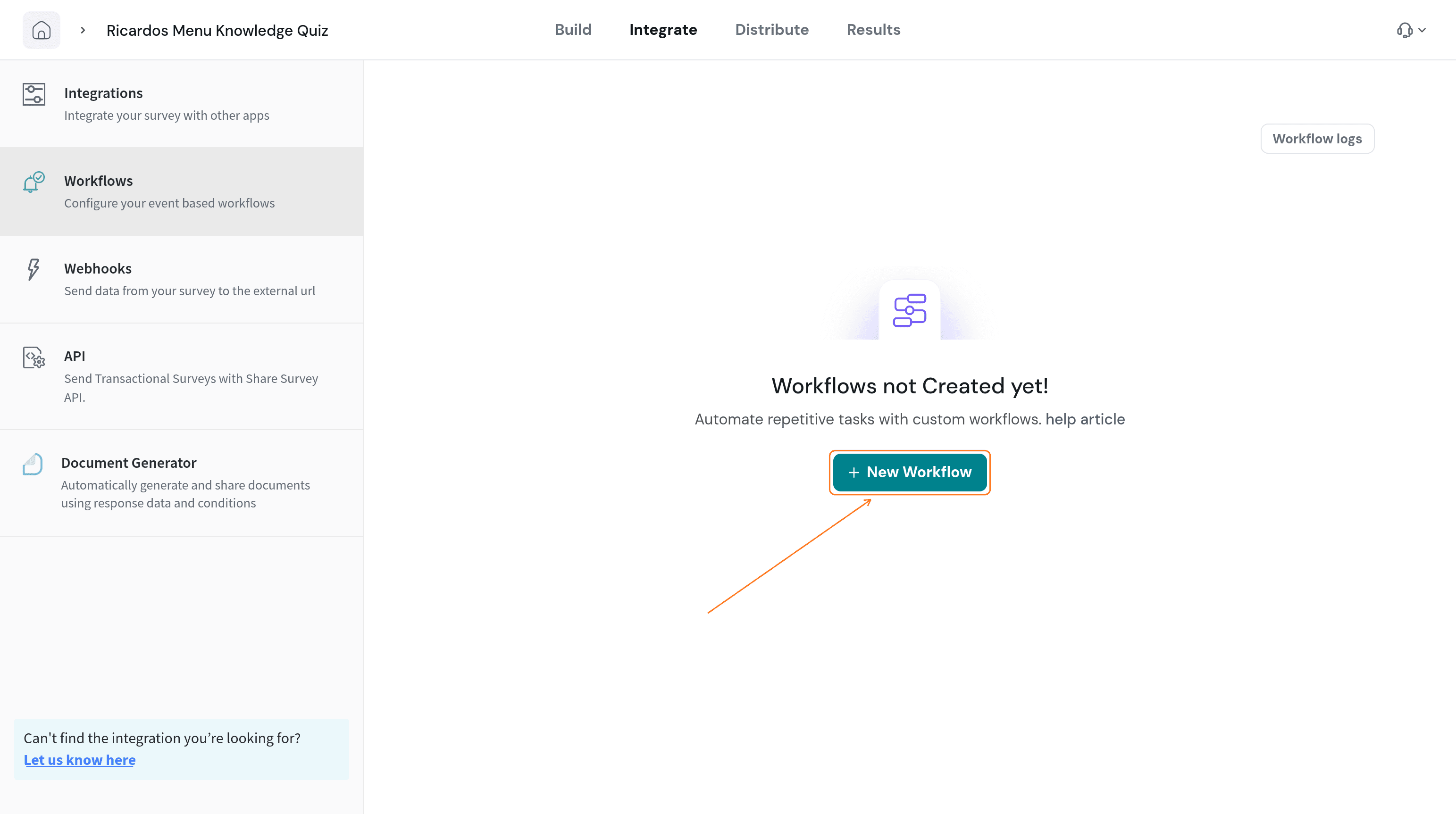
- Select New Workflow.
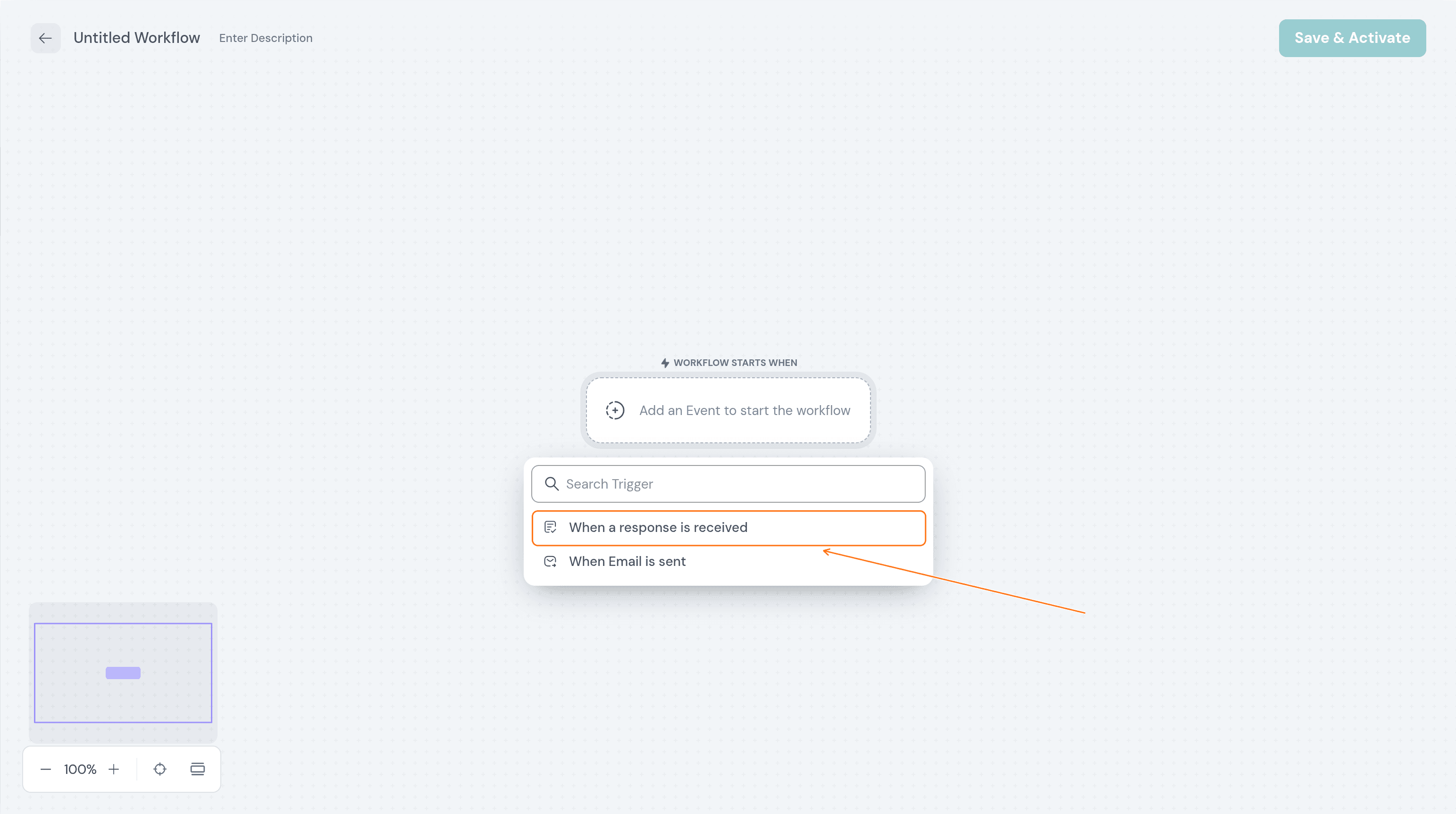
- Under Add an Event to start the workflow, choose When a response is received.
- Add a Condition so the workflow runs only for responses that match. Under Run only when, select Add Filter Group.
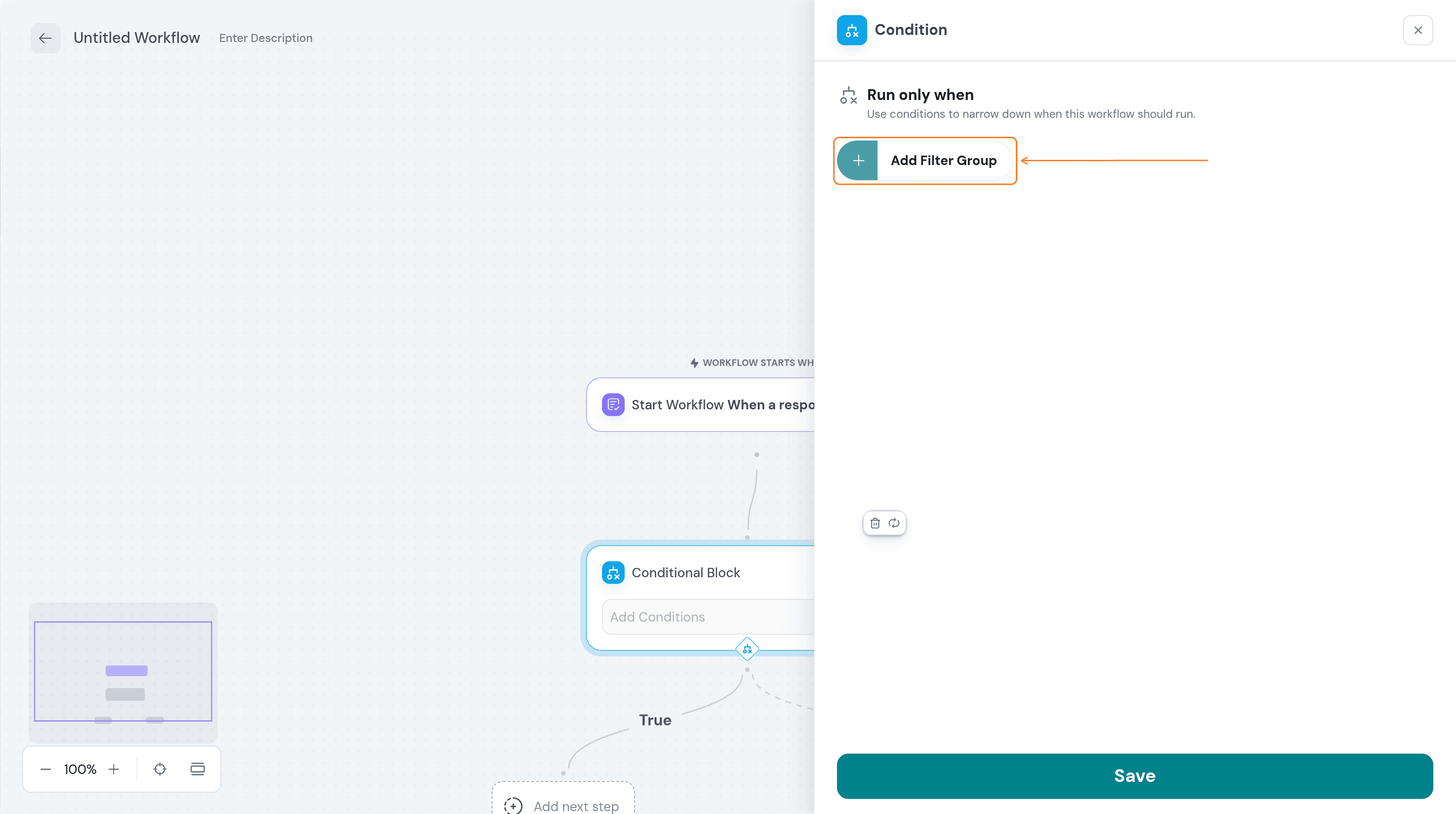
- In the filter list, choose Formulas, then pick your formula.
The Formulas entry appears in the filter list only after the survey has a saved formula.
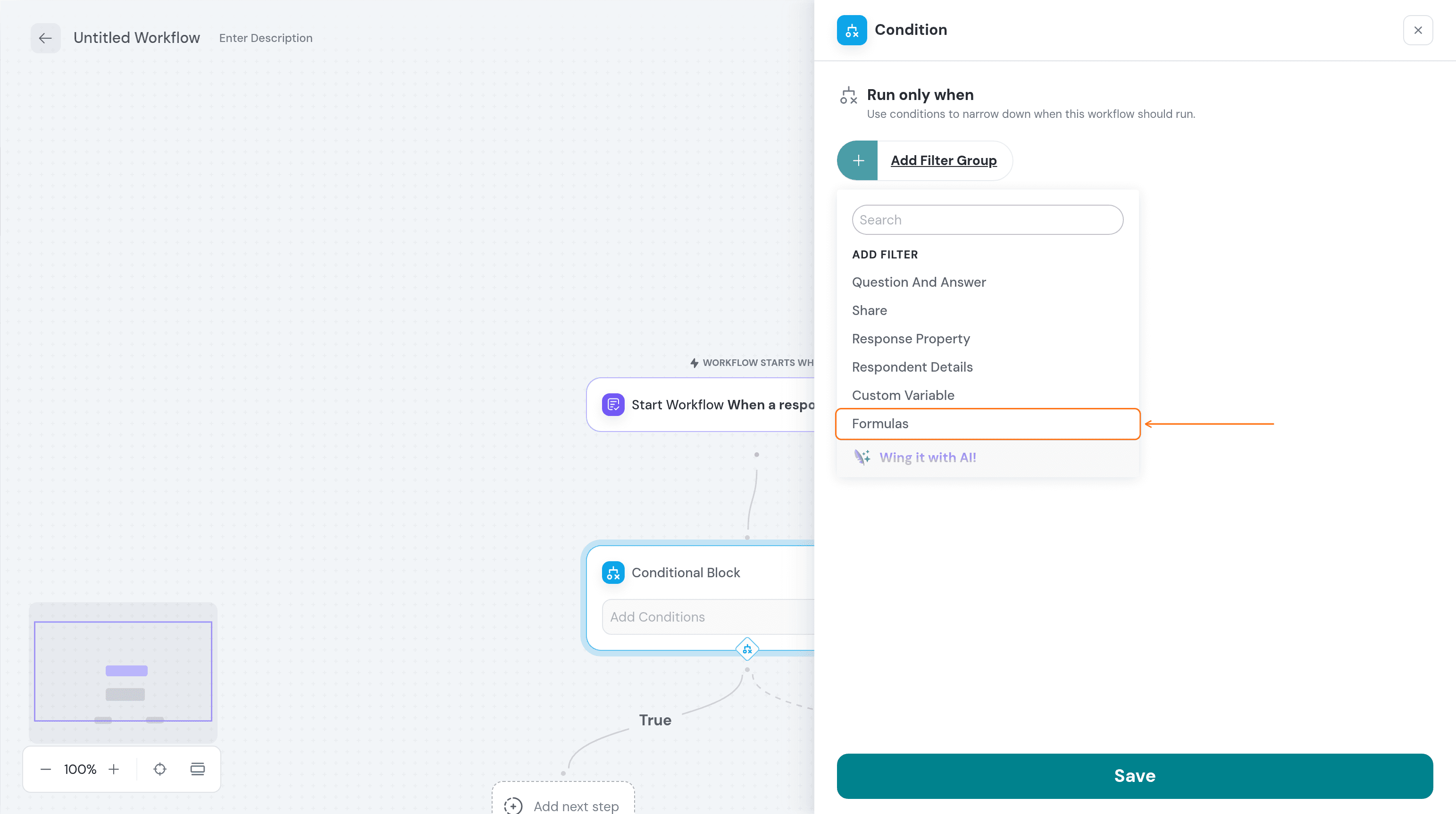
- Choose an operator such as has any value.
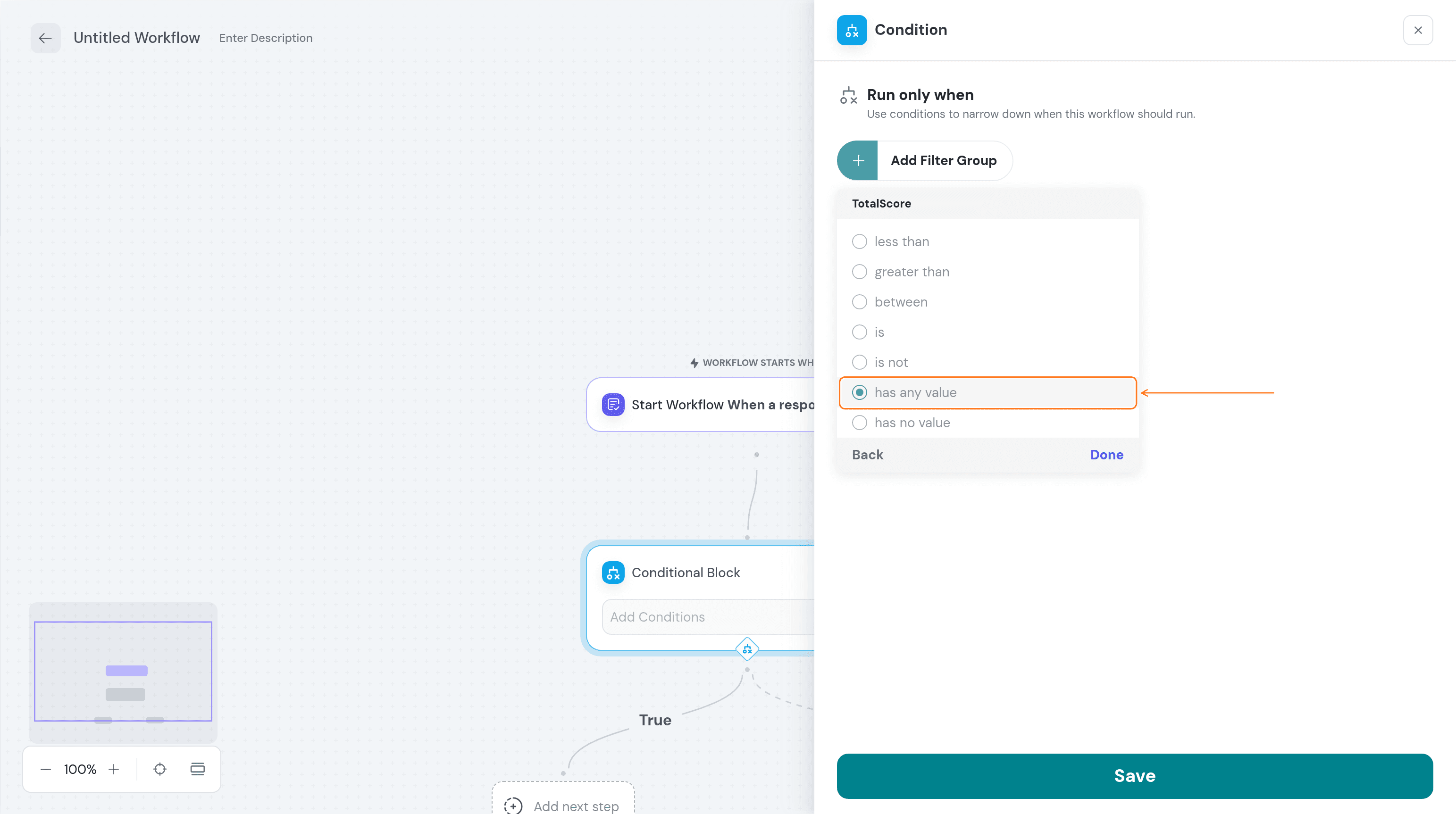
- Select Save.
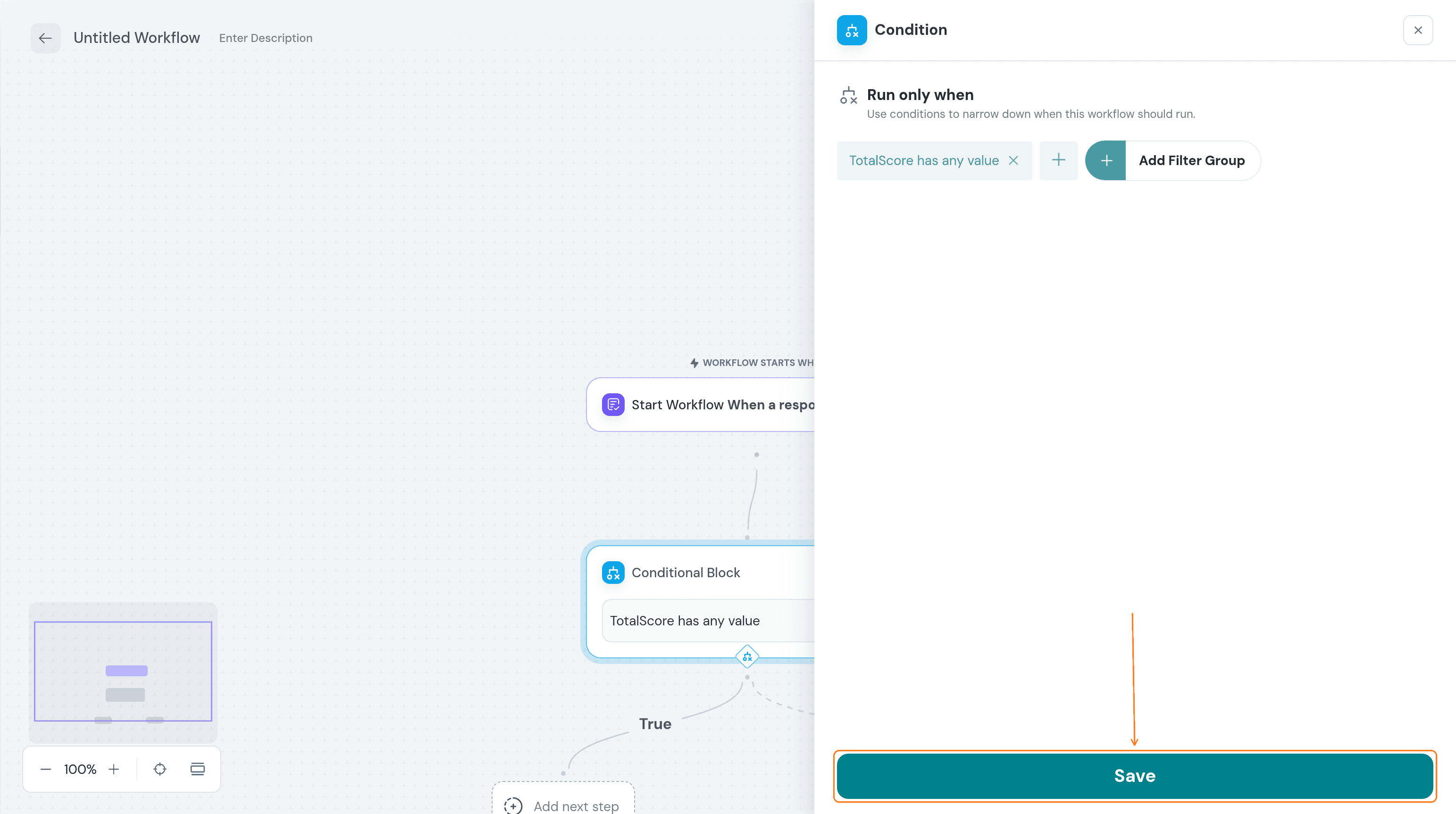
- On the True branch, select Add next step, then choose Send Email.
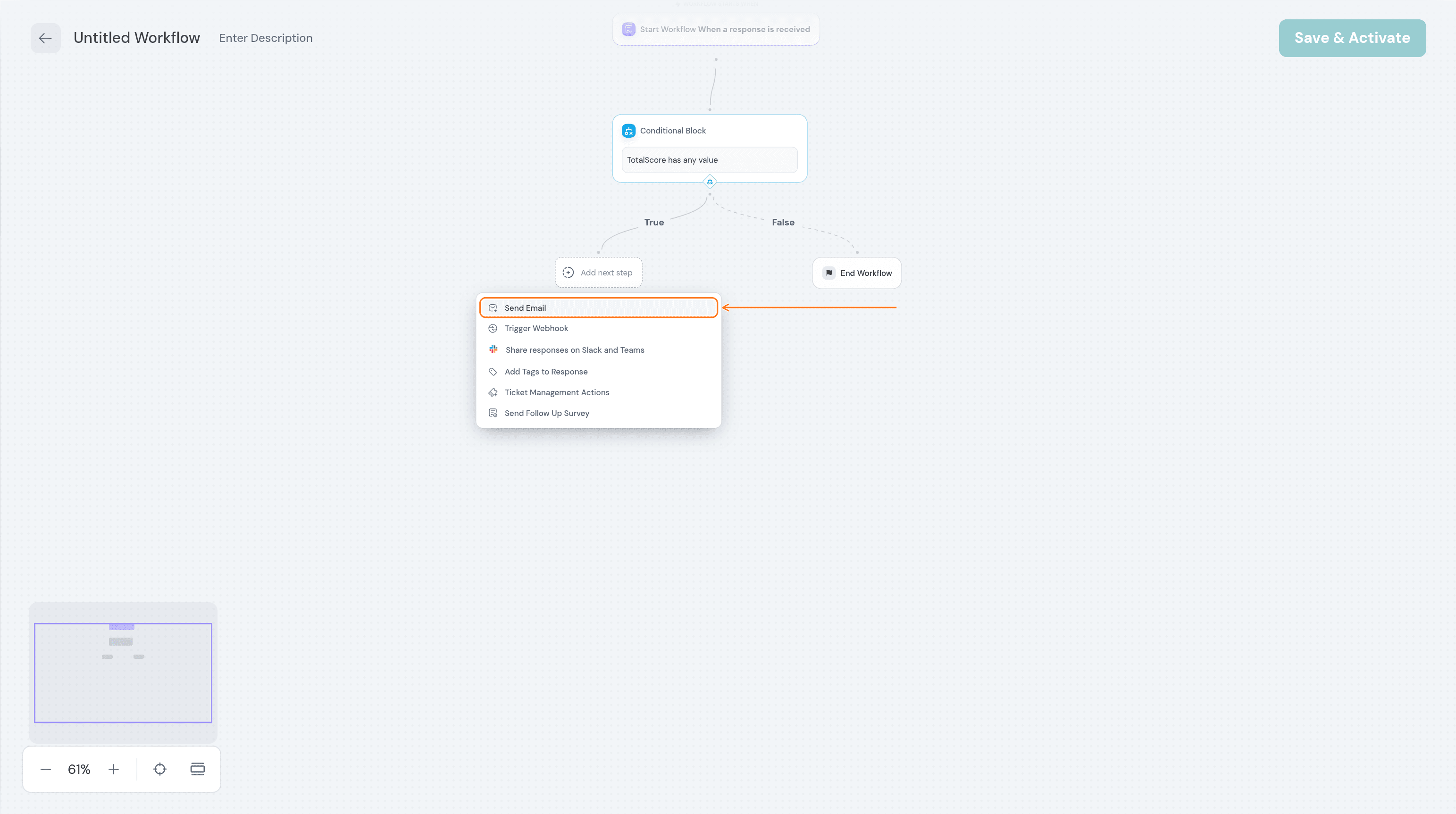
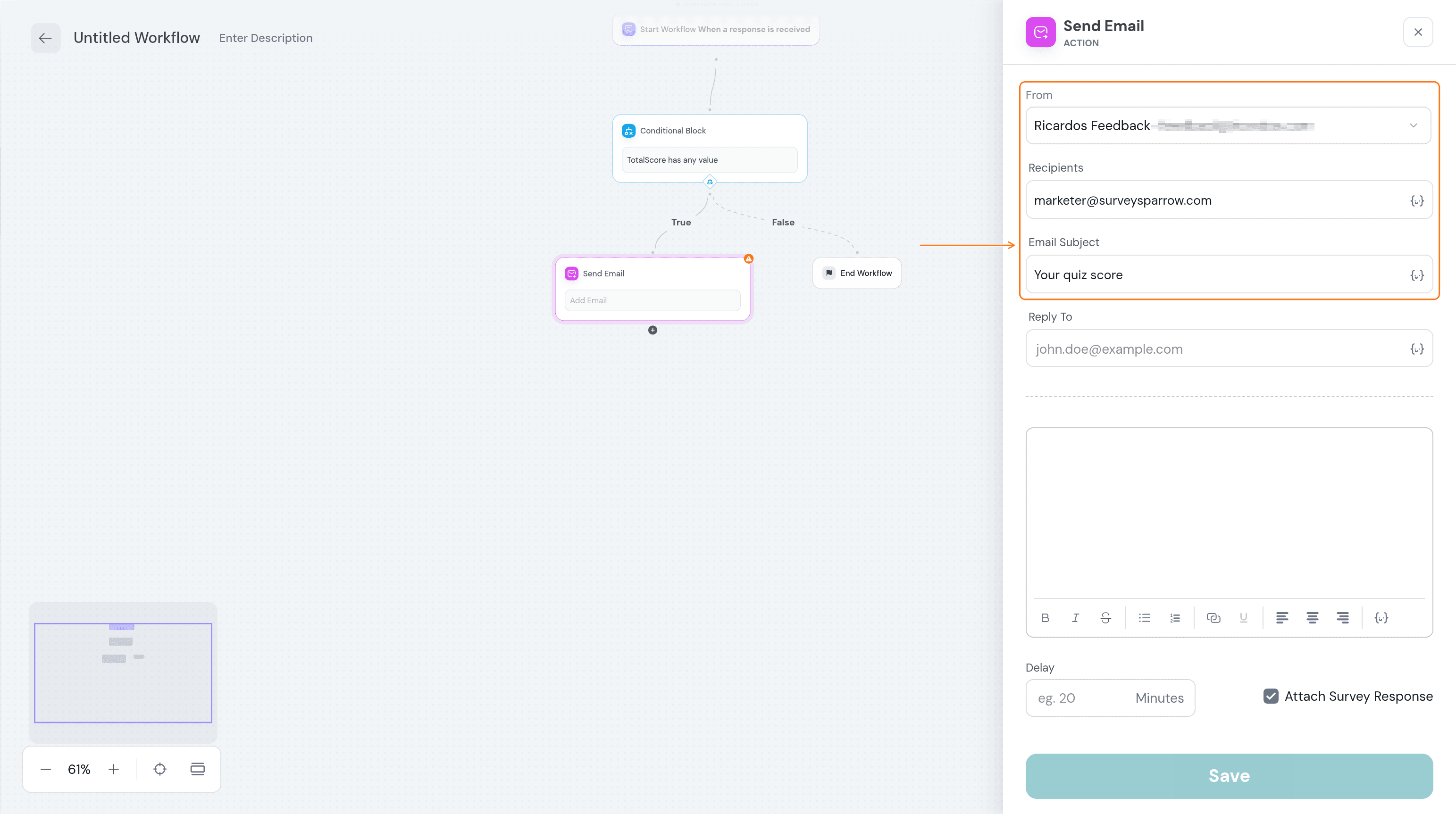
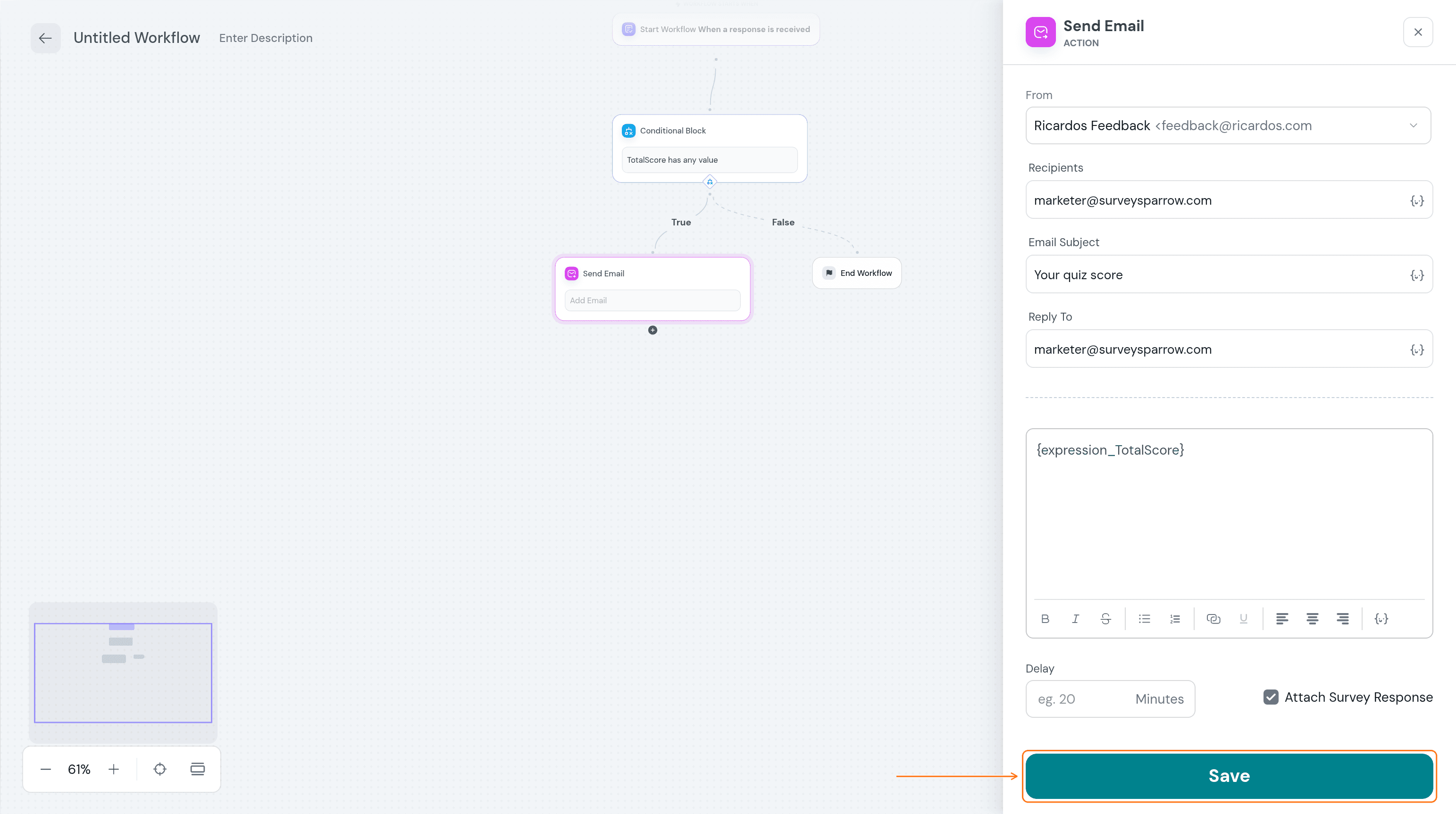
- Fill in From, Recipients and Email Subject. Fill in Reply To as well, because Save stays off until it has a value.
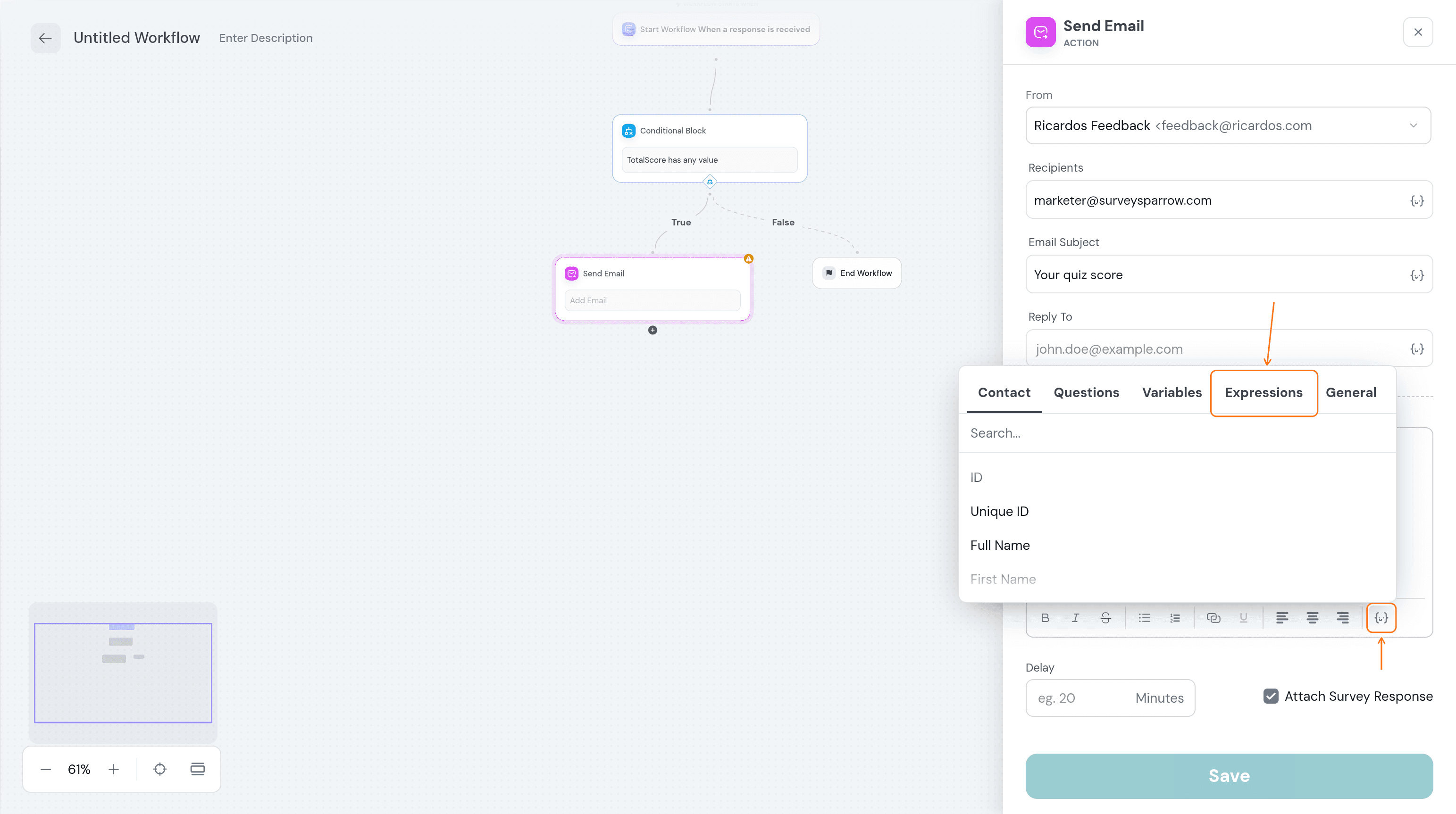
- In the email body, select the
{-}icon in the toolbar, then open the Expressions tab.
The tabs in the{-}picker are Contact, Questions, Variables, Expressions and General.
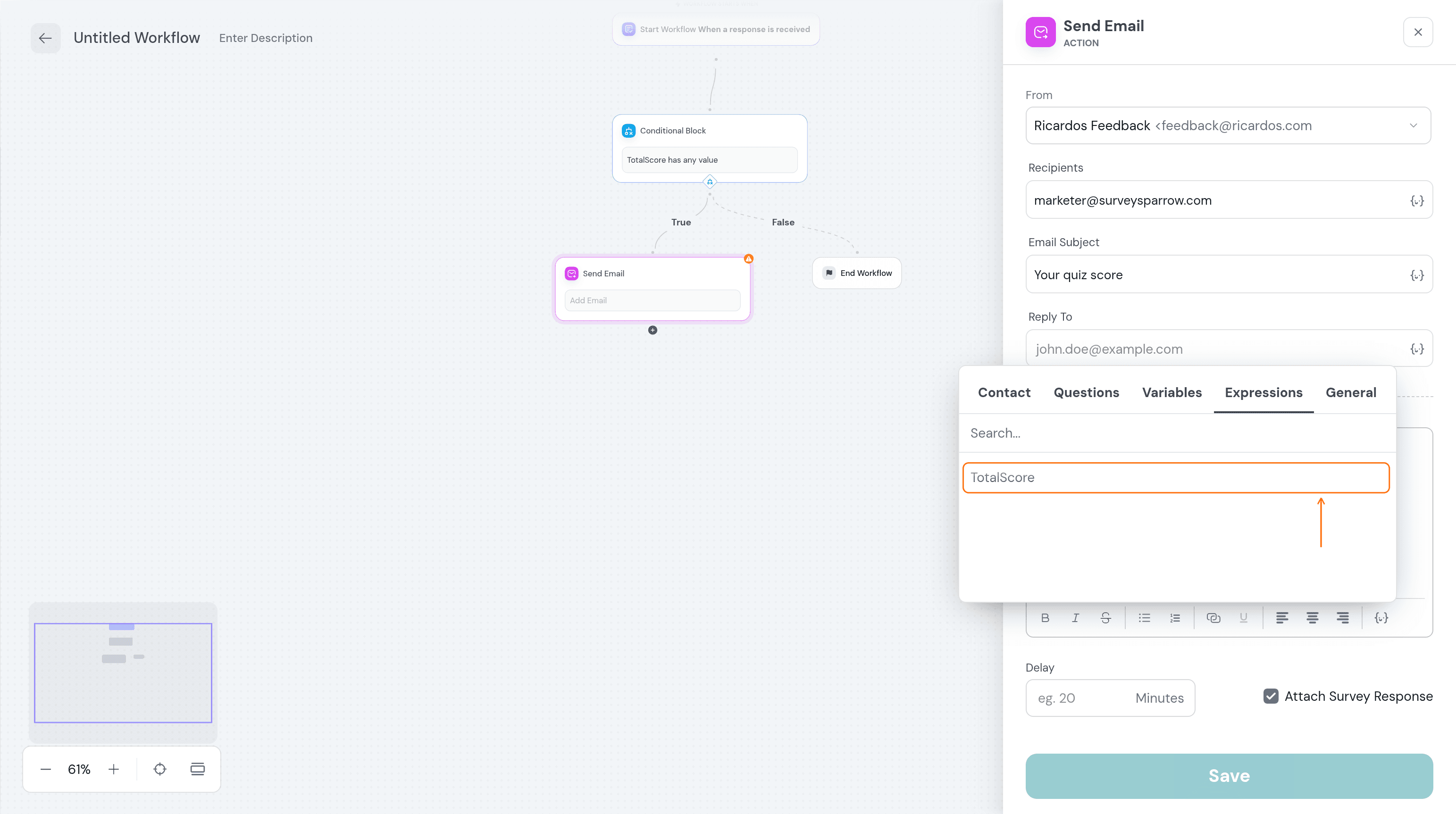
- Choose your formula from the list.
- The body now shows a placeholder such as
{expression_TotalScore}. Select Save.
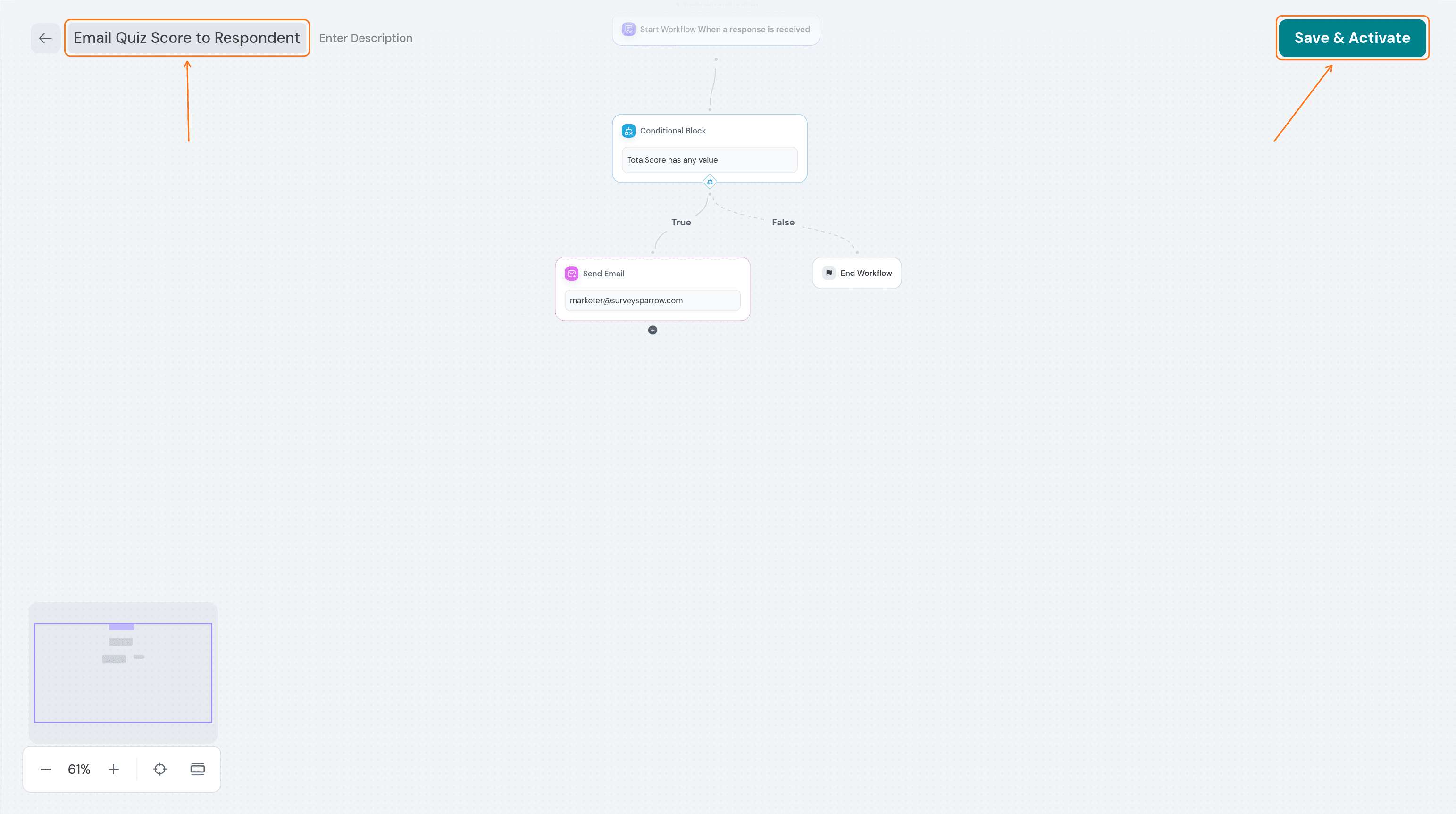
- Select the workflow title at the top left to give it a name, then select Save & Activate. This returns you to the Workflows list.
Troubleshooting
The Formulas option is missing from the filter list
The Formulas entry shows only when the survey has at least one saved formula. Create one on the FORMULA tab, then reopen Add Filter Group.
Save & Activate is greyed out
The button turns on once the Send Email step is complete. Open the Send Email step on the canvas and fill in From, Recipients, Email Subject and Reply To, then select Save.
FAQ
Can I use a formula as a workflow condition?
Yes. Choose Formulas in the filter list under Run only when, then pick a formula and an operator such as less than, greater than, between, is, is not, has any value or has no value.
Why does the email picker say Expressions?
Formulas were formerly called Expressions, and the picker in the email panel still uses the earlier word. They are the same thing.
Related articles
- Formulas (formerly Expressions)
- How to create custom workflows for survey responses
- How to use Scoring?
Need help with a workflow? Contact the SurveySparrow support team from your account.
Was this helpful?