
Scheduling reports

Get the reports delivered at your convenience
The 'Scheduled Reports' feature enables you to effortlessly receive survey reports via email at a time that suits you best. Gone are the days of manually retrieving reports - with this feature, you can now have them delivered straight to your inbox in a convenient PDF format.
The flexibility of this feature allows you to set up scheduled reports according to your specific preferences. Whether you want reports every Friday, on the last day of every month, or any other desired frequency, the choice is yours.
Let's look at an example to understand better.
Imagine your company has embarked on an extensive year-long project, and you wish to monitor your employee's pulse closely. By conducting an employee satisfaction survey every month, you can gain valuable insights into their experience. With the 'Scheduled Reports' feature, you can configure the survey results to be conveniently emailed once every two weeks.
Say goodbye to the hassle of manually checking for updates and let our technology do the work for you. By utilizing 'Scheduled Reports,' you can focus on analyzing the results and making informed decisions to drive positive change within your organization.
To set up Scheduled Reports, you can follow the below steps:
After creating the survey questions:
1. You can navigate to your survey's 'Results' tab and click the "Share" icon.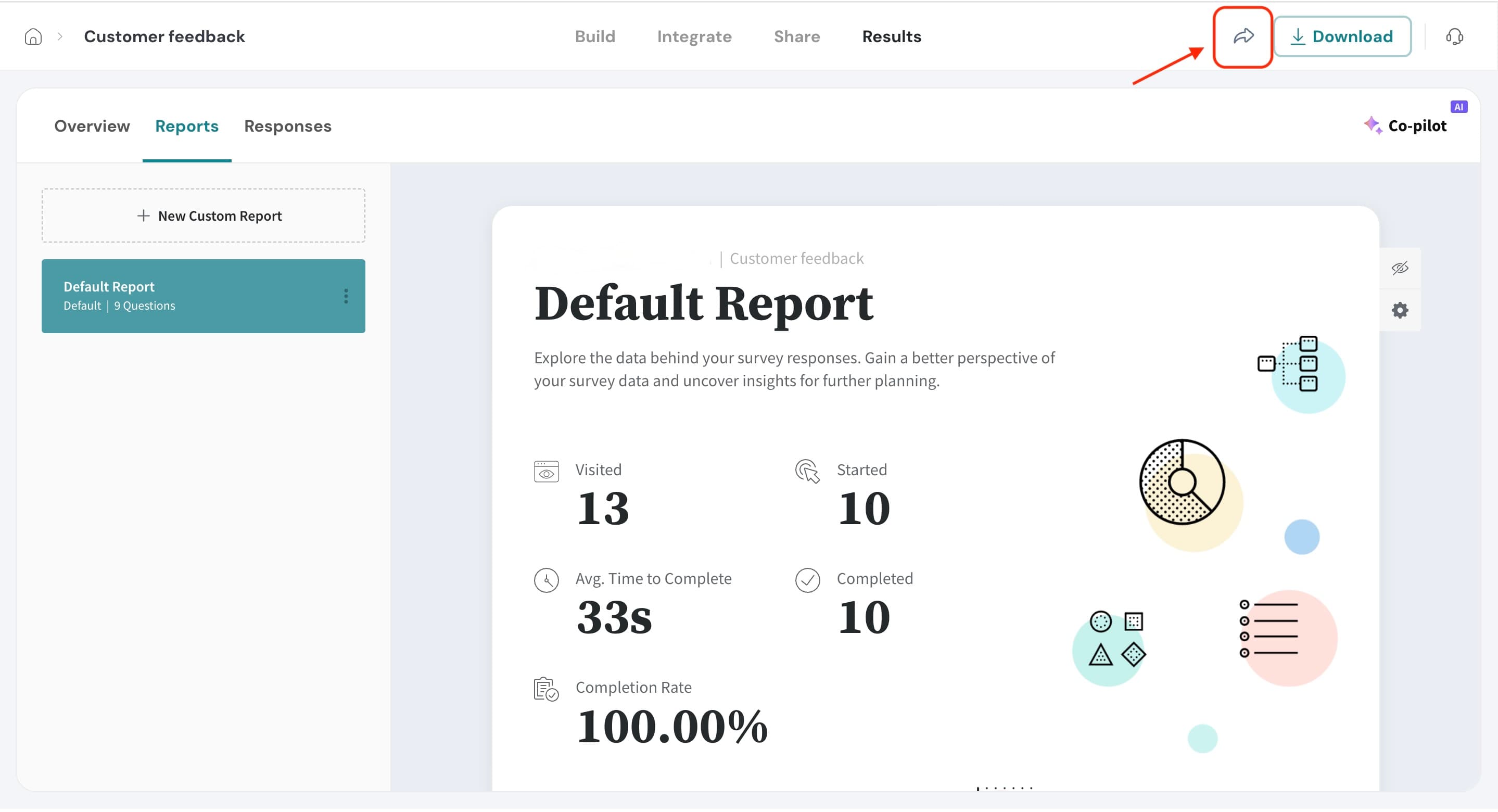
2. Click the ‘Add Schedule’ option under Share Options.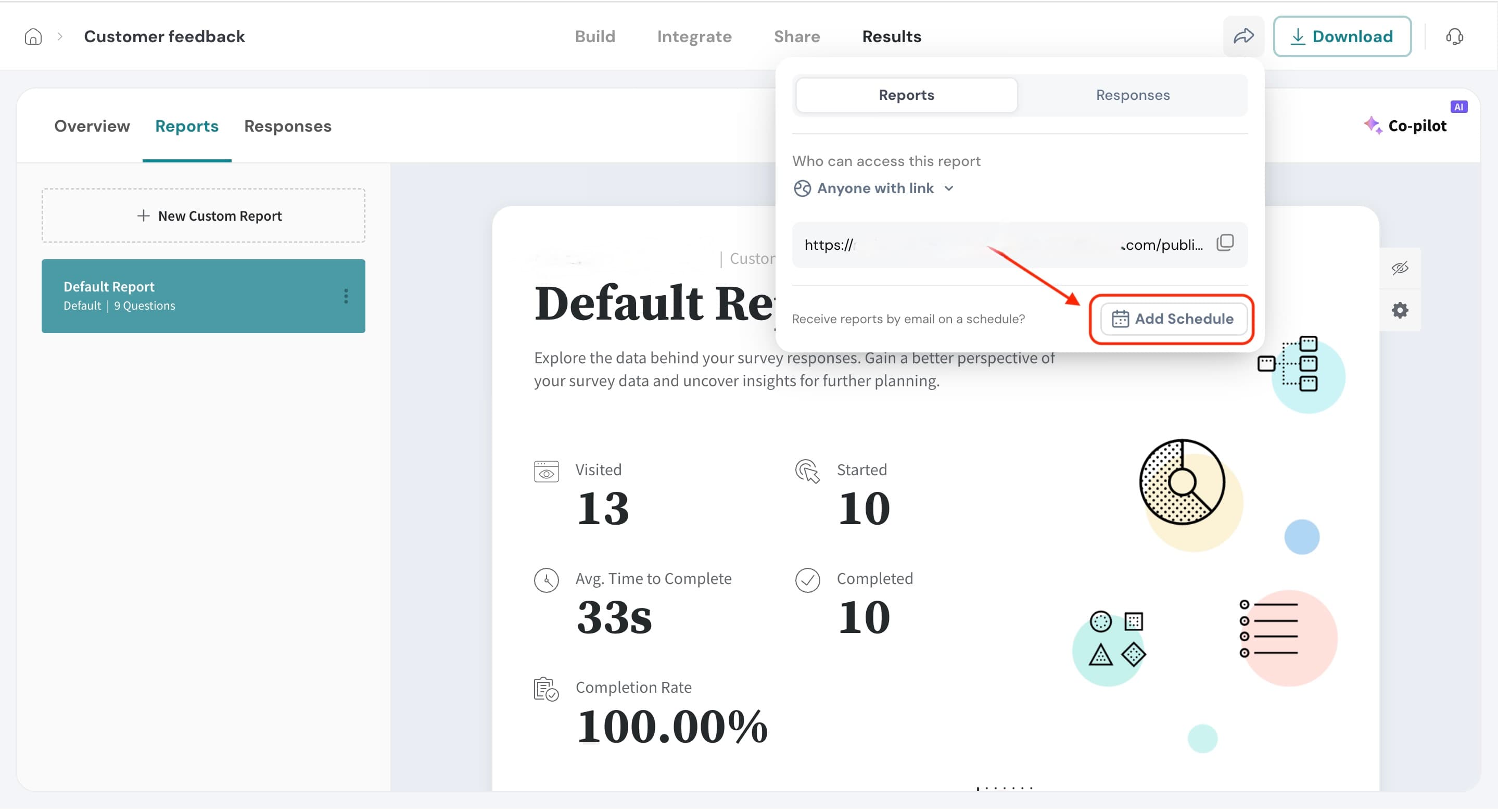
3. A screen will appear where you can configure the schedule.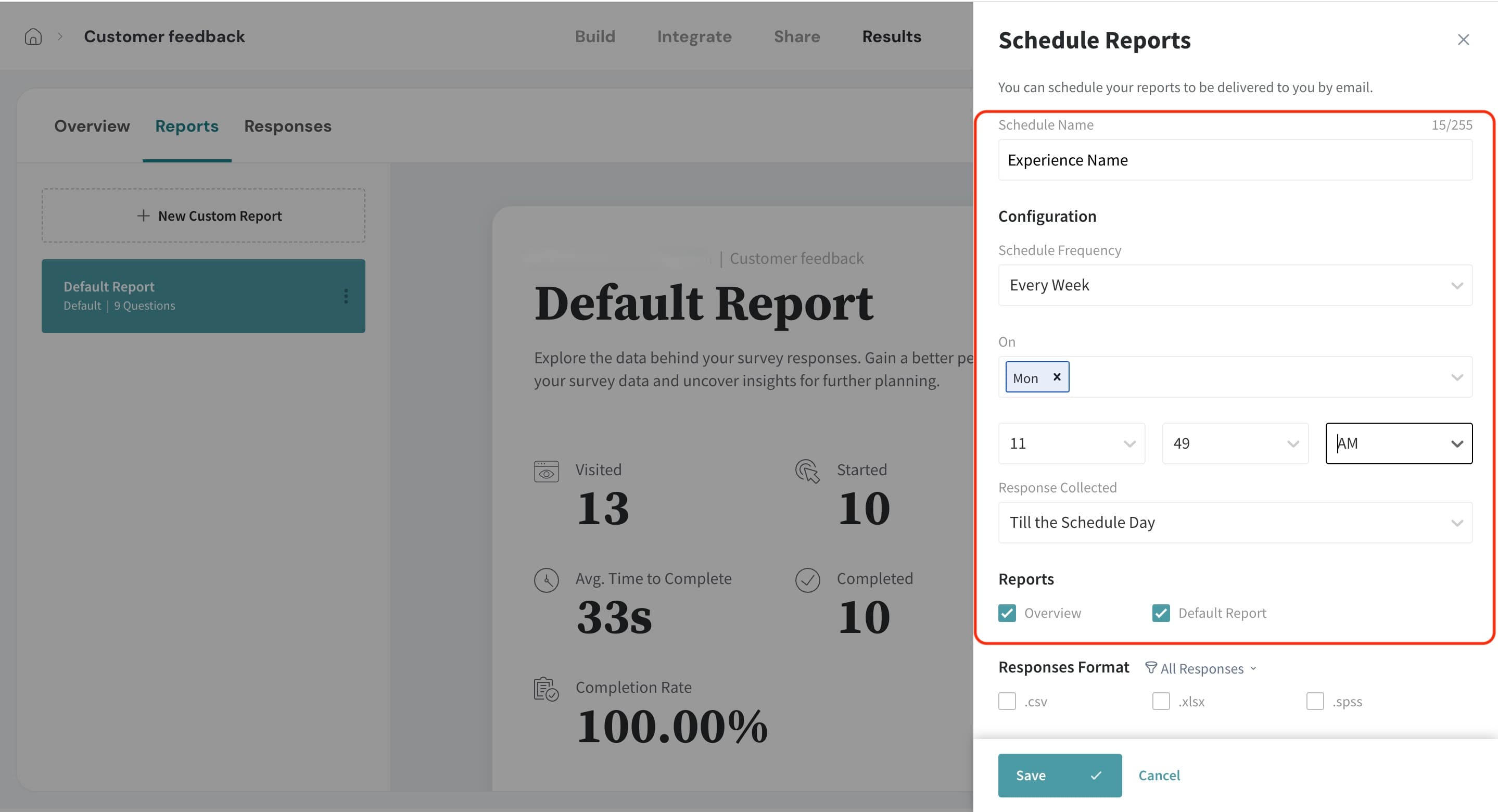
4. Check the box to attach the default report or any custom reports of your choice, and select the response format you prefer to download. 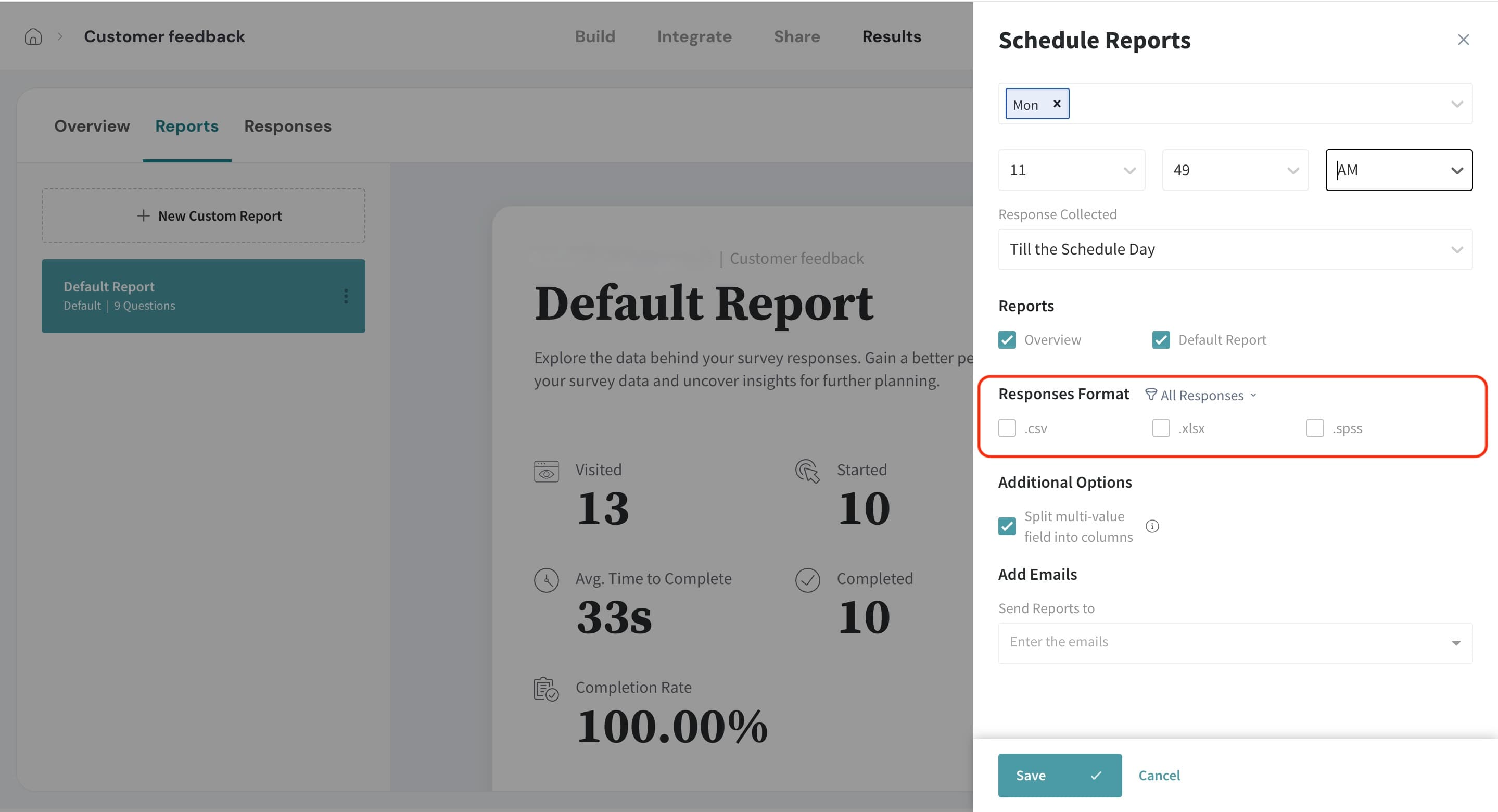
5. Then, you can enter the email addresses to which the emails should be sent.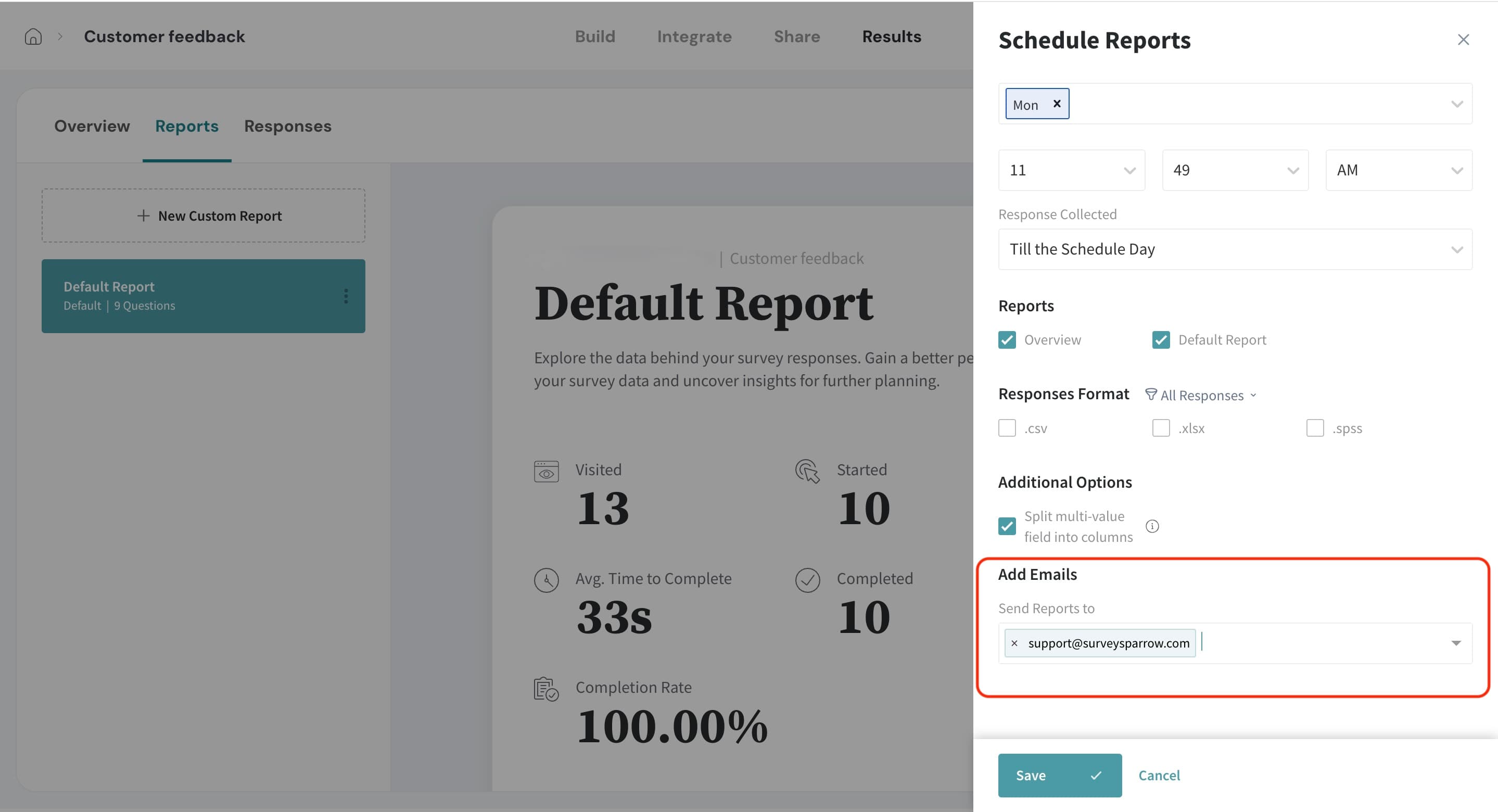
6. Hit the Save button, and you are ready! The detailed reports and responses sheet will be delivered to the entered mail addresses on the scheduled date and time.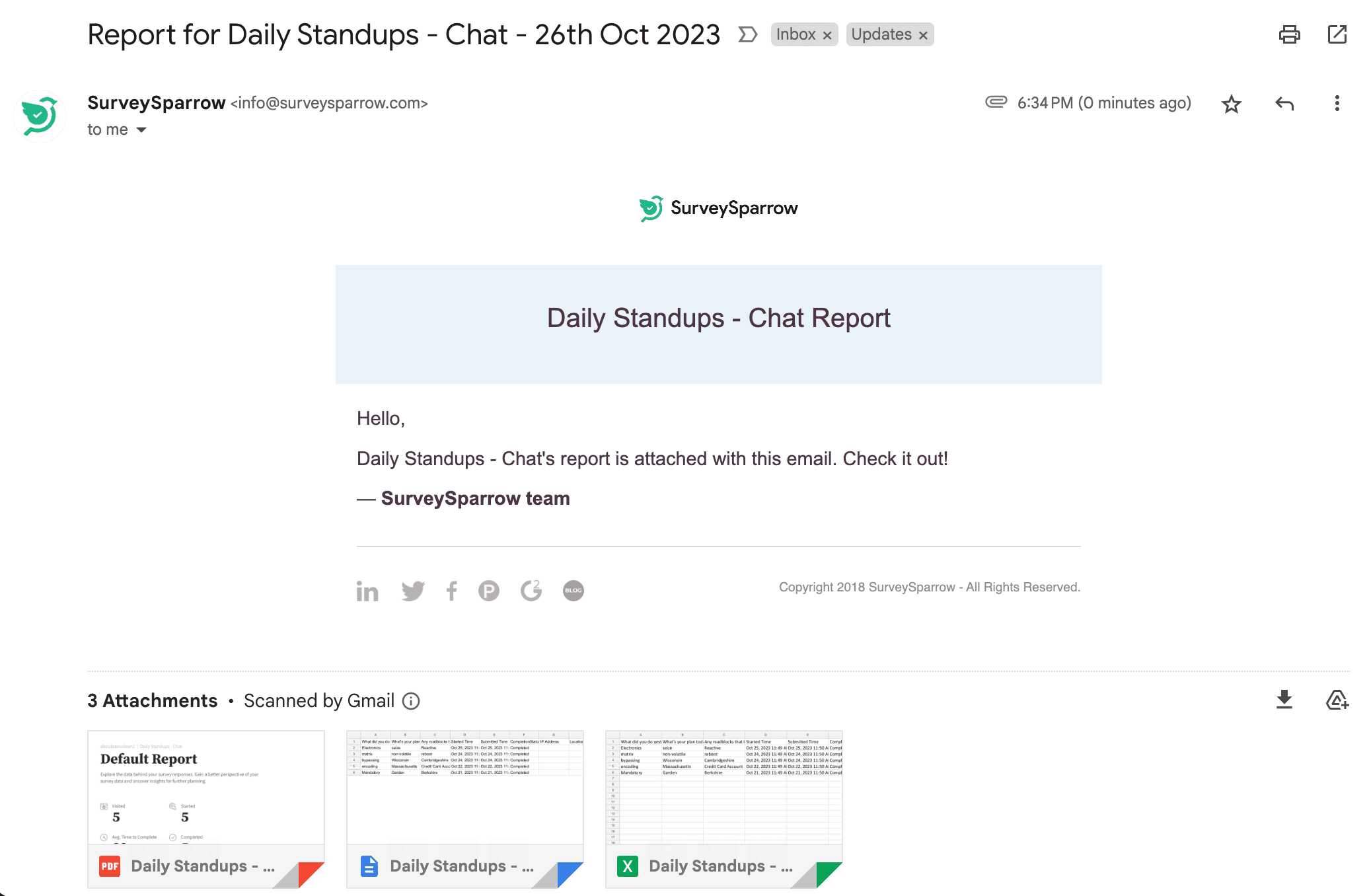
Troubleshooting: Scheduled reports not delivered
If your scheduled report is not being delivered (or some schedules fire while others do not), check the following:
1. Confirm the schedule is enabled and saved
- Go to Results > Share > Add Schedule and verify the schedule is turned on and saved.
- If you recently edited filters/recipients, click Save again.
2. Verify recipients and email deliverability
- Confirm the email addresses are correct and active.
- Ask recipients to check Spam/Junk/Promotions folders and allowlist your organization’s sending domain.
3. Confirm the report has data for the scheduled time period
- If the report is filtered (e.g., by location), make sure there are responses matching that filter; some filtered reports may not generate if there is no data to include.
4. Re-check filters used for location-specific distribution
- When scheduling, ensure the correct location filter is selected for that schedule.
- Create one schedule per location (each with its own filter and recipient list) to ensure each manager receives only their location’s report.
5. Avoid conflicting/duplicate schedules
- If multiple schedules exist for the same survey/report (e.g., daily and weekly schedules for the same report), remove or consolidate them to prevent trigger conflicts.
If the issue persists, contact support and share:
- Survey name/ID
- The scheduled report name(s)
- The schedule frequency/time and timezone
- The filter(s) applied (e.g., location)
- Recipient email address(es) not receiving the report
- Approximate dates/times when the report did not fire
To know more about the question-level reports, follow these articles:
- Analyzing responses at question-level
- Use advanced filters
- Export Reports as a PDF
- Schedule reports exports
Please don't hesitate to contact us if you have any questions. We are just a chat away!