
Installing the SurveySparrow app for ChatGPT

ChatGPT is a versatile AI model trusted by organizations worldwide to accelerate and improve everything from coding and content creation to document generation and image design—all with impressive speed and reliability. Beyond conversation, ChatGPT can take real-world actions inside other platforms through apps (similar to integrations) available in its app directory. SurveySparrow has launched a ChatGPT app that empowers users to design and manage surveys without ever leaving the ChatGPT interface.
The app lets users perform the following actions:
- Create, edit and publish surveys
- Distribute surveys via weblink, email, SMS or WhatsApp
- Analyze responses
- List responses and surveys
Possible use-cases include:
- A customer experience team builds and launches a post-support interaction survey to measure effort and resolution satisfaction
- A HR manager creates an anonymous onboarding experience survey to new hires.
- A product manager runs a competitive feature gap survey with existing users. They then prioritize which gaps to close in the next roadmap cycle.
In this article, we’ll walk through the steps of:
Installing the app in ChatGPT
1. Inside your ChatGPT account, click on your profile and select Settings.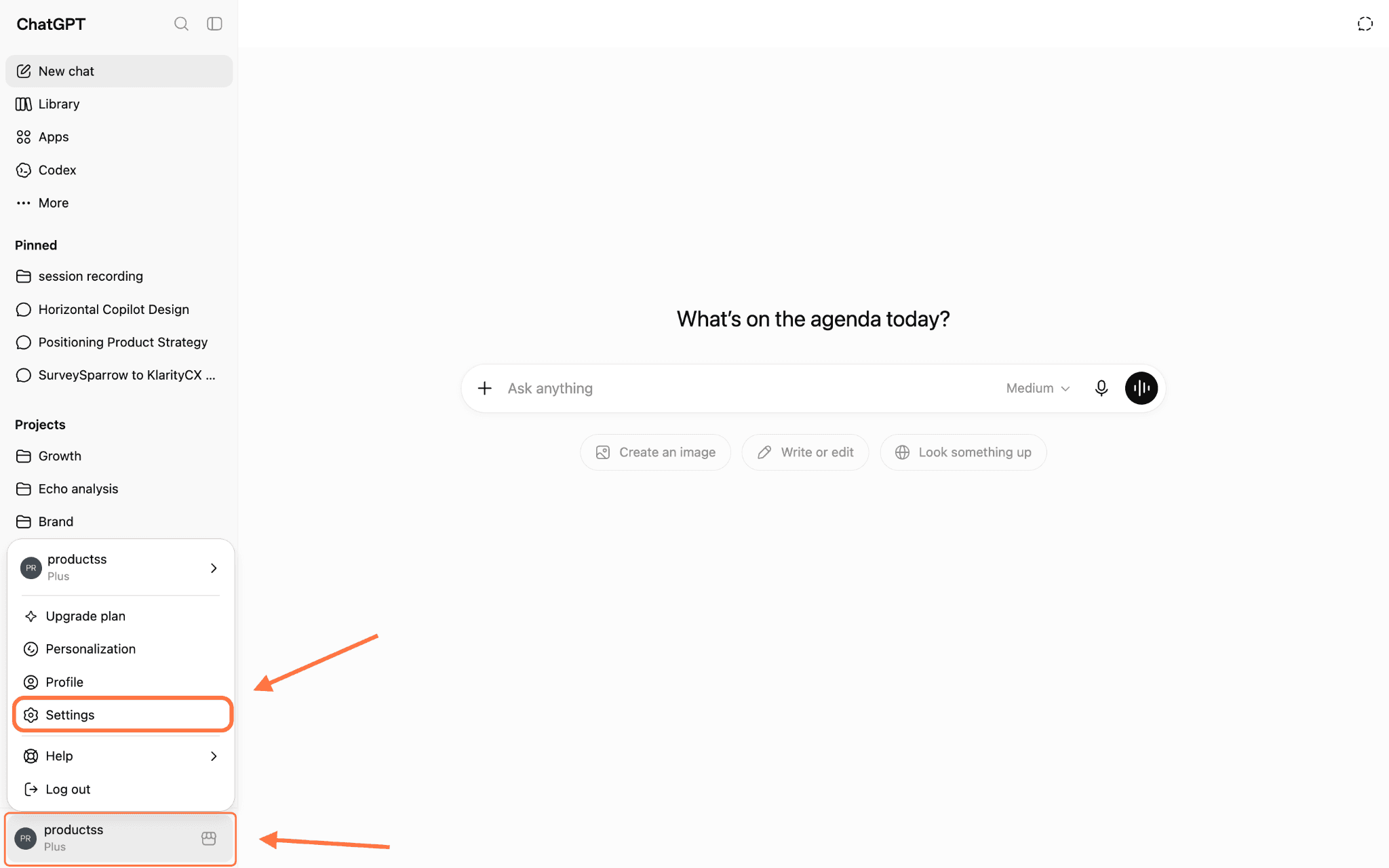
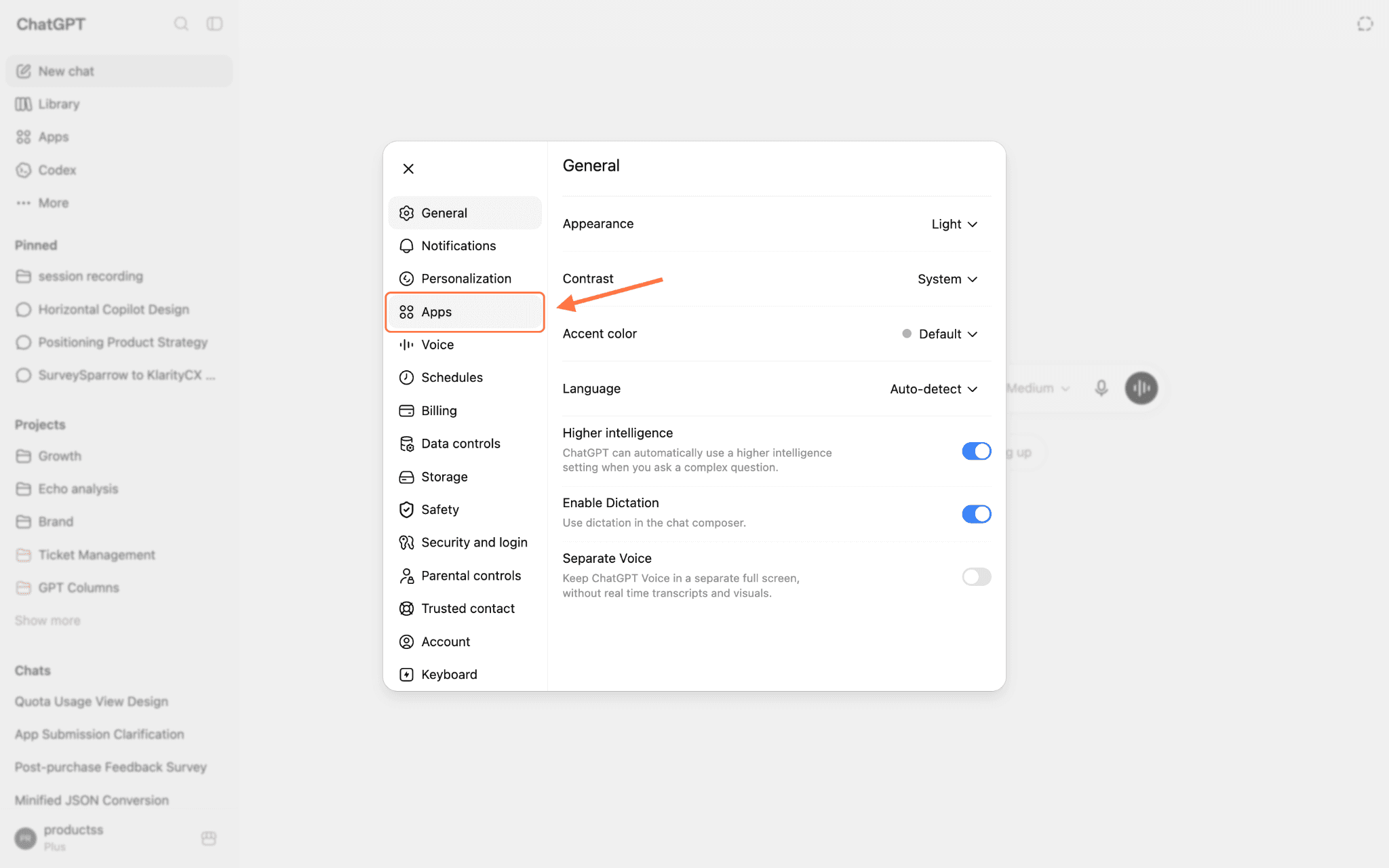
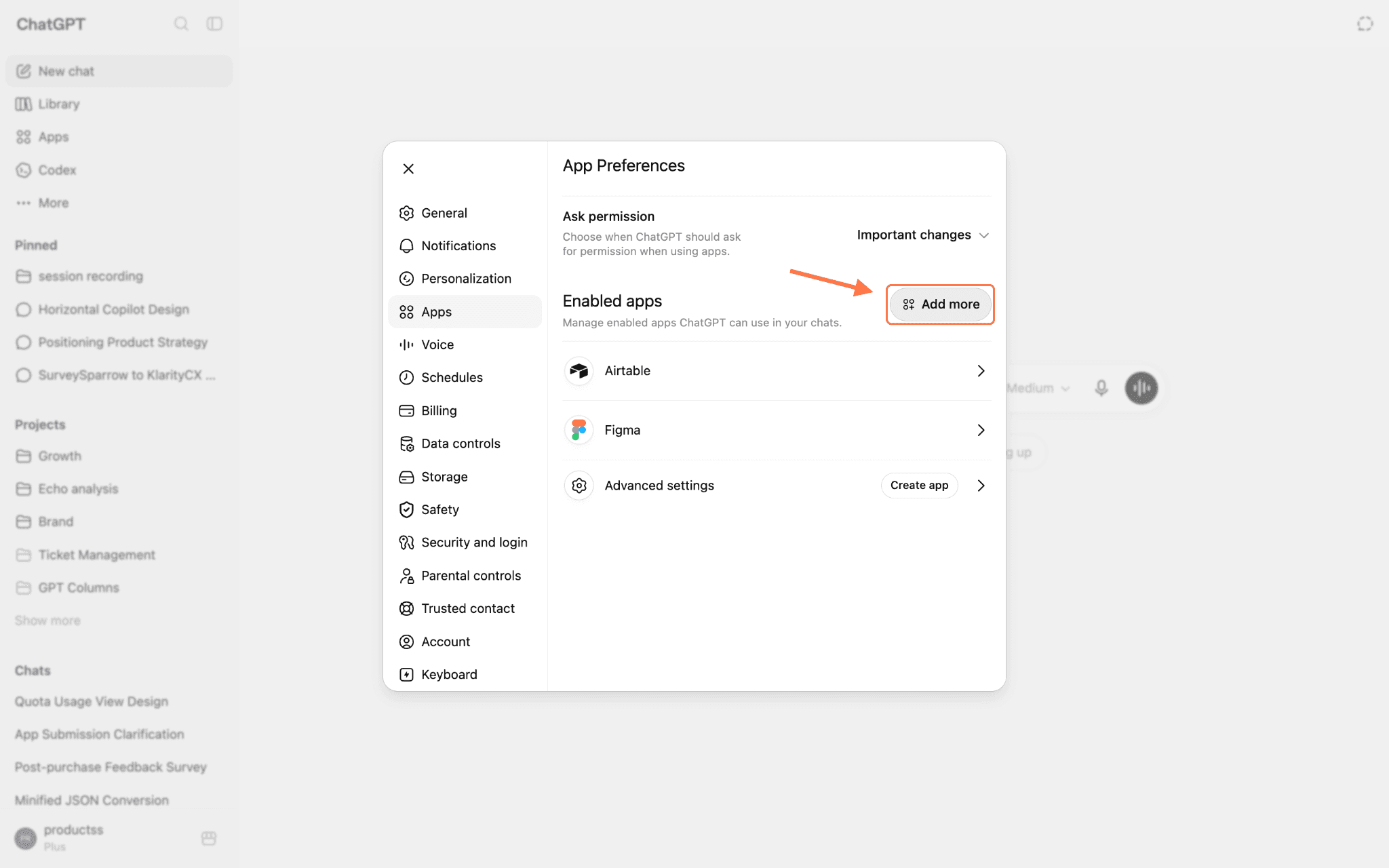
5. Click on Connect.
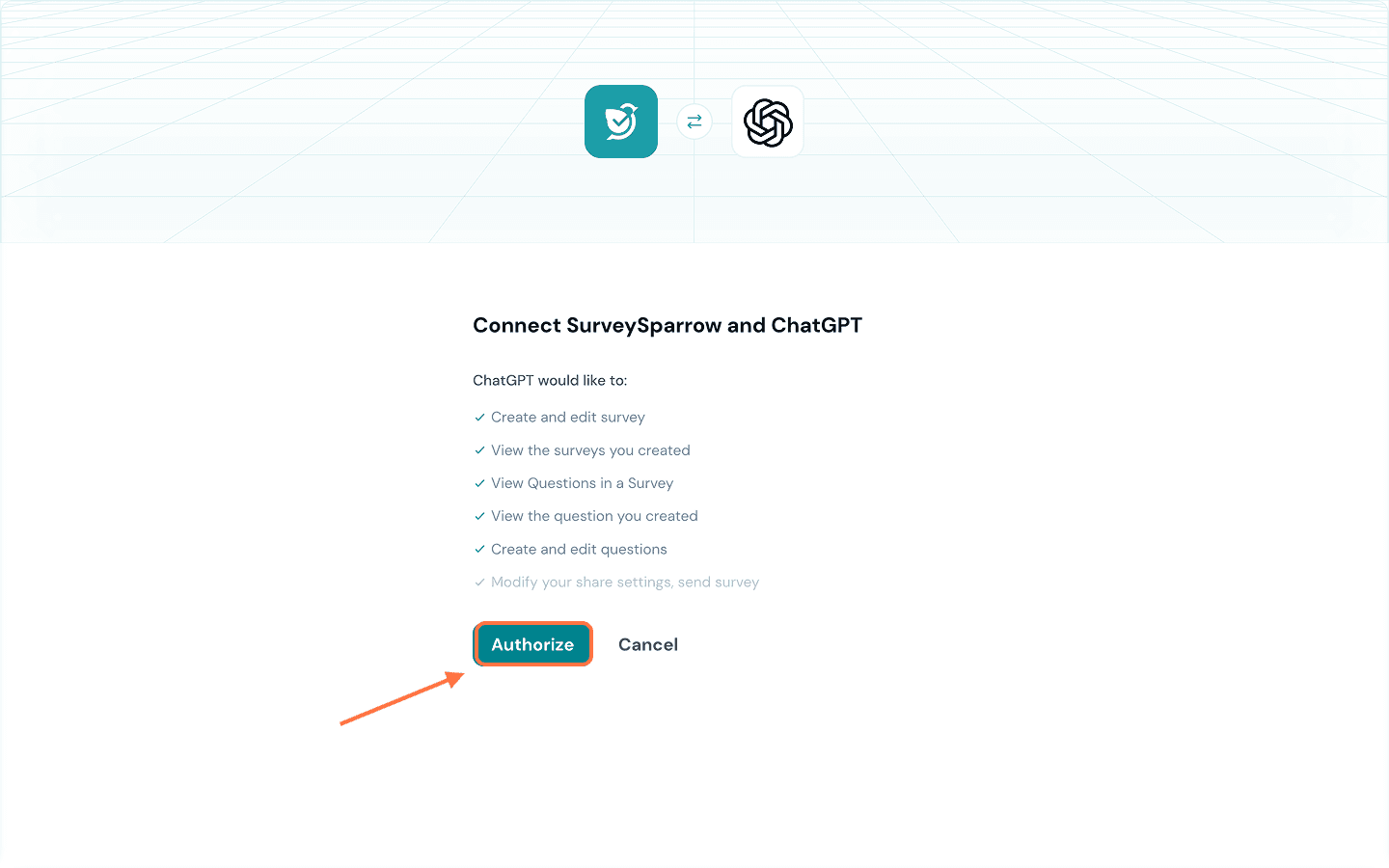
6. A sign-up screen will appear. If you already have an account, click on Login and complete the process.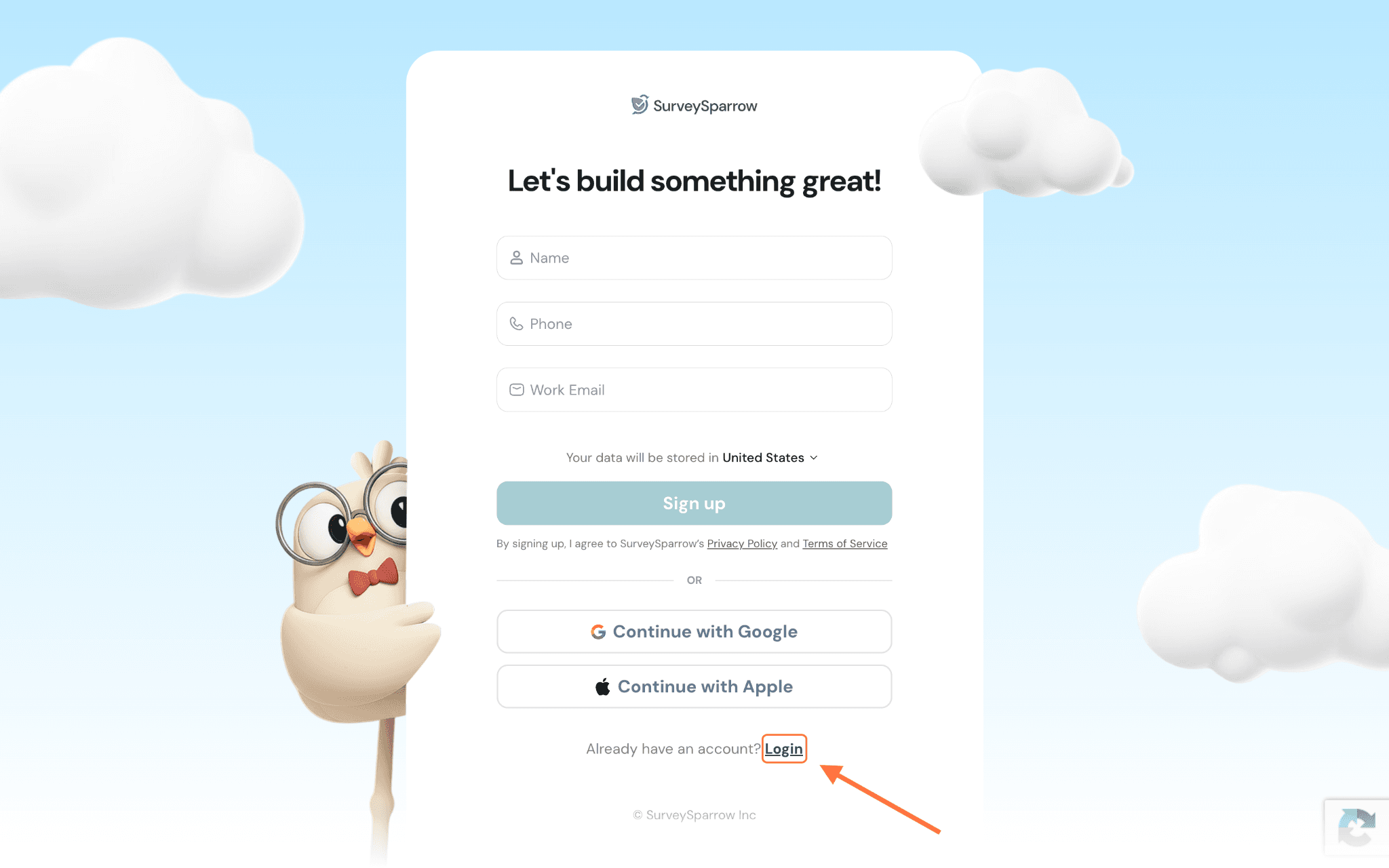
How to use the SurveySparrow app for ChatGPT
1. After connecting SurveySparrow, you can open a chat and type your requirement as a prompt. Tag the app first (type @SurveySparrow and select it from the drop-down) and then type your prompt. In this instance, we’ve asked it to create a survey.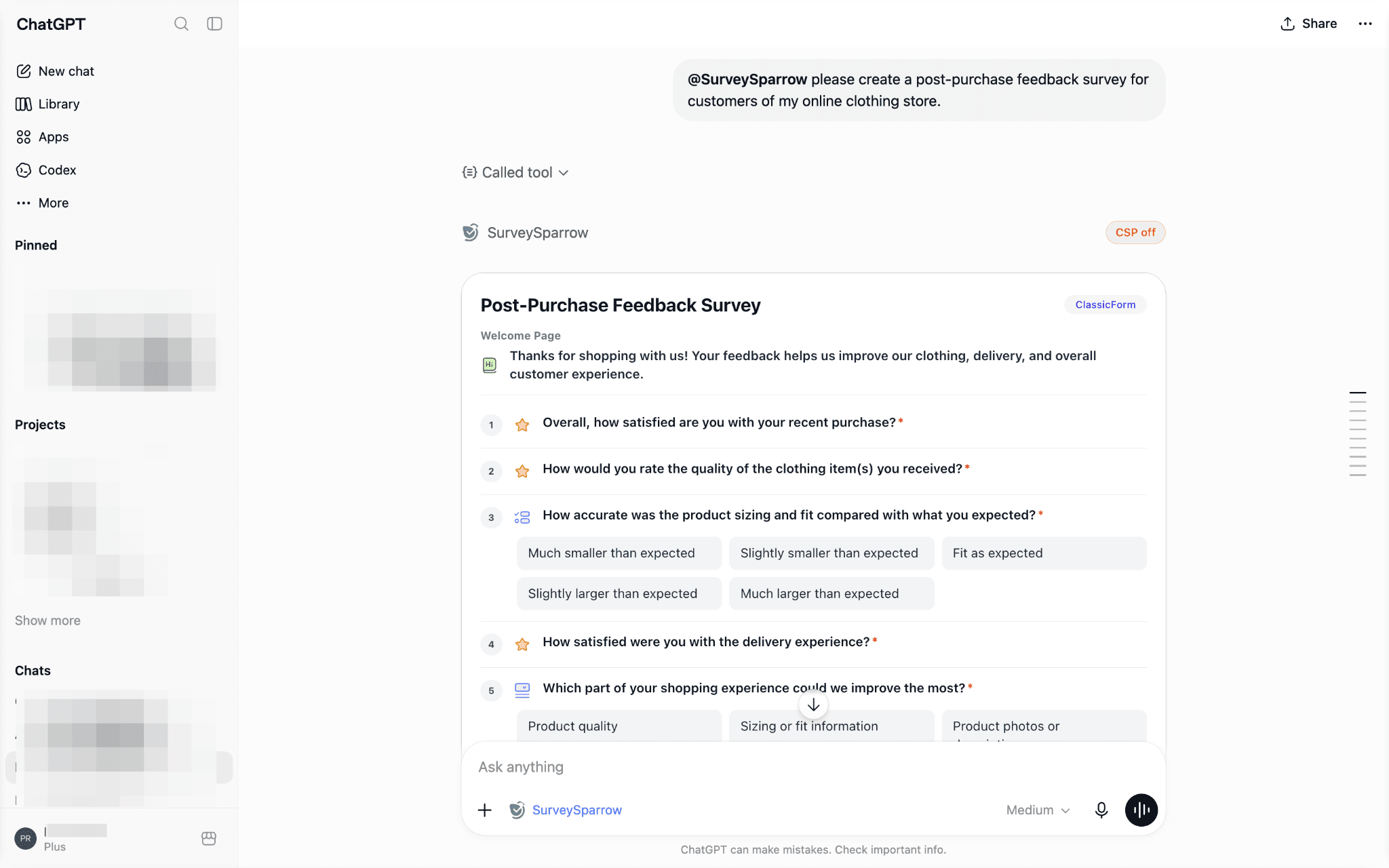
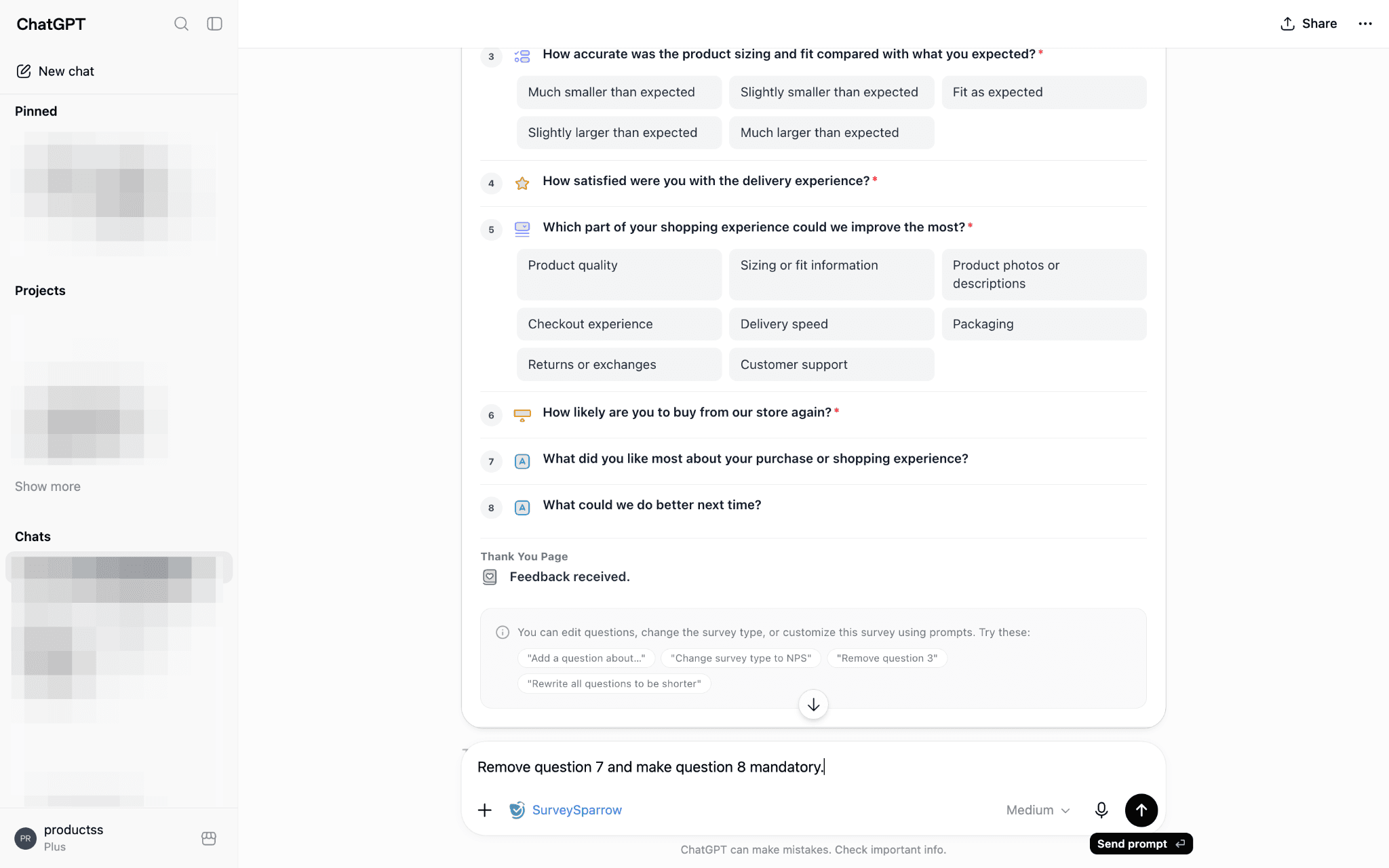
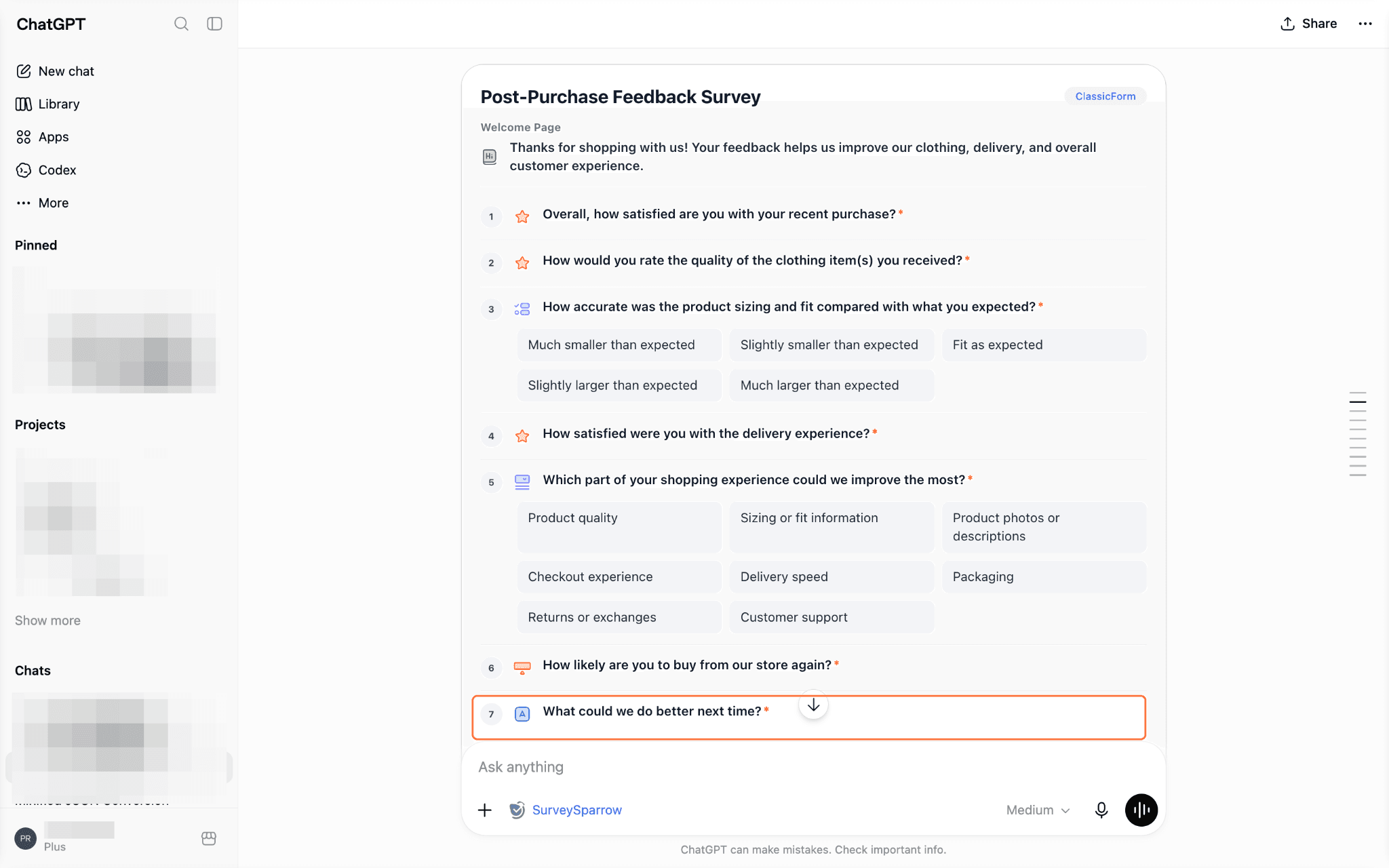
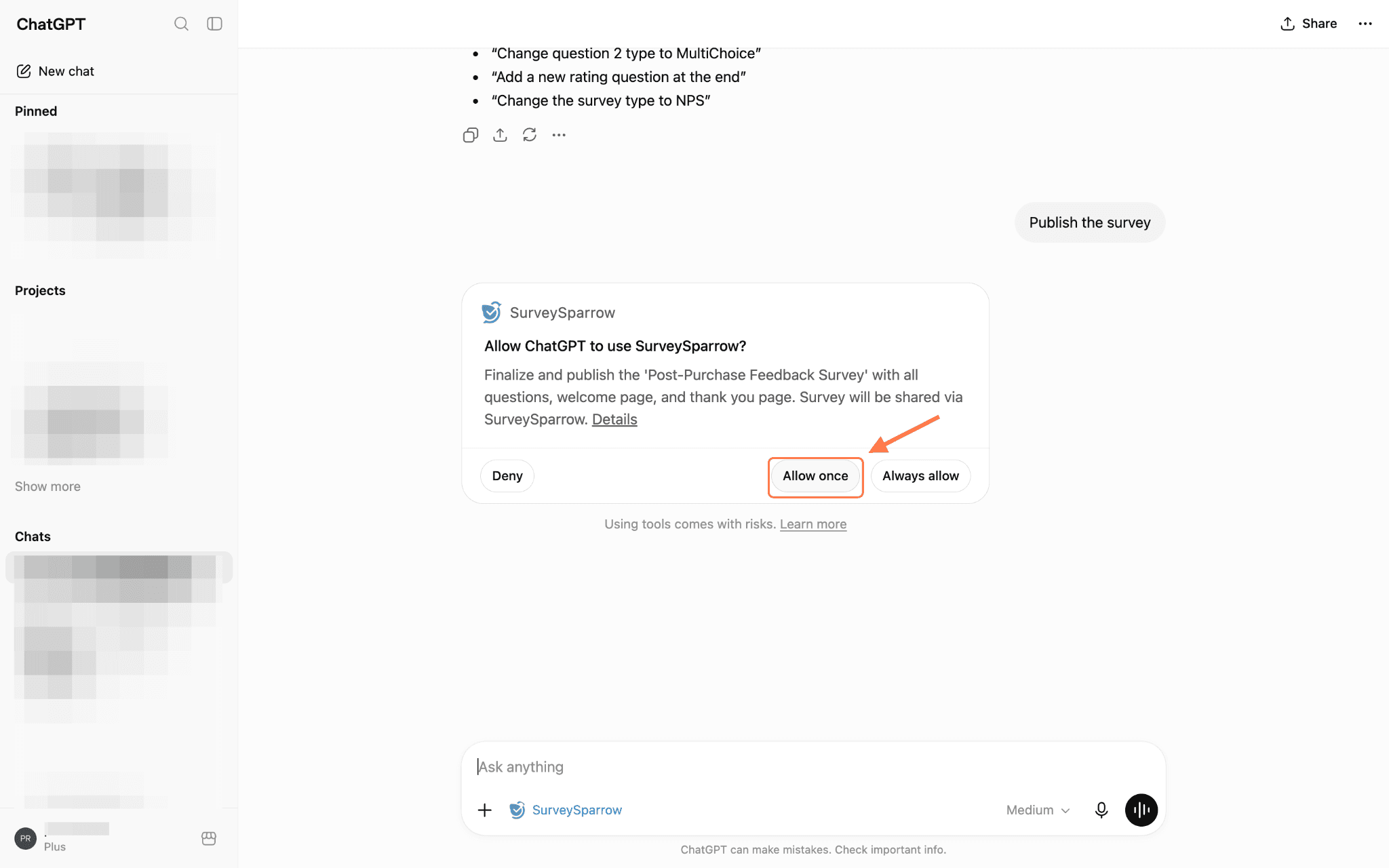
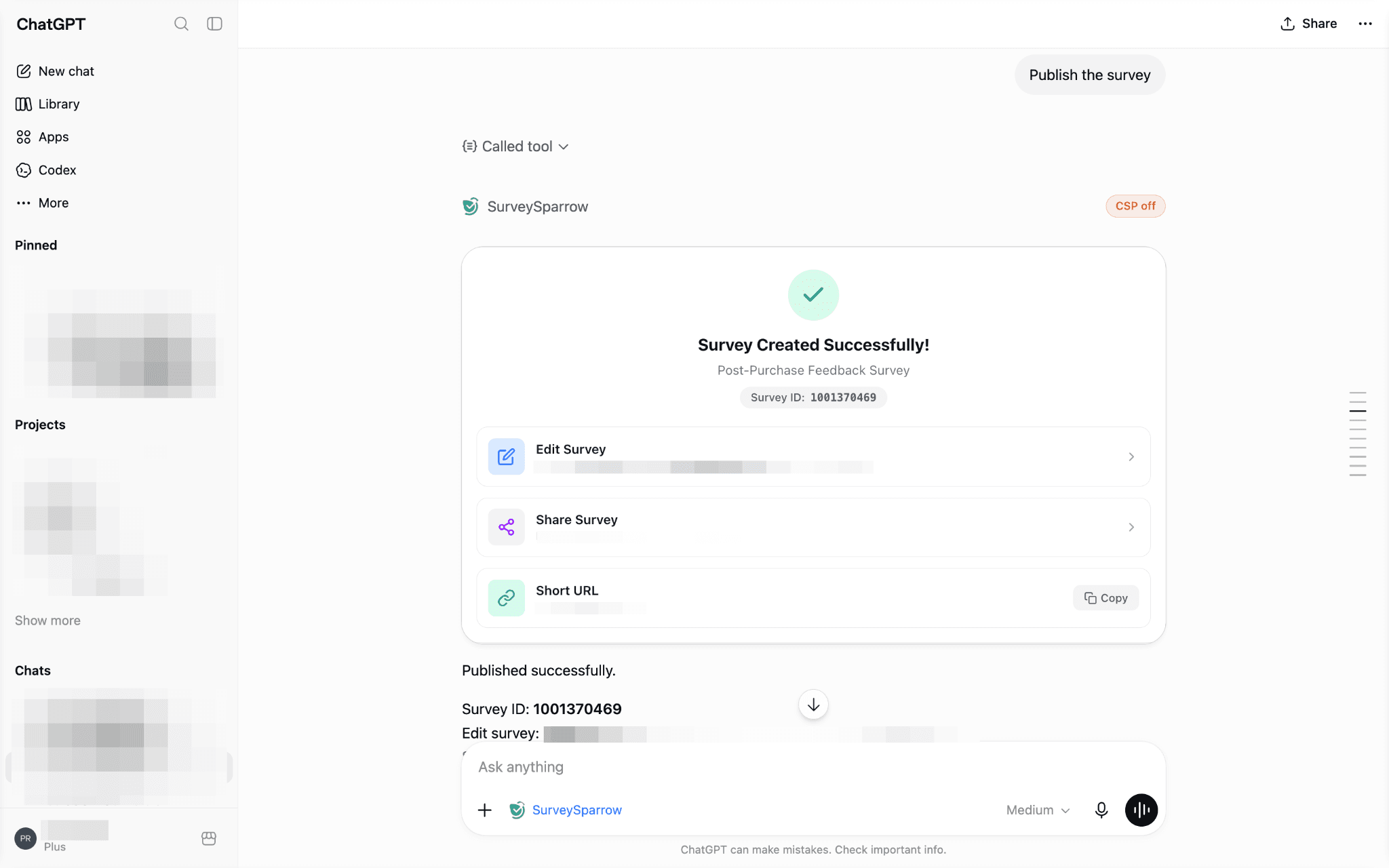
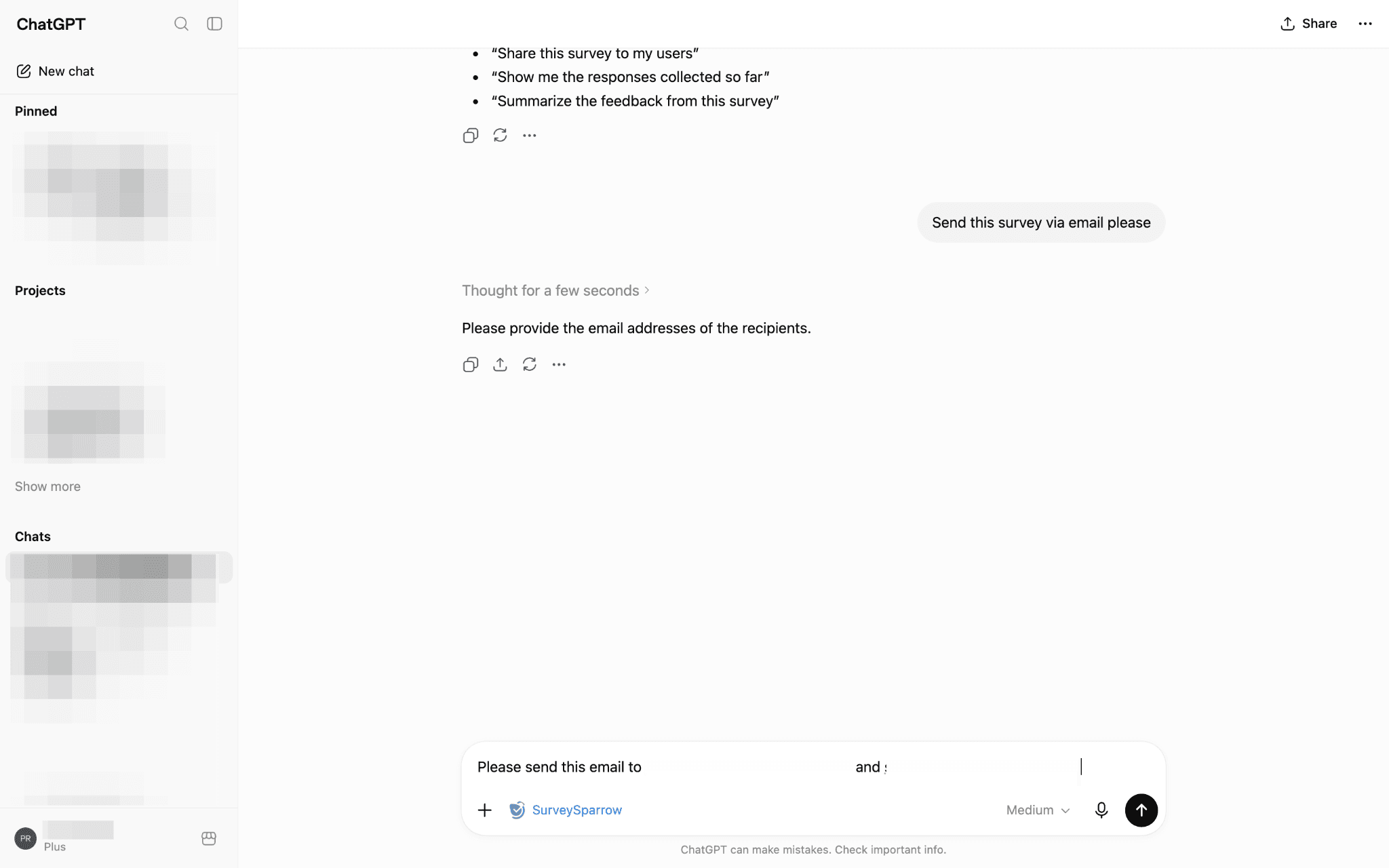
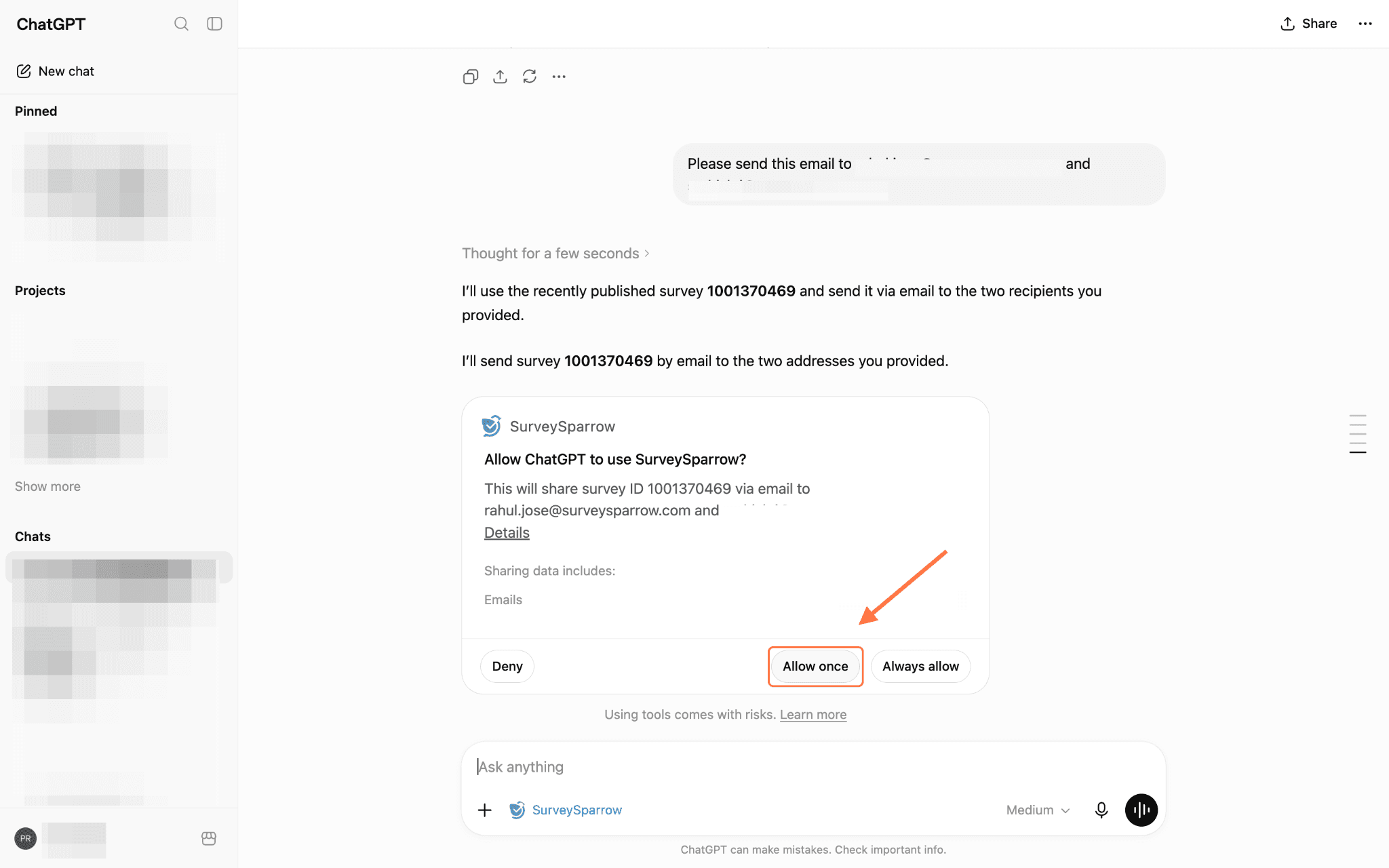
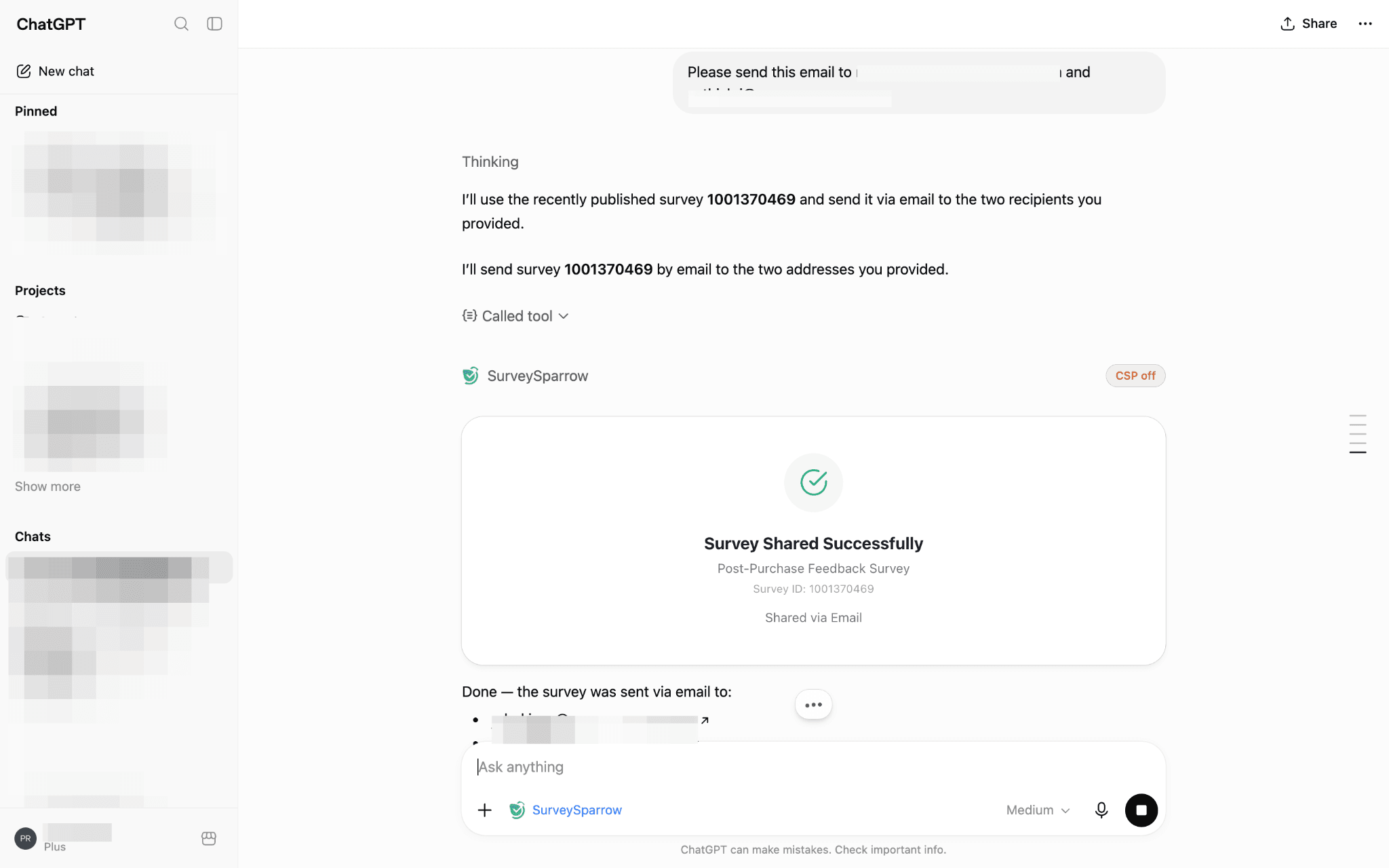
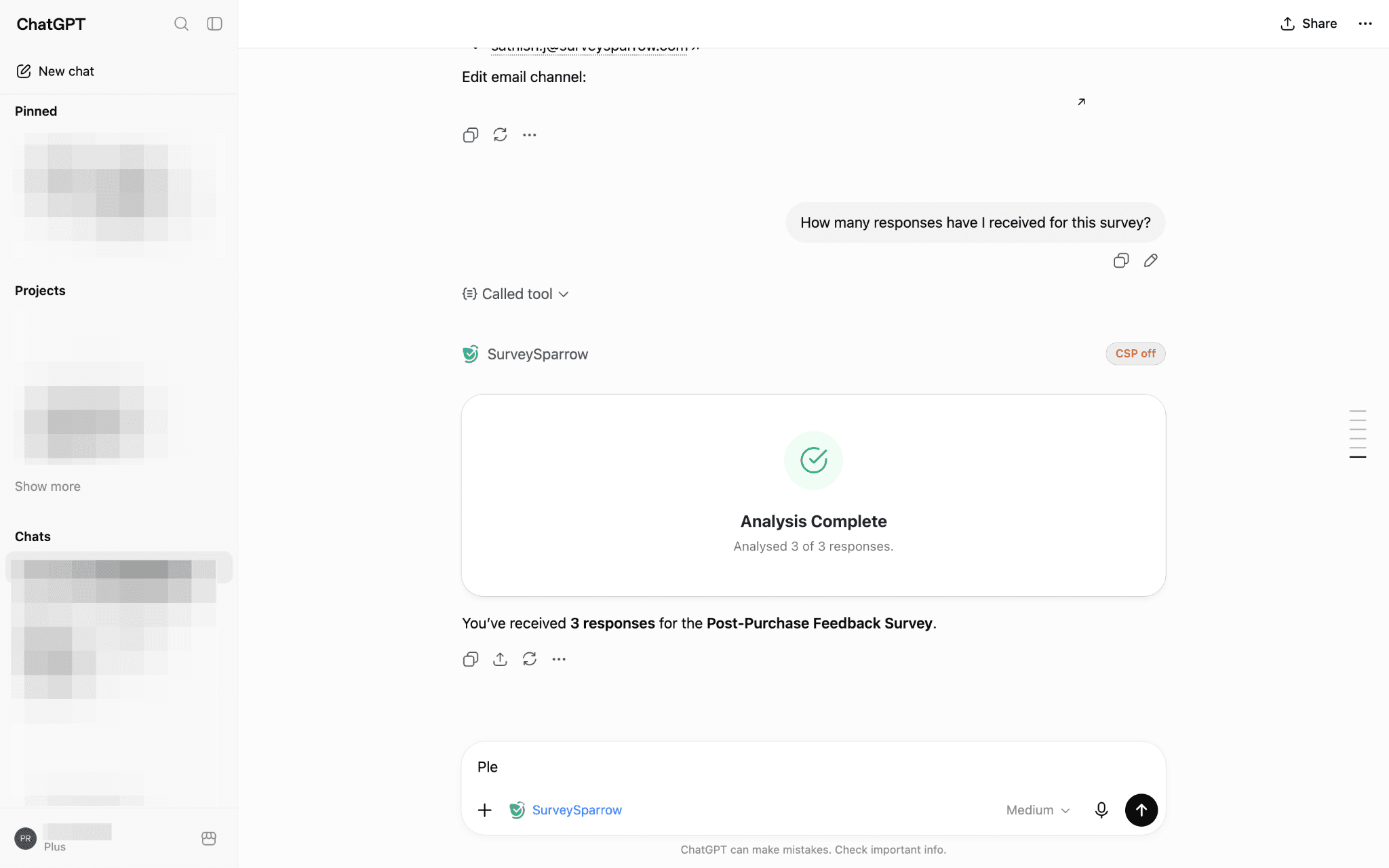
8. If you’d like to look up other surveys, you can also ask ChatGPT to list them. ChatGPT will generate a widget containing all the surveys and key stats per survey.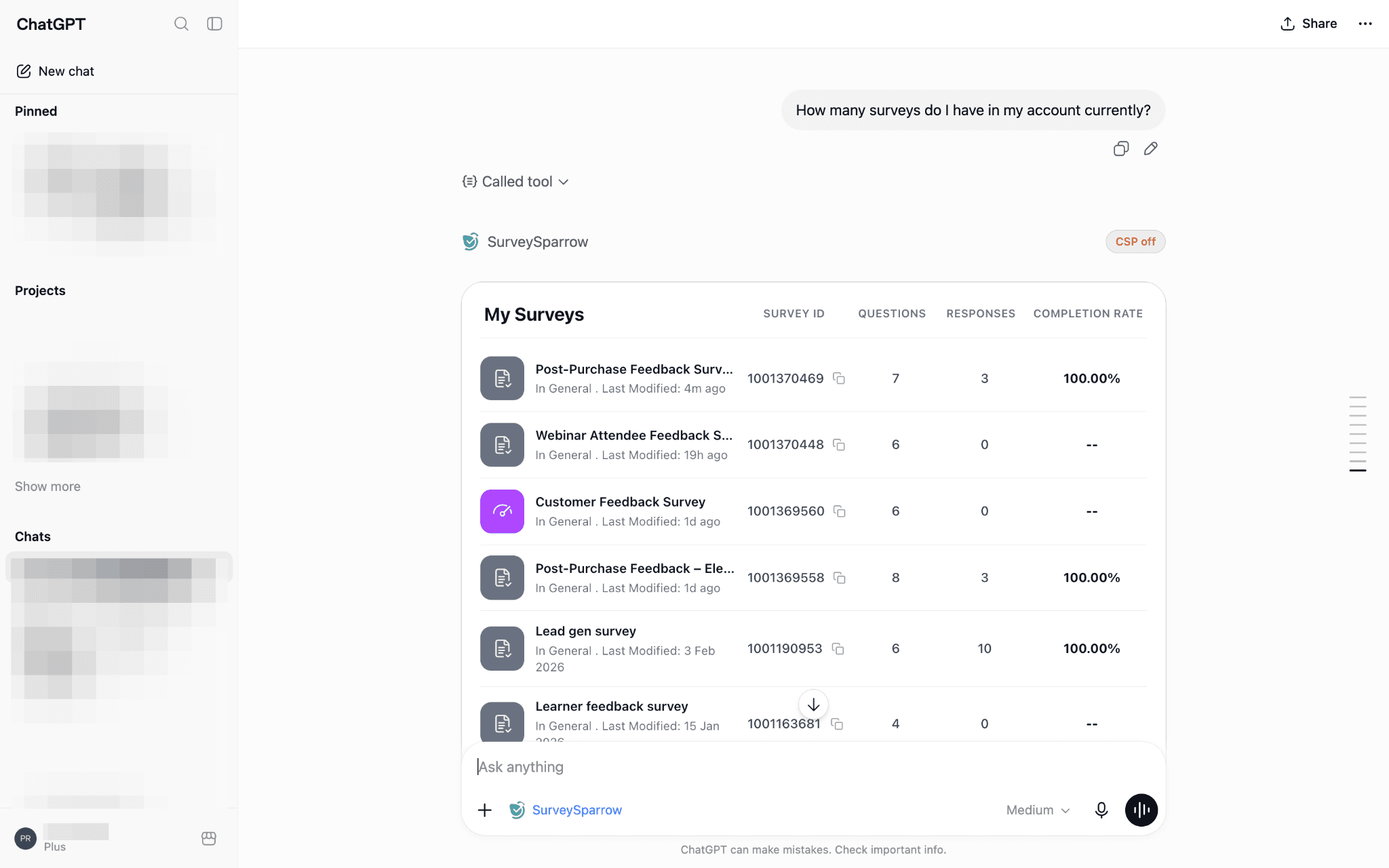
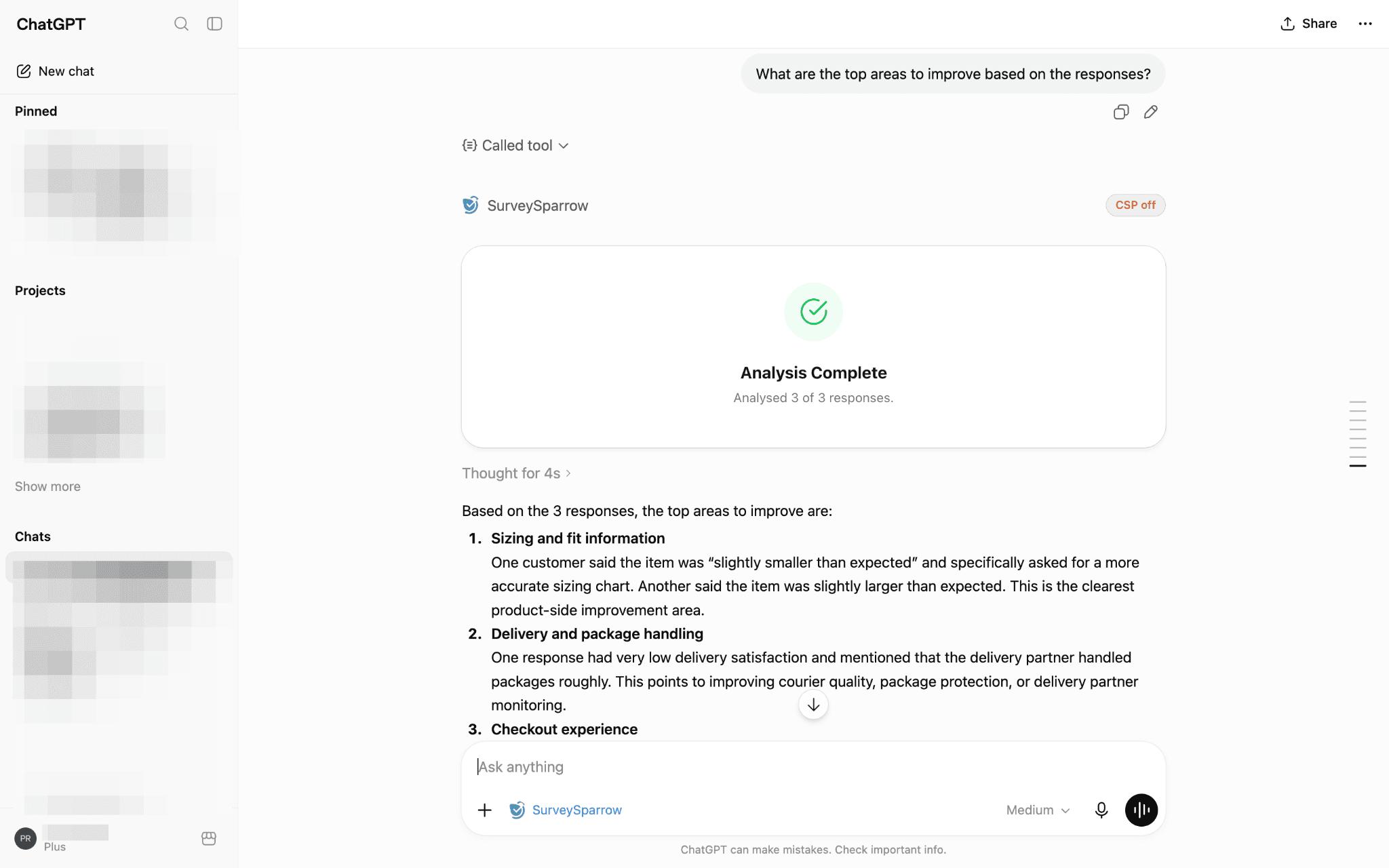
Now you can start running surveys from ChatGPT. The SurveySparrow app does it all for you - build, distribute, and analyze surveys entirely through natural conversation. Save time and get actionable, real-time insights faster.
Feel free to reach out to our community if you have any questions.