
How to activate and use SurveySparrow Sandbox

Ever wanted to test a big change to a live survey, a new question flow, an automation, a new channel, without touching real responses or risking your production data? That's exactly what Sandbox is for.
Sandbox is your own private testing ground, fully separate from your live account, where you can clone existing surveys, experiment freely, and then choose exactly what to bring back to production, and when.
Some common use cases include:
- Testing new question logic or branching without disrupting active surveys
- Testing new features in a safe environment before activating them in your live account
- Trying out workflows and automations before enabling them in production
- Training team members in a safe environment
- Reviewing surveys internally before publishing
How Sandbox works
Before you get started, here's what's important to know:
- Your live account data will not be affected while using Sandbox.
- Any changes made in Sandbox stay only in Sandbox until you choose to sync or deploy them.
- Surveys, responses, and workflows created in Sandbox will not appear in your live account.
- Sandbox has its own separate users, API keys, and usage quotas; nothing is shared with your live account except the surveys you choose to clone in.
This means you can build, test, and explore freely. Nothing goes live until you decide it does.
Who has access
Sandbox is available by default on Enterprise Pro and our top CX plans. If Sandbox isn't enabled on your account, you'll see a callout in the product prompting you to set it up.
If you're on a different plan and want access to Sandbox, reach out to our support or sales team.
Enable Sandbox for your account
Click on More and then select Sandbox 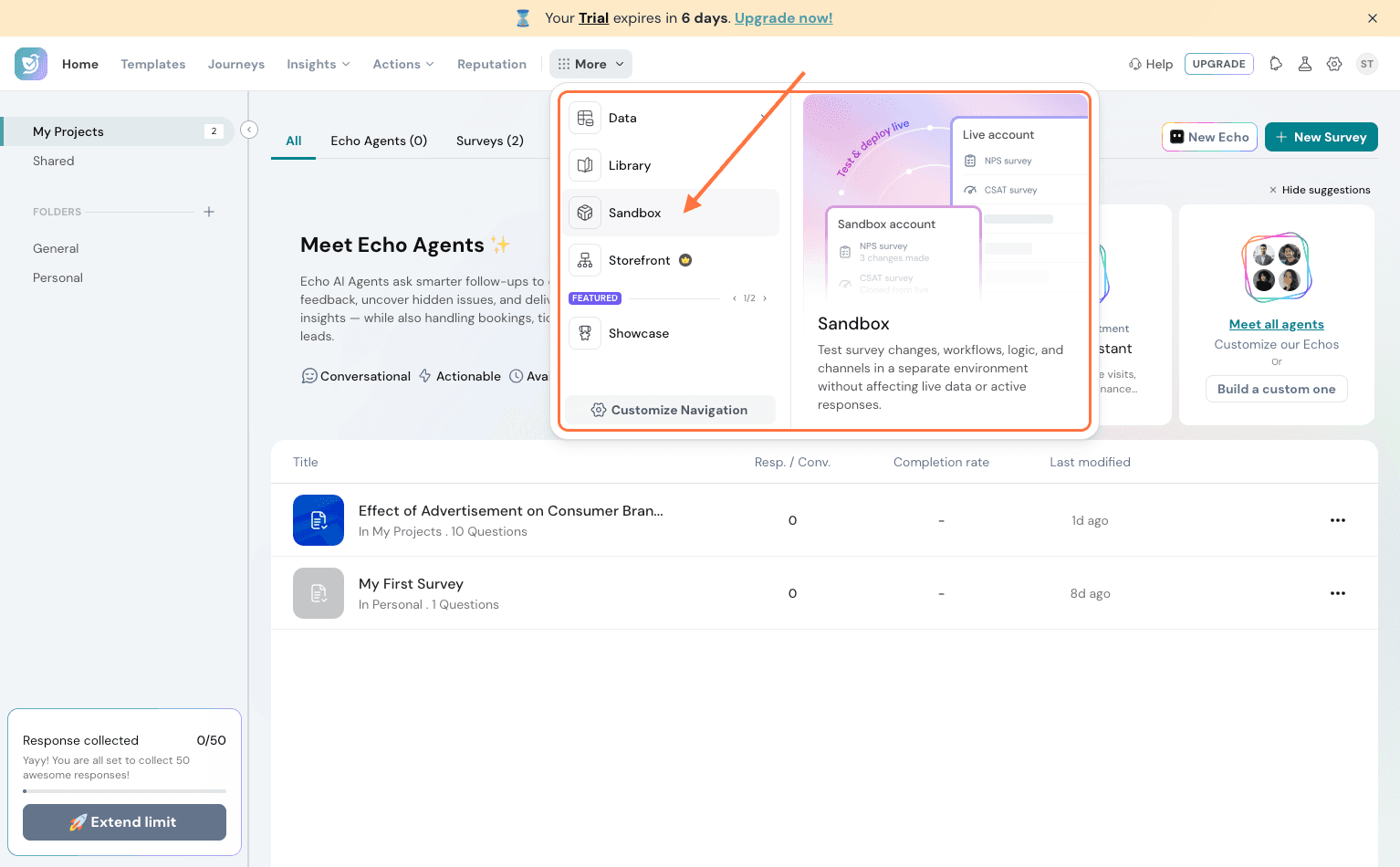
Click on Setup Sandbox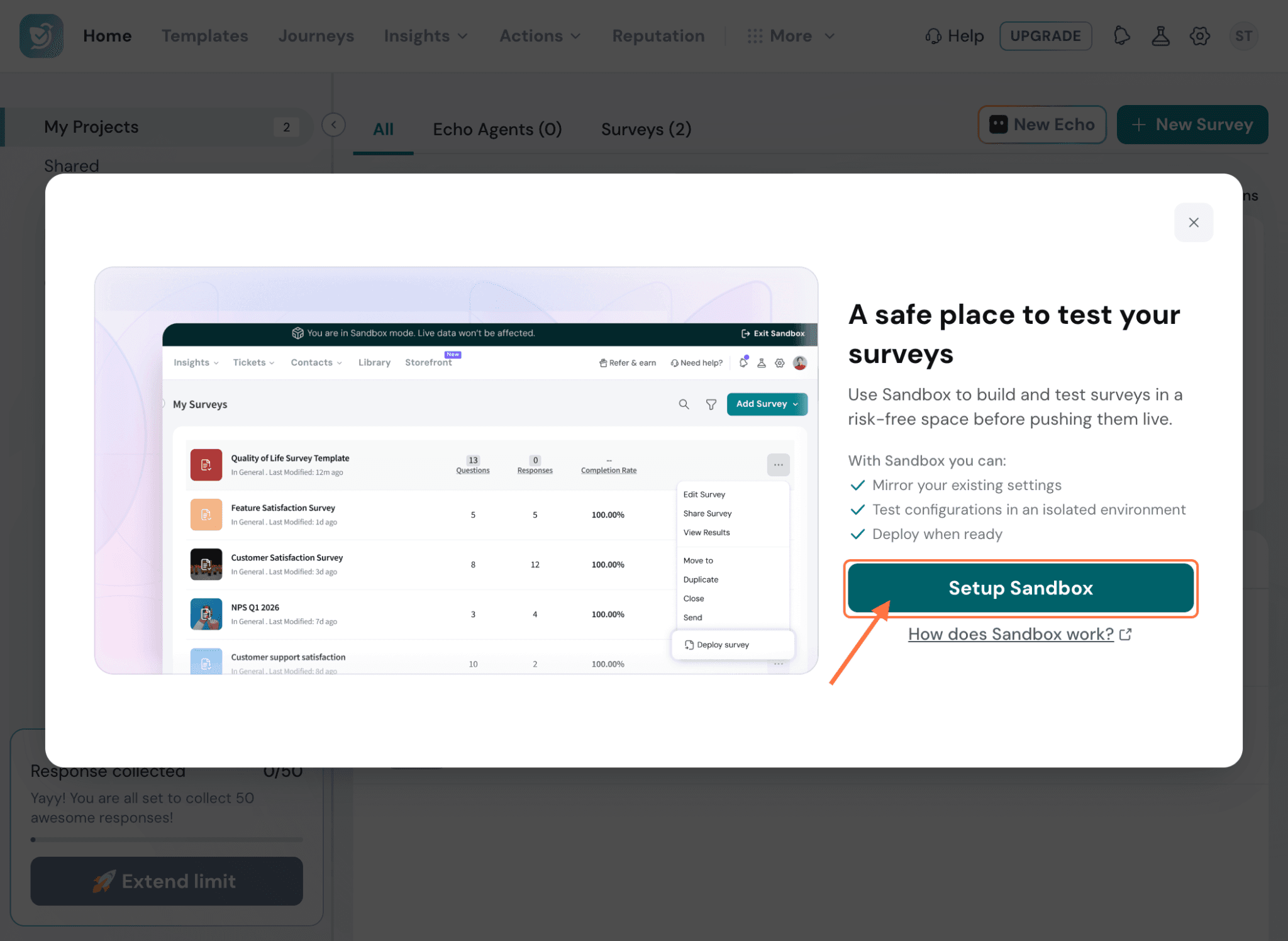
Choosing which survey(s) to bring into Sandbox — you can select what gets included:
a. Survey questions (including variables and formulas)
b. Distribution channels
c. Workflows
d. Webhooks
e. Integrations — not yet supported for cloning (coming soon)
Note: Responses and contact lists are never cloned into Sandbox. Only the survey structure and the items you select above come across — your original survey's response data and contact lists stay untouched in your live account.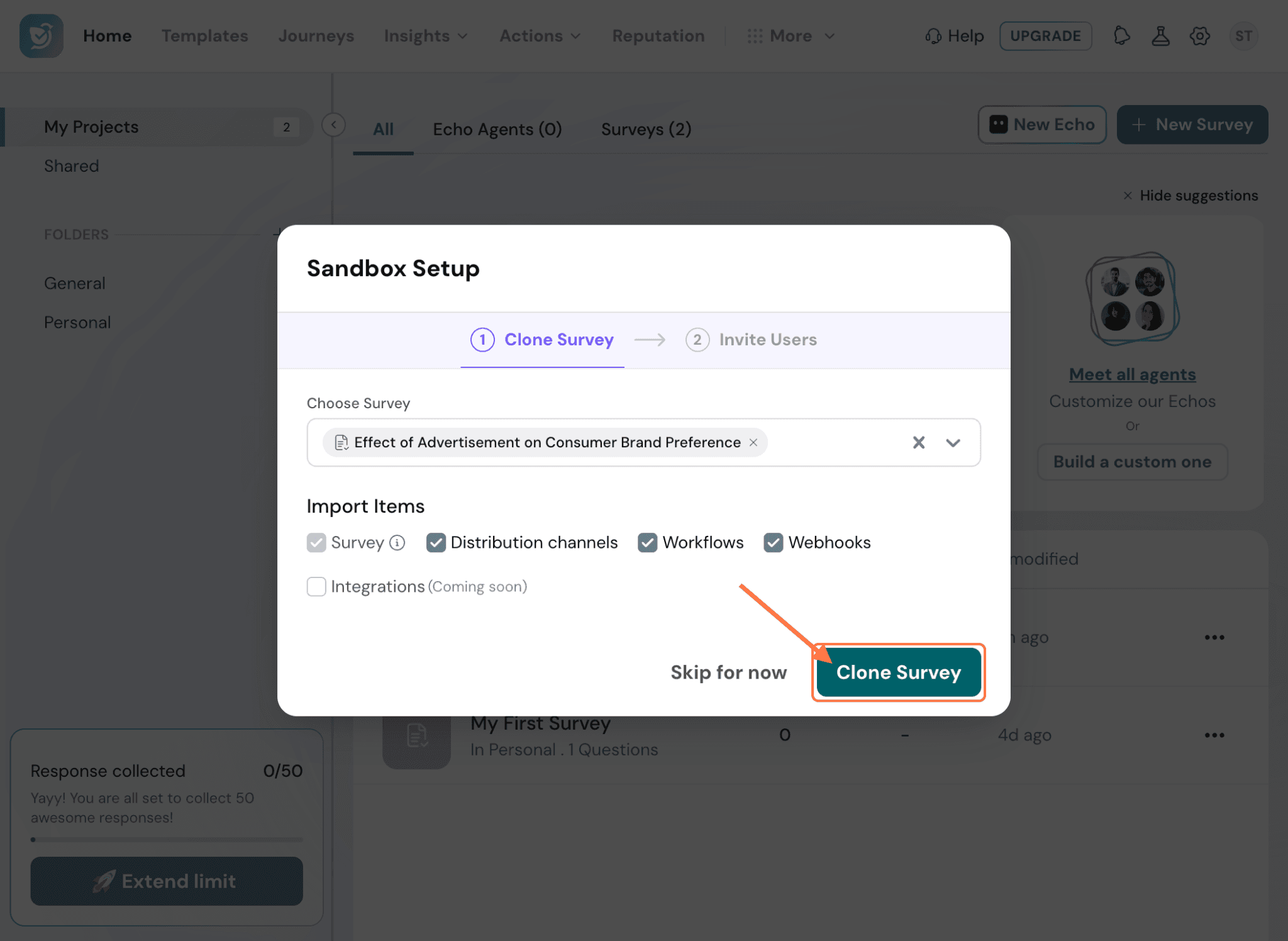
Inviting your team — add people who already have access to your live account, or invite new teammates by email. An invite only grants access to Sandbox, not your live account.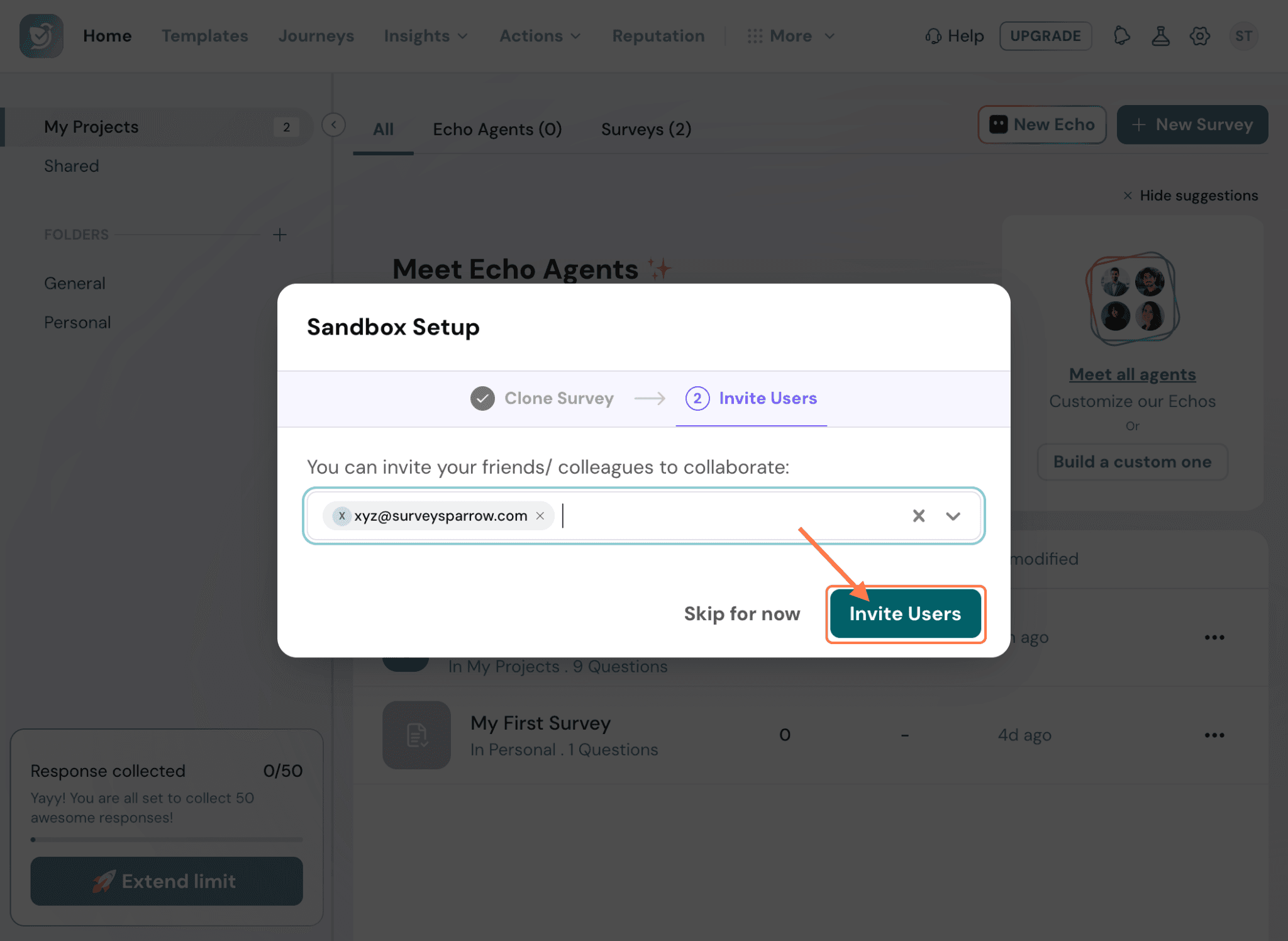
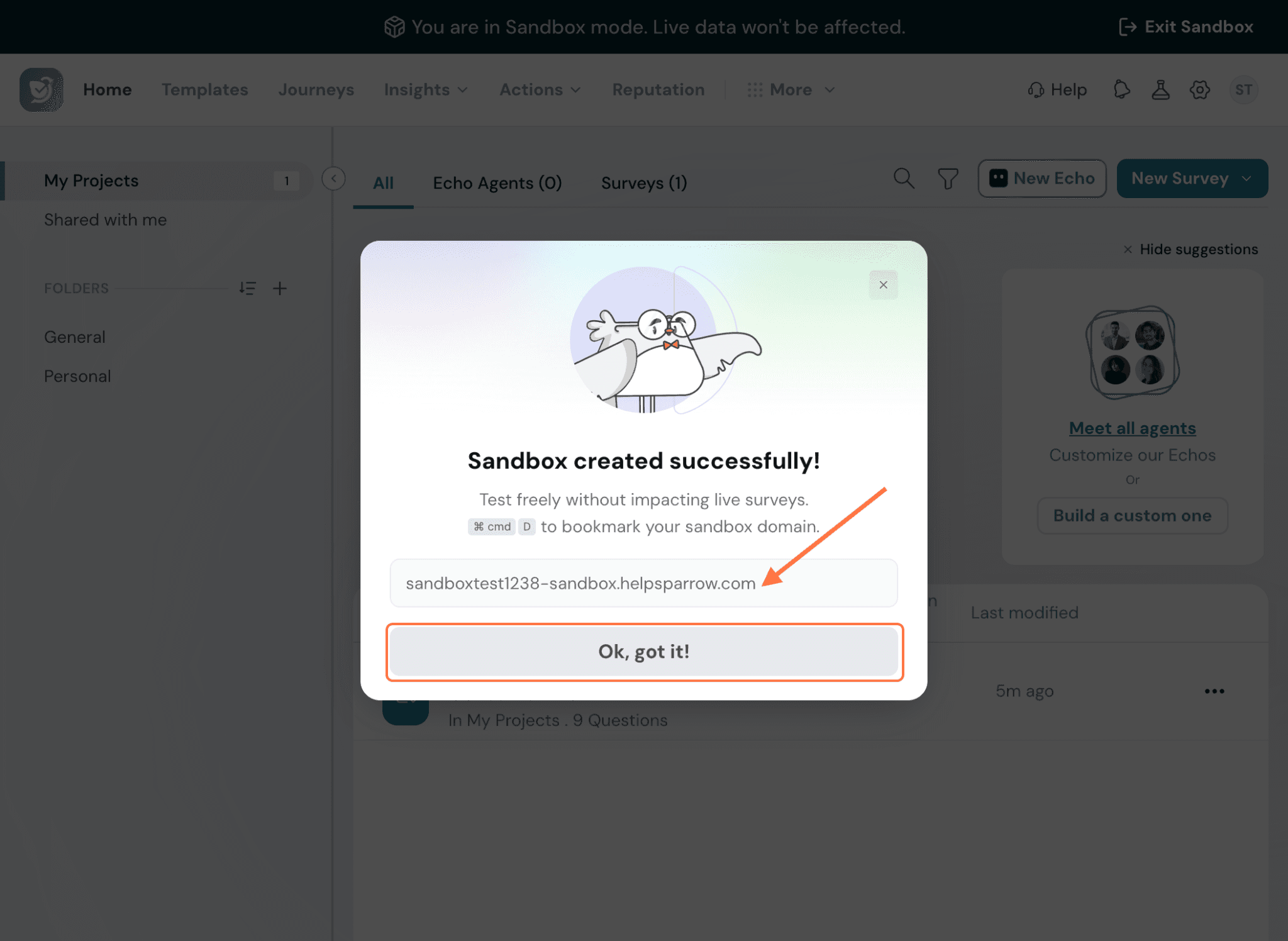
Working inside Sandbox
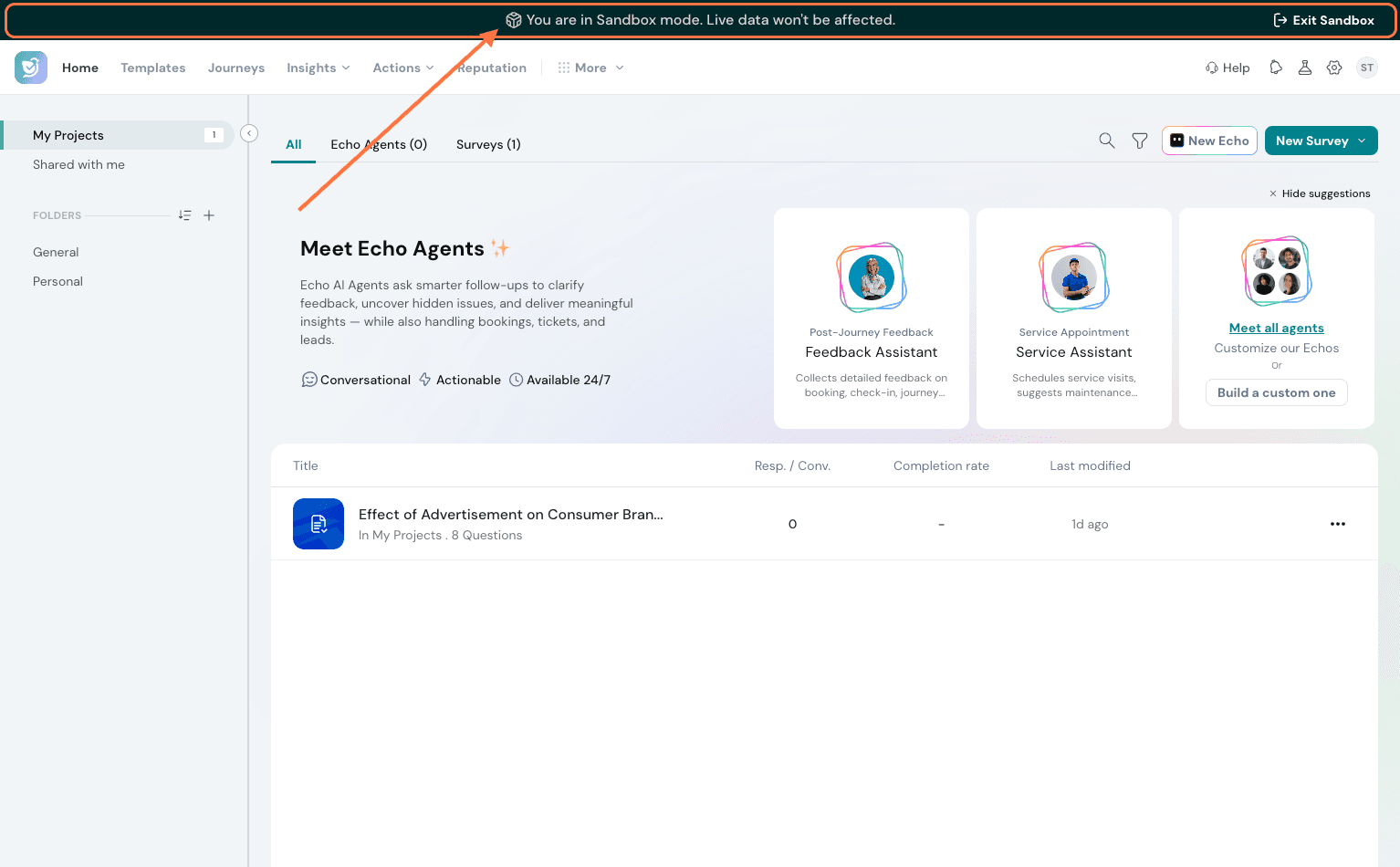
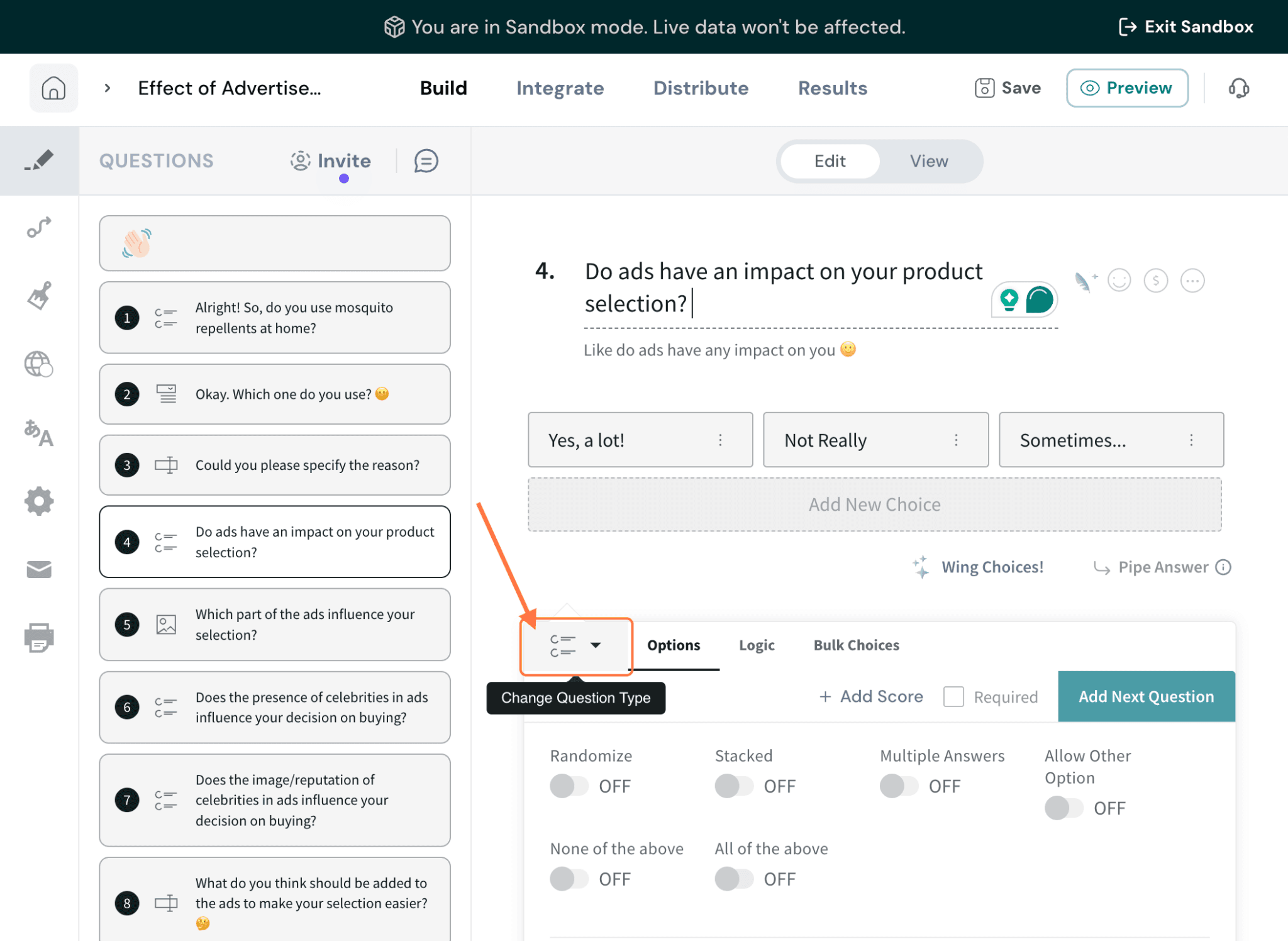
Once you're in, a persistent banner lets you know you're in Sandbox mode so you never lose track of which environment you're working in. You're free to edit anything — questions, logic, workflows, channels — without any risk to your live survey or its data.
Deploying changes back to your live account
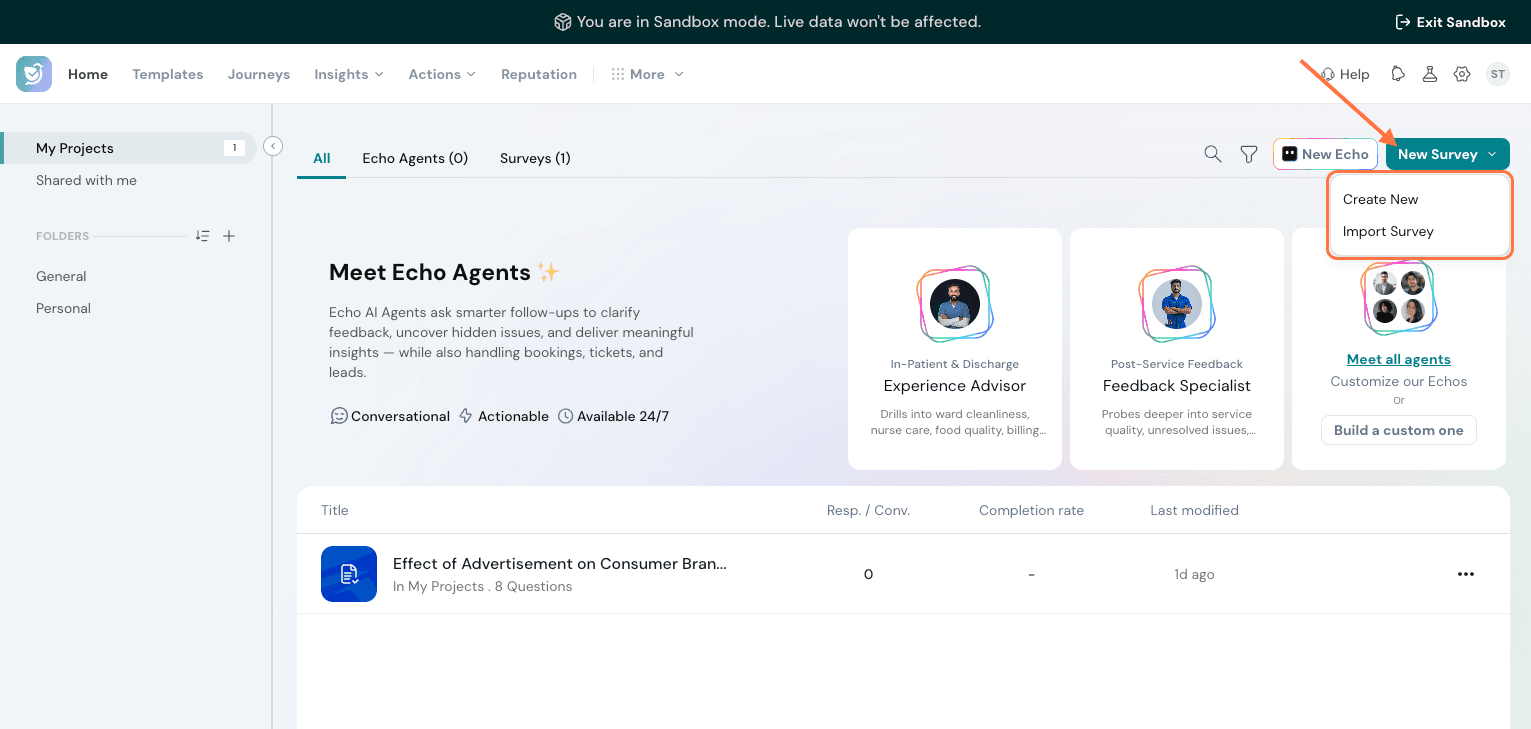
You're free to create a new survey or edit anything in an existing survey — questions, logic, workflows, channels- without any risk to your live survey or its data.
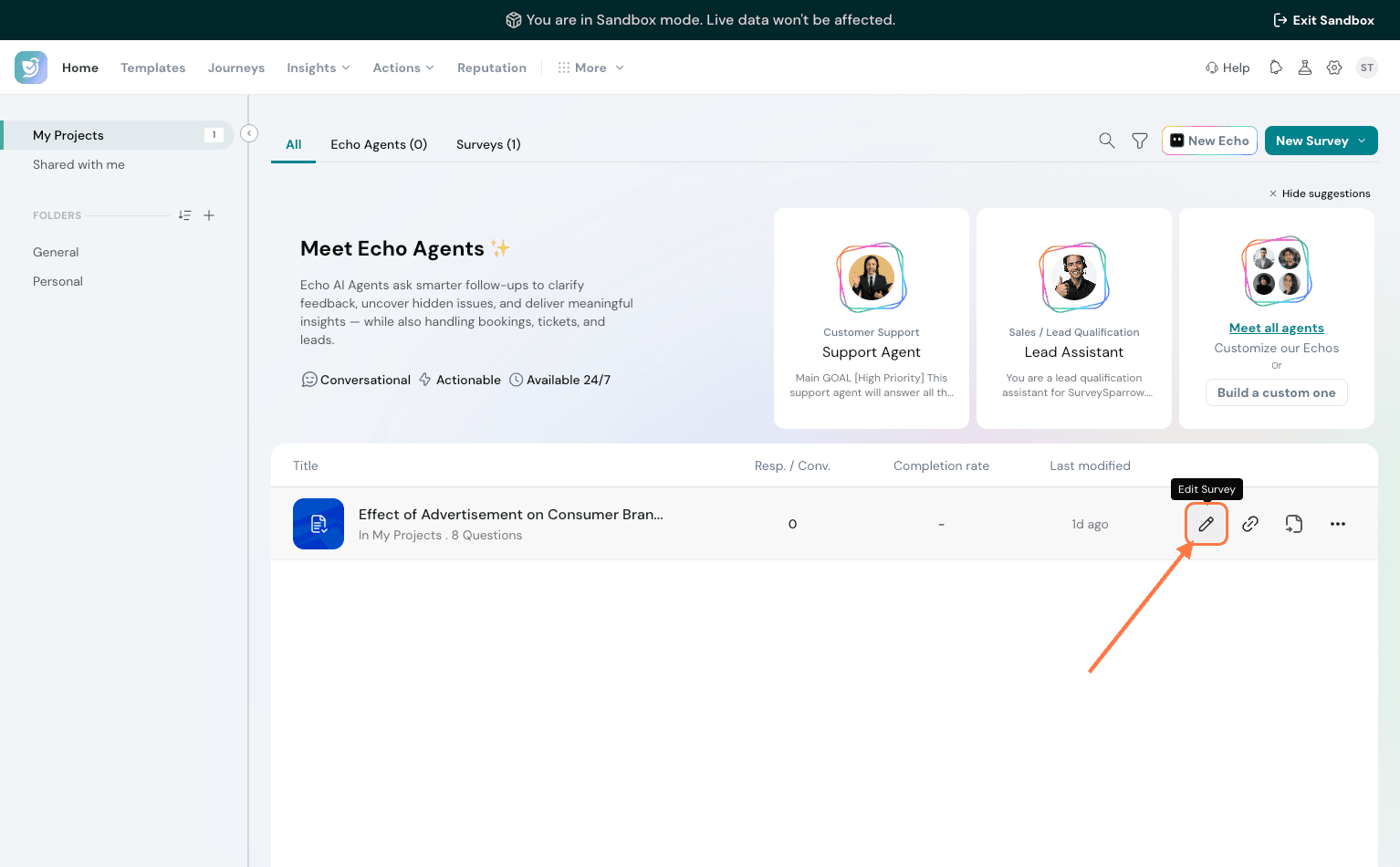
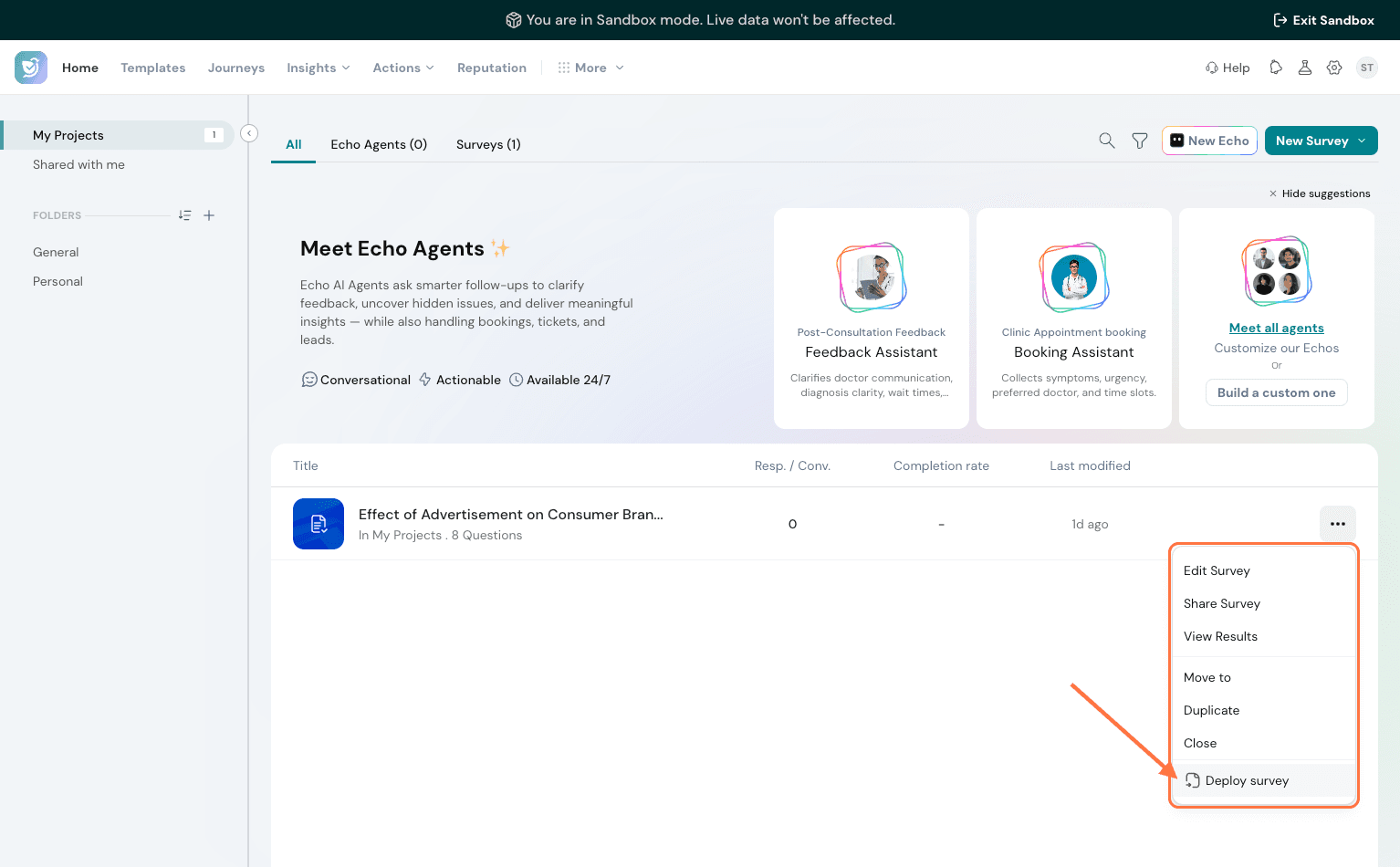
When you're happy with the changes made in Sandbox, you can deploy them back:
Choose to either update your existing live survey with the changes, or deploy as a brand-new survey/version in your live account.
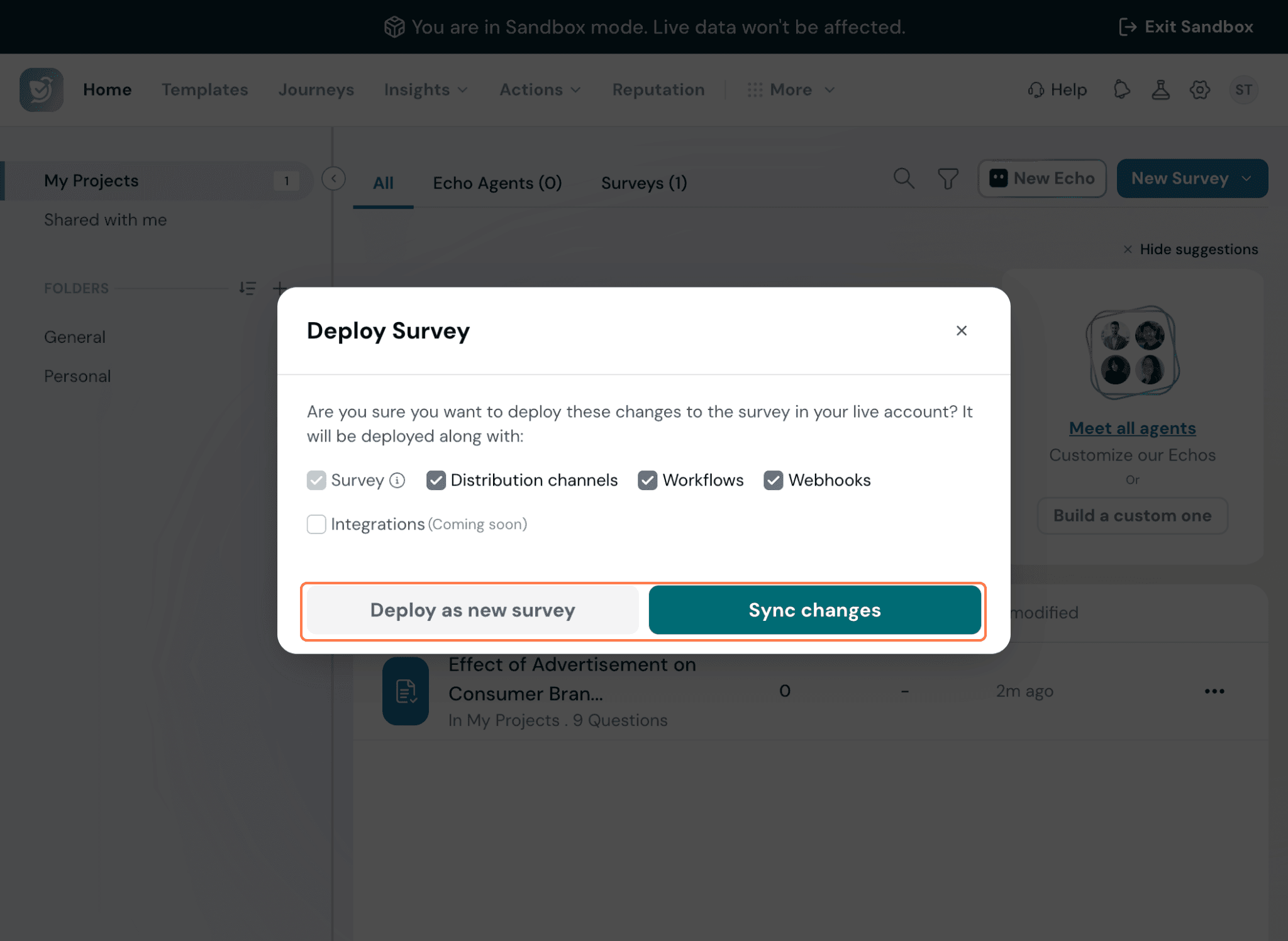
Pick what to bring along — survey only, or including workflows, share channels, variables, expressions, and integrations.
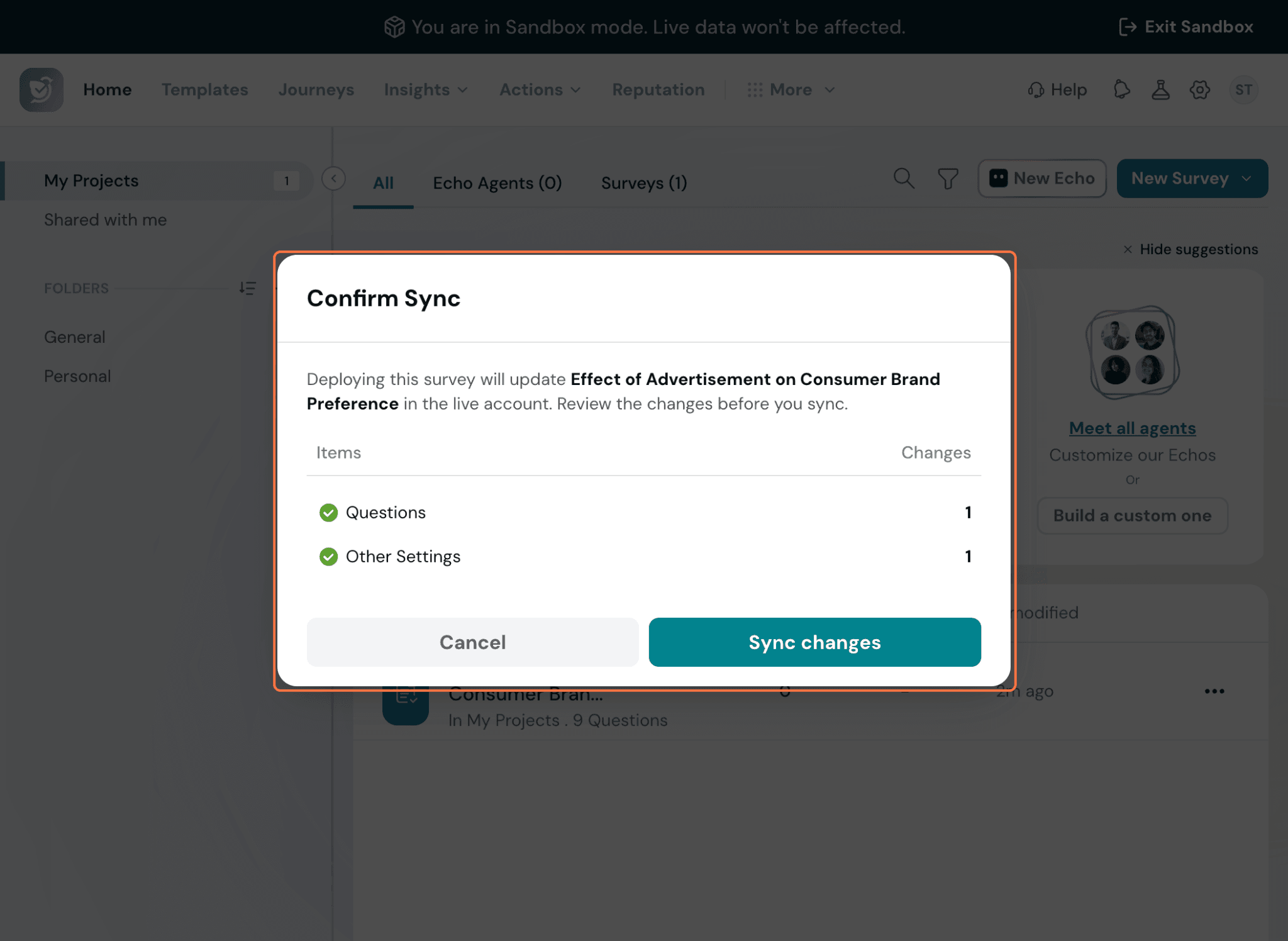
Review a summary of what will change before confirming — for example, "added 2 questions, created 1 variable, added 2 distribution channels."
A few things to know about deployment:
- Unsupported items are automatically excluded. Some distribution/share channels and integrations aren't yet supported for deployment. These will be flagged during the process, and you can choose to proceed without them or cancel.
- Feature gaps are called out before anything breaks. If a survey in Sandbox uses a feature that isn't available on your live account (for example, a question type like Matrix that's been removed from your plan), you'll see a message listing exactly which features are causing the conflict. From there, you can move ahead without those features, contact support, or cancel the deployment.
- Naming conflicts need to be resolved first. If a survey name (or other identifier) conflicts with something already in your live account, you'll be asked to rename it before the deployment can go through.
- Only teammates with access to both your live account and Sandbox can deploy changes back to production.
Good to know
- The sandbox is fully isolated. Responses, contact lists, and any data collected in Sandbox never carry over to your live account, and vice versa.
- Separate quotas and API keys. Sandbox runs on its own usage limits and API keys, independent of your live account, so testing never eats into production resources.
- Everything is logged. Every clone, edit, and deployment action is tracked in an audit log — who did what, when, and to which survey — so you always have a clear trail.
Sandbox account quotas
Your Sandbox account has its own separate usage quotas, including responses, emails, and other limits, independent of your live account. This ensures your testing activity doesn't consume your production resources.
To view your current usage and available quotas:
- Inside your Sandbox account, click on the Settings icon.
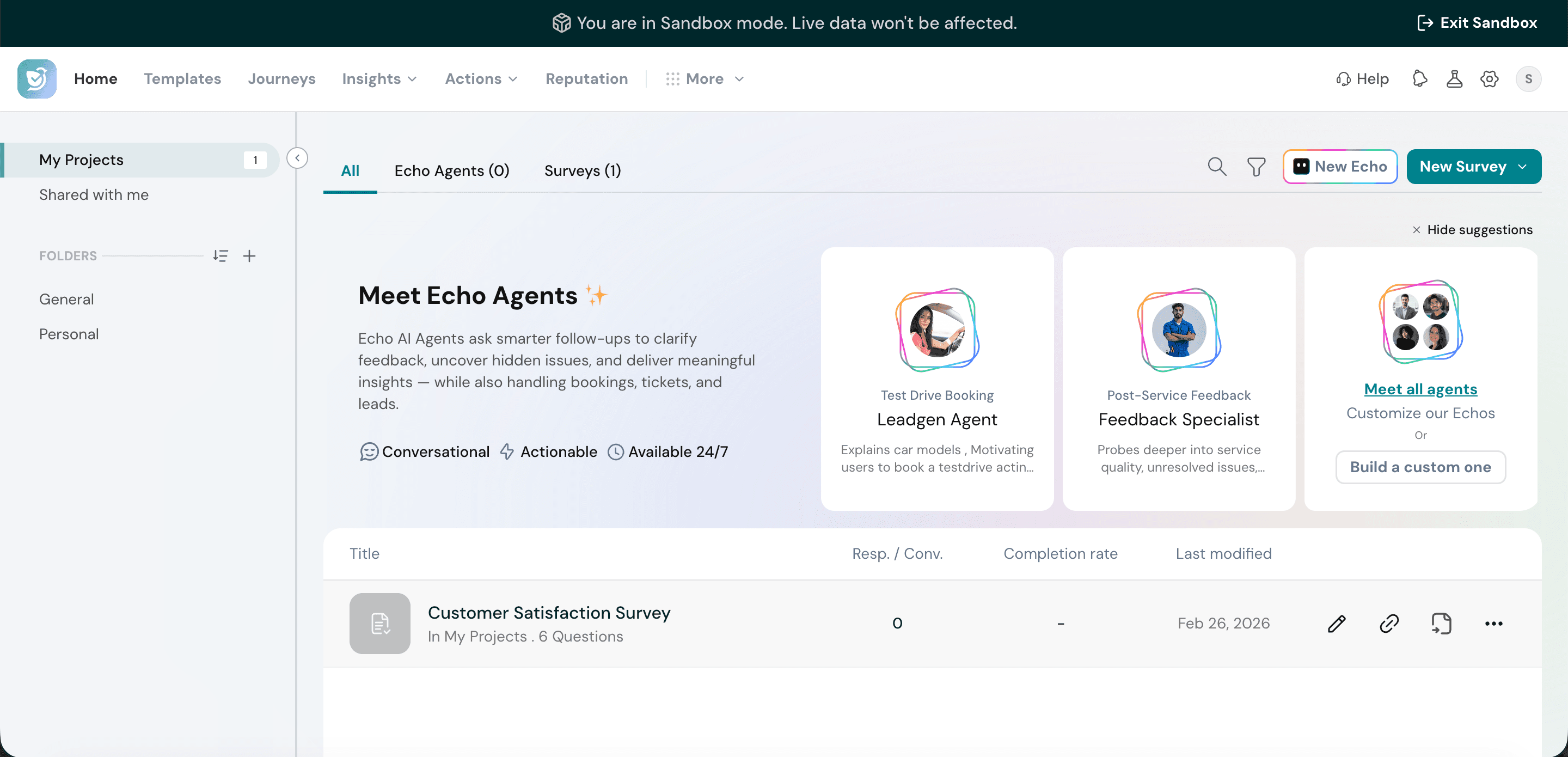
- Navigate to the Billing section and select Usage. You'll see a breakdown of your quotas across responses, emails, and other resources.
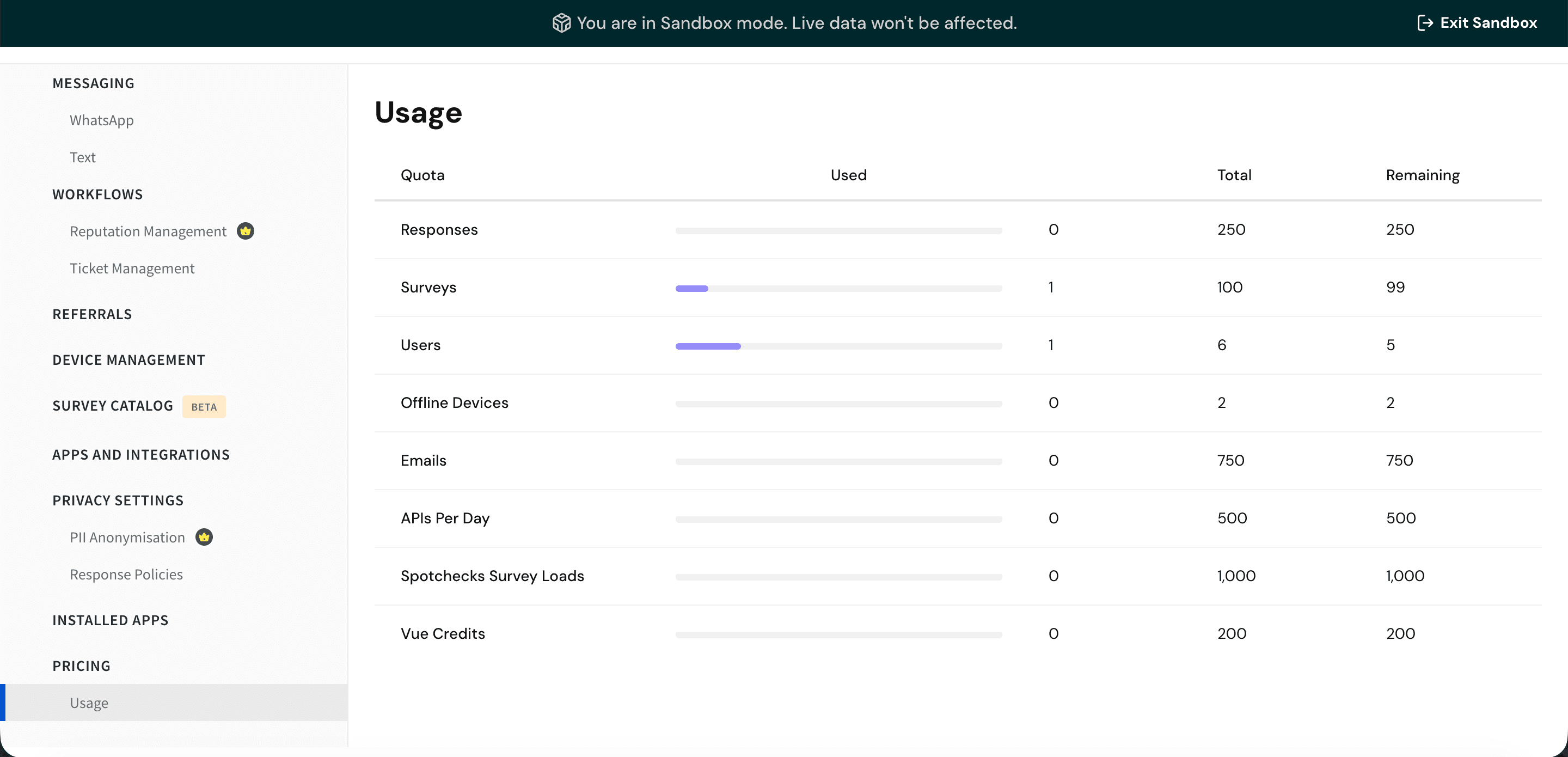
Note: If you need additional quota for your Sandbox account, please reach out to our support team.
FAQs
- Will my live survey be affected while I'm working in Sandbox?
No. Changes in Sandbox stay in Sandbox until you explicitly choose to deploy them.
- What happens to responses collected in Sandbox?
They stay in Sandbox and are never carried over to your live account, even when you deploy a survey.
- Can I bring integrations into Sandbox?
Not yet — integration cloning is coming soon.
- What if my live account doesn't support a feature I used in Sandbox?
You'll be notified of the specific features affected during deployment, and can choose to proceed without them, contact support, or cancel and adjust in Sandbox first.