
Search

BigQuery is Google's fully managed, serverless data warehouse that enables scalable analysis over petabytes of structured and semi-structured data using standard SQL queries. SurveySparrow's integration with BigQuery allows users to import their survey responses to BigQuery tables.
Users can automate exports of survey response data to BigQuery. They can create conditional data syncs to import only specific responses. They can import bulk responses or apply date filters to import responses that arrived on and onwards from a specific date.
This integration eliminates manual exports and enables seamless data pipelines. It is built for data, CX, and analytics teams who want survey data ready for querying, reporting, and modeling without manual exports or pipelines. Some valuable use cases include:
In this article, we'll walk you through the processes of connecting your SurveySparrow account to BigQuery and creating response mappings, specifically:
1. Inside your SurveySparrow account, click on the settings icon.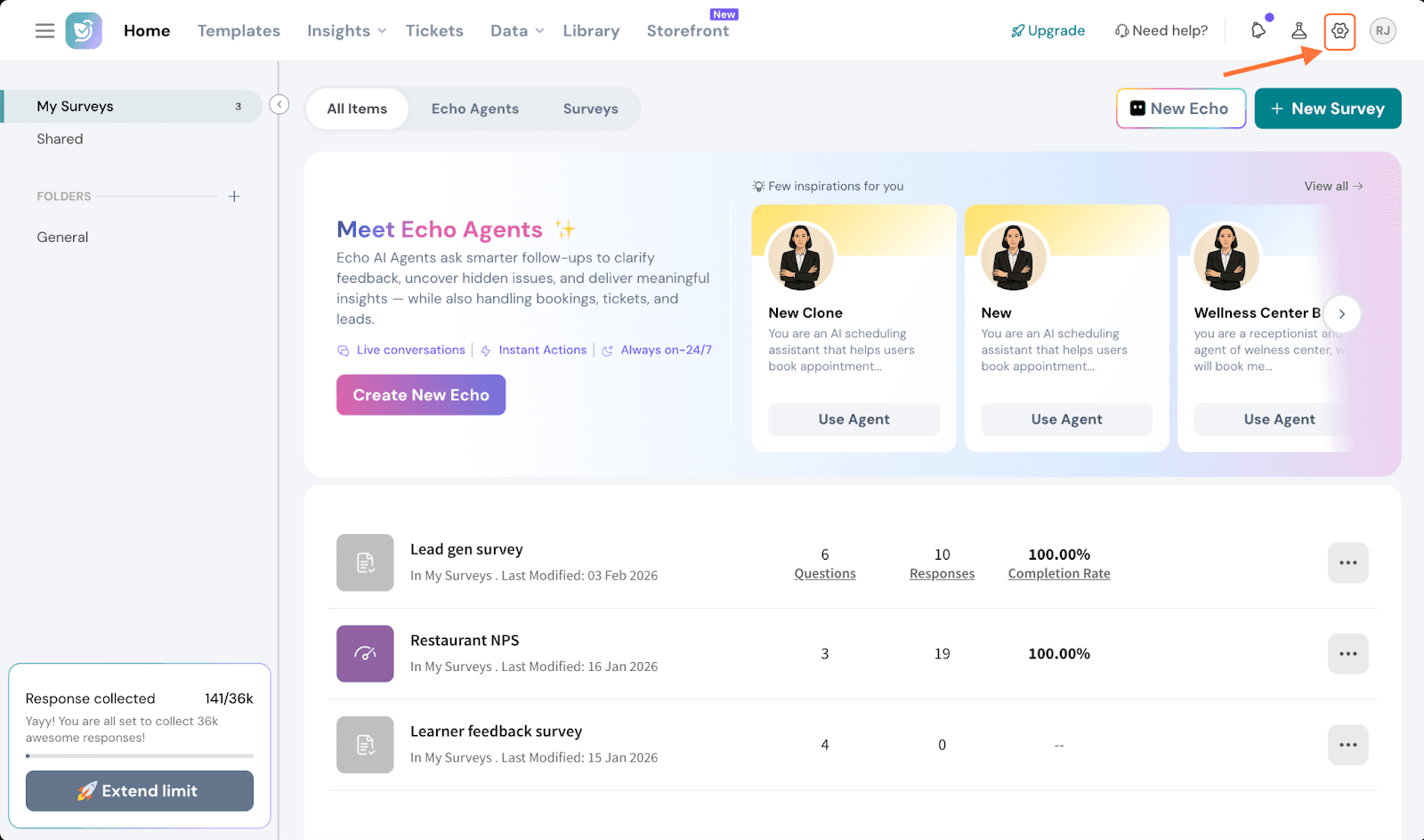
2. Scroll down the left panel in the settings page till you see the Apps and Integrations option, then click on it.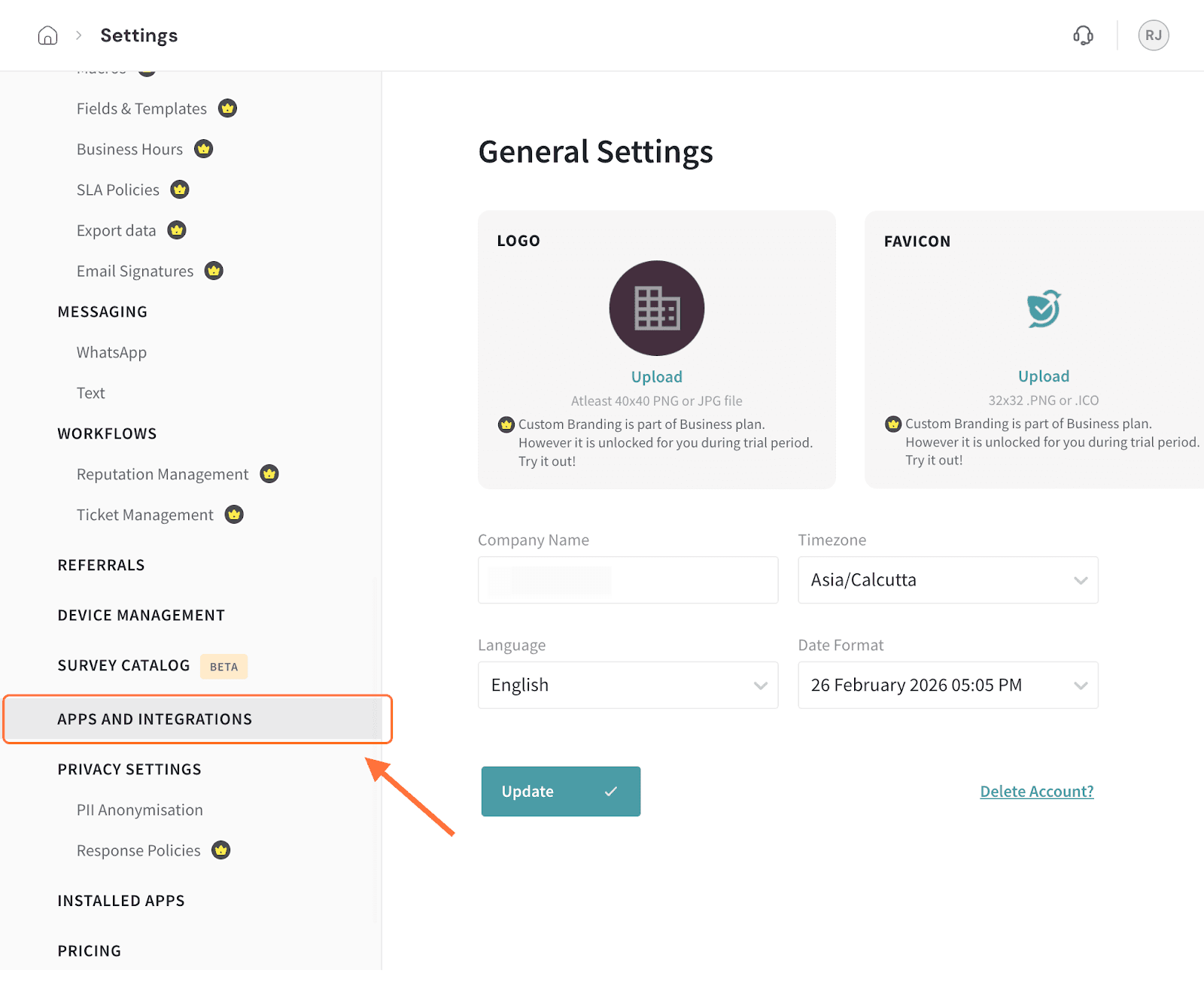
3. Search for the BigQuery integration using the search box (or scrolling through the integrations), then click on the toggle when you see it.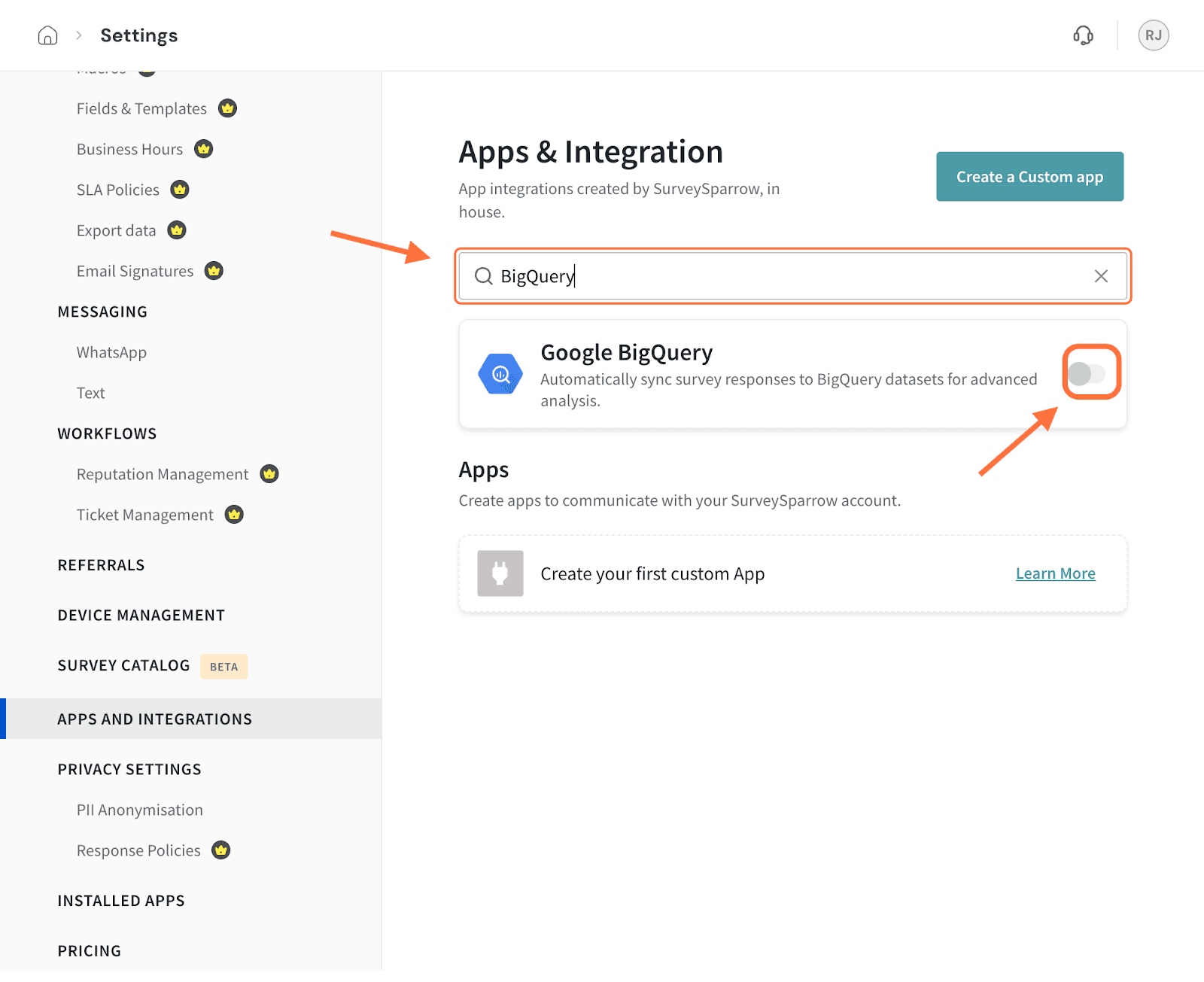
4. Next, in the setup screen you’ll need to enter your Google Cloud Project ID.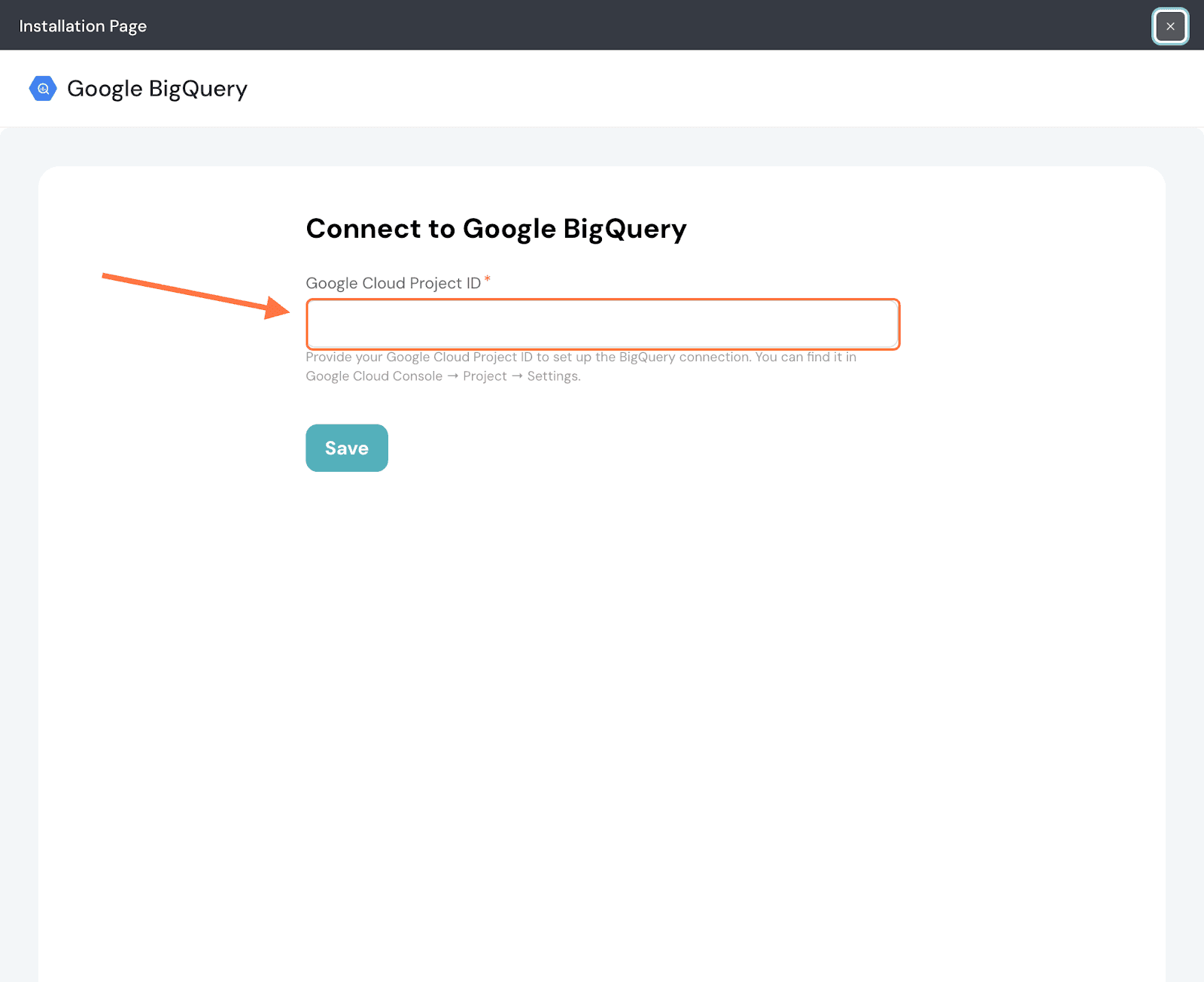
Note: To find your project ID, open your BigQuery project, then click on the vertical 3-dot icon in the top right corner. Then click on Project settings.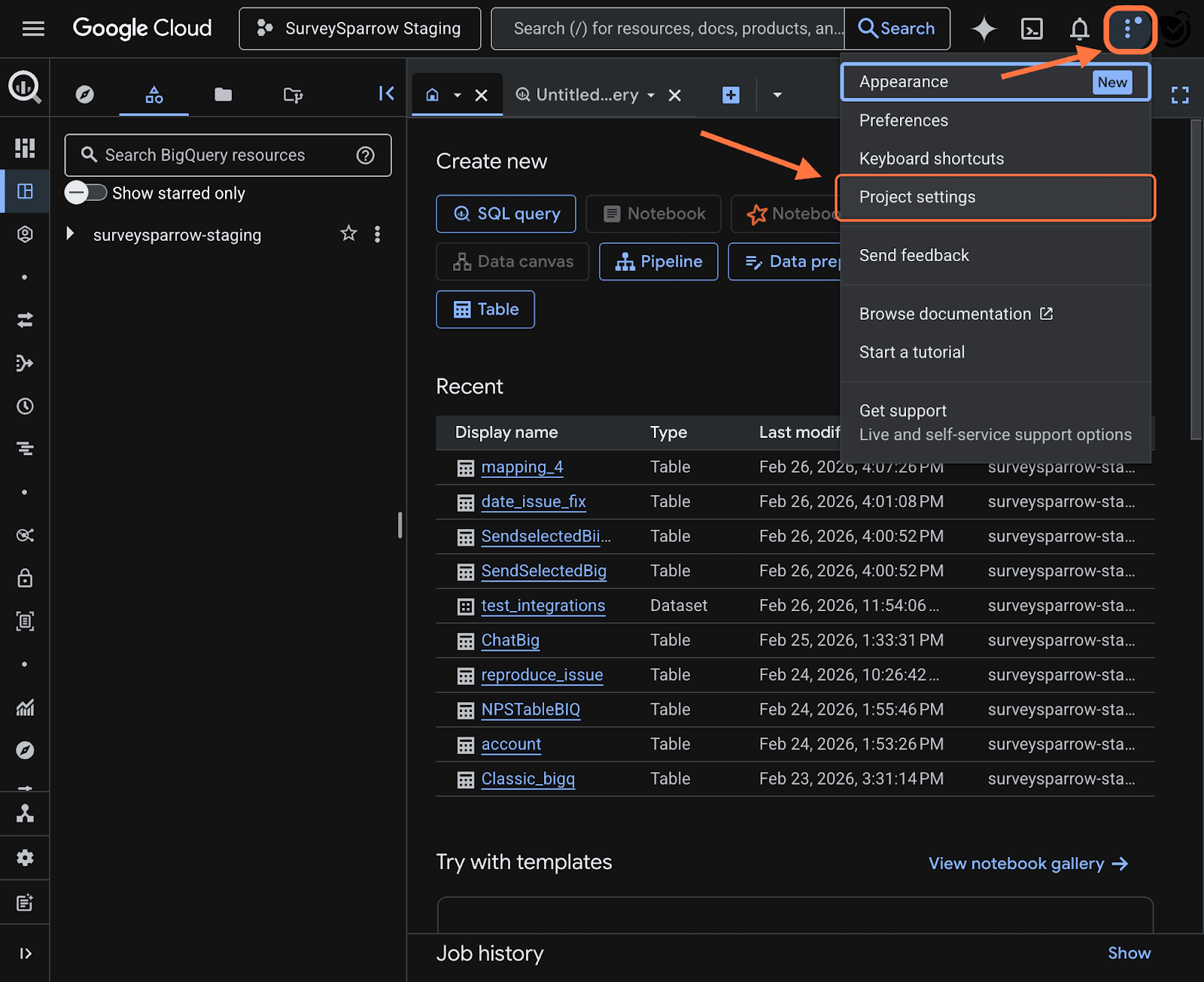
In the settings page, you’ll see the Project ID, copy and paste it back in the SurveySparrow configuration section.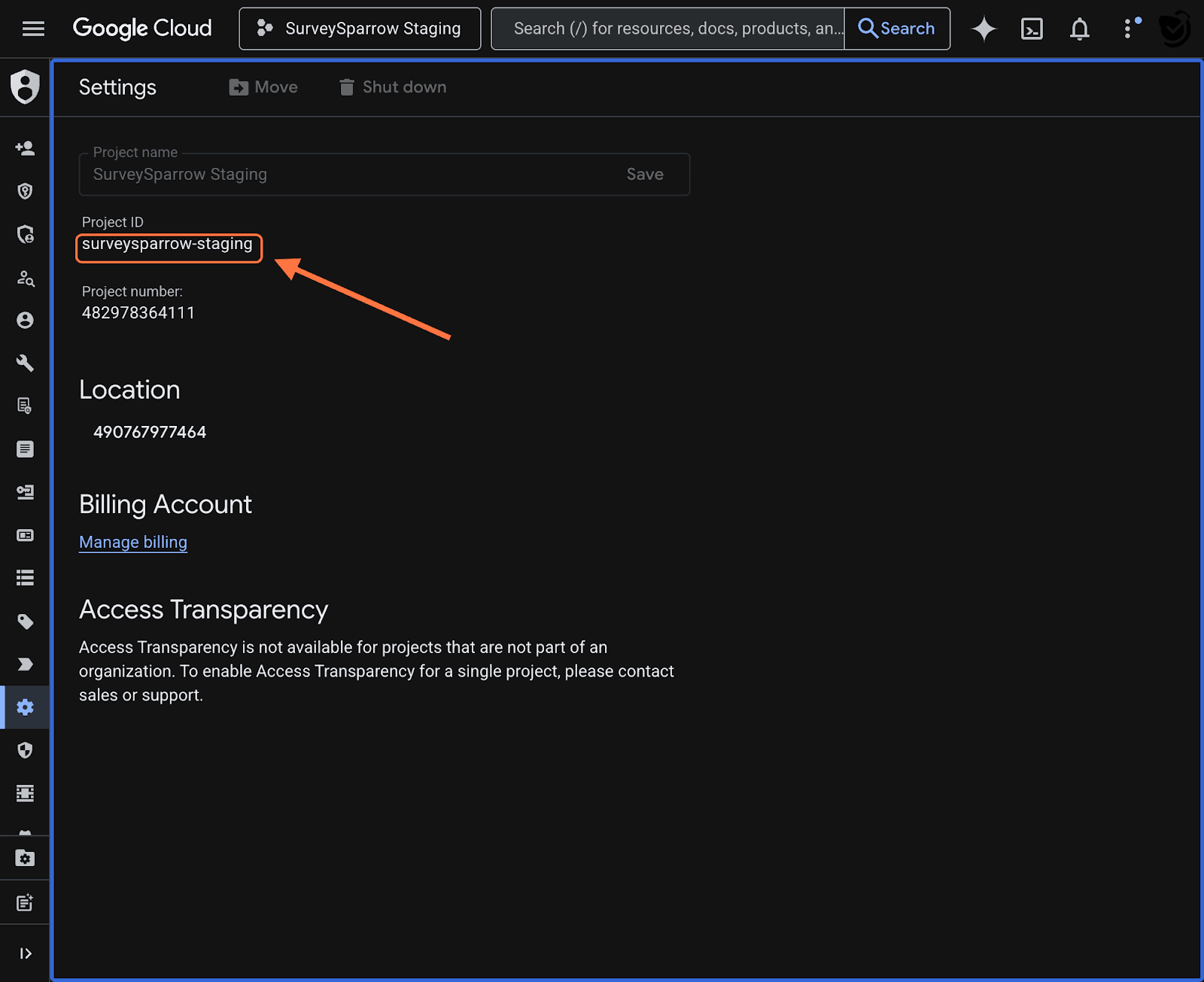
5. After entering the Project ID, click on Save.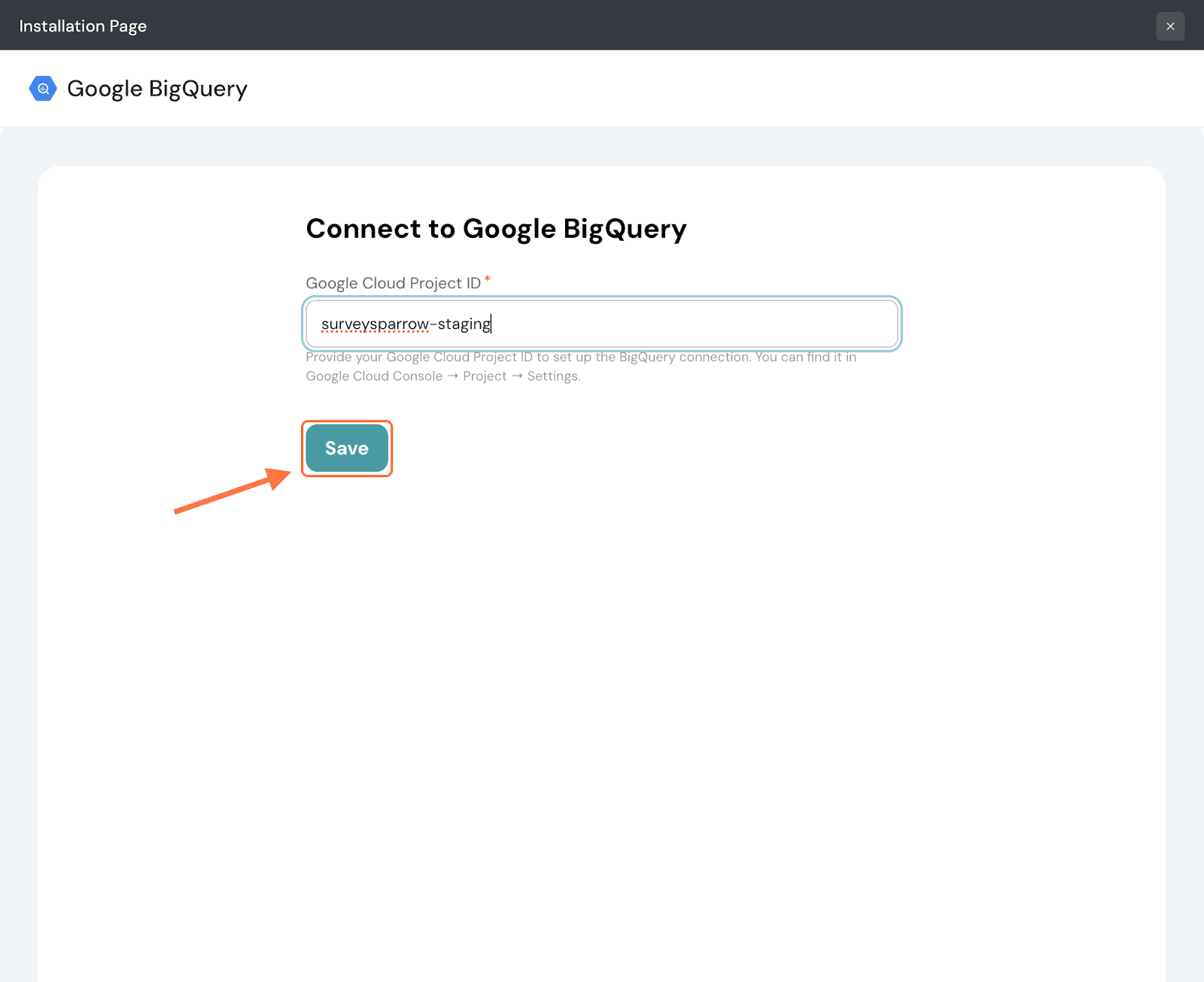
6. You will be asked to choose a Google account to complete OAuth. Select the account connected to BigQuery.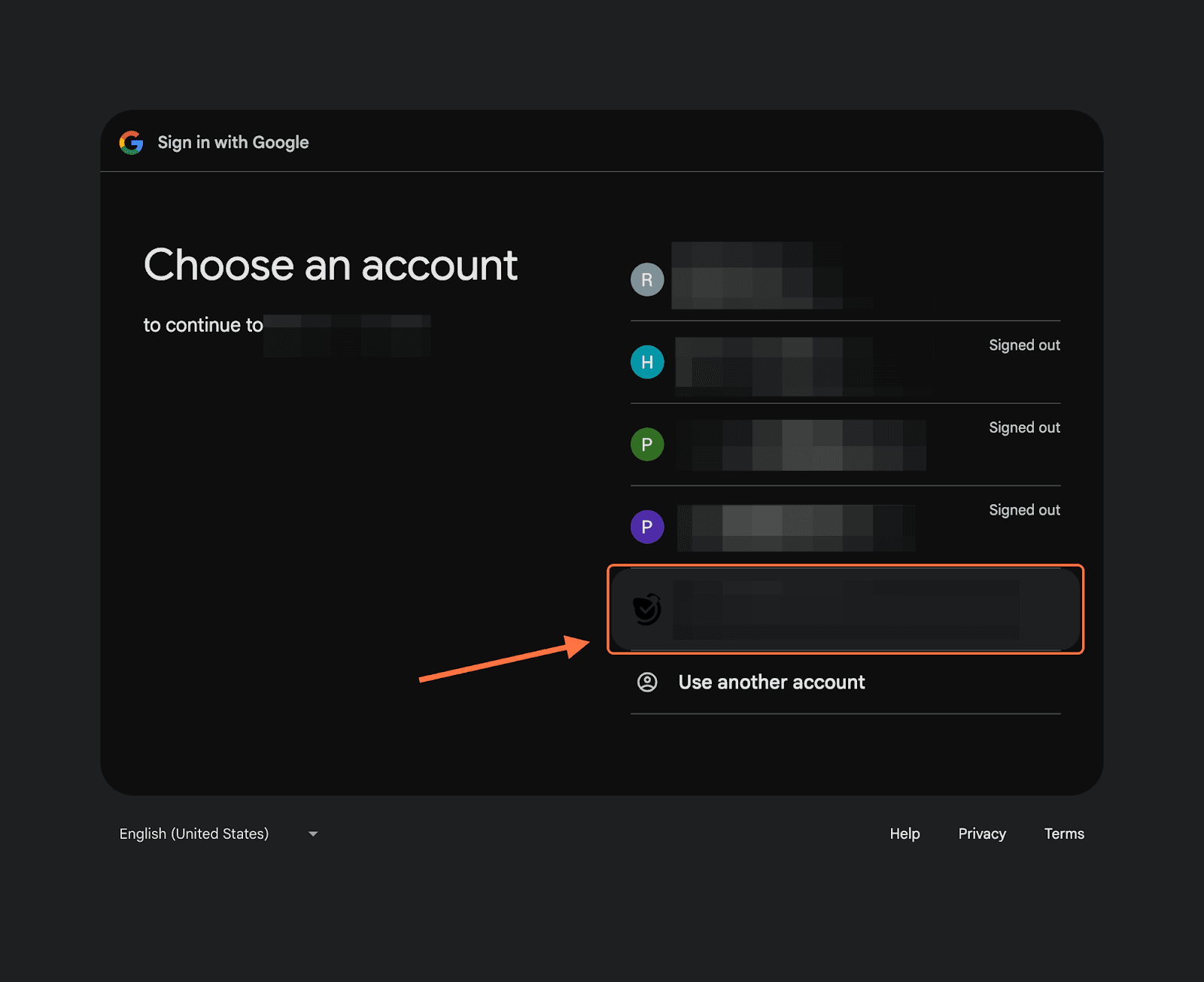
7. Click Continue.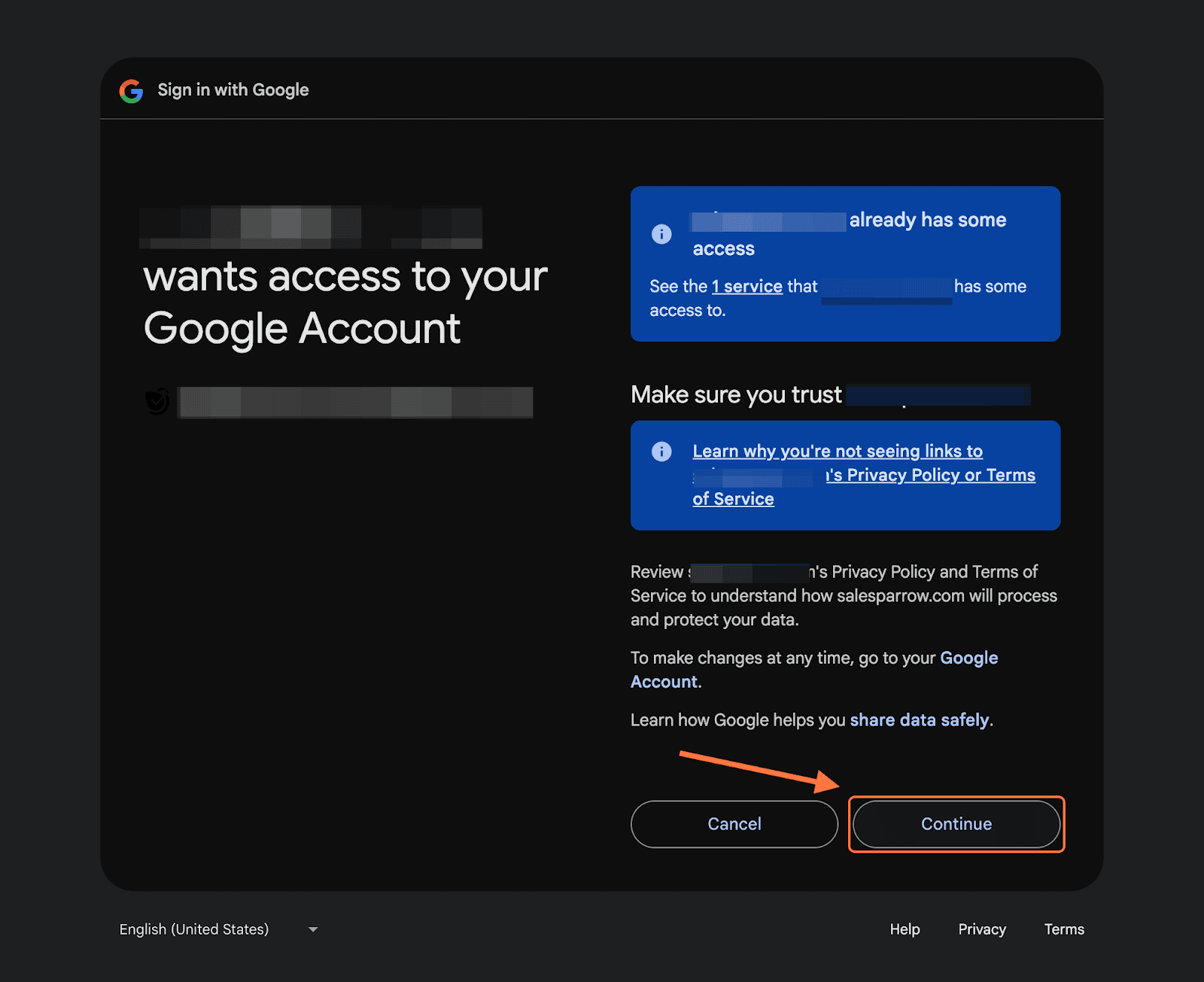
1. Open a survey and click on the Integrate/Configure tab.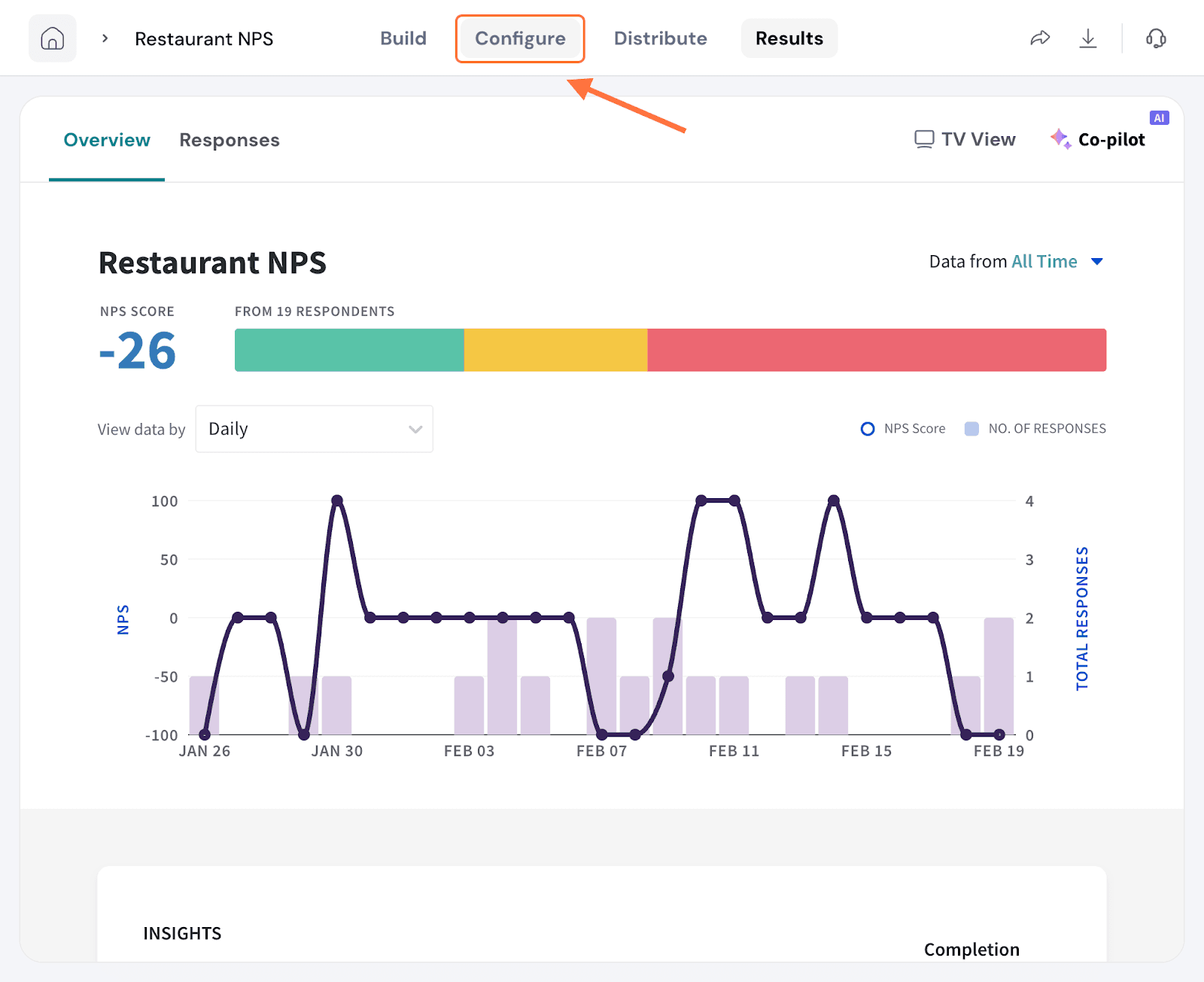
2. Search for the BigQuery integration using the search box (or by scrolling through the integrations). When it appears, click on the toggle.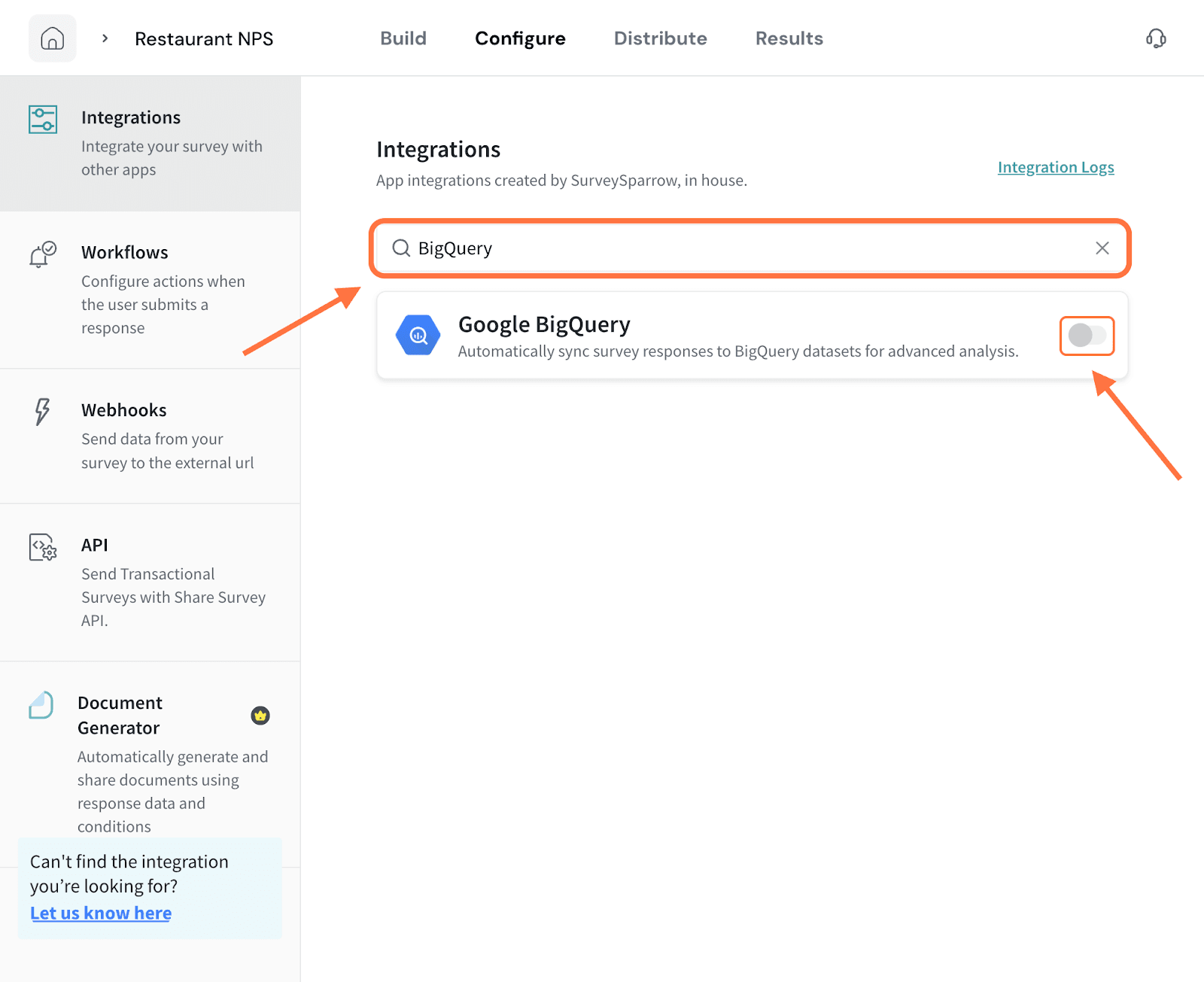
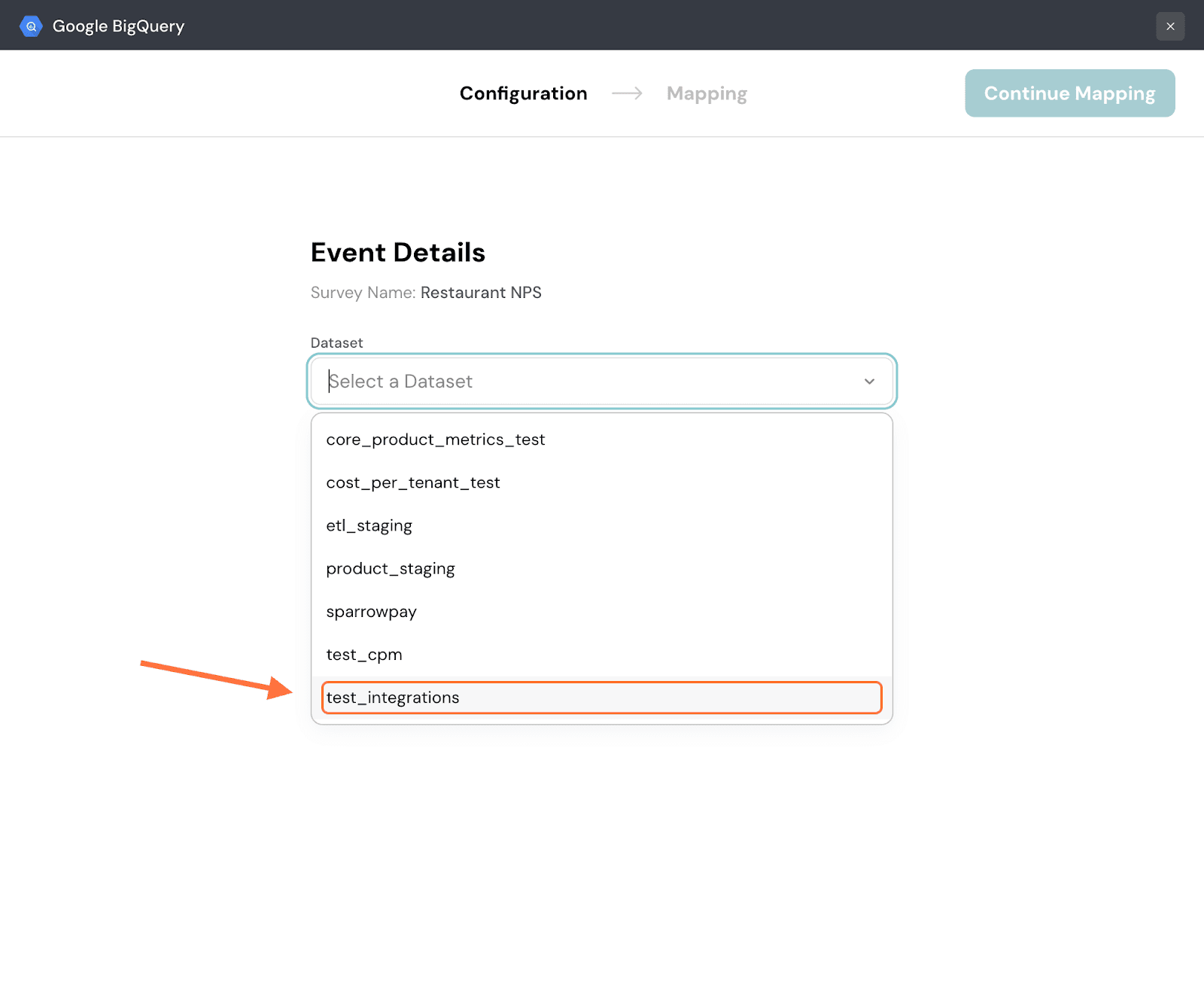
3. When the integration setup screen opens, you must first select the destination in BigQuery where the data is to go. Start by selecting the dataset. Click on the dropdown menu under Dataset and choose from the options.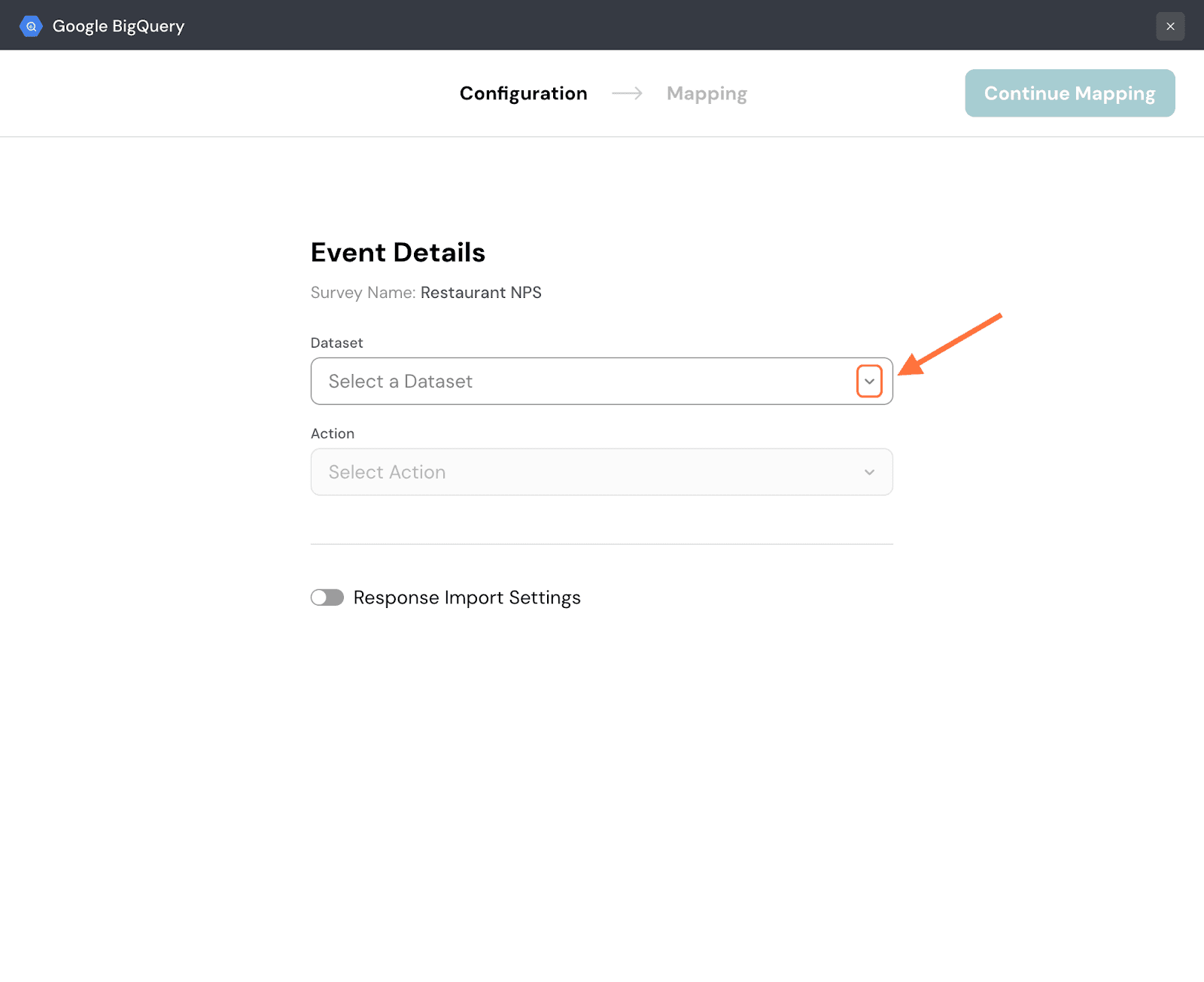
4. Next, you must select the table to which you want to push the survey data. But you can either choose an existing table from the dataset or create a new one. Click on the dropdown under Action to decide. Both actions have different flows. We’ll first start with an existing table.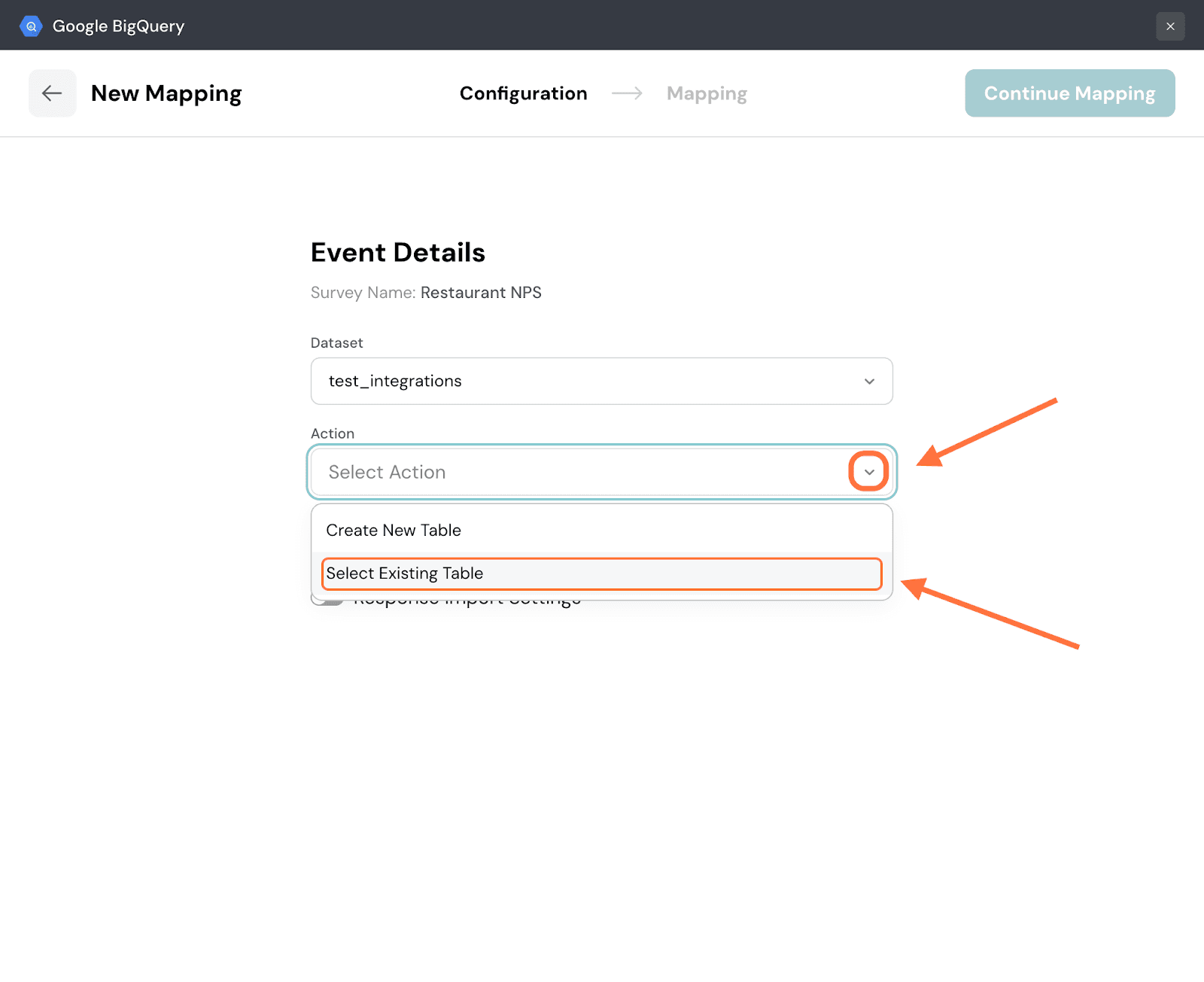
5. Open the drop-down under Table and select an existing table.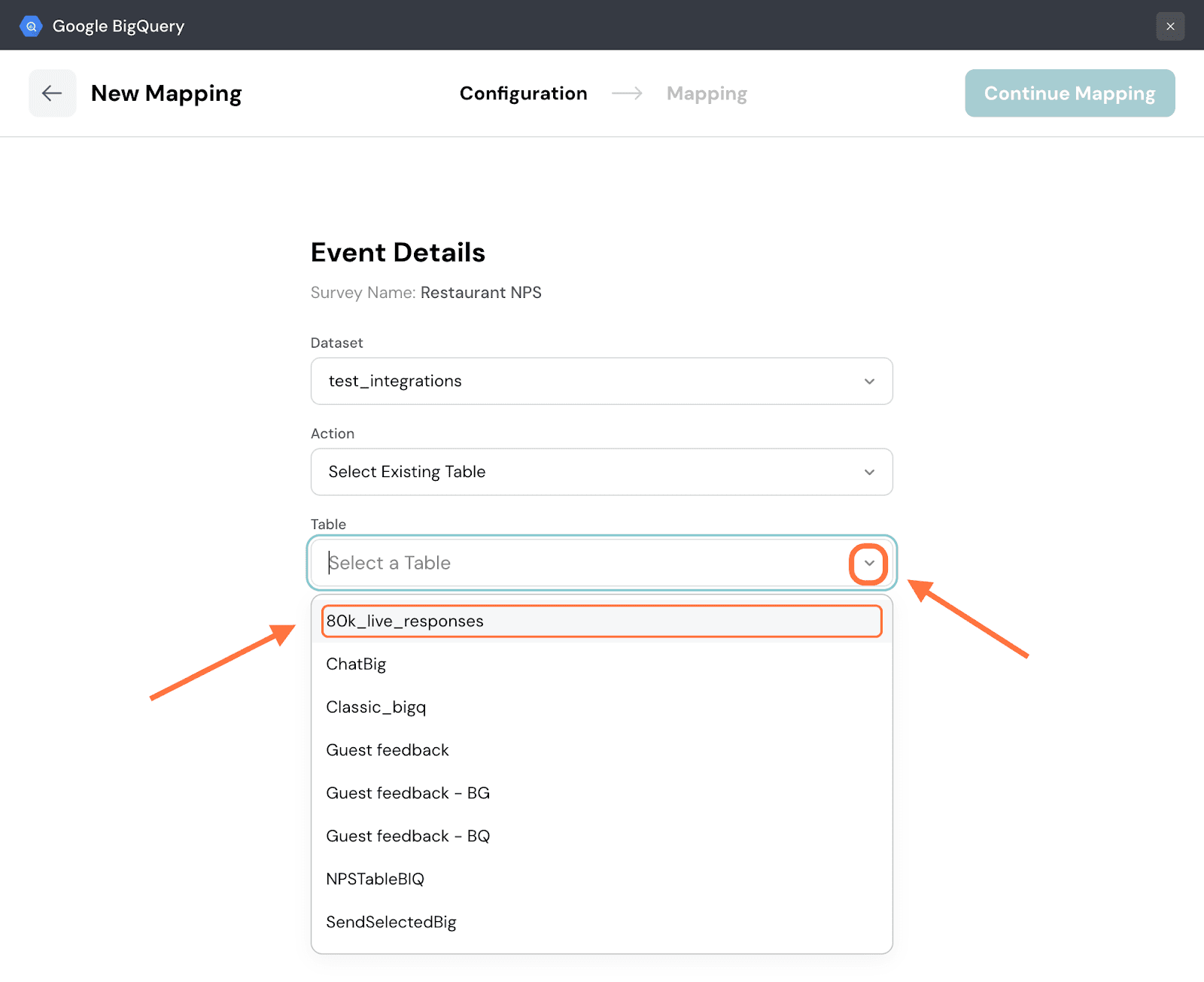
6. By default, only new responses will be imported. If you want to only import responses from a specific date, click on the toggle next to Response Import Settings, then hover over the Specific Date option. A calendar will appear.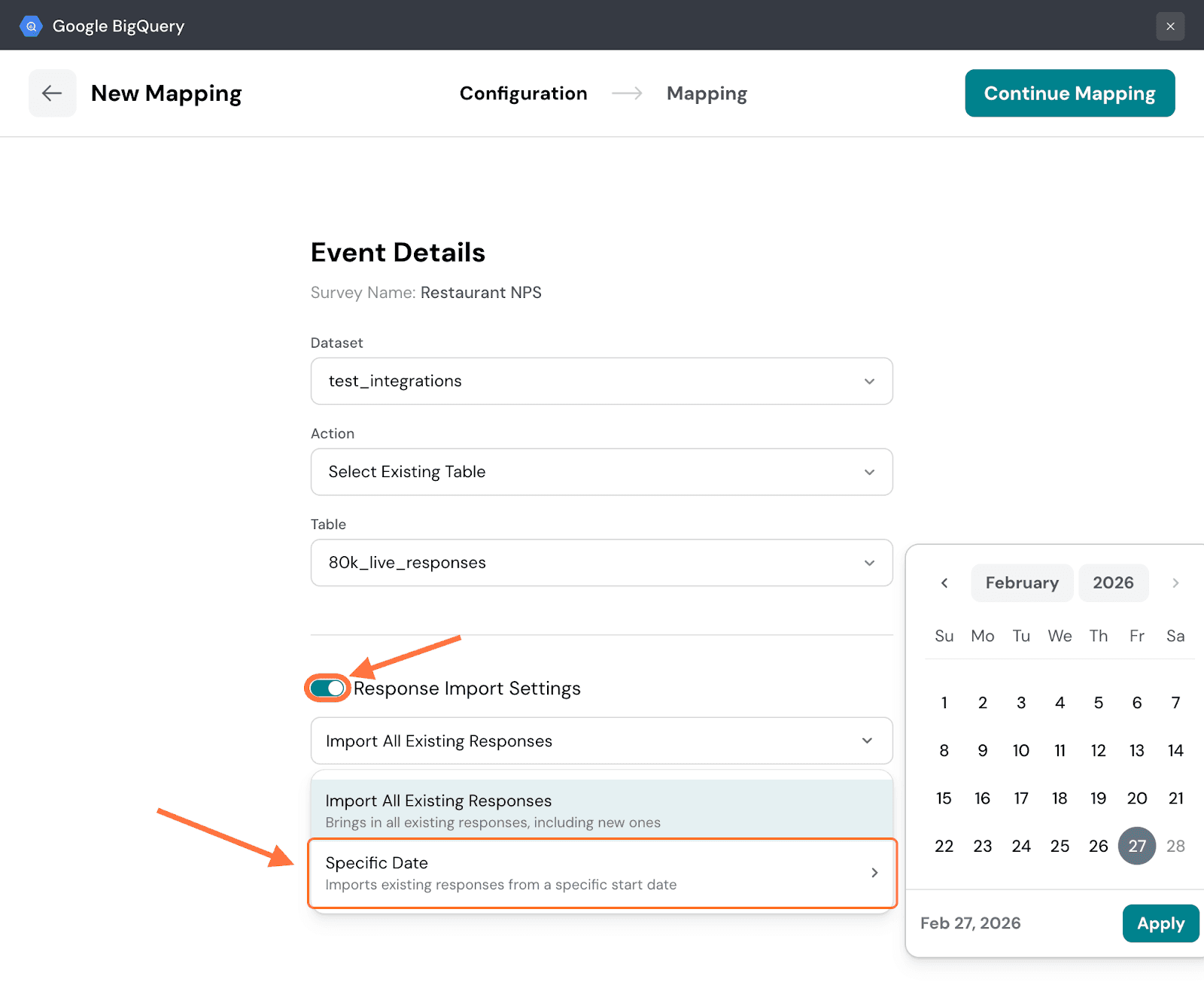
Note: You can also import all responses - existing and new by clicking on the first menu option.
7. Select a specific date from the calendar and click Apply.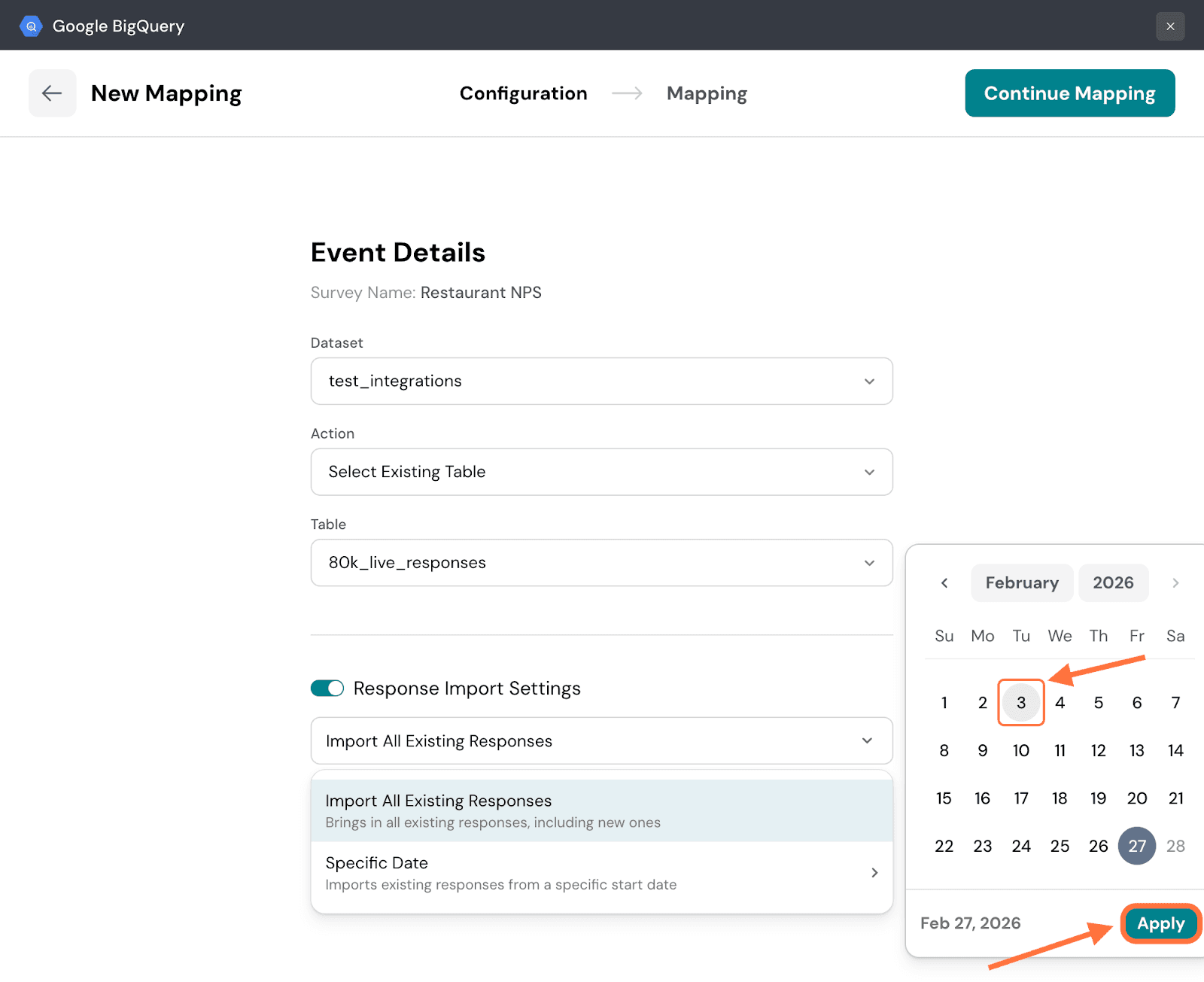
8. Click on Continue Mapping.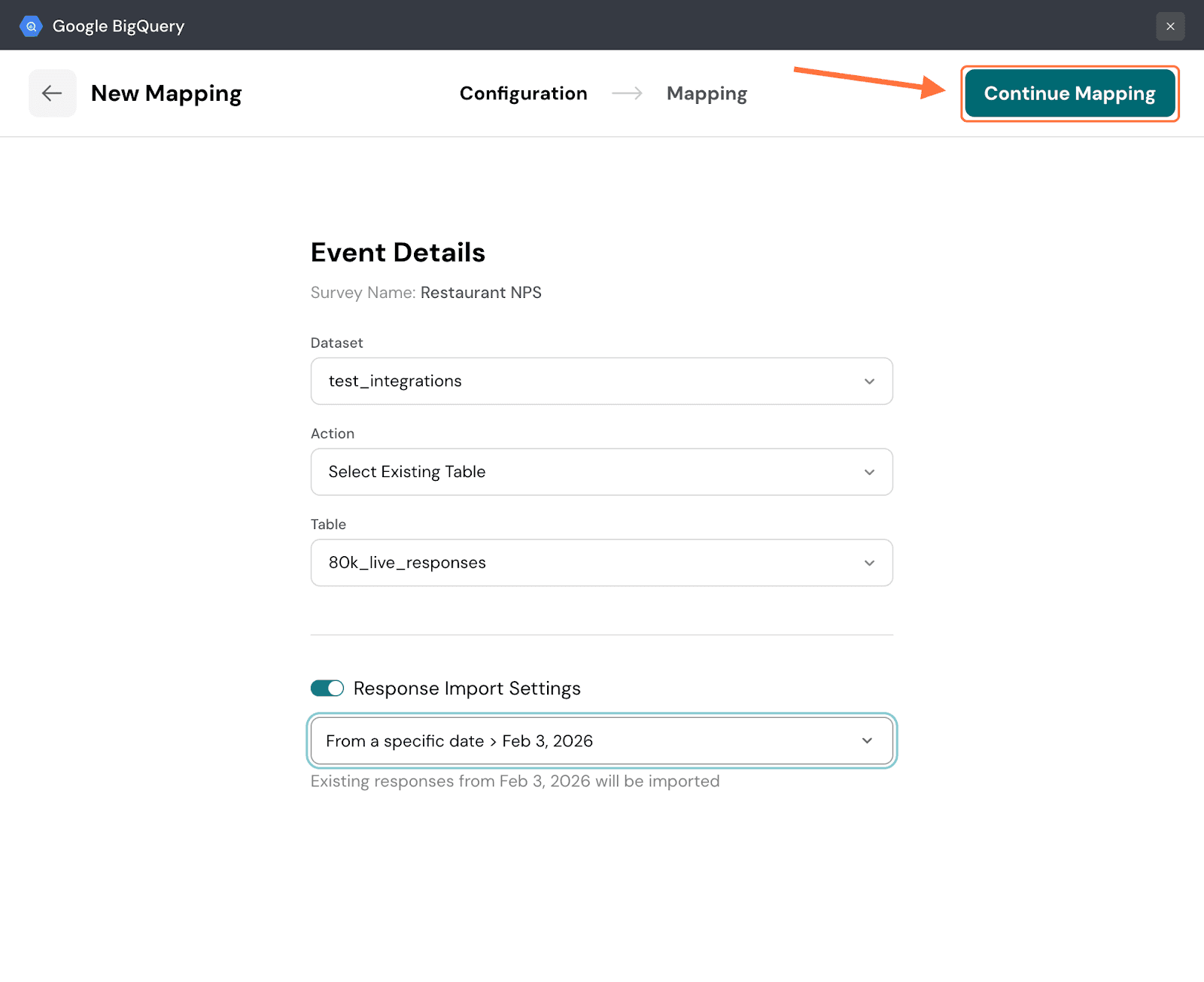
9. Now in the Mapping section, you need to configure which response properties are going to BigQuery. First you can set conditions to decide which type of response gets synced to BigQuery. Click on Set Conditions.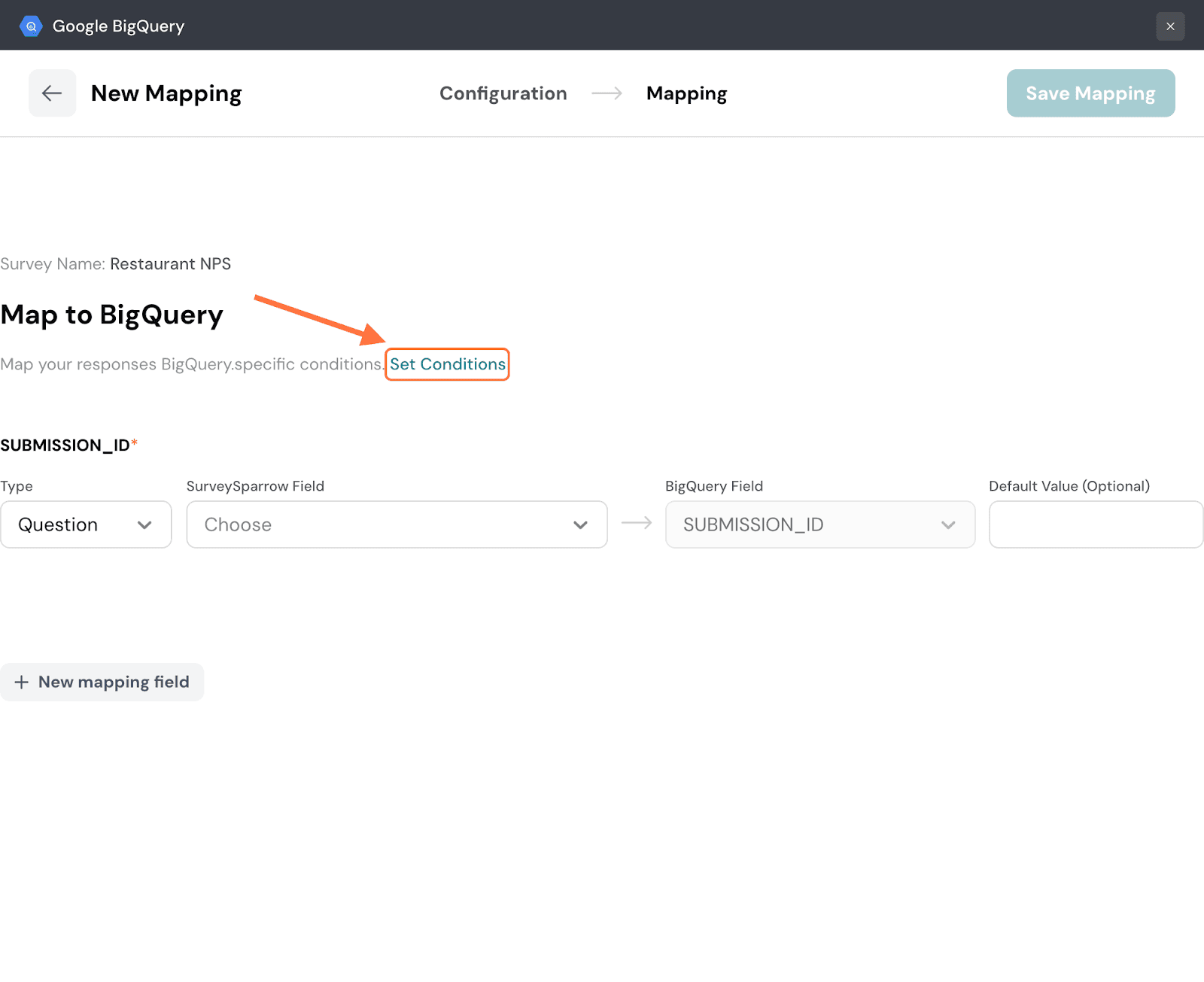
10. In the condition setting modal, you can set a conditional logic for the conditions: either any or all. The default setting is any, but if you’d like to change the logic, click on the drop-down next to it.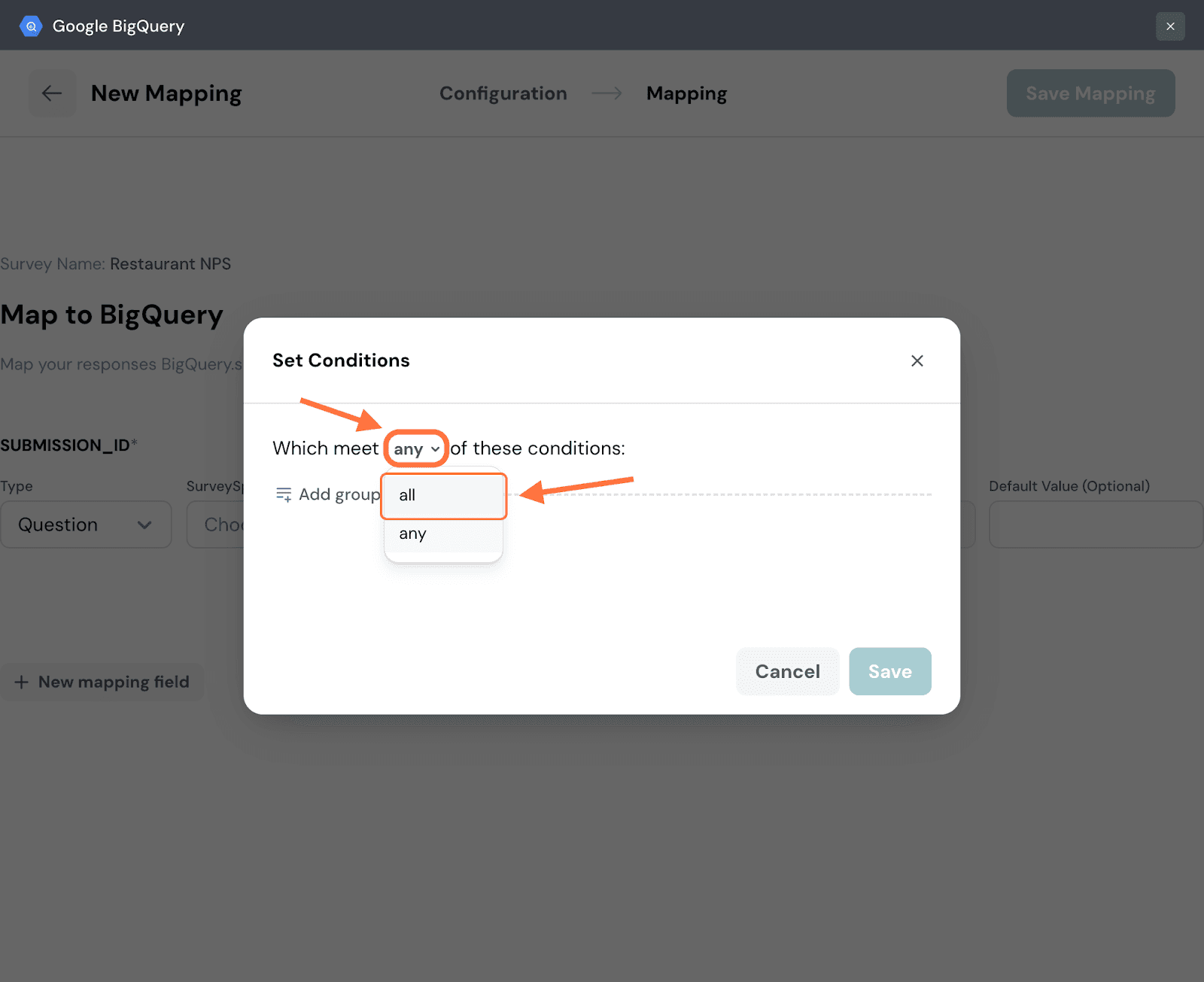
11. To add conditions, click on Add Group.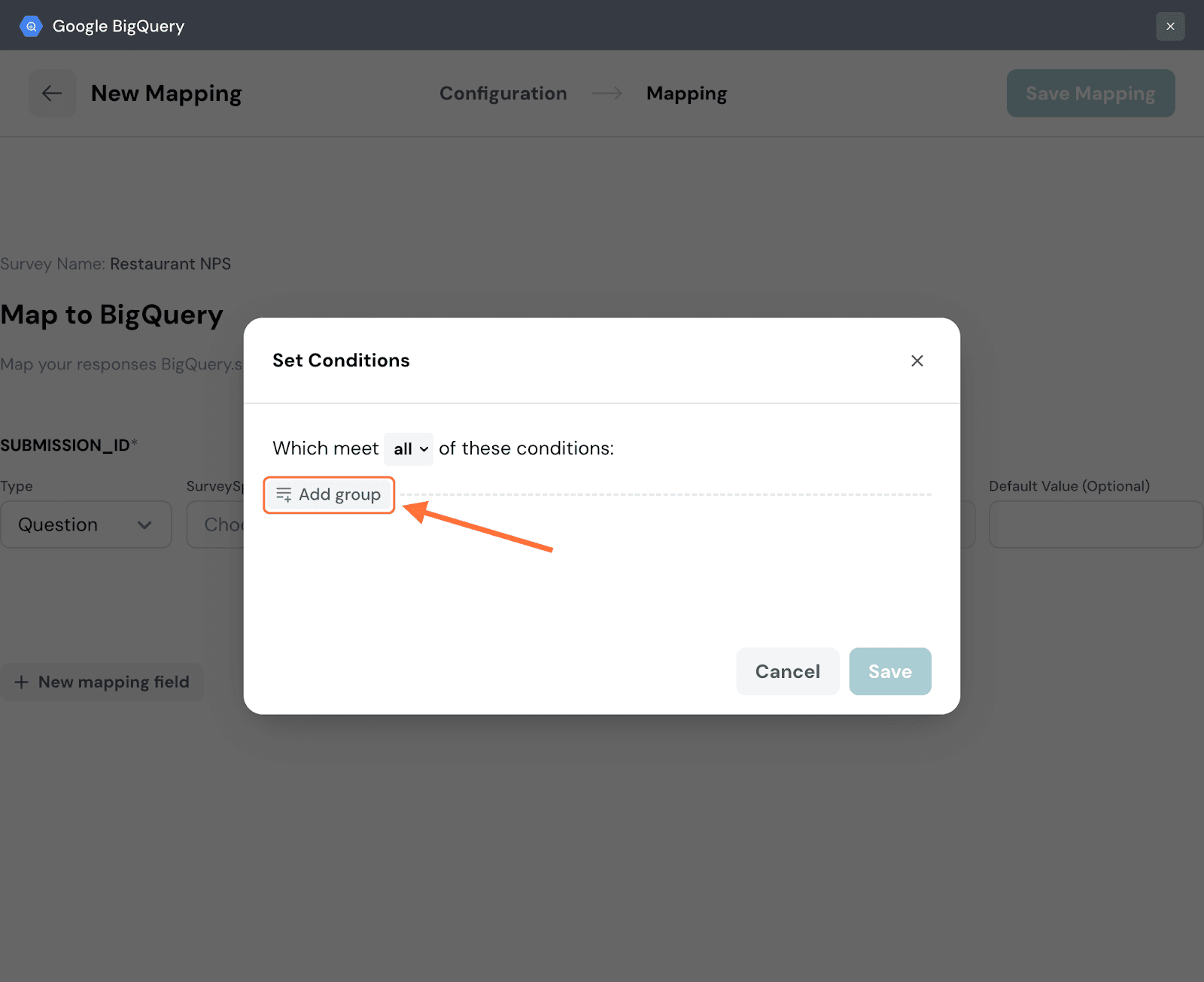
12. Choose a category of data from the drop-down menu to which the condition must apply. For this instance, let’s go with a question.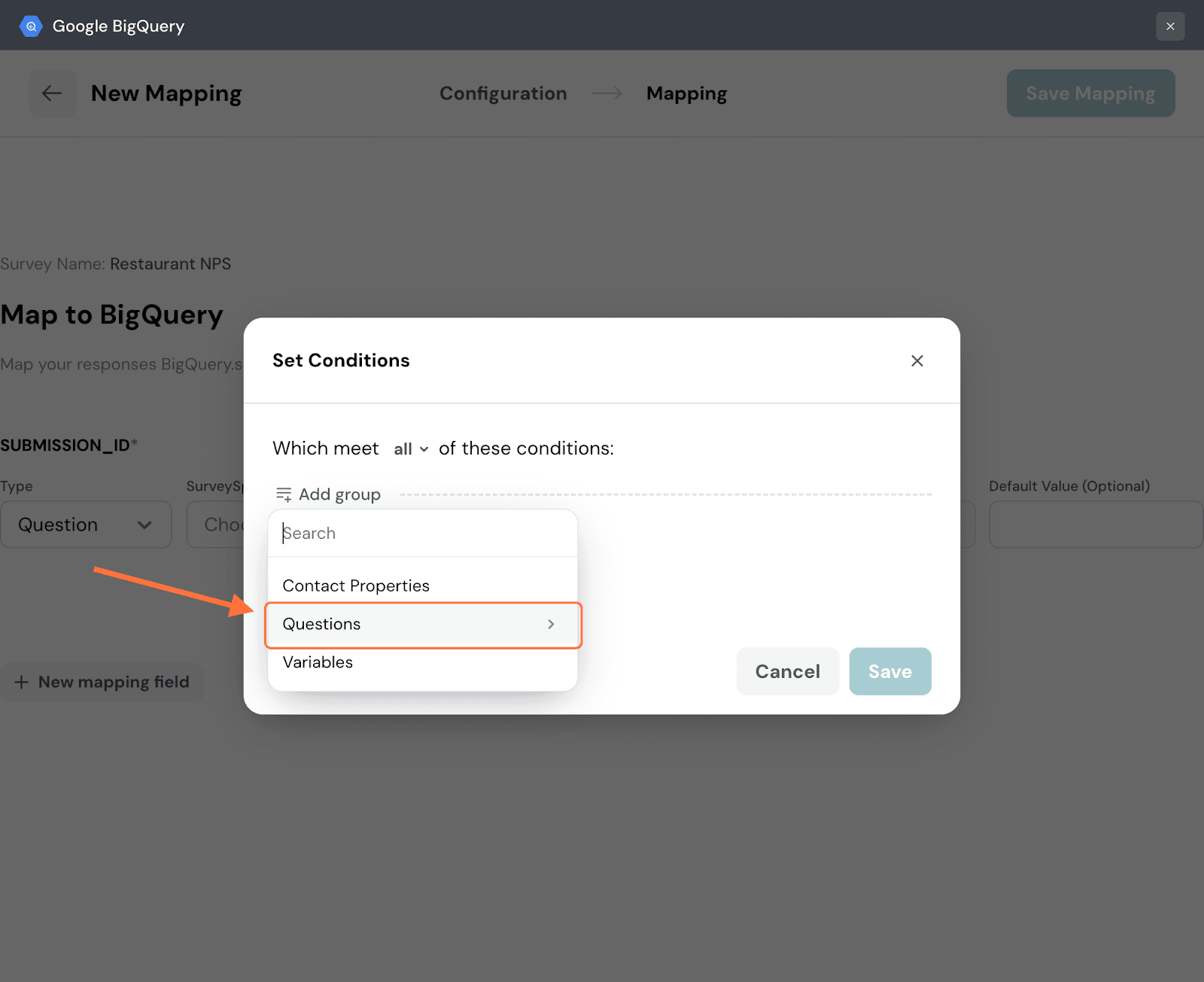
13. Choose a particular item from that category, in this instance a question.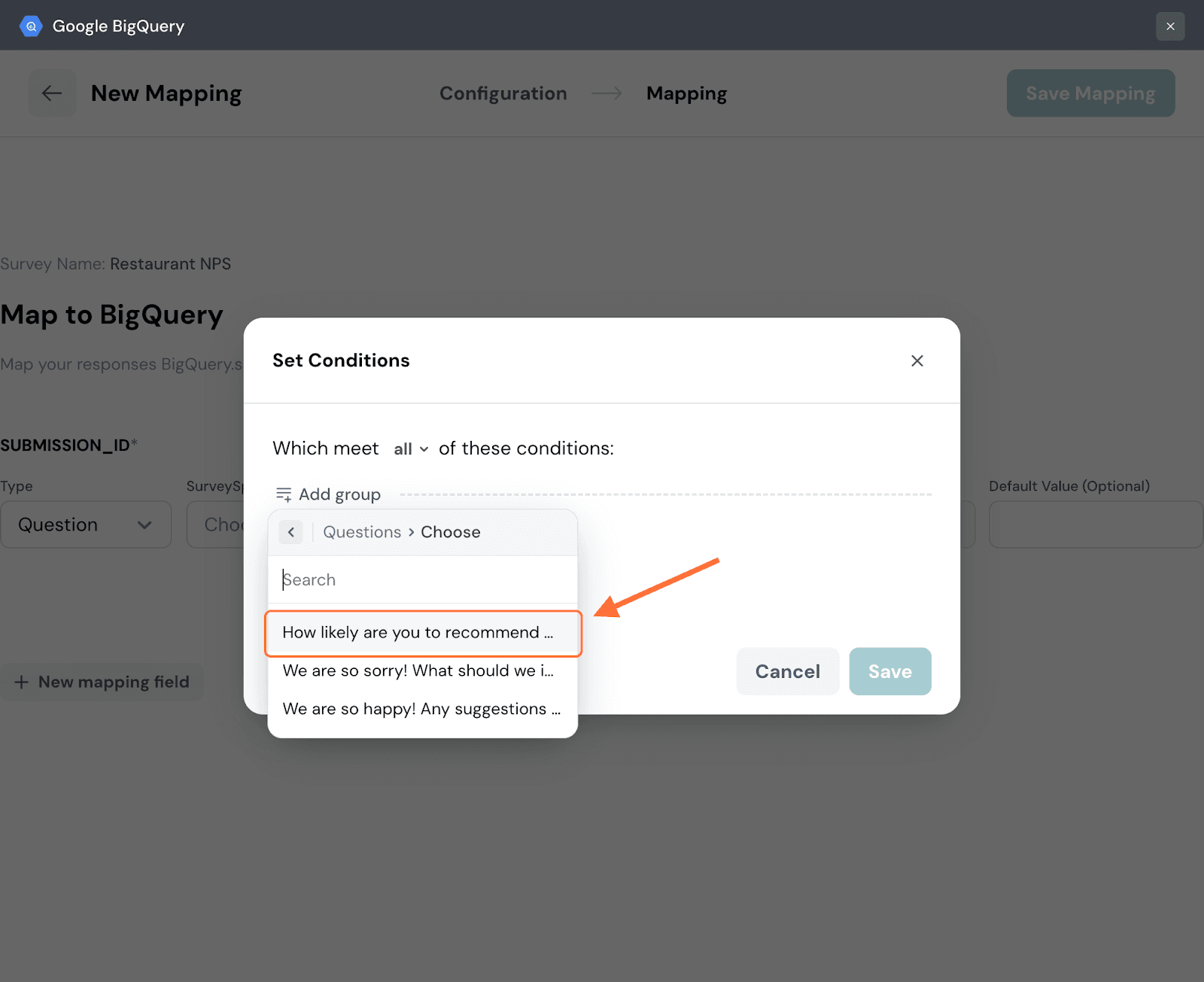
14. Click on Choose Condition to start defining the condition.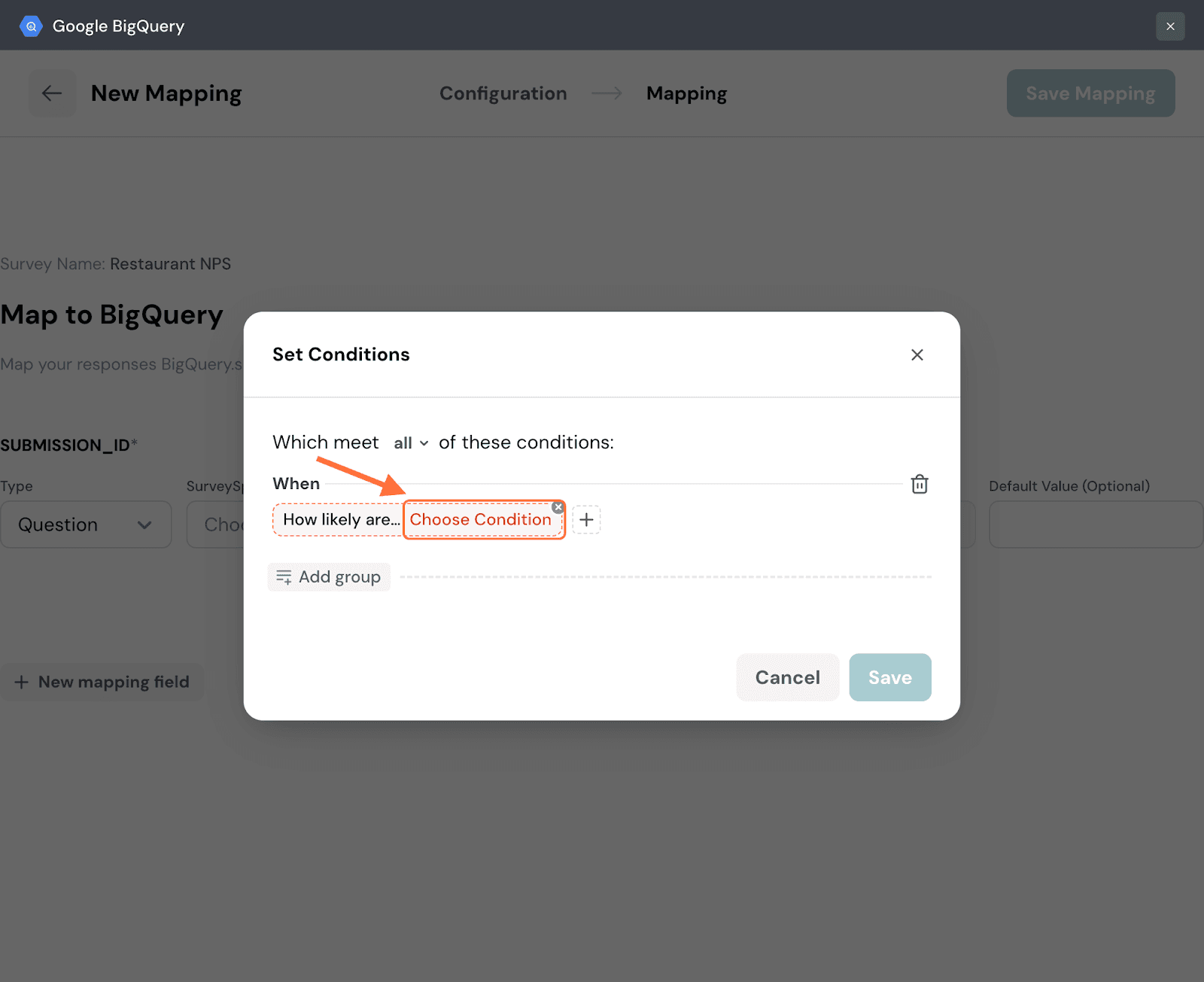
15. A list of comparison operators appears, choose one.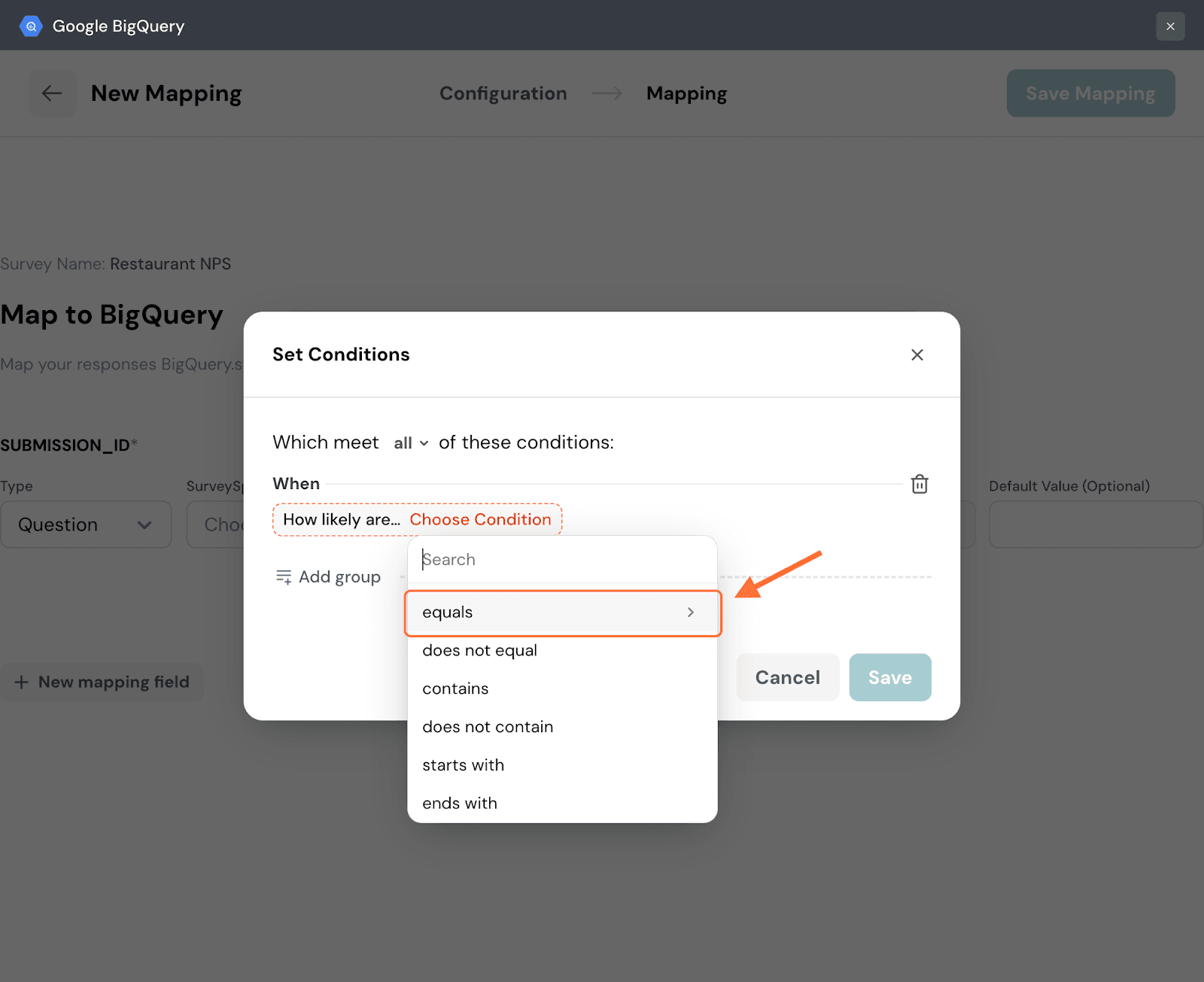
16. Input a value for the data to be tested against and then click Apply.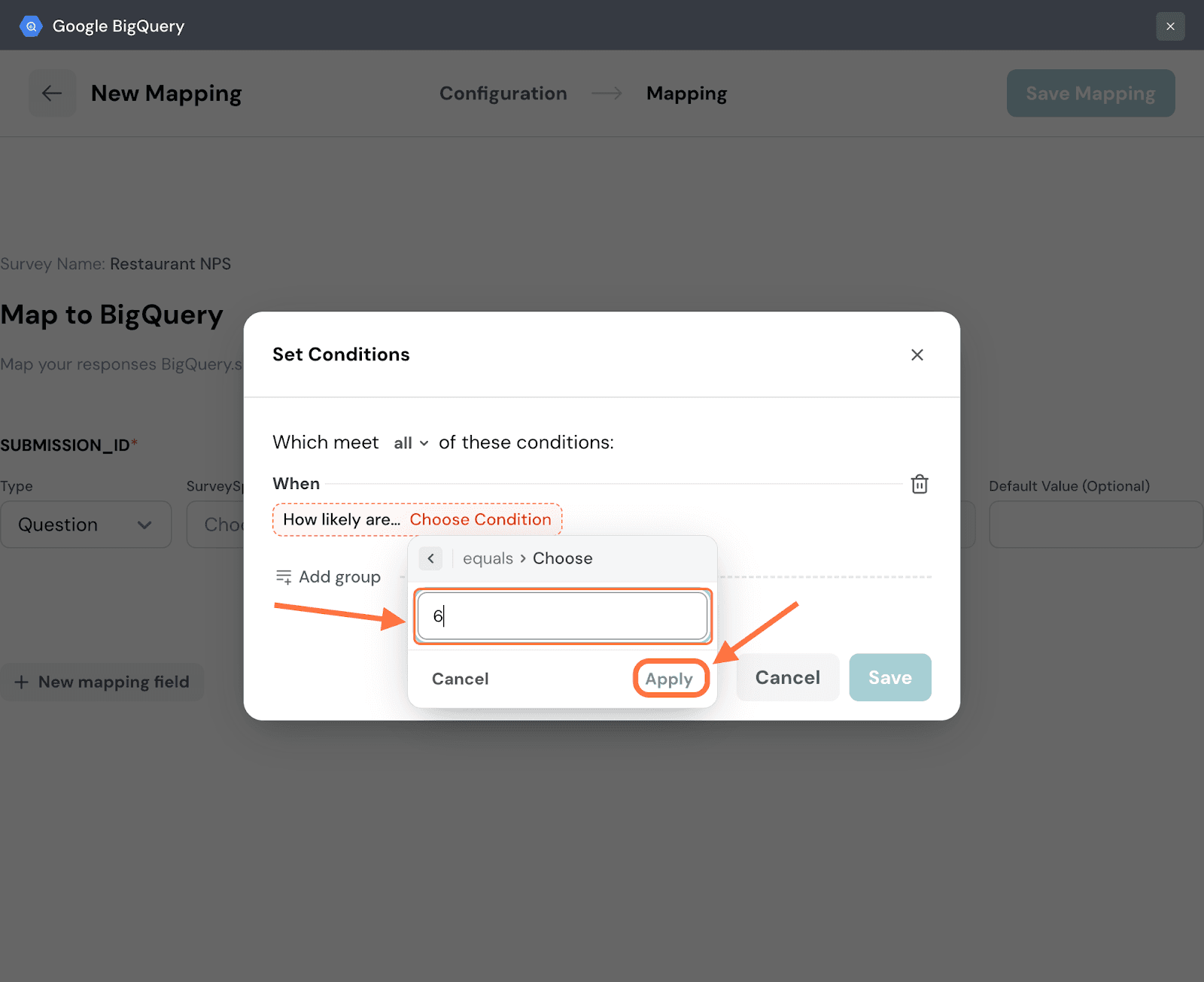
17. You can turn a condition into a group of conditions by hovering near it and then clicking on the plus icon that appears to the right. Repeat the same steps as above to create another condition.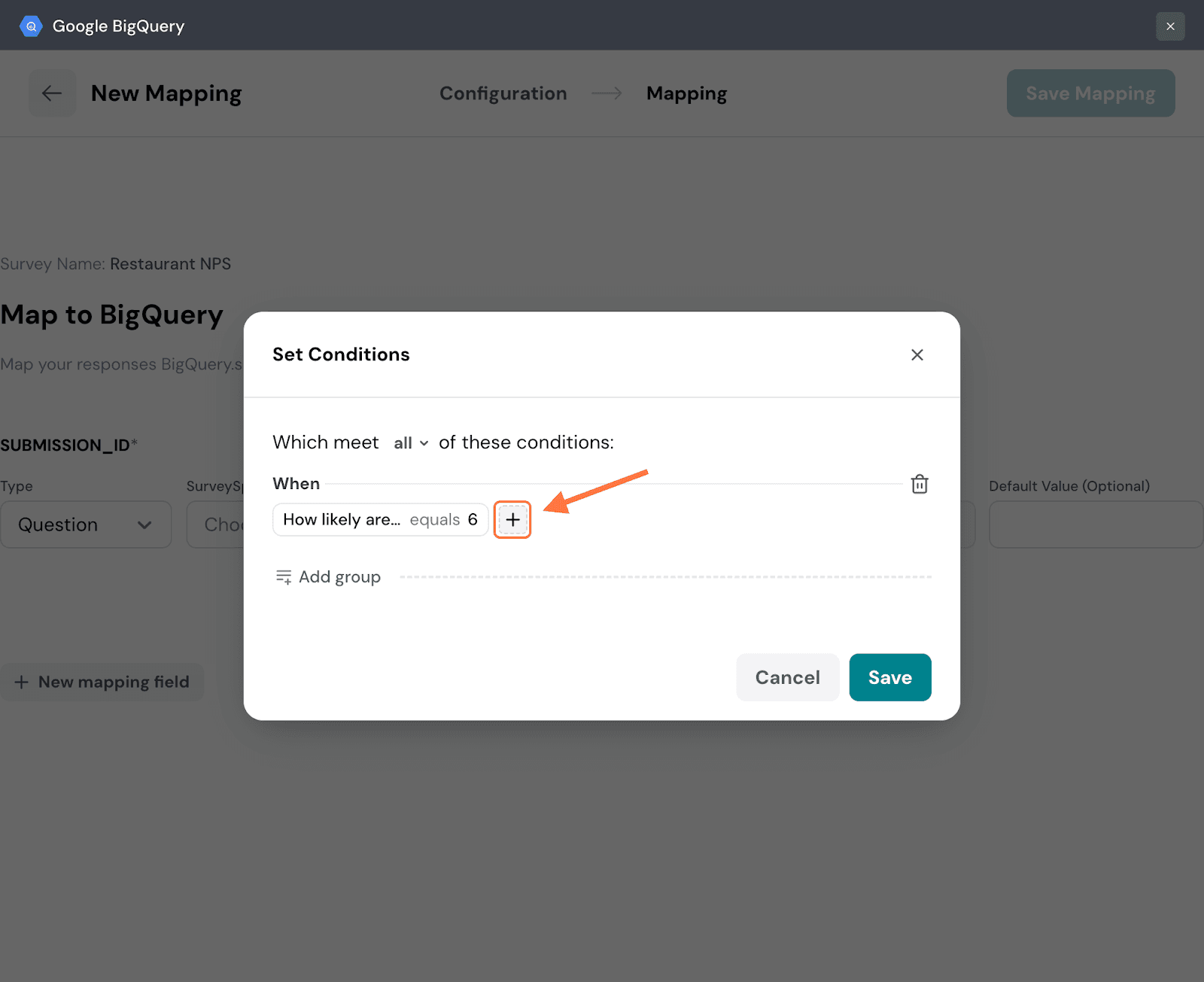
18. Within a group of conditions you can set conditional logic: and/or. The default is and, but if you’d like to change it, click on the drop-down.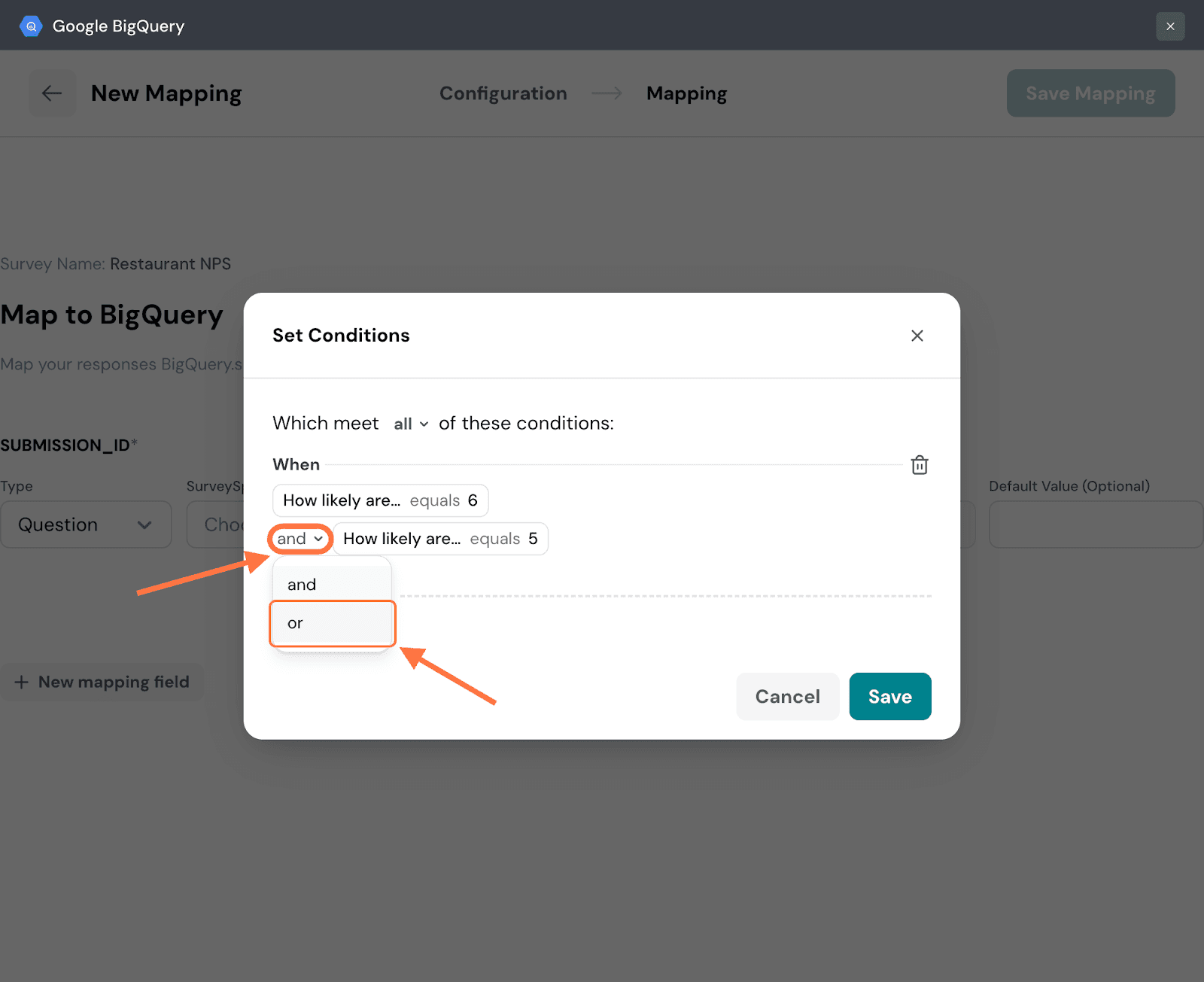
19. Click on Add Group to add more conditions/condition groups. When you’re done, click Save.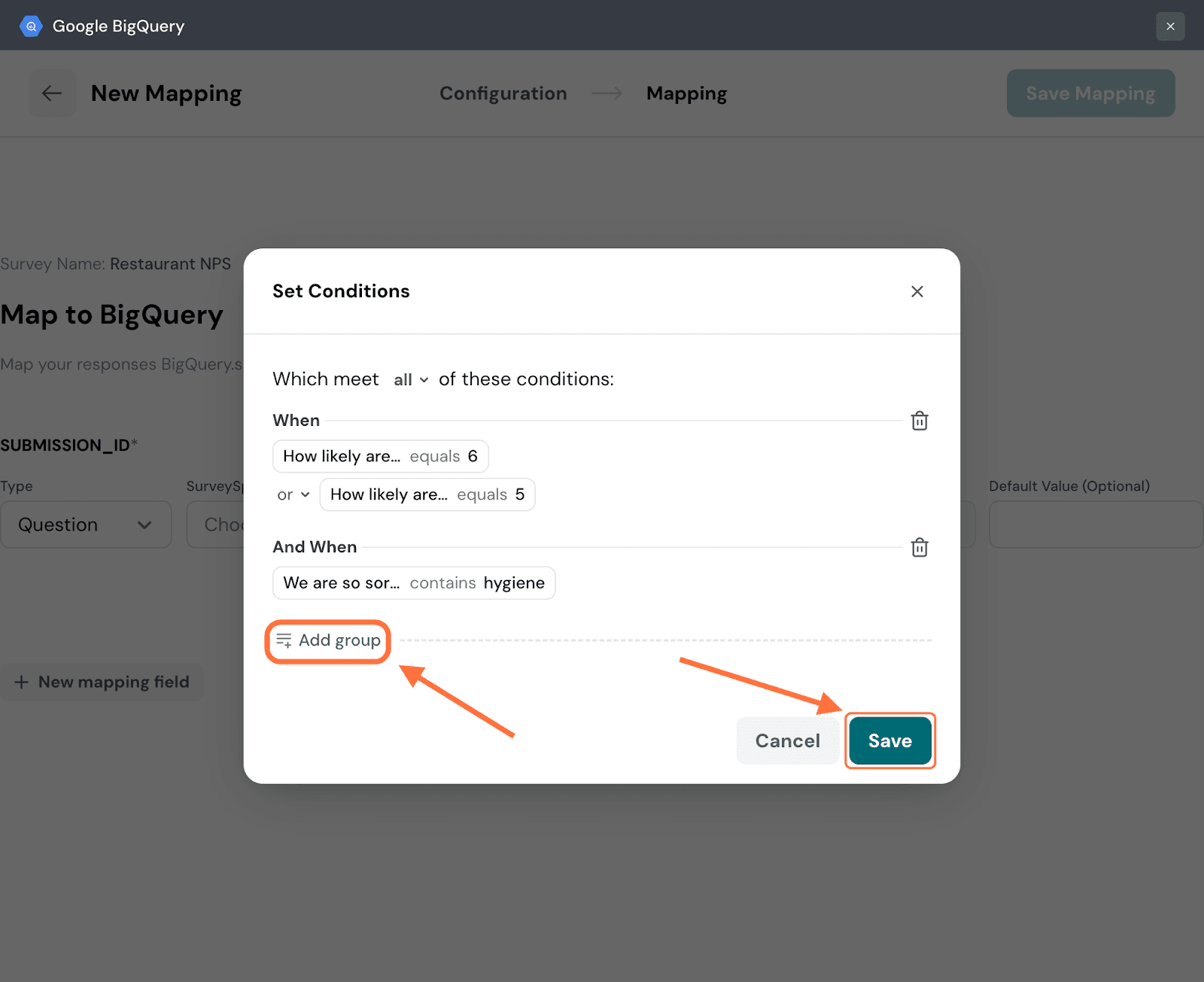
20. The first step of creating a mapping is to first map a response property to the SUBMISSION_ID field in BigQuery. This is mandatory. The default property type is a question, but you can change it by clicking on the drop-down and choosing from the options.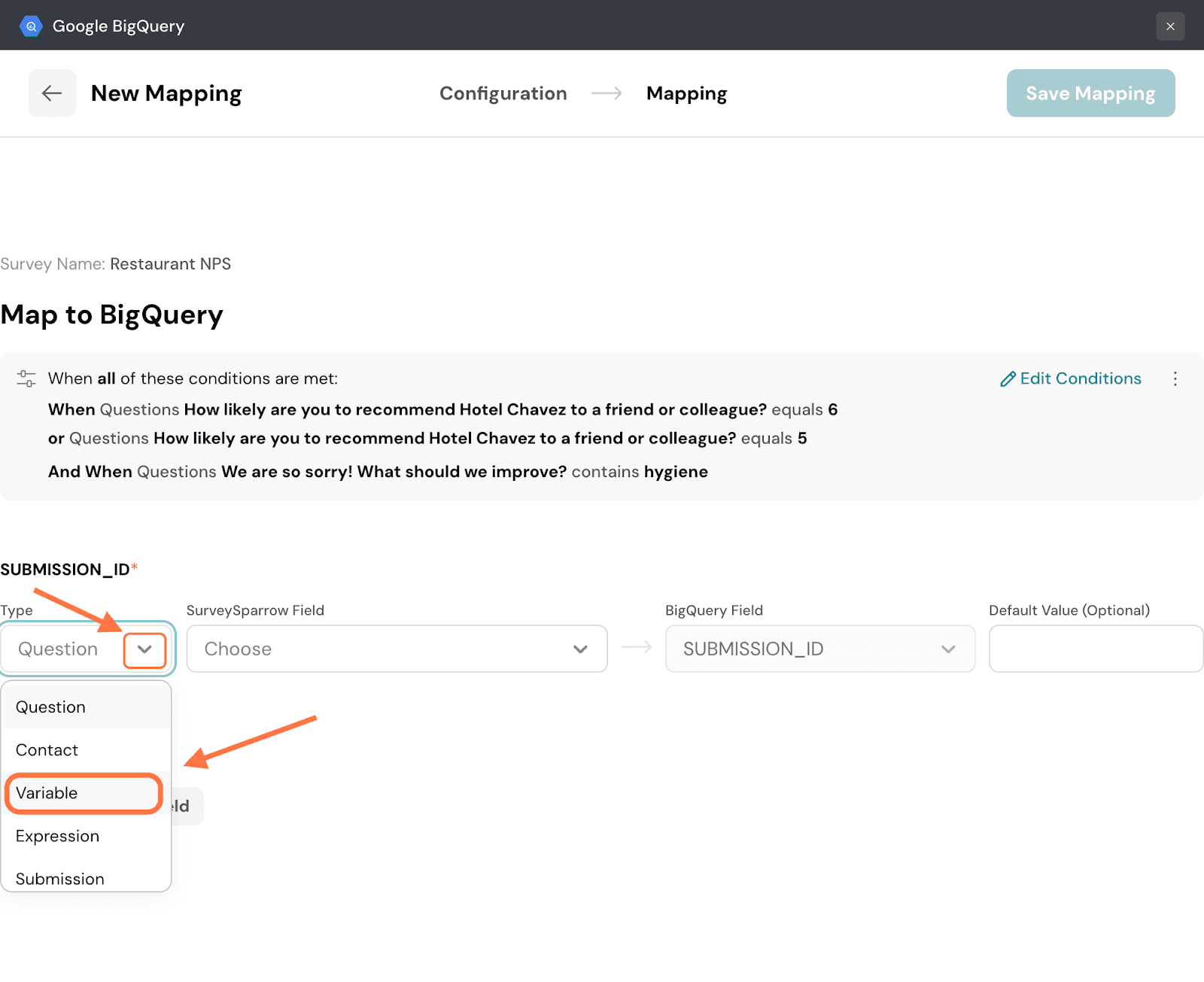
21. Next, you must choose a particular item of that property type that you’ve already created for the survey. Click on the drop-down menu under SurveySparrow Field and choose from the options.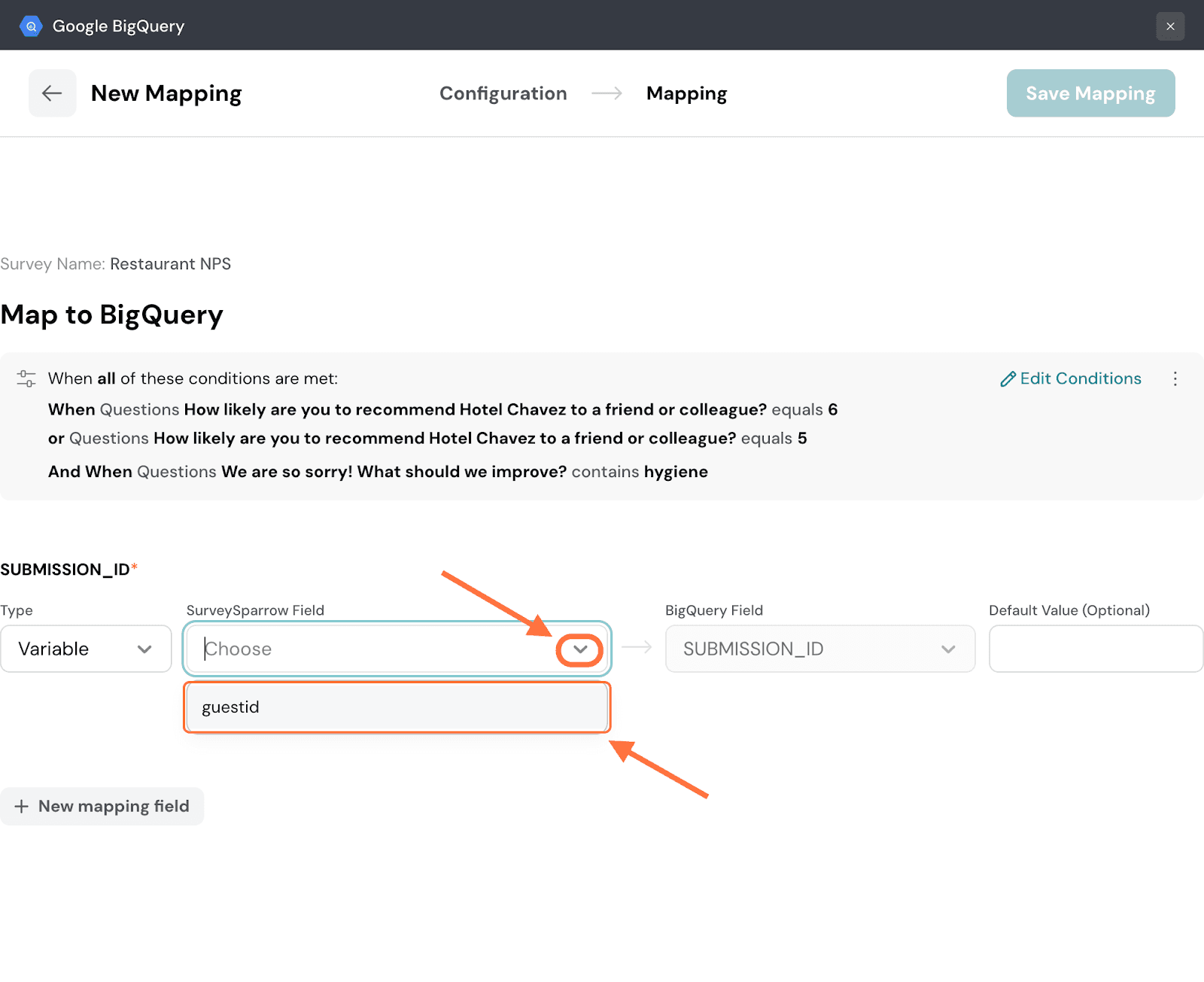
22. If a particular response has no data for the chosen property, the BigQuery field will remain empty. But you can choose to fill in a default value that will be filled in as a substitute for such situations.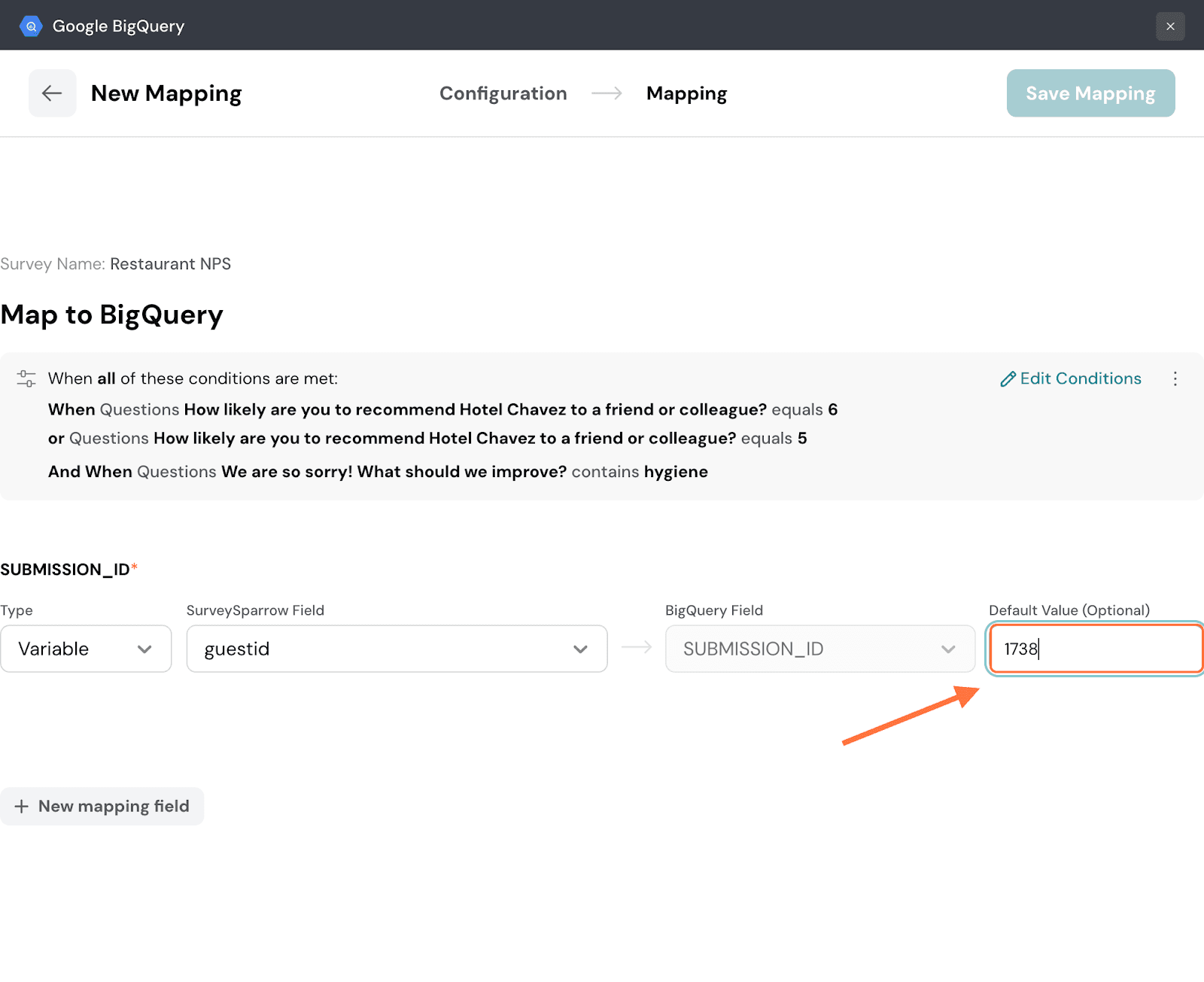
23. To add more mapping fields, click on New mapping field.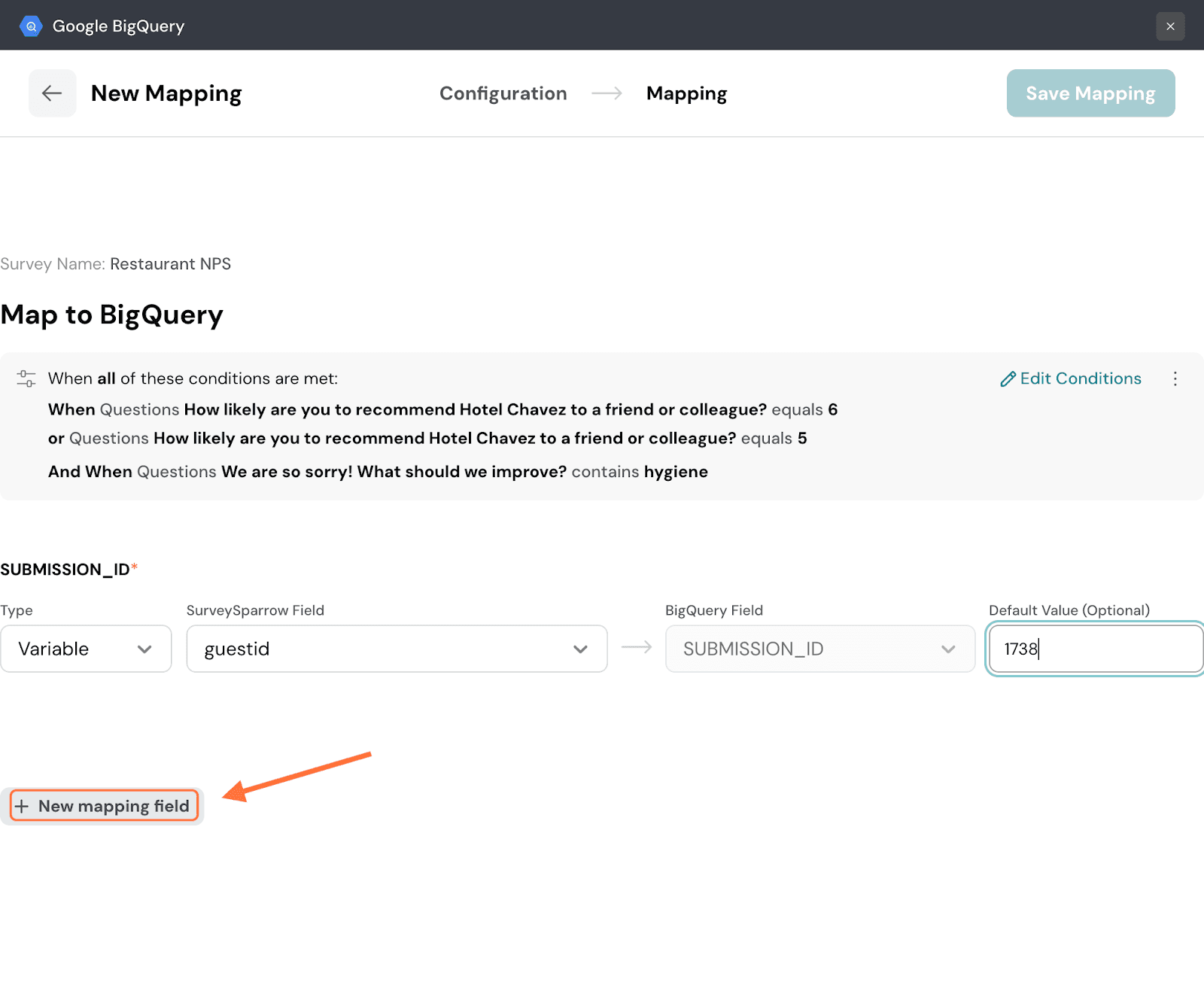
24. When you’re done, click on Save Mapping.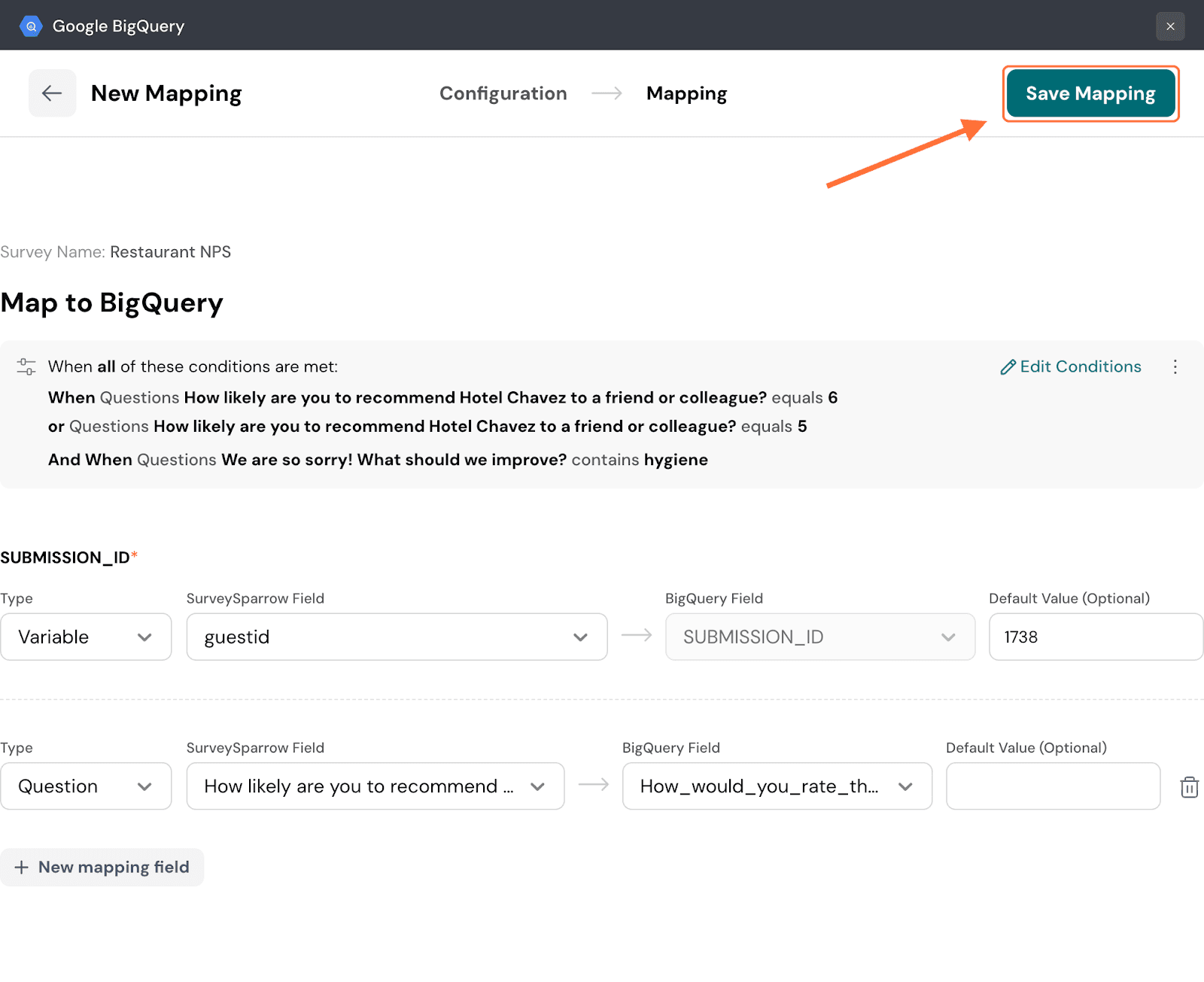
25. Create a name for the mapping, then click on Save Mapping.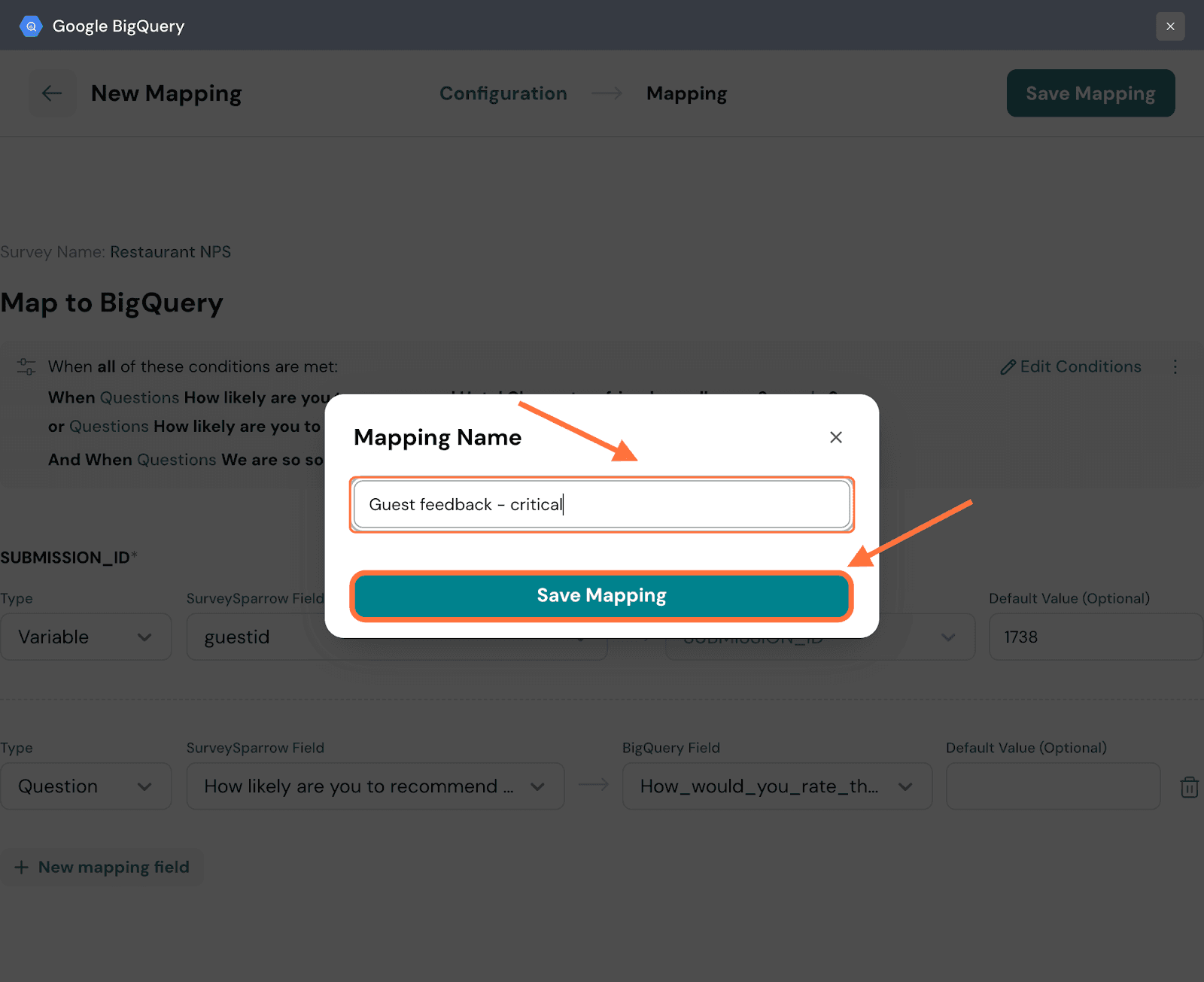
26. After the mapping is saved, you’ll be taken to a screen where you can access all saved mappings. To review the mapping configuration, click on the mapping.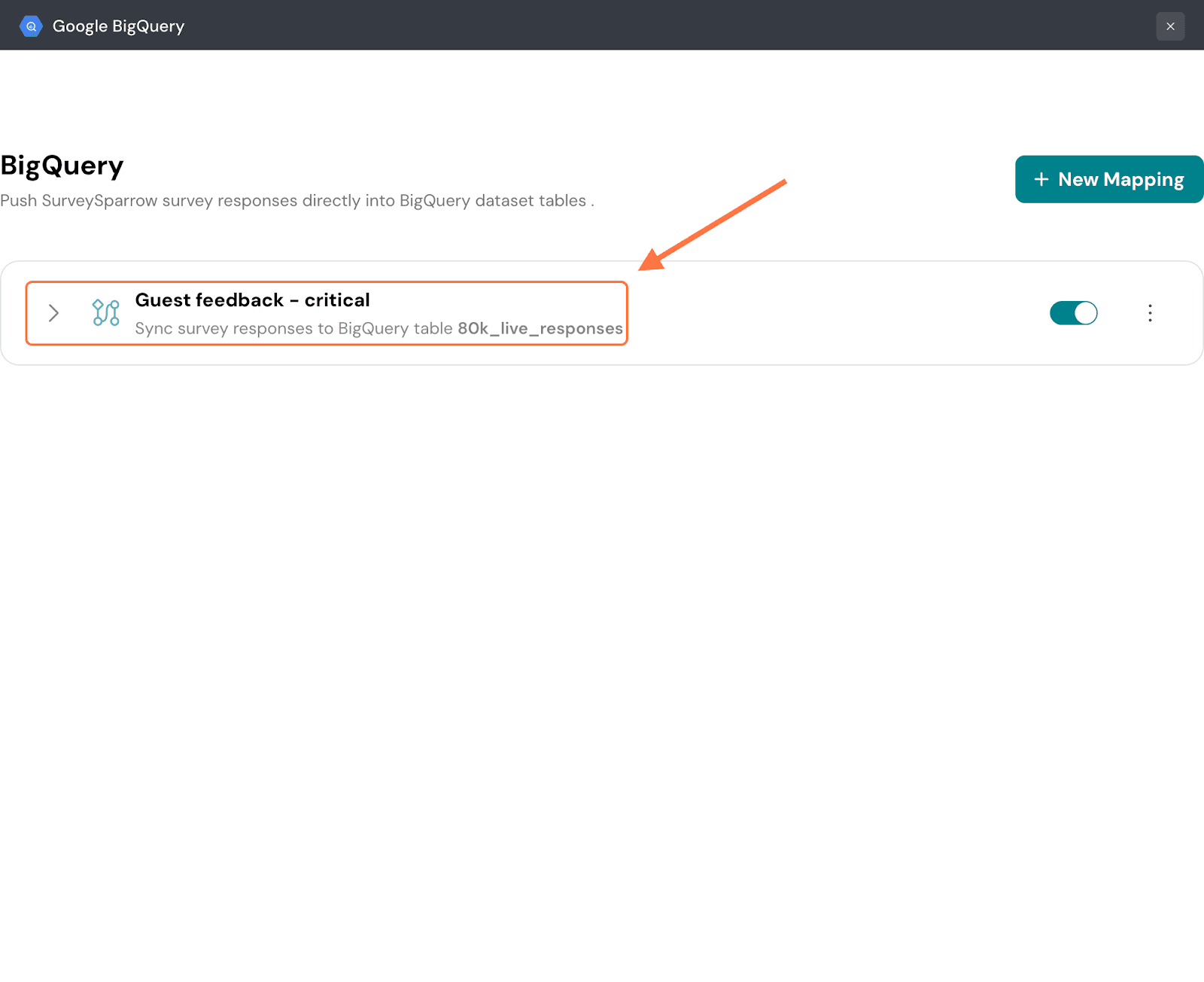
27. The mapping tab expands to show you its settings. If you’d like to modify it, click on the ‘Edit….’ button.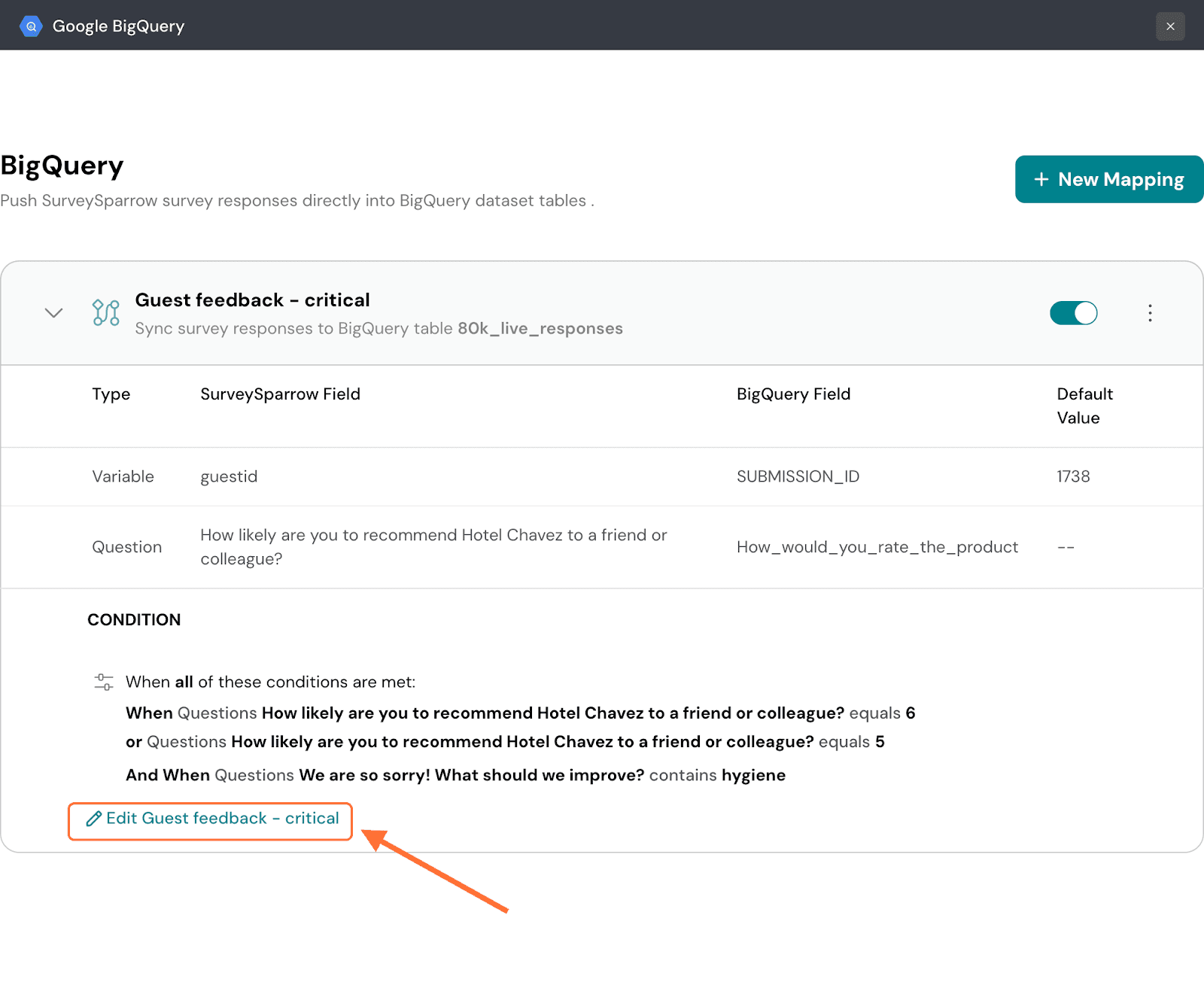
28. To pause the mapping, click on the green toggle button.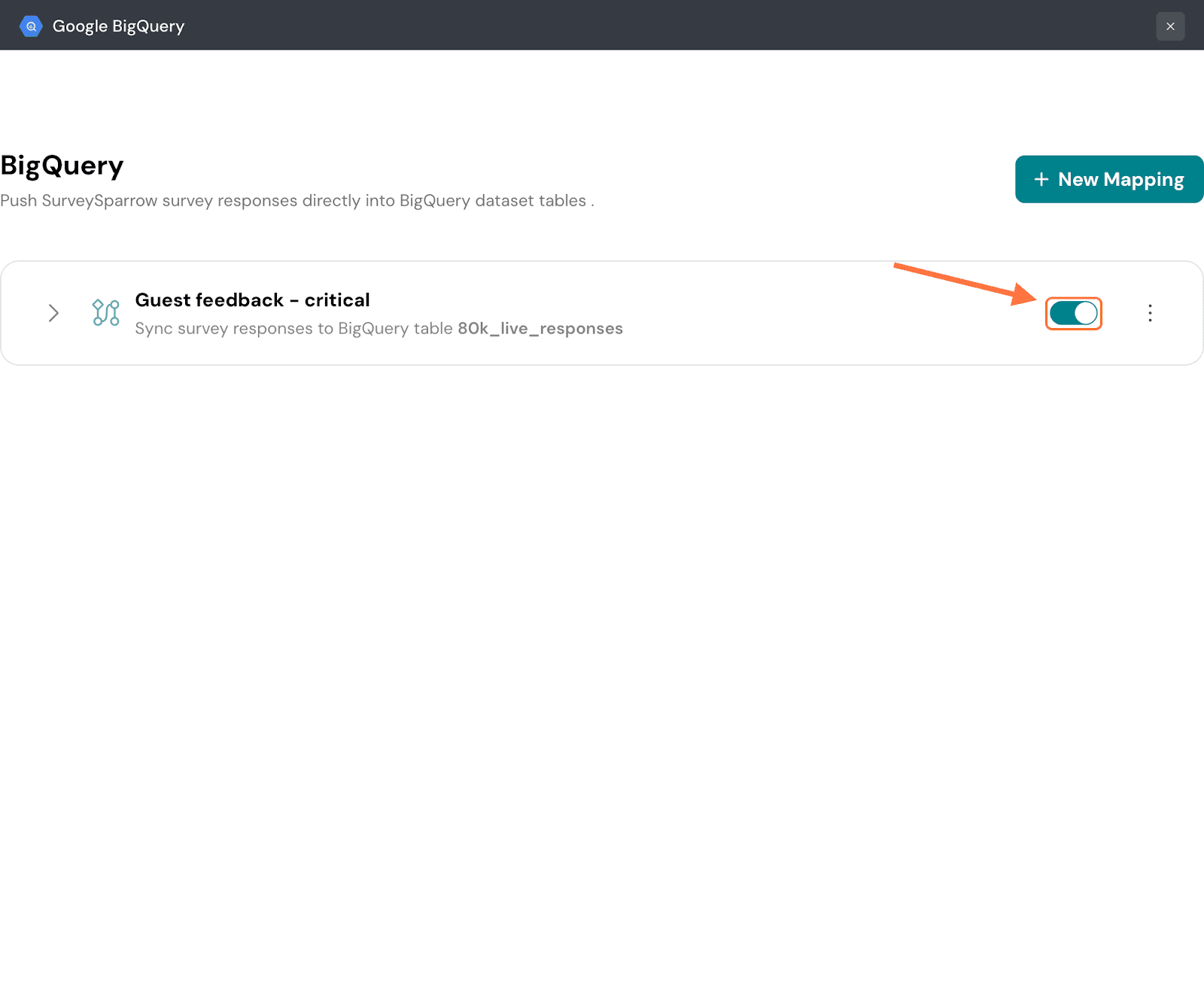
Note: Any responses that come in while the mapping is paused will not be synced to BigQuery later.
29. To delete the mapping, click on the vertical three-dot icon, then click on Delete.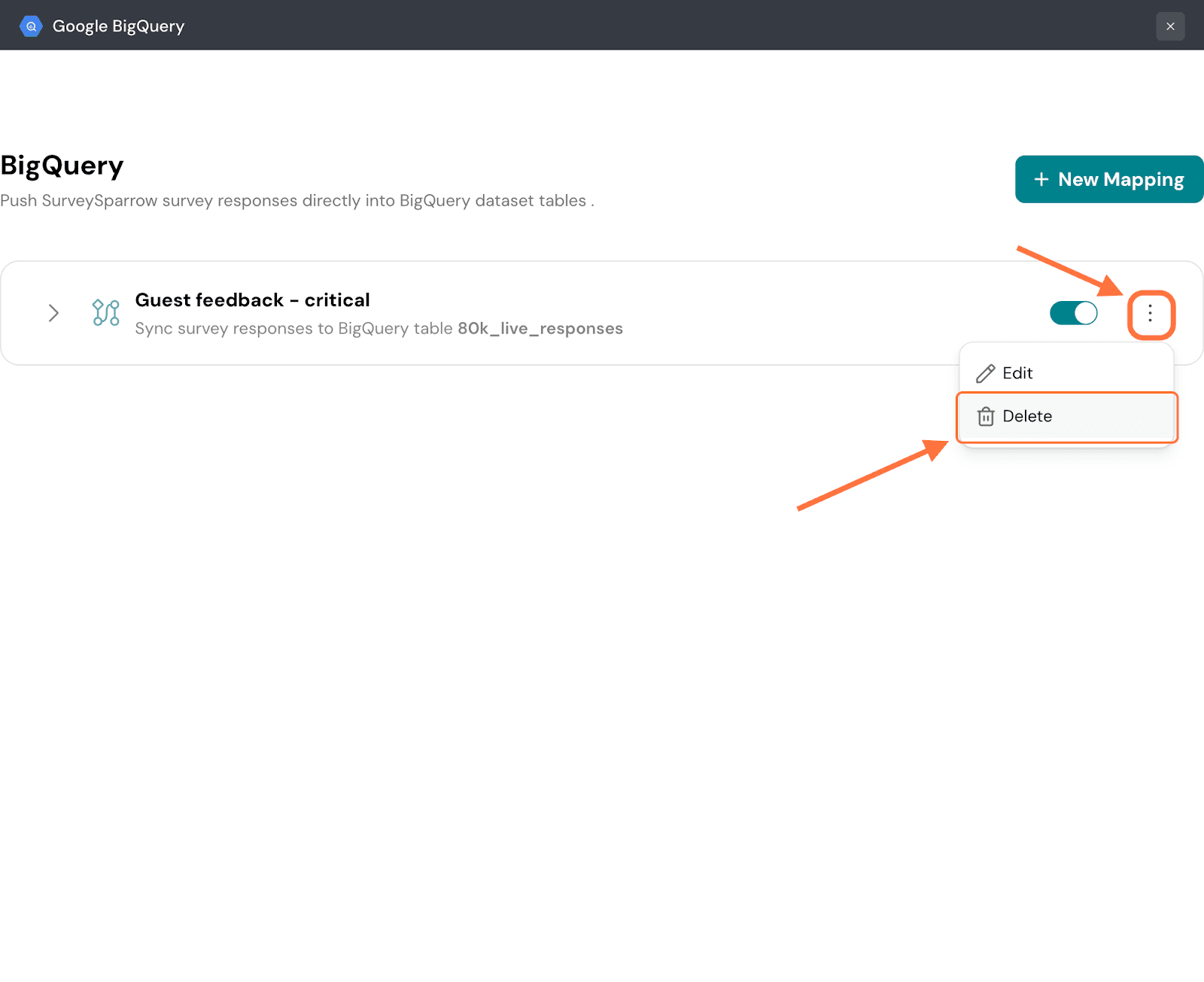
30. Click on Confirm to proceed.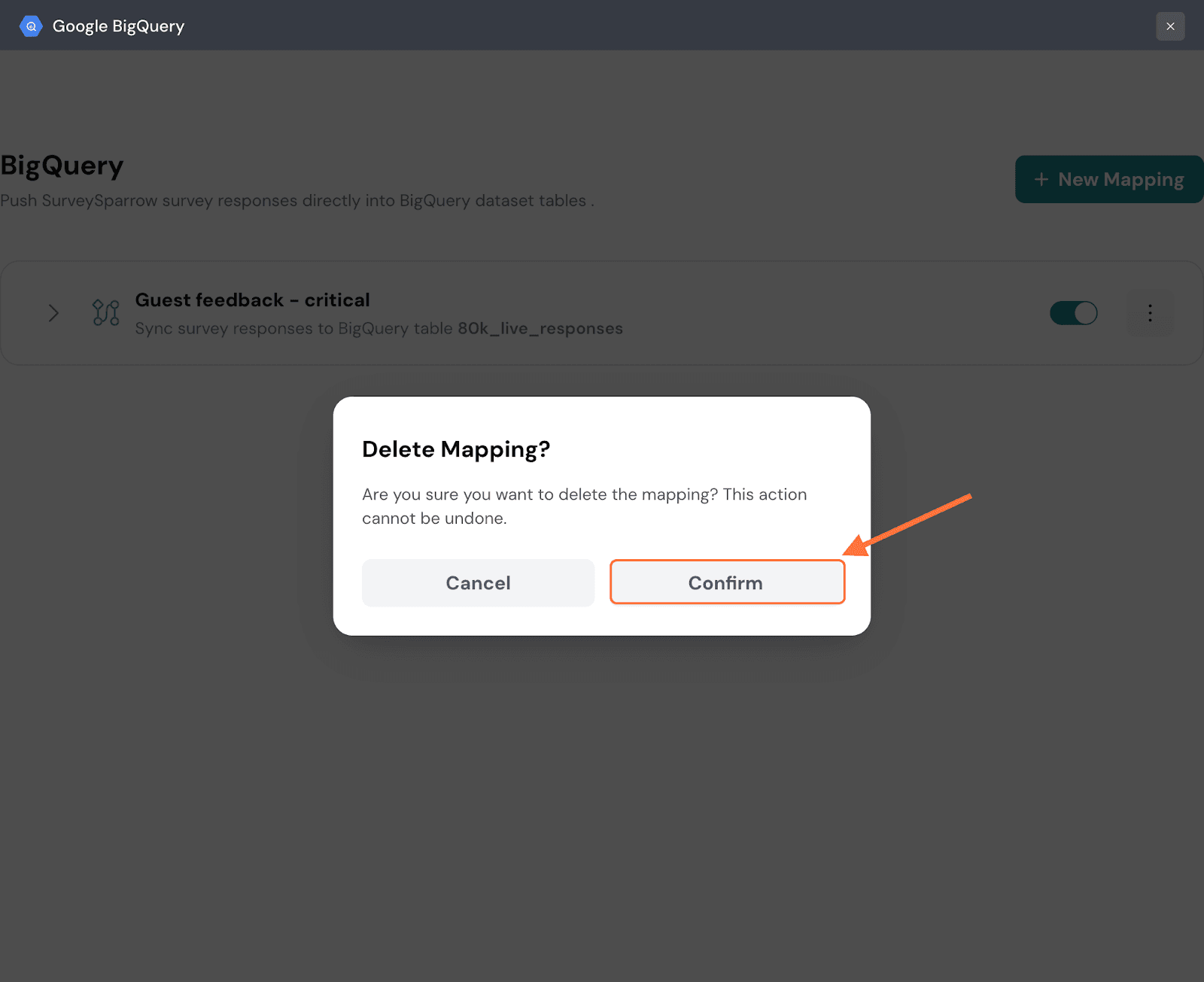
31. Click on New Mapping to add another mapping.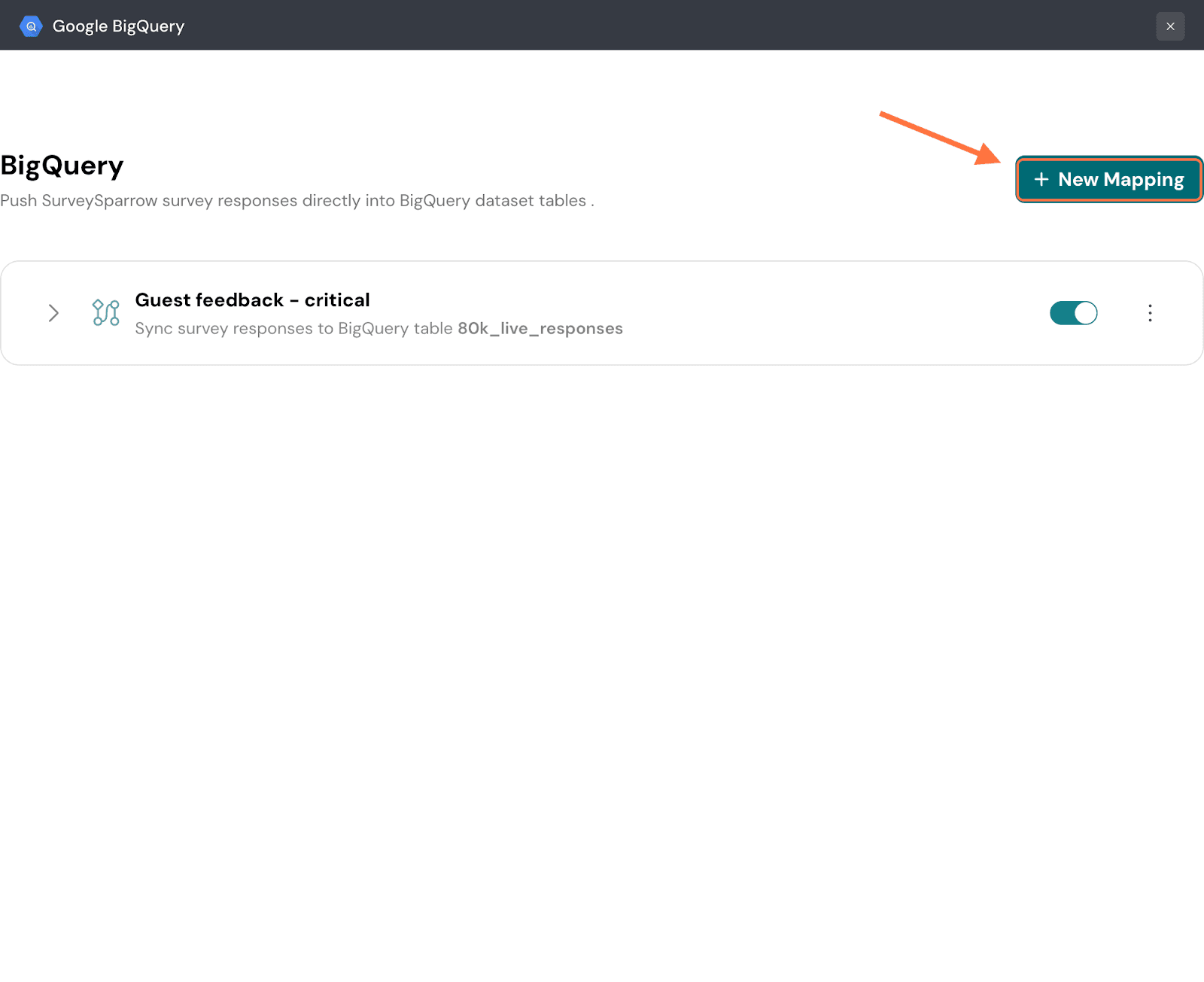
32. Now let’s explore the other set of steps to create a new table for mappings. Once you’re selected Create New Table as your action, enter a table name and click on Continue Mapping.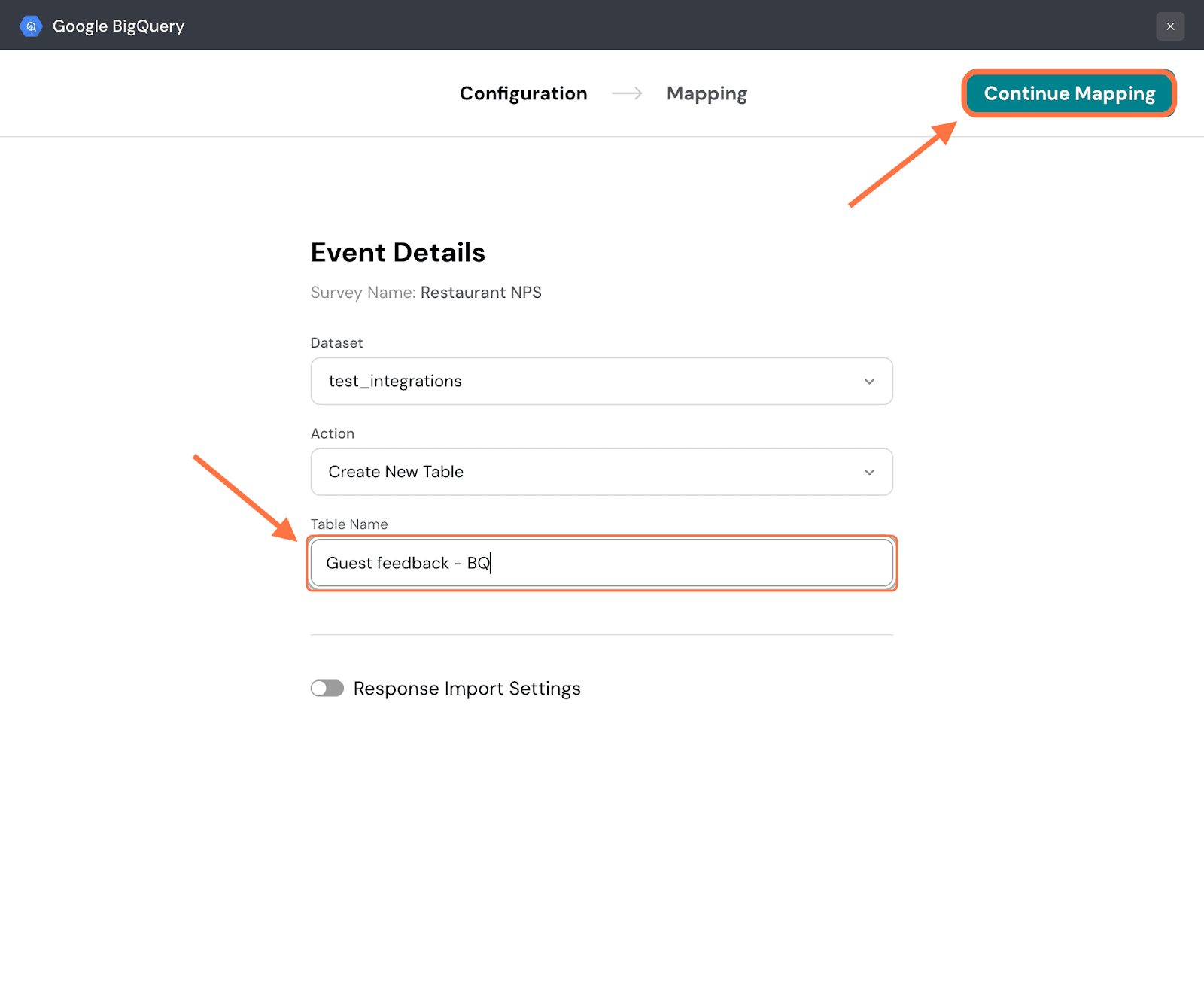
33. In the mapping section, the default option is to send all the response data. You can see all the response properties and their quantities. But if you want to be selective, click the button next to Send Selected data.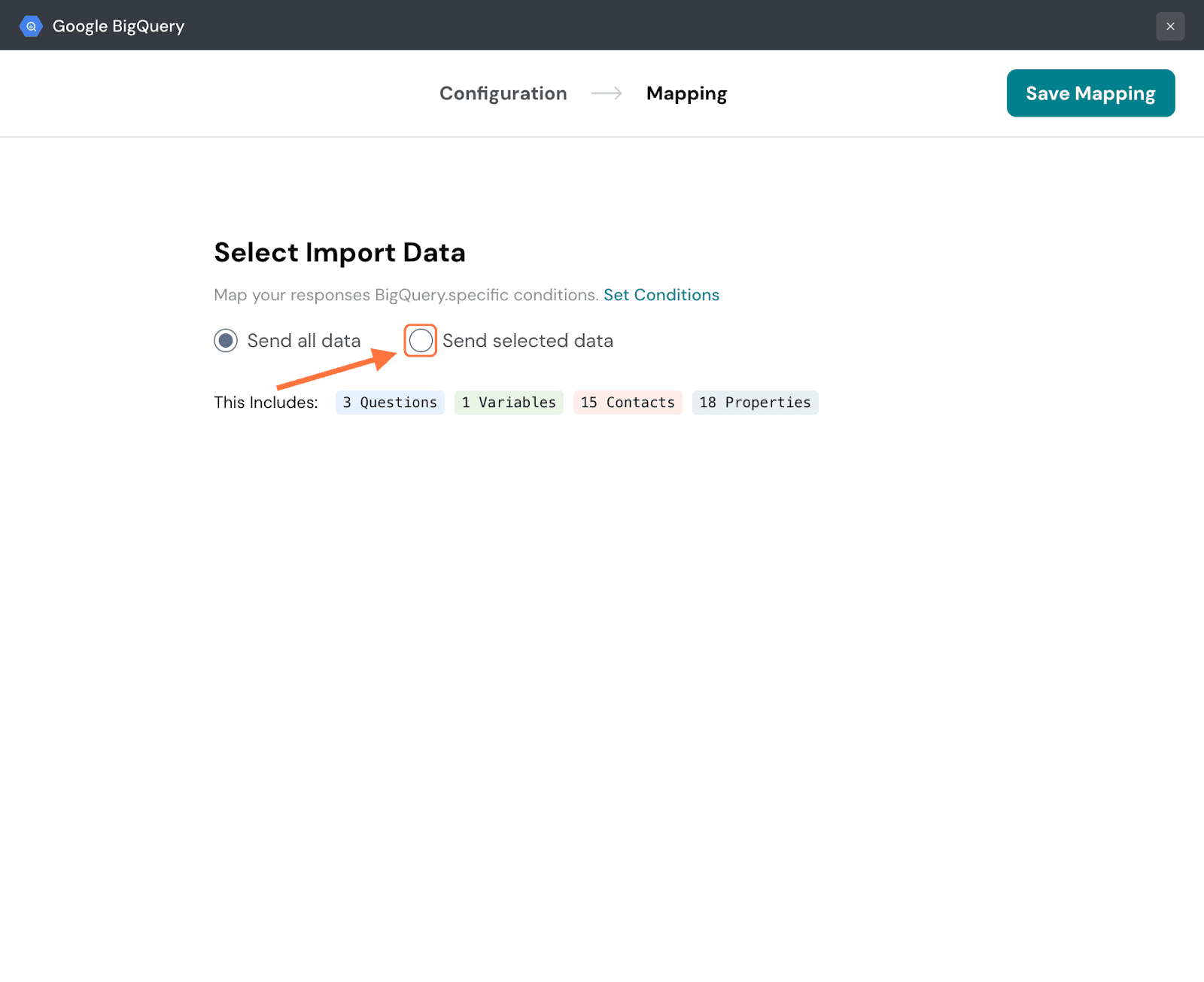
34. You will be shown a series of tabs for each response property. Each tab will have a list of items for that particular property. Click on the checkboxes of the items you want to import to BigQuery. Navigate through the respective tabs and select the ones you want. You can also use the search box to find items.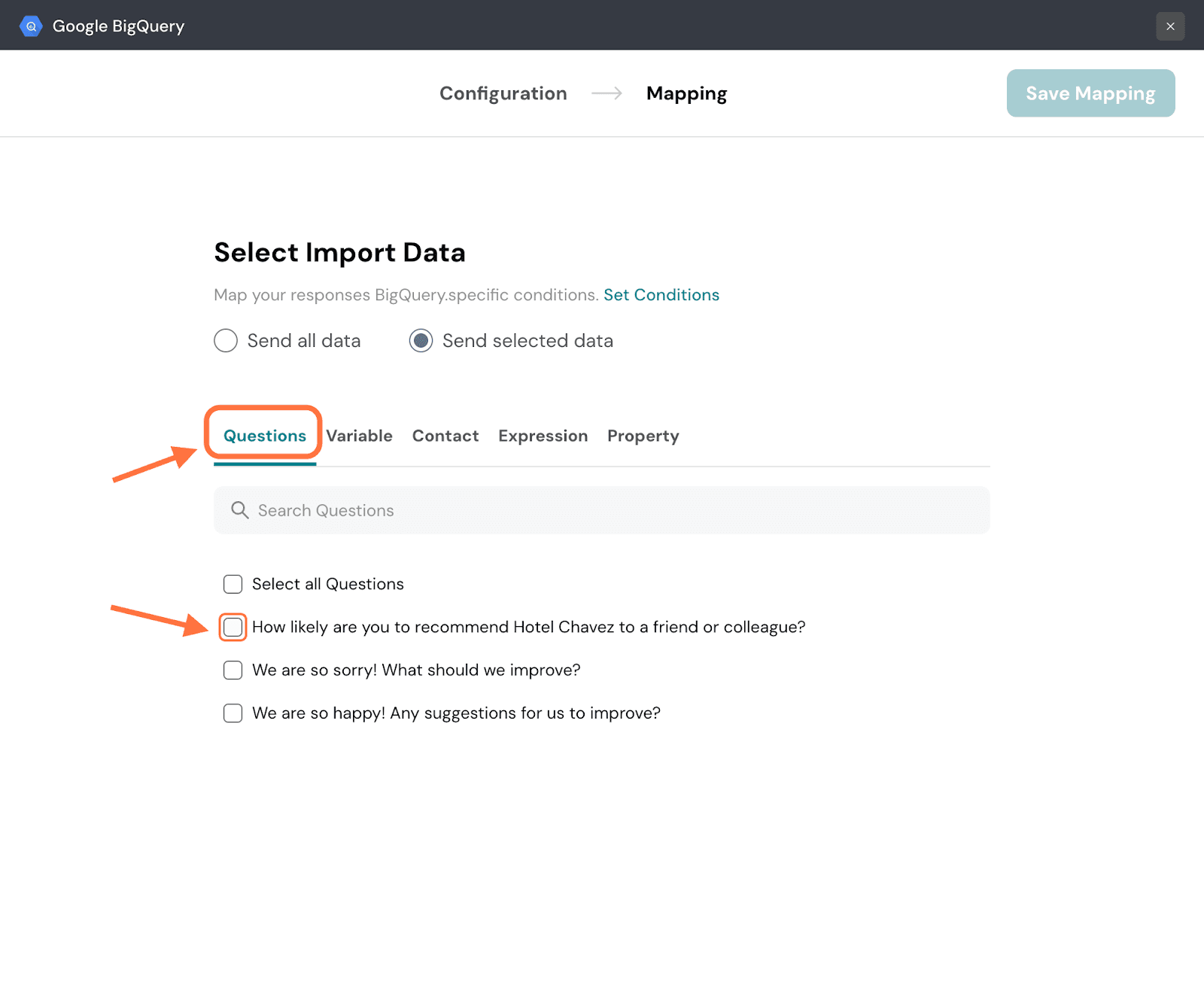
35. When you’re done, click on Save Mapping.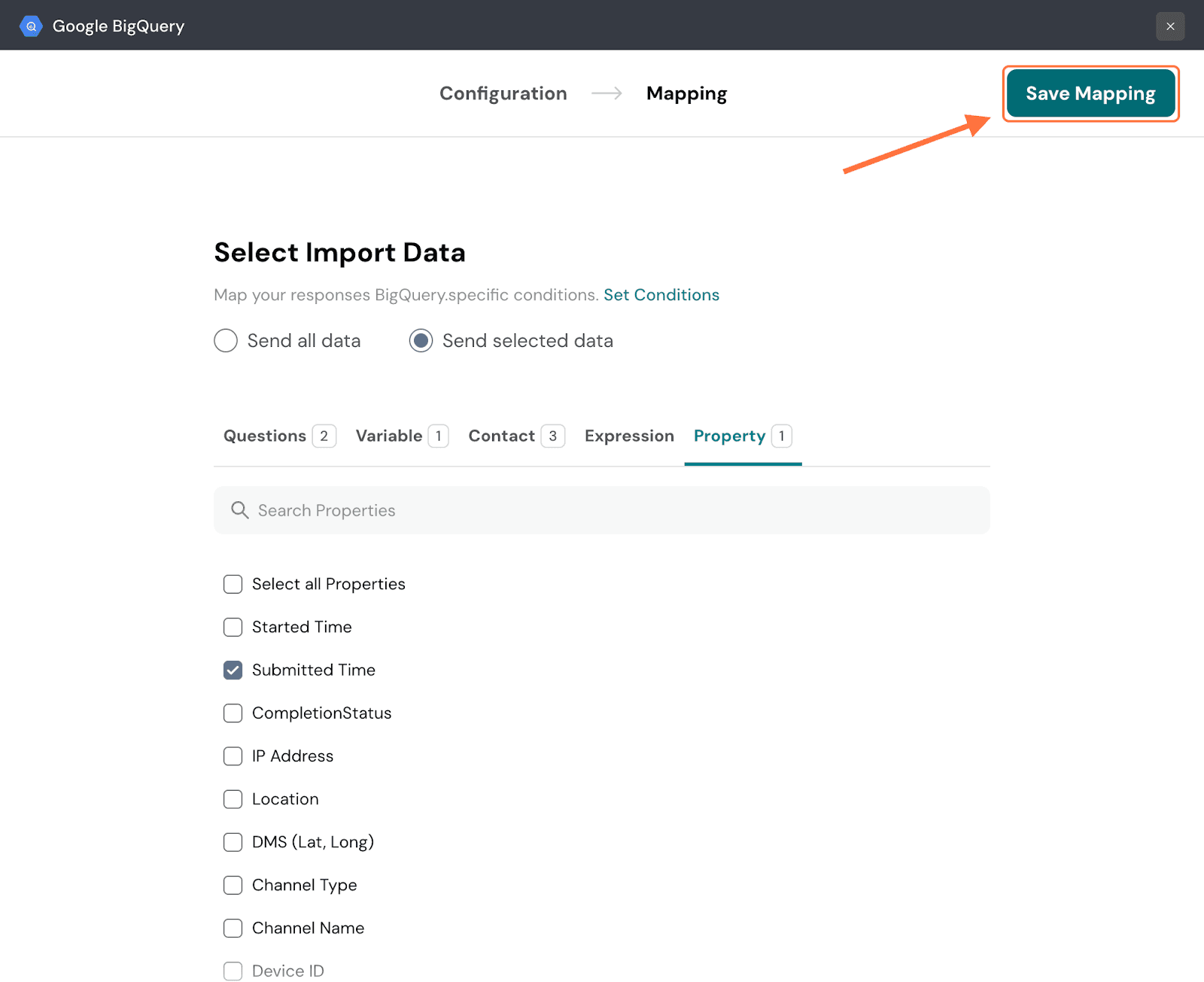
36. Create a name for the mapping and click on Save Mapping.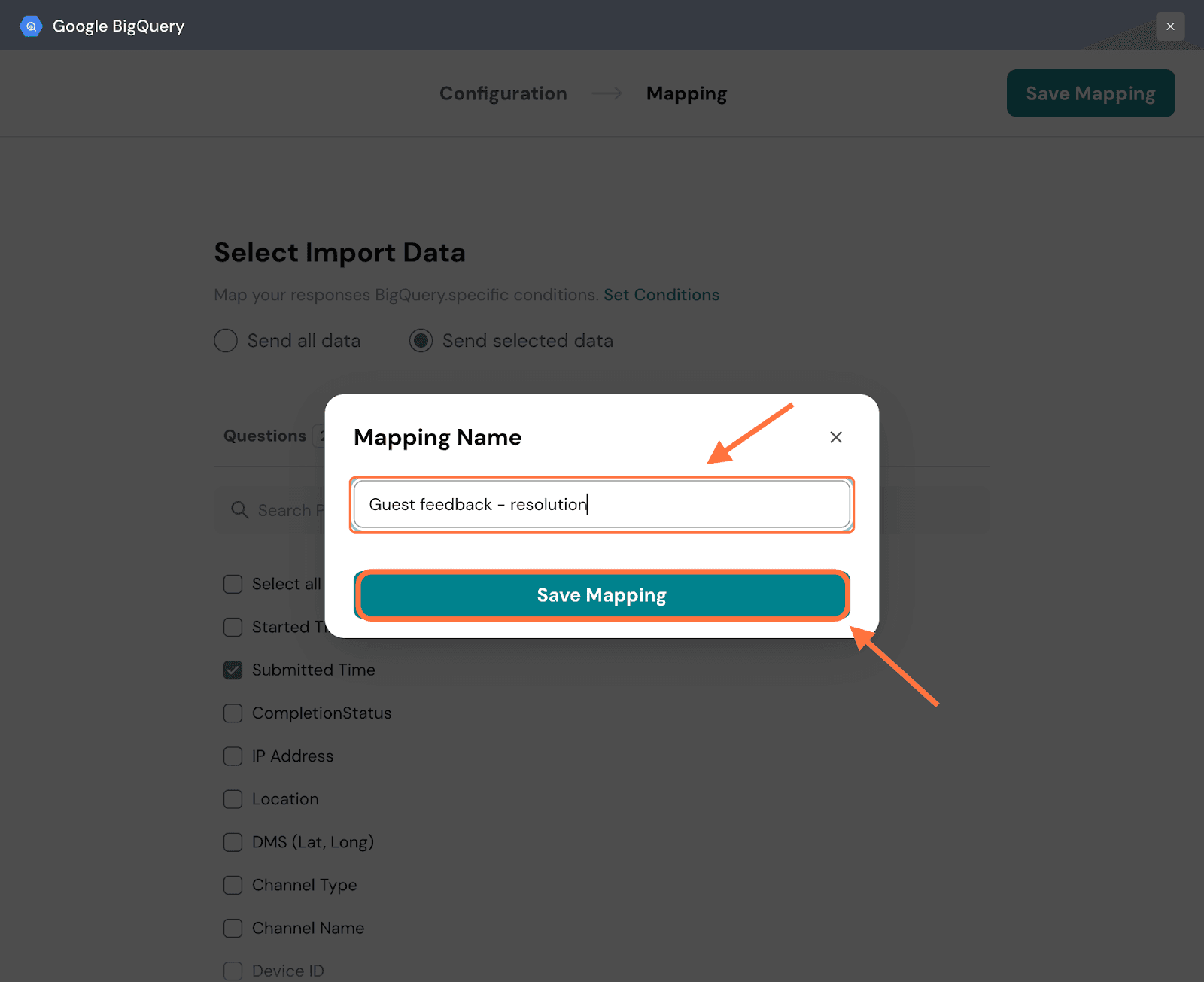
With that, you're all set to unlock the full power of SurveySparrow + BigQuery. Start pushing your survey responses into BigQuery tables and let automated, real-time syncing do the heavy lifting. Turning raw feedback into queryable, actionable intelligence has never been smoother, so dive in and start building today.
Feel free to reach out to our community, if you have any questions!
Powered By SparrowDesk