
Search

The new Email Share interface introduces a flexible and intuitive way to design and manage email content with complete creative control. It enables the creation of visually engaging, on-brand emails without any coding effort.
The drag-and-drop editor allows easy placement and arrangement of content blocks such as text, images, buttons, spacers, and dividers. Layout blocks support modular structuring, making it simple to build and customize complex designs quickly.
Every visual element including colour, typography, padding, and button styles can be adjusted to achieve the desired aesthetic. Templates and layouts can be saved and reused, ensuring consistency across communications and reducing design time.
Here are the key benefits of Email share
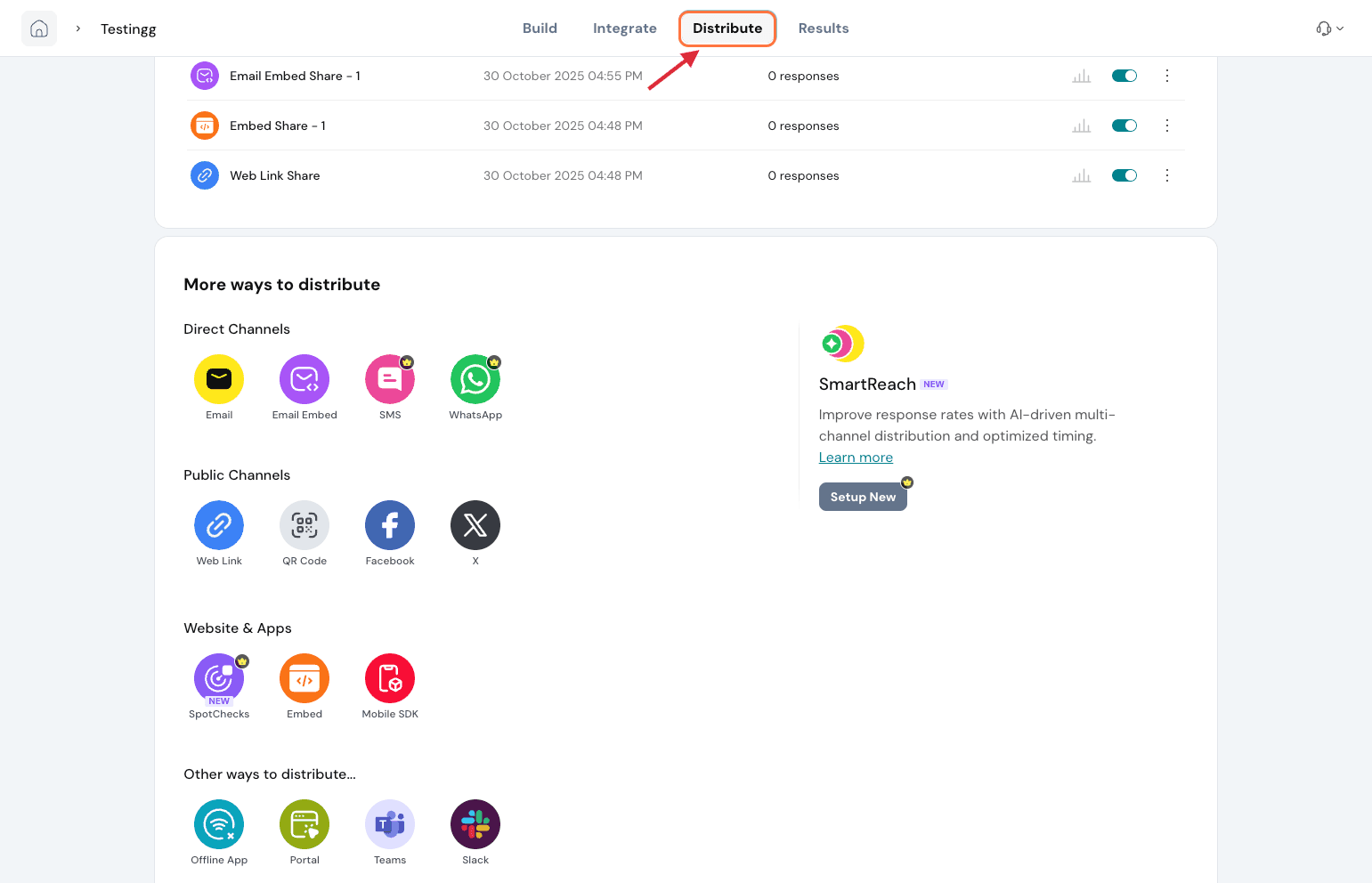
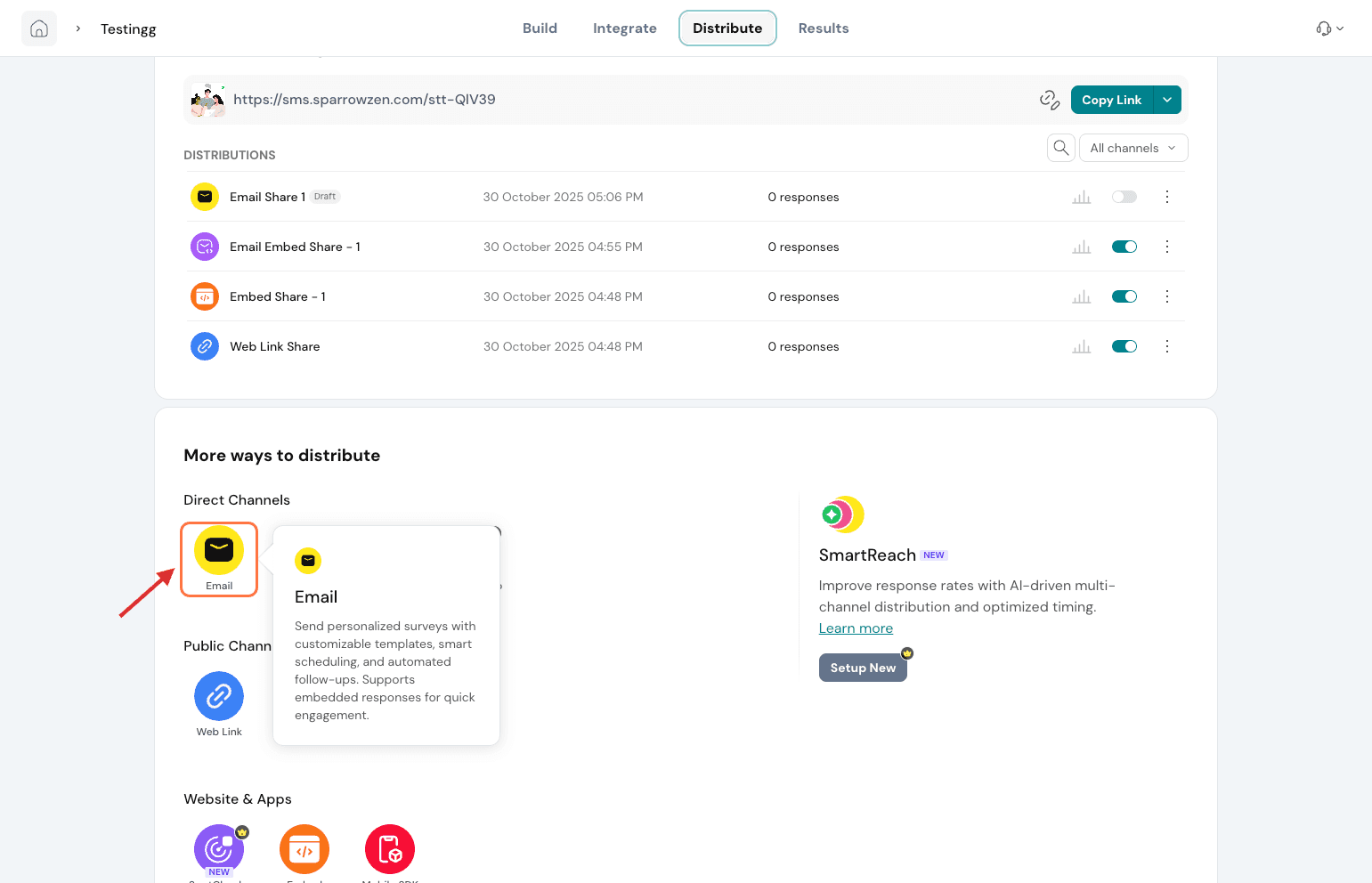
3. You will see options to customize the sender ID and select the email language. Enter the subject line and preheader text to define how the email appears in the inbox. Add a Get Started button or embed the question directly within the email as needed.
Choose recipients, schedule emails, and set reminders to automatically send follow-up messages.
A default template appears initially. To edit or create a new template, click Edit Template and start customizing the design.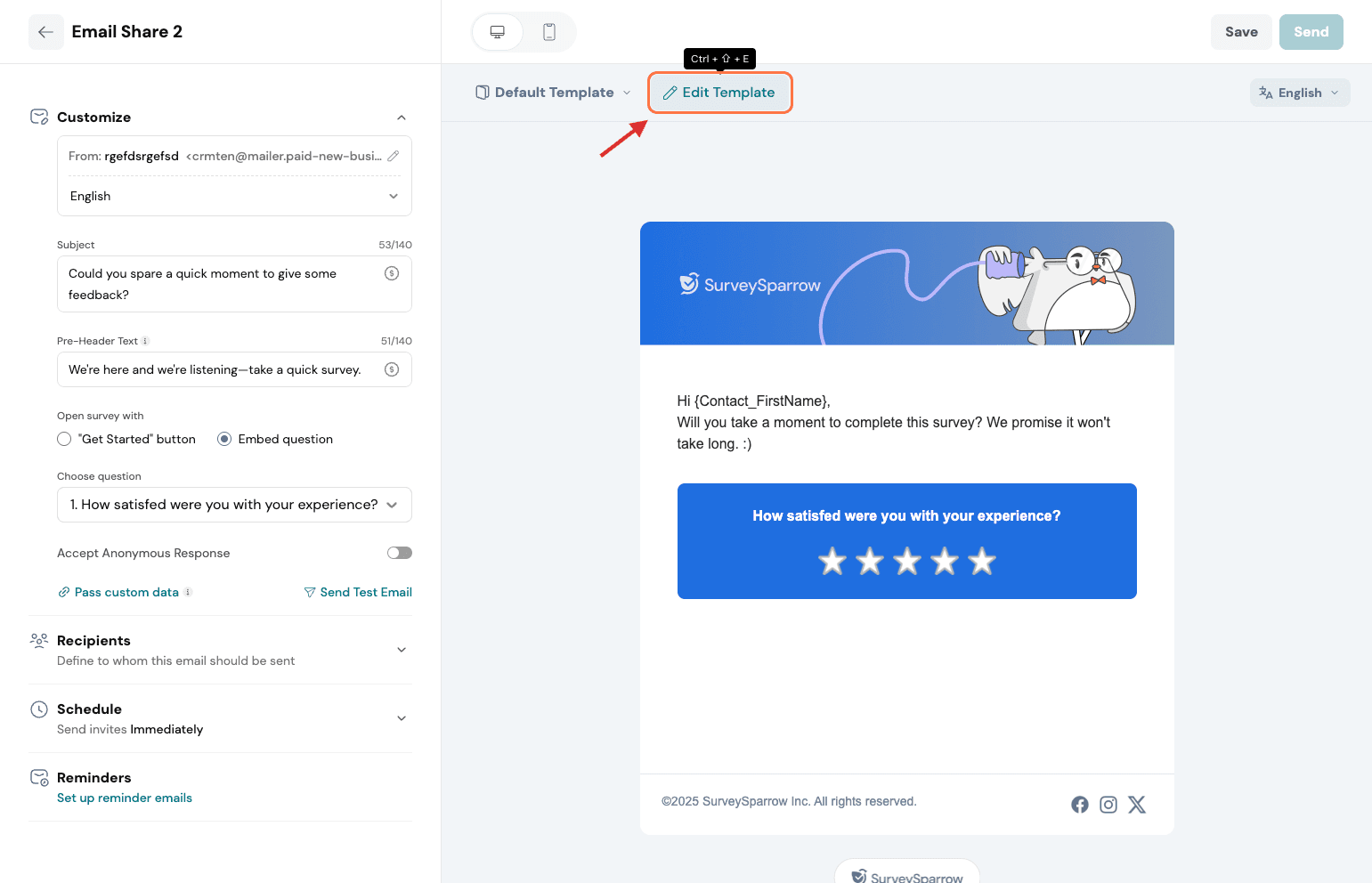
4. You will see three options - Blocks, Saved, and Styles.
Under Blocks, access various components to drag and drop while designing the email template. Options include Text, Image, Spacer, Button, and more to help build and structure the layout.
The Saved section displays all the template sections that have been saved for reuse. For example, a frequently used header or section design can be saved here for quick access, ensuring consistency and saving time when creating future templates.
Under Styles, control the finer design elements of the template such as colour, typography, button styling, and other visual properties to achieve the desired look and feel.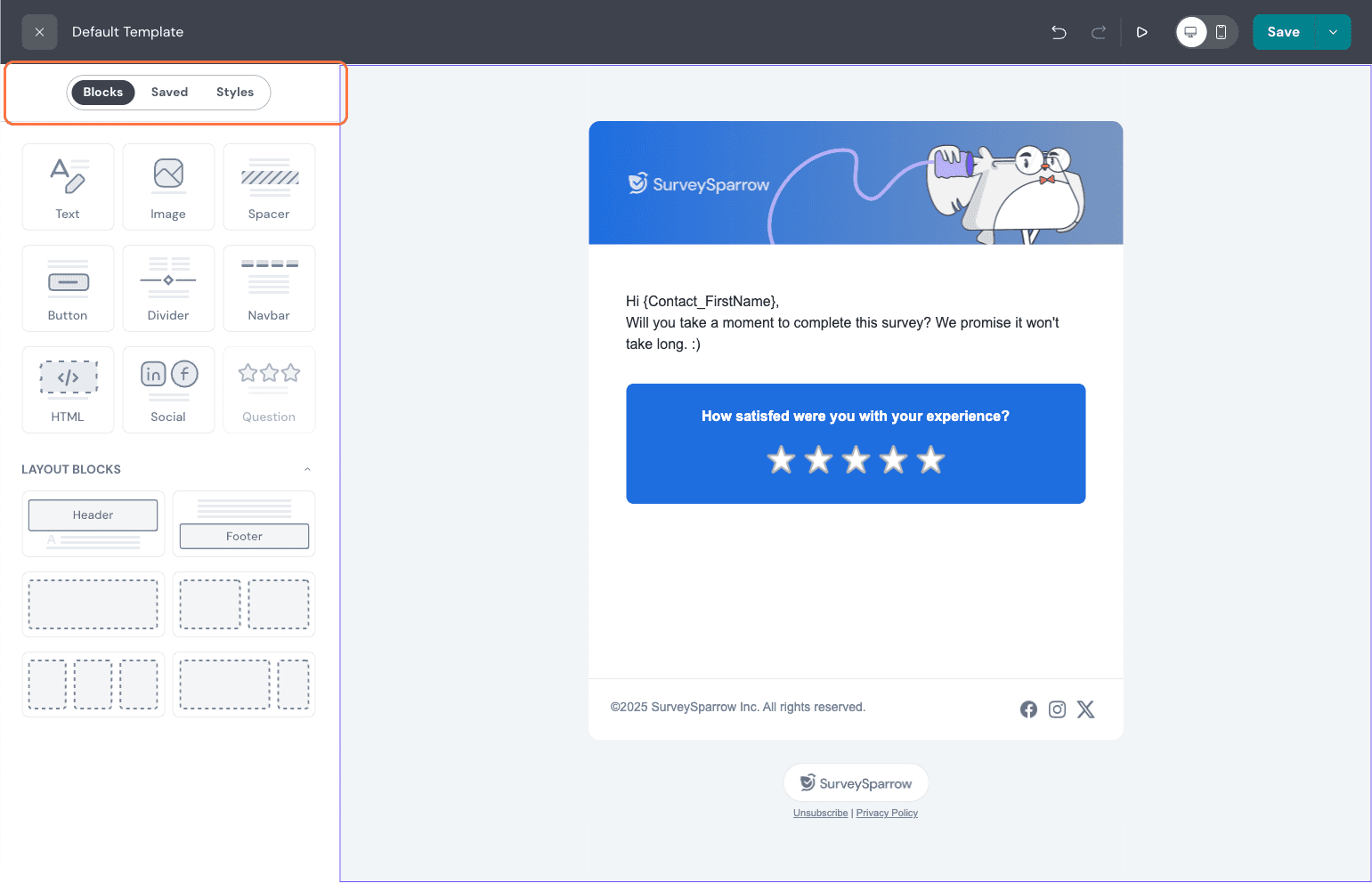
5.Under Blocks, for example, select Image and drag it to any section of the email layout where it needs to appear.
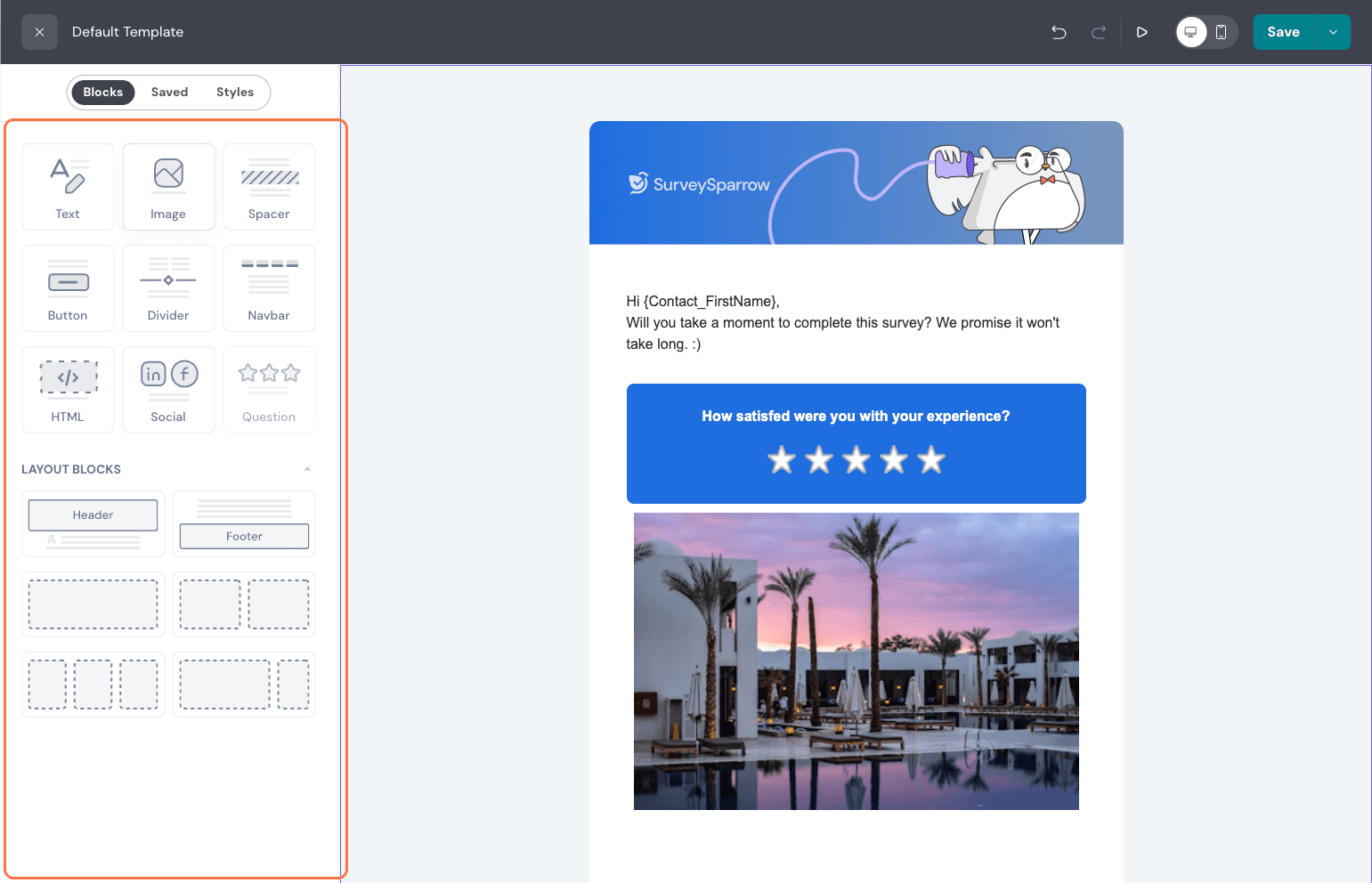
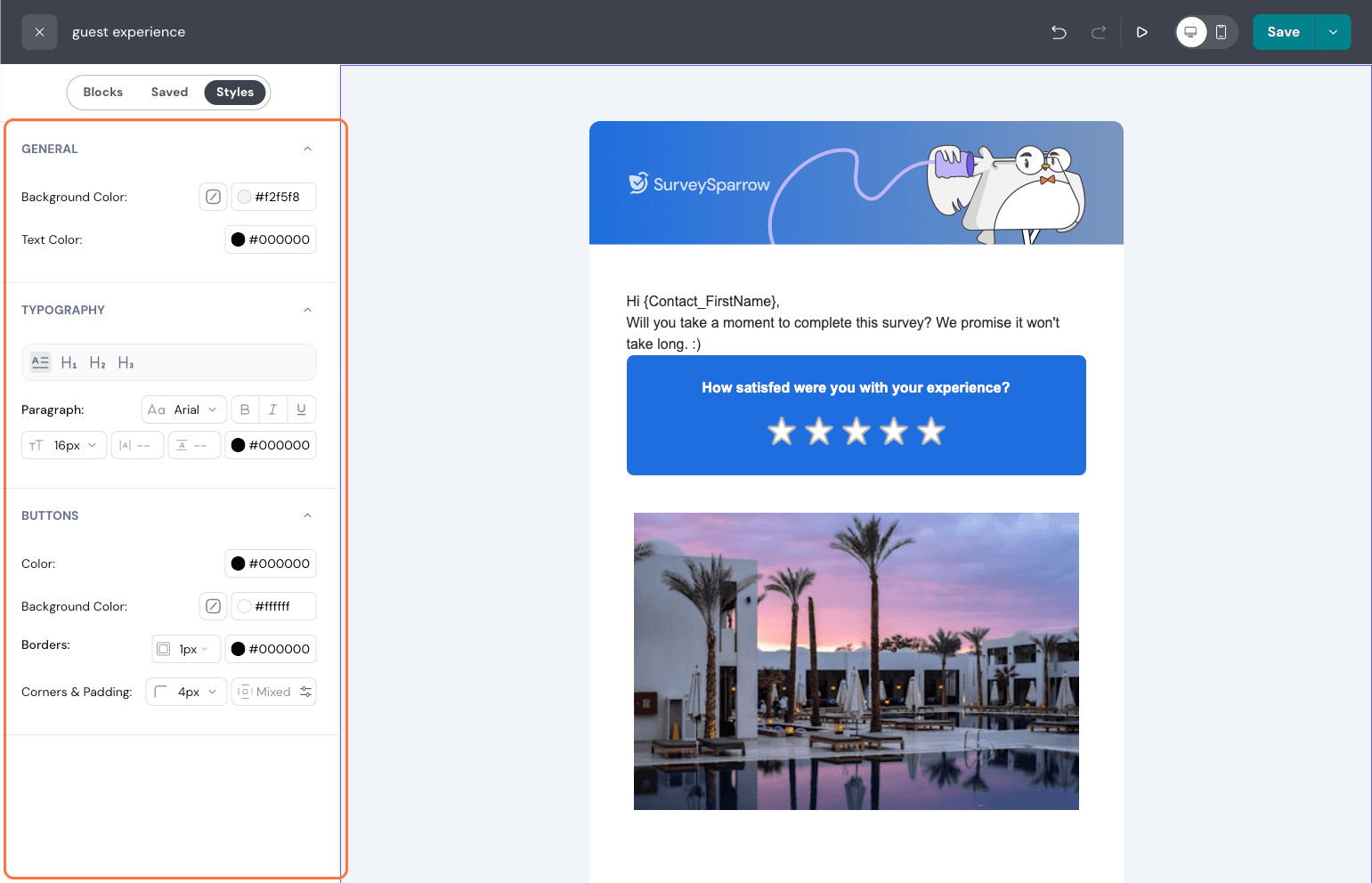
7.You can also choose layout blocks to structure the email design. For example, to place text and an image side by side or to create a three-column layout, simply drag and drop the layout block and add the desired components within each section.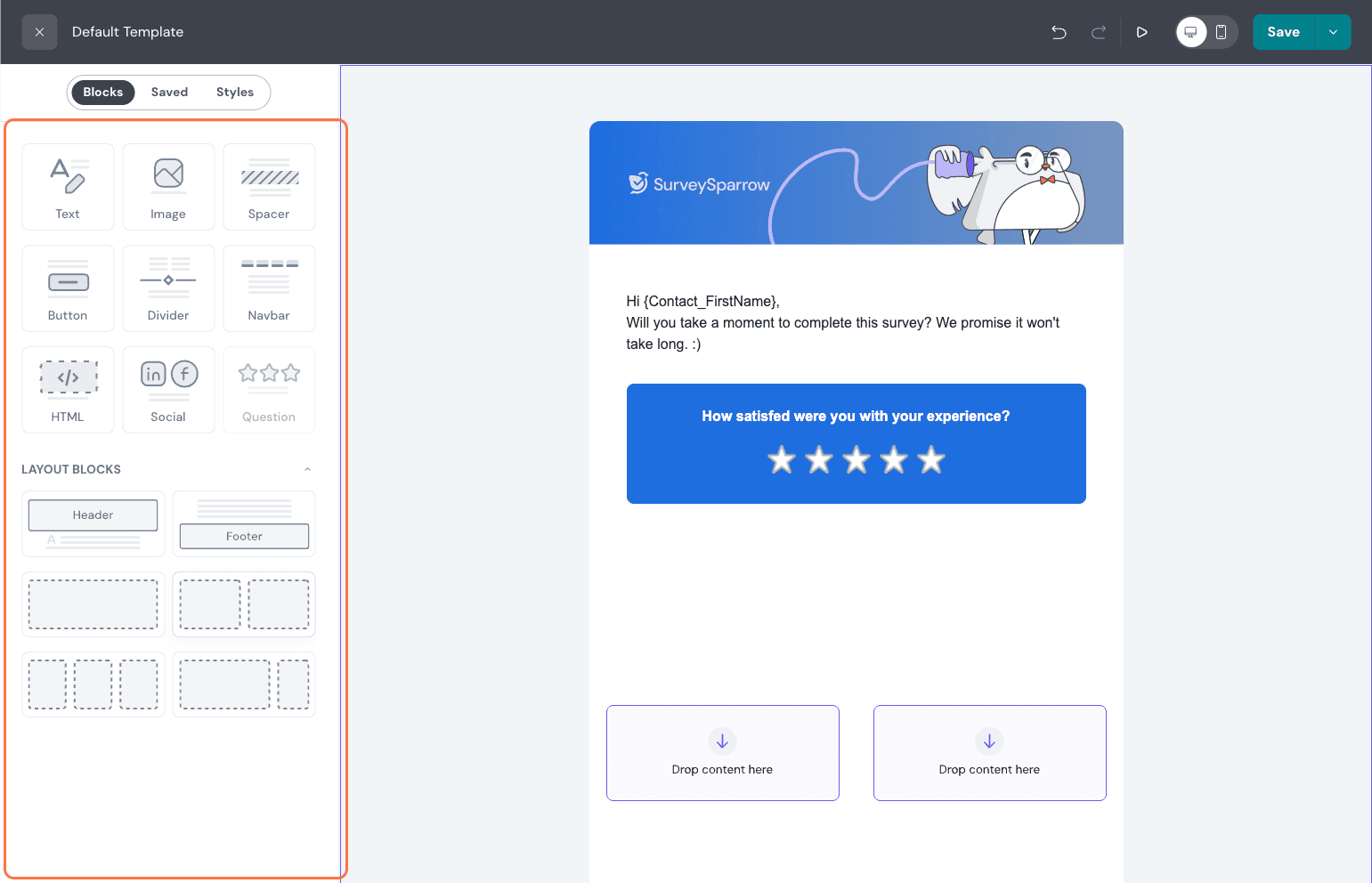
In this example, a two-block layout is selected. One block can include an image or any other component, while the other block can contain text or another element of choice.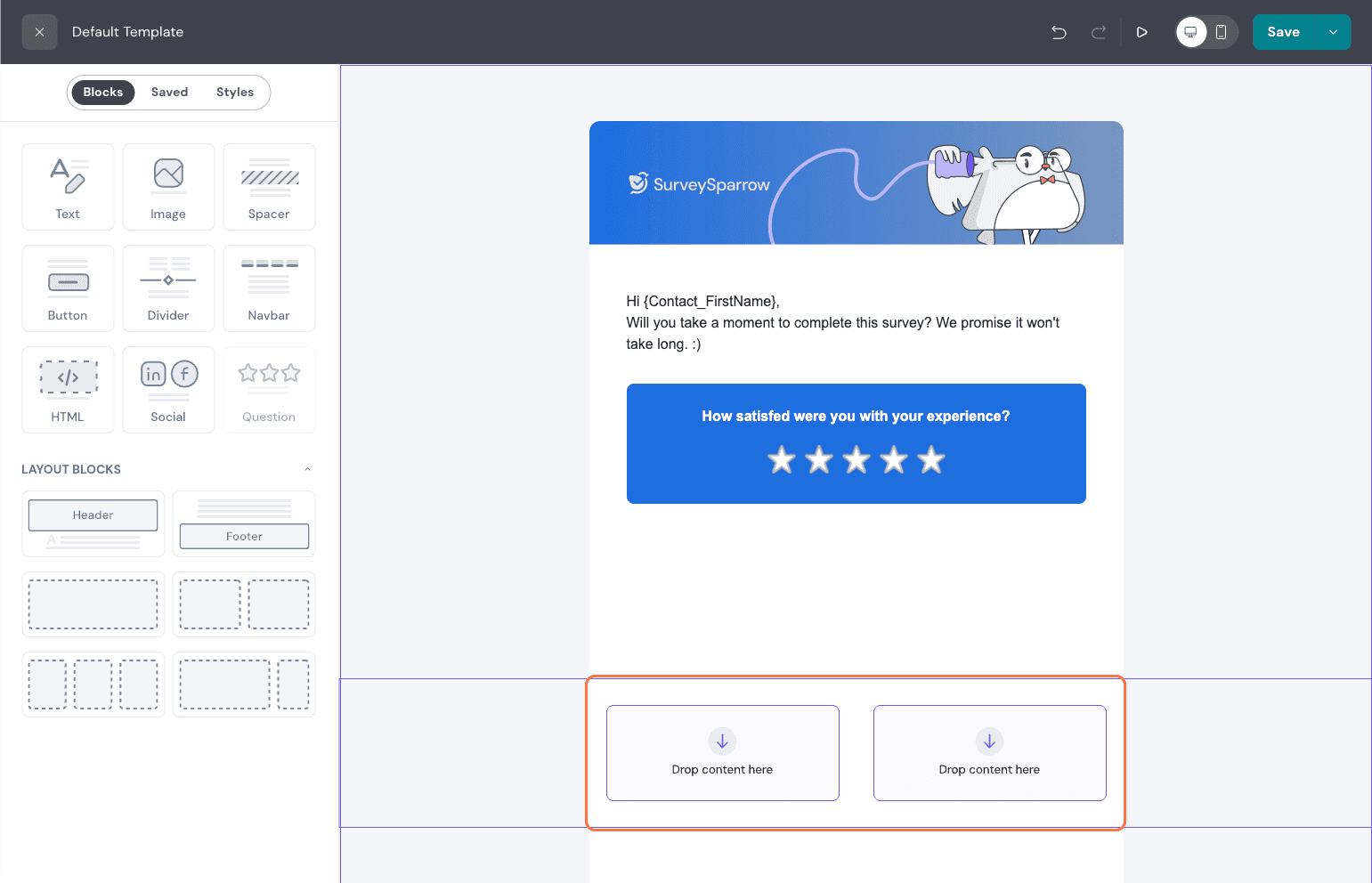
8.You can also fine-tune the design of each block layout by adjusting width, padding, colour, alignment, and other visual properties.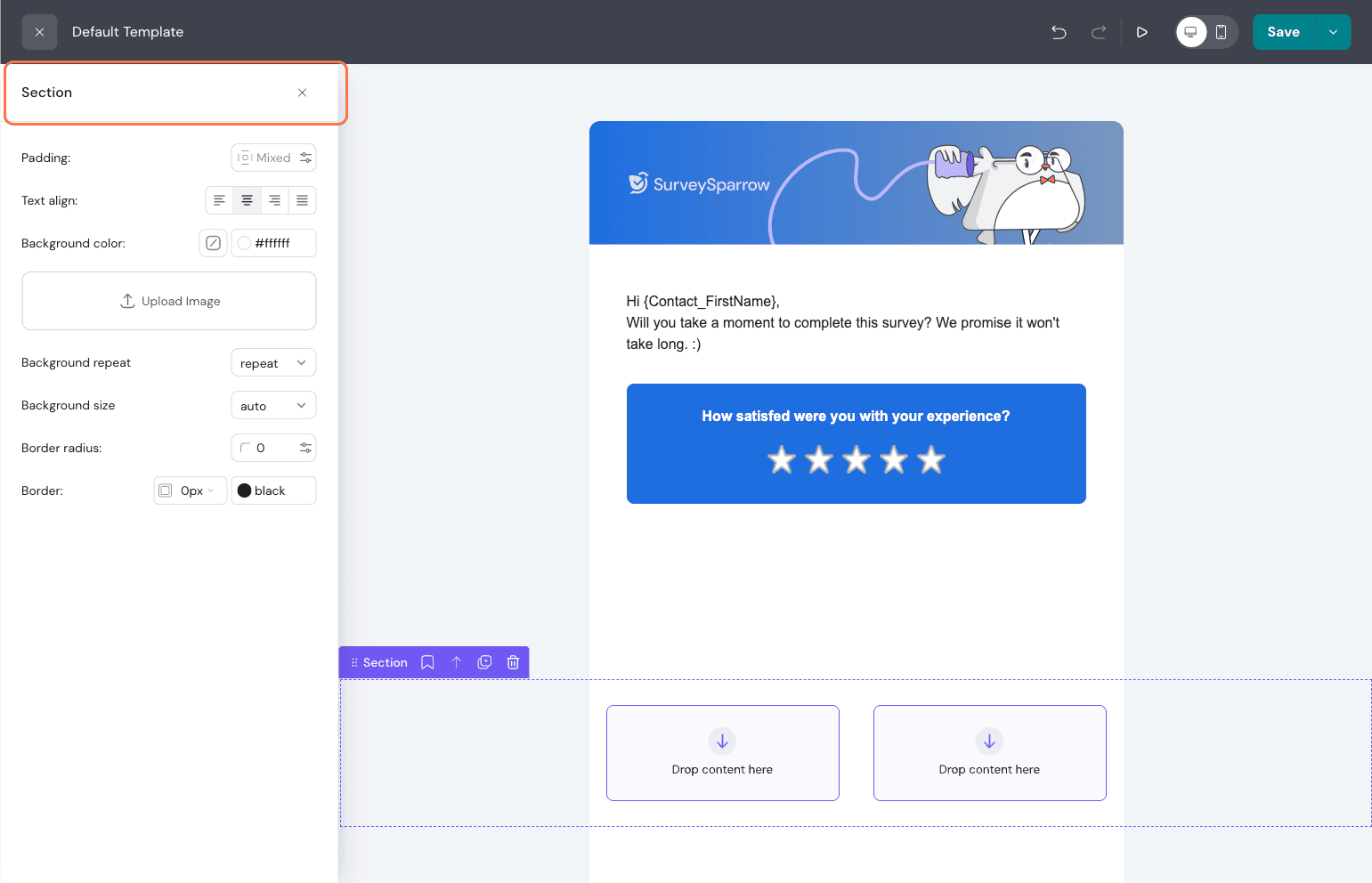
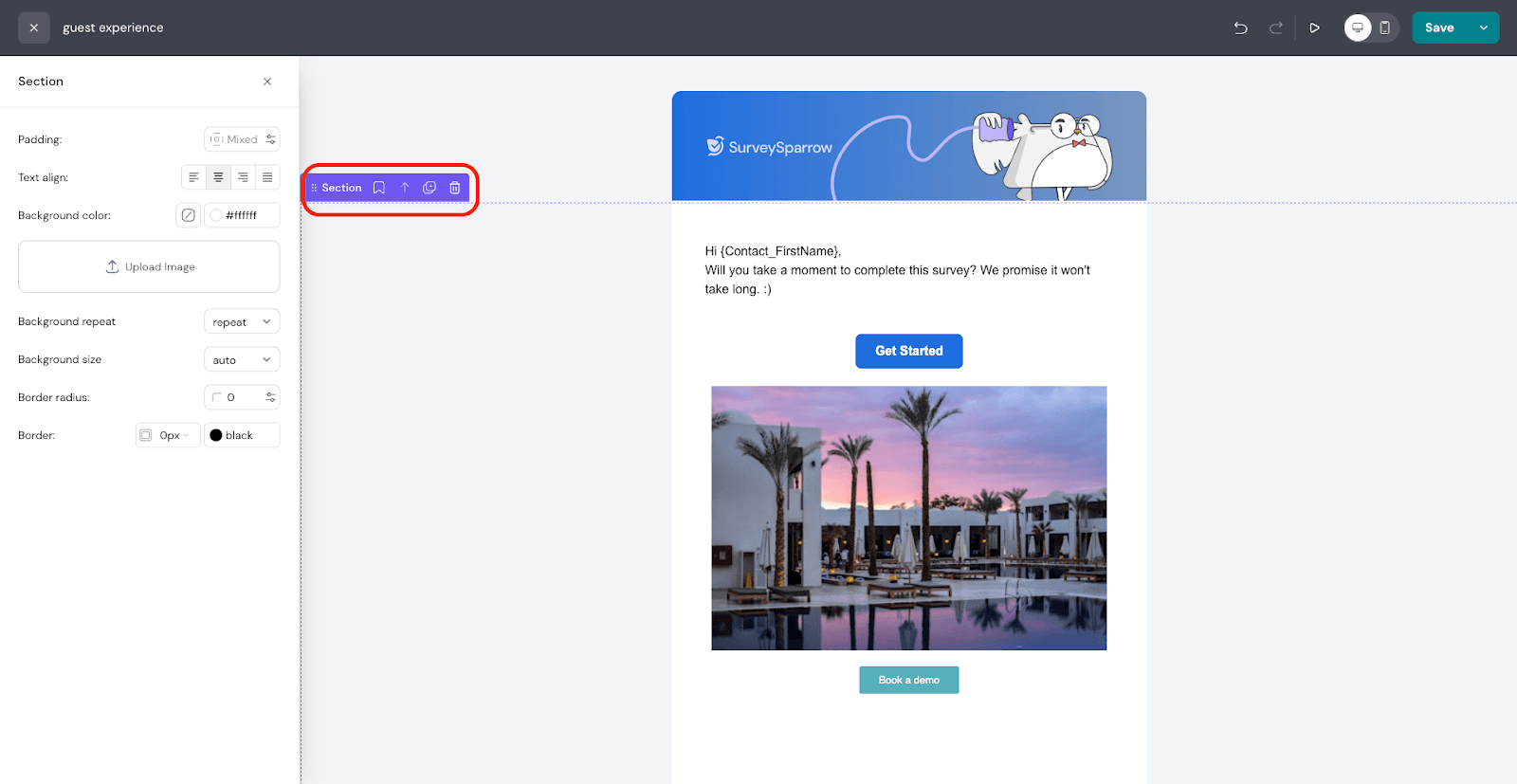
9.You can also save individual sections of the template. This allows quick access to frequently used sections and eliminates the need to redesign them each time an email is created. This can be viewed under the Saved section.
10.You can now see this under the Saved section. 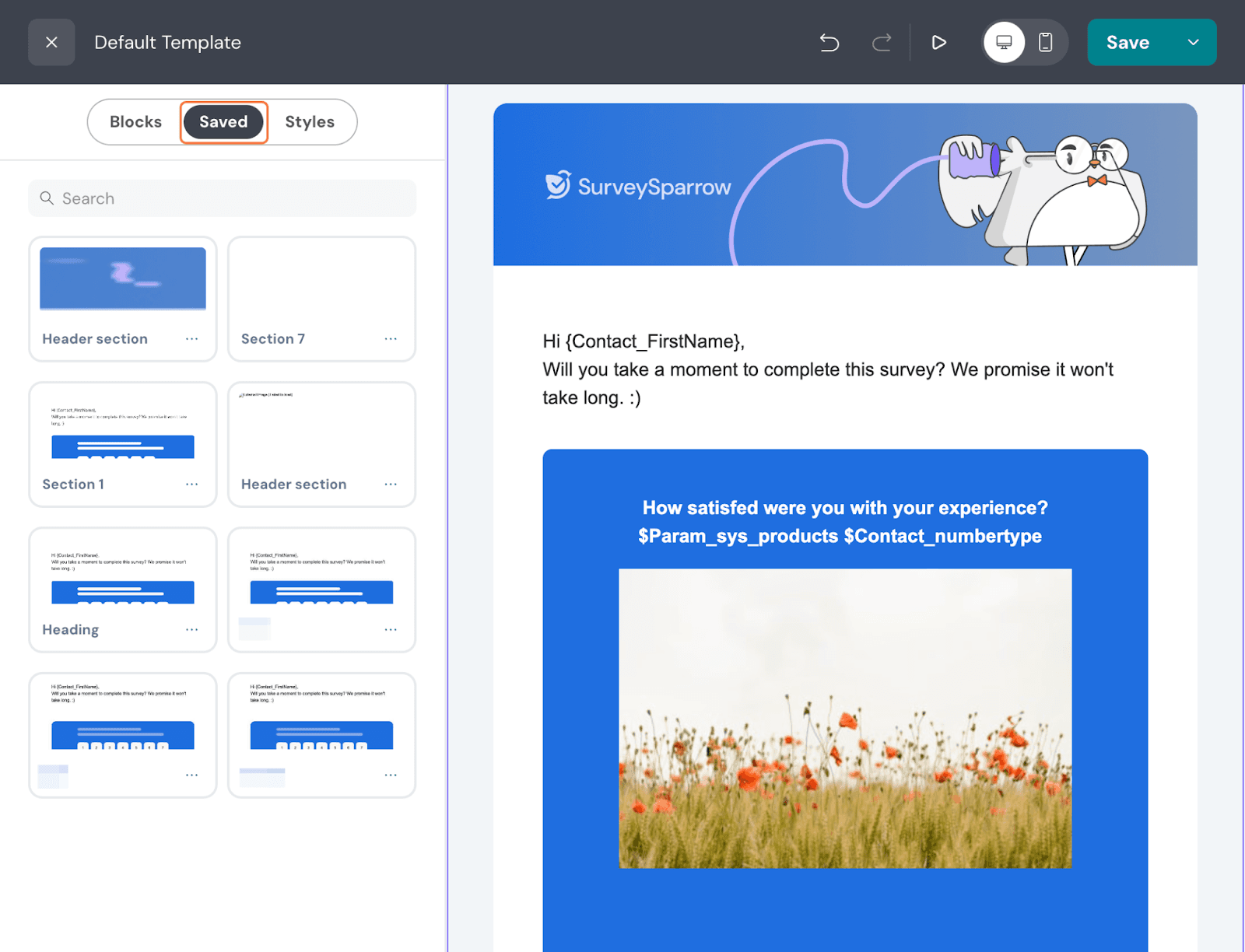
11.Once the template design and block elements are finalised, click Save Template. Two options are available - save as the final template or save as a new template for future use.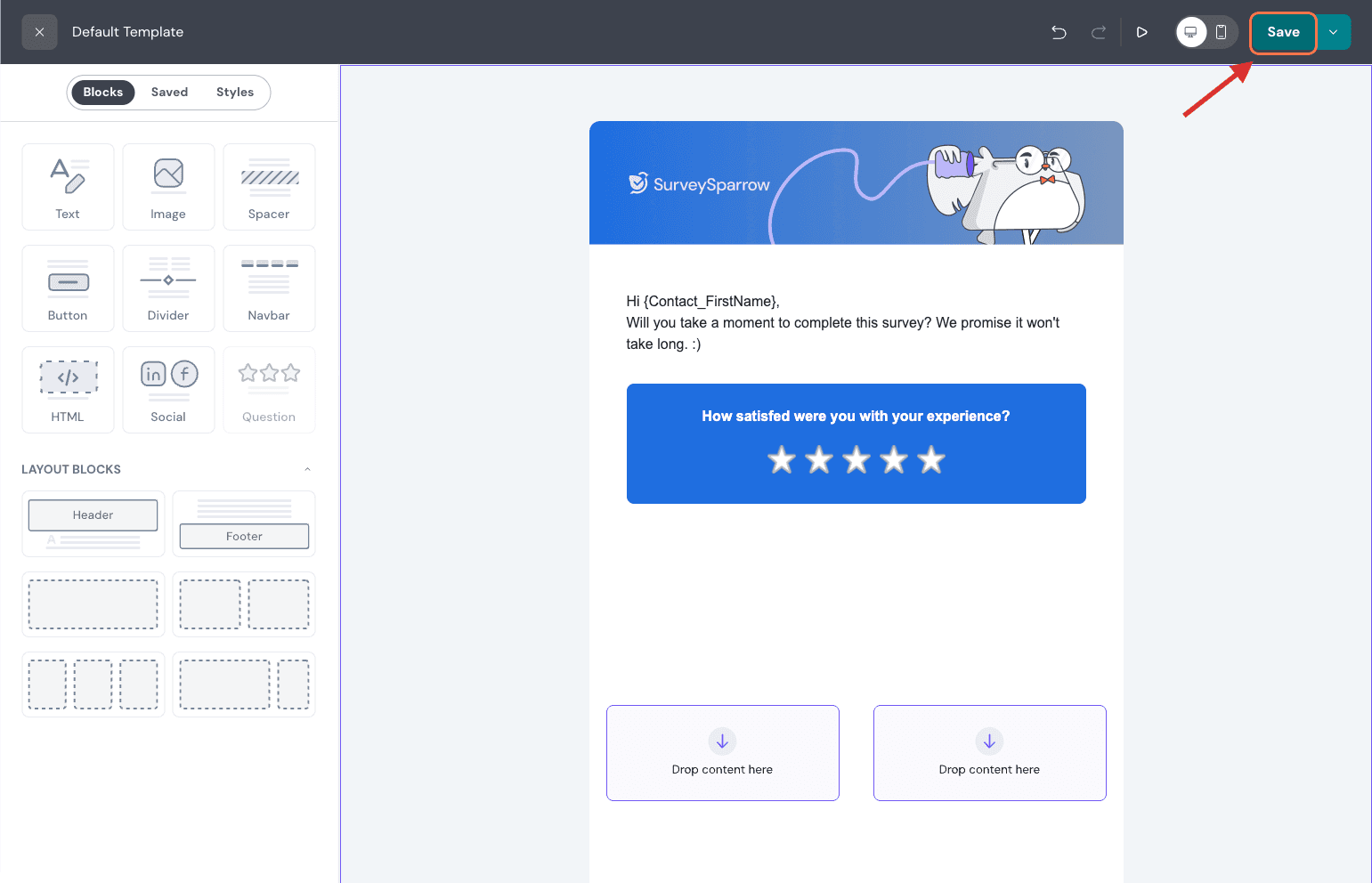
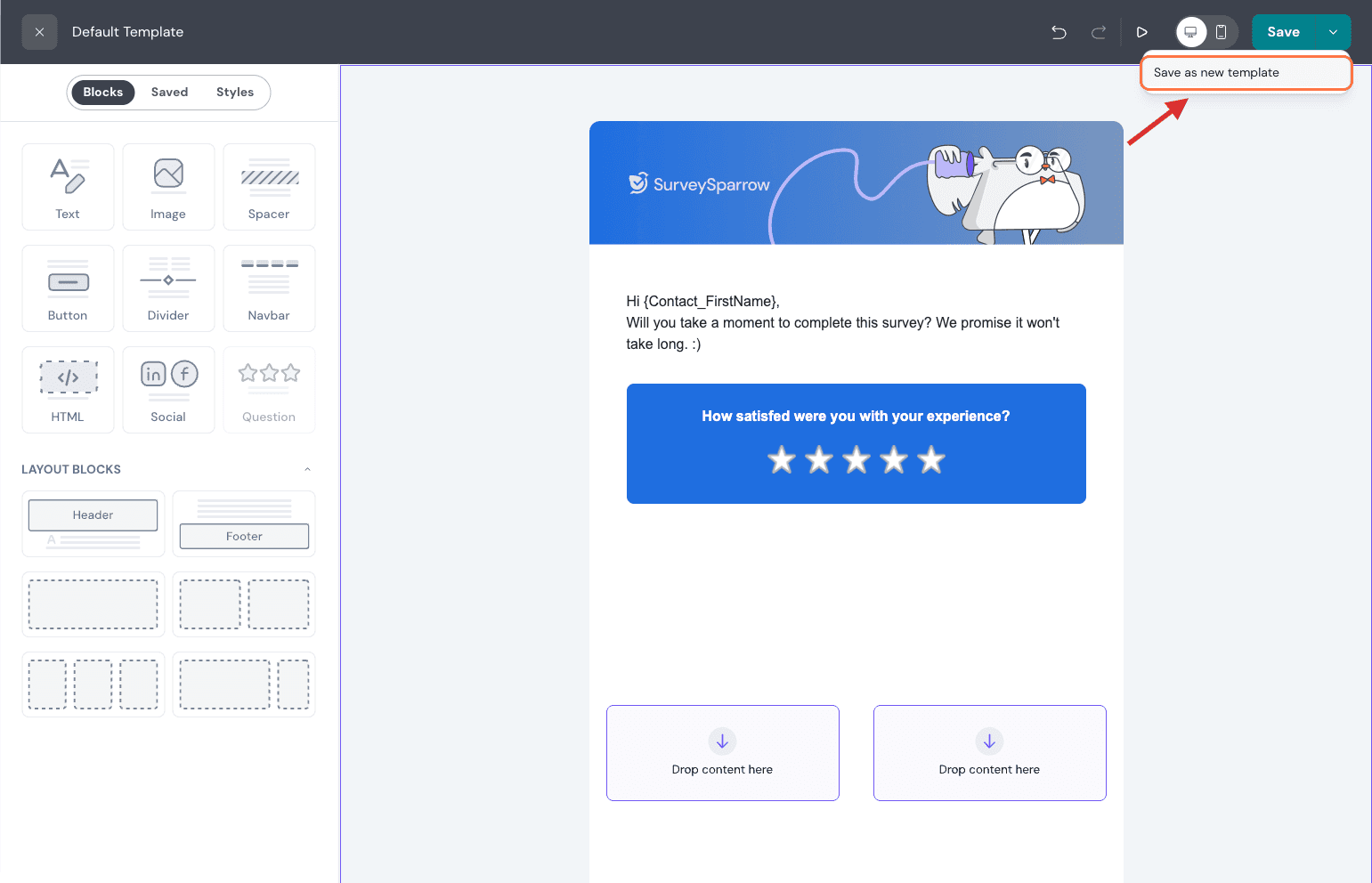
12.Give a name for your template and Save the same.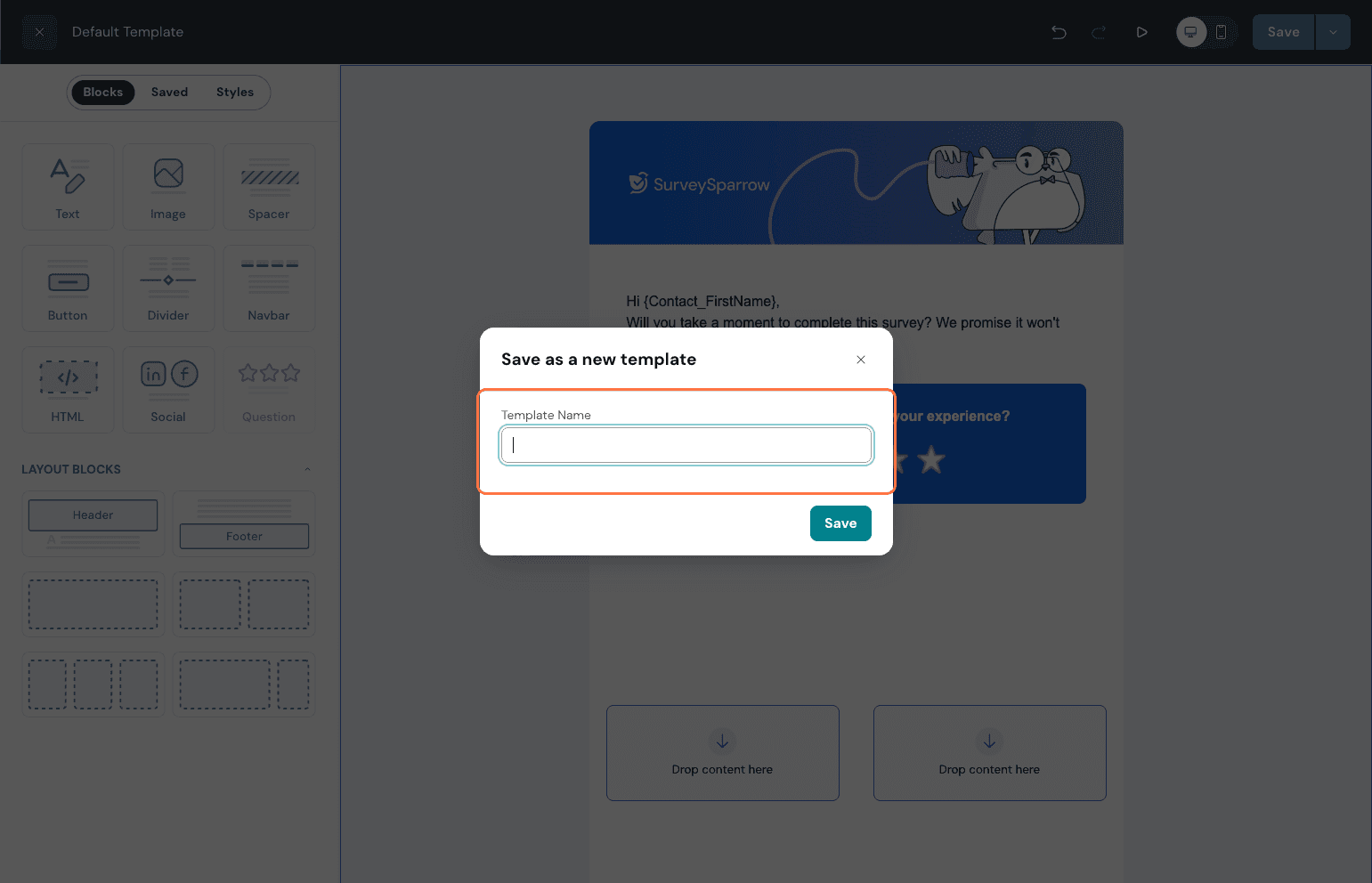
The following are the Block Types and their functions
Text – Drag and drop a text block to add a text area where content can be typed and formatted.
Image – Allows placement of an image anywhere within the email layout.
Spacer – Adds adjustable space between elements. The height can be customized to control spacing and layout balance.
Button – Inserts a clickable button, typically used for calls-to-action (CTAs). A link can be added to redirect users to a specific page.
Divider – Adds a visual separator between sections to create clear distinctions within the email design.
Navbar – Adds a navigation bar that can include links to different pages or sections, useful for multi-link email layouts.
HTML – Provides the option to insert custom HTML code directly into the email for advanced design or functionality.
Social – Displays social media icons with links to brand or company social pages.
Question – Adds a question component to the email. If the default question is removed, this block can be used to reinsert it.
That's all about Email template creation.
Feel free to reach out to our community if you have questions.
Powered By SparrowDesk