
How to send reminders to survey non-respondents in SurveySparrow

You can send reminders to survey non-respondents automatically. When you share a survey by email, add a reminder to the same Email Share and SurveySparrow emails the people who have not answered after the number of days you choose. This raises your completion rate without chasing anyone by hand.
Prerequisites
- A Classic or CX survey.
- An Email Share for that survey. This article covers reminders on an Email Share.
- Recipients for the Email Share. The reminder delay is counted from the first message.
Set up a reminder
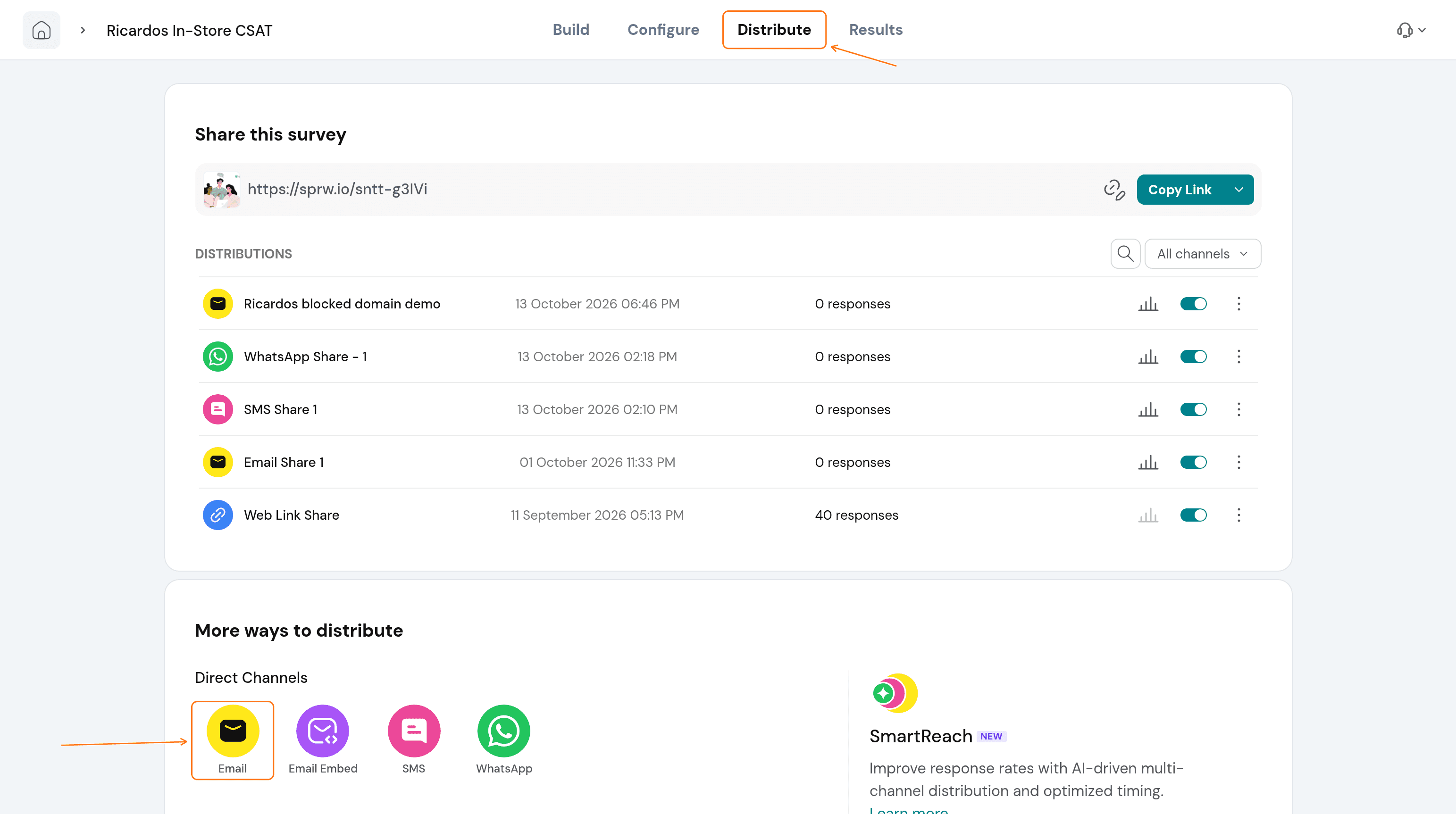
- Open the survey, select the Distribute tab, and choose Email.
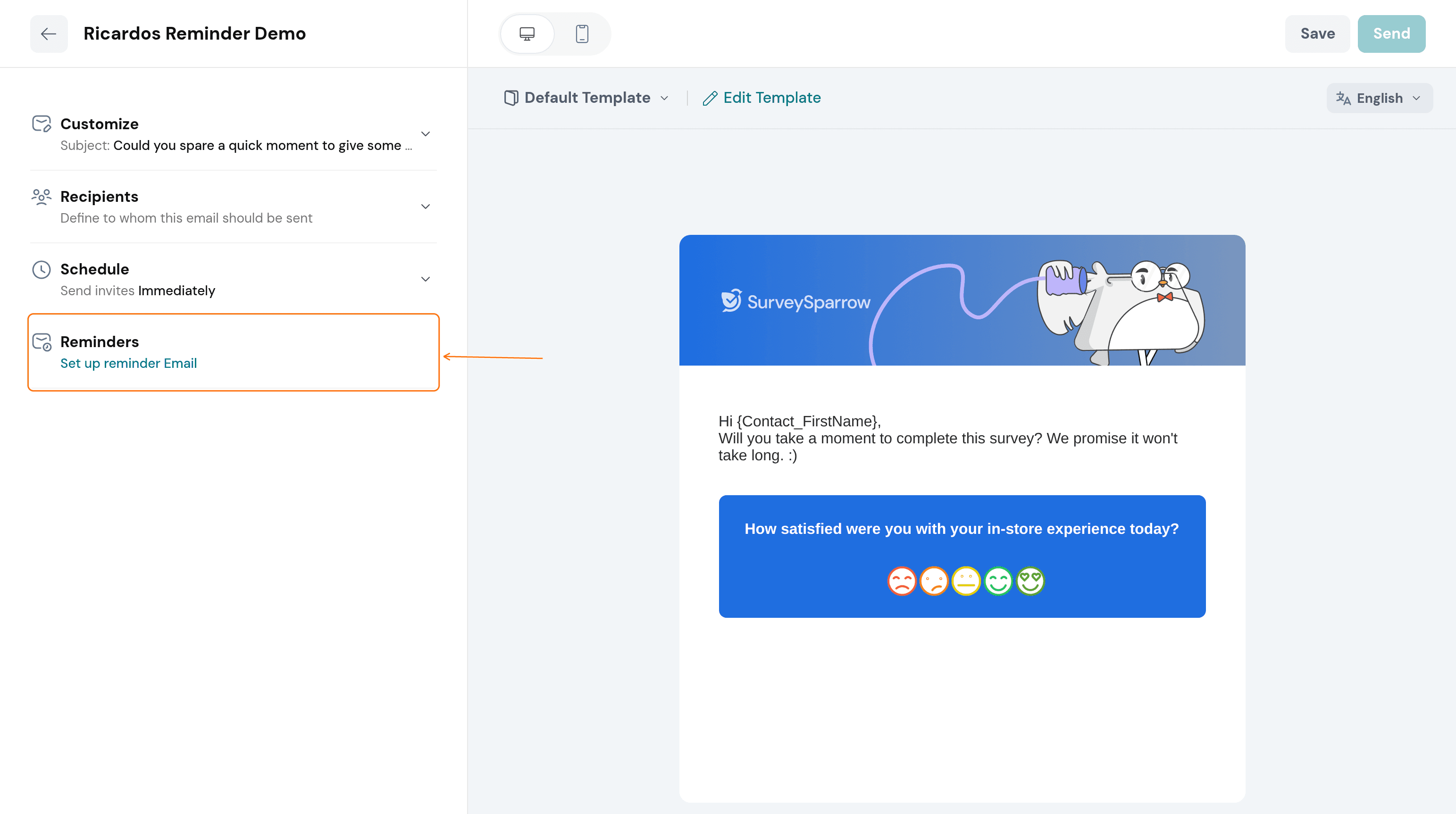
- In the Email Share editor, fill in your email details under Customize, add your audience under Recipients, and choose when to send under Schedule. These sections are covered in How to Share Surveys Via Email?. Then open Reminders.
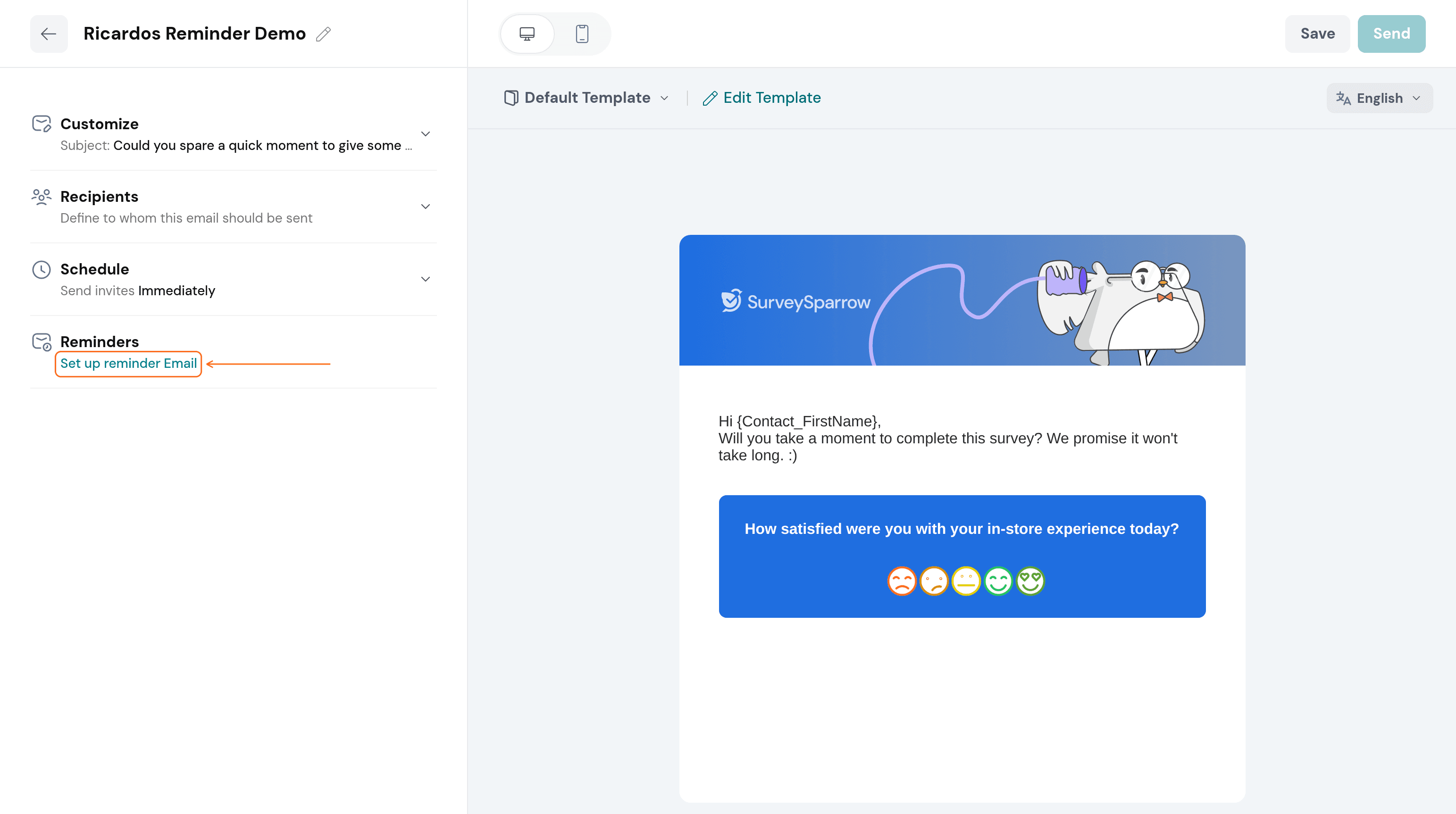
- Under Reminders, select Set up reminder.
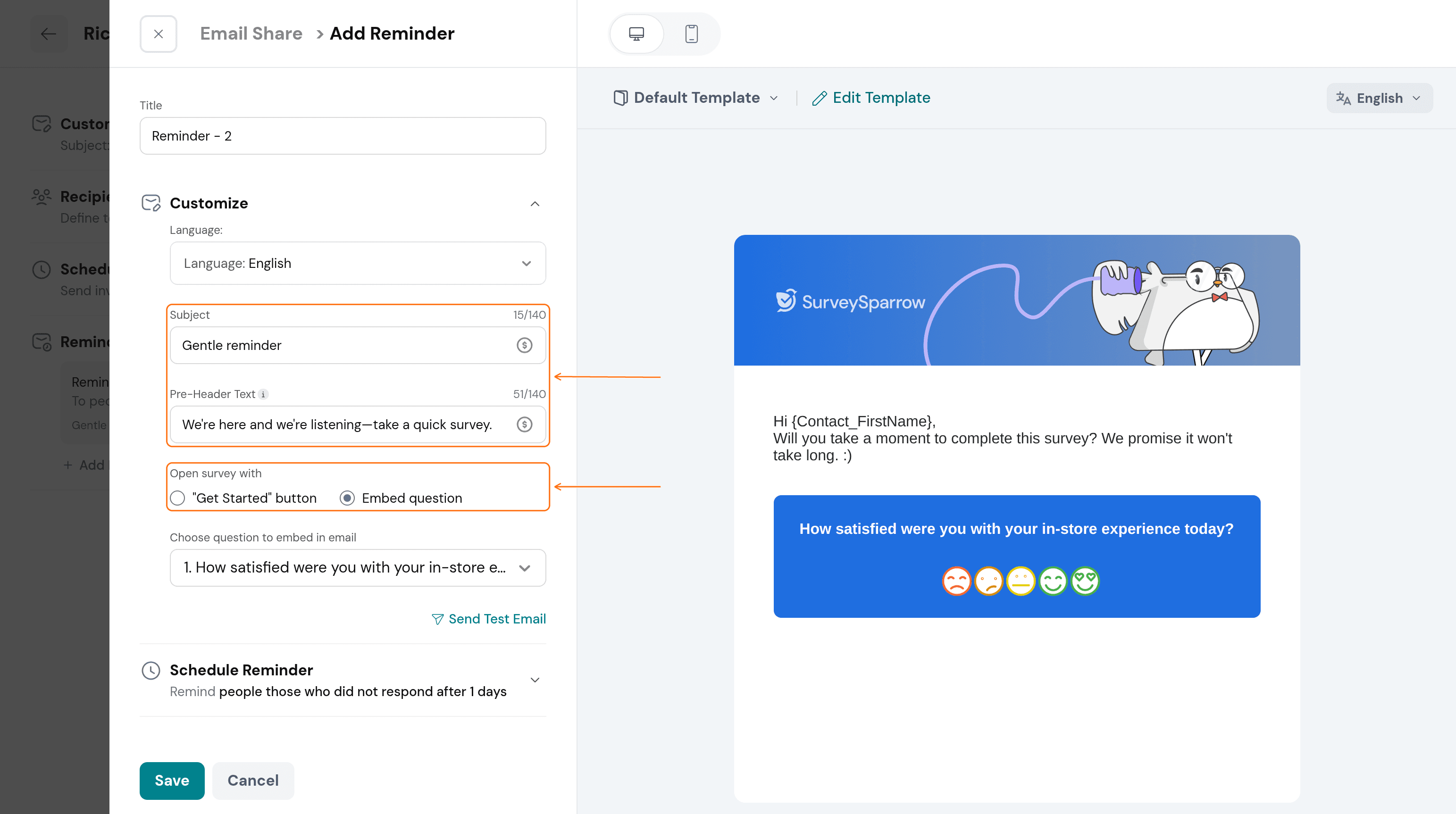
- Give the reminder a Title, then open Customize in the Add Reminder panel.
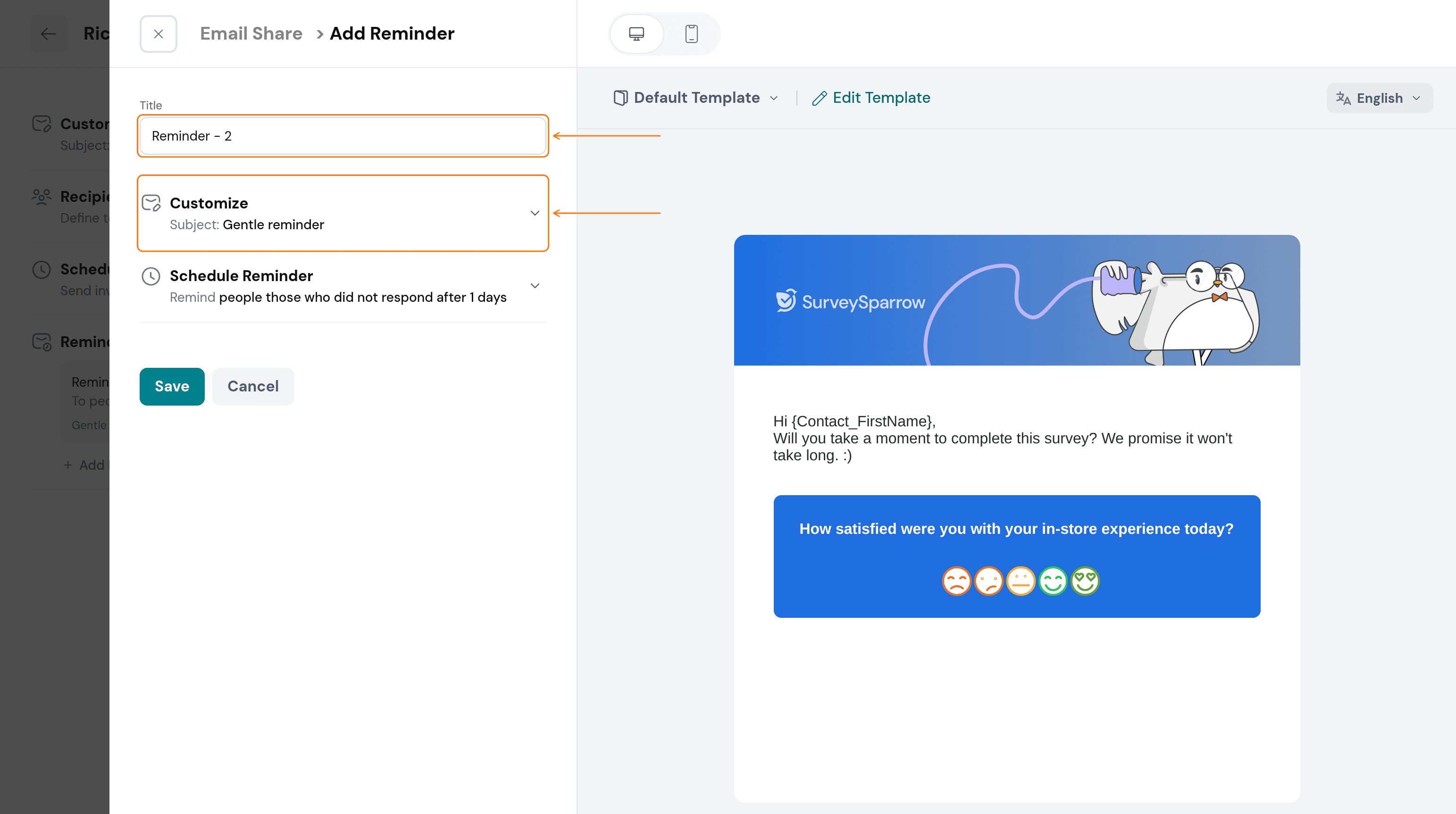
- Set the Subject and the pre-header text. A reminder can have its own subject, pre-header text and language, and you choose whether it opens the survey with a Get Started button or embeds a question you choose.
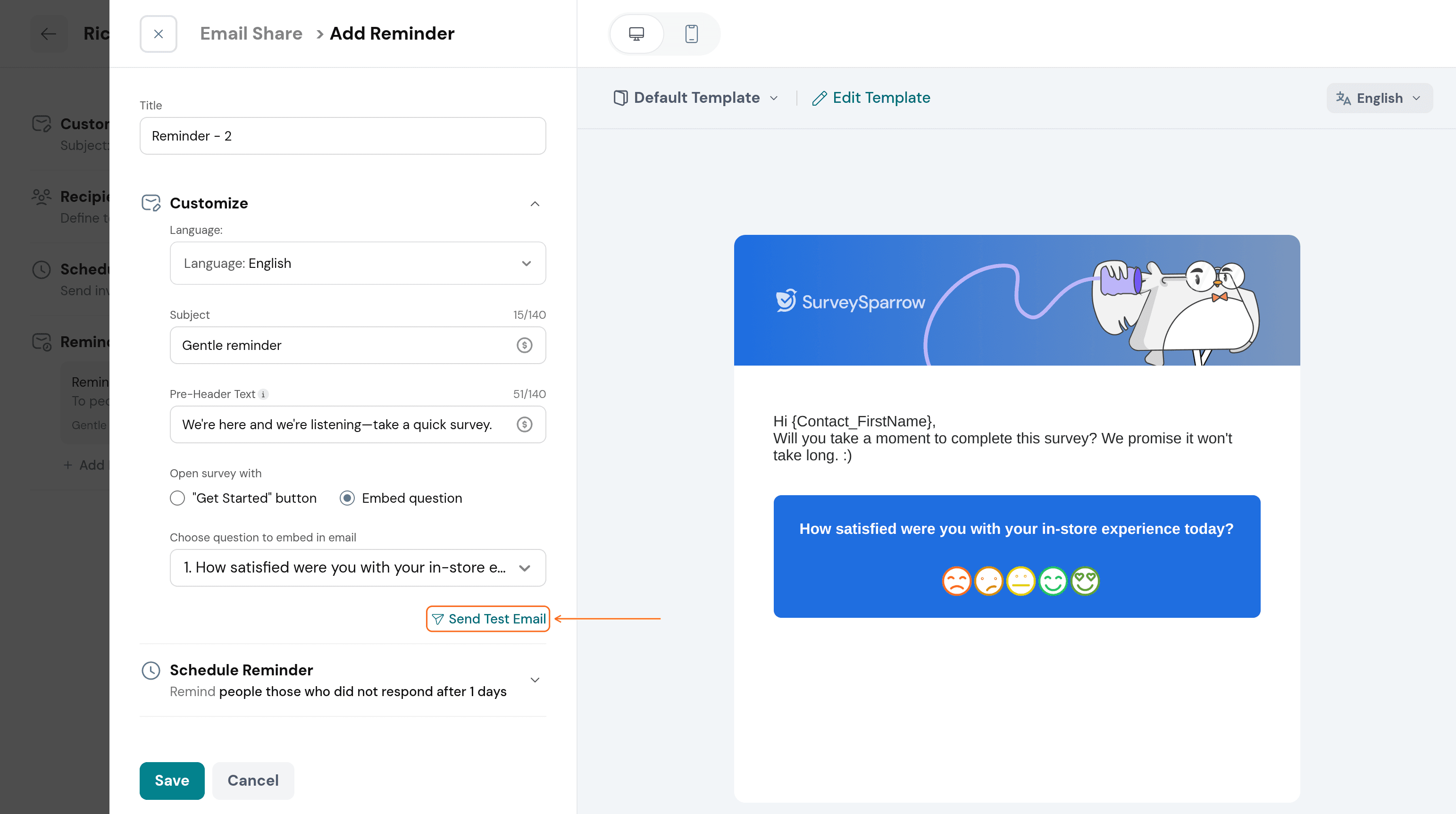
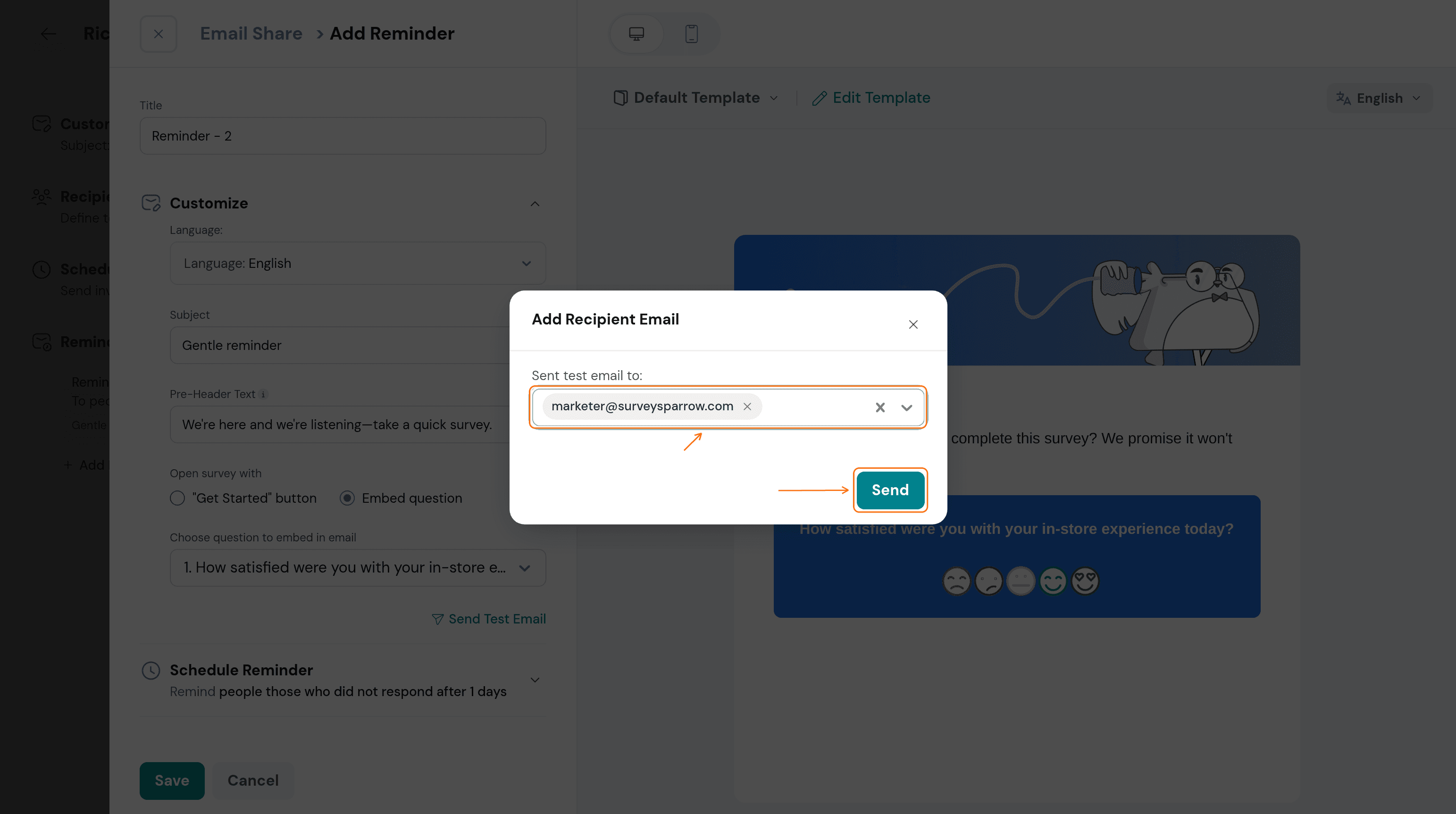
- To preview the reminder in an inbox, select Send Test Email in the reminder's Customize section. Enter your own address in the dialog that opens, then select Send.
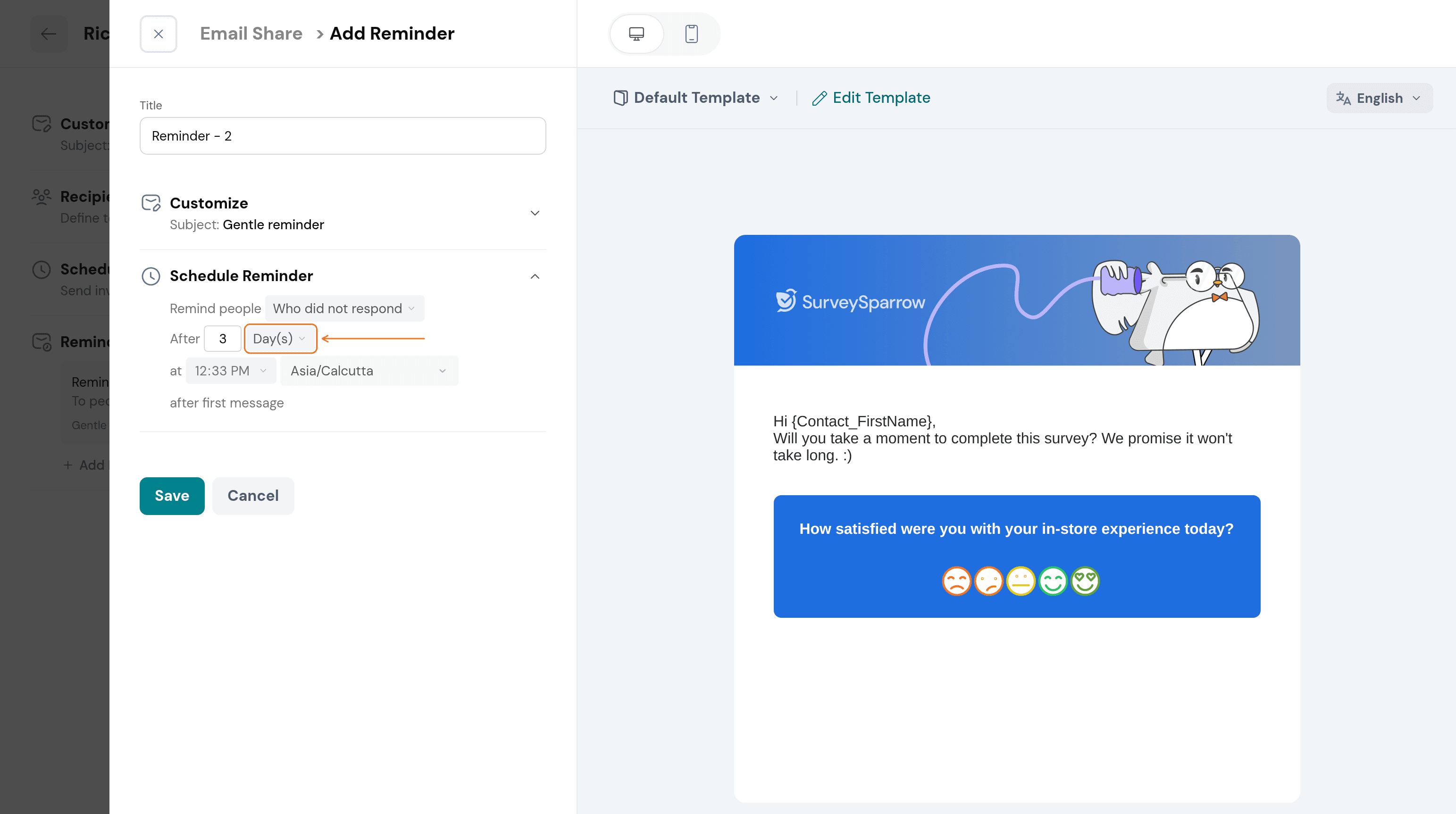
- Open Schedule Reminder. Choose Who did not respond to remind people who have not answered. The list also offers Who partially responded, which can be greyed out and unavailable for a survey.
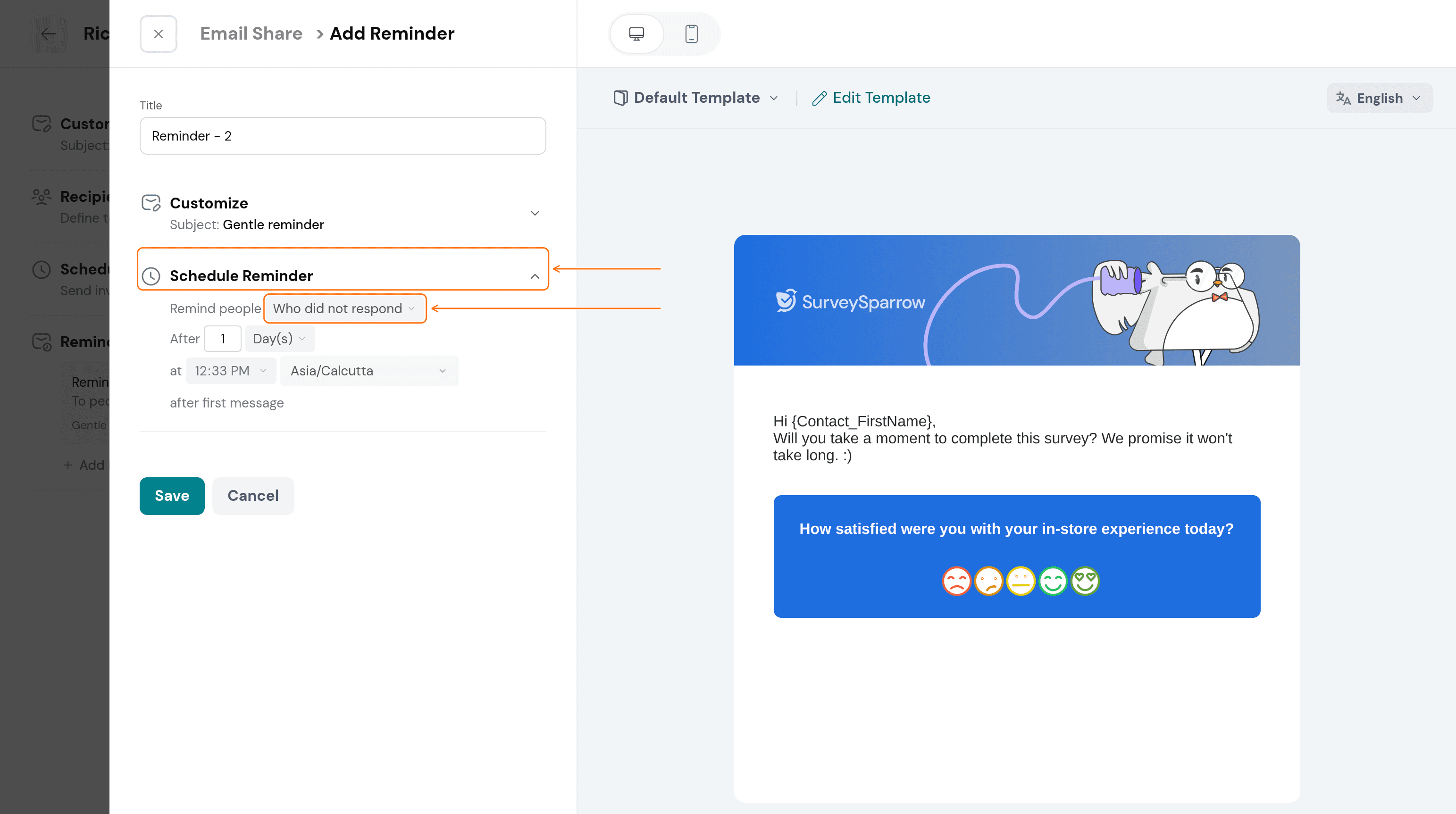
- Enter a number and choose a unit from the dropdown, which offers Day(s), Week(s), Month(s) and Year(s). SurveySparrow counts the delay from the first message and sends the reminder at the time and time zone you select.
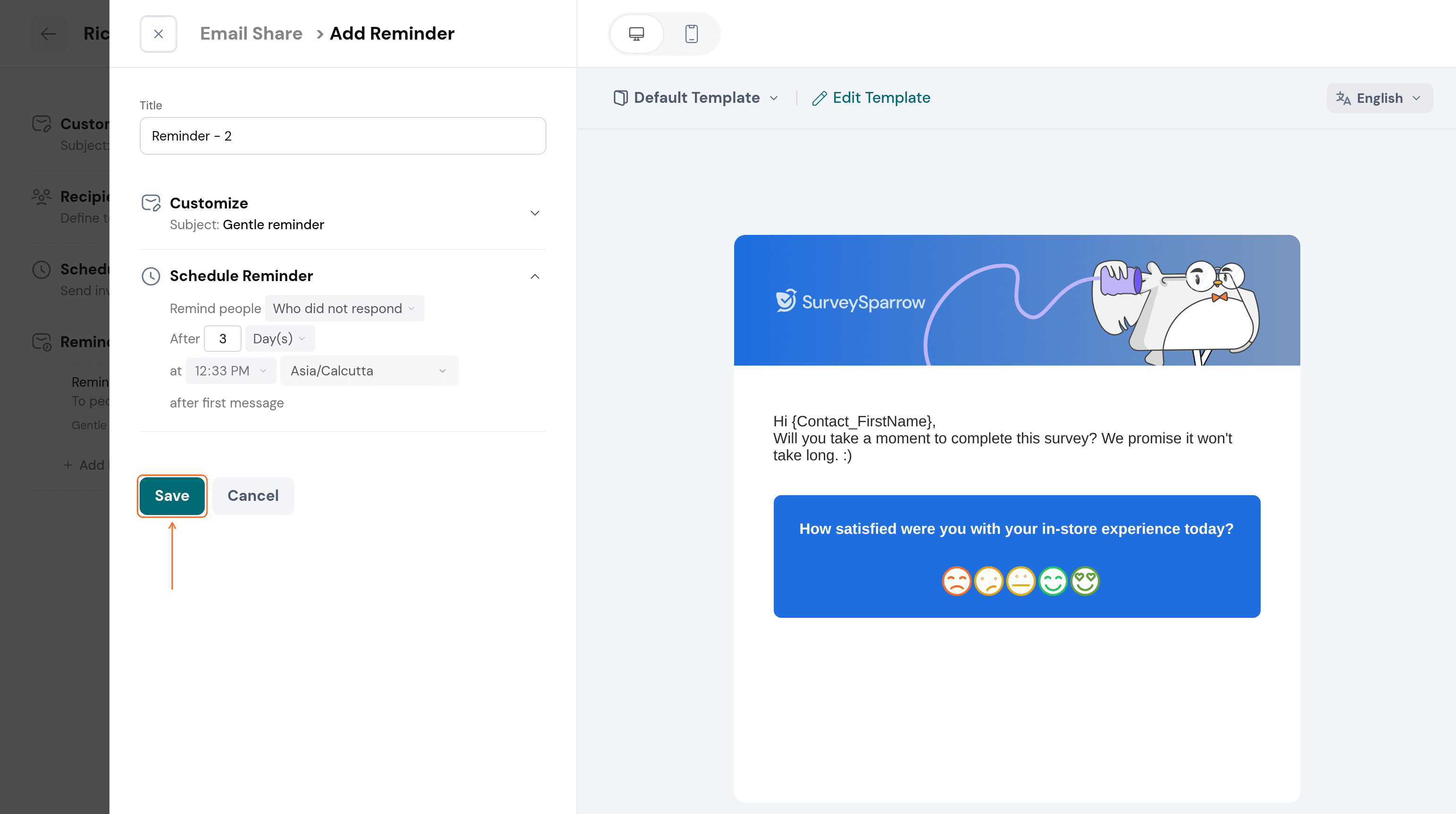
- Select Save.
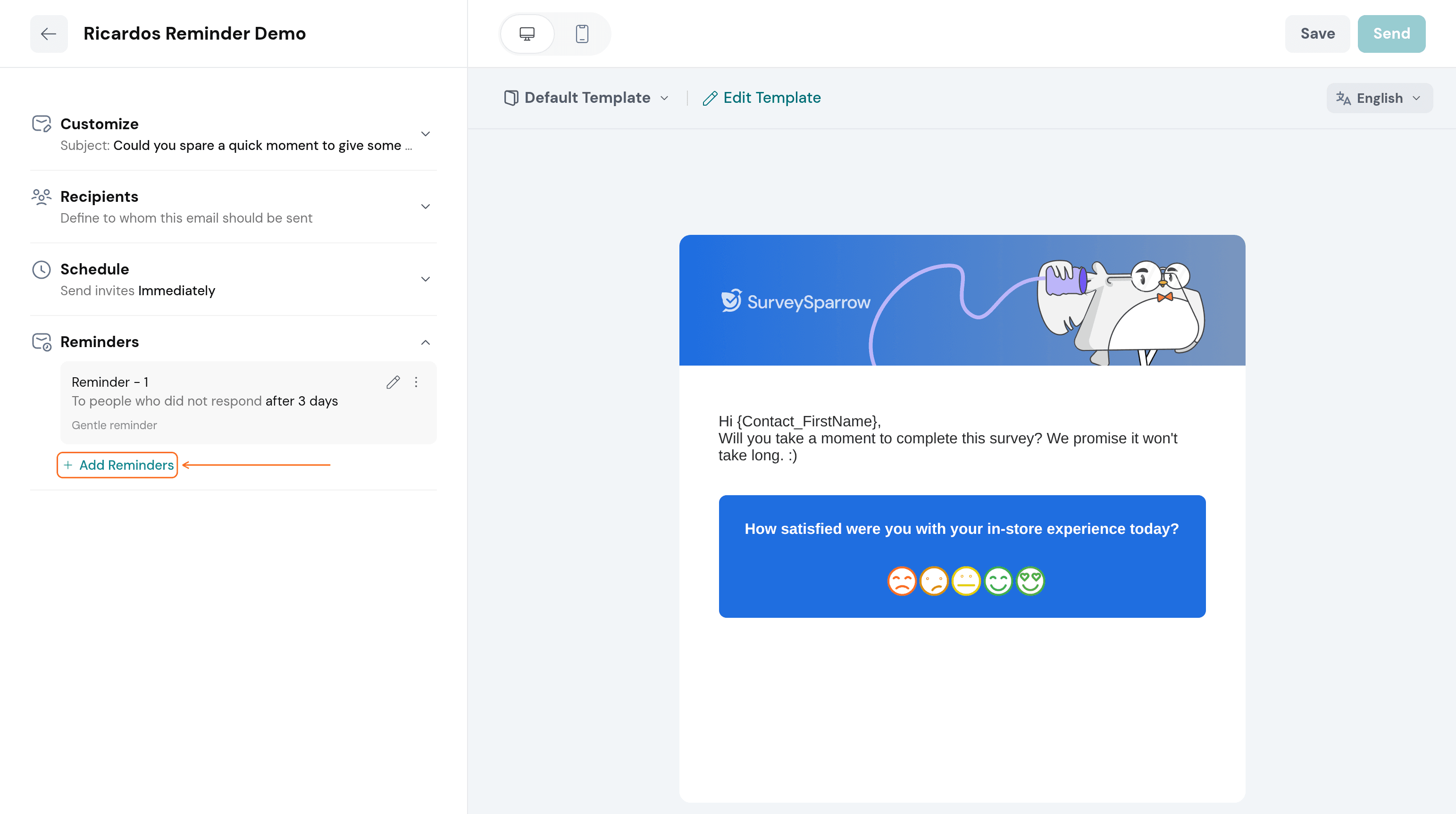
- The reminder now appears under Reminders with its title, audience, delay and subject. Select Add Reminders to add another one, for example a second nudge a week later.
Troubleshooting
The Reminders section shows "Setting up reminder" and does not finish loading. Refresh the page and try again. If it persists, try a private window or another browser. If it still persists across multiple surveys, contact Support with a screenshot or screen recording, because it may point to a platform-side issue.
The reminder will not save. In the Add Reminder panel, select Save again and check the Title, Subject and Schedule Reminder values. If the problem continues, contact Support with the survey name and a screenshot.
A reminder did not arrive. A reminder is sent only if the Email Share itself has been sent, and only to the audience you chose in Schedule Reminder. Confirm both, then check that the address is correct. If everything looks right and the reminder still did not go out, contact Support with the share name and the expected send date.
FAQ
Can I remind only the people who have not answered? Yes. In Schedule Reminder, choose Who did not respond. The list also offers Who partially responded for people who started but did not finish; it can be greyed out and unavailable for a survey.
Can I add more than one reminder? Yes. Select Add Reminders under Reminders for each extra one, and set each reminder's own delay.
Can I test a reminder before it goes out? Yes. Use Send Test Email in the reminder's Customize section.
Related articles
- How to Share Surveys Via Email?
- Creating templates with Email Share
- How to Send Multilingual Email Surveys in SurveySparrow
Still stuck? Contact the SurveySparrow Support team and include the survey name and a screenshot, and we will help you get your reminders running.
Was this helpful?