Automating workflows in n8n with the SurveySparrow node

n8n is an open-source workflow automation platform that lets you connect apps, services, and APIs to build automated workflows — without needing to write complex code. With the SurveySparrow node for n8n, you can weave survey data and delivery directly into your automation workflows, whether you're reacting to new responses or programmatically sending surveys and managing contacts.
The SurveySparrow node works as a trigger and an action. As a trigger, it fires your n8n workflow the moment a new survey response arrives. As an action, it lets you send surveys via email, SMS, or WhatsApp, and create contacts in SurveySparrow — all as steps within a larger automated workflow.
Some example workflows include:
- When a new SurveySparrow response comes in, automatically log it as a row in Google Sheets or create a task in your project management tool.
- After a support ticket is resolved in your helpdesk, use n8n to trigger SurveySparrow to send a CSAT survey to the customer via email or WhatsApp.
- When a new user signs up in your CRM, automatically create a corresponding contact in SurveySparrow and enroll them in an onboarding survey sequence.
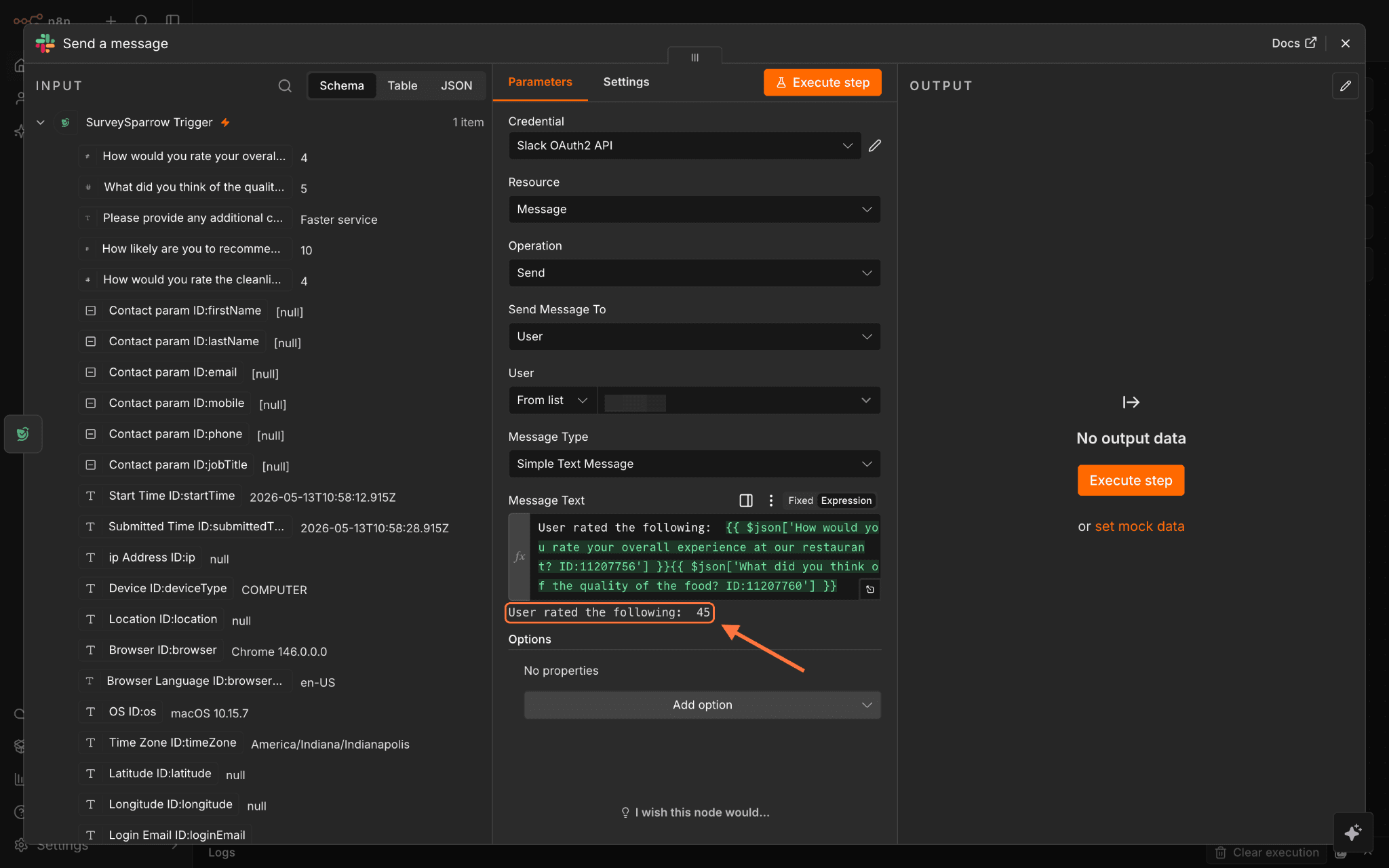
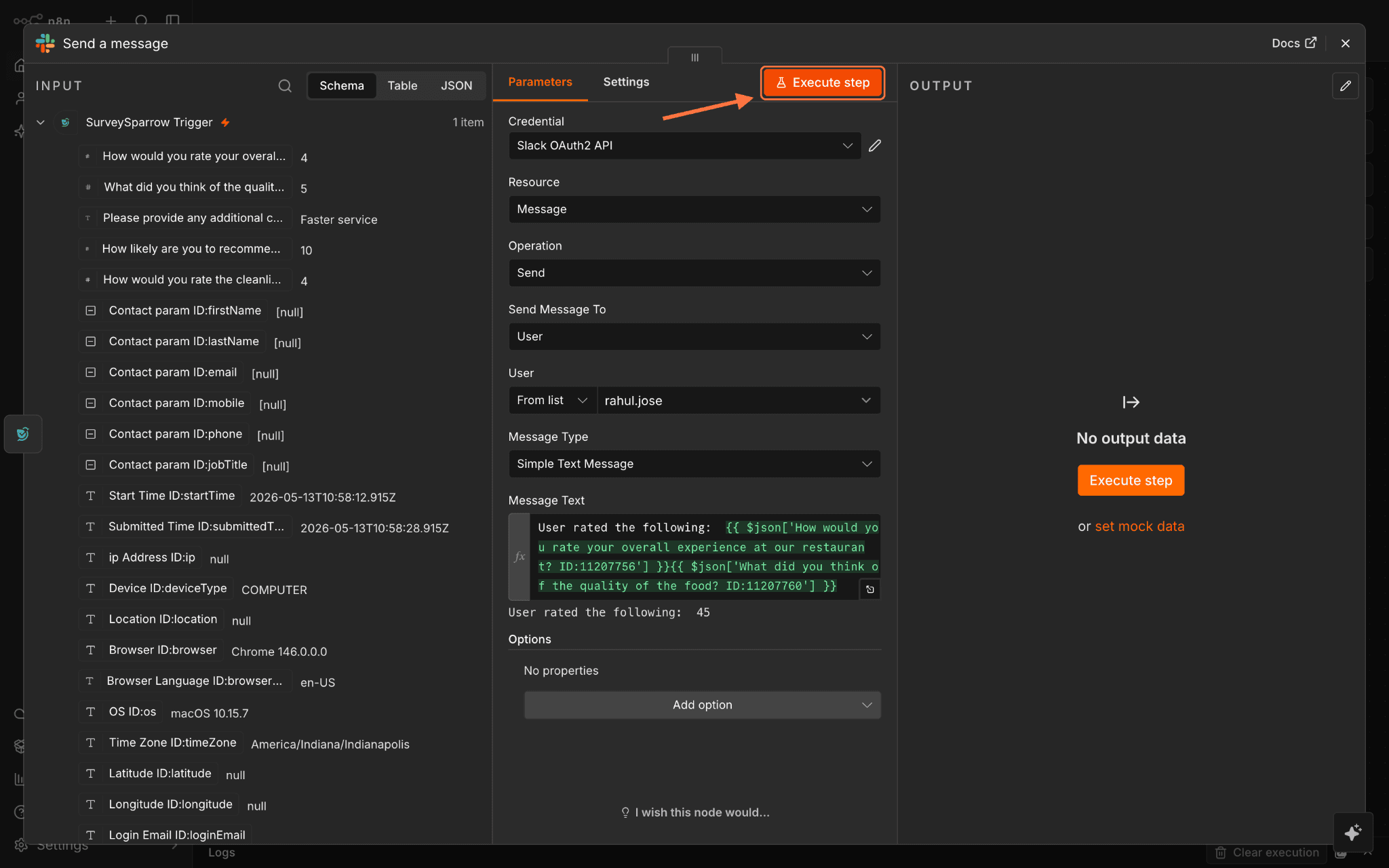
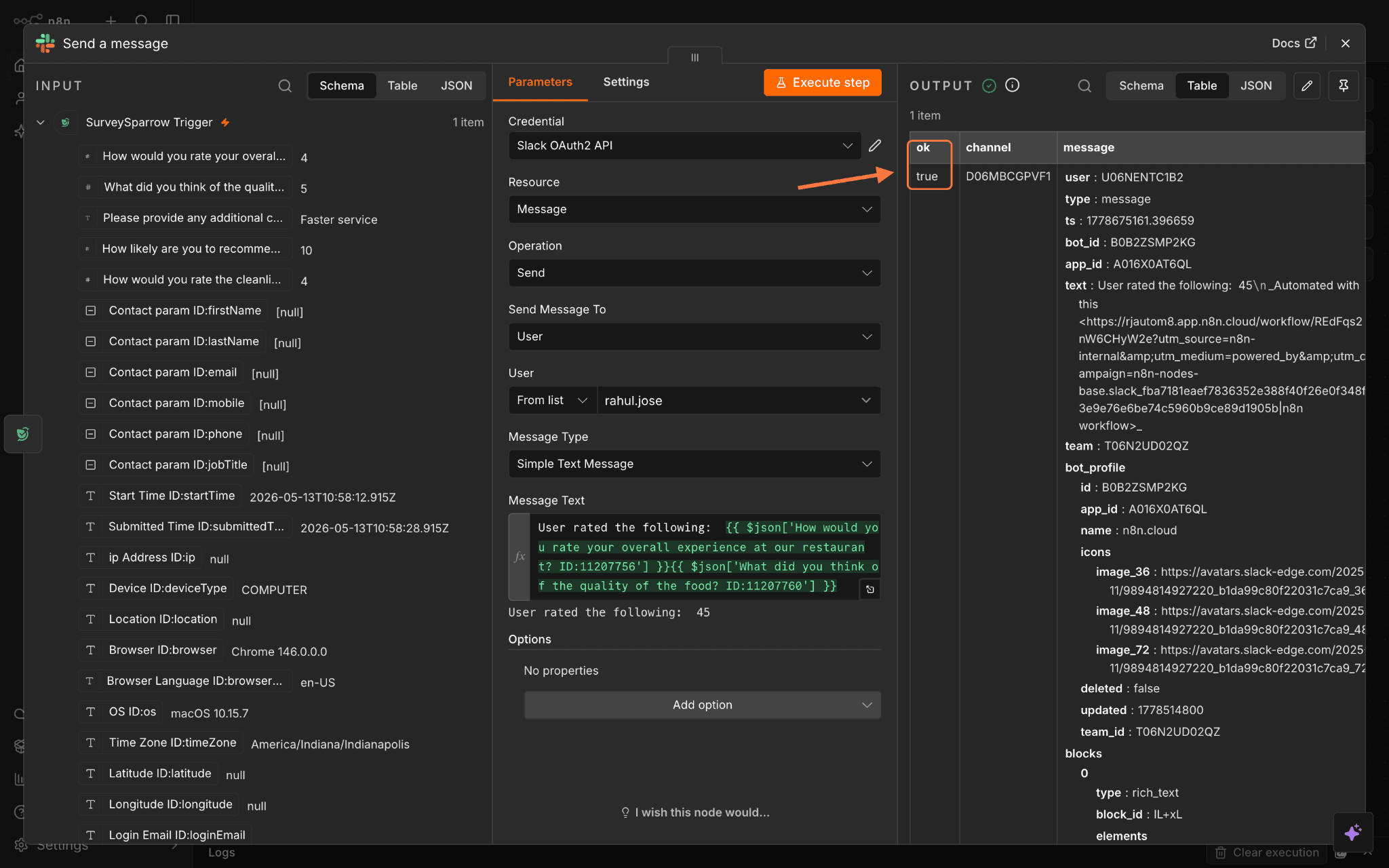
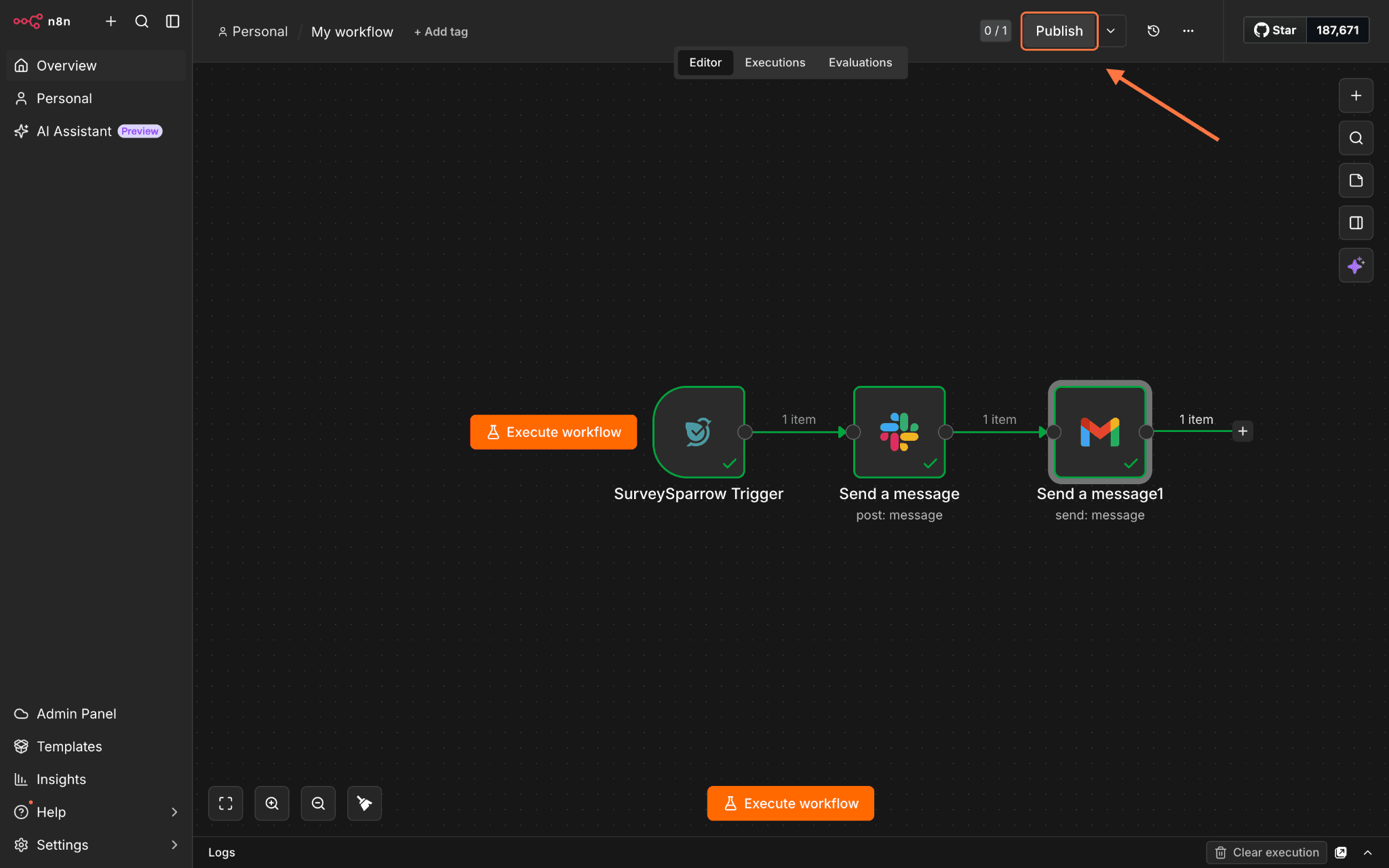
- Route detractor responses (low NPS scores) to a Slack alert or a follow-up email campaign, enabling your team to act on negative feedback in real time.
In this article, we’ll cover the following:
- Installing and setting up the n8n node
- Creating triggers using the SurveySparrow node
- Creating actions using the SurveySparrow node
Installing and setting up the n8n node
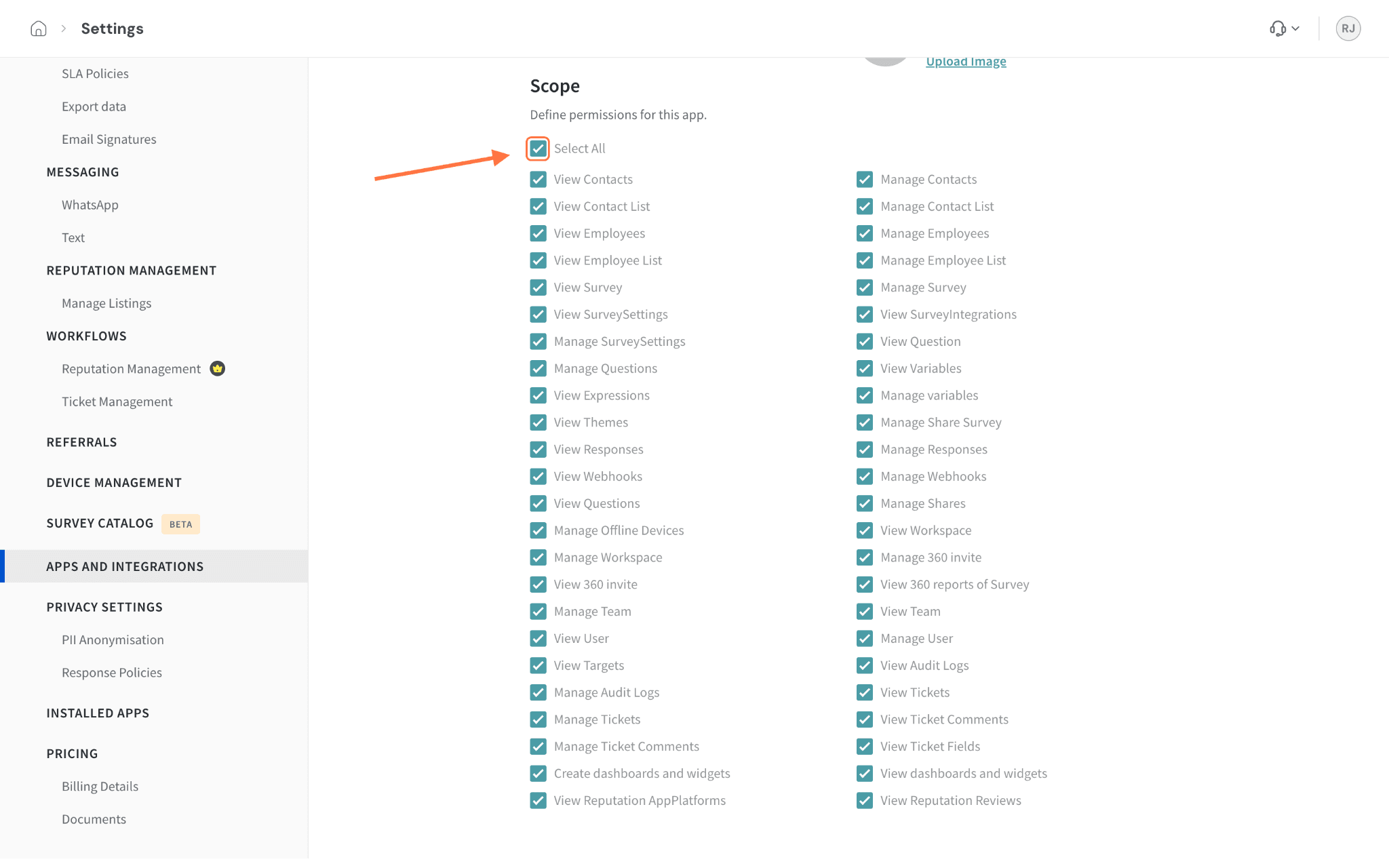
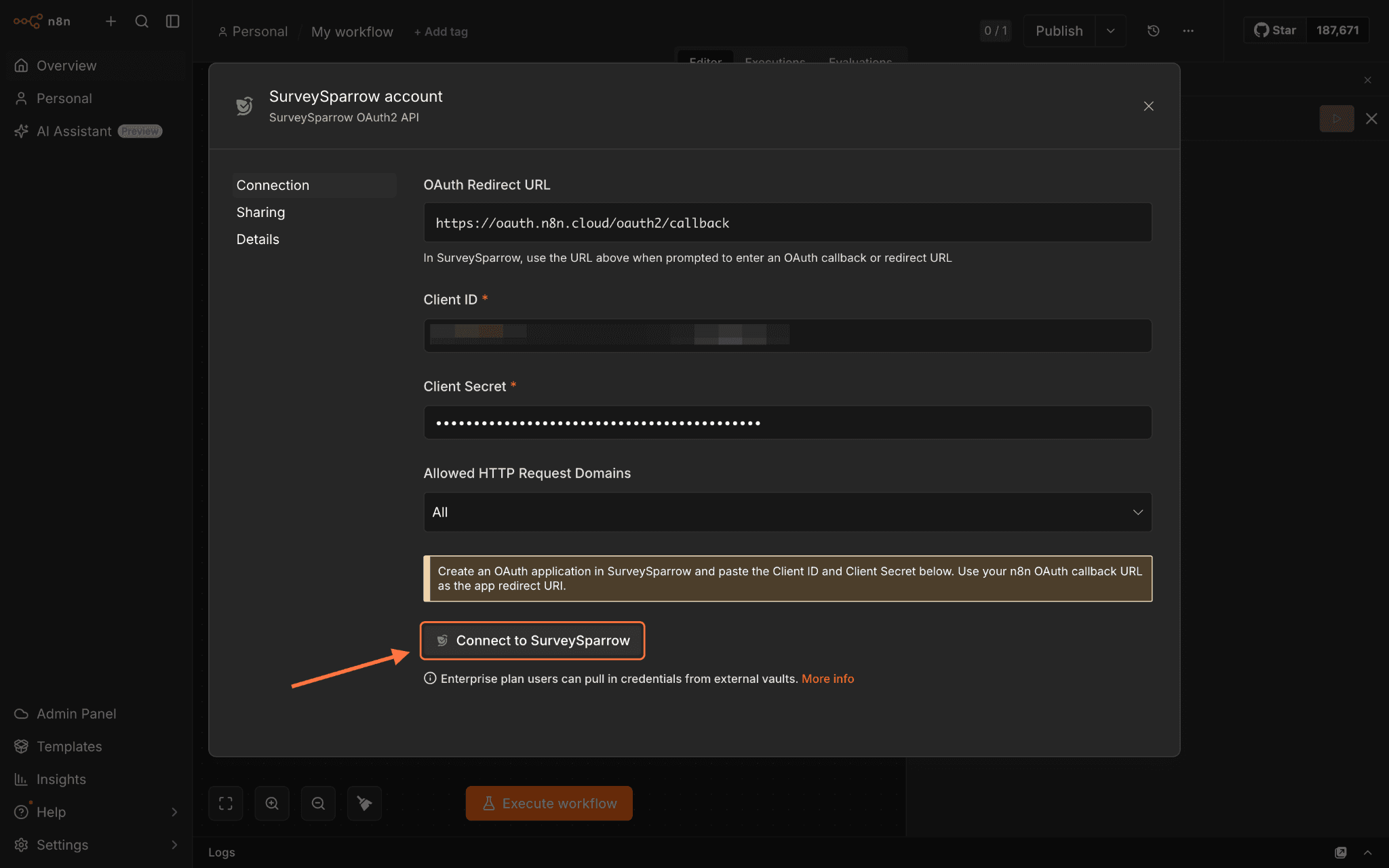
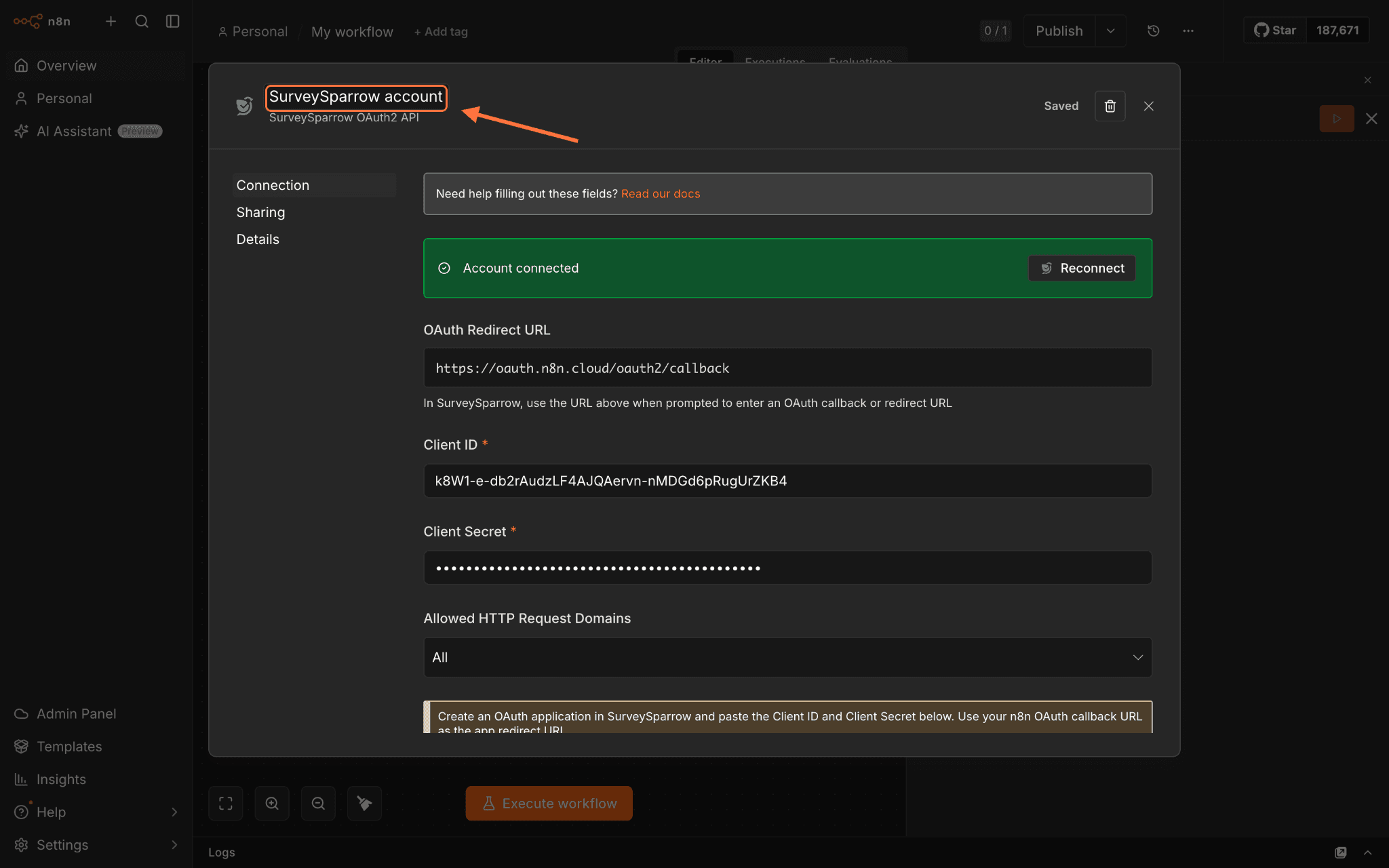
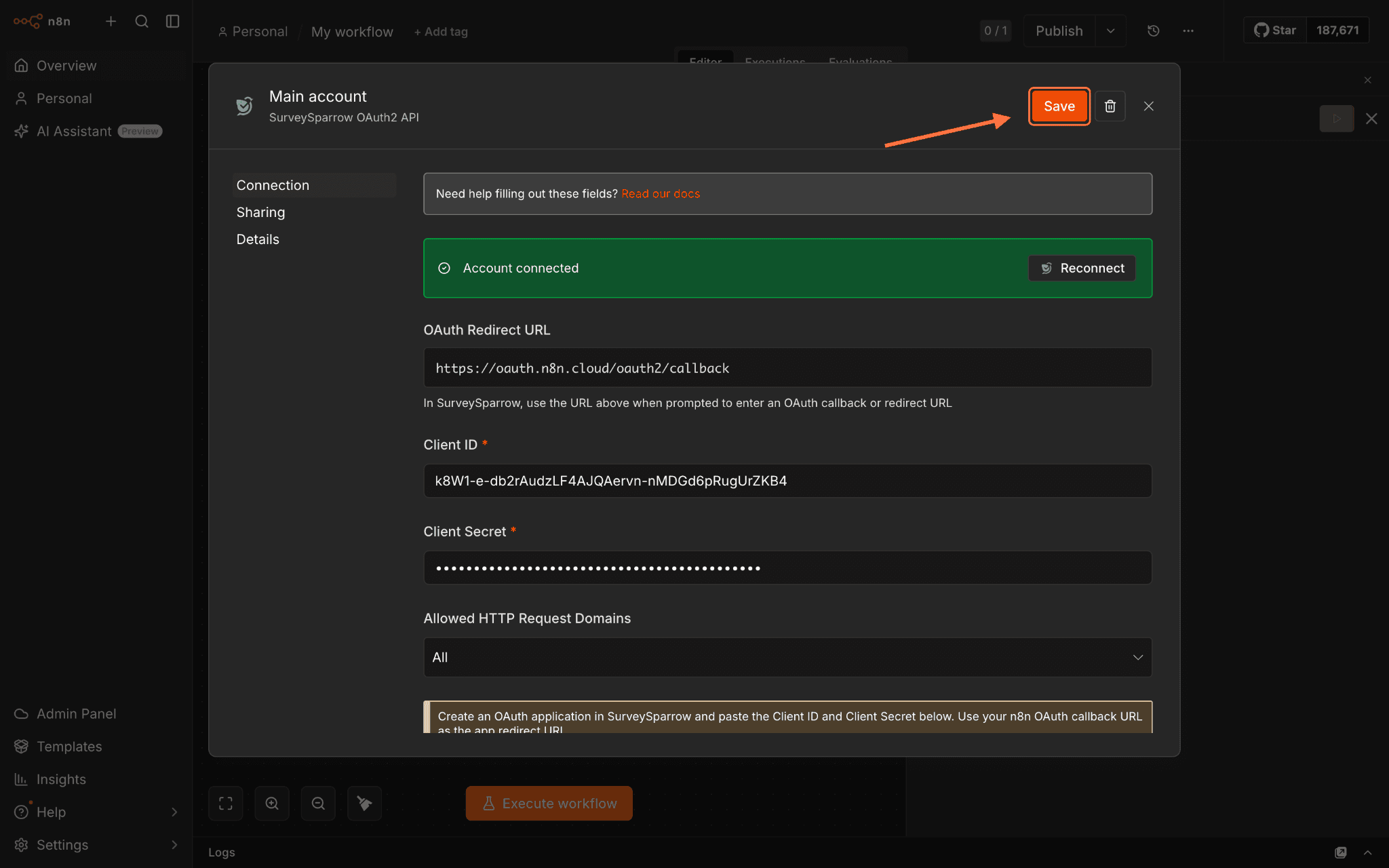
1. Create a new workflow inside n8n, then click on Add first step to open the node menu. 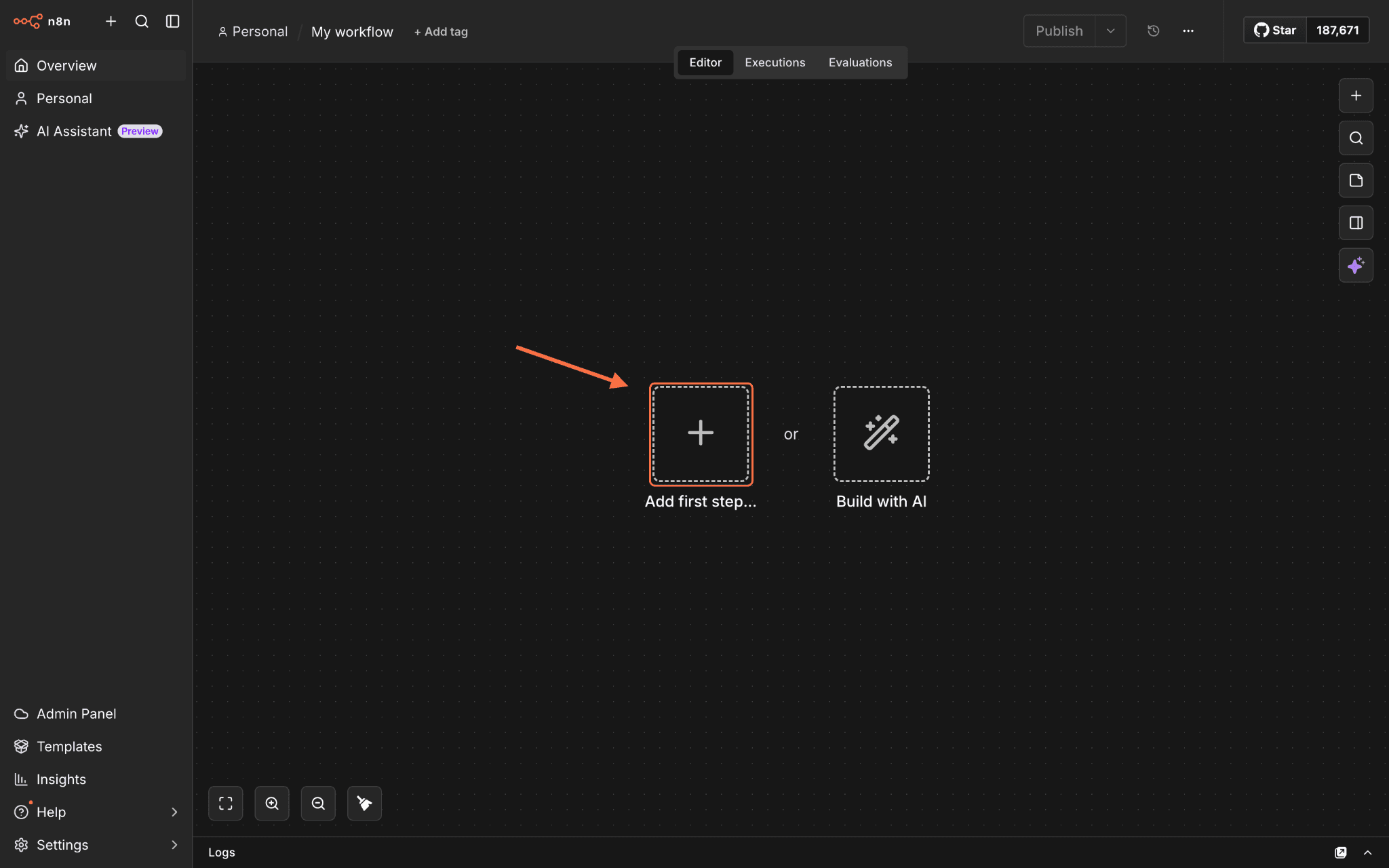
2. Use the search bar to find the SurveySparrow node, then click on it when it appears.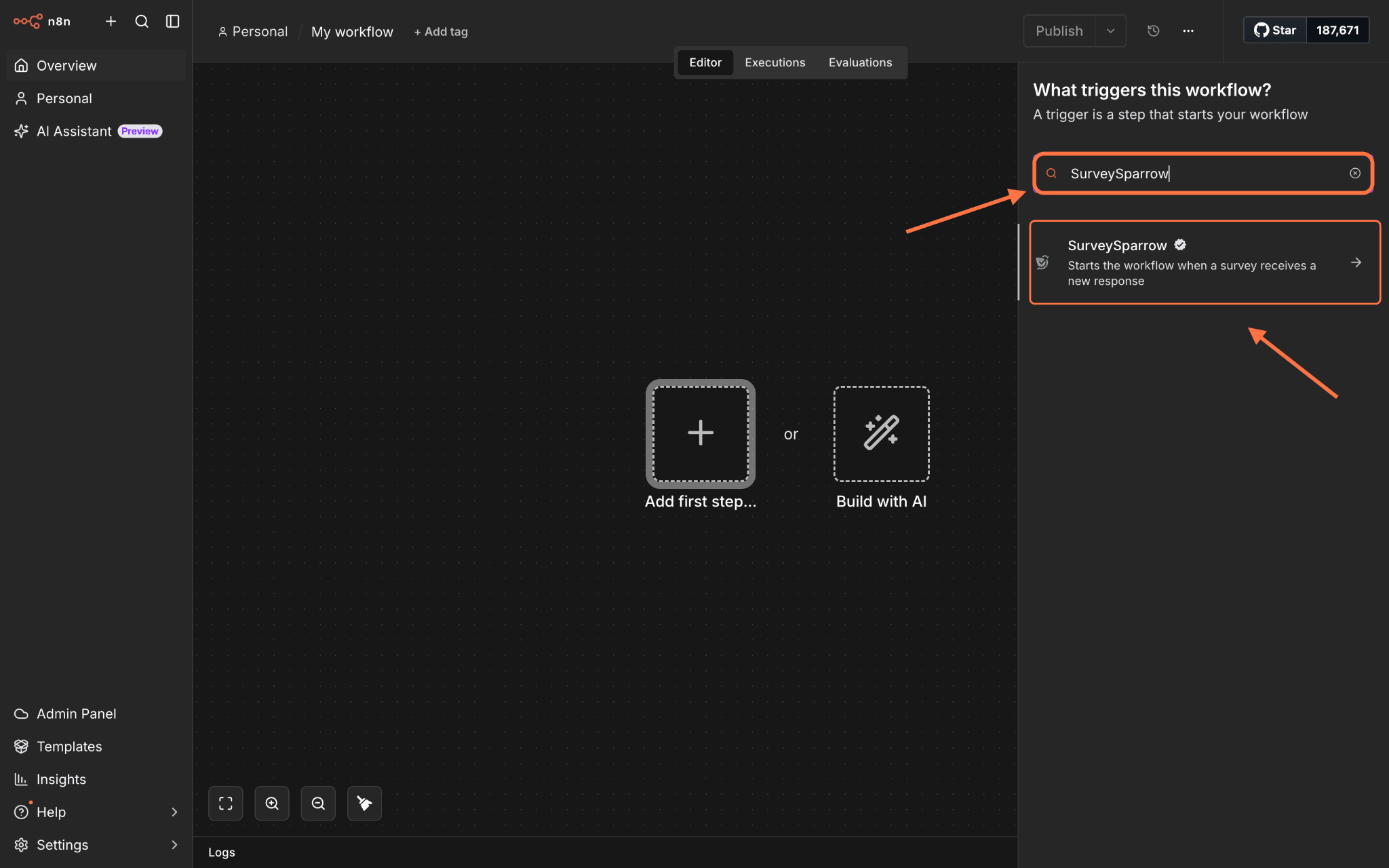
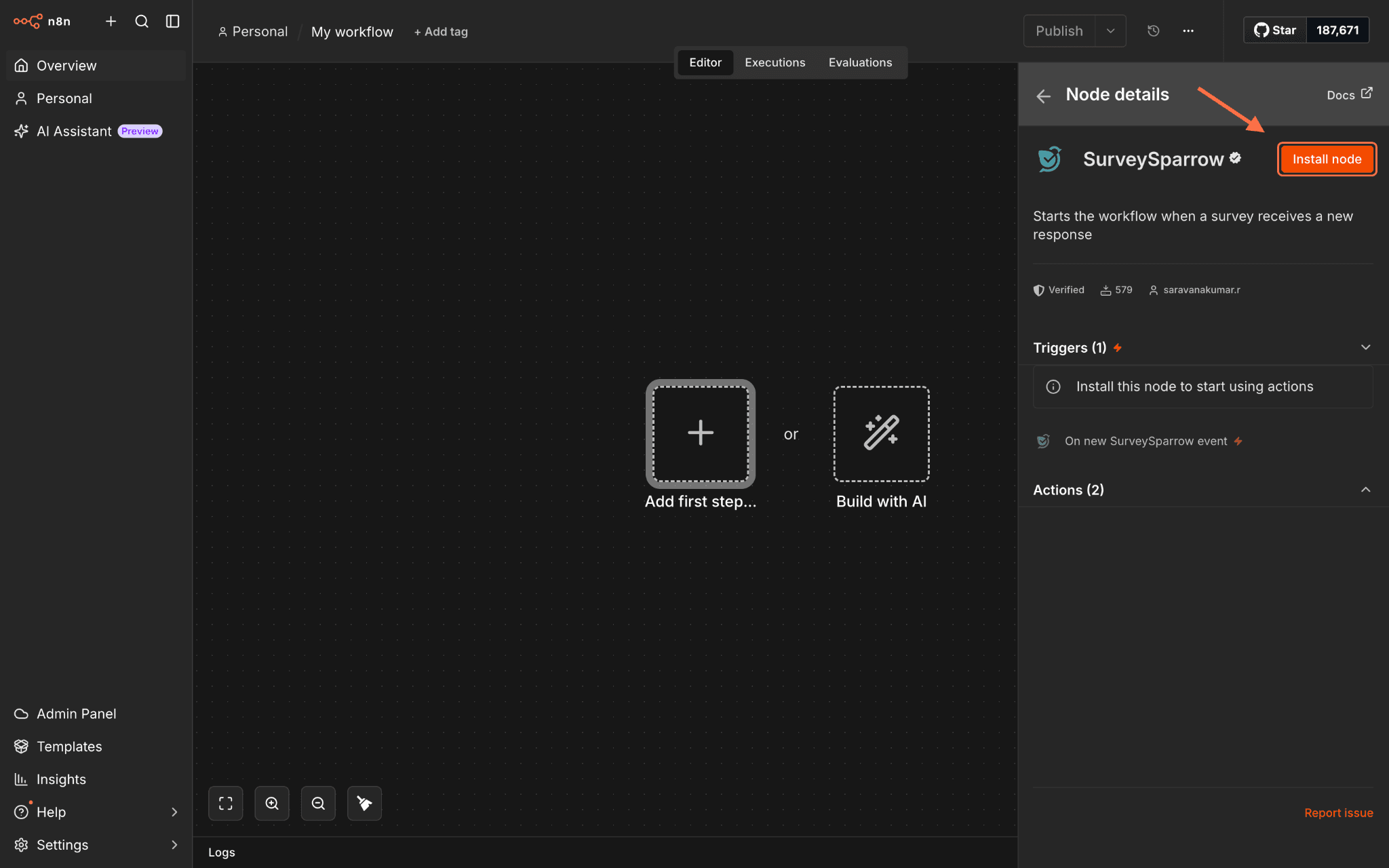
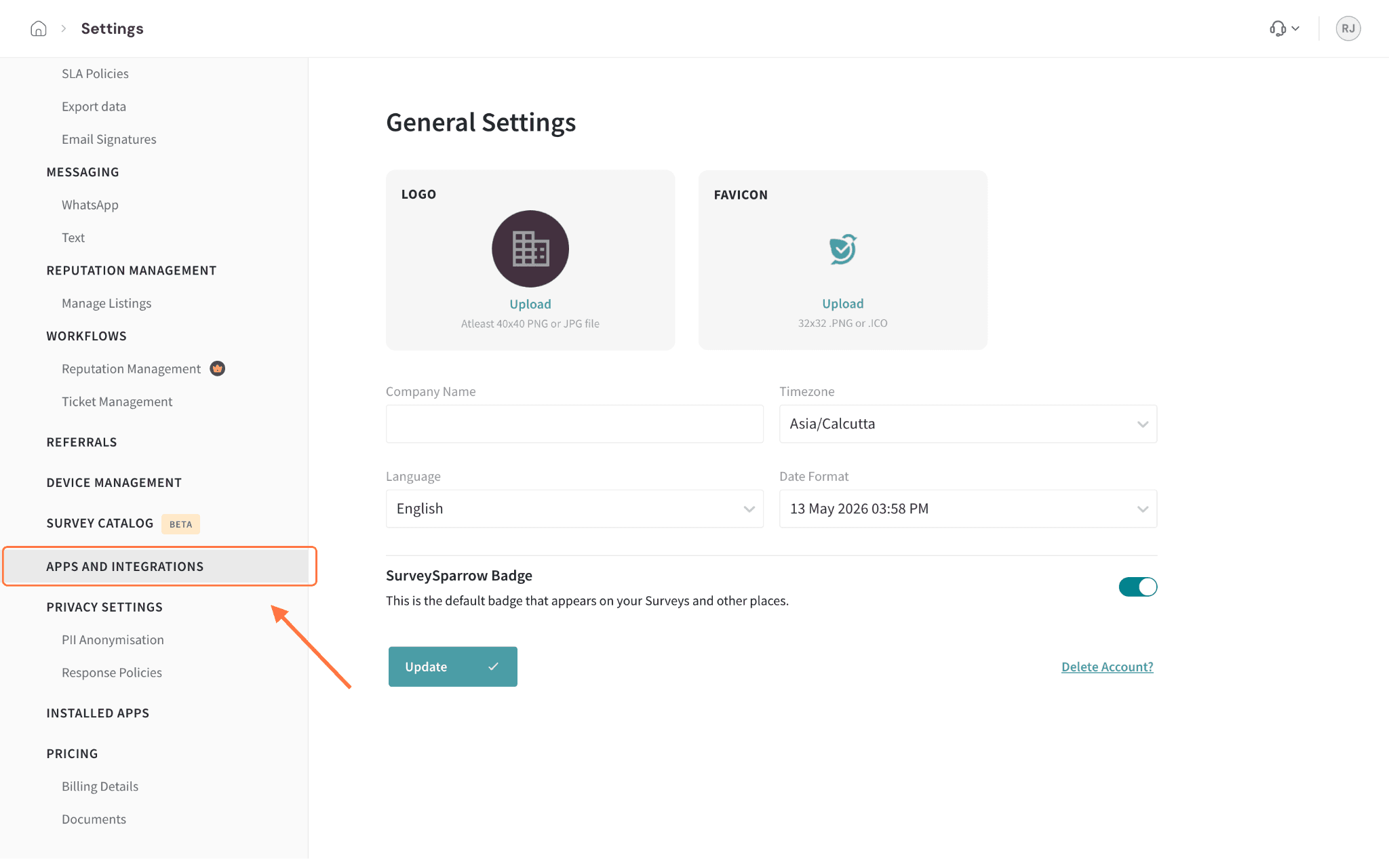
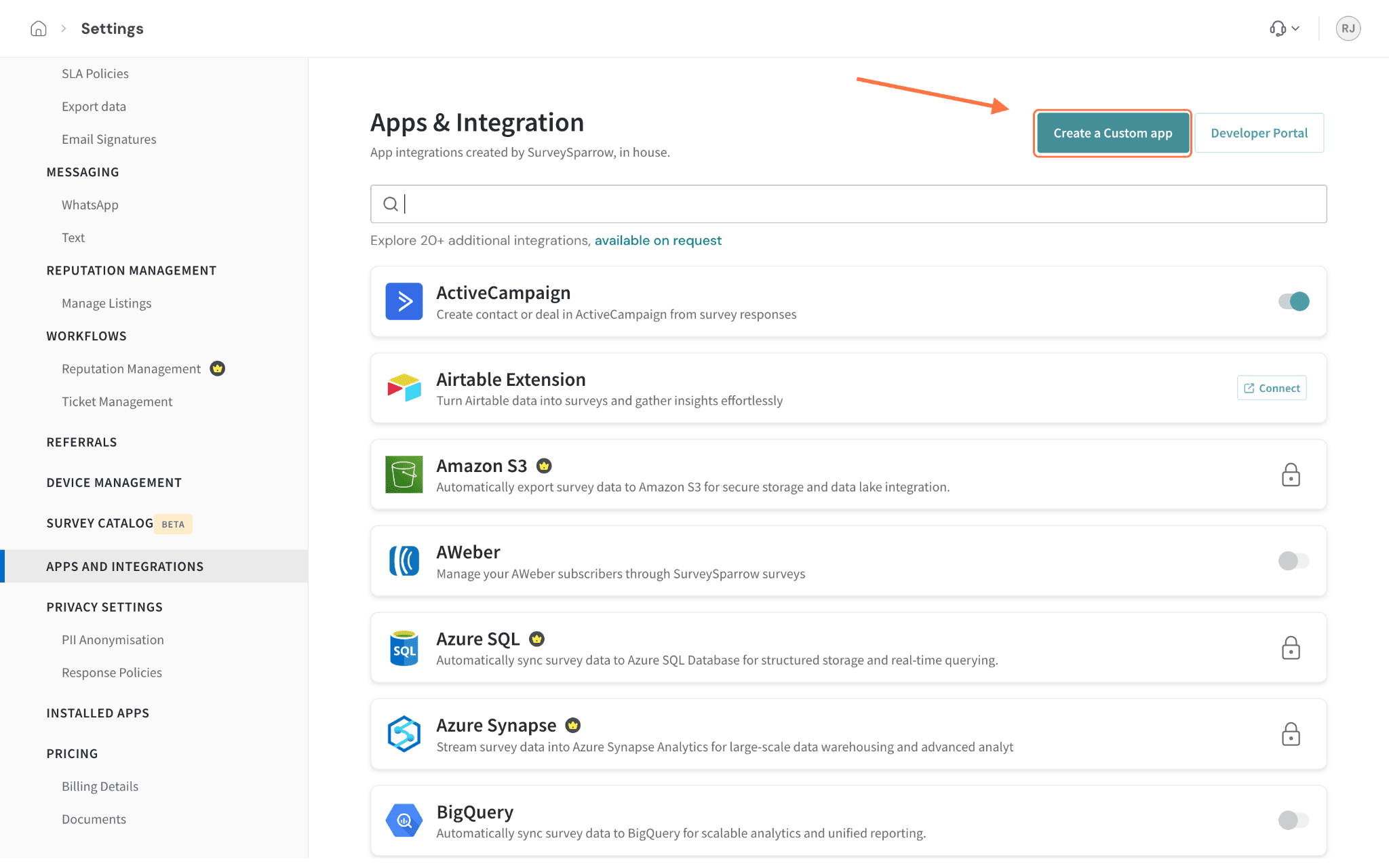
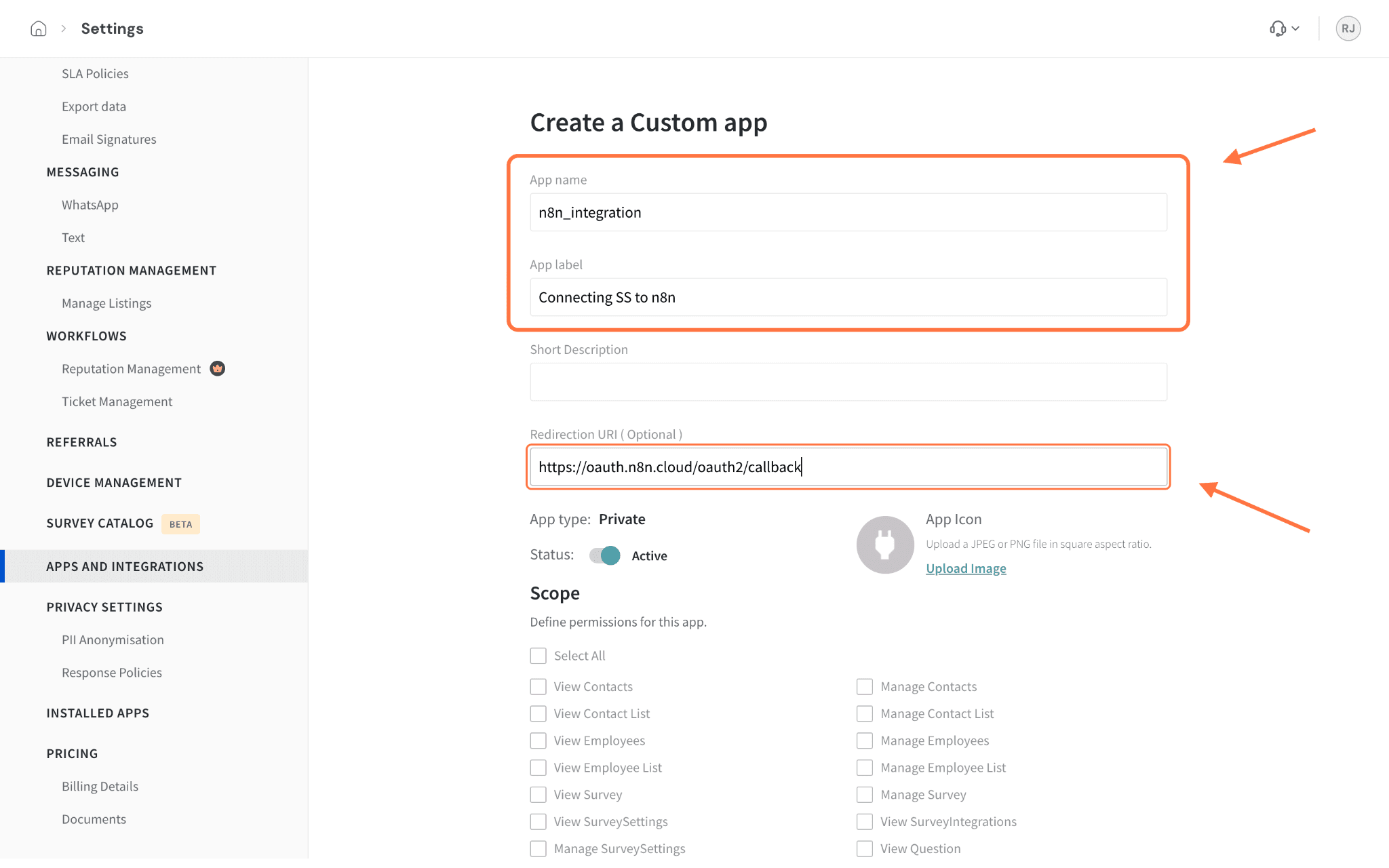
Creating triggers using the SurveySparrow node
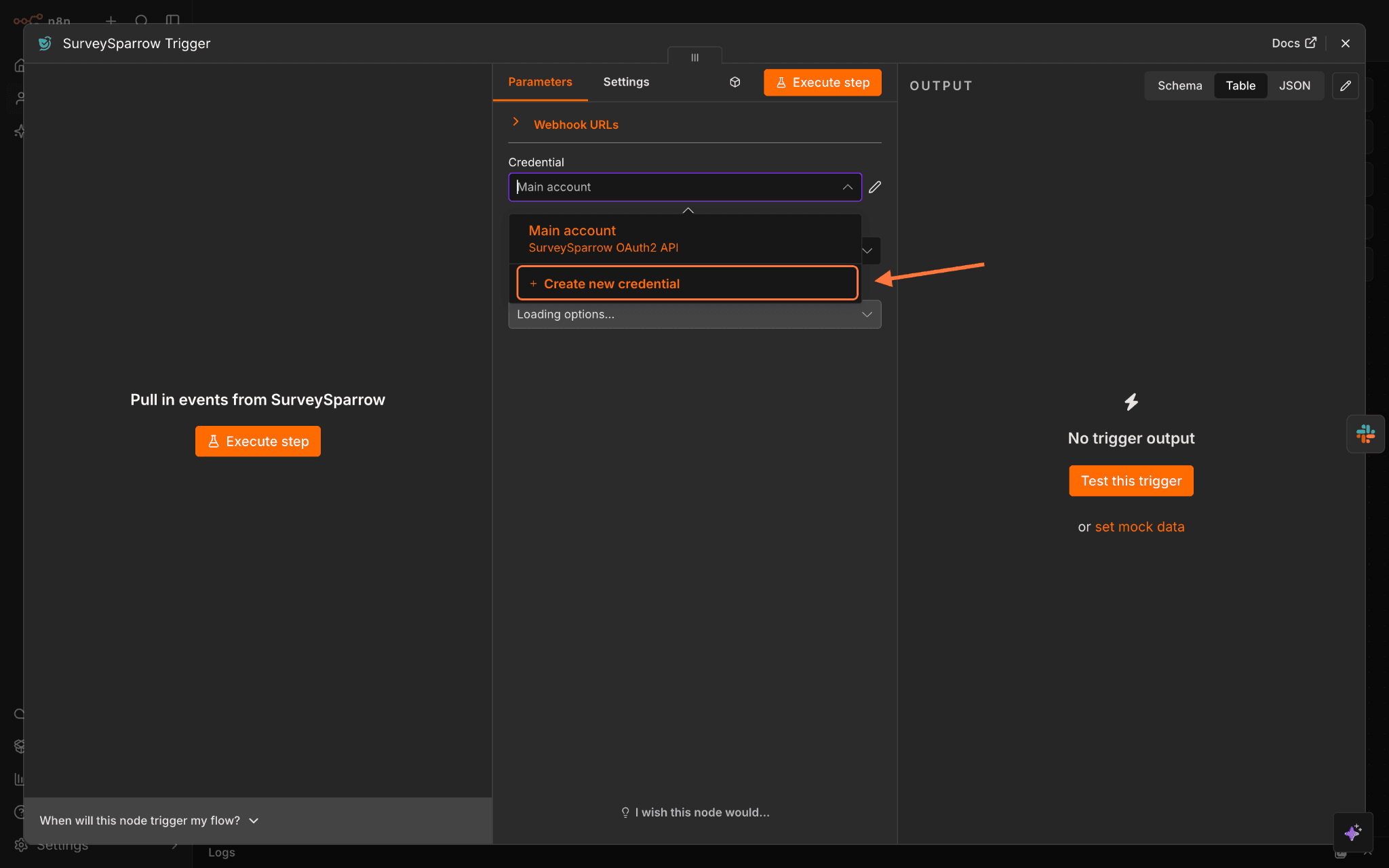
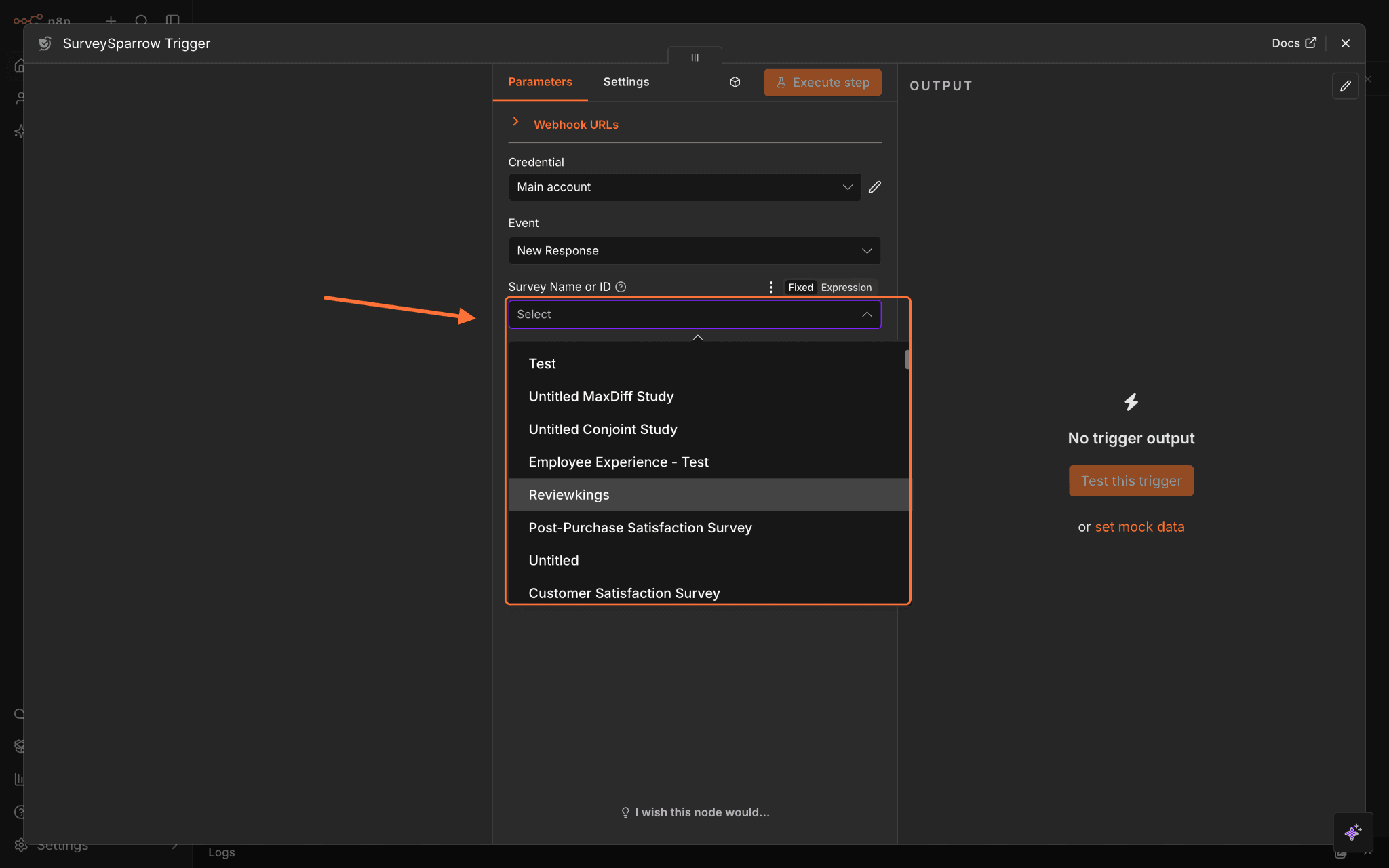
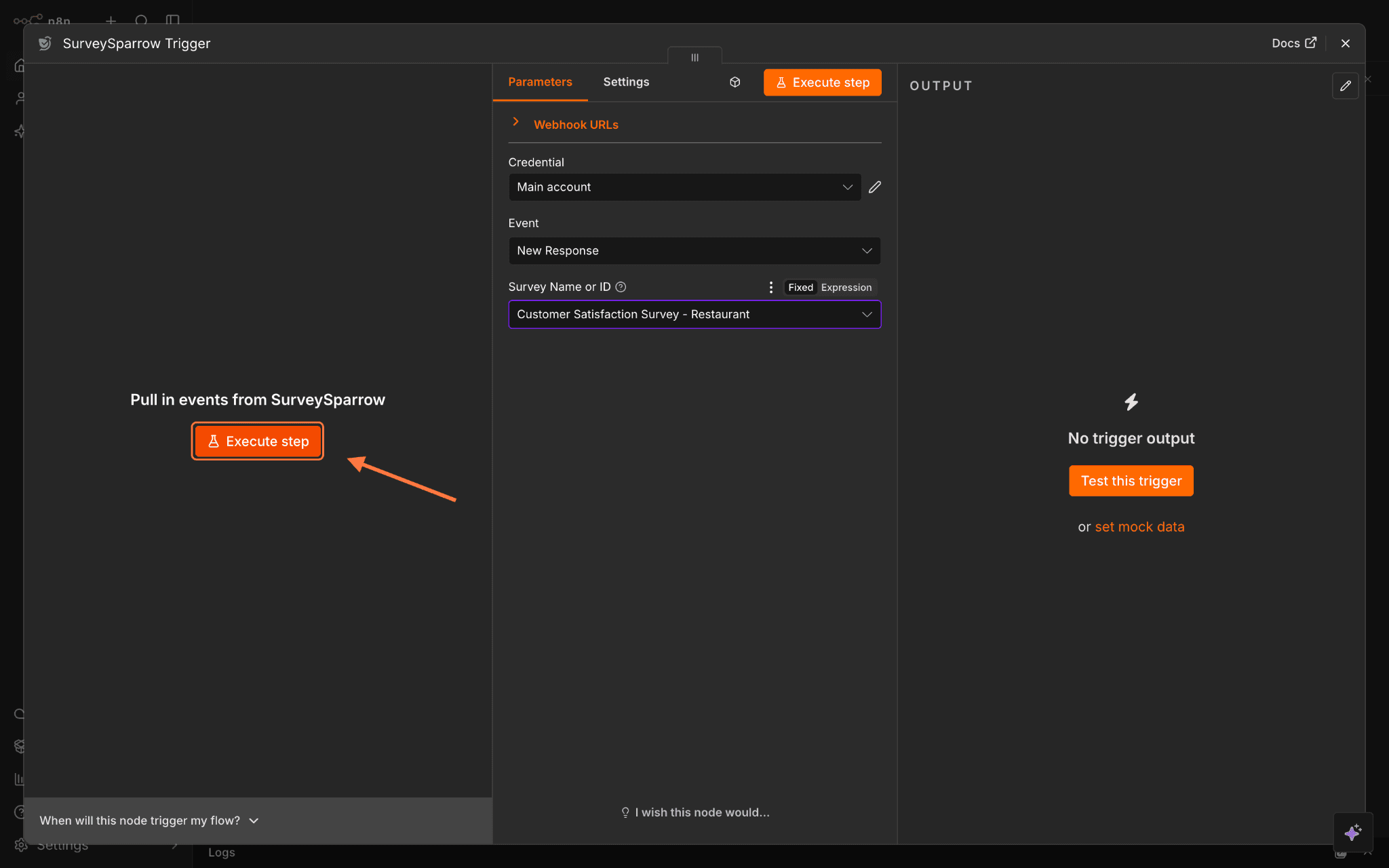
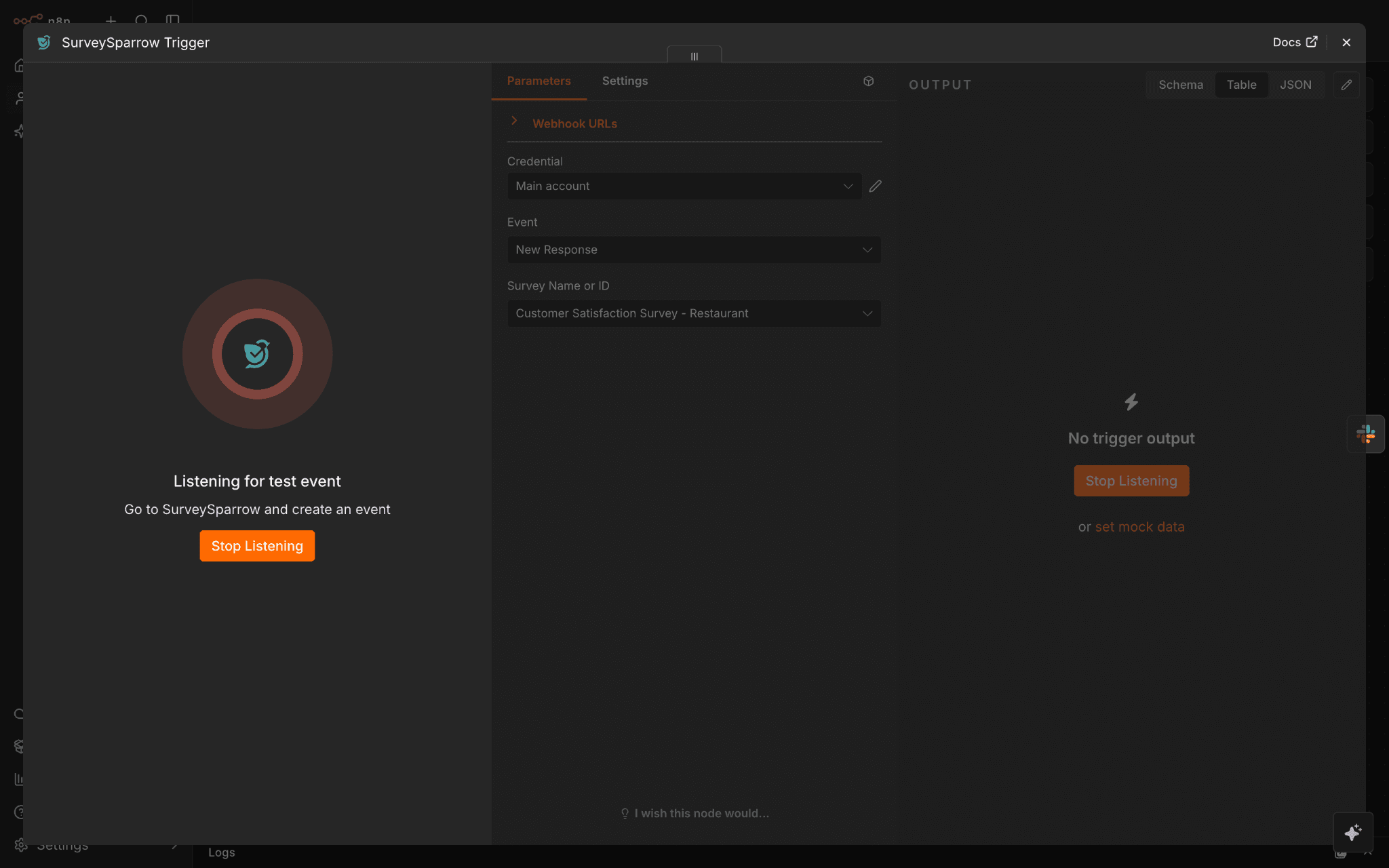
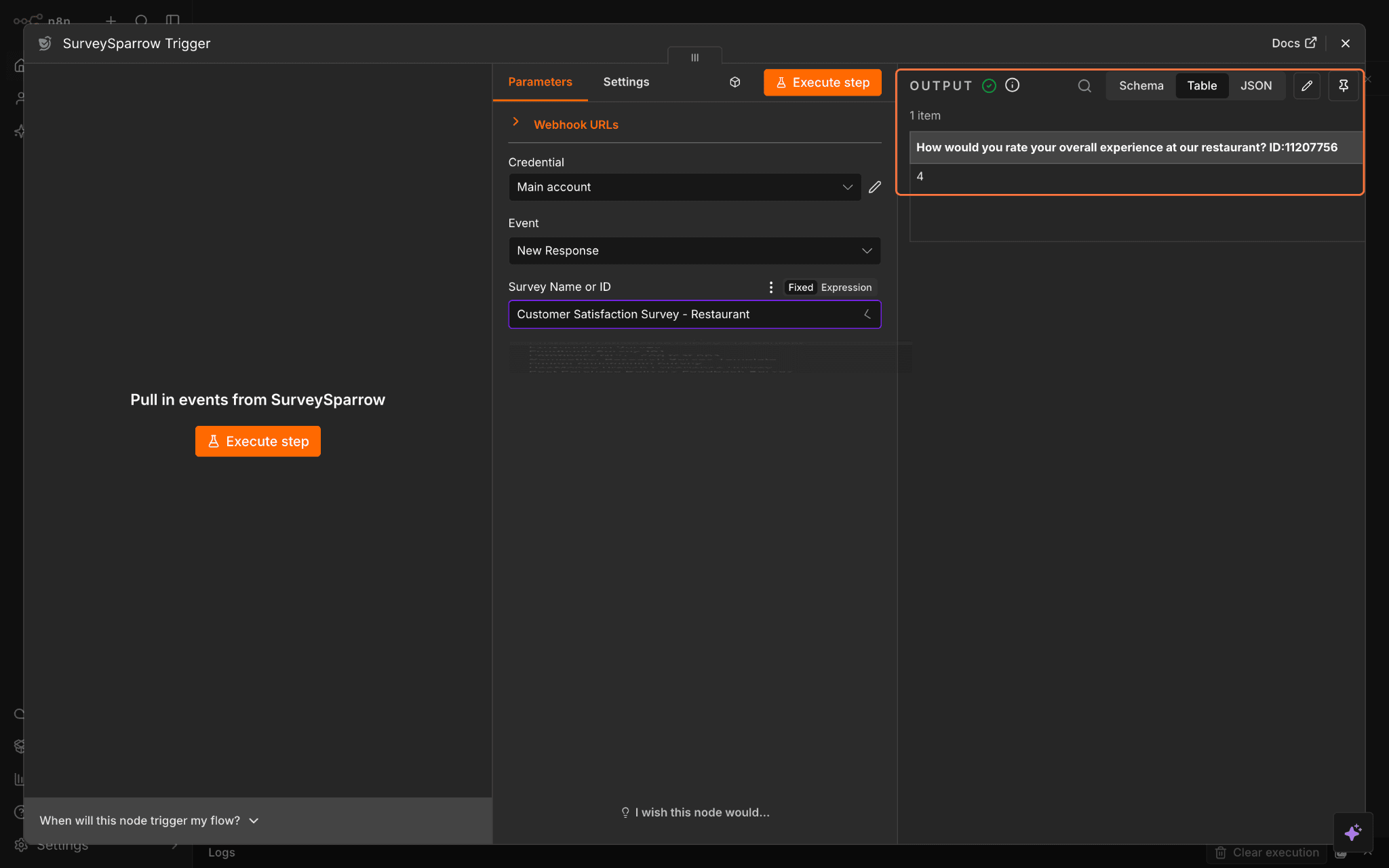
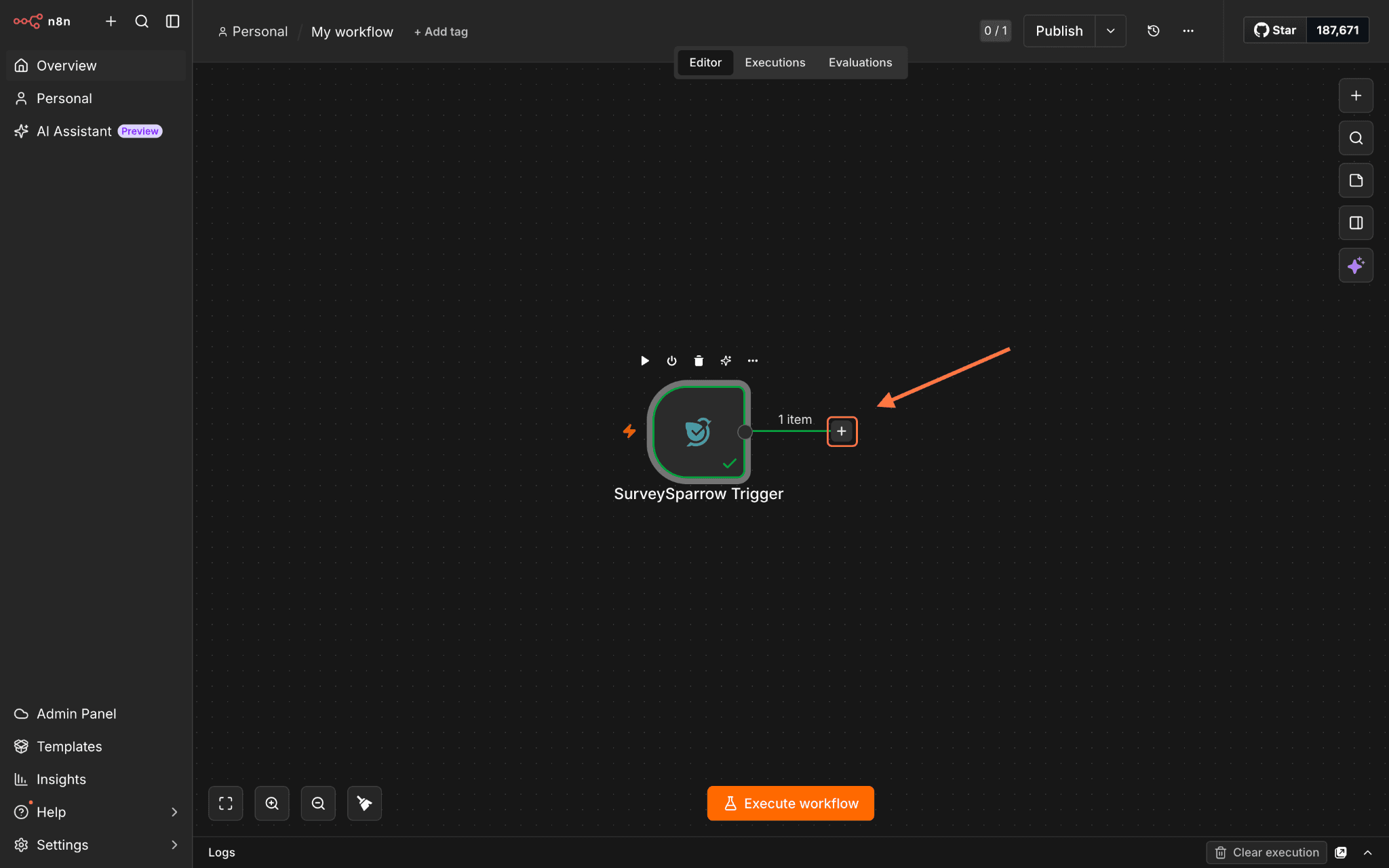
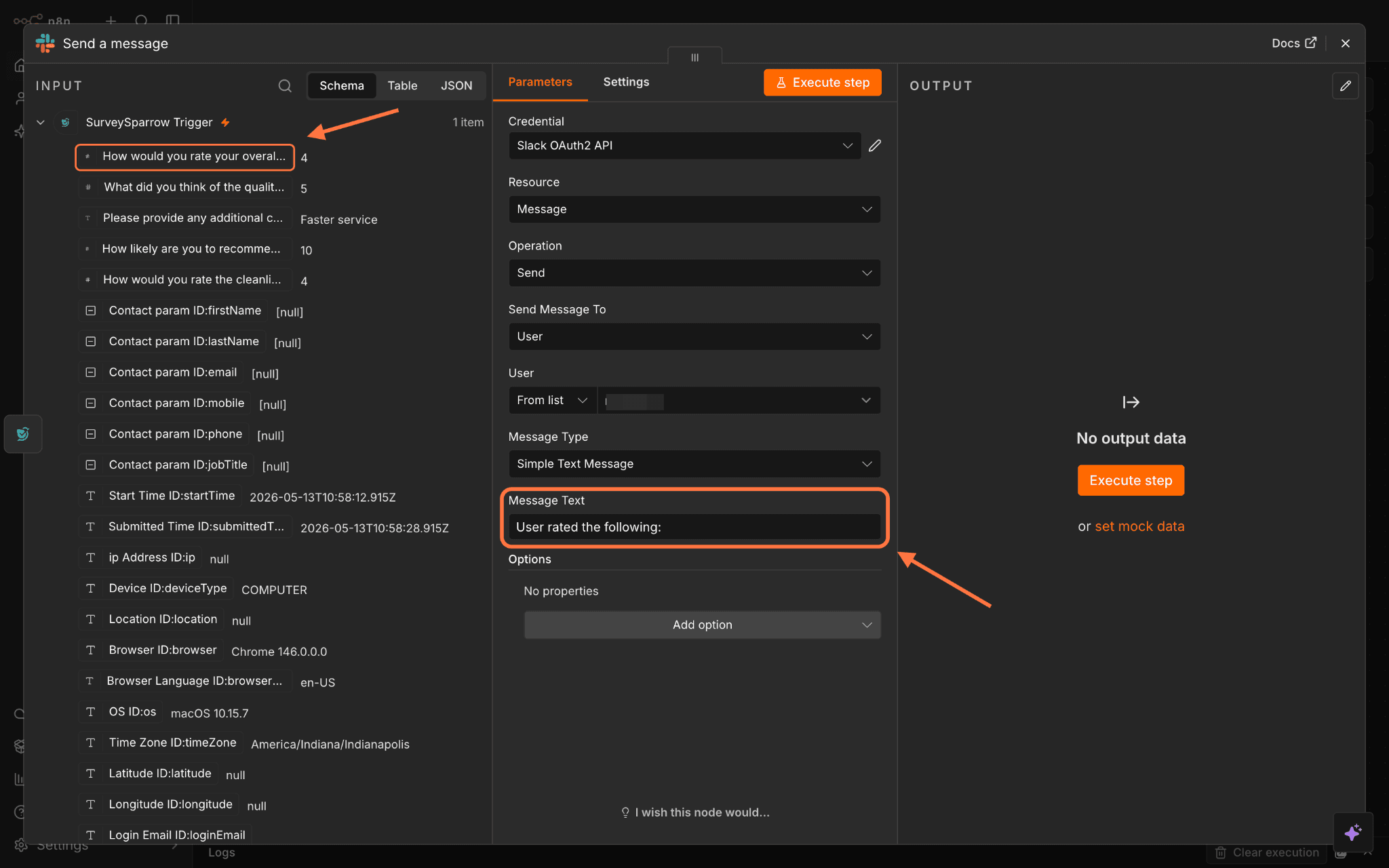
A trigger is the first component of a workflow that sets off the rest of it and is centered around an event. An application can have multiple triggers for different events. The SurveySparrow n8n node offers a single trigger for when a survey receives a new response. We’ll go through the steps for using it here.
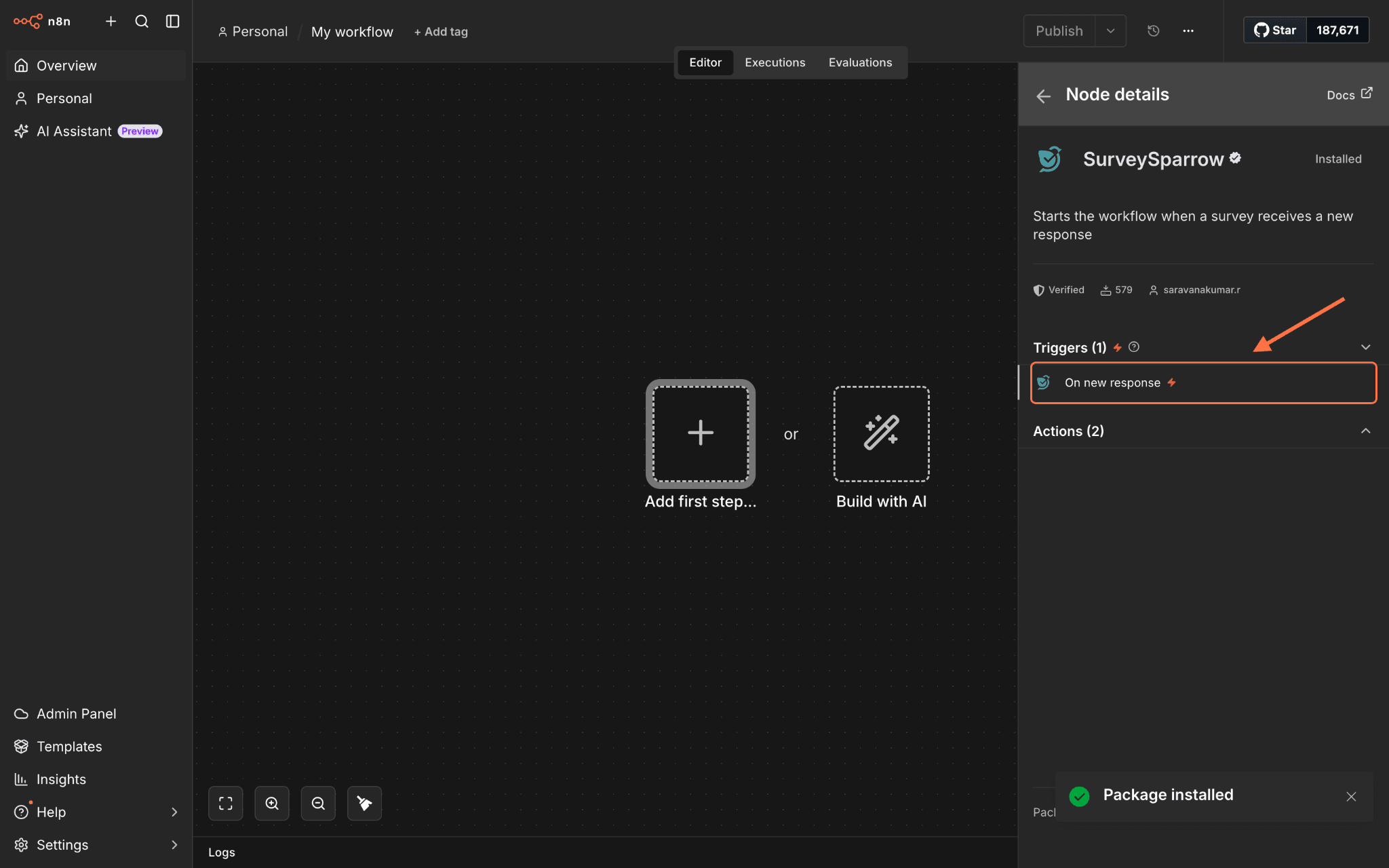
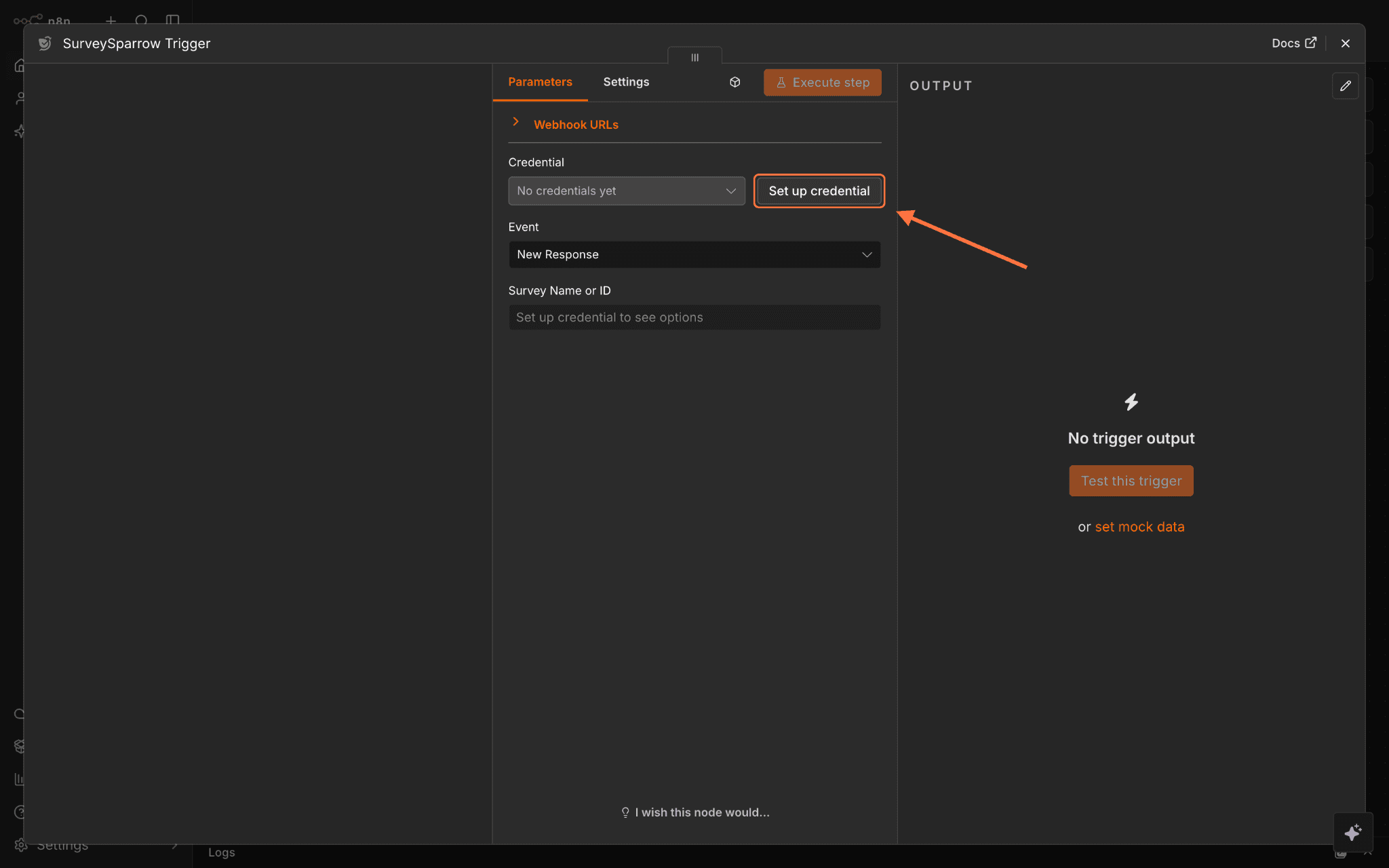
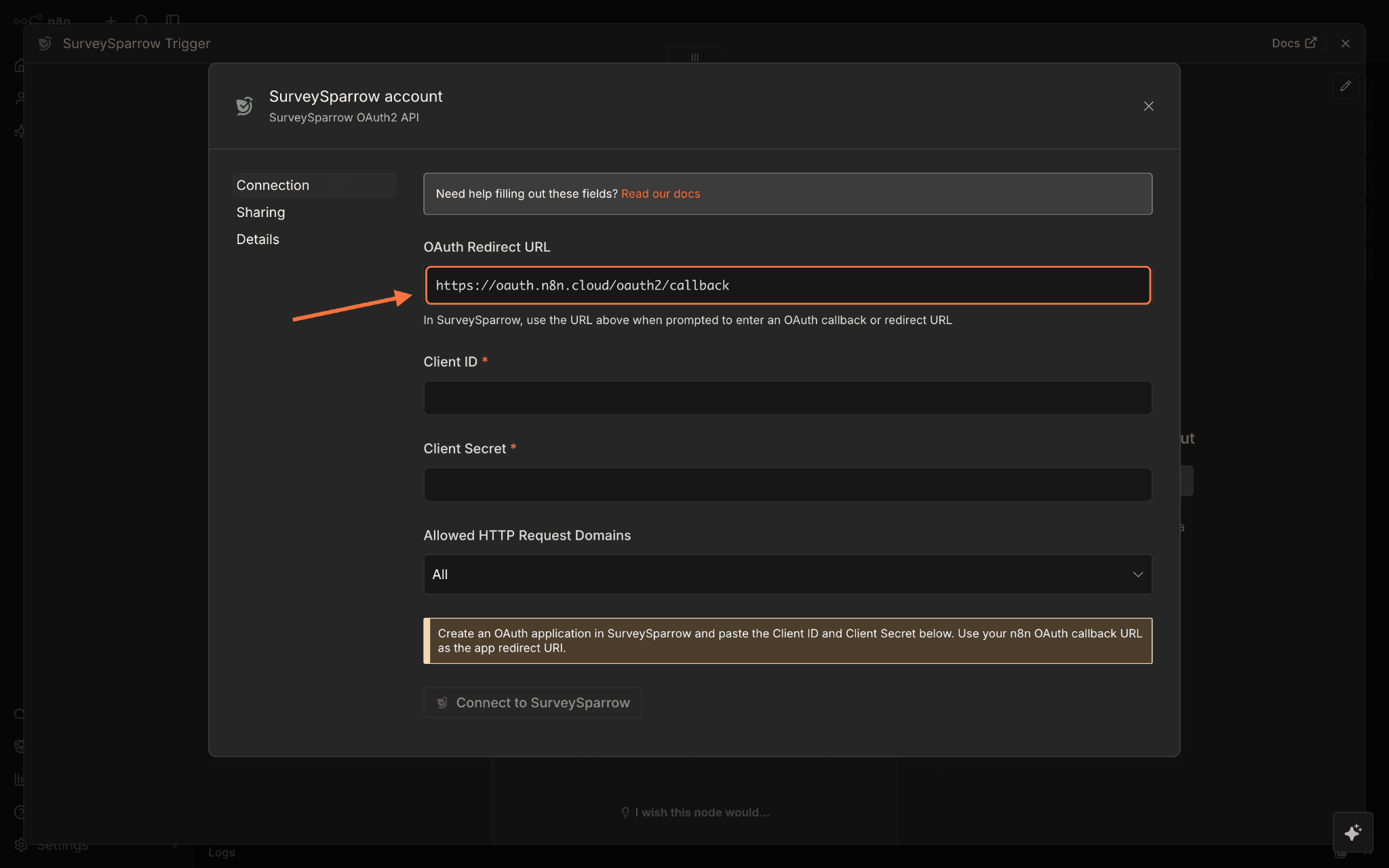
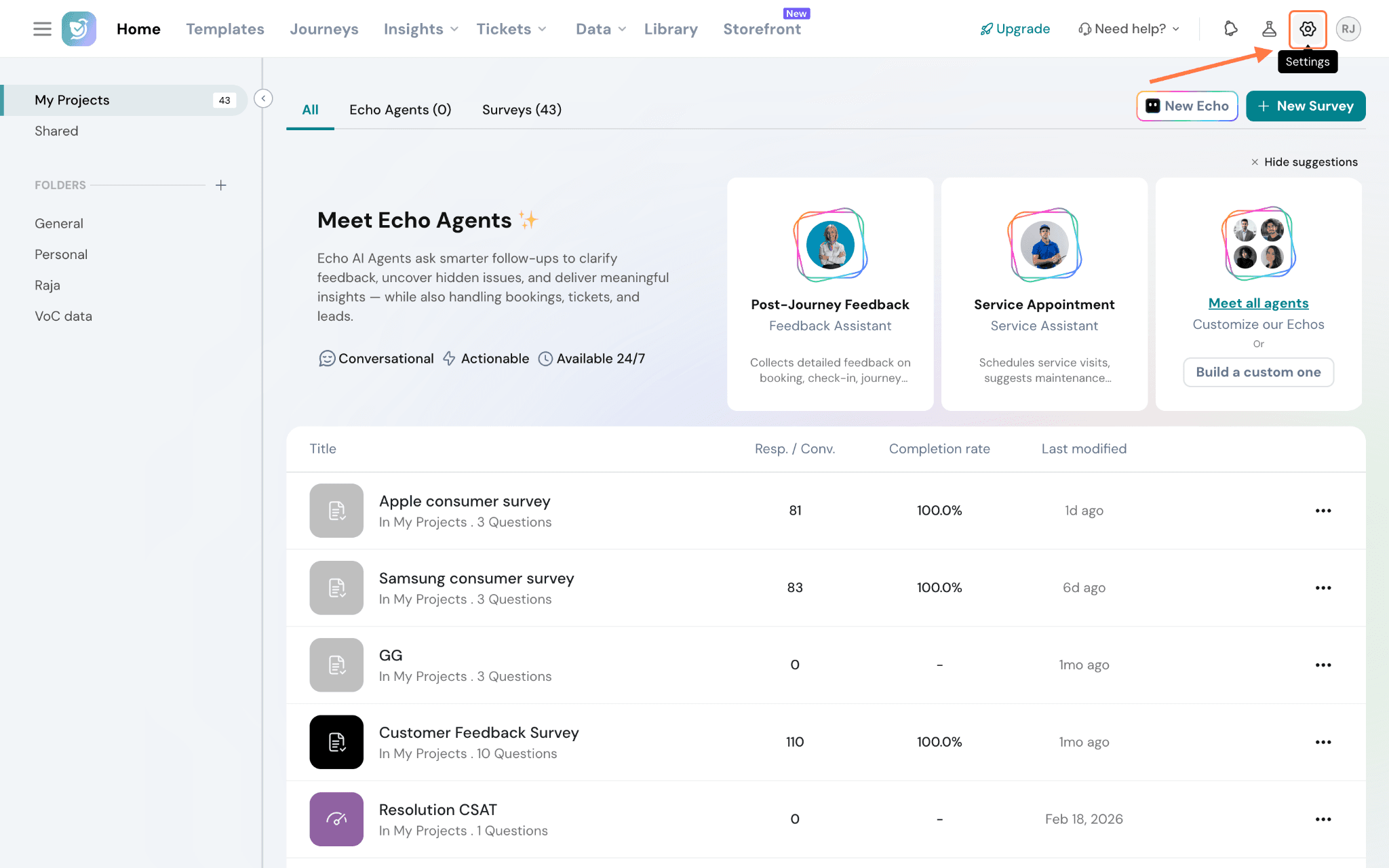
1. Inside your n8n workflow builder, open the SurveySparrow node and click On new response under the Triggers section.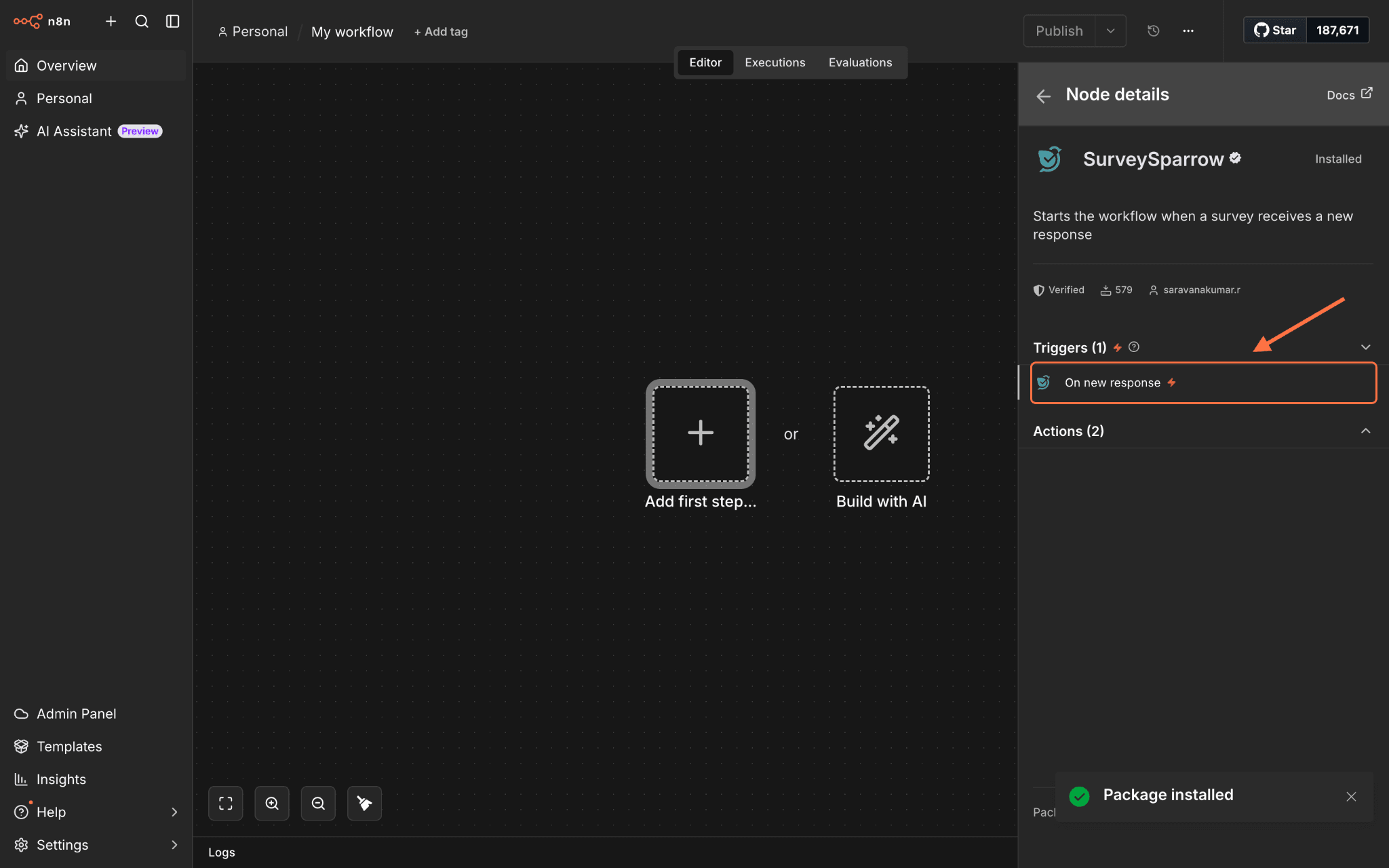
Creating actions using the SurveySparrow node
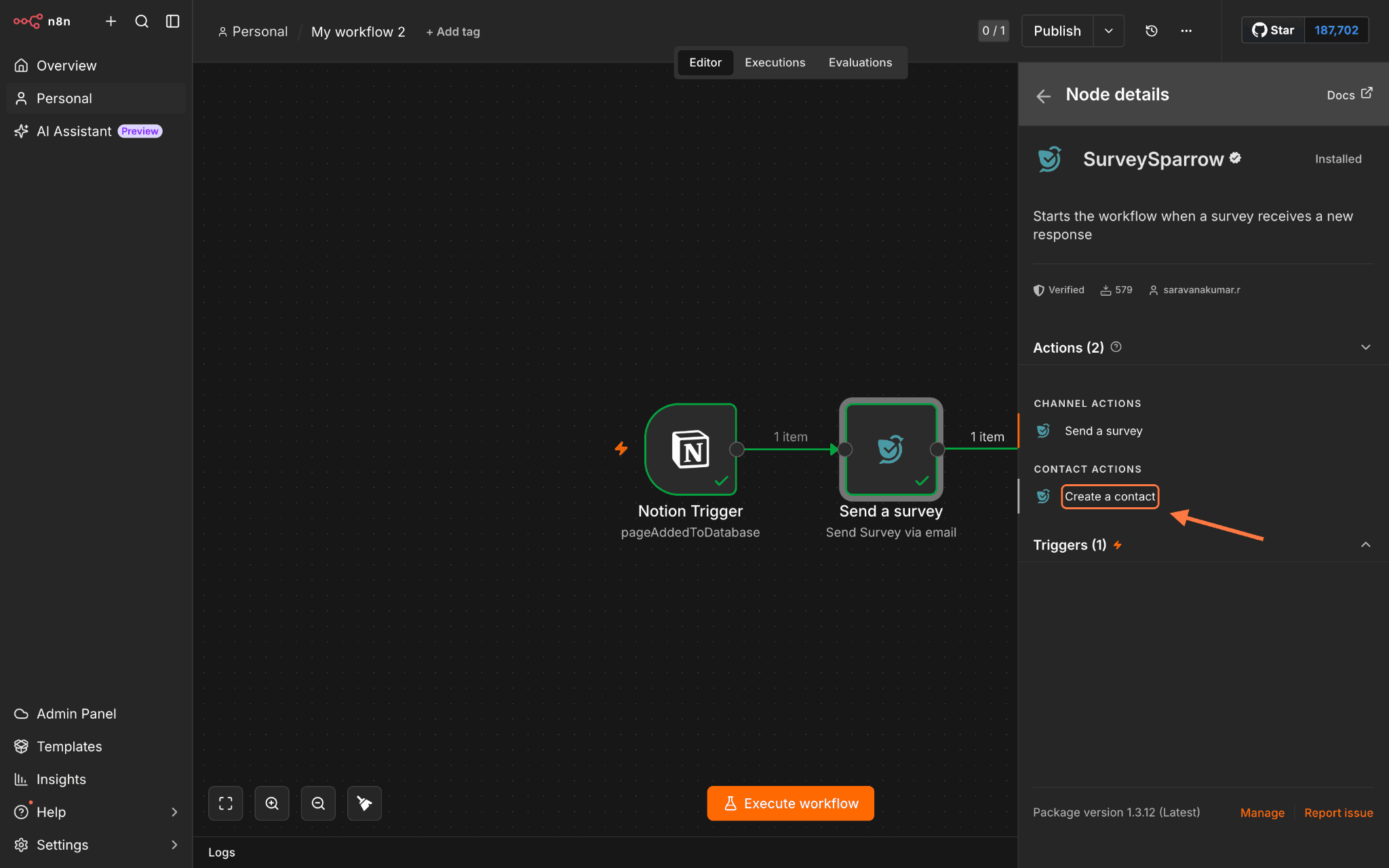
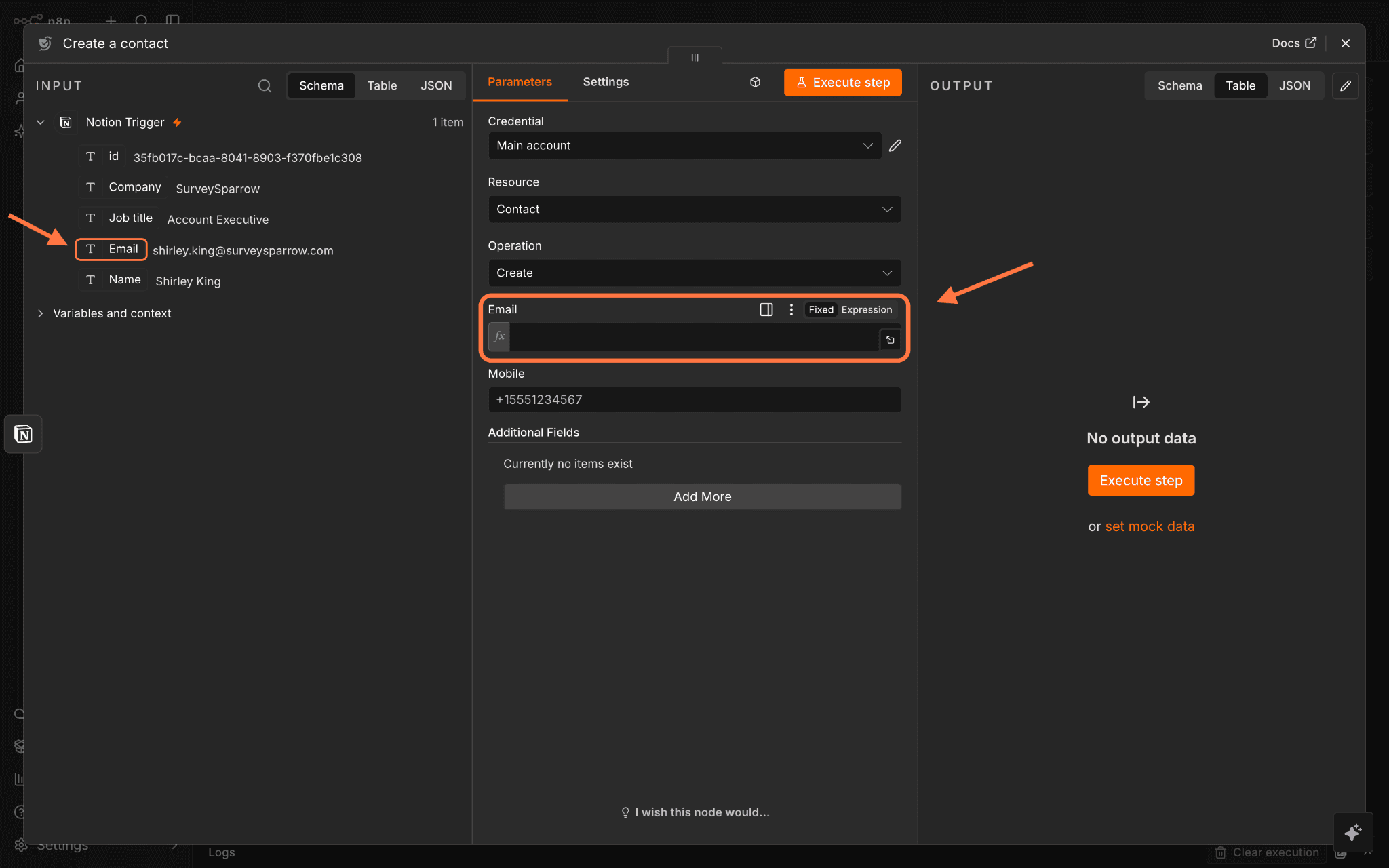
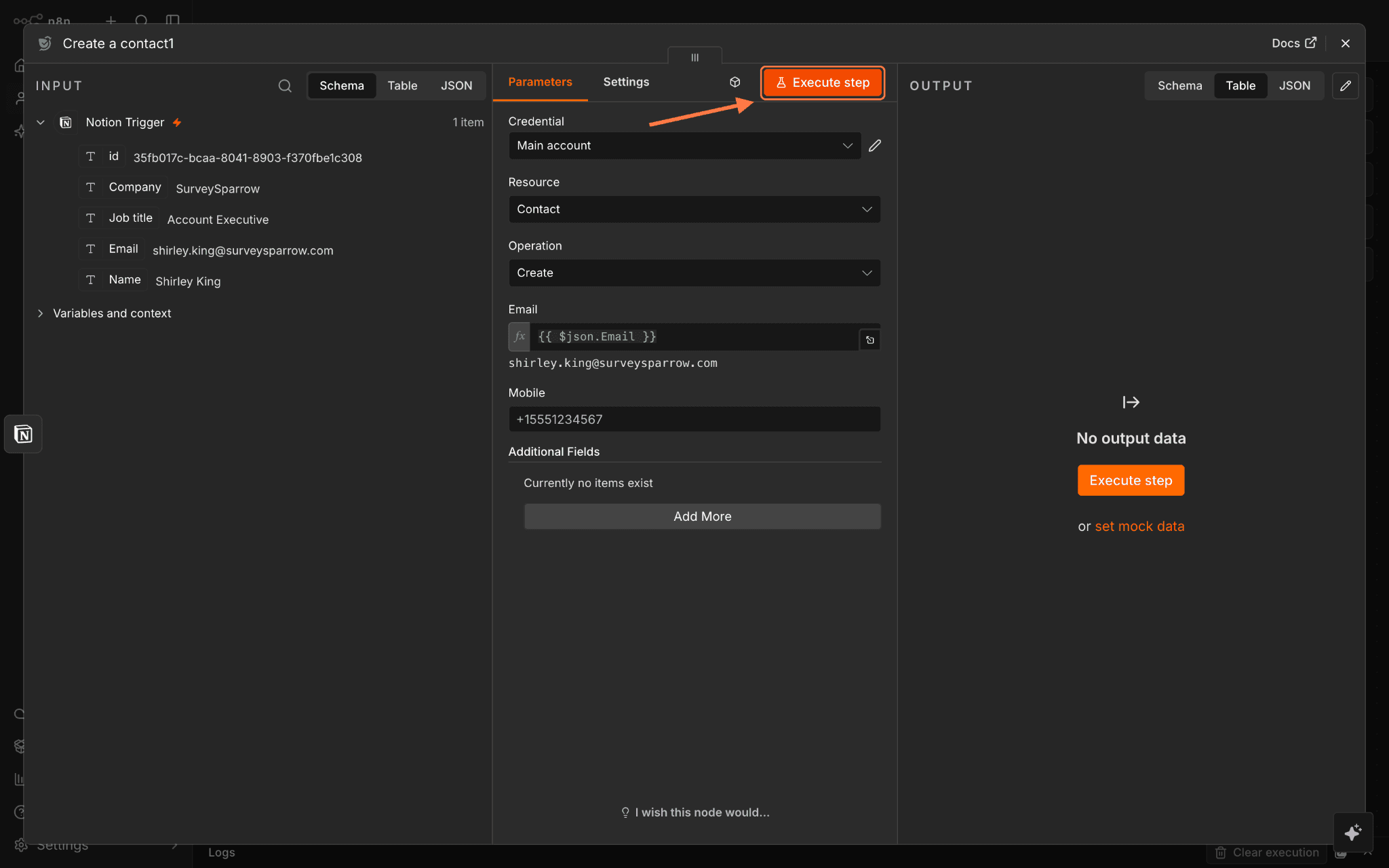
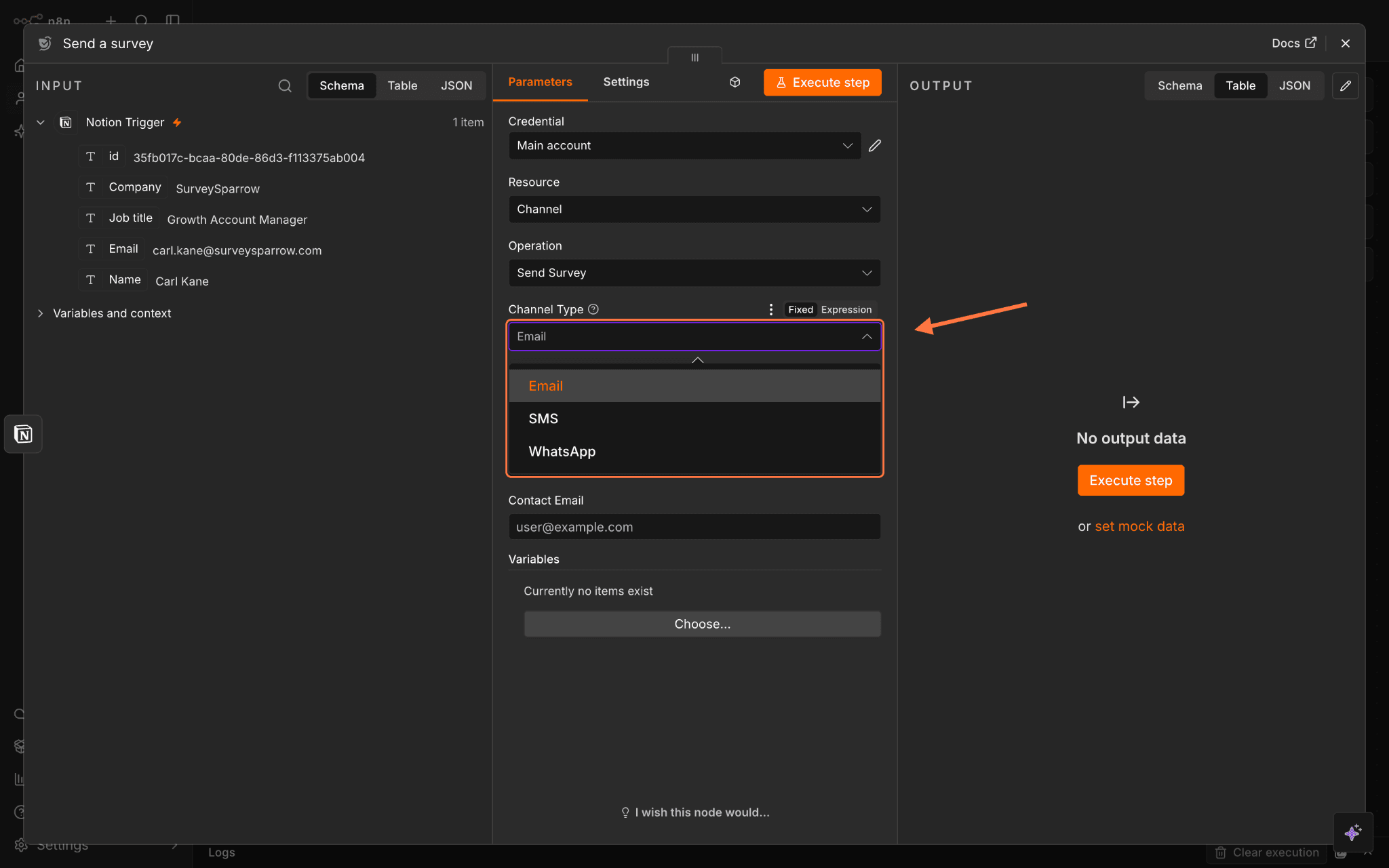
In addition to a trigger, the SurveySparrow node also supports two actions: sending a survey or creating a contact inside SurveySparrow. We’ll explore the steps and set up for both.
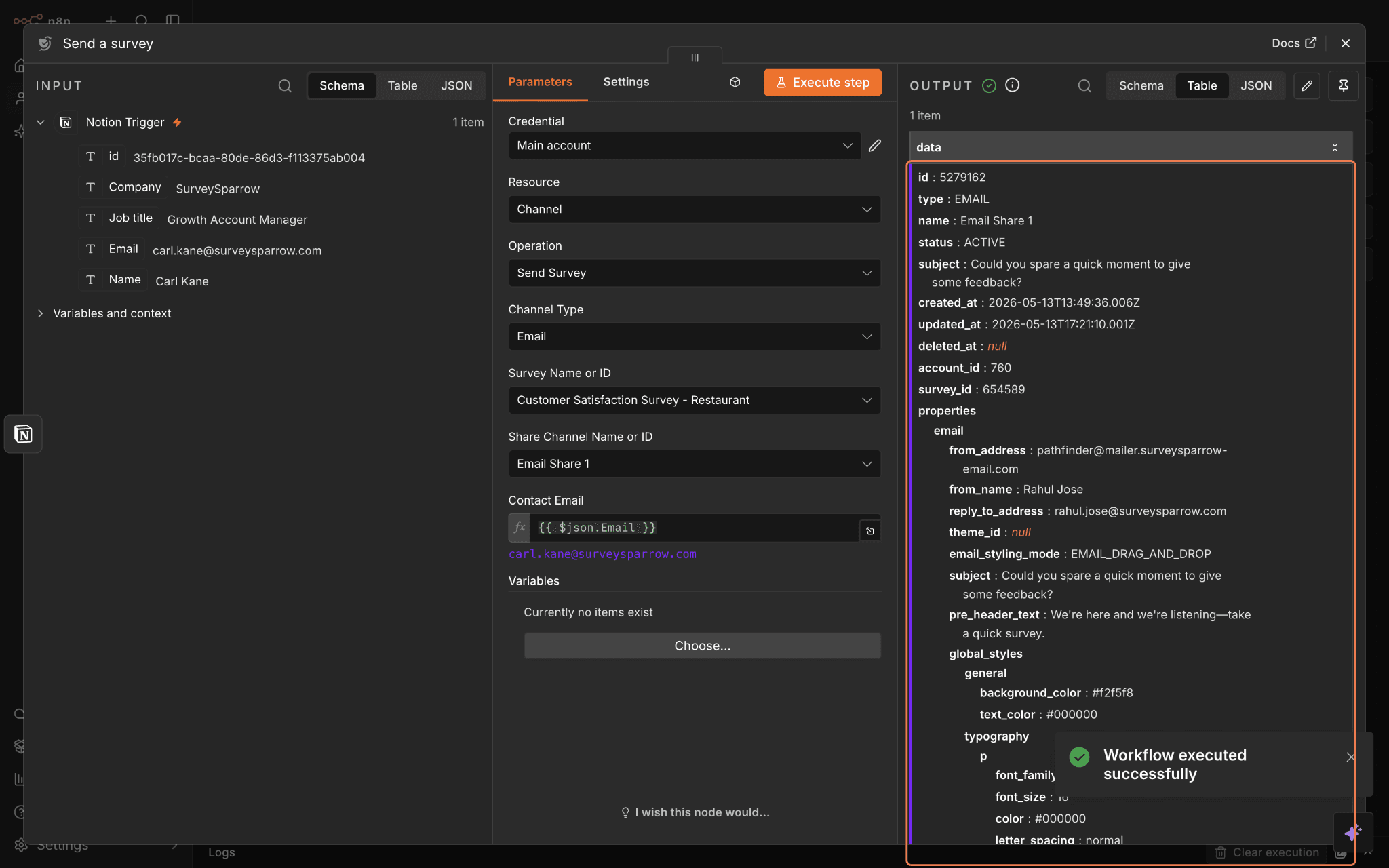
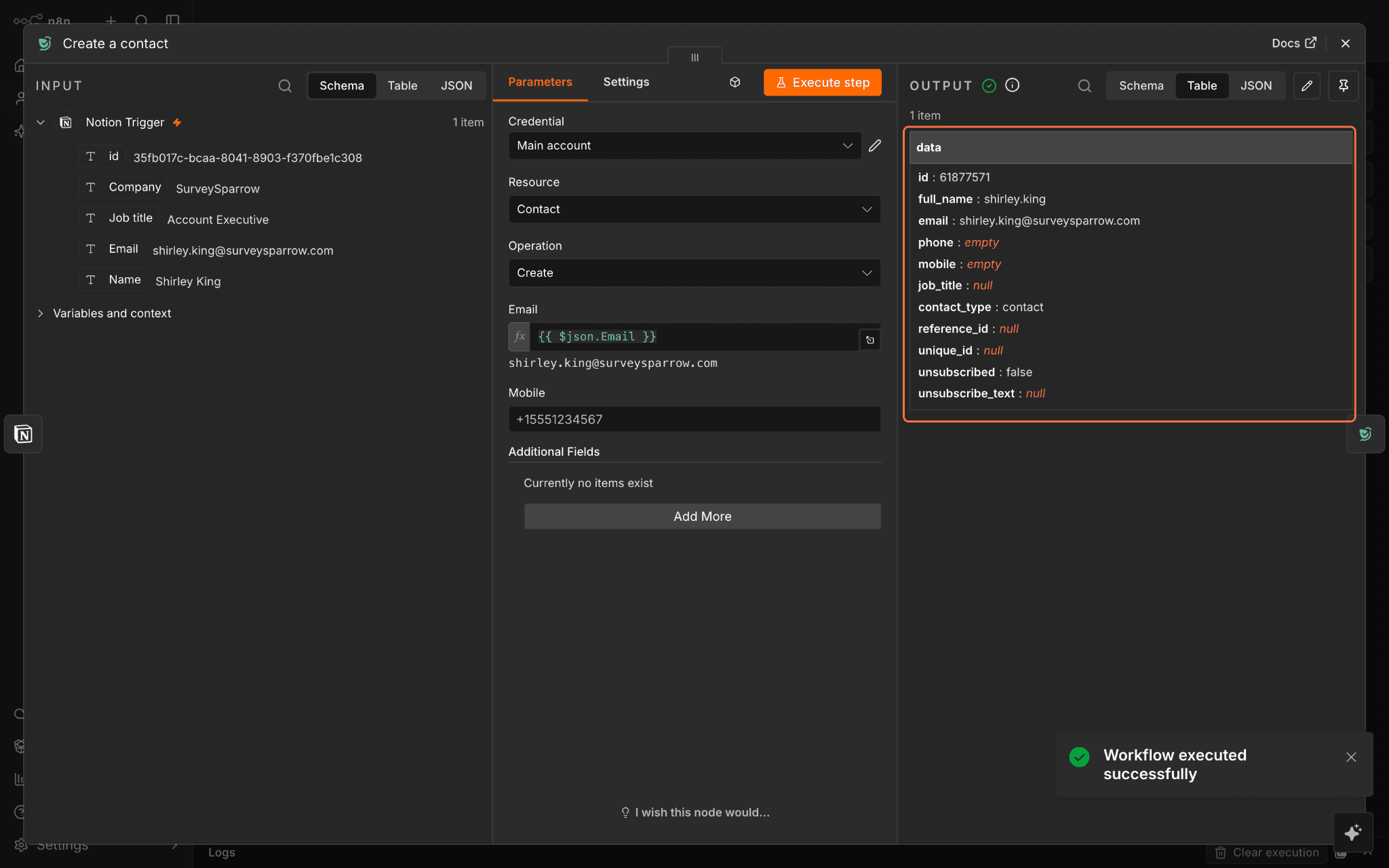
We’ve got a Notion node as the trigger (whenever a page is created in a database), and we’ll explore the setup process for both actions.
1. Open the SurveySparrow node, then click on Send a survey.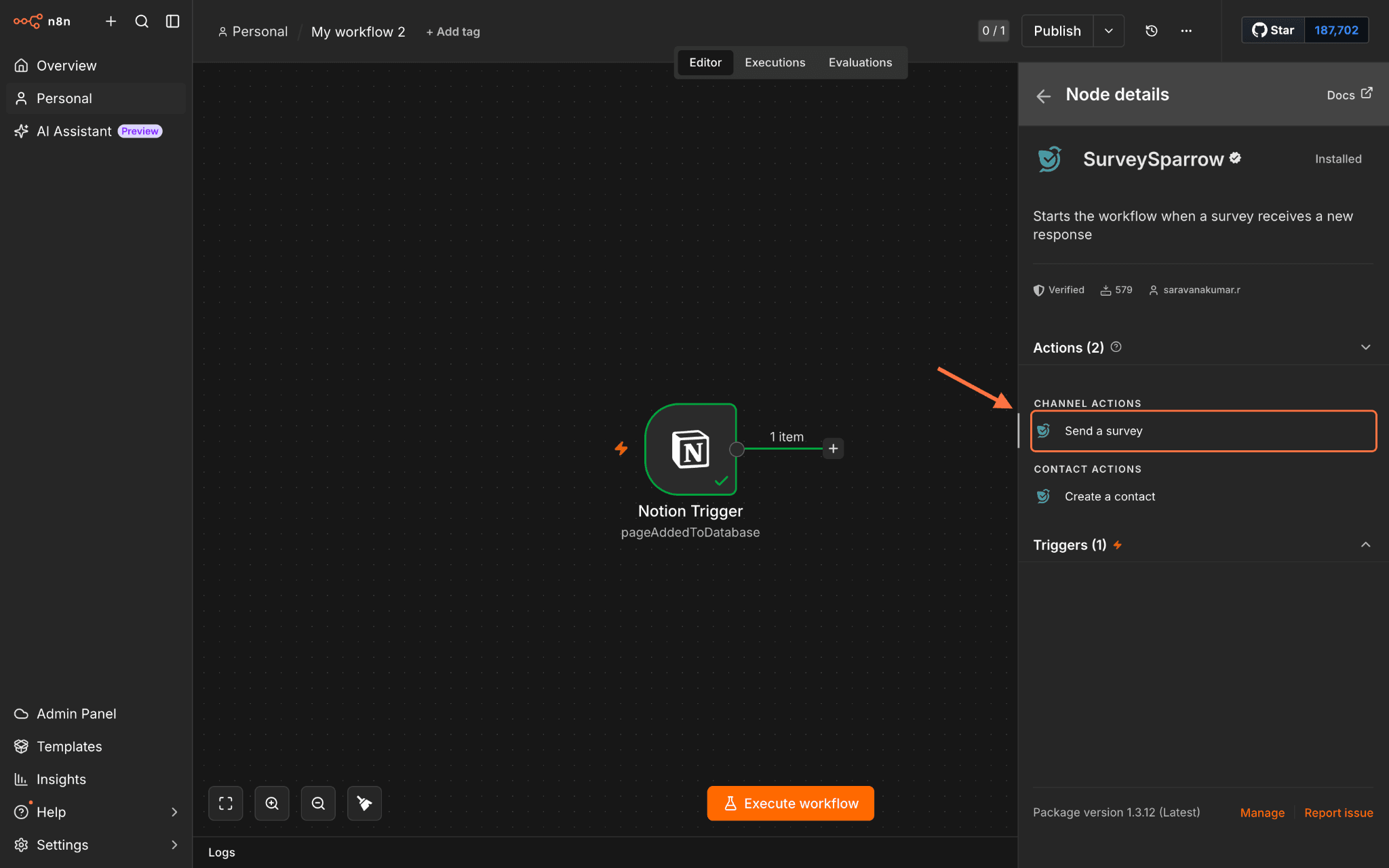
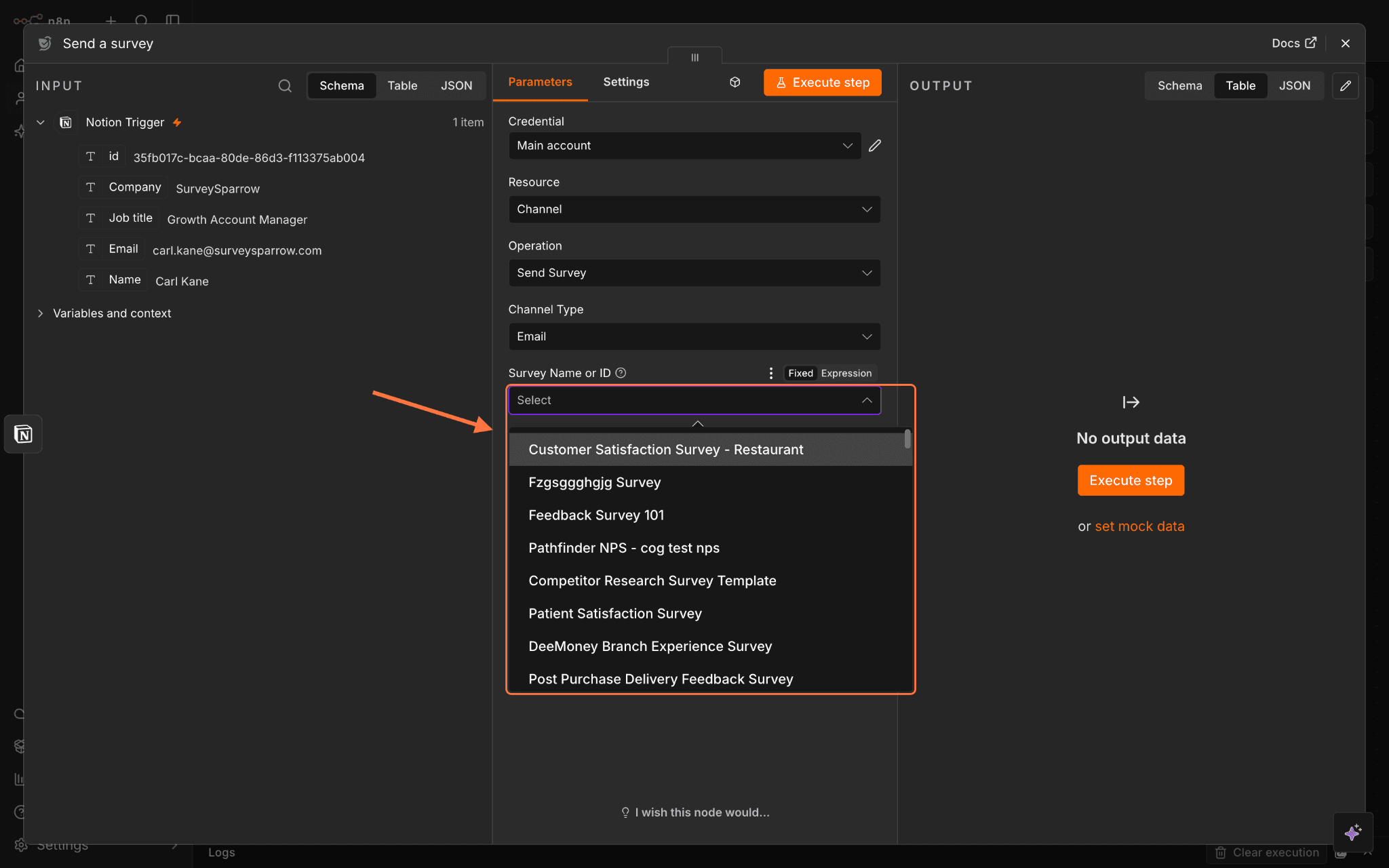
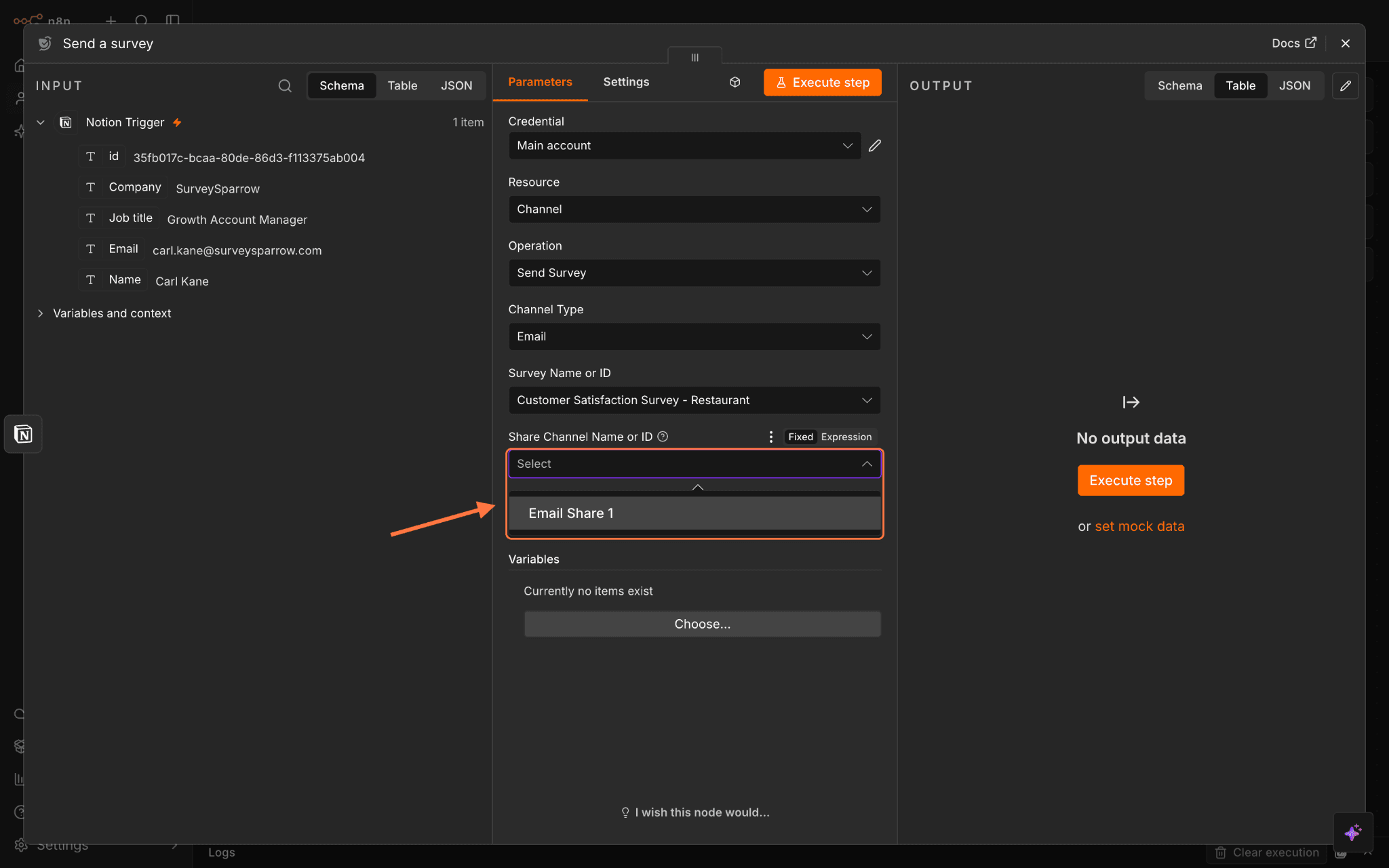
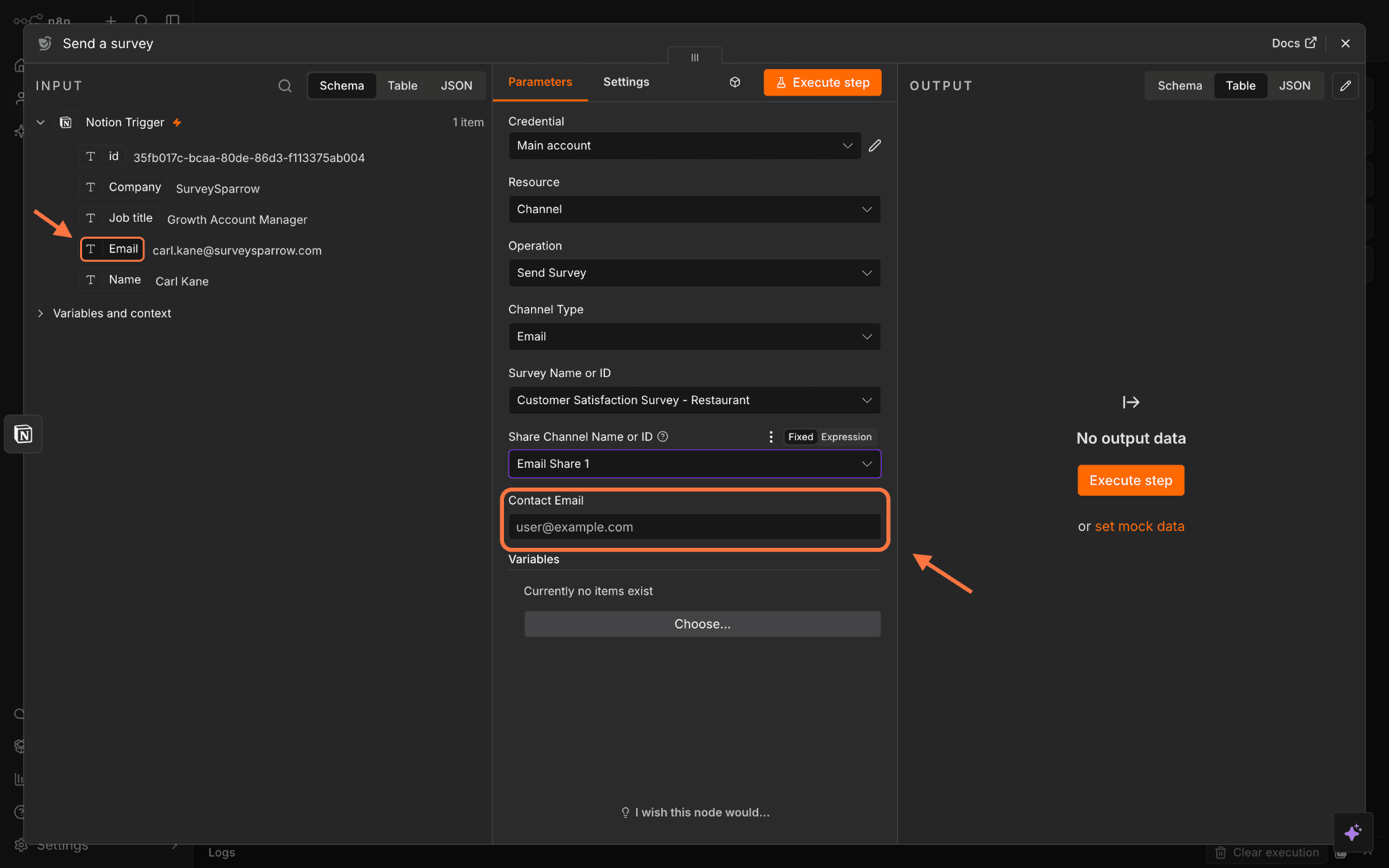
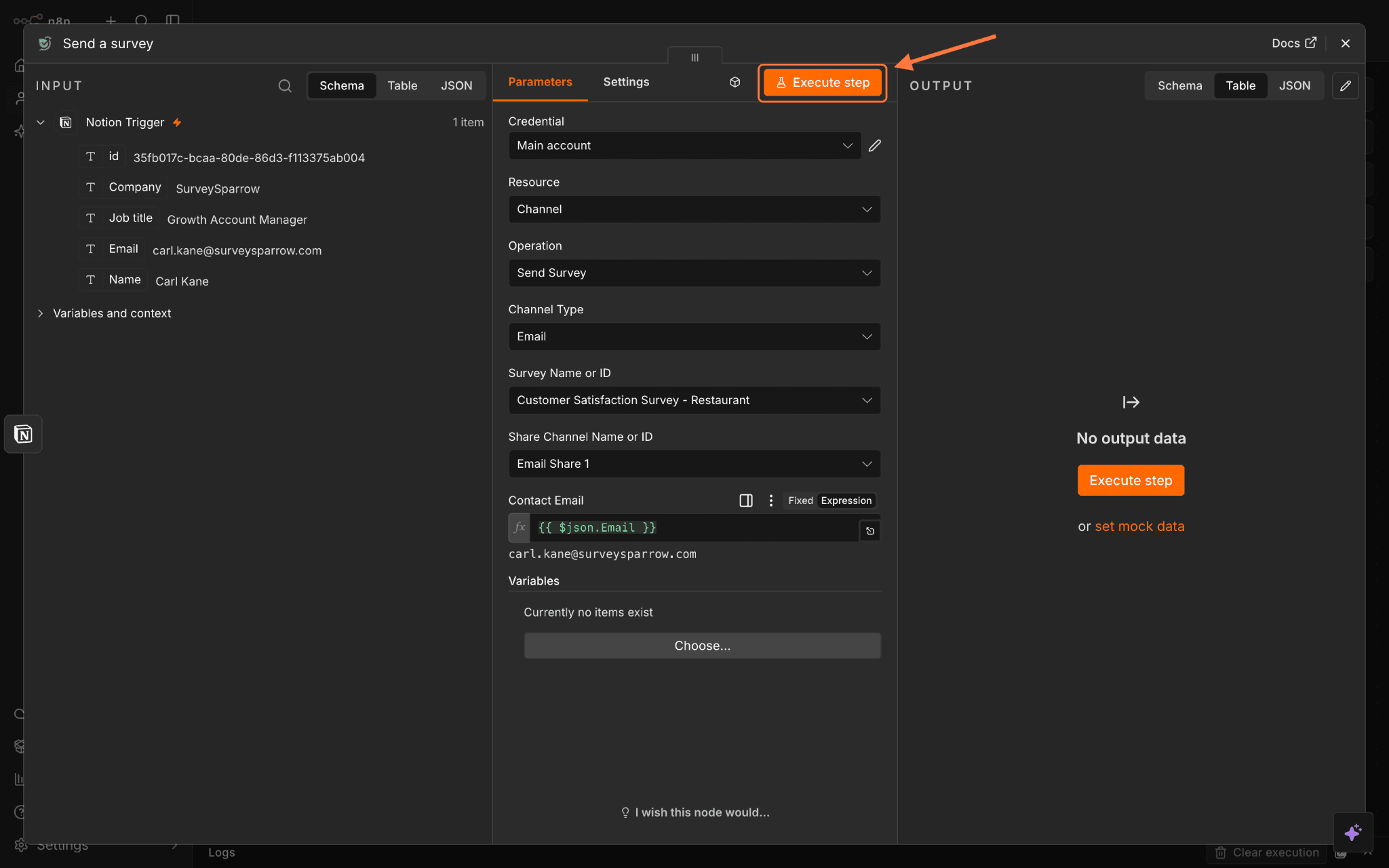
By connecting SurveySparrow to your n8n workflows, you can automate the feedback loop — from sending surveys at the right moment to acting on responses instantly — without any manual effort. Whether you're syncing response data across tools, triggering surveys based on real-world events, maintaining your contact lists, or setting up multi-step processes, the SurveySparrow node helps you automate them all.
Try it out today and feel free to reach out to our community in case of any questions!
Note: The n8n node is available from the free plan onwards, however it uses SurveySparrow's API. Users have 3 quotas for API calls (per minute, per hour, per day). If these quotas are exhausted, the node will fail. The quotas vary based on plan. In order to upgrade quotas, users must reach out to our support team to purchase extra calls.