
Installing the SurveySparrow Claude Connector as a custom app

You can install SurveySparrow's Claude connector from the connector marketplace, you can also install it as a custom app, by following these steps:
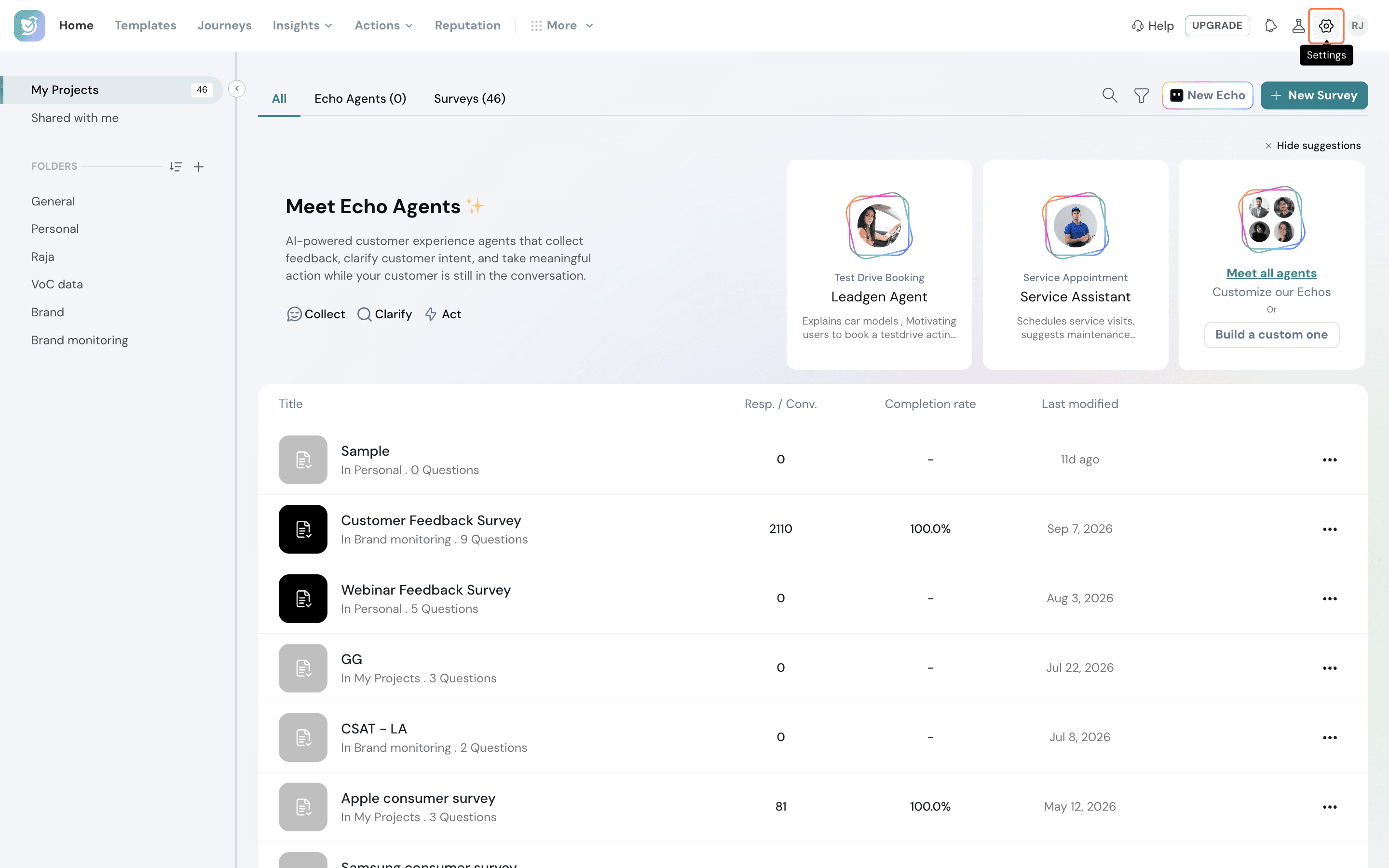
- First, you must create a custom app in your SurveySparrow account. Start by clicking on the settings icon in the top panel of your account.
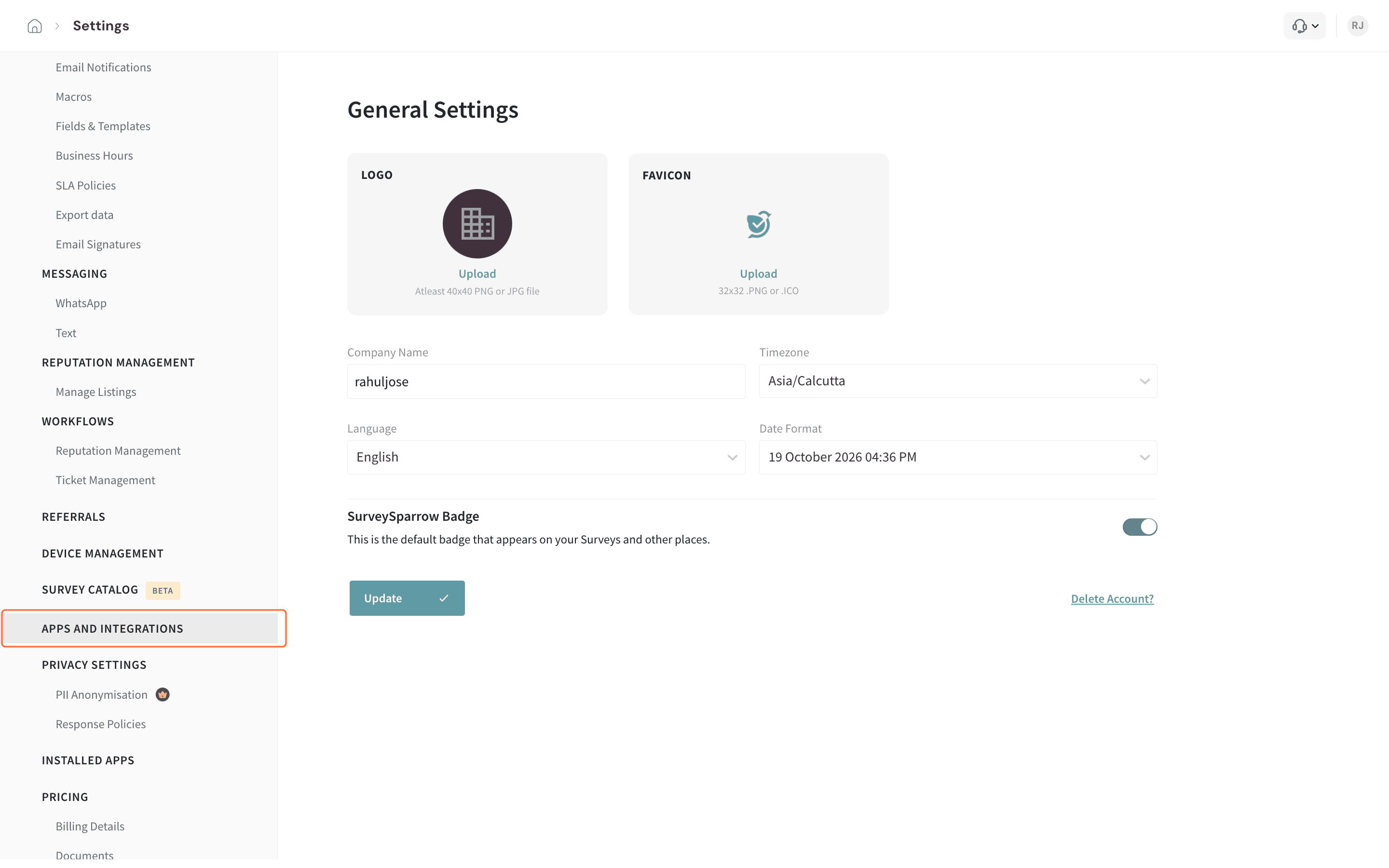
- In the settings menu, click on Apps and Integrations.
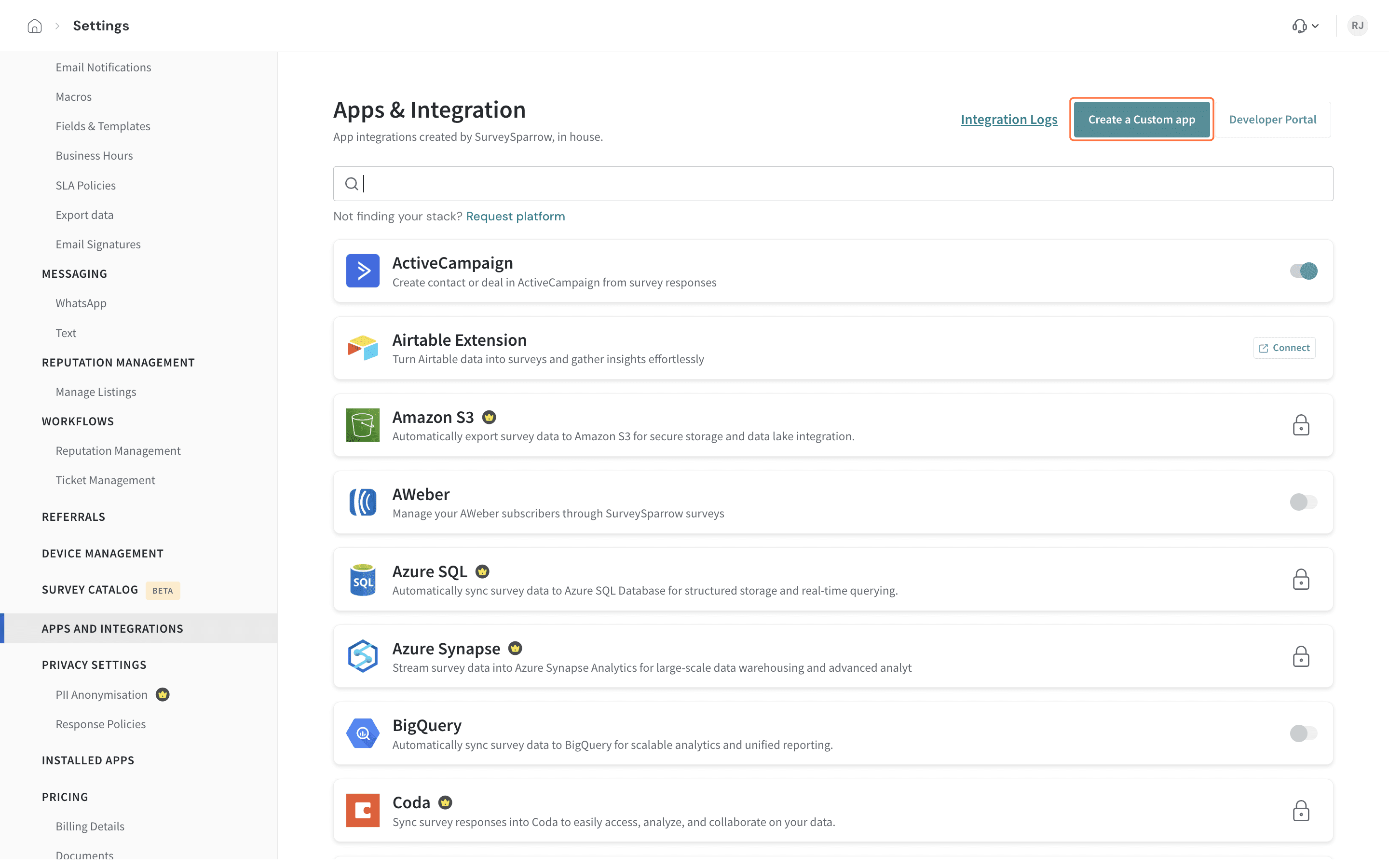
- Click on Create a custom app.
- Inside the custom app pop-up, enter an App name and App label.
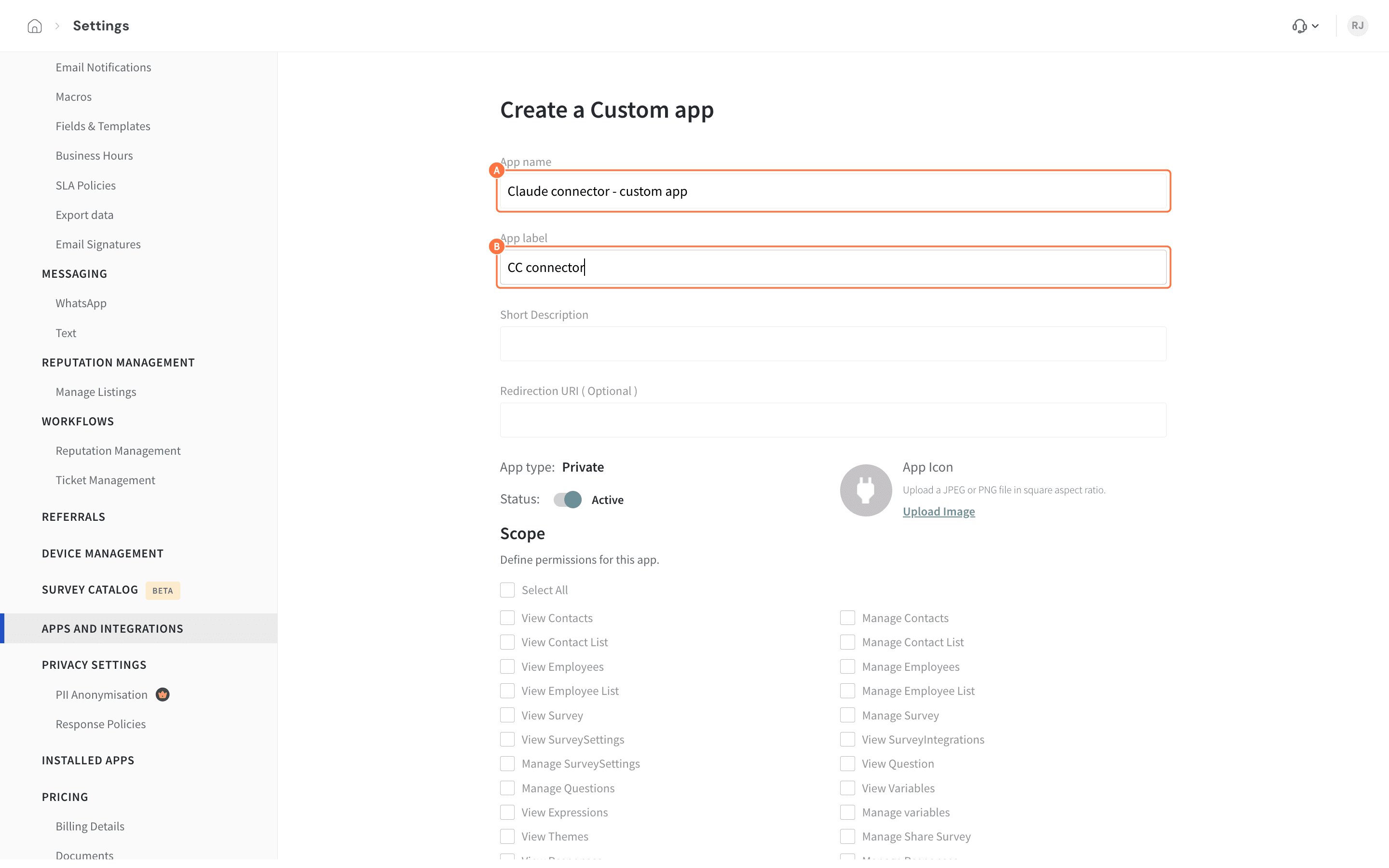
- Next, add the following Callback URL in the Redirection URL field:
https://claude.ai/api/mcp/auth_callback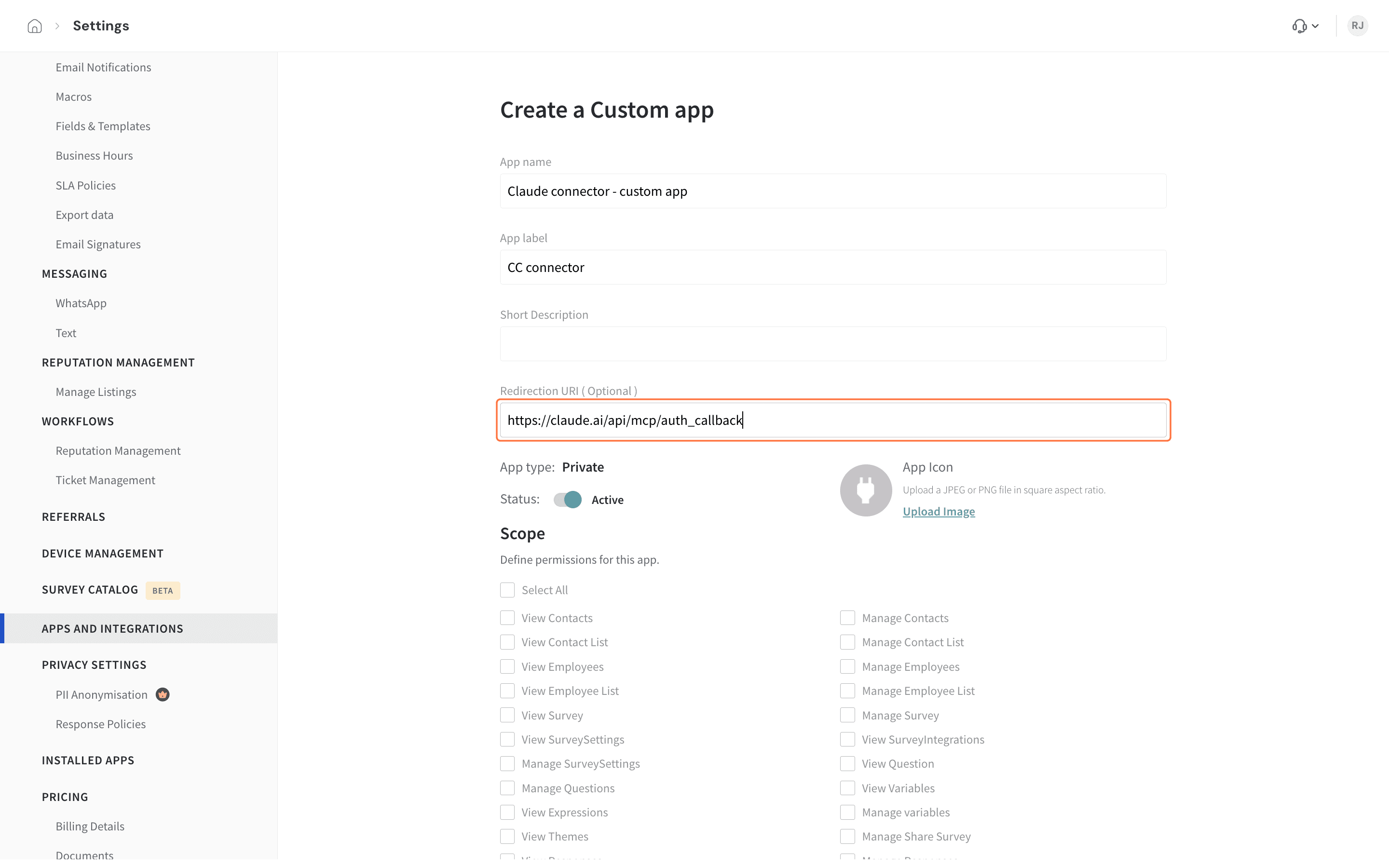
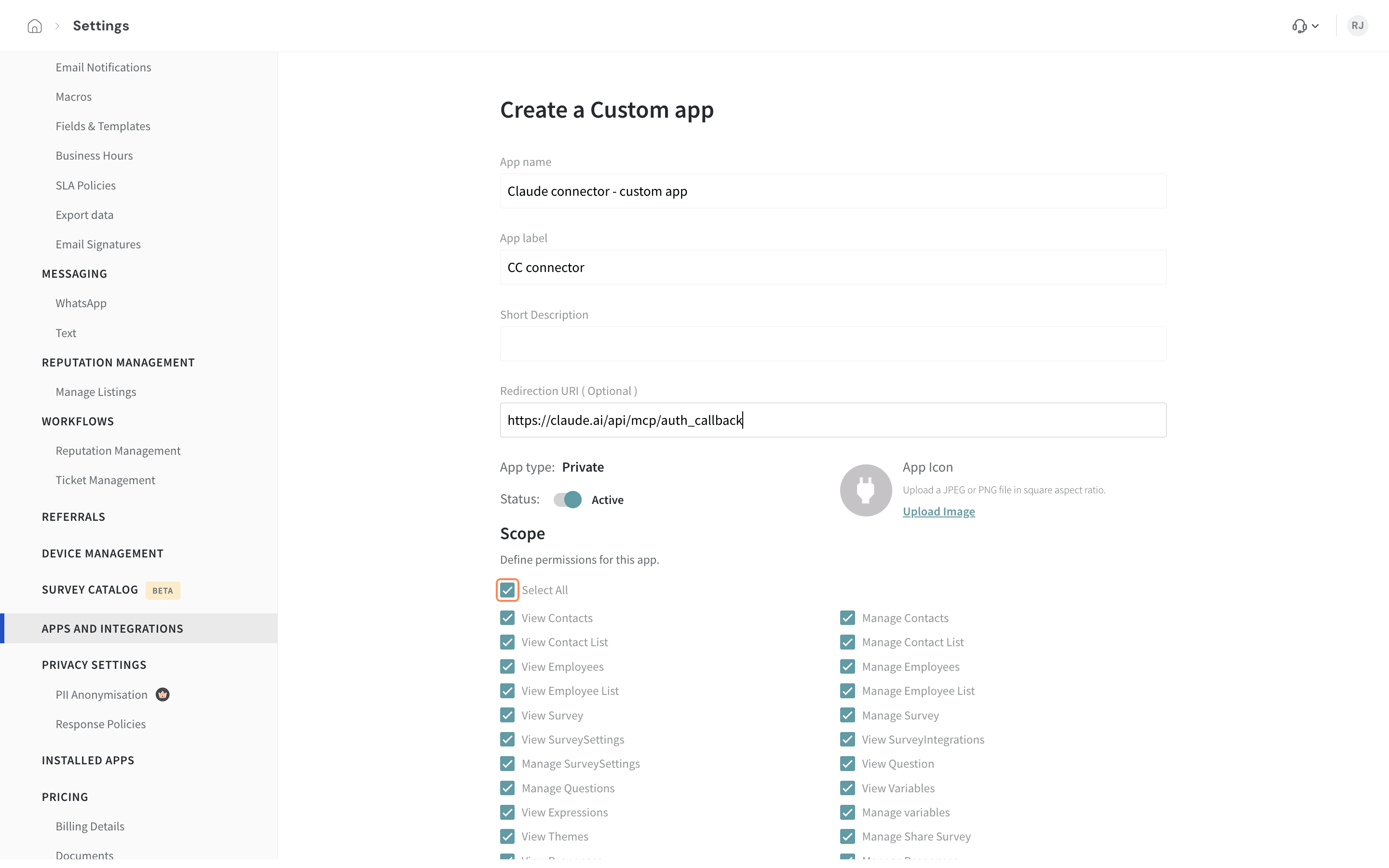
- Then click on the Select All bubble under Scope.
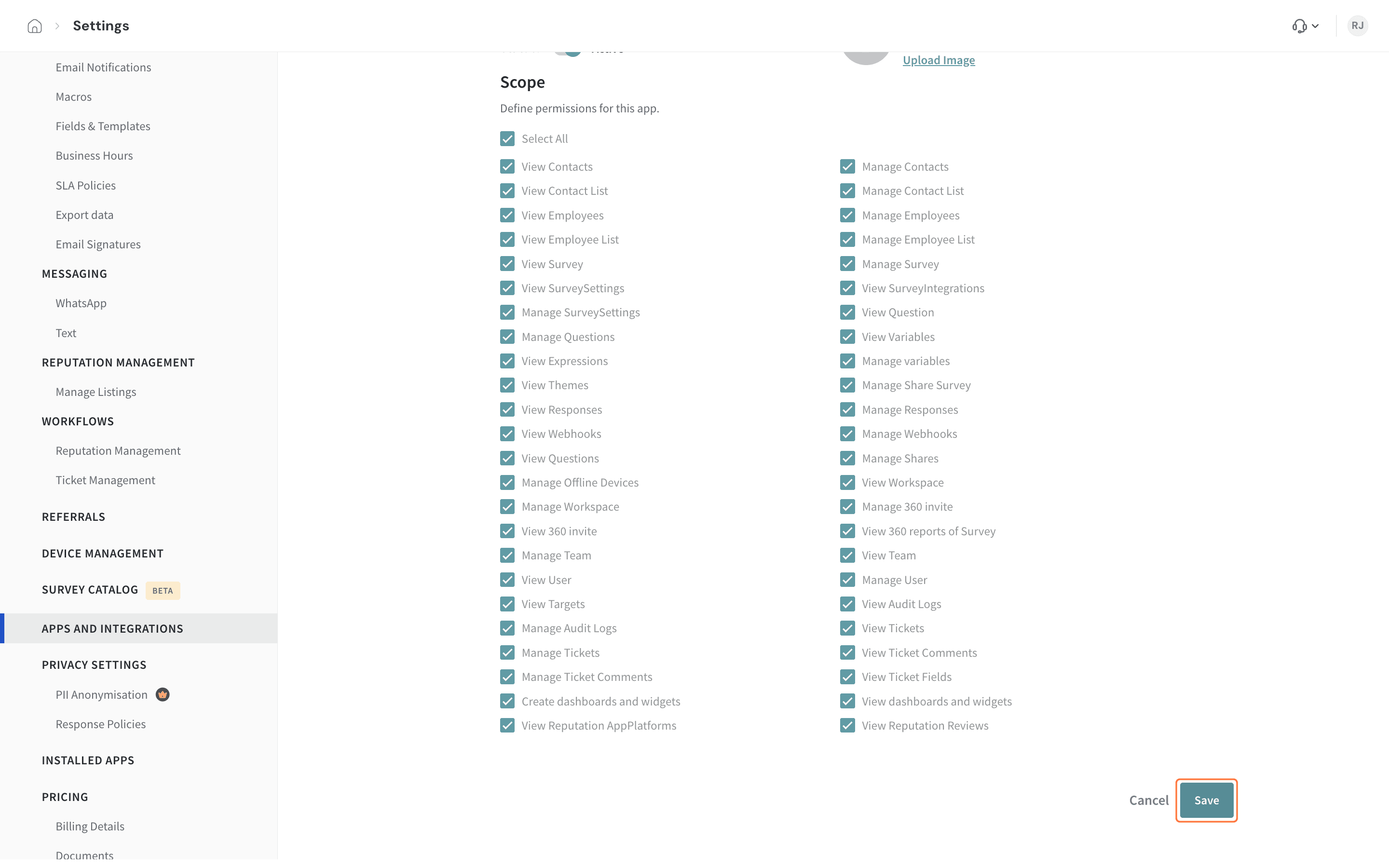
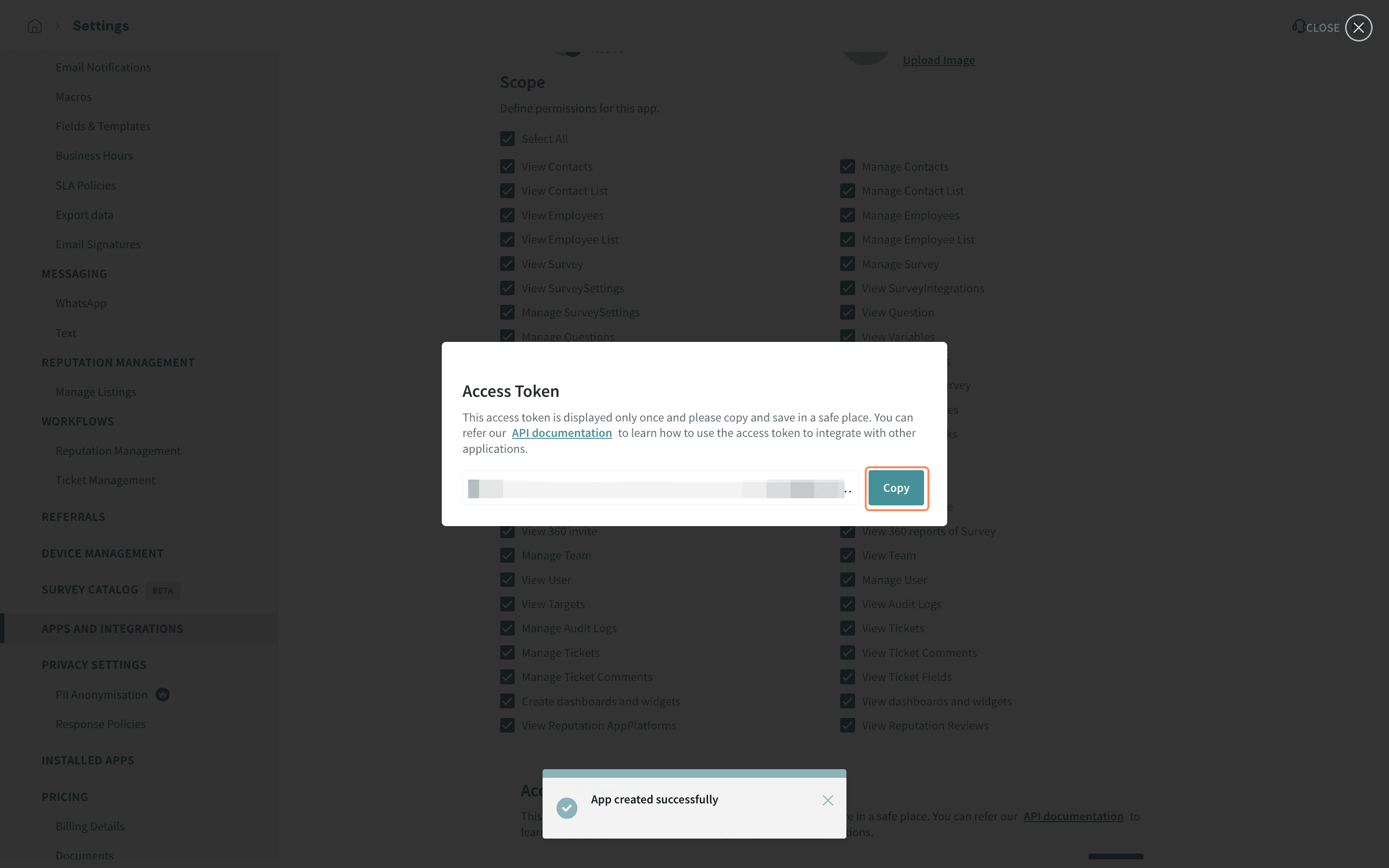
- Finally, click Save. A pop-up appears with the app token, make sure to save it safely.
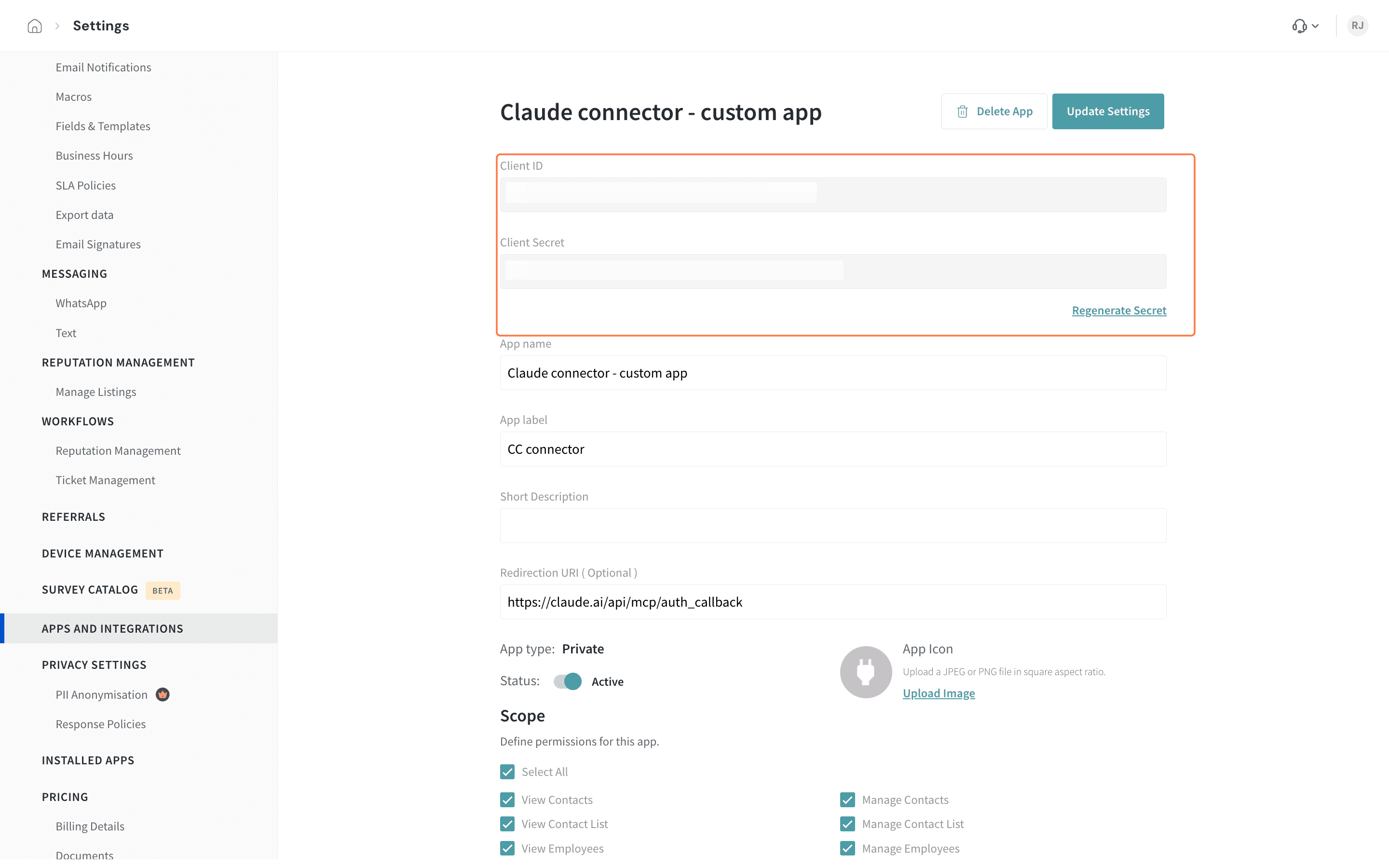
- After saving the app, open it and copy the generated:
- Client ID
- Client Secret
- Head to Claude, then click on the Account button.
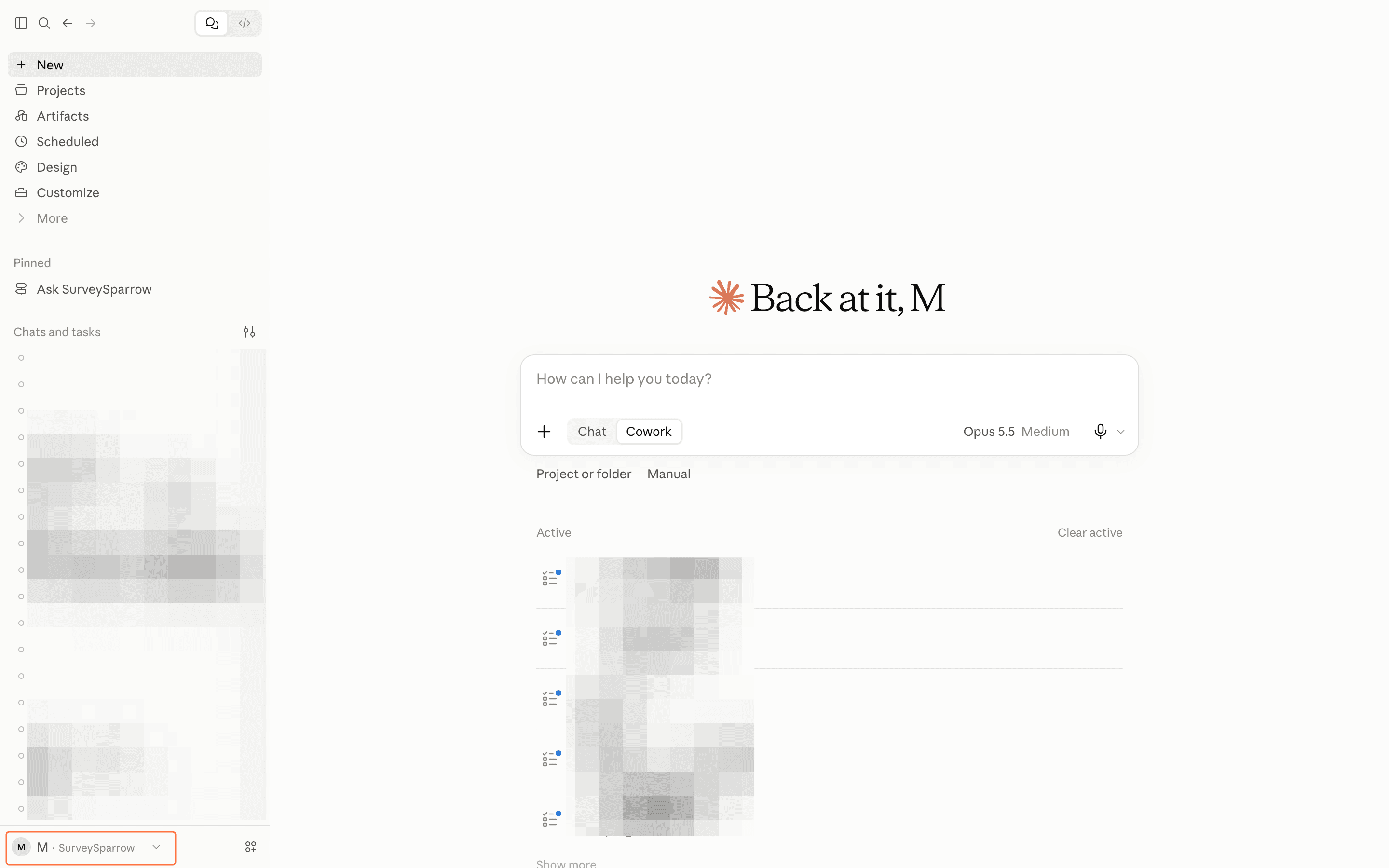
- Follow the navigation path below:
Settings → Connectors → Add → Add custom connector
Note: Custom Connectors are available only on supported Claude plans.
- Enter the following details:
Client ID: Paste the Client ID from the SurveySparrow Custom App.
Client Secret: Paste the Client Secret from the SurveySparrow Custom App.
MCP URL: https://integrations.surveysparrow.com/surveysparrow/mcp - Save the connector and complete the authentication flow.
- Once authentication is successful, the SurveySparrow MCP server will be available for use within Claude.