
Collaboration in building surveys

SurveySparrow empowers users to collaborate to swiftly create impactful forms and surveys. By enabling simple sharing with secure, personalized links, users can easily gather feedback from both internal and external stakeholders.
The interactive viewing experience with navigation and commenting capabilities, fosters valuable two-way communication. The access to comments and the option to reply facilitates efficient communication and active engagement with collaborators.
The following are the topics covered in this article:
- Invite your team to collaborate through email
- Invite your team to collaborate through a direct link
- Adding, responding, and resolving comments
Invite your team to collaborate through email
1. In the Build section of your survey, click Invite.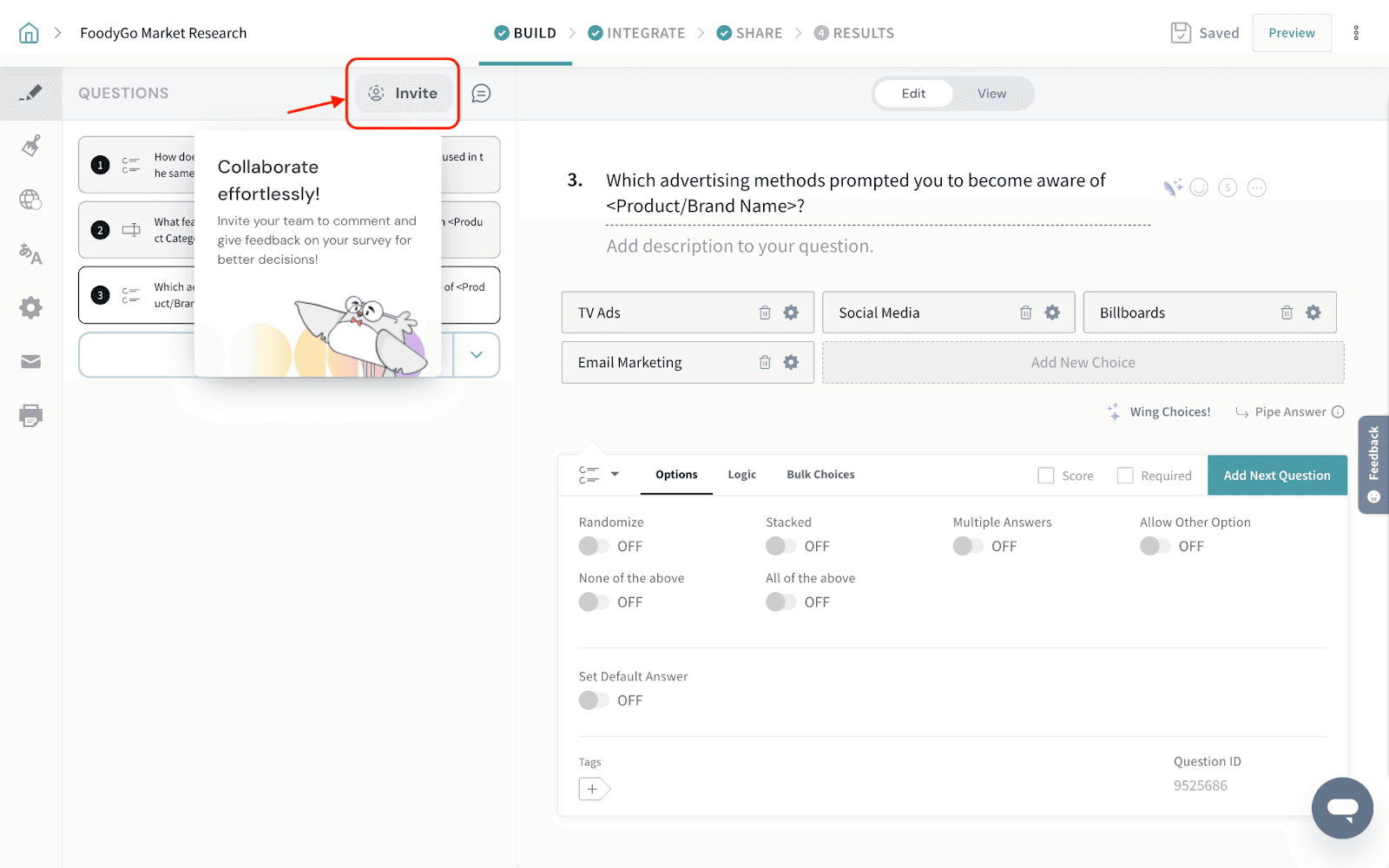
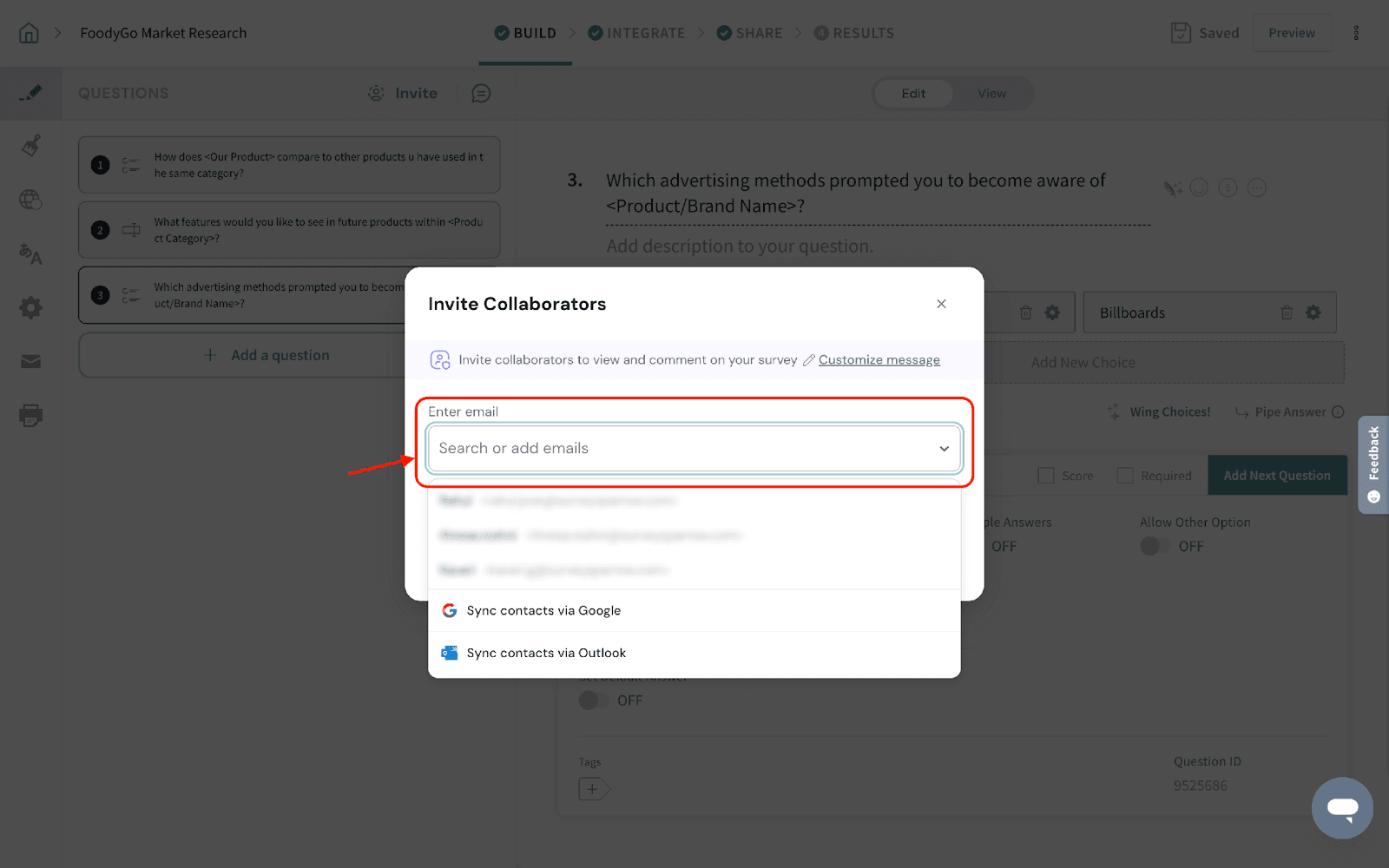
2. You can choose to invite via email in the following ways:
- Send invites to your SurveySparrow users
- Sync contacts via Google and send invites
- Sync contacts via Outlook and send invites
3. Click Customize message to add a personalized invite email.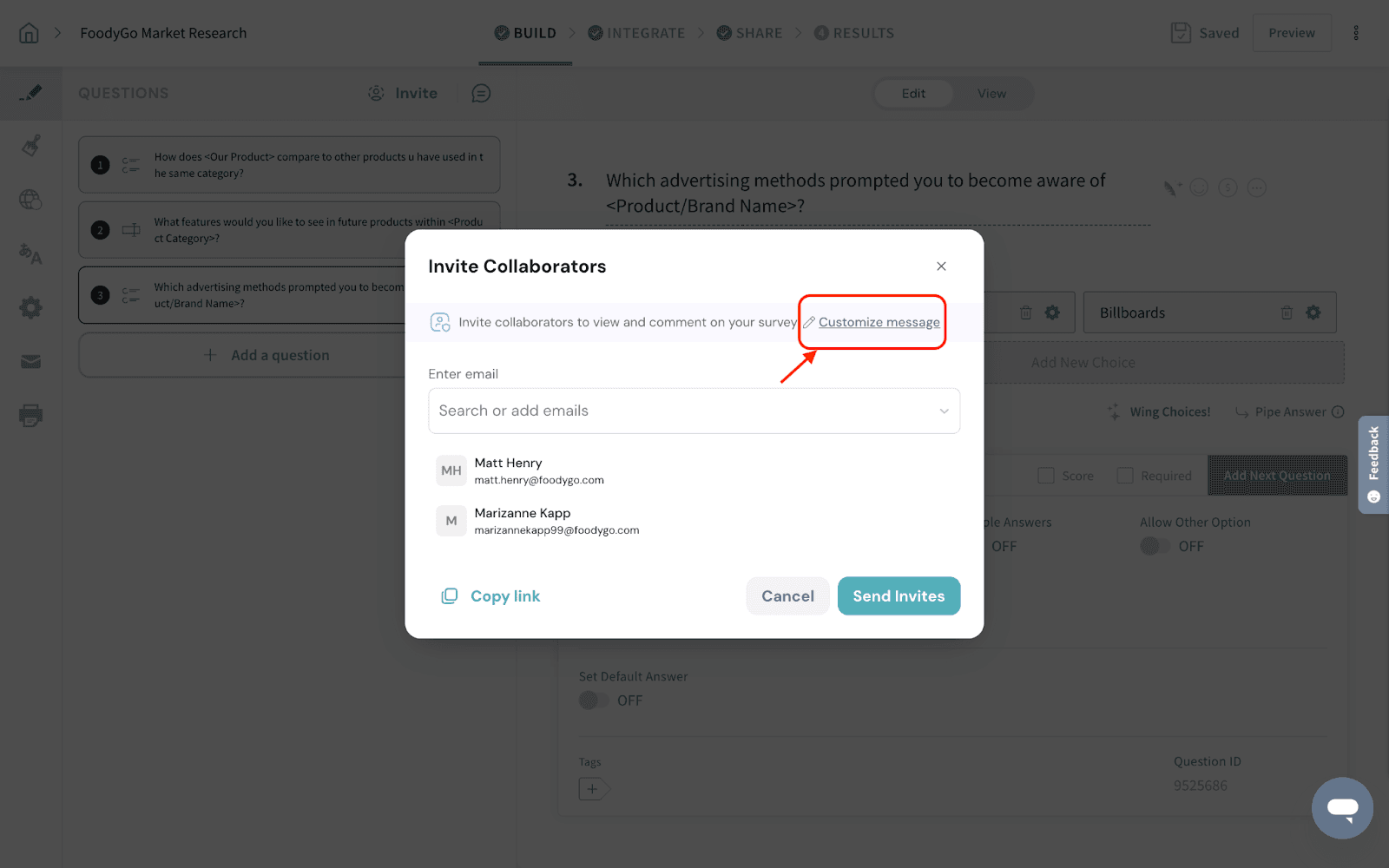
4. Edit the invite email message and click Send Invites.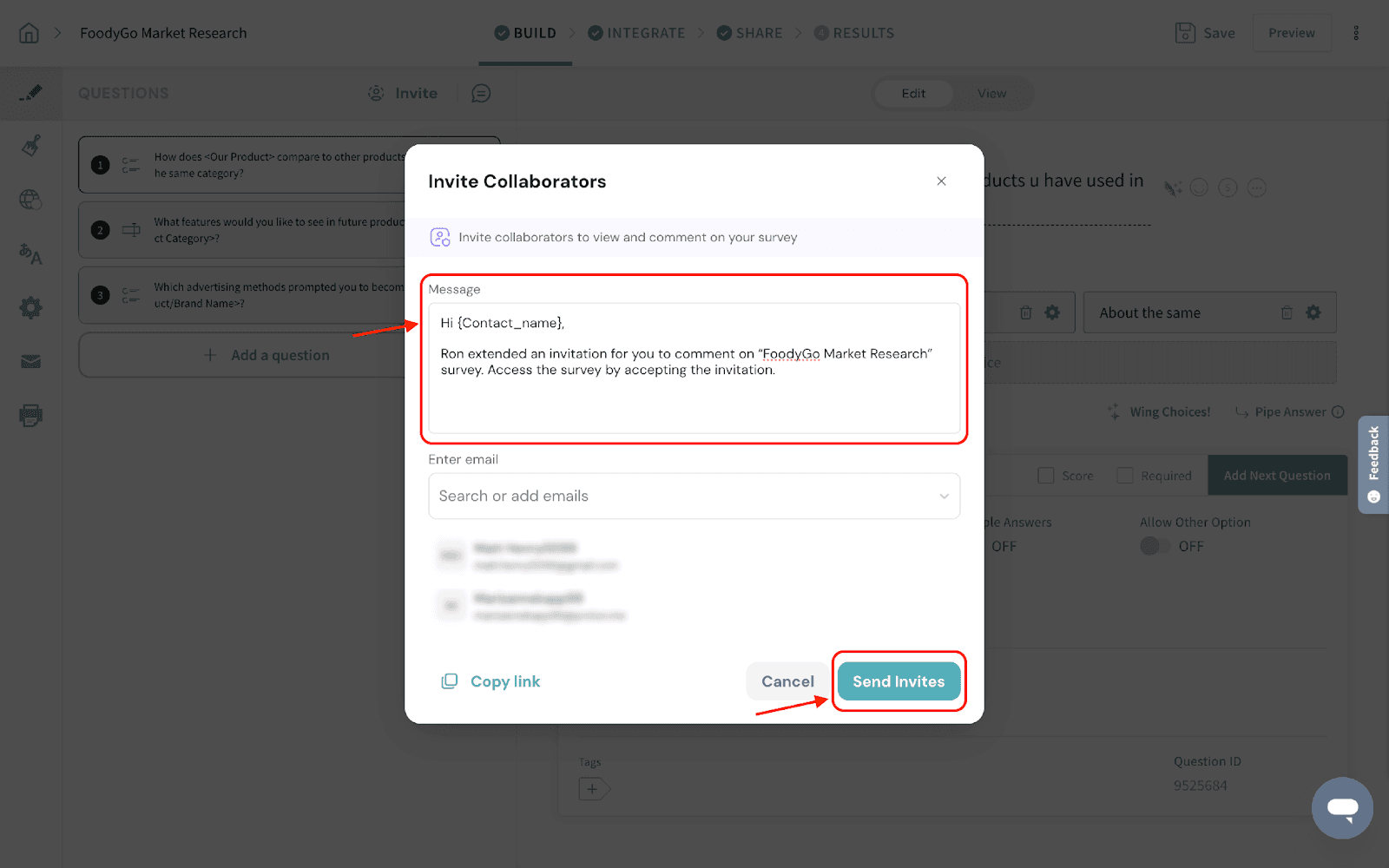
5. The collaborator shall click the Accept Invite and access the survey’s collaborator view.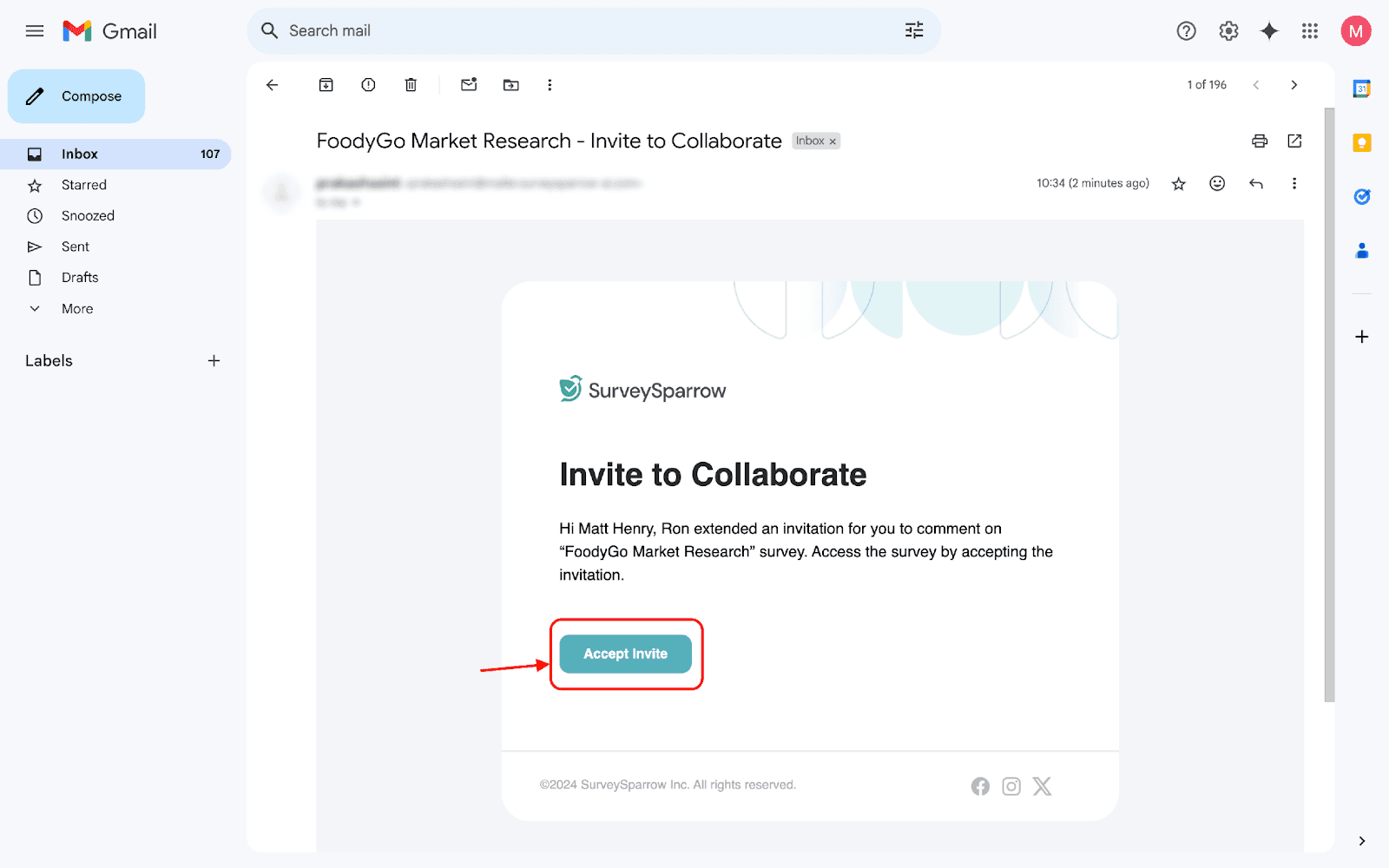
Invite your team to collaborate through a direct link
1. Under Invite Collaborators, click Copy link.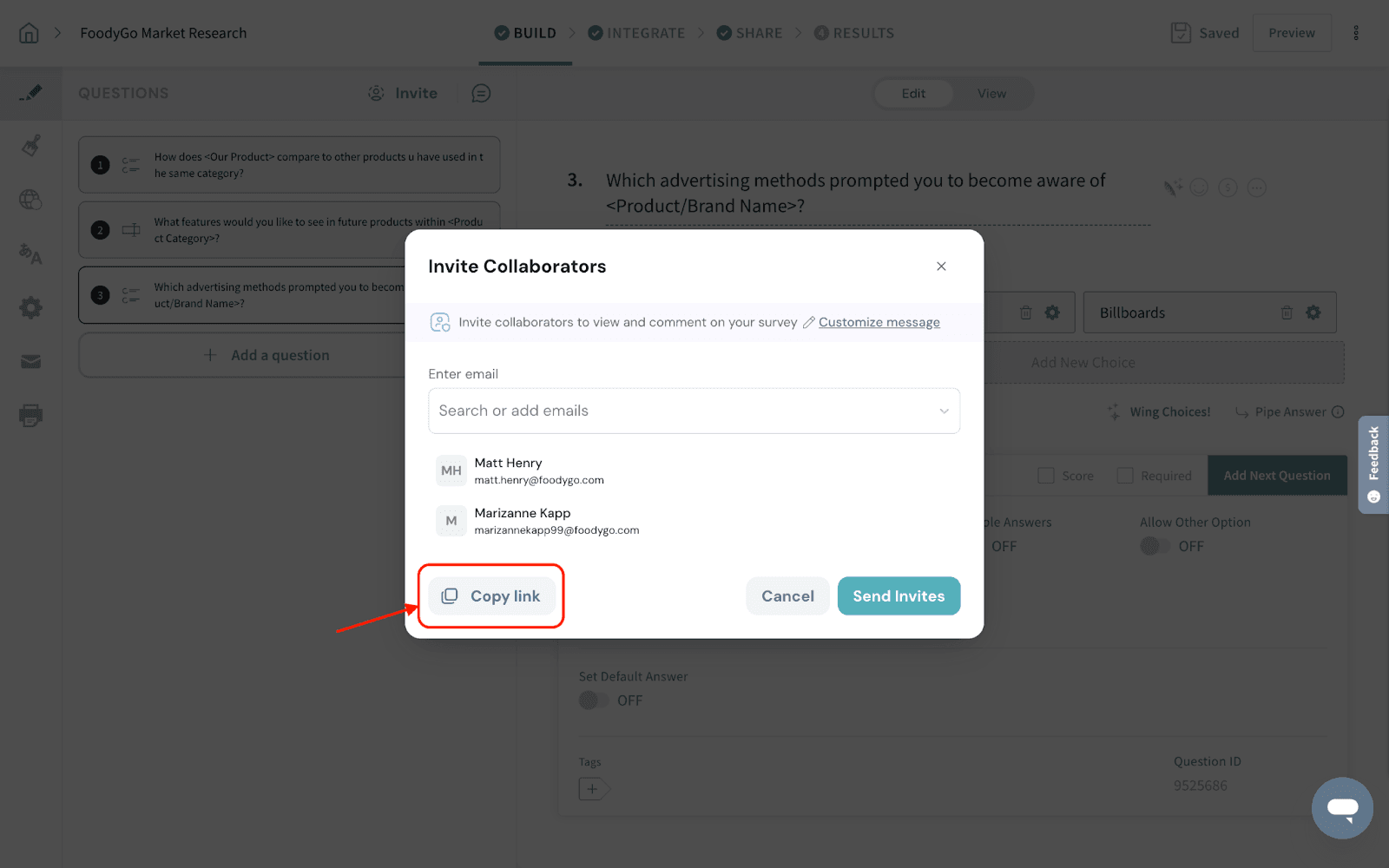
2. You can now share the link to provide access to collaborate with relevant stakeholders.
3. The collaborator shall provide their details and click Save to access the survey’s collaborator view.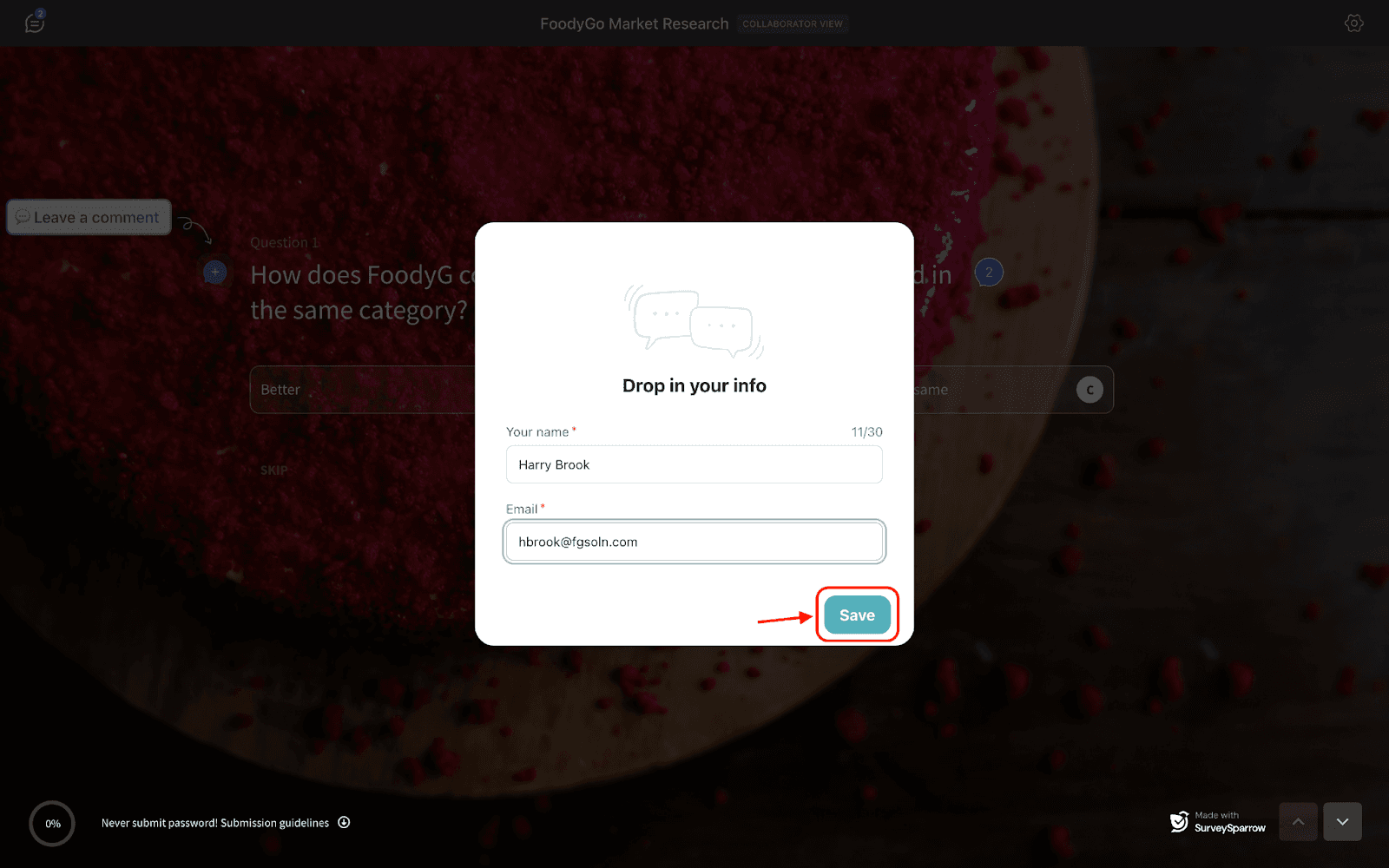
Adding, responding, and resolving comments
1. Users and collaborators can click on the “+” icon to add a comment.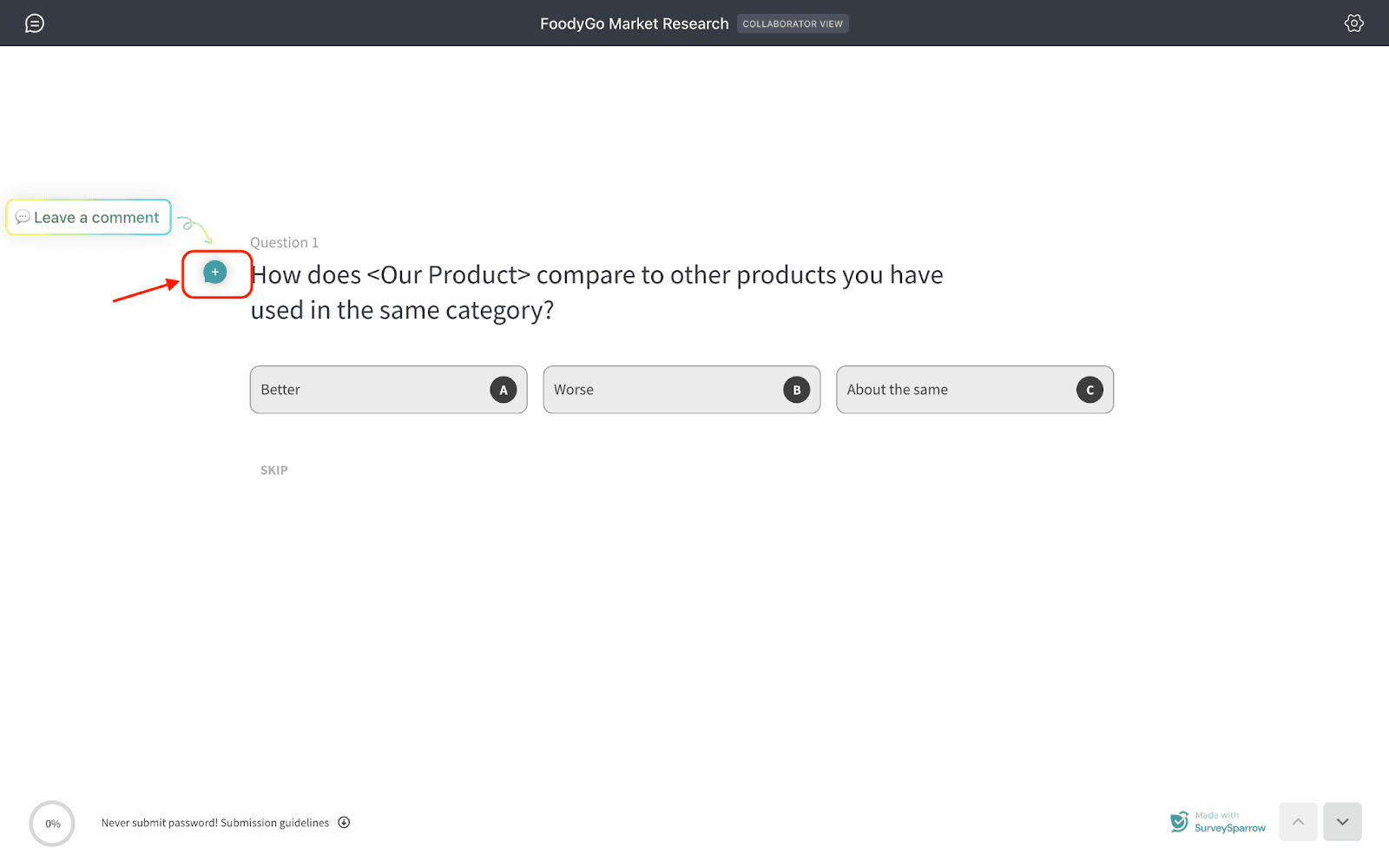
2. Enter the comment to share your thoughts and click send.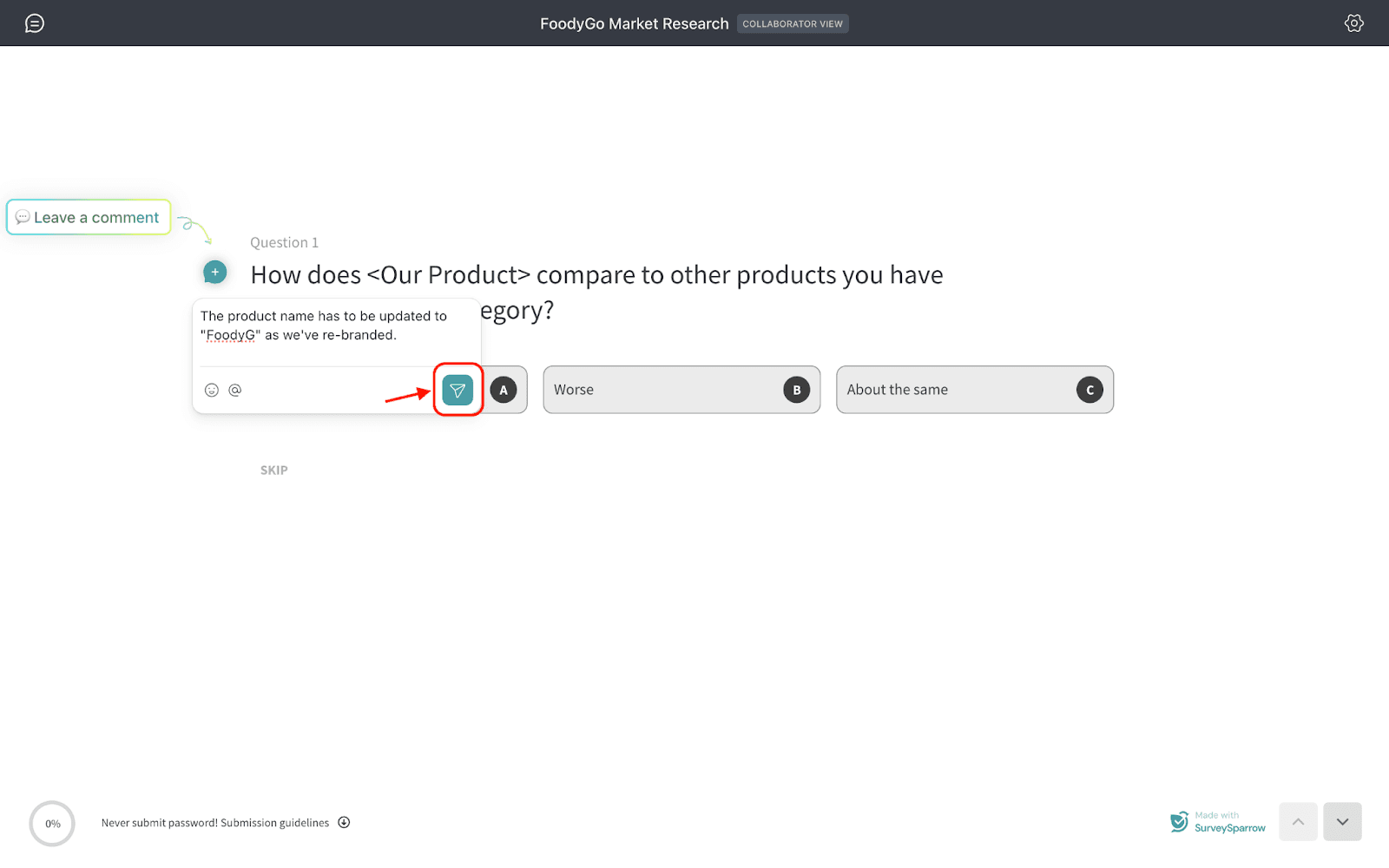
Note: Users and collaborators can add comments to questions and options.
3. The SurveySparrow user can now navigate to the comments section to see the suggestions from the collaborators.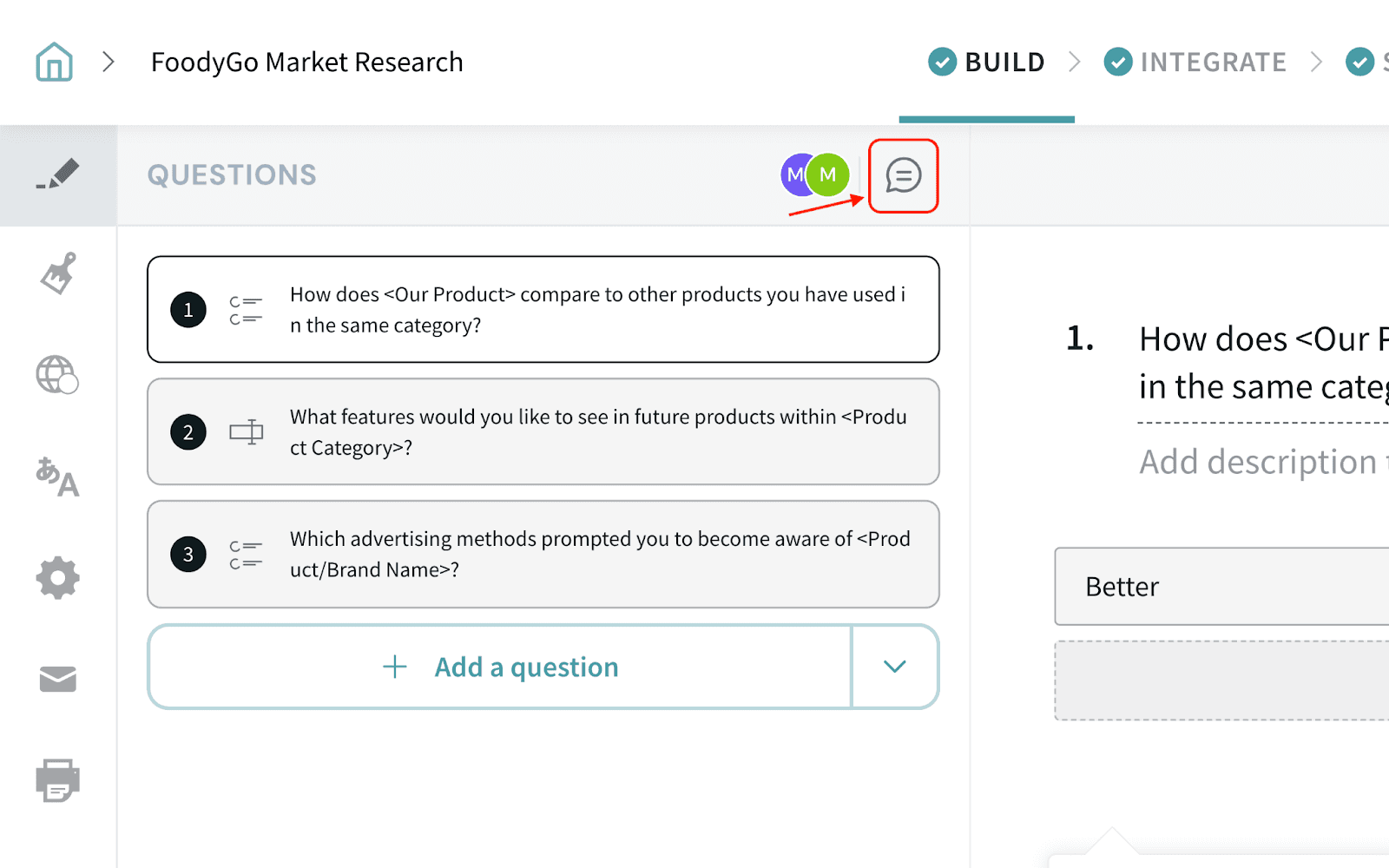
4. Reply to the comments for confirmations or to verify the changes made, according to your process.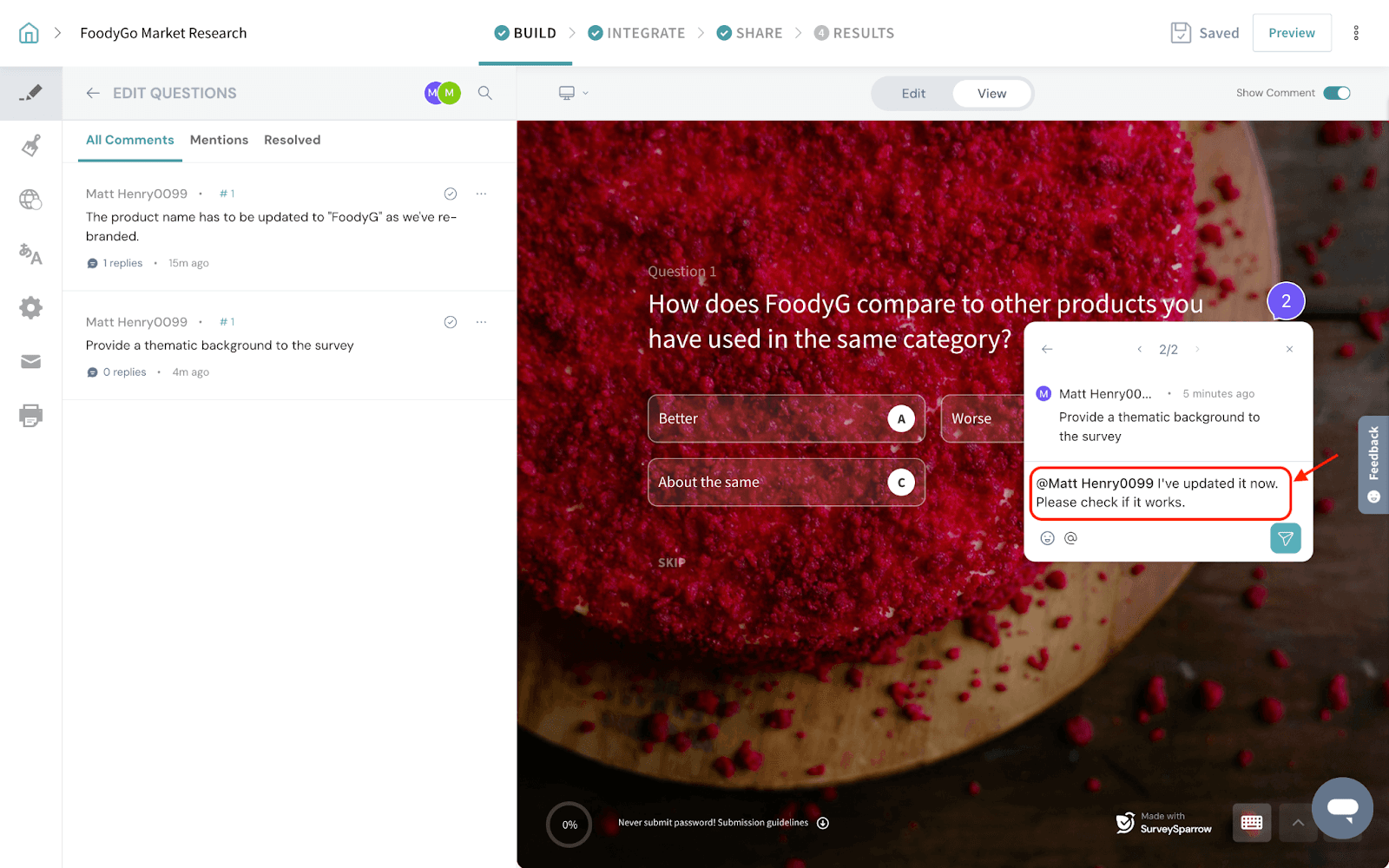
5. Once you confirm the suggestions, you can click Mark as Resolved.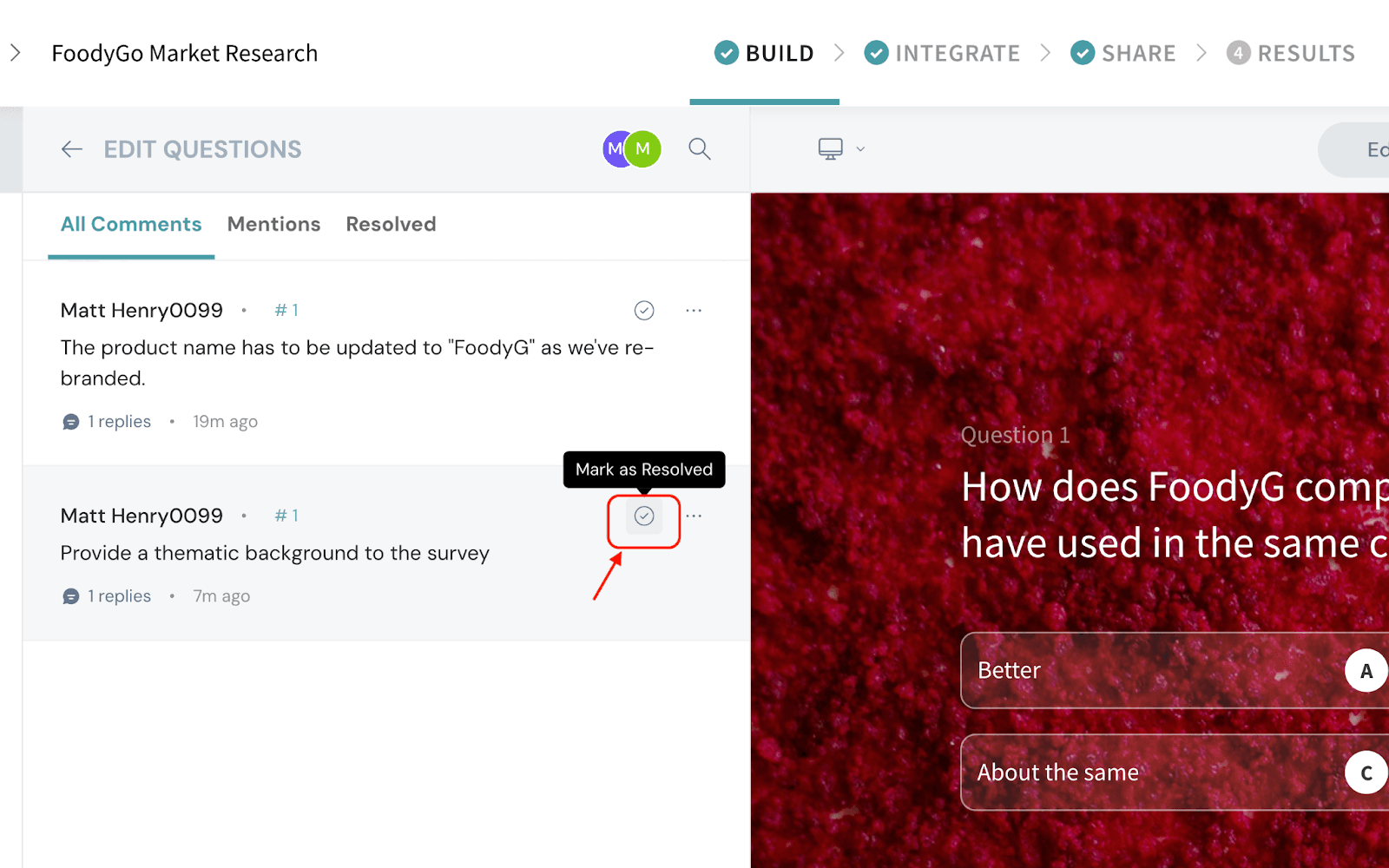
Troubleshooting: Collaborator (including Admin) can’t see the survey to edit
If the person you’re inviting is already an Admin (or a user) on the same SurveySparrow account but still can’t see the survey in their survey list, it’s usually a visibility/workspace or folder access issue (not the Invite link).
1. Confirm they are in the same account/workspace
- Ask the coworker to log in and verify they are in the exact same SurveySparrow account/workspace as you. (The same email can be associated with multiple accounts.)
2. Verify the user is active (not Pending)
- Go to Settings → Users and confirm the coworker is listed as Active (not Pending). If Pending, have them accept the invite first.
3. Check the survey’s folder/location and move it to a shared location
- If the survey is in a private area (for example, “My Surveys” or a restricted folder), other users may not see it.
- Move the survey to a folder the coworker has access to (e.g., General/Shared folder), or create a folder, invite the coworker to that folder, and then move the survey into it.
4. Workaround: Share a direct collaborator link
- From Build → Invite Collaborators, use Copy link and share it with the coworker to open the survey’s collaborator view directly.
And that’s how you can effortlessly collaborate with relevant stakeholders to build your surveys.
Feel free to reach out to our community if you have any questions.