
Import responses using the Response Import app

SurveySparrow lets you import responses (via CSV file) to a survey, so you can sync pre-existing data and ensure your data is complete. However, you can only import 1000 responses at a time, and the native response import feature only lets you import responses for the following question types:
- Multiple Choice
- Picture Choice
- Text input
- Rating
- Opinion scale
- Yes or No
- Number
If you need to import more responses in one go, or wish to import responses from other question types, SurveySparrow also has a Response Import app to upload responses (via CSV file). The app can import up to 25,000 responses in a go and supports the following question types:
Question types | Expected Format and Sample Response | Remarks |
NPS Score | Integer | Limit: 0-10 |
CES Score | Integer | Limit: 0-7 |
CSAT Score | Integer | Limit: 0-5 |
Opinion scale | Integer | Limit: 0-12 |
Rating | Integer | Limit: 1-5 |
Group Rating | Integer | Limit: 1- Max Steps |
Number | Integer | Any valid integer |
Slider | Integer | Limit: 0-given Range |
Constant Sum | Integer | Response for each option should be in separate column |
Picture Choice | String - ‘choice1’ Pipe ( | ) separated string in case of multi selection - ‘choice1|choice2’ | String should match one or more in case of multi selection of options of the question |
Matrix | String - ‘point1’ Pipe ( | ) separated string in case of multi selection - ‘point1|point2’ | Response for each statement should be in separate column String should match one or more in case of multi selection of options of the question statement |
Multi choice | String - ‘choice1’ Pipe ( | ) separated string in case of multi selection - ‘choice1|choice2’ | String should match one or more in case of multi selection of options of the question |
Multi choice Other option | String - in the Multichoice as pipe ( | ) separated values, or in a new column | - |
Rank order | Pipe ( | ) separated string - ‘order2|order1|order3’ | String should match all options of the question |
Drop down | String - ‘dropdown1’ | String should match one of options of the question |
Text | String - ‘hello’ | - |
String - ‘[email protected]’ | Valid email | |
Yes No | String - either 'Yes' or 'No’ | - |
Phone Number | String - ‘+919876543210 ’ | Response has to include country code |
Website | String | String should be a valid url |
Contact form | String | Response for each option should be in separate column |
Consent/Agreement | True, Agree | - |
DateOnly | String- “DD/MM/YYYY” or “MM/DD/YYYY” or “YYYY/MM/DD” | The format should be the same as created in the question. |
The app can import responses to surveys of the following types:
- Classic (Classic Form)
- Chat (Conversational)
- CX surveys (NPS, CES, CSAT, and their Chat variants — NPS Chat, CES Chat, CSAT Chat).
Note: For CX surveys mapping Contact Properties is mandatory — the import will fail if no contact property is mapped.
Before you begin, prepare the CSV so that each column represents a respondent detail, response property, survey question, variable, or contact property that you want to import.
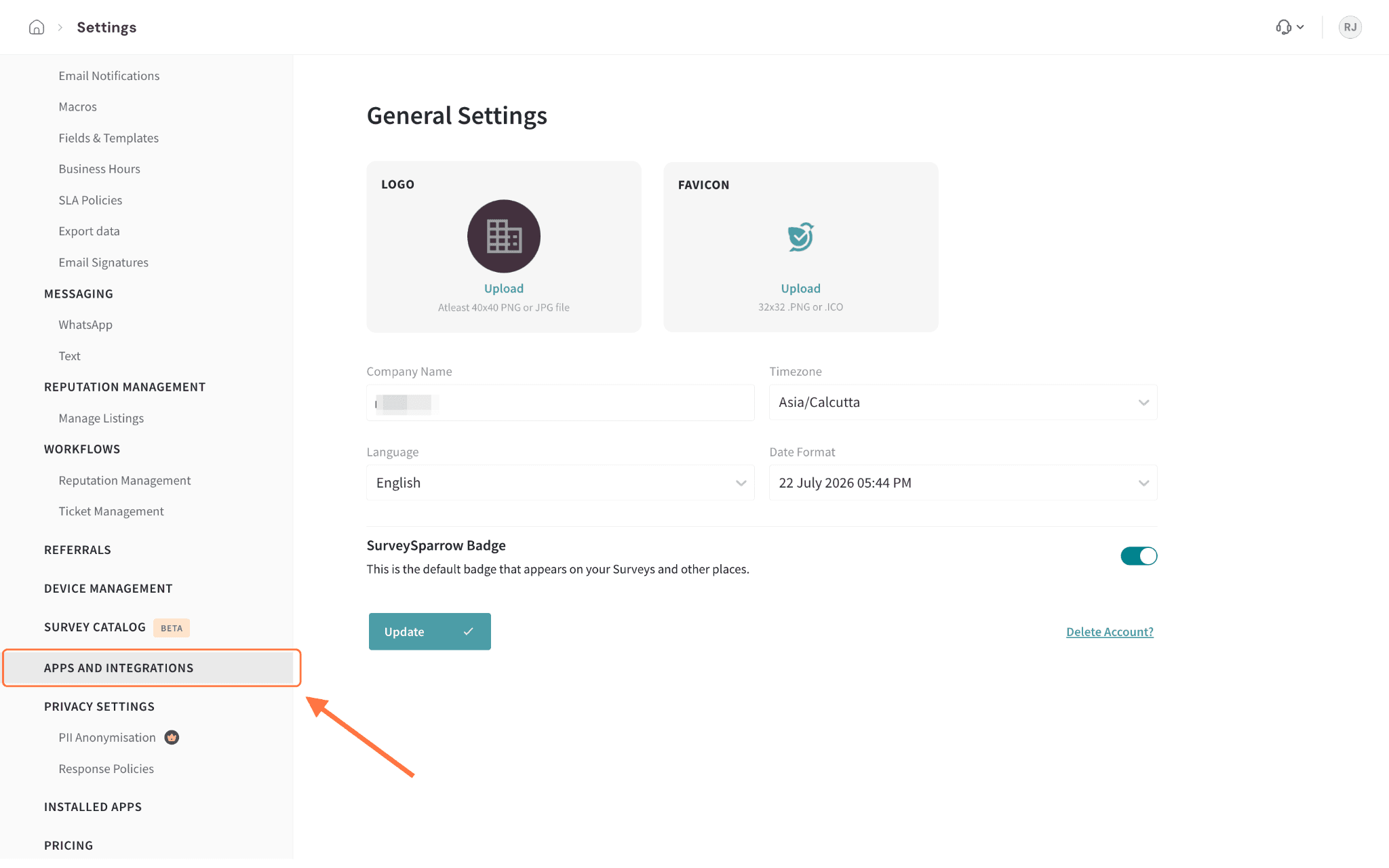
1. Open account settings, then select Apps and Integrations.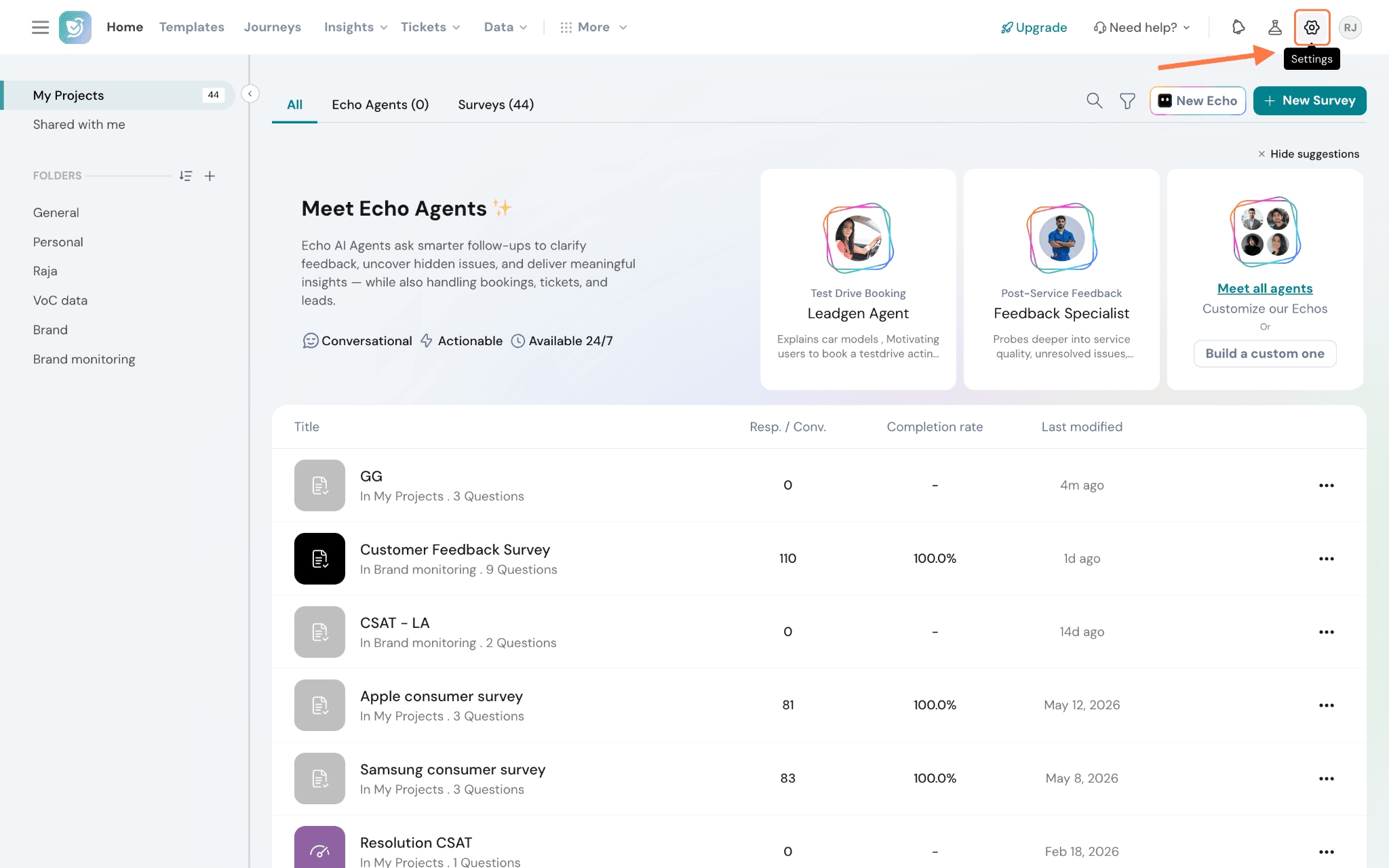
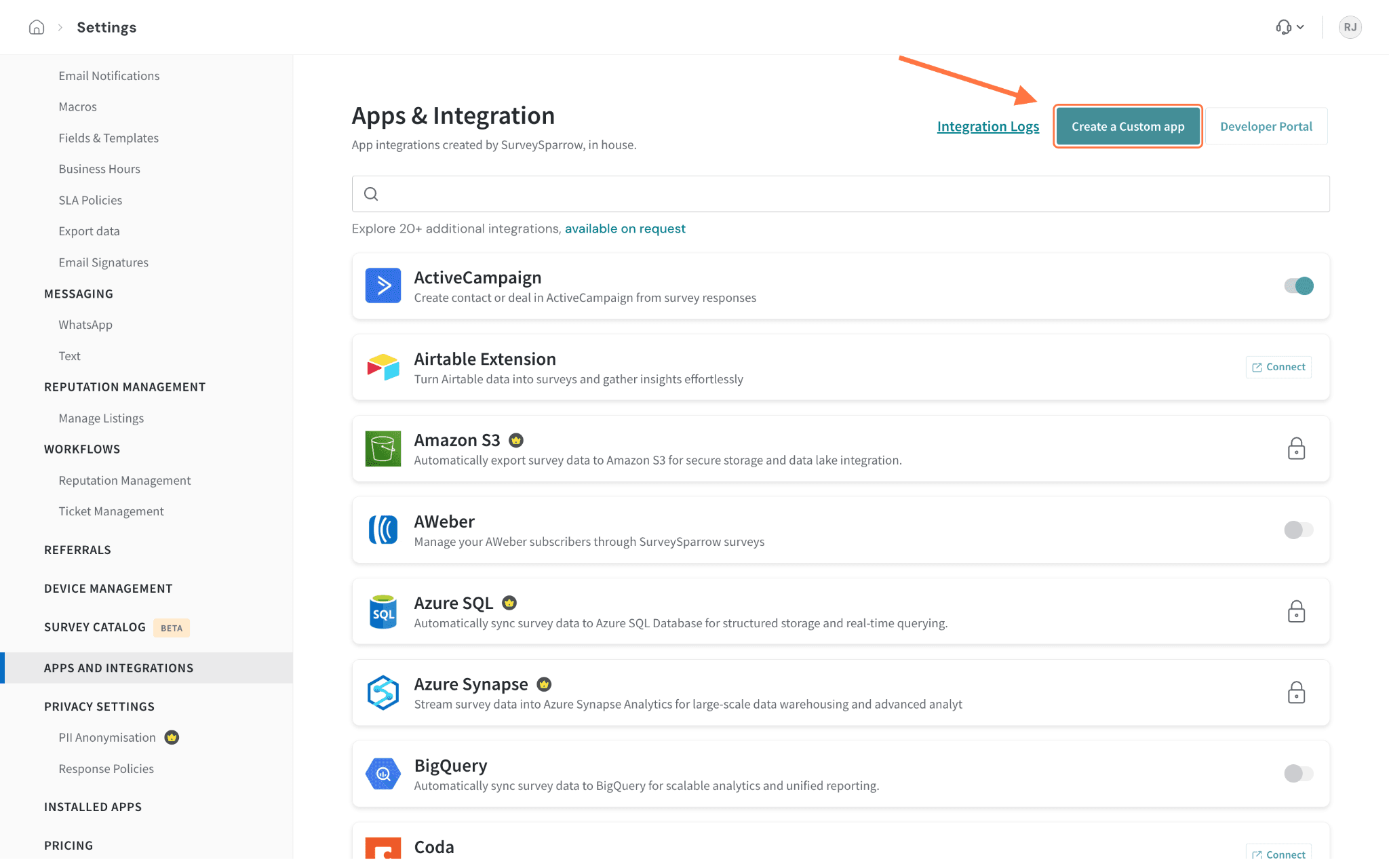
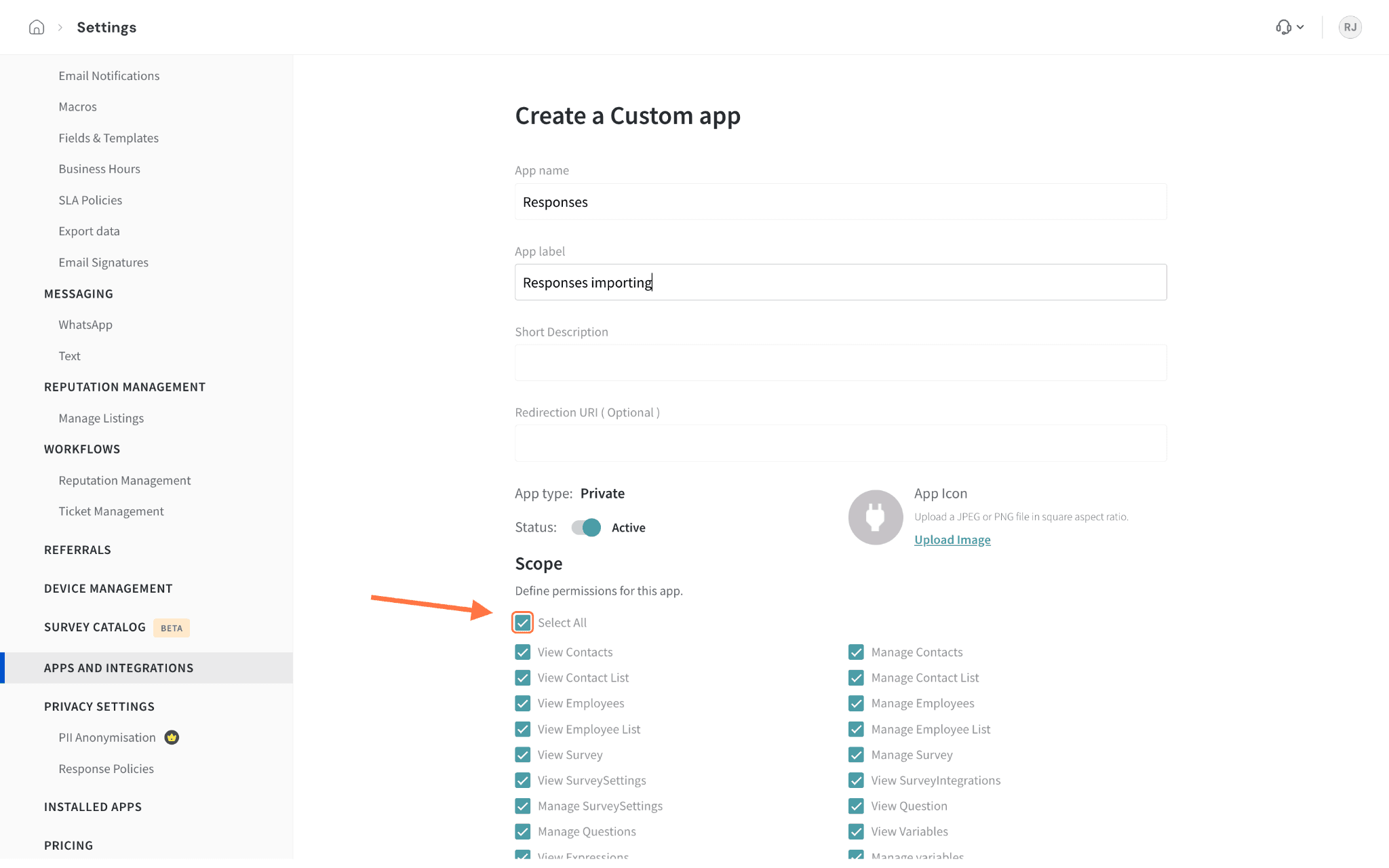
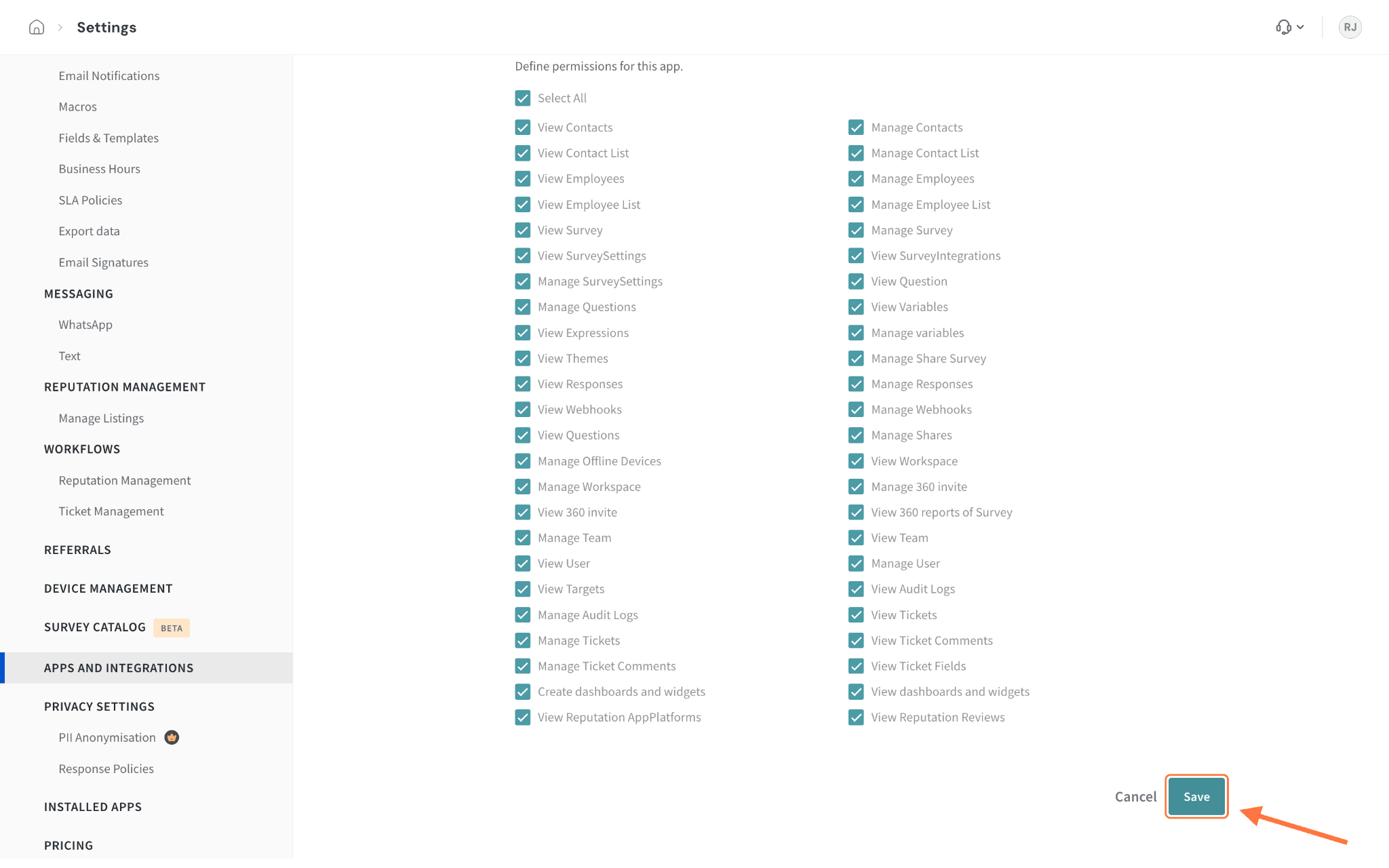
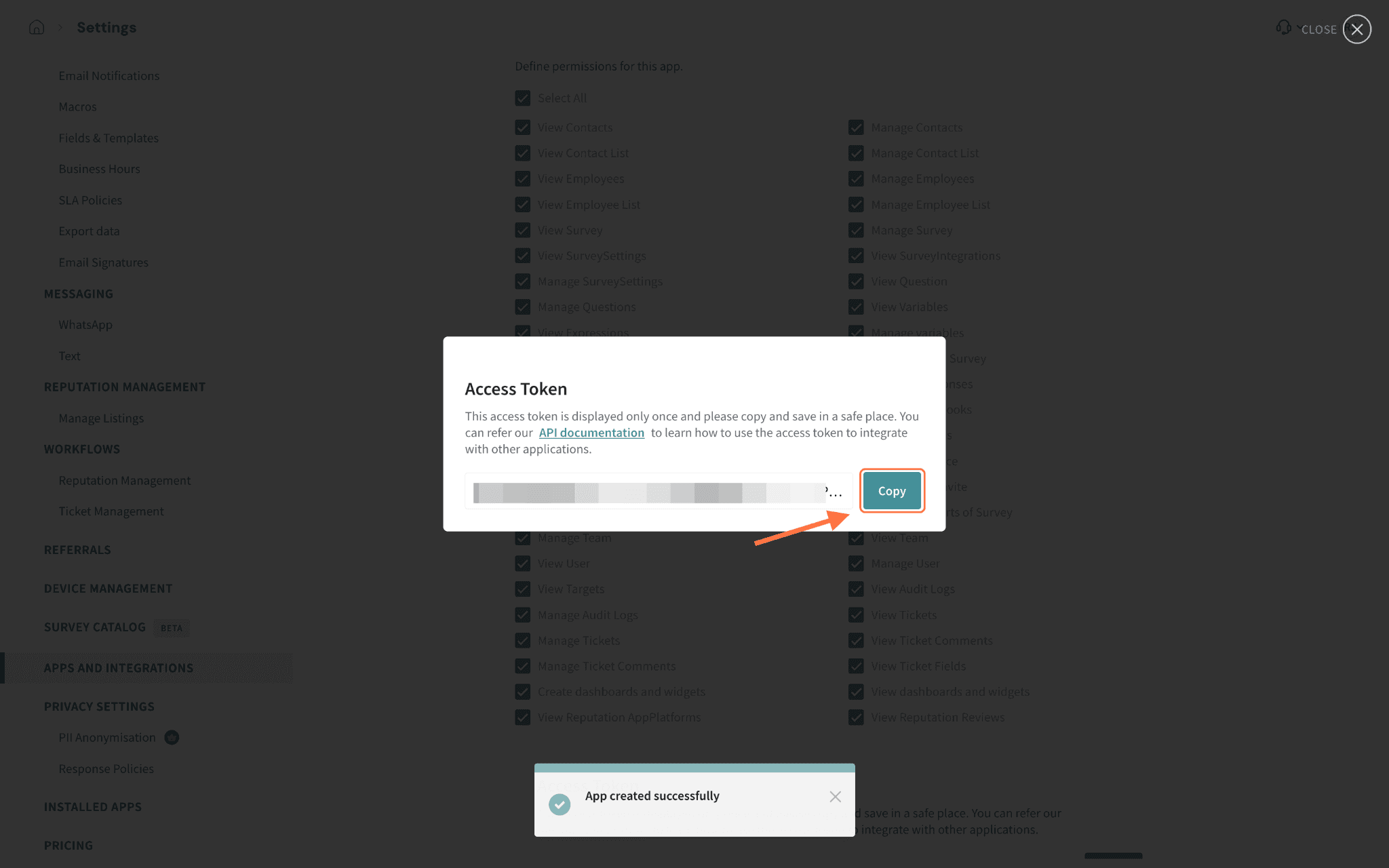
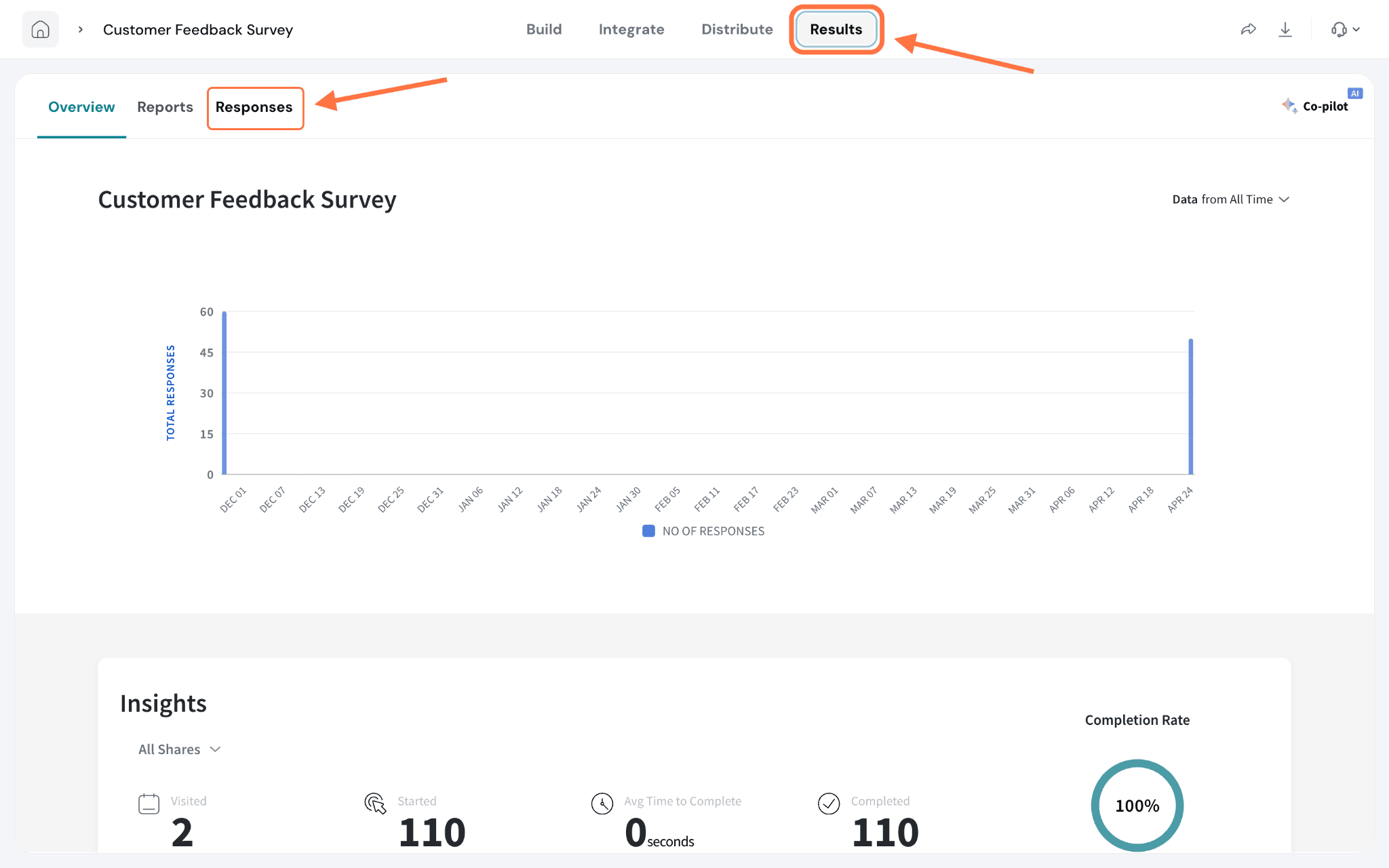
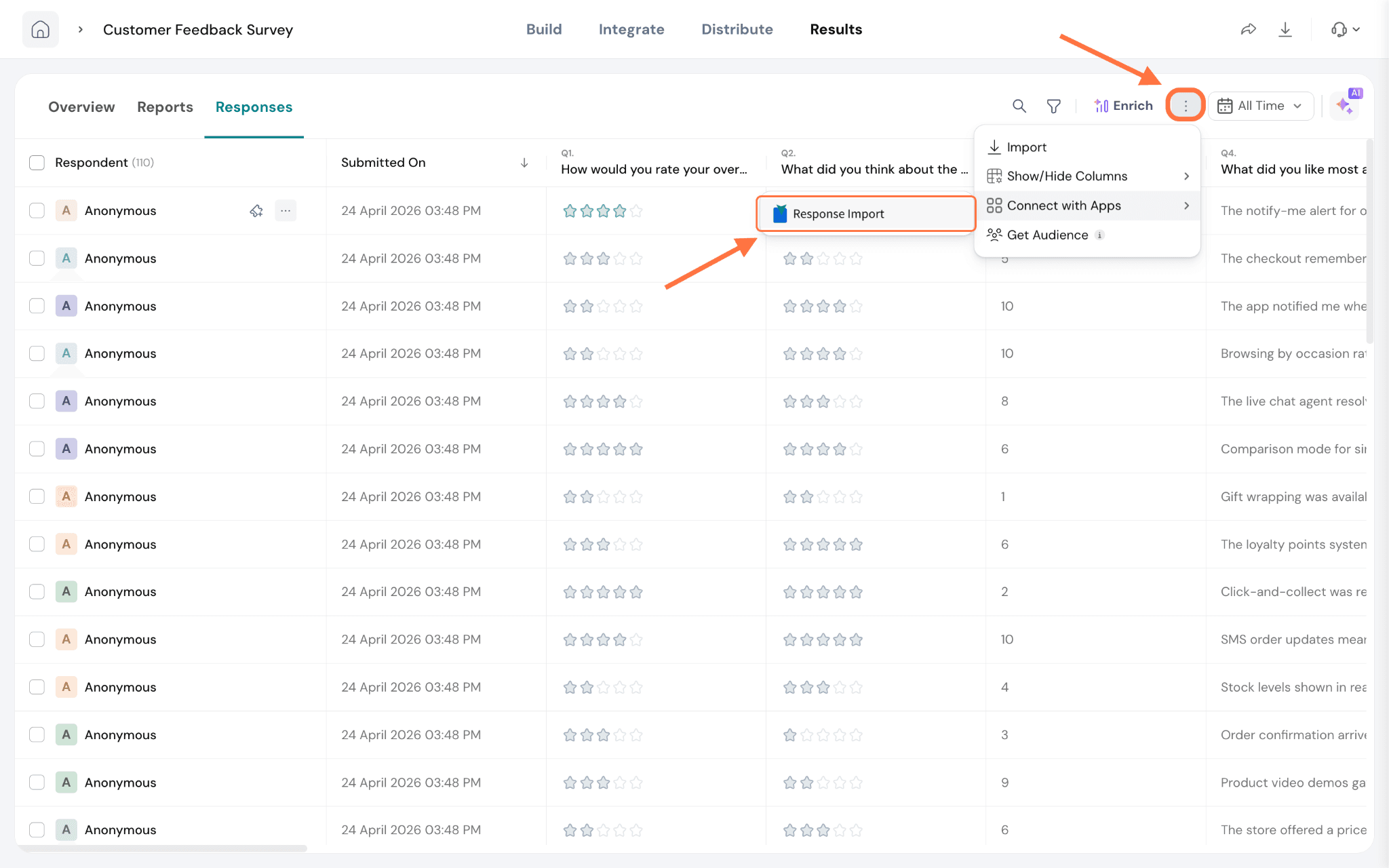
8. Paste the access token into the API Key field and click Save.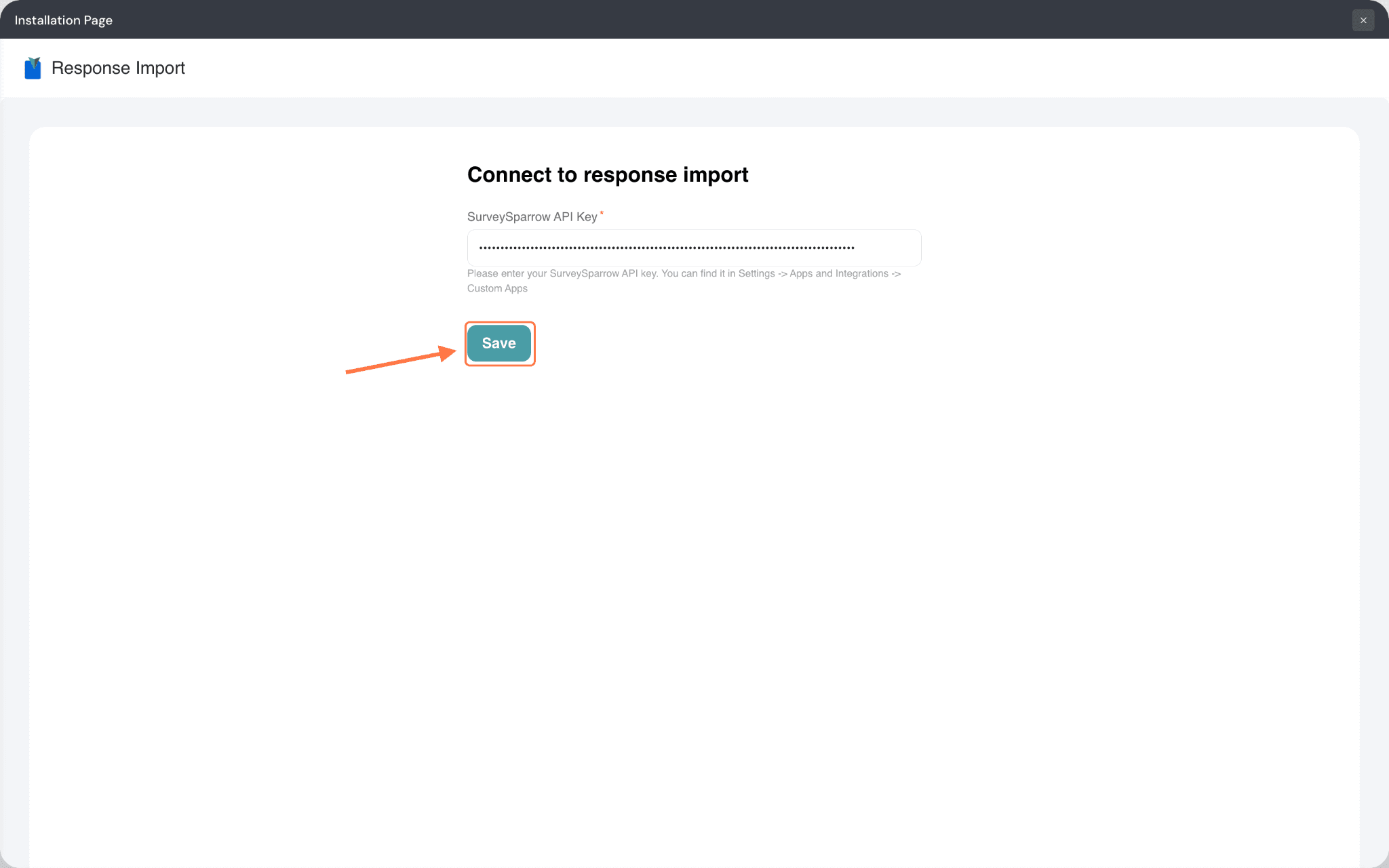
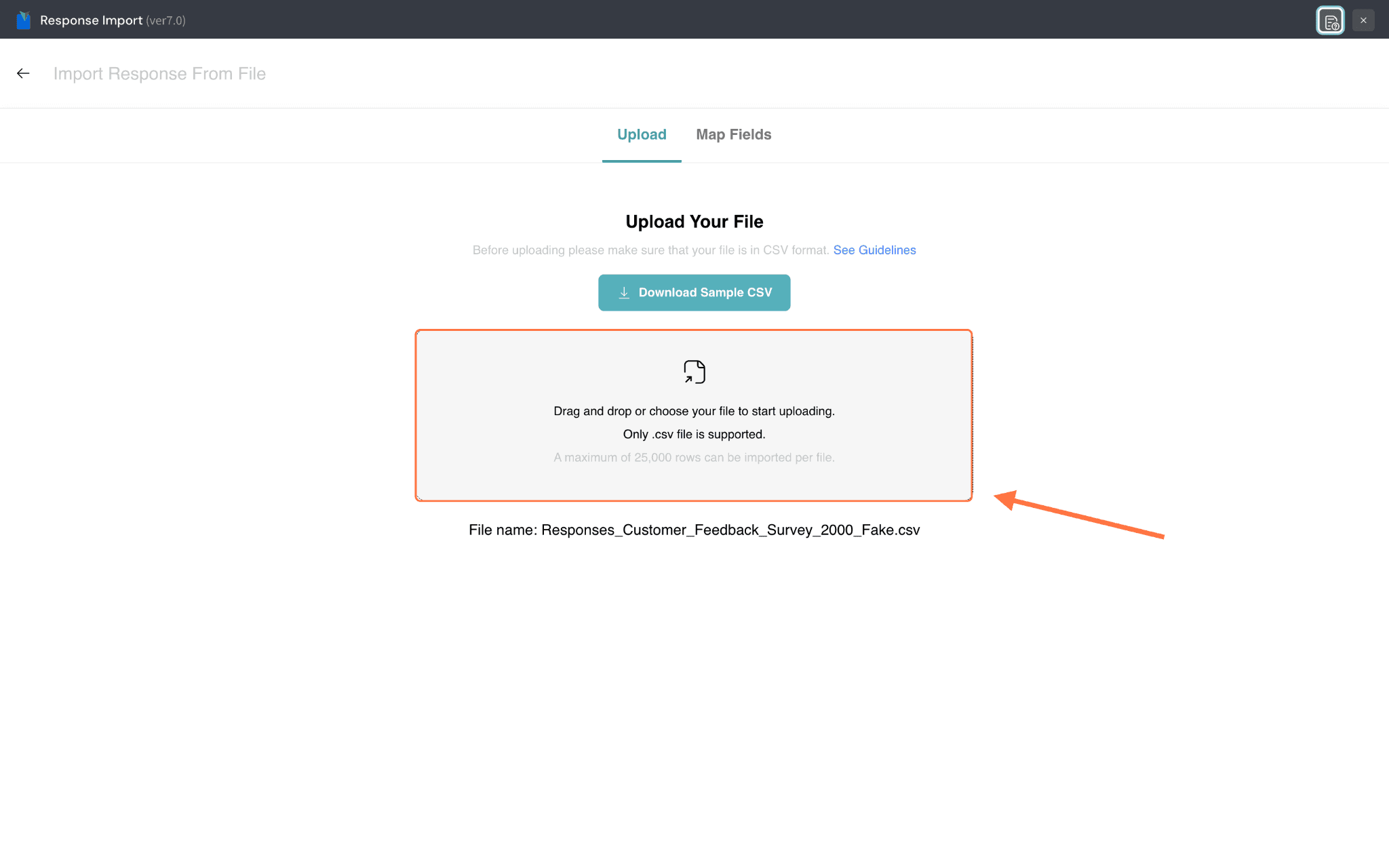
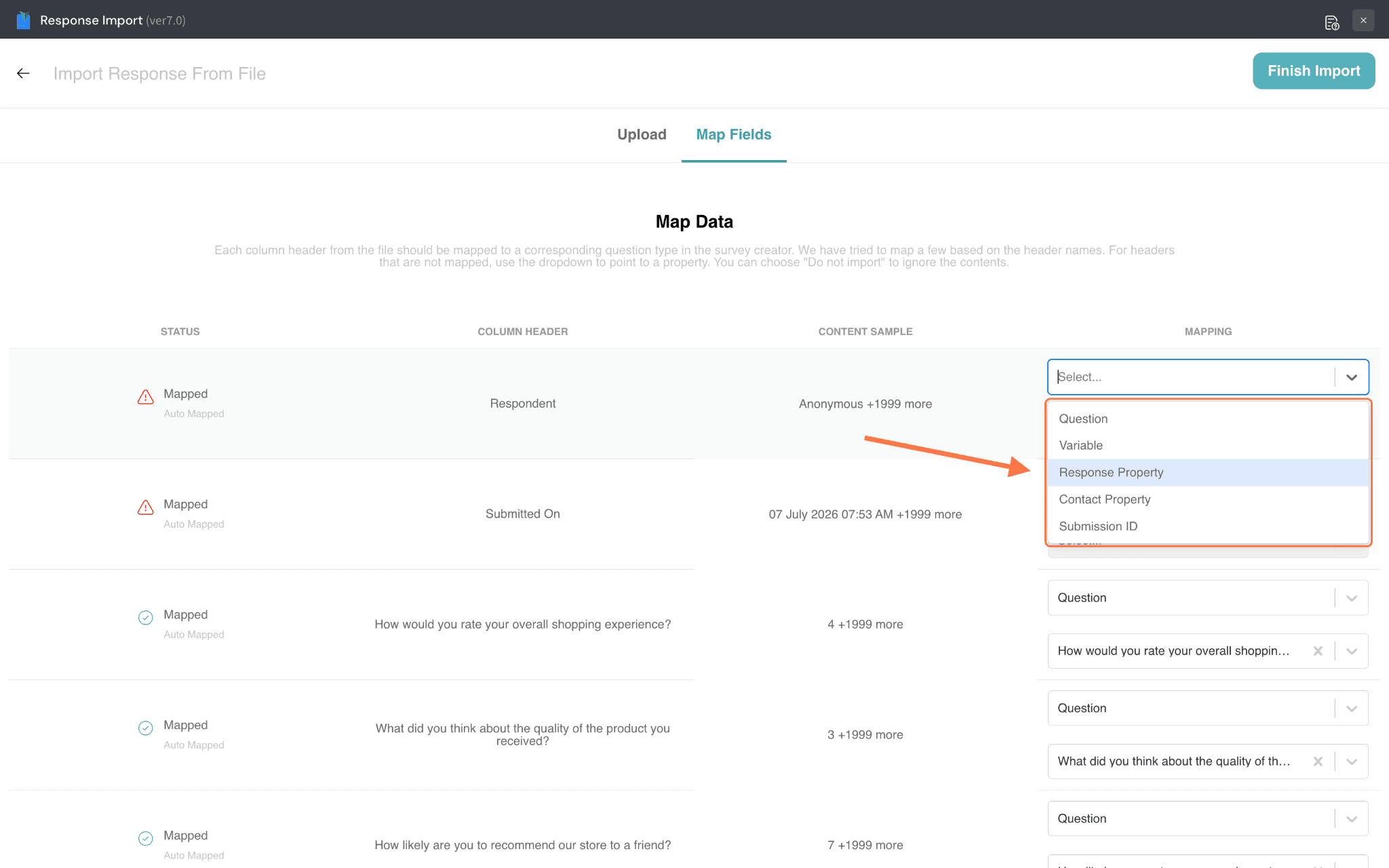
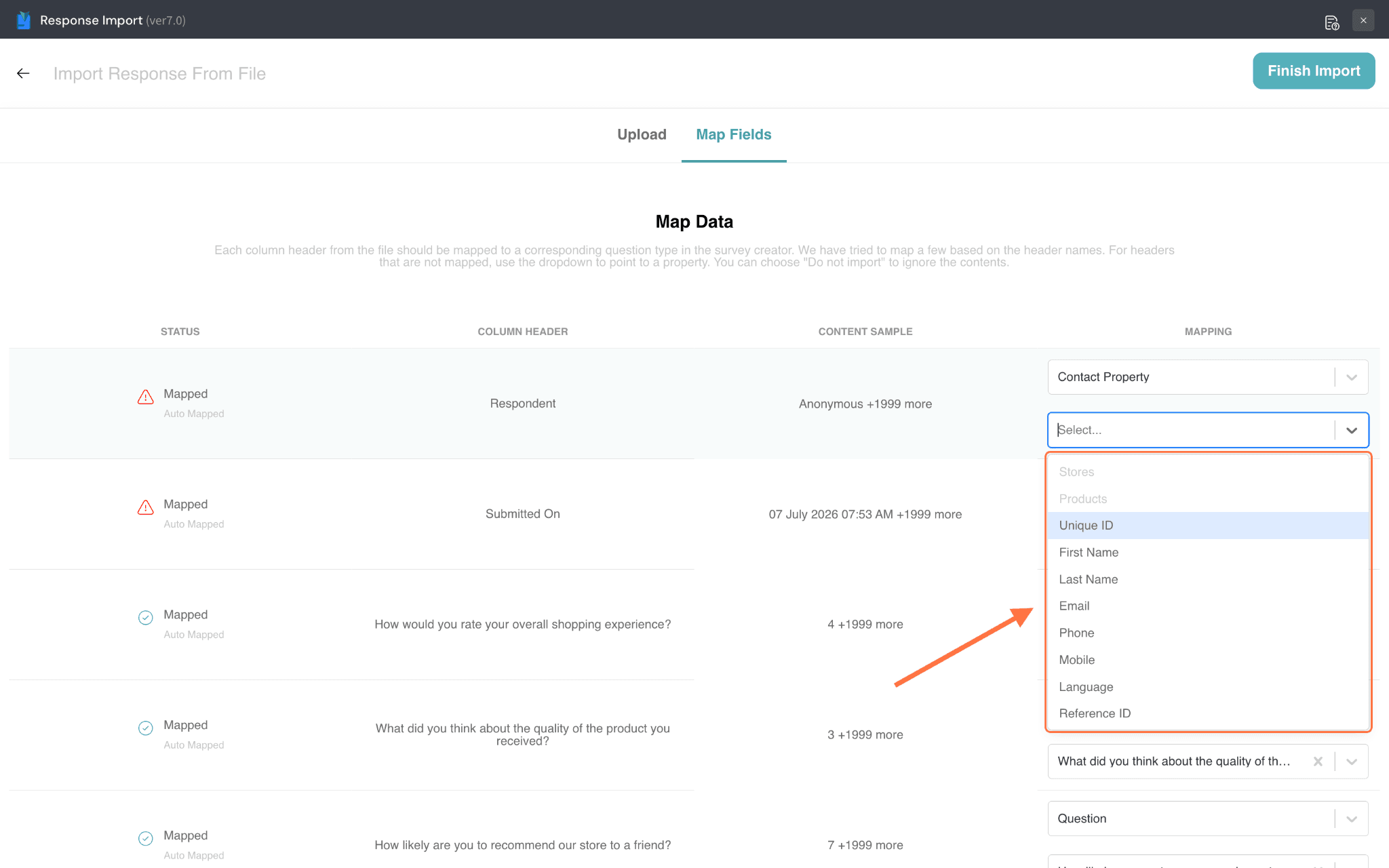
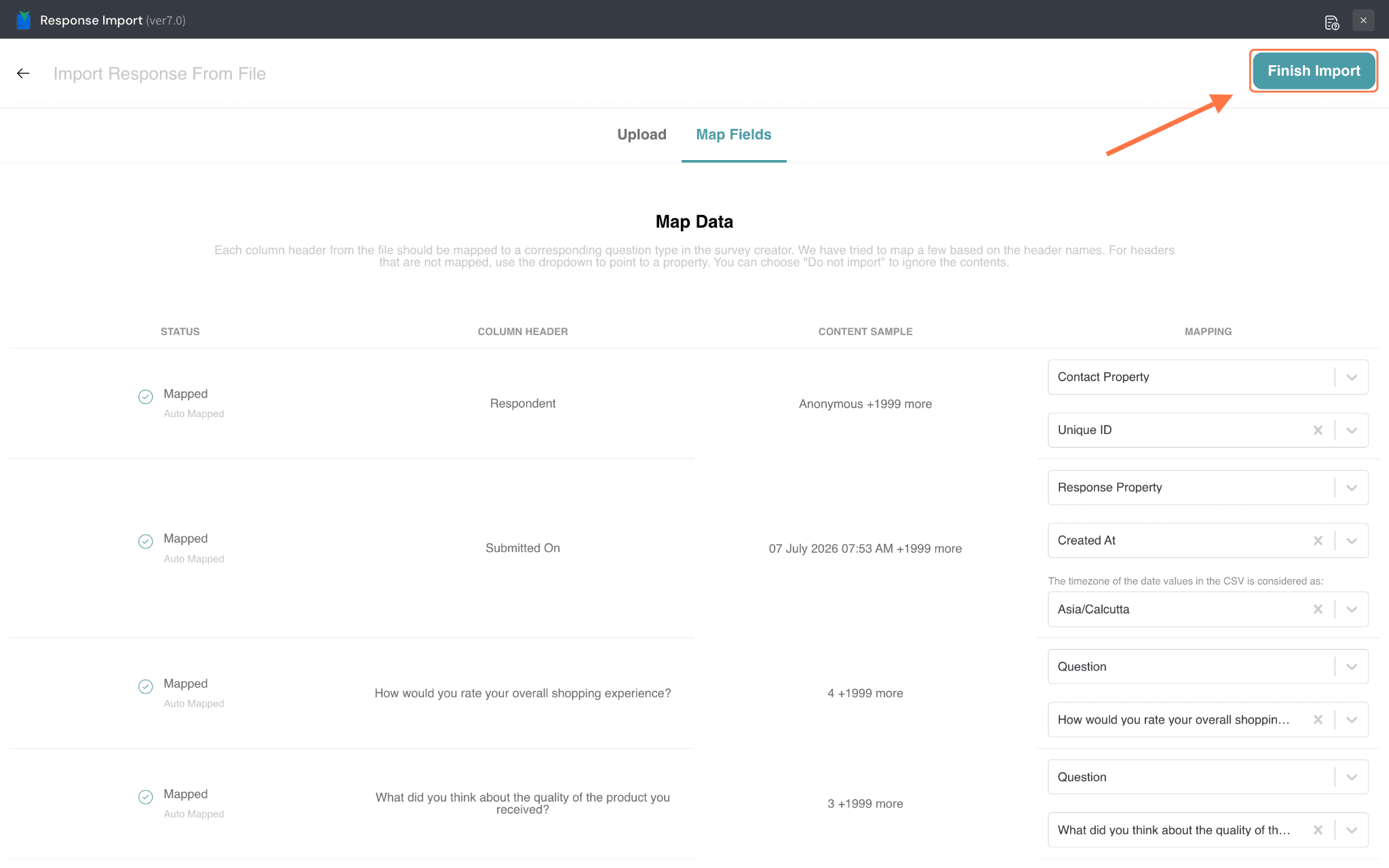
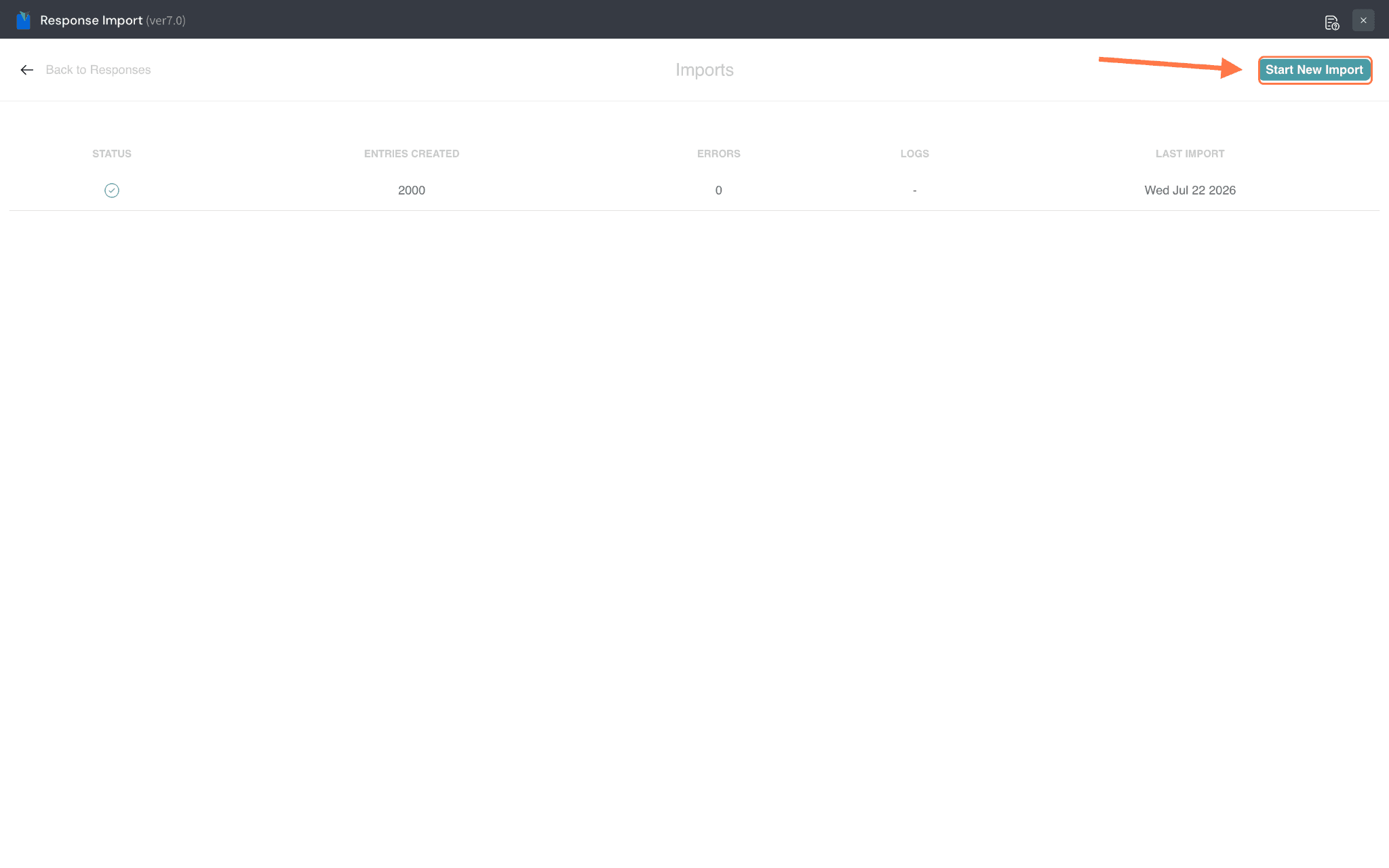
- By default, every row in the CSV creates a new response.
- To UPDATE an existing response instead, map a column to the response property "Submission ID". Rows that have a Submission ID will update the matching existing submission instead of creating a new one.
- Response Properties / Created At and the import channel are ignored when updating; only answers, variables, and contact details are updated.
These are the response properties supported by the app:
Response properties | Type | Remarks |
Created At | String | Ex - "30 March 2024", “March 30 2024”, “2024-03-30T00:00:00.000Z” |
Browser | String | Any string, ex - Chrome |
Browser Language | String | Any string, ex - en-GB |
Tags | Array of strings | ["Tag1", "Tag2"] |
IP Address | string | Valid ip address, ex - ‘127.0.0.1’ |
Time Zone | string | Any string, ex - asia/calcutta |
OS | string | Any string, ex - macOS |
Device Type | string | Any string, ex - COMPUTER |
Language | string | Any string, ex - English |
These are the variable types supported by the app:
Variable name | Type |
String | String |
Date | MM-DD-YYYY |
Number | number |
These are the contact properties supported by the app. All passed contact properties data should match the data type of the contact properties.
Contact properties | Type |
Language | String |
Dropdown | String from the options |
…Rest | String |
That’s it! With the Response Import app, you can bring existing responses into SurveySparrow and keep your survey data in one place. This makes it easier to analyze past and current feedback together, generate more complete reports, and uncover better insights. Try importing a response file to see how it works for your surveys.
Troubleshooting import issues (based on common cases) • If the imported responses show “success” but don’t appear in the Responses section immediately: wait for the responses to populate and check again later. • Field values not mapping correctly even though the import succeeds: ensure the values in your CSV match the survey’s configured answer options exactly (character-by-character). Even minor differences such as separator characters, spacing, or formatting can cause mapping failures. • Records fail to import because they contain no survey responses: only rows that contain survey responses can be imported; rows without responses will fail.
Feel free to reach out to our community in case of any questions.