Sharing surveys via WhatsApp chatbots allows your customers to take up surveys within WhatsApp, without directing them to a web browser. WhatsApp surveys make it convenient for your customers to provide feedback, and by making it easy for them, you'll see improved overall response rates with faster replies.
Now, let's go through the step-by-step process of collecting feedback through WhatsApp surveys.
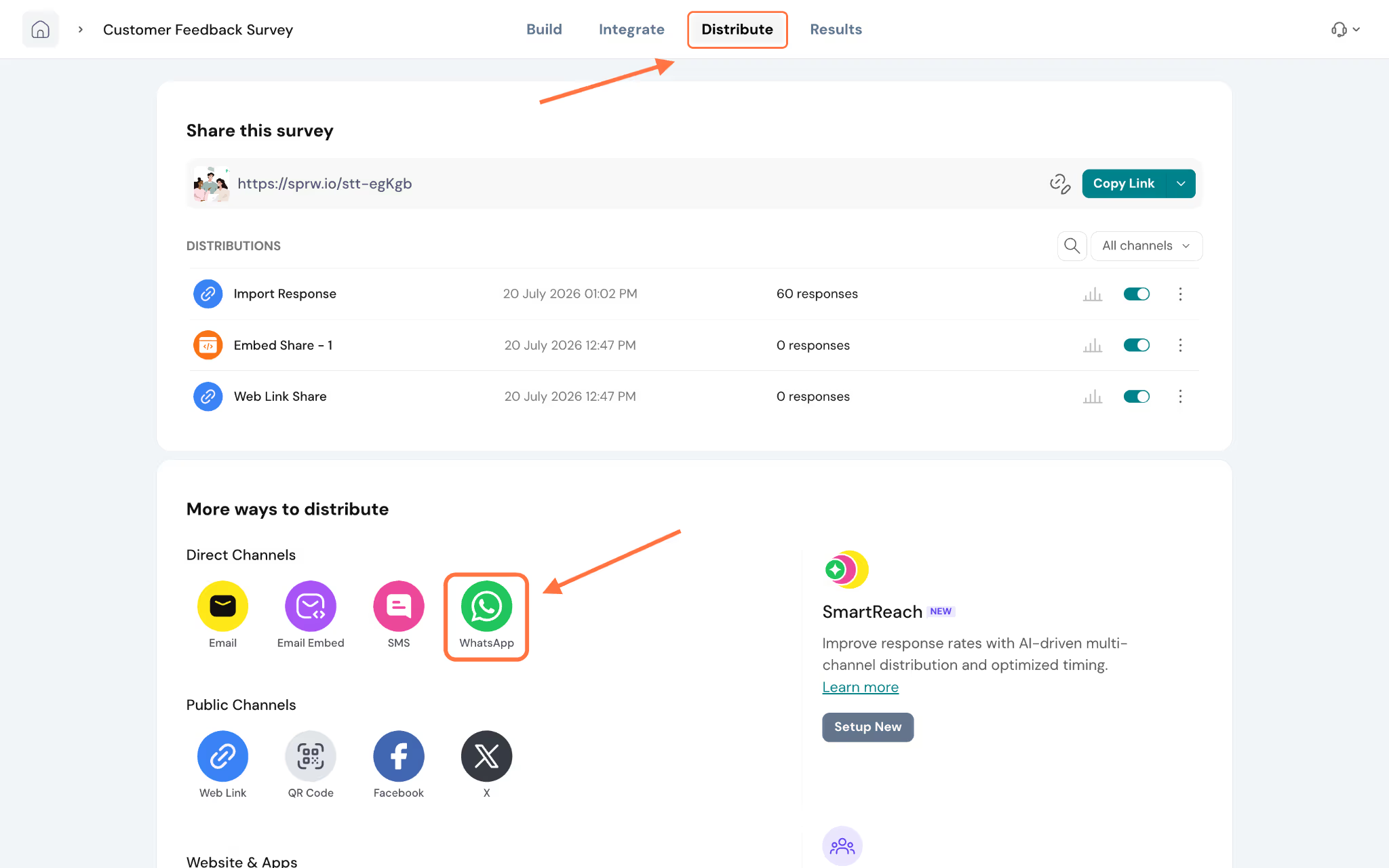
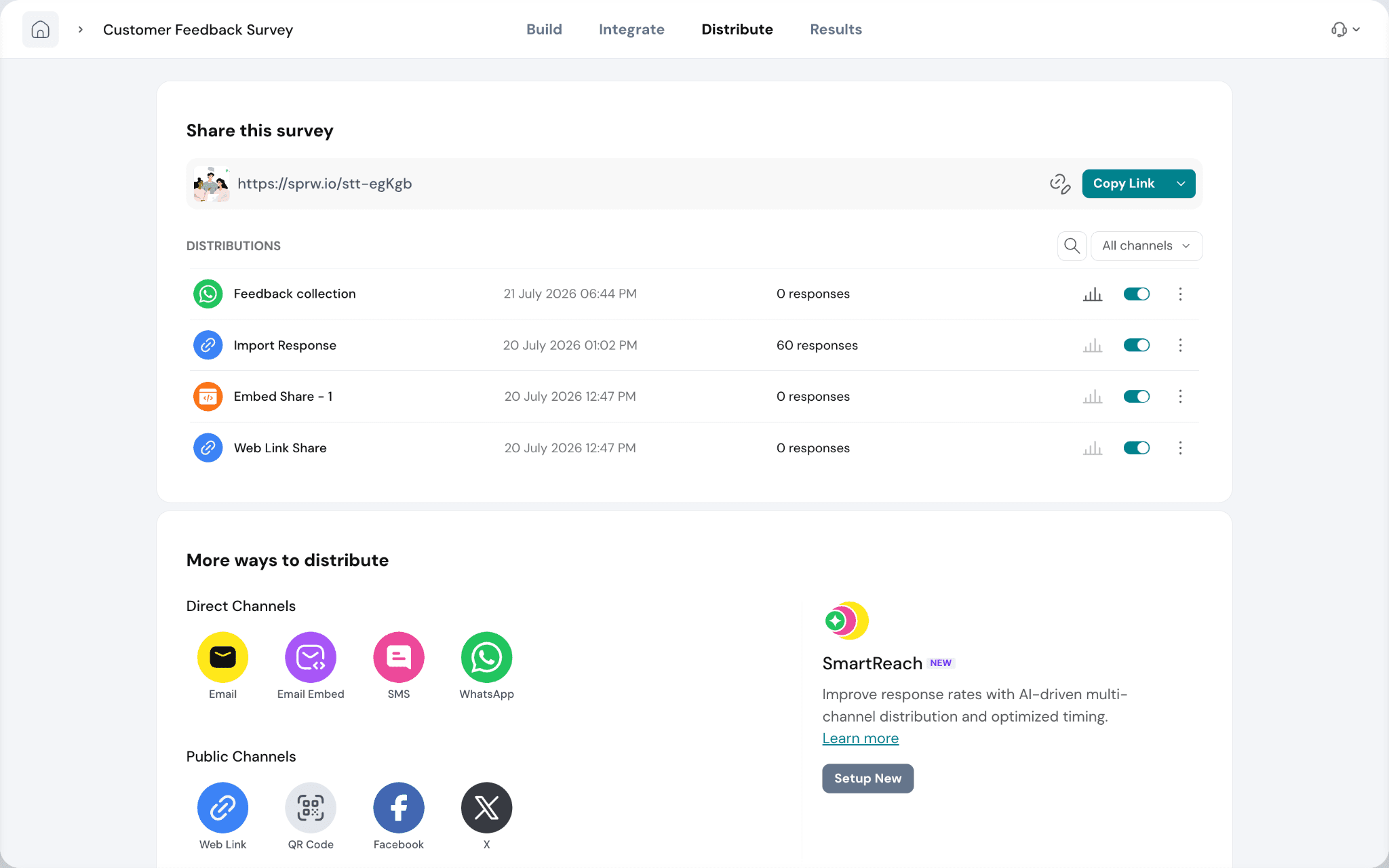
1. After creating your survey, navigate to the Distribute tab. Under More ways to distribute, click WhatsApp under the Direct Channels section.
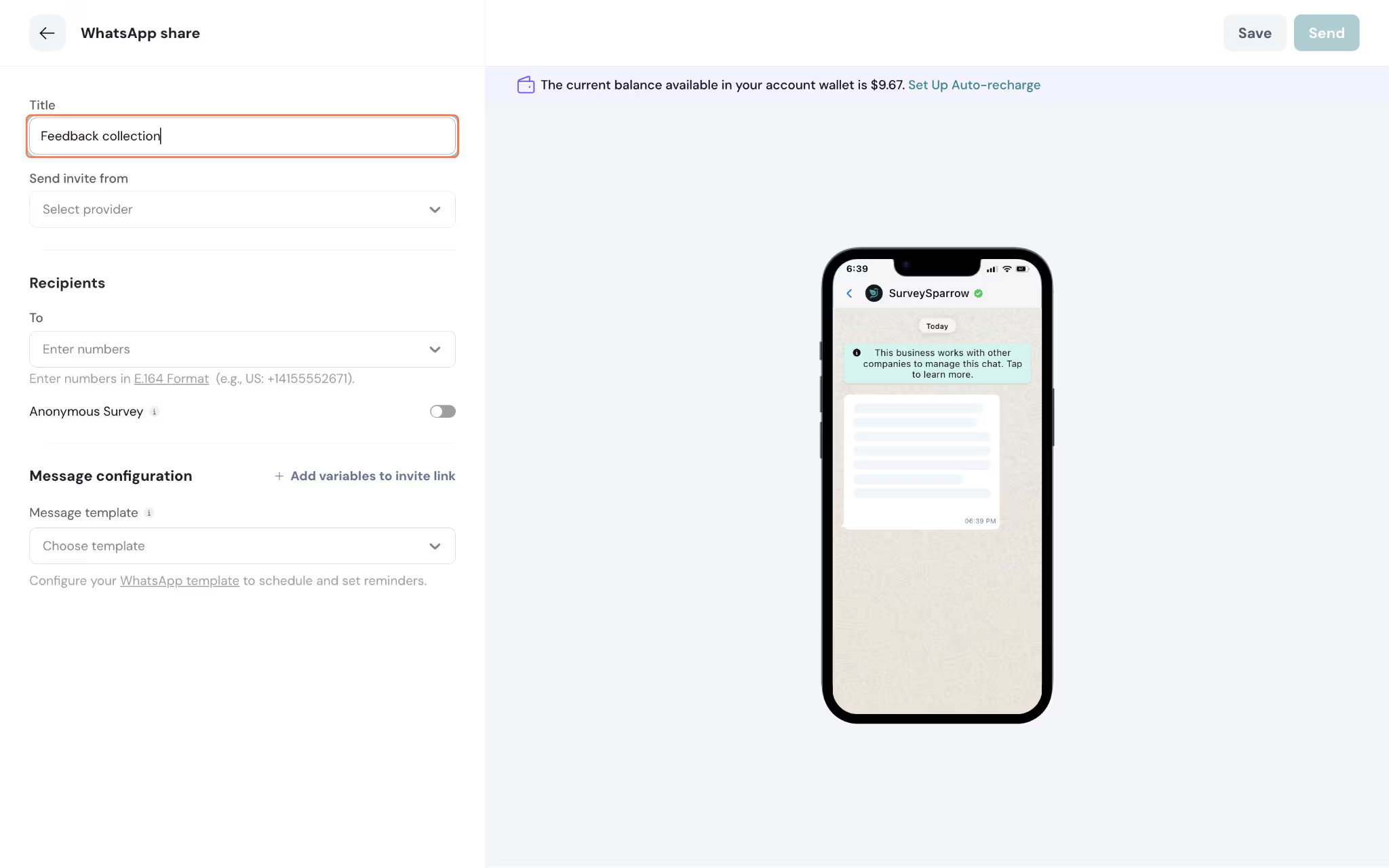
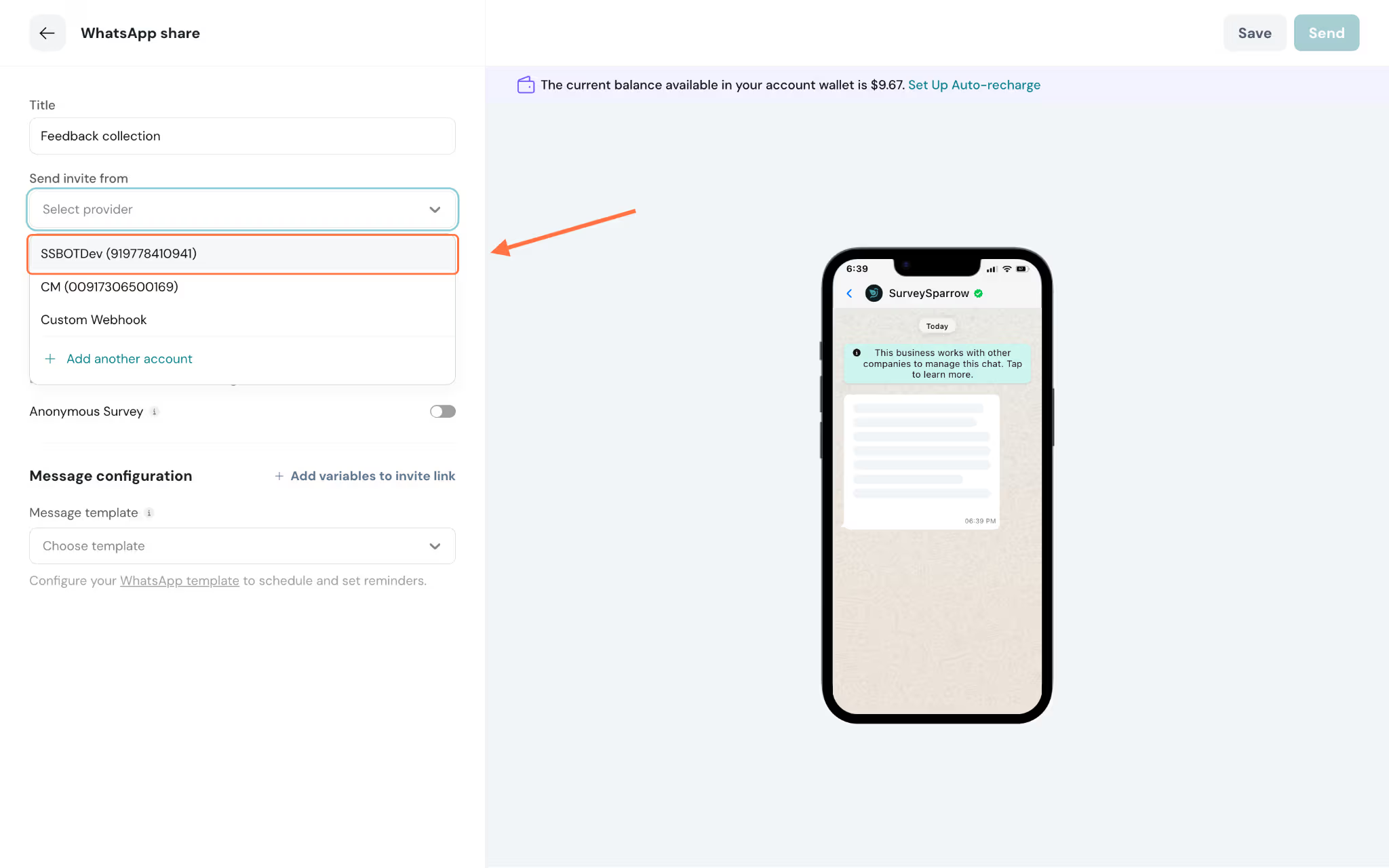
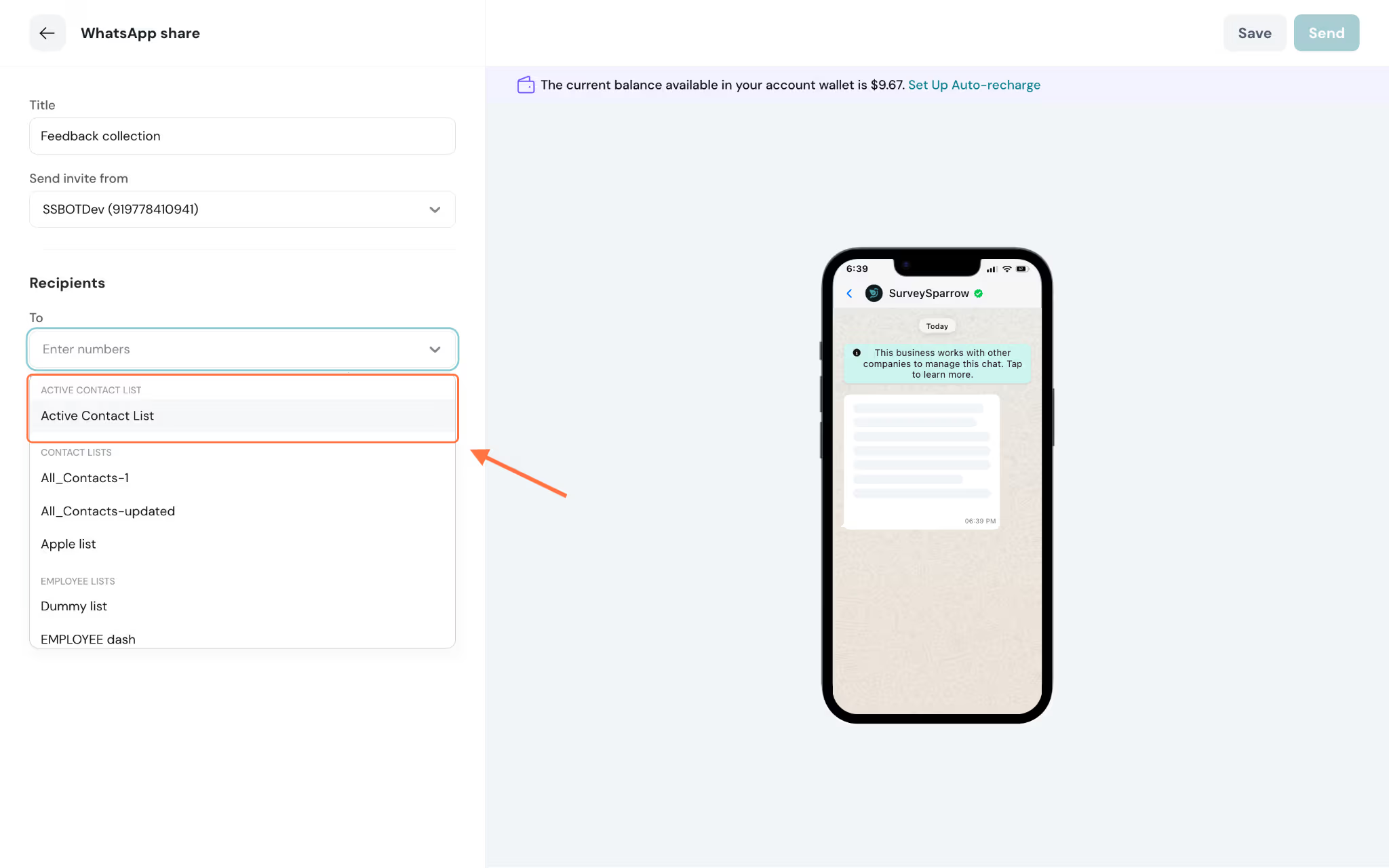
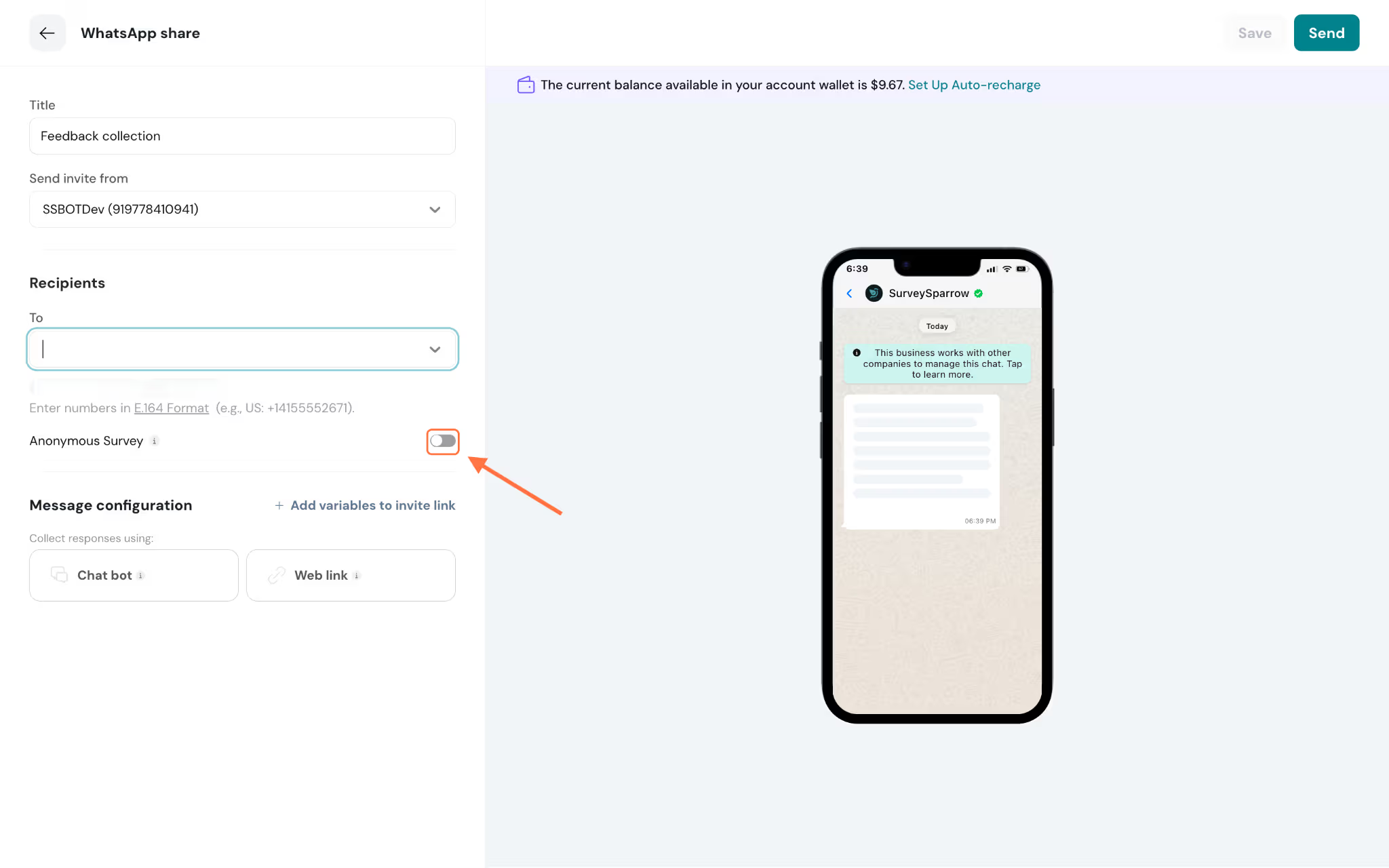
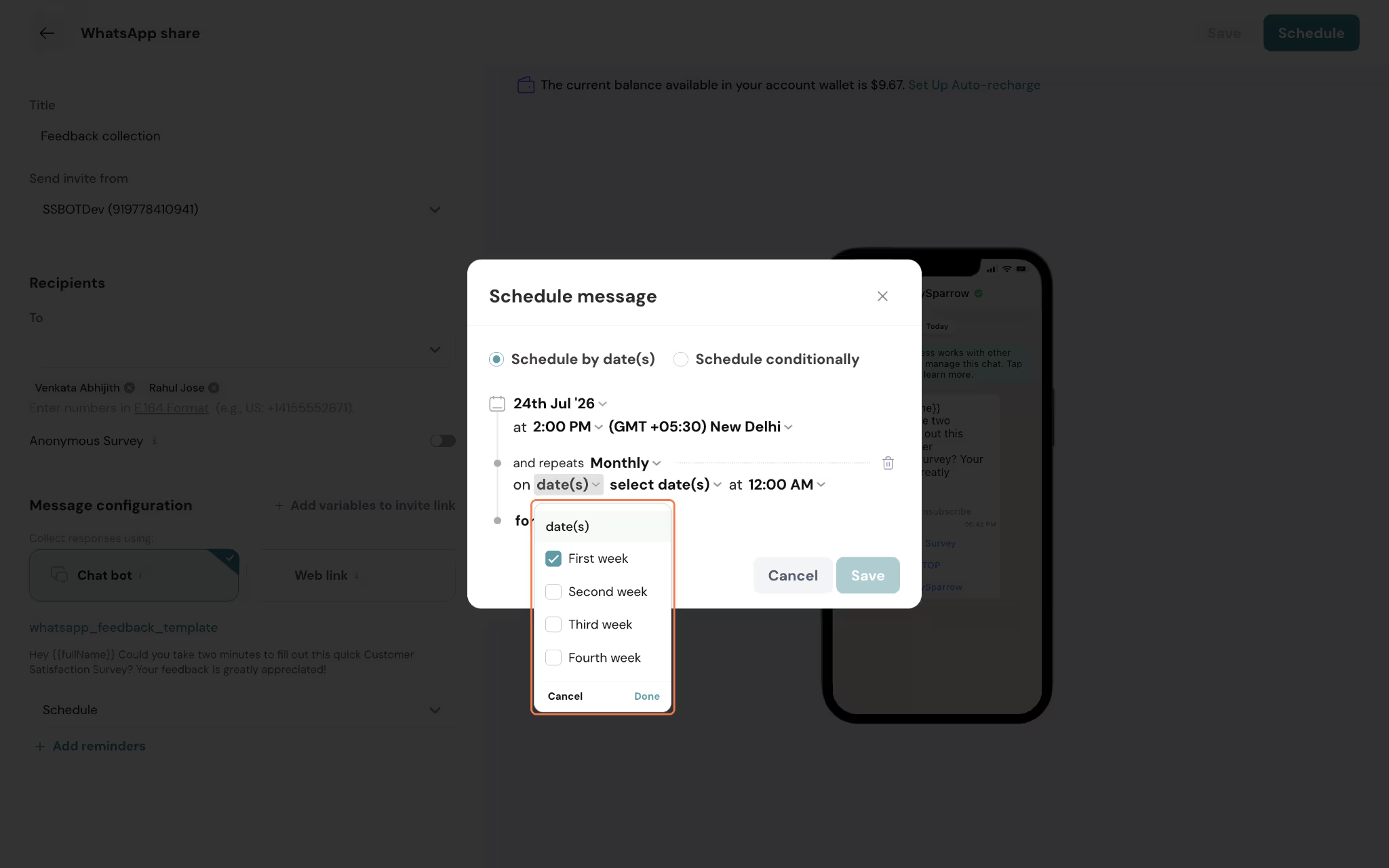
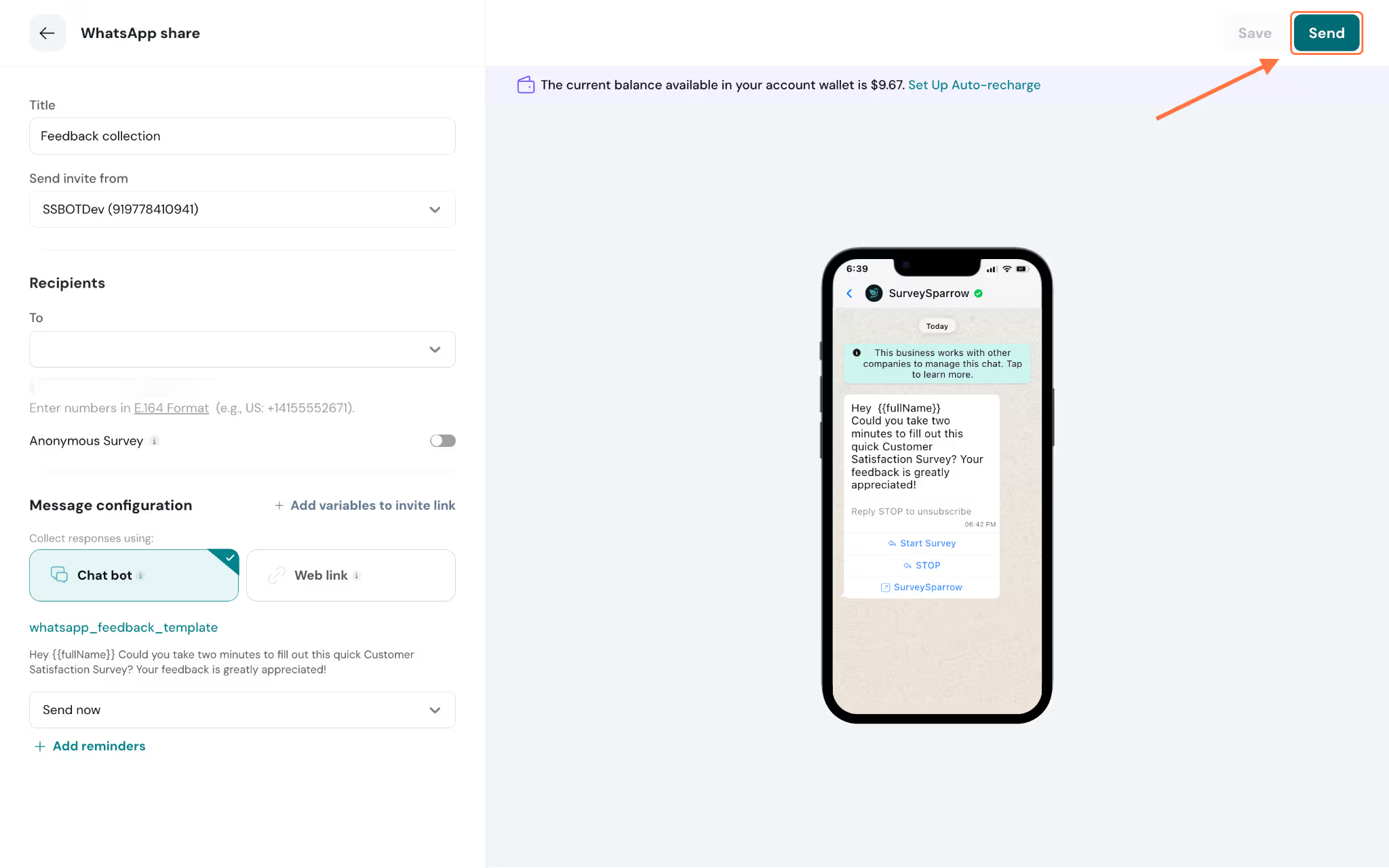
2. The WhatsApp share page will open. The screen is split into two parts: the configuration form on the left and a live phone preview on the right, so you can see exactly how your message will appear to recipients. Start by entering a suitable title for the WhatsApp share. This is for your internal reference and helps you identify this distribution in your distributions list.3. Under Send invite from, click the dropdown and select your WhatsApp Business Service Provider. The dropdown will display the available providers connected to your account.4. Under Recipients, click the To dropdown. You can either:
Type phone numbers directly in E.164 format (e.g., +14155552671)
Select from existing contact lists
Select individual contacts from your directory
You can add multiple recipients or lists. Once selected, they will appear as tags below the input field.Note: Ensure your recipient's phone/mobile number is in the E.164 format.
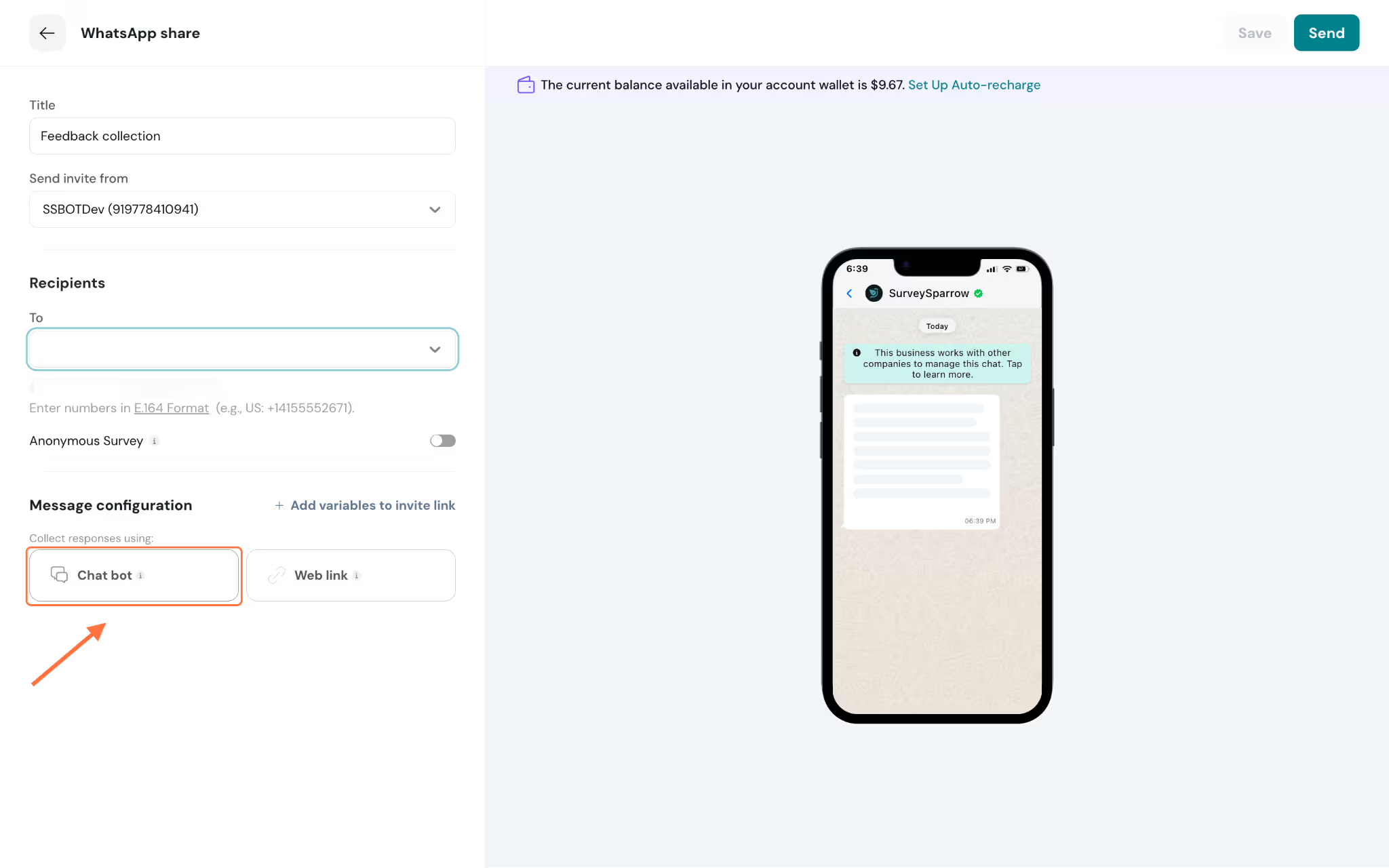
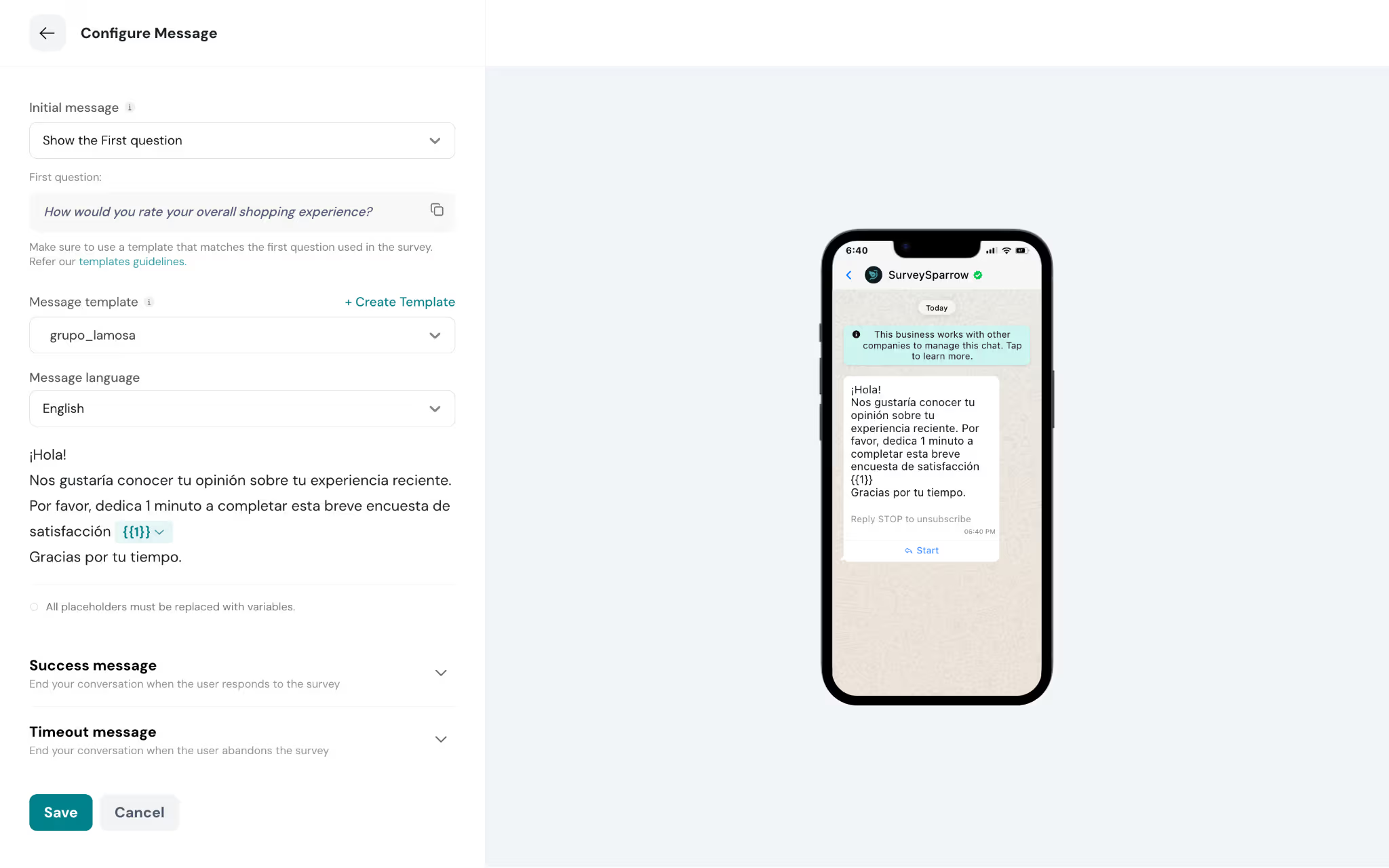
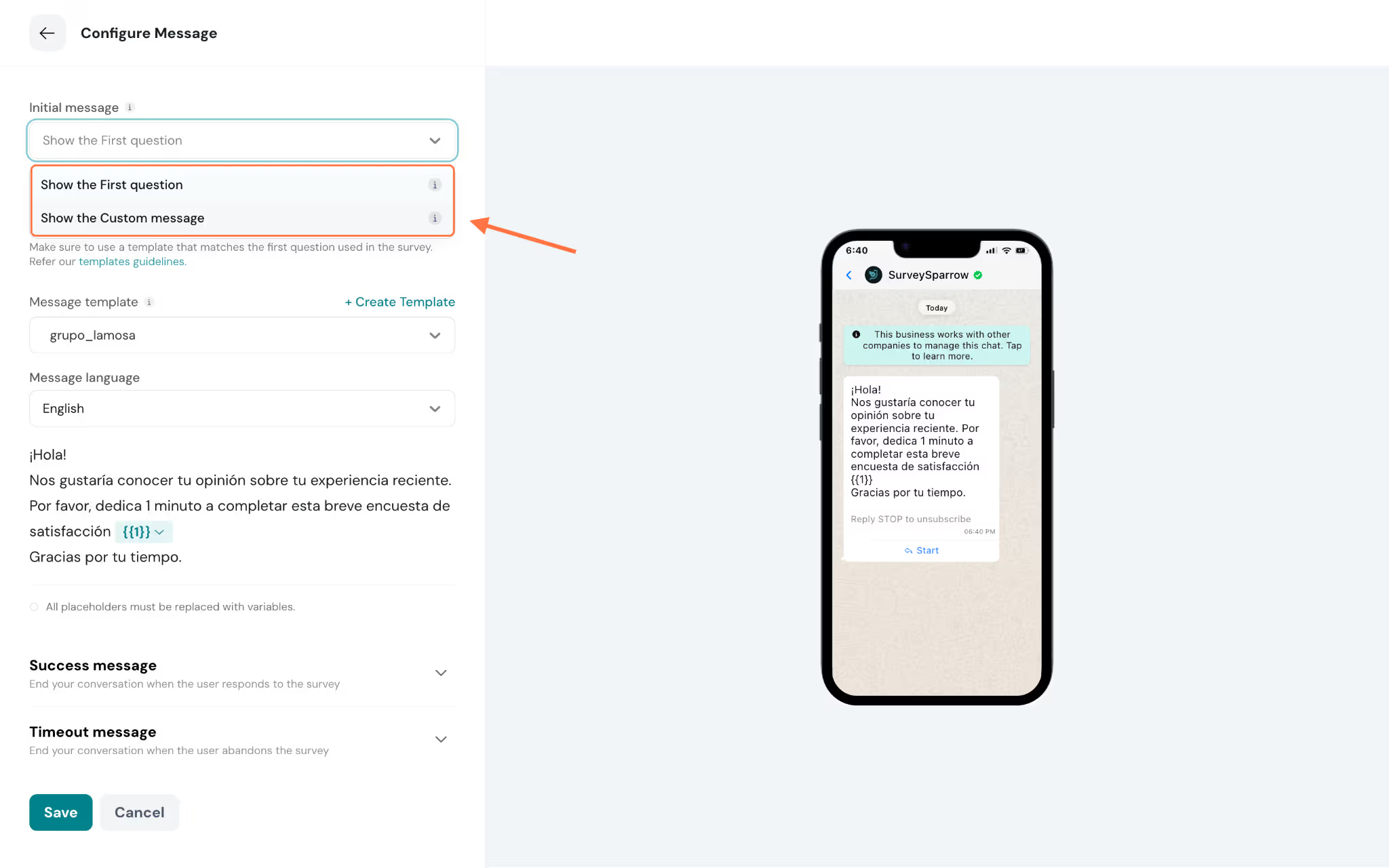
You can also enable the Anonymous Survey toggle if you want to collect responses without collecting identifying details like name, email and IP address.5. Under Message configuration, select Chat bot as your collection mode. This allows respondents to complete the survey entirely within the WhatsApp conversation.6. The message configuration page opens. Here you can set up the initial message, success message, and timeout message.7. Under Initial message, choose how you want to start the conversation:
Show the First question — The survey's first question is sent directly as the opening message.
Show the Custom message — A custom greeting message is sent first, and the user taps a button to begin.Note:If you select the first question as your initial message, ensure the chatbot message template aligns with the first question of your survey.
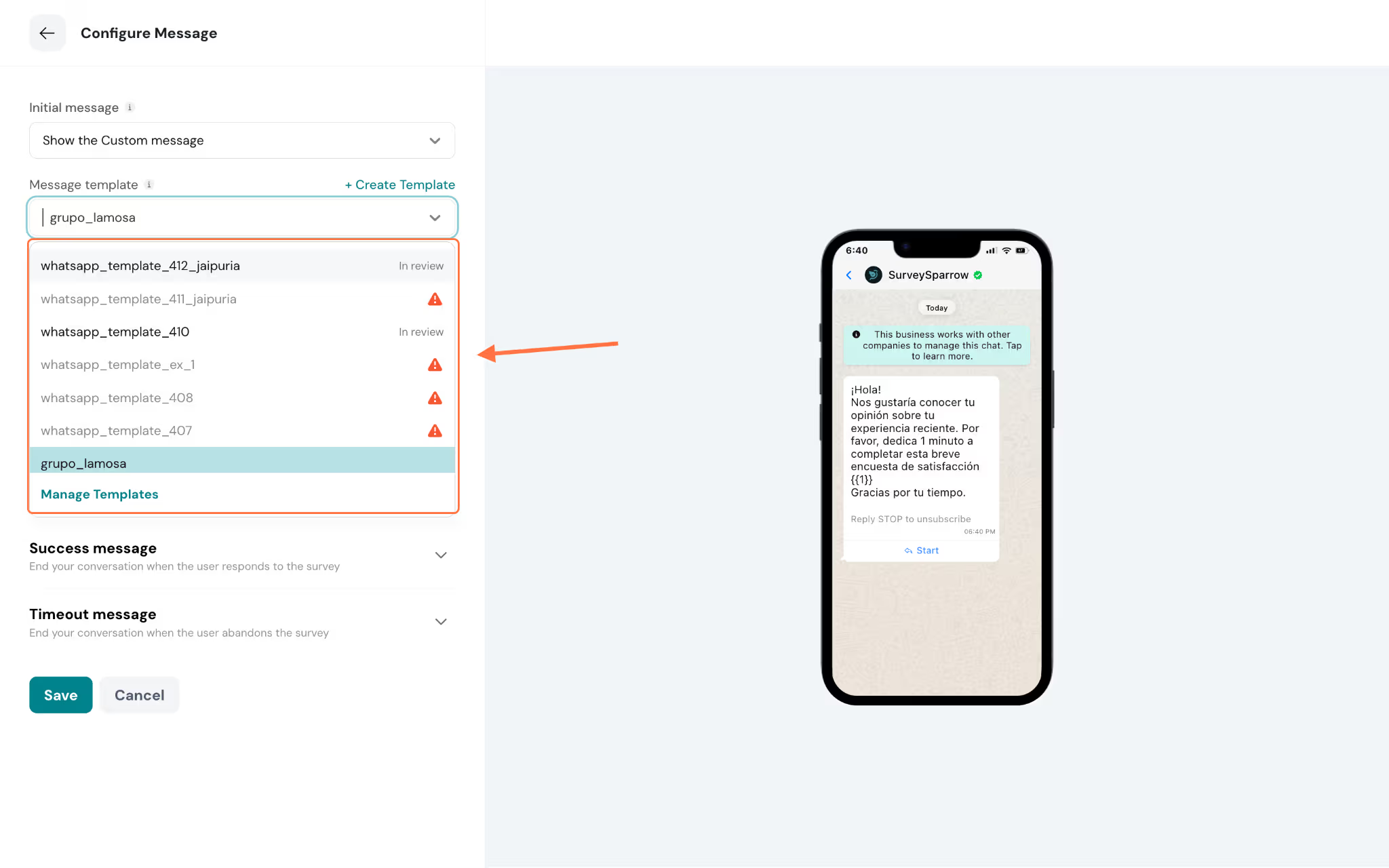
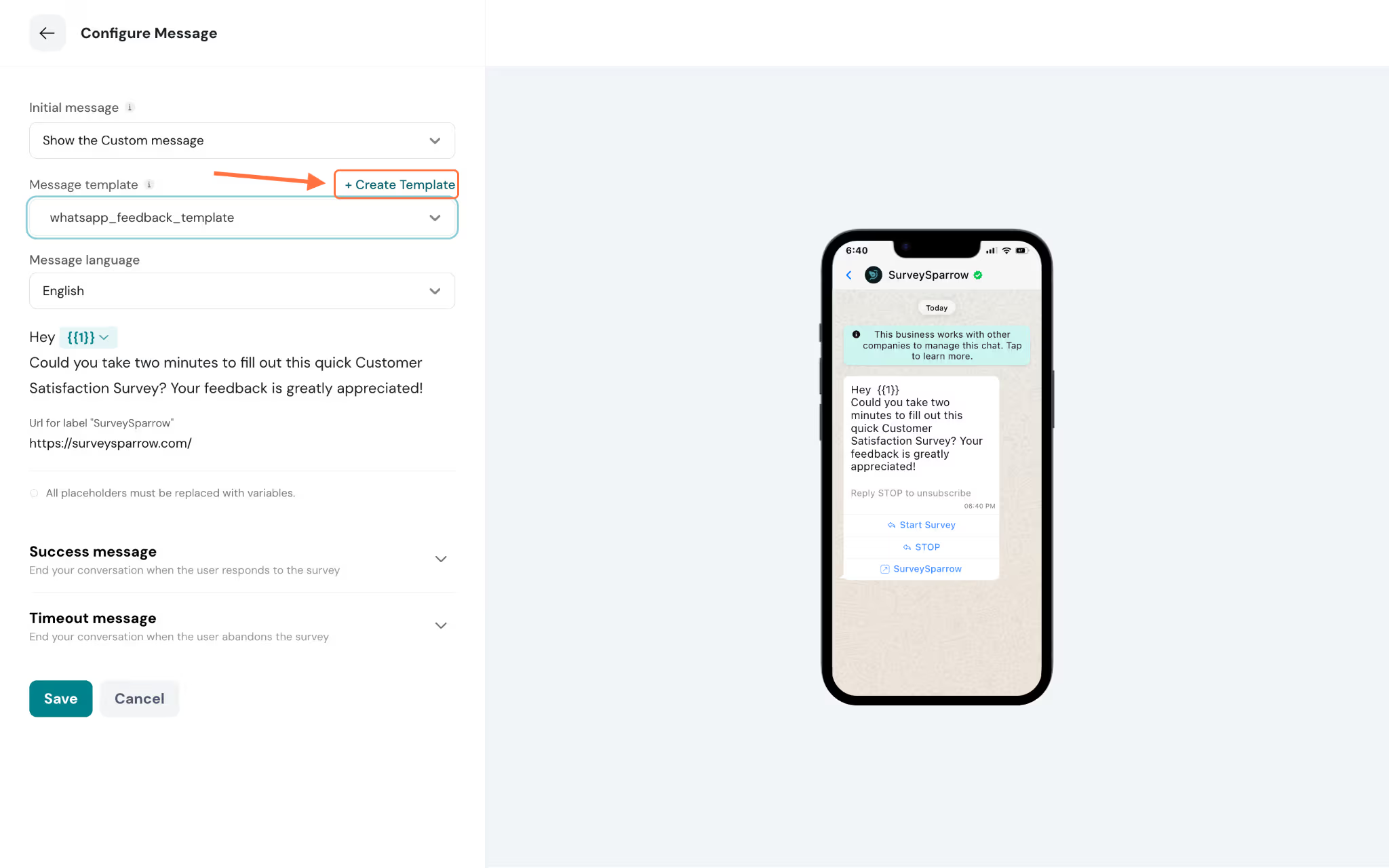
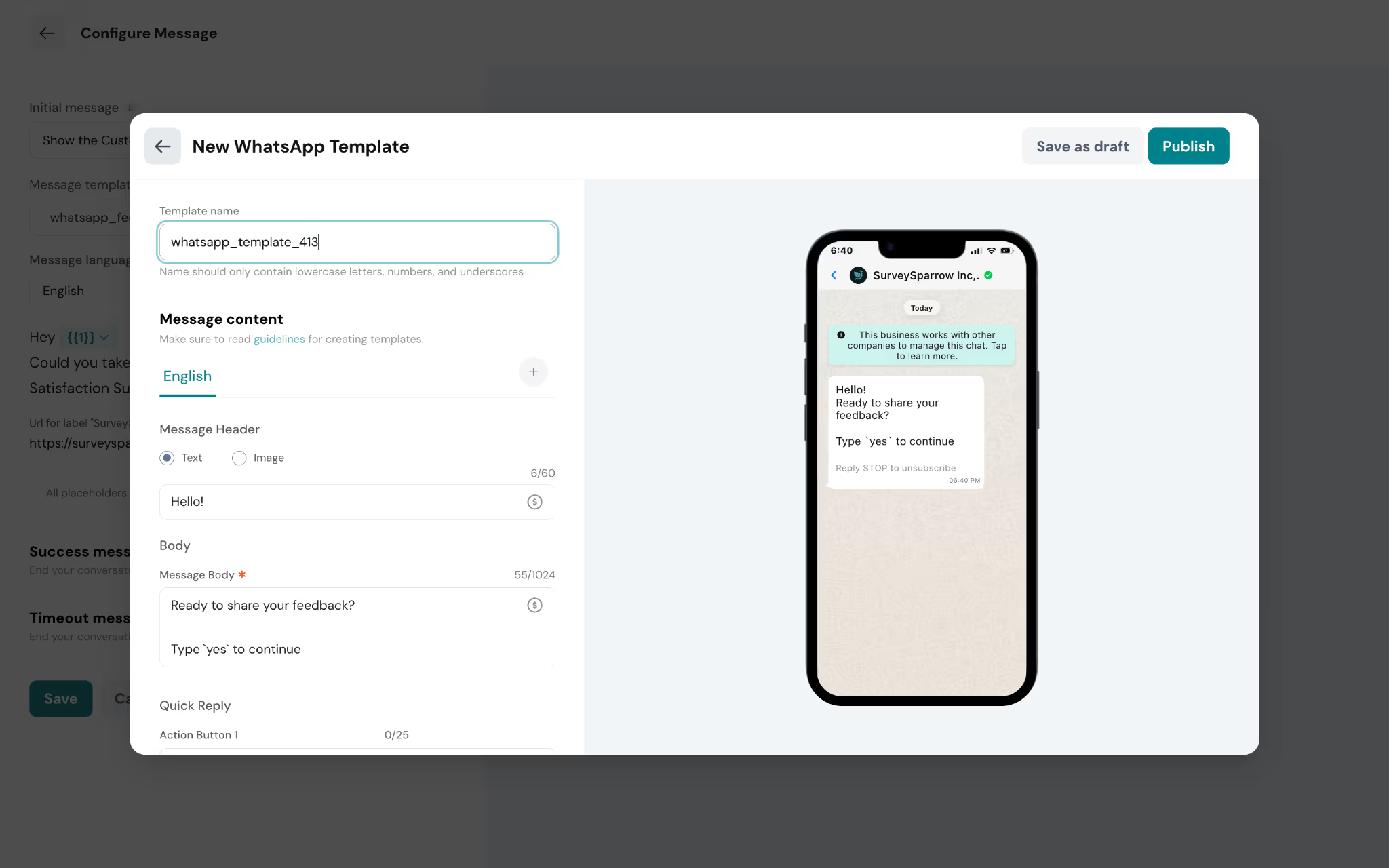
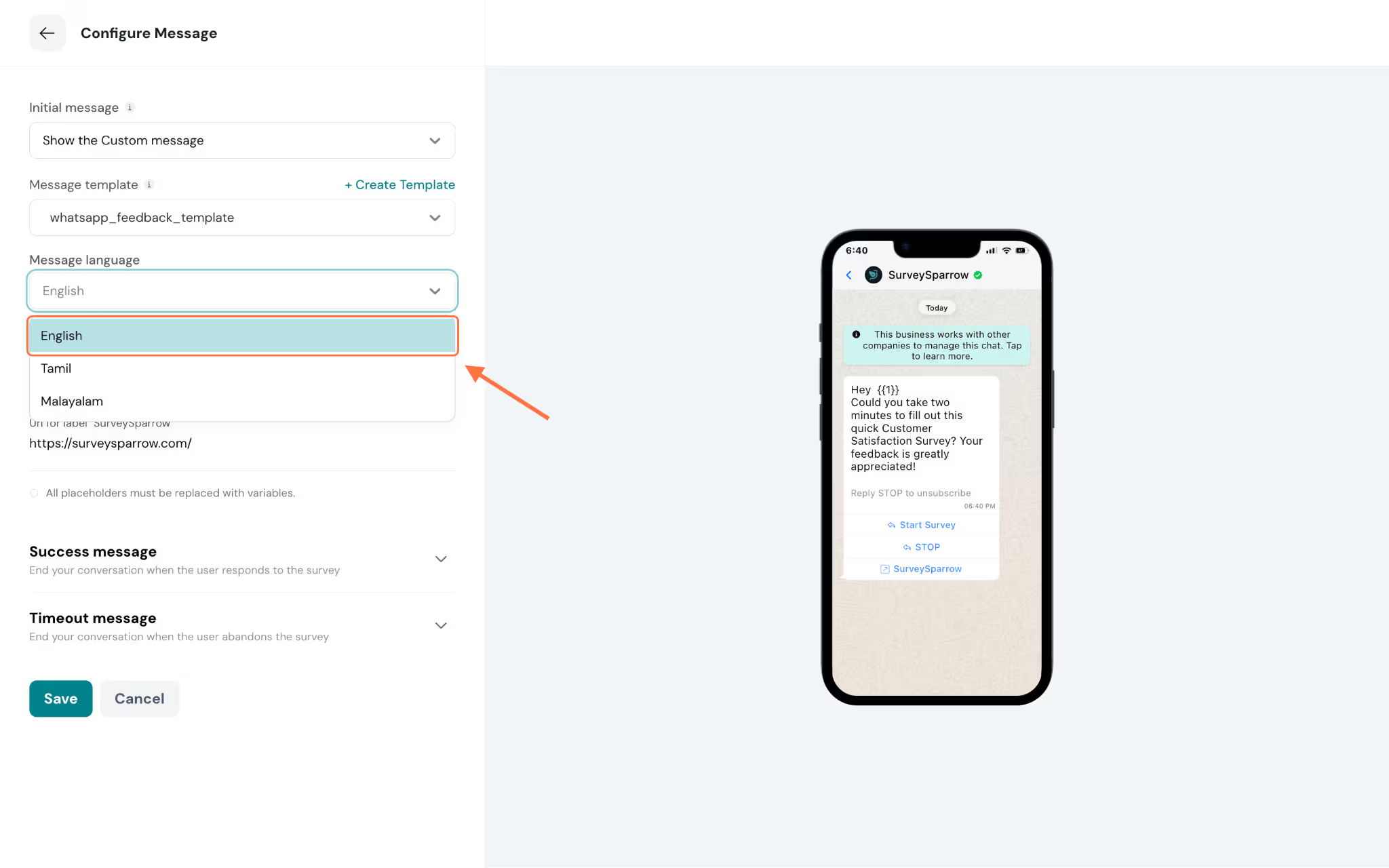
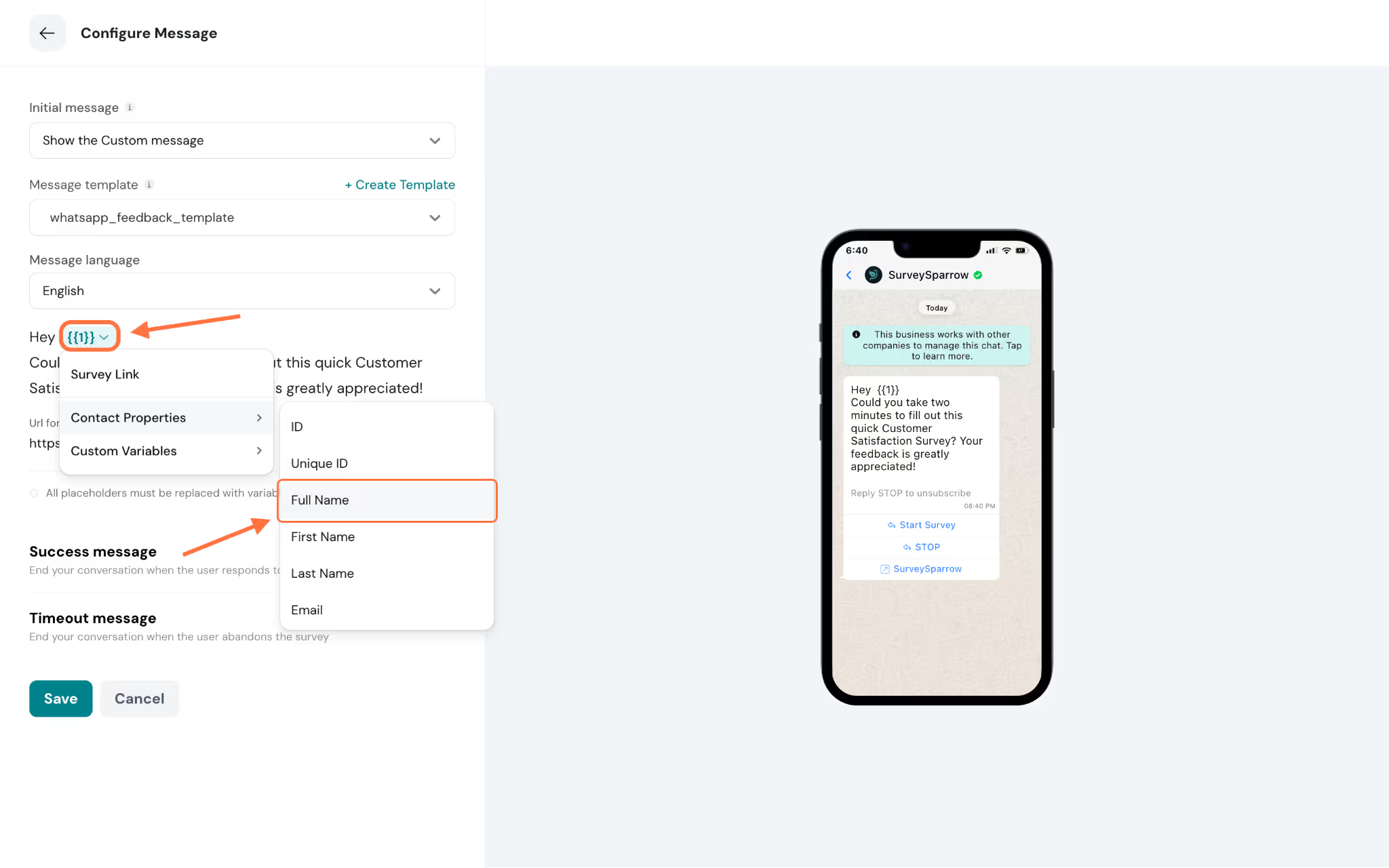
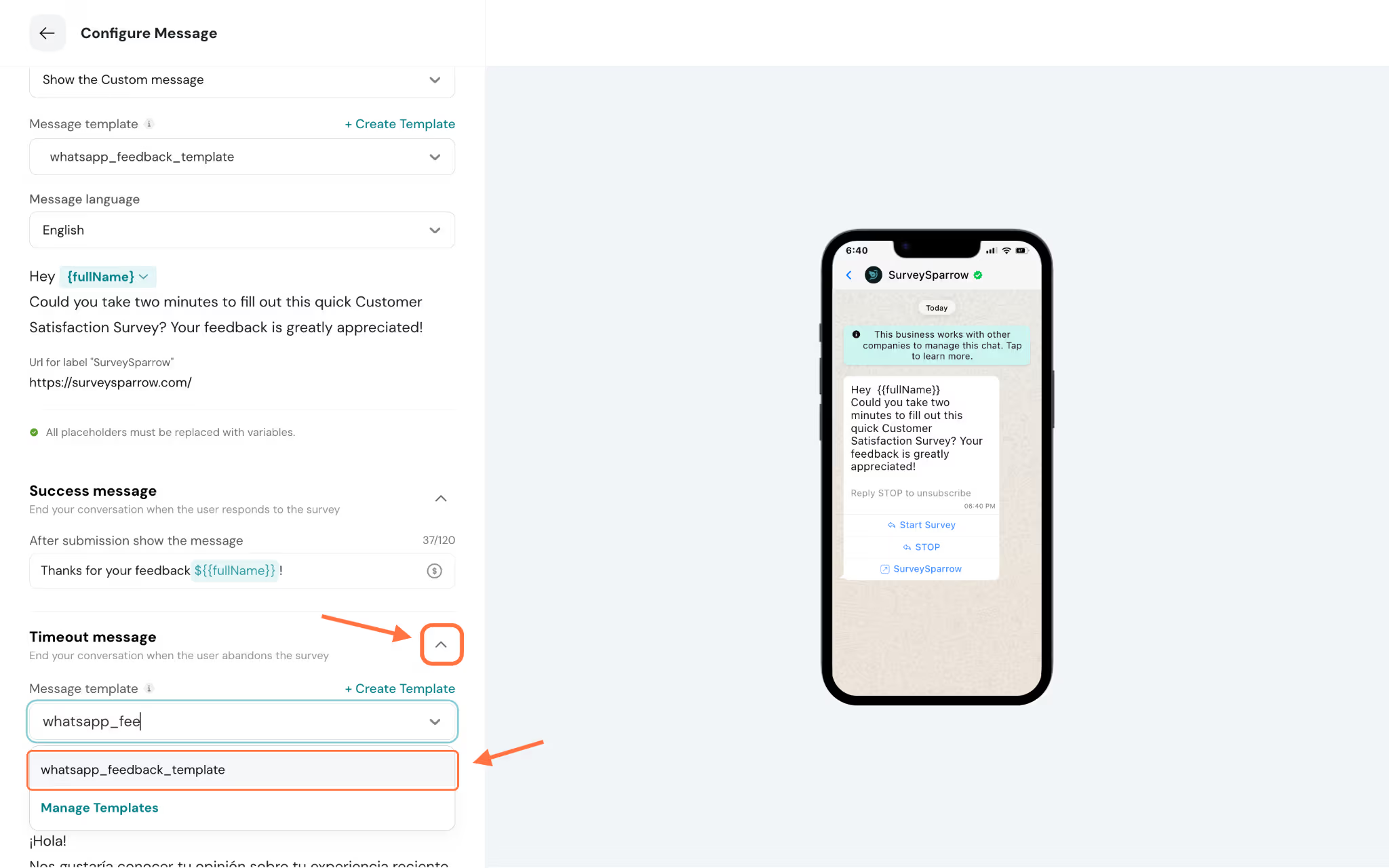
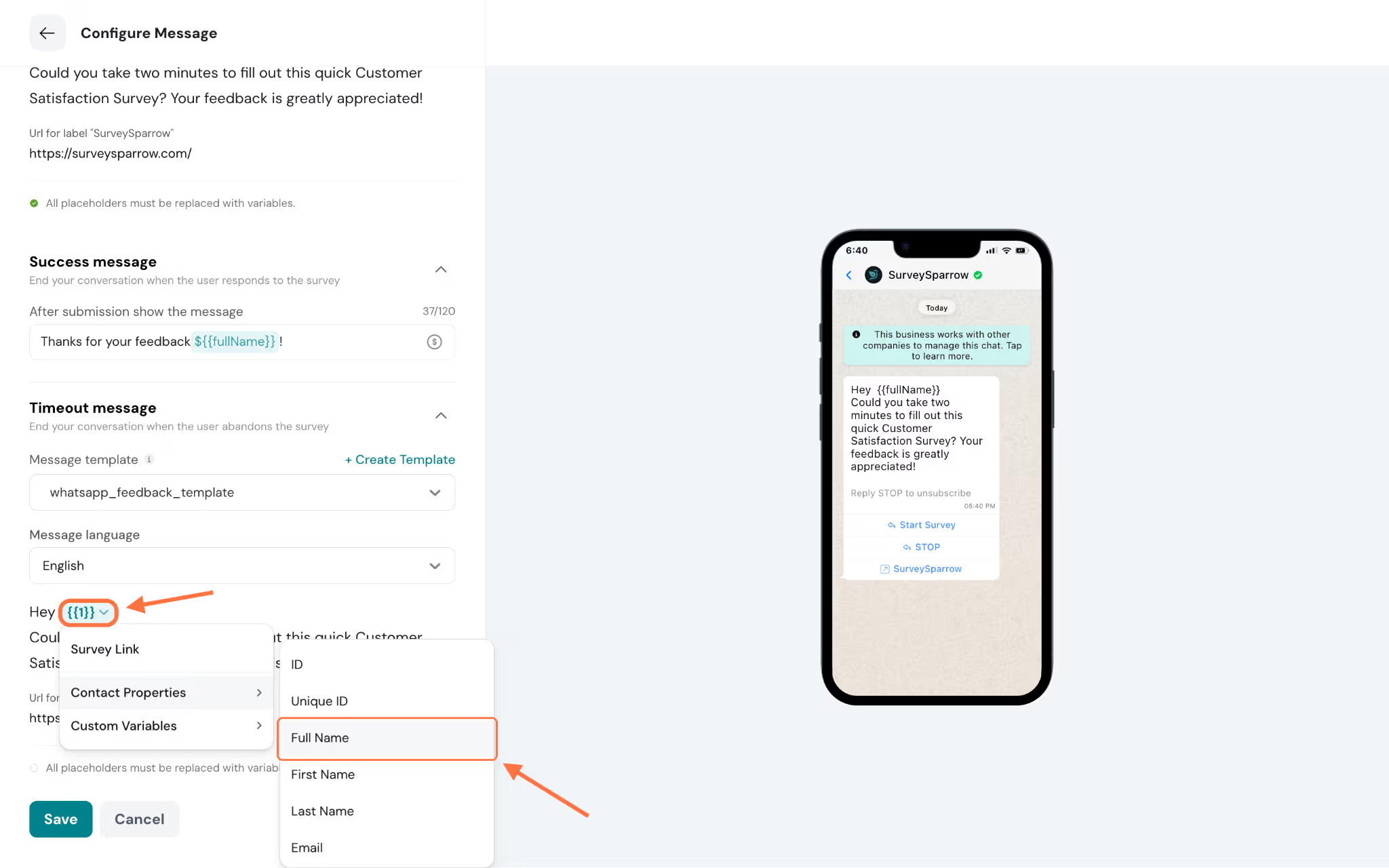
8. Under Message template, click the dropdown to choose from your available WhatsApp templates. You can scroll through the list or type to search for a specific template name. Templates may show status indicators (such as "In review" or approval icons).Note: If you don't have a suitable template, click + Create Template to build a new one. This opens the New WhatsApp Template editor where you can define the template name, header (Text or Image), body content, and quick reply buttons. Make sure to read the guidelines for creating templates, as names should only contain lowercase letters, numbers, and underscores.9. If your template has versions in multiple languages, select the appropriate Message language from the dropdown. The message content will display below, showing exactly what will be sent to your recipients.10. Click on any placeholder in the message body to replace it with a variable. A dropdown will appear with three categories:
Survey Link
Contact Properties — ID, Unique ID, Full Name, First Name, Last Name, Email
Custom Variables — Any custom variables you've defined
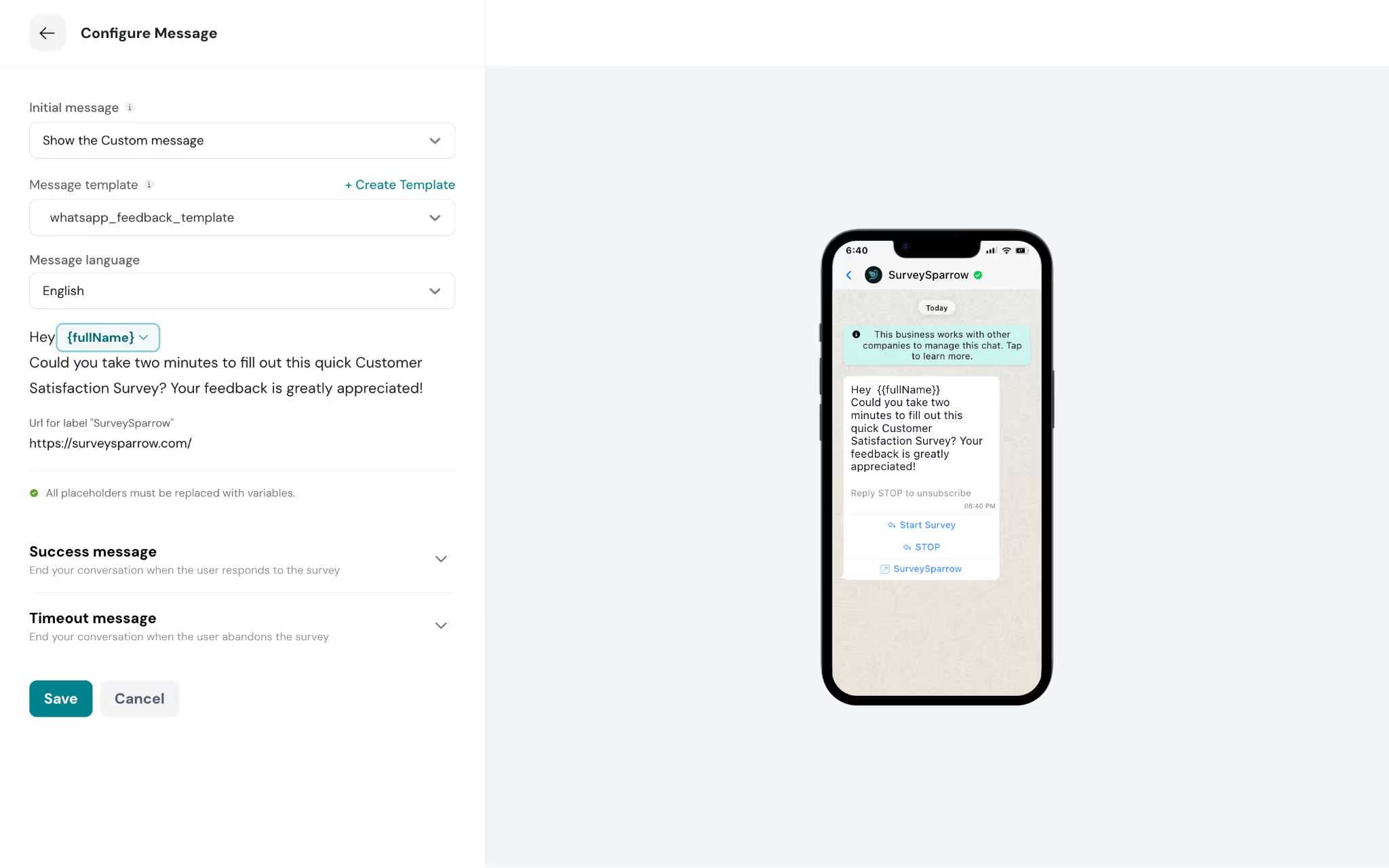
Select the variable you want to insert. The phone preview on the right will update to show how the personalized message will look. You'll also see a green checkmark confirming that all placeholders have been replaced with variables.The message may also include a URL label (such as "SurveySparrow") with your survey link.
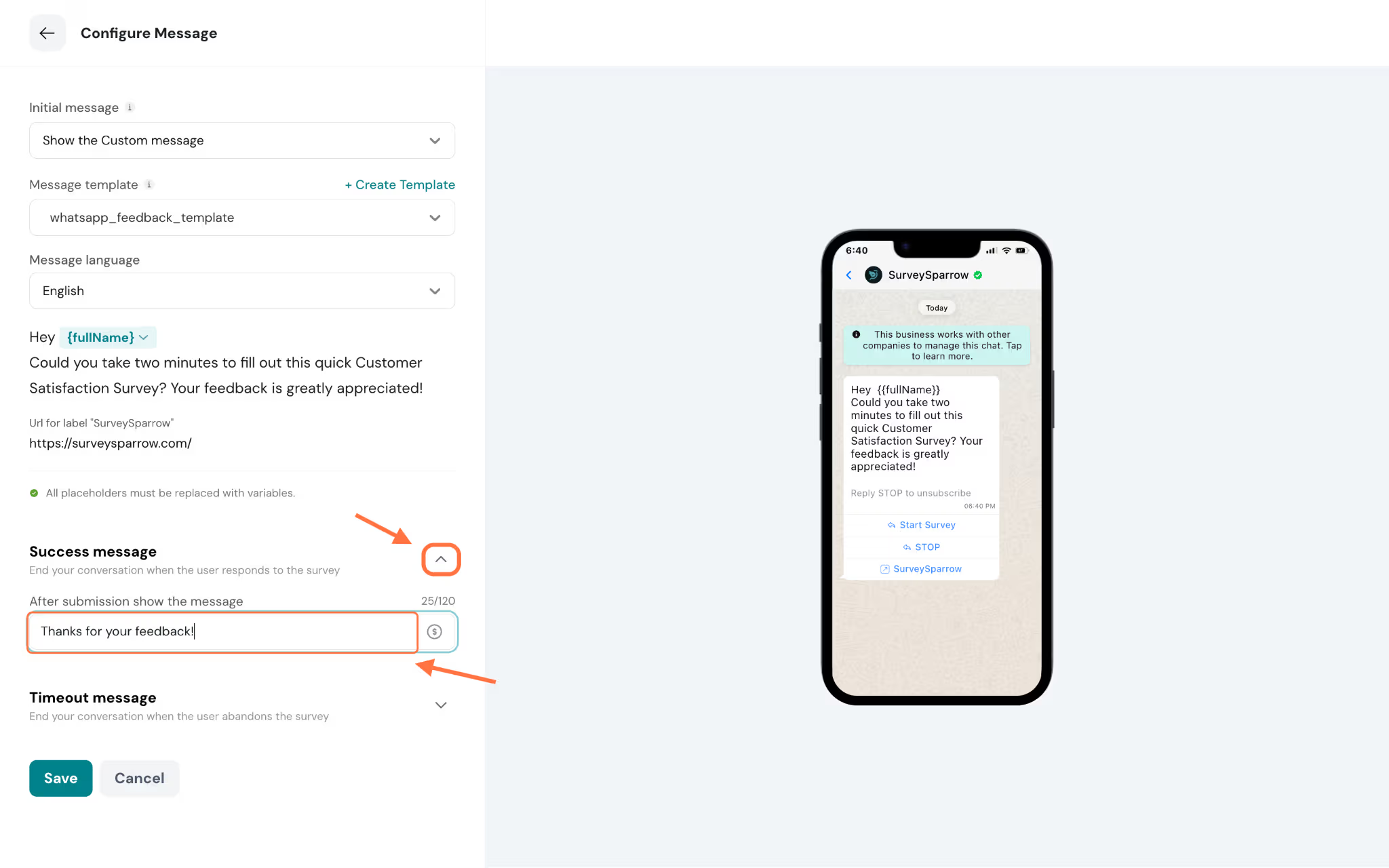
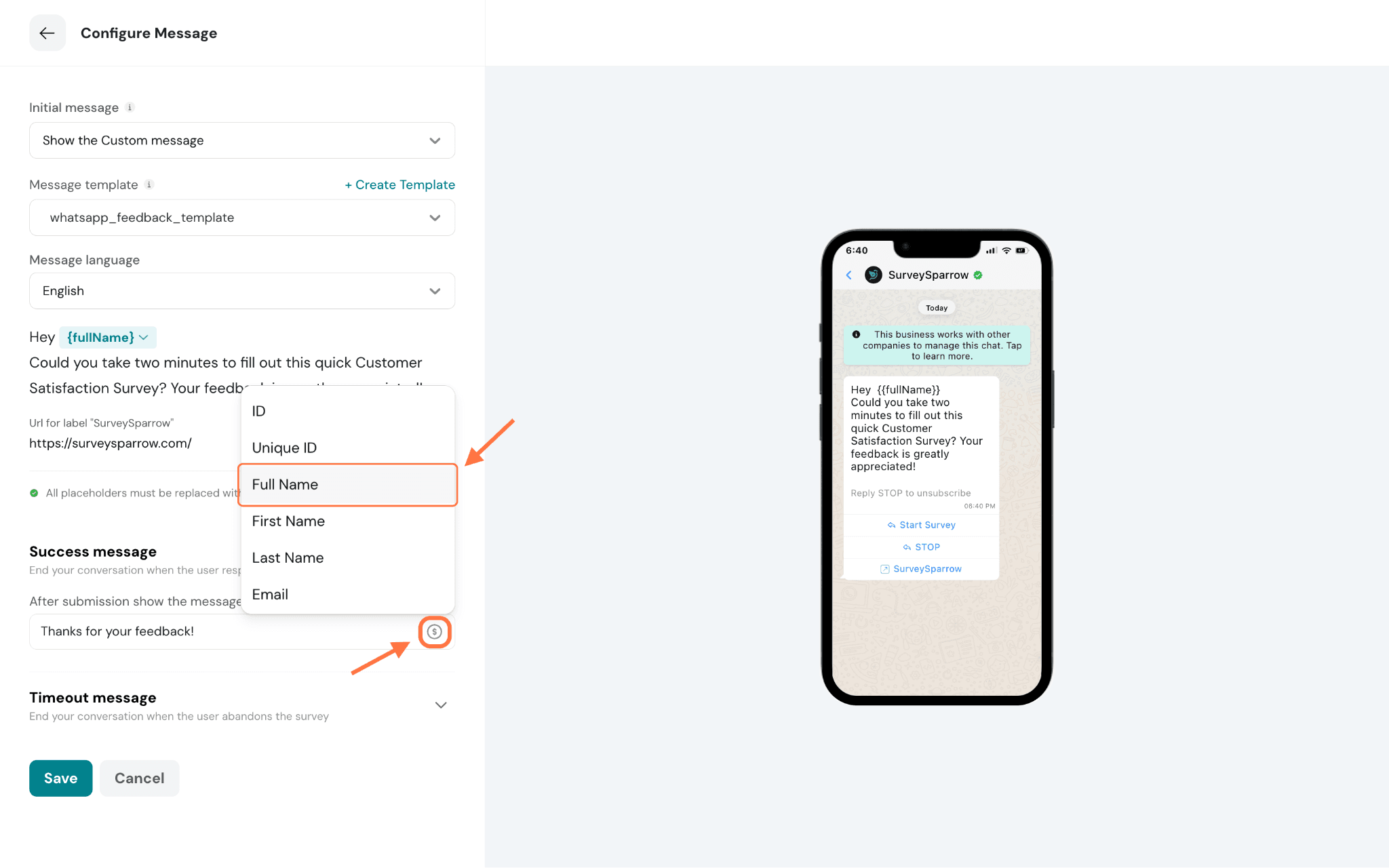
11. On completion of the survey, a success message will be triggered to end the conversation. To create it, expand the Success message section. Type out the text you want your customers to see after completing the survey.Note: Click on the dollar icon next to the text field to add placeholders and personalize the message.12. If the customer abandons the survey or completes it partially, a timeout message will be triggered to indicate that the survey session has ended. Expand the Timeout message section. Just like in the initial message configuration, choose a timeout template, then click on the placeholder to personalize the message variables or add the survey link.Note: If you want your customers to be able to take the survey again after a timeout, create a timeout template that includes the web link to the survey.
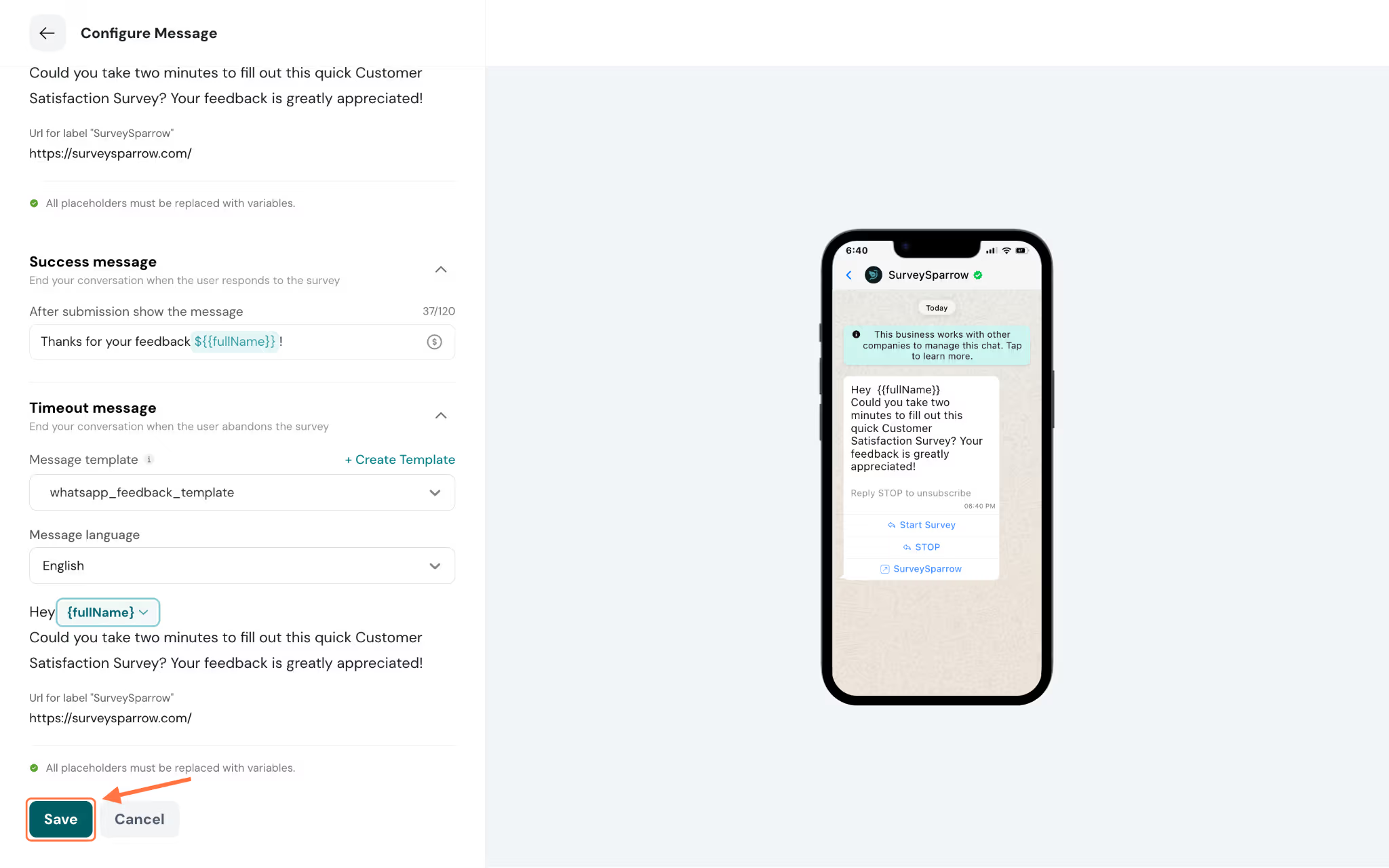
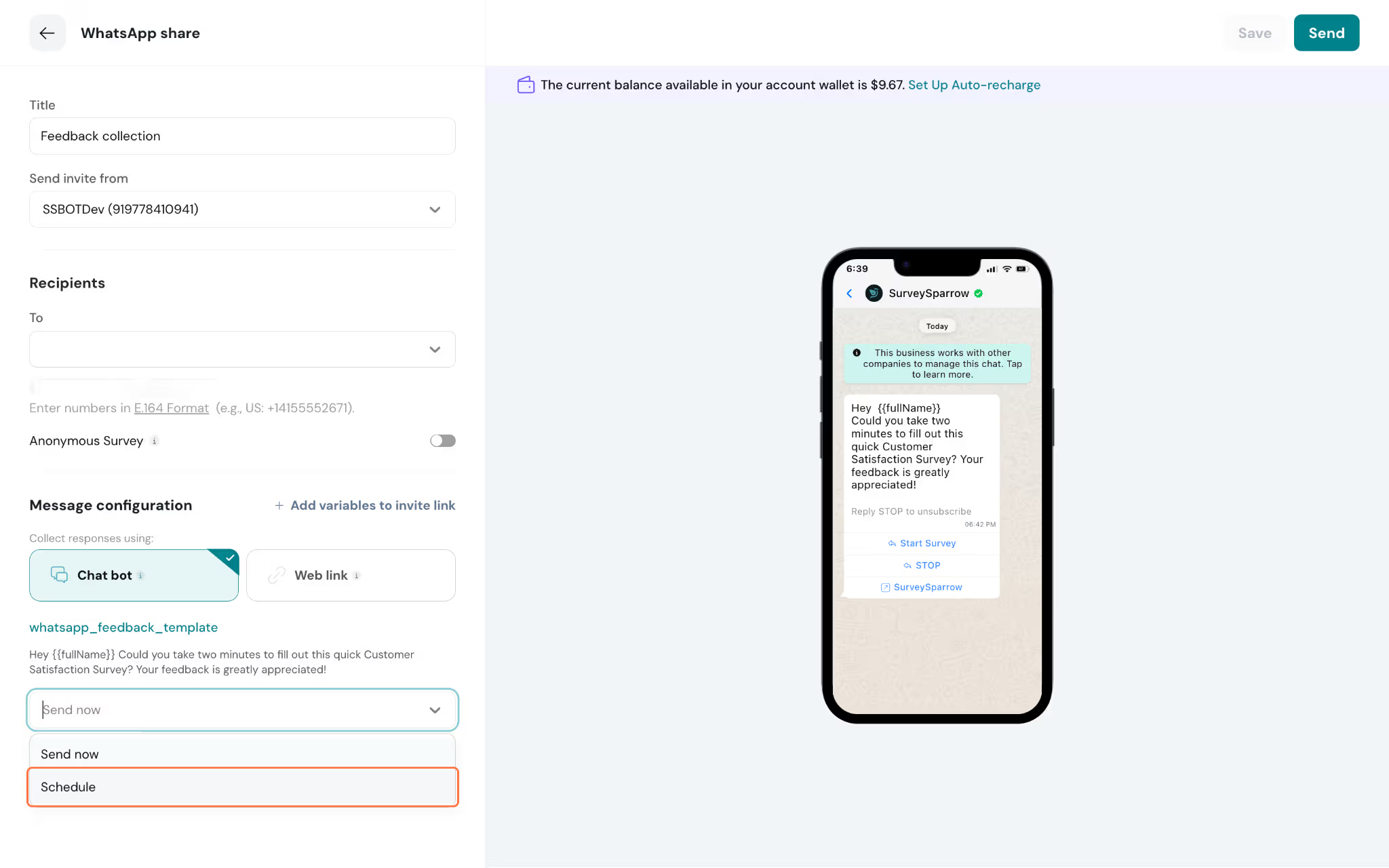
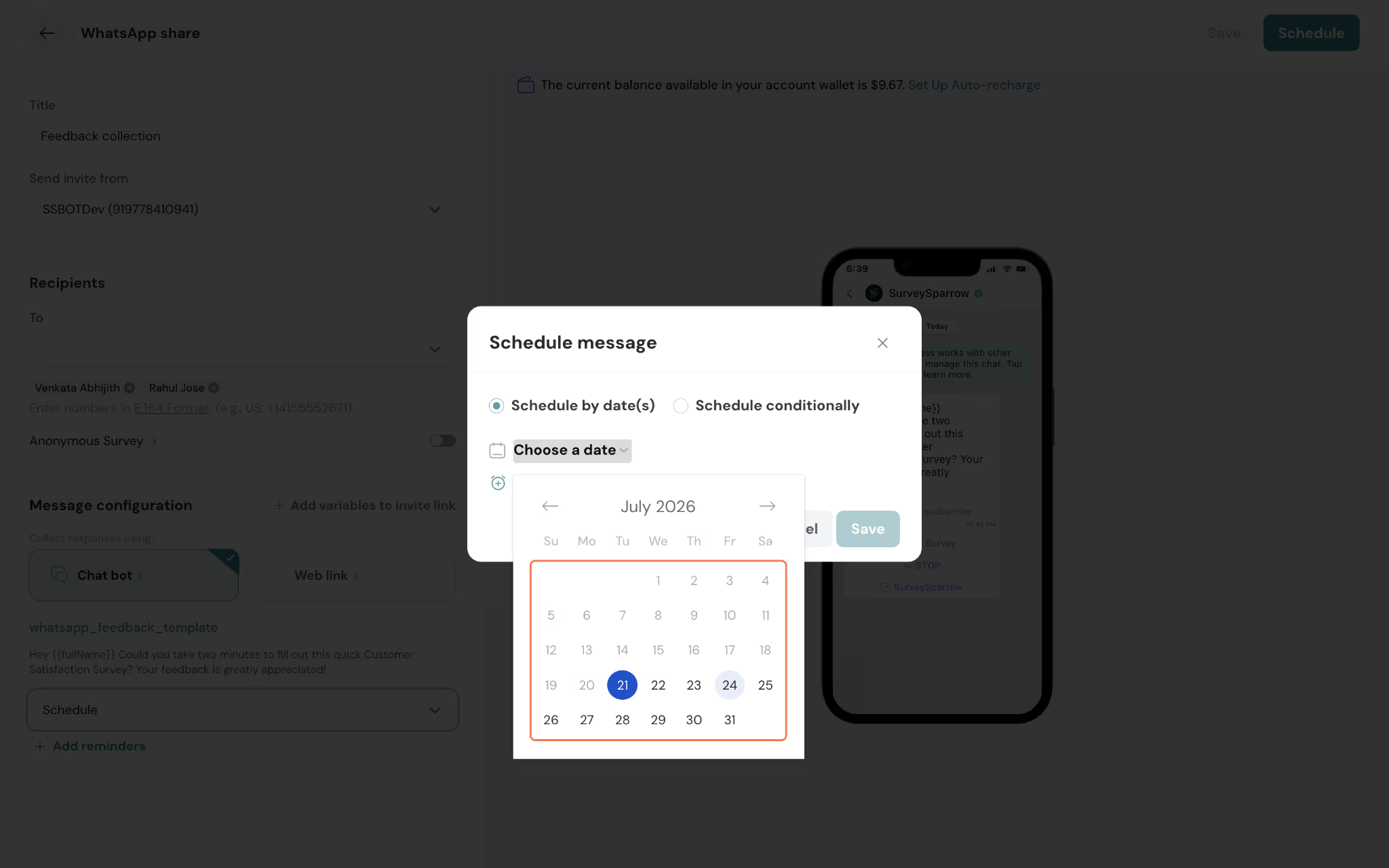
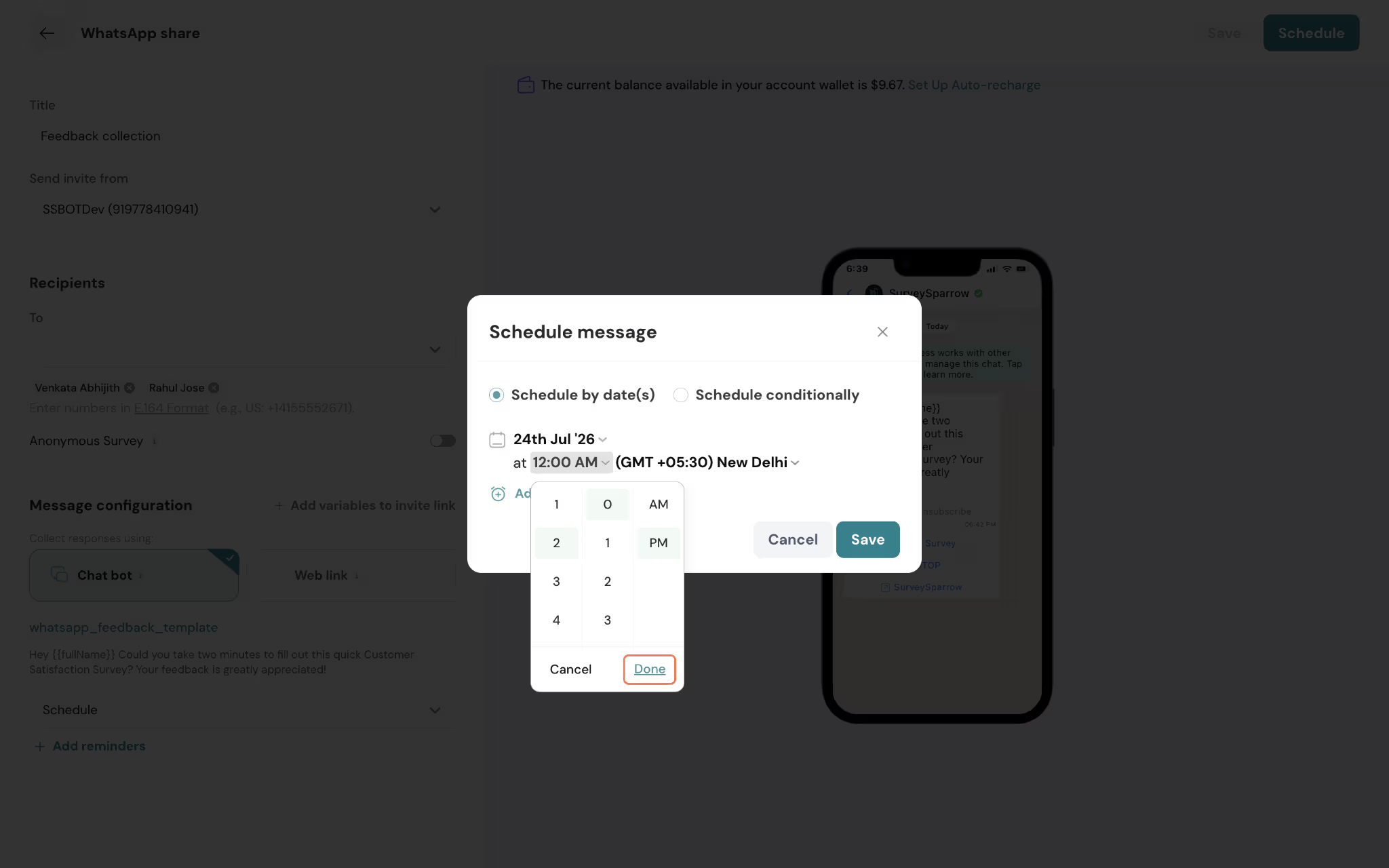
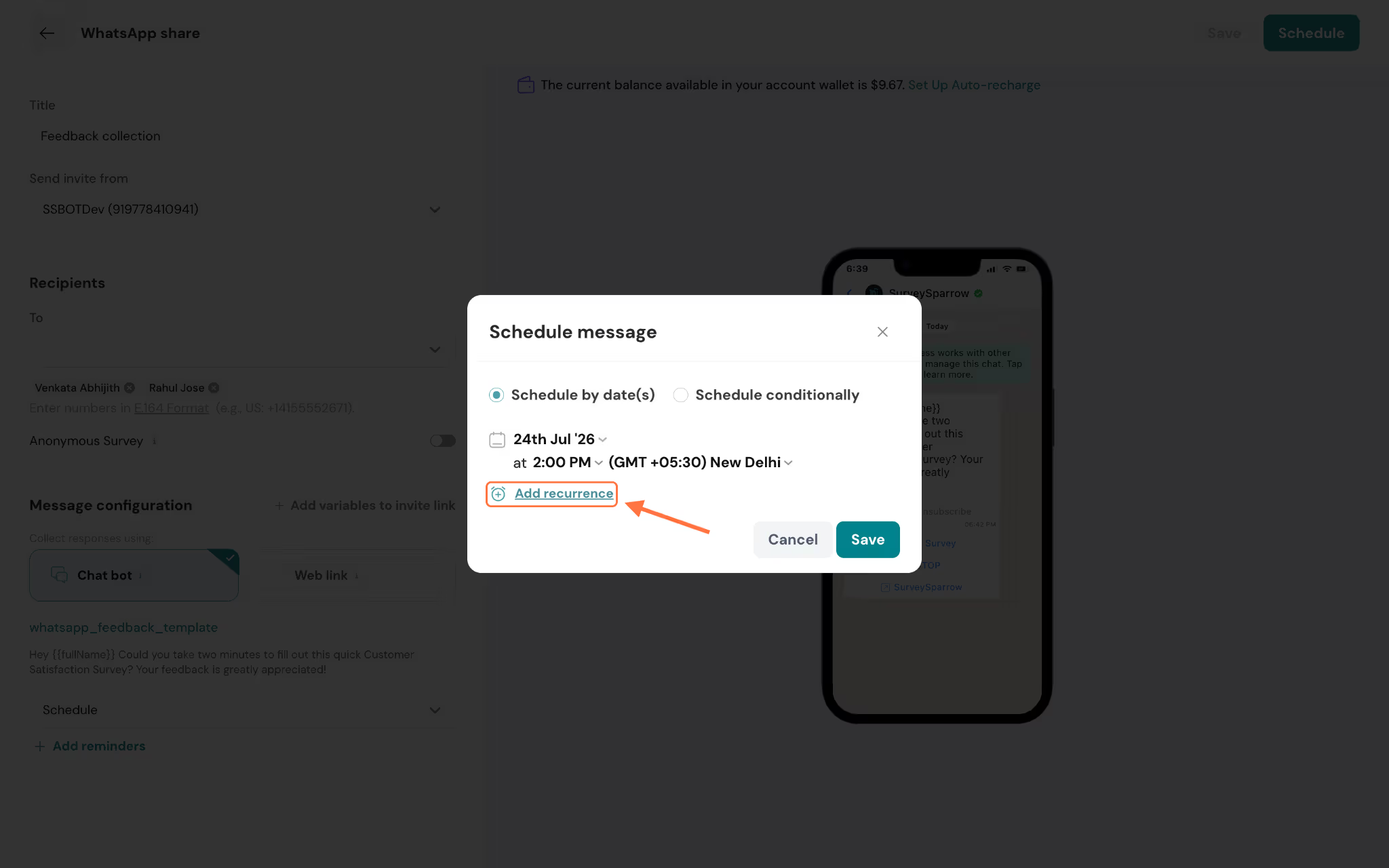
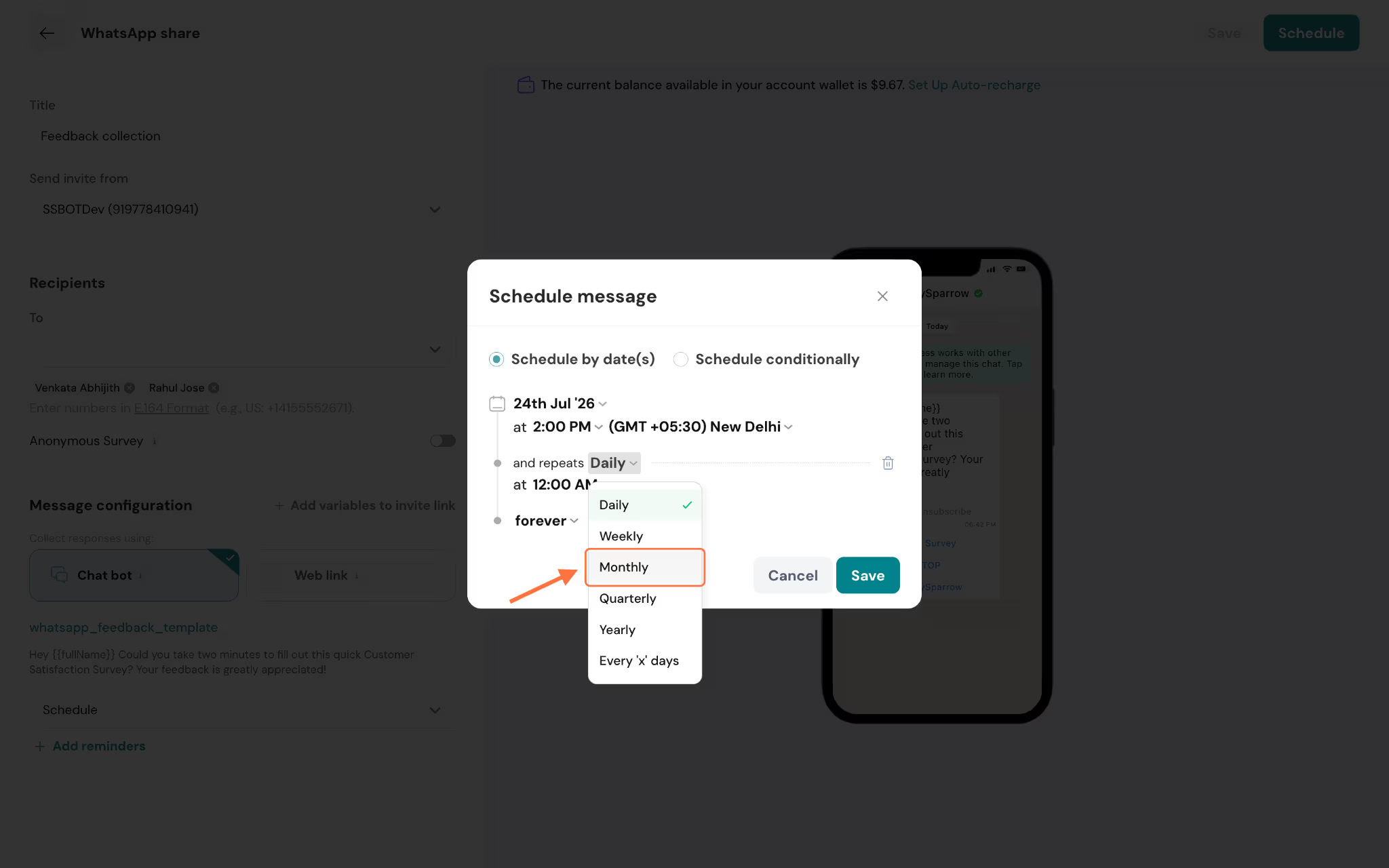
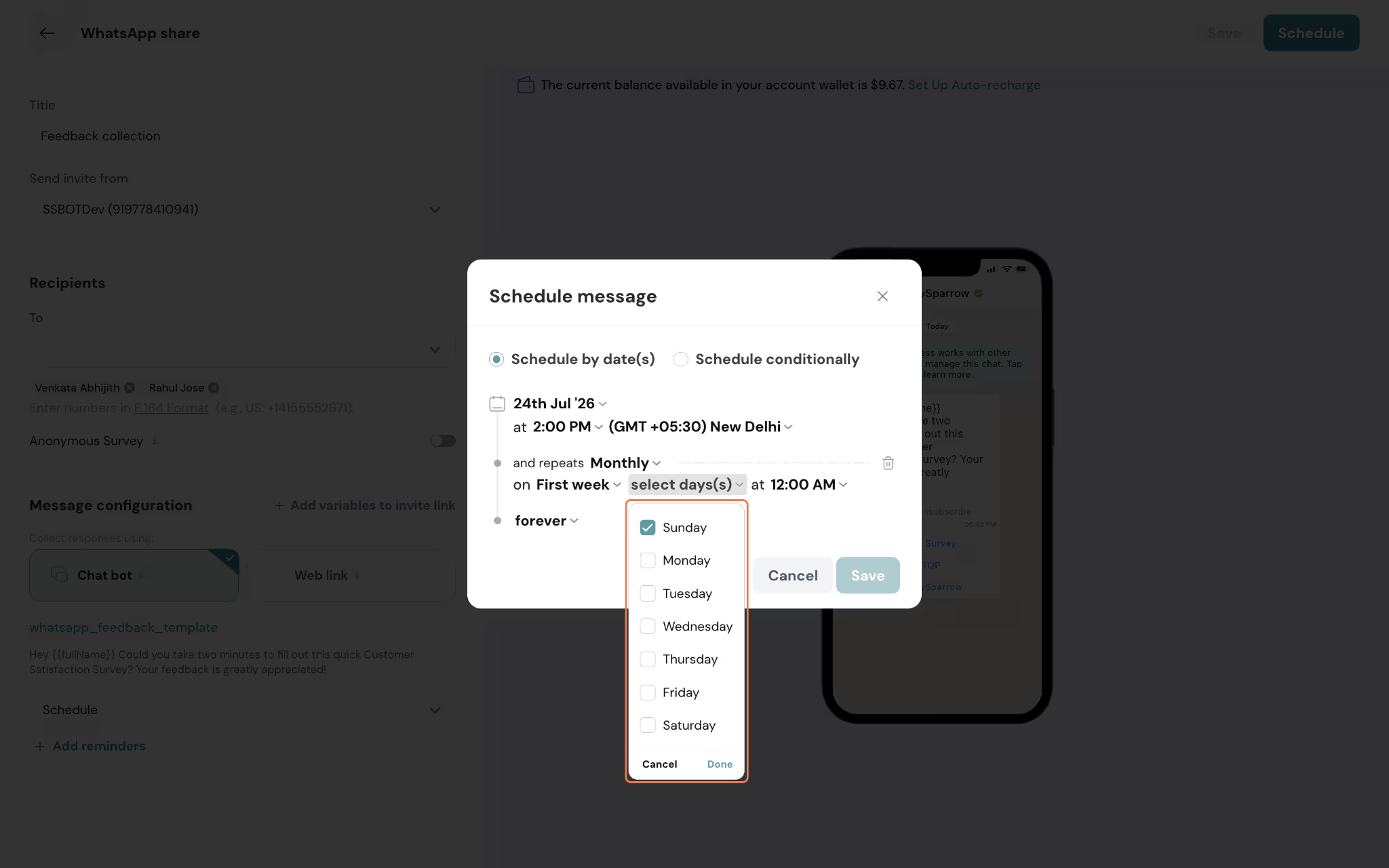
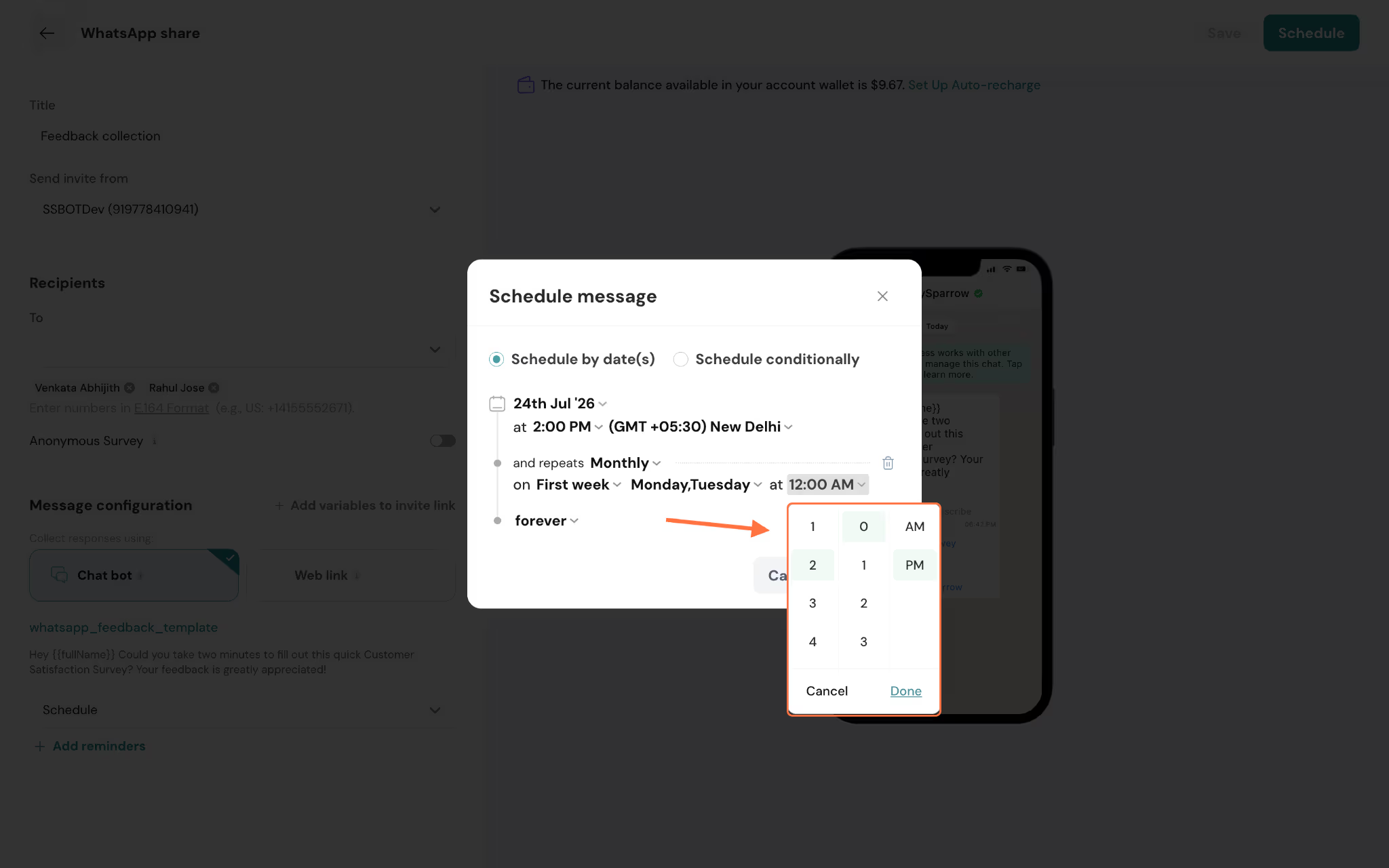
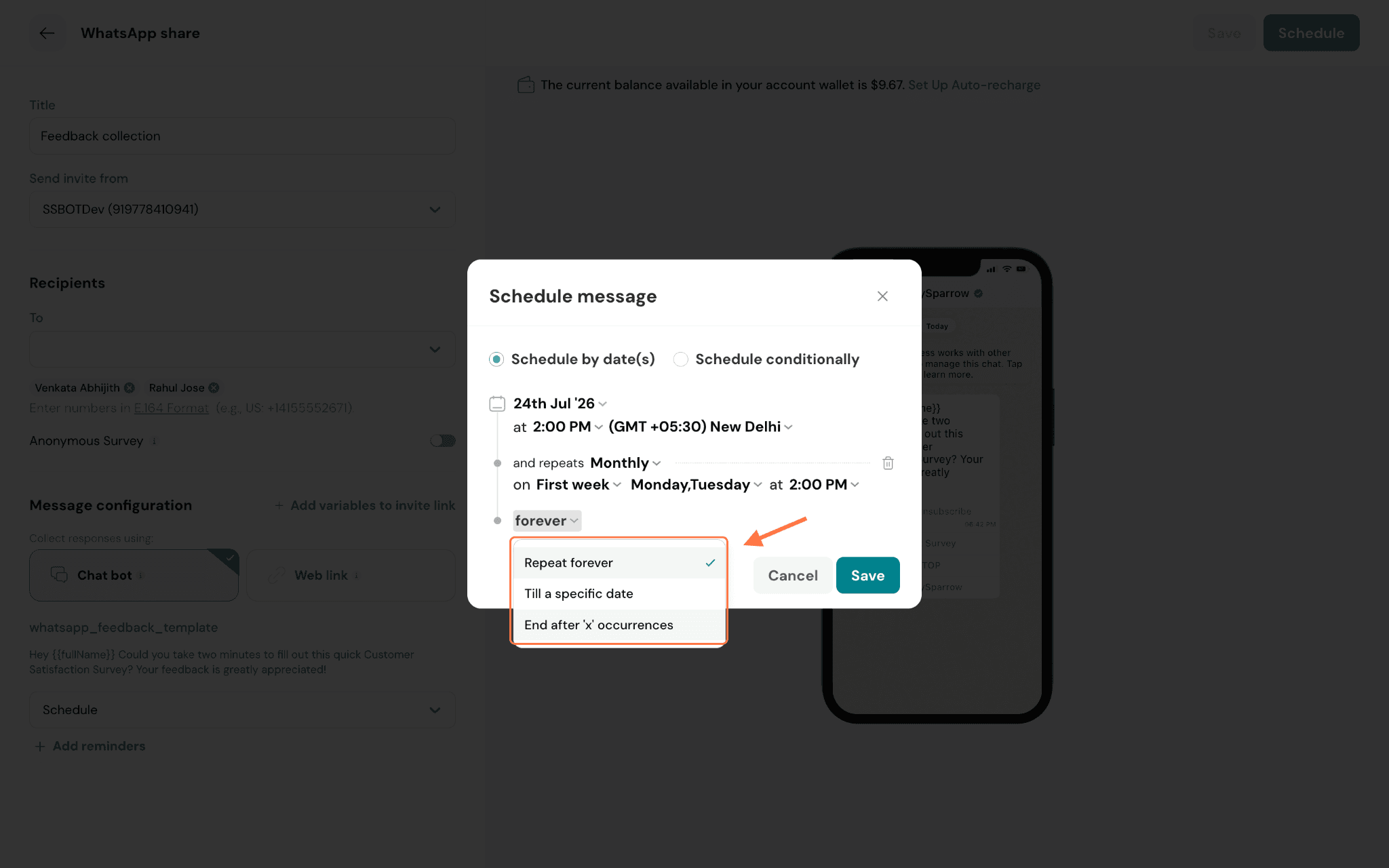
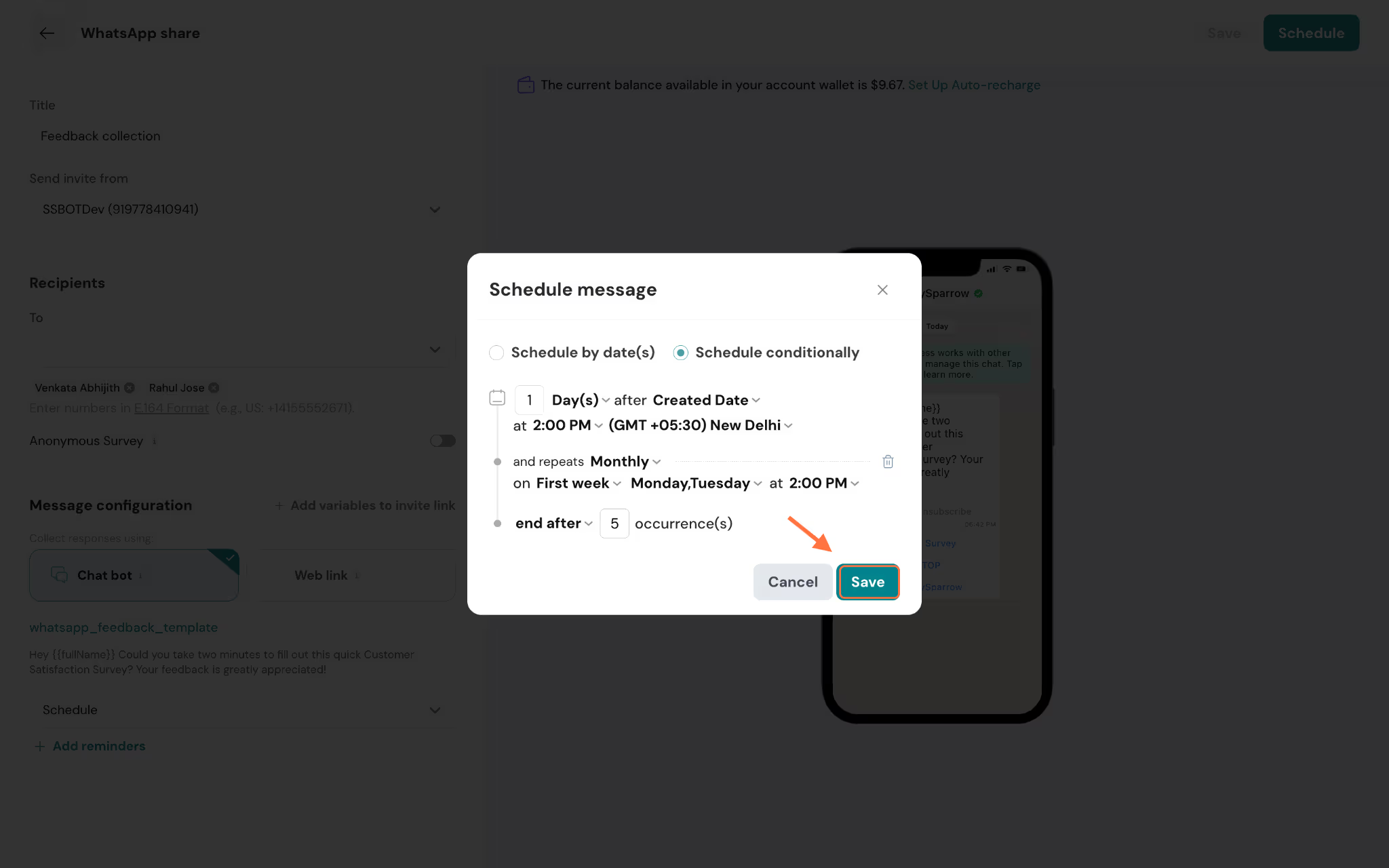
13. Once you've configured the initial message, success message, and timeout message, click Save at the bottom of the page. You'll be returned to the WhatsApp share page, where the phone preview now reflects your complete message flow.14. You can send the template immediately. If you’d like to schedule it, click on the dropdown under Send now, and select Schedule to open the Schedule message modal.15. Inside the scheduling modal, you can schedule by date. In this setting, select a specific date from the calendar picker, then set the time using the time picker. You can also change the timezone if needed.16. Click Add recurrence to set the message to repeat. You can choose from: Daily, Weekly, Monthly, Quarterly, Yearly, or Every X days.Note: For Monthly recurrence, you can specify which week of the month (First week, Second week, etc.) and on which days (Sunday through Saturday). You can select multiple days.17. Set the time for the recurring sends, then choose when the recurrence should end: forever, Till a specific date, or End after a set number of occurrences.18. Alternatively, select Schedule conditionally to send the survey after a set amount of time after a specific date field. Here you can set:
the time period and unit of time (days/weeks/hours)
the start date (default is Created Date or you can choose a custom contact property)
Time and timezone
Recurrence schedule
Recurrence end condition
Once done, click Save to confirm your schedule.19. Once everything is configured, click the Send button in the top-right corner. You'll see a "Sending WhatsApp messages..." confirmation, followed by a success toast: "Successfully created WhatsApp message."20. Your WhatsApp distribution will now appear in the Distributions list on the Distribute page, showing the title, creation date and time, and current response count.
Notes
The message templates must be created and approved on your WhatsApp BSP (Business Service Provider) account before they can be used.
Ensure all placeholders in your message templates are replaced with variables before saving.
The phone preview updates in real time as you configure your messages, so you can always see exactly what your recipients will receive.
With these steps, you make it easy for your customers to take up surveys while reducing drop-offs and increasing survey response rates.
Feel free to reach out to our community if you have any questions.