Generate Bulk Questions with Automated Formatting

How to add questions in bulk in SurveySparrow
Learn how to add questions in bulk in SurveySparrow and build a whole questionnaire in one step, without creating and formatting each question by hand. Paste or type your questions with their answer choices on the lines beneath. SurveySparrow splits them into separate questions and choices for you. You then pick a type for each question and add up to 200 questions at once. It is a quick way to move a survey drafted in a document, a spreadsheet or an email into the builder. It also helps you reuse a questionnaire your team has already agreed on.
Format your questions
Bulk add reads plain text, line by line:
- Put each question on its own line.
- Put a question's answer choices on the lines directly below it, one choice per line.
- Leave one blank line between questions. The blank line is what tells SurveySparrow a new question is starting.
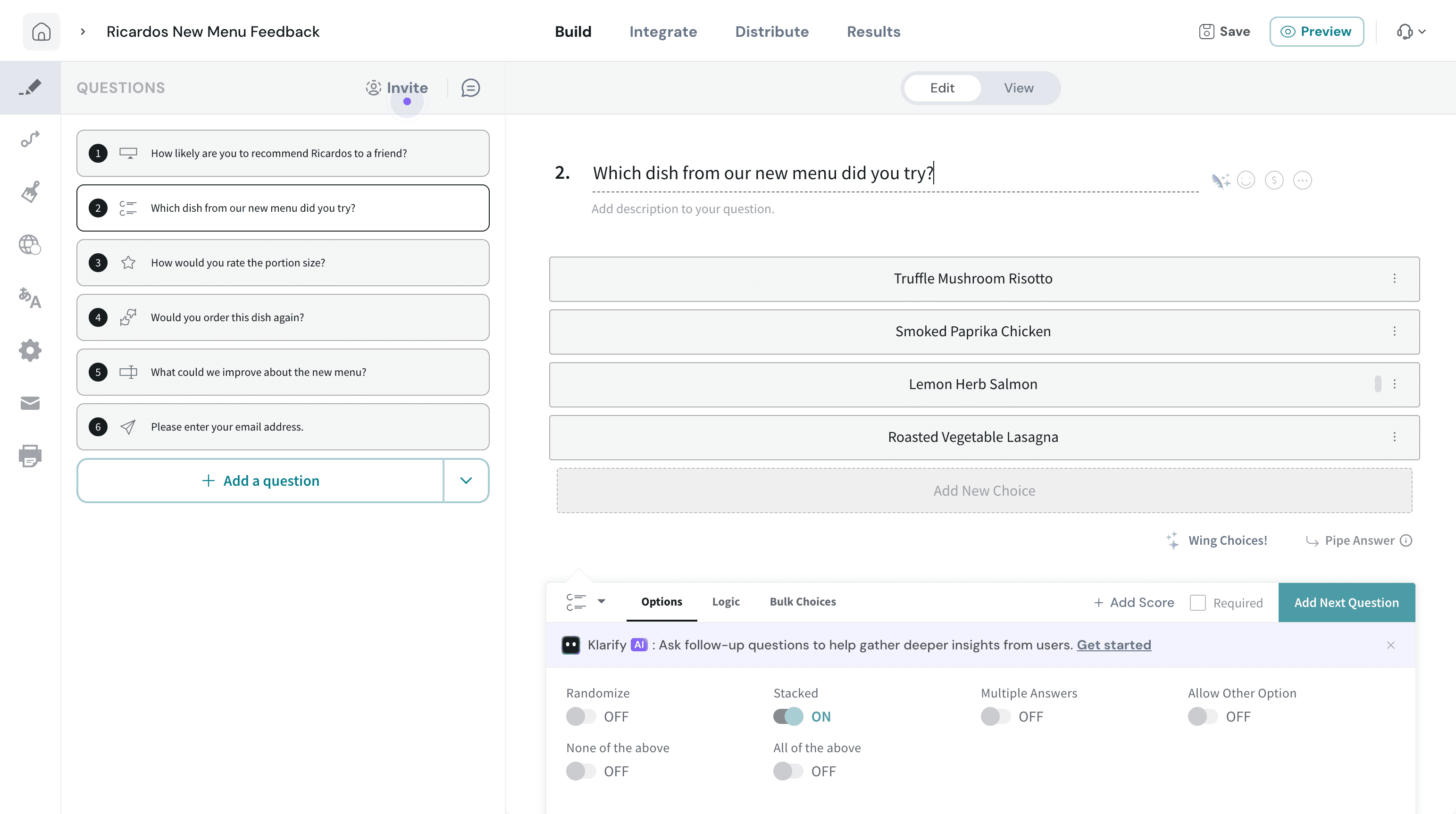
For example, a restaurant collecting feedback on a new menu could paste this:
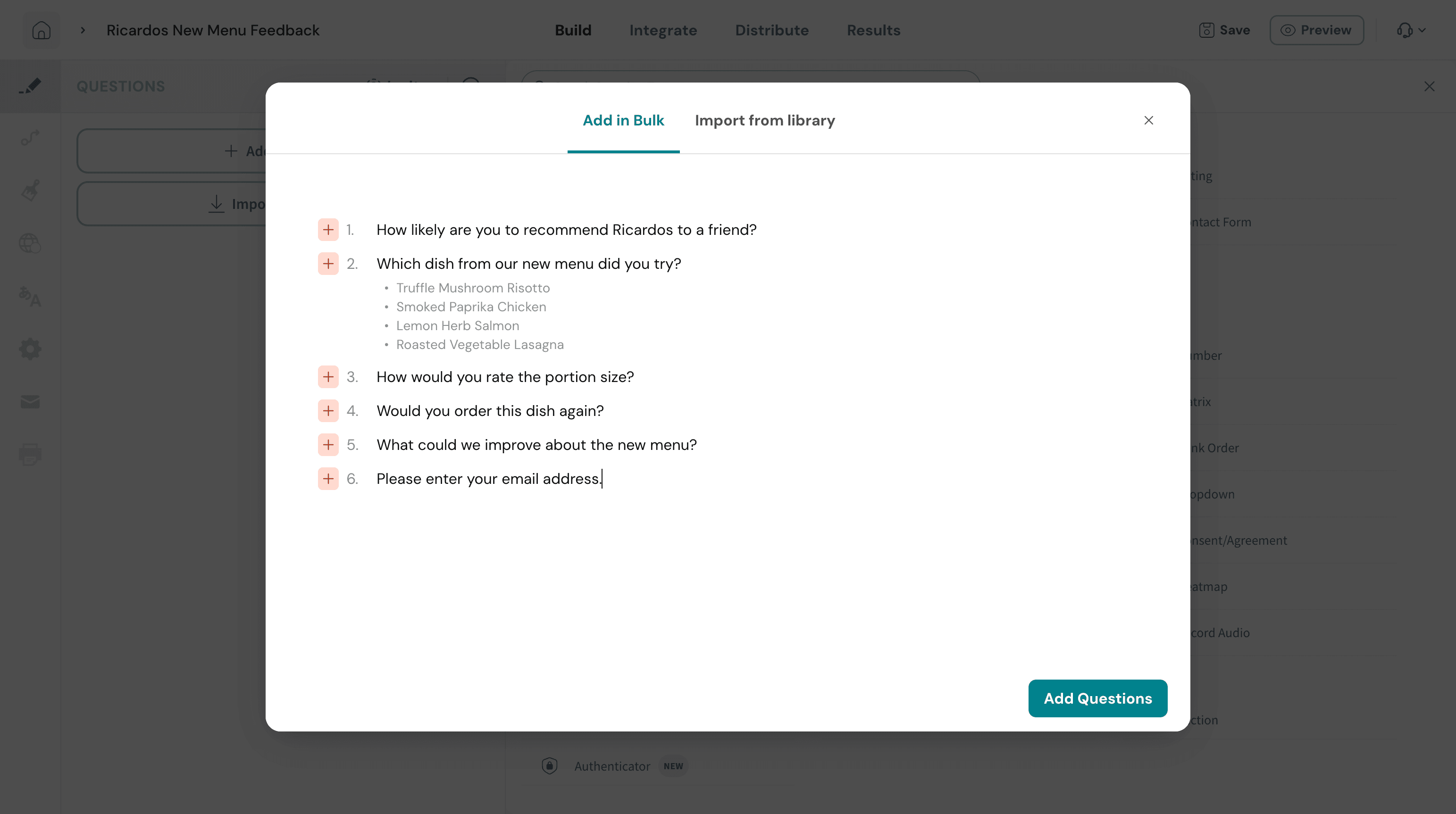
How likely are you to recommend Ricardos to a friend?

Which dish from our new menu did you try?
Truffle Mushroom Risotto
Smoked Paprika Chicken
Lemon Herb Salmon
Roasted Vegetable Lasagna

How would you rate the portion size?

Would you order this dish again?

What could we improve about the new menu?

Please enter your email address.
You can draft the list in any word processor and copy it across. Bulk add takes plain text, so images, tables and formatting are left behind.
Add questions in bulk
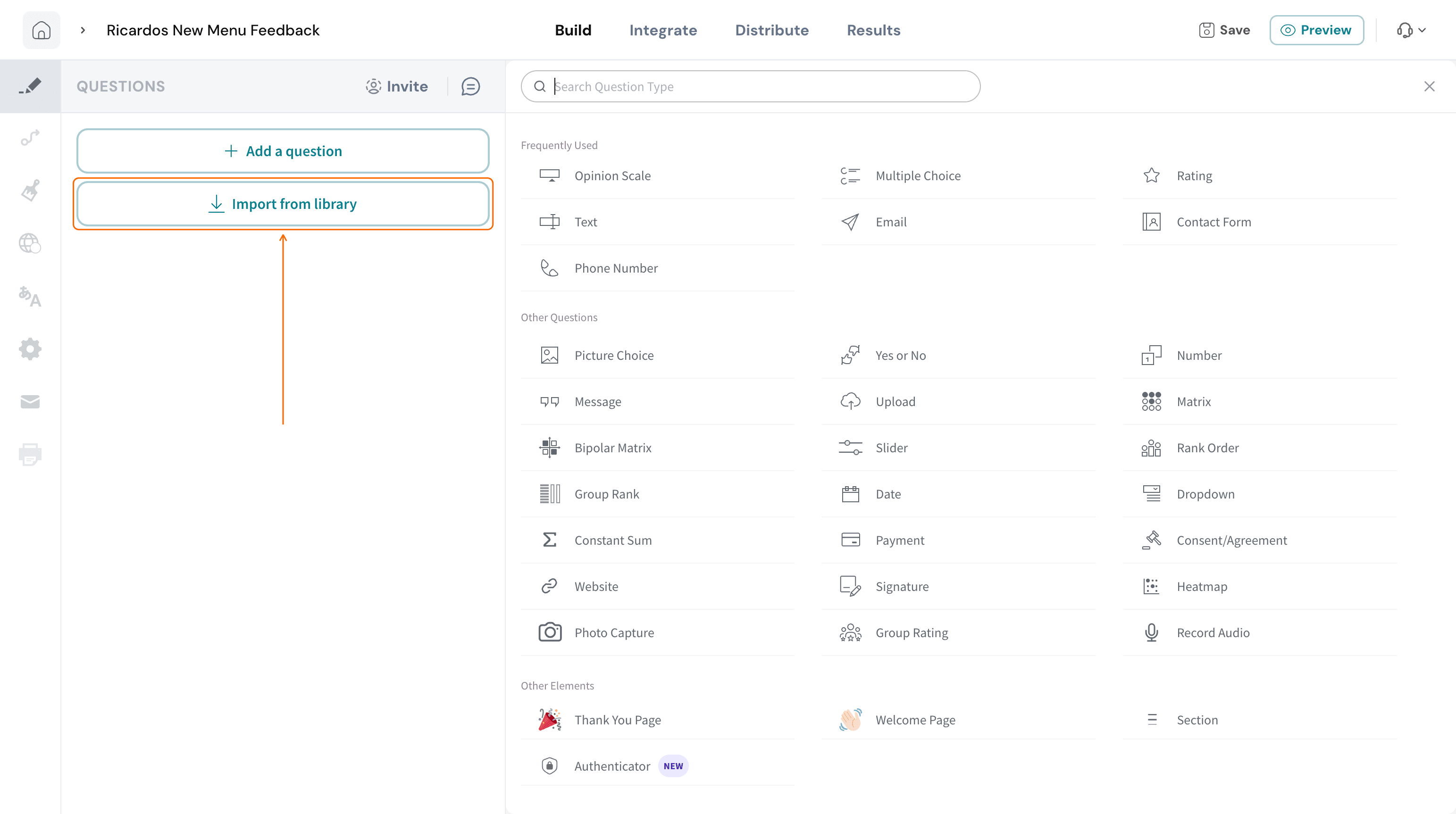
- Open your survey in the builder. In a survey with no questions yet, click Import from library in the left panel.
If your survey already has questions, click the arrow beside Add a question and choose Bulk Import instead. It opens the same dialog, on the Add in Bulk tab.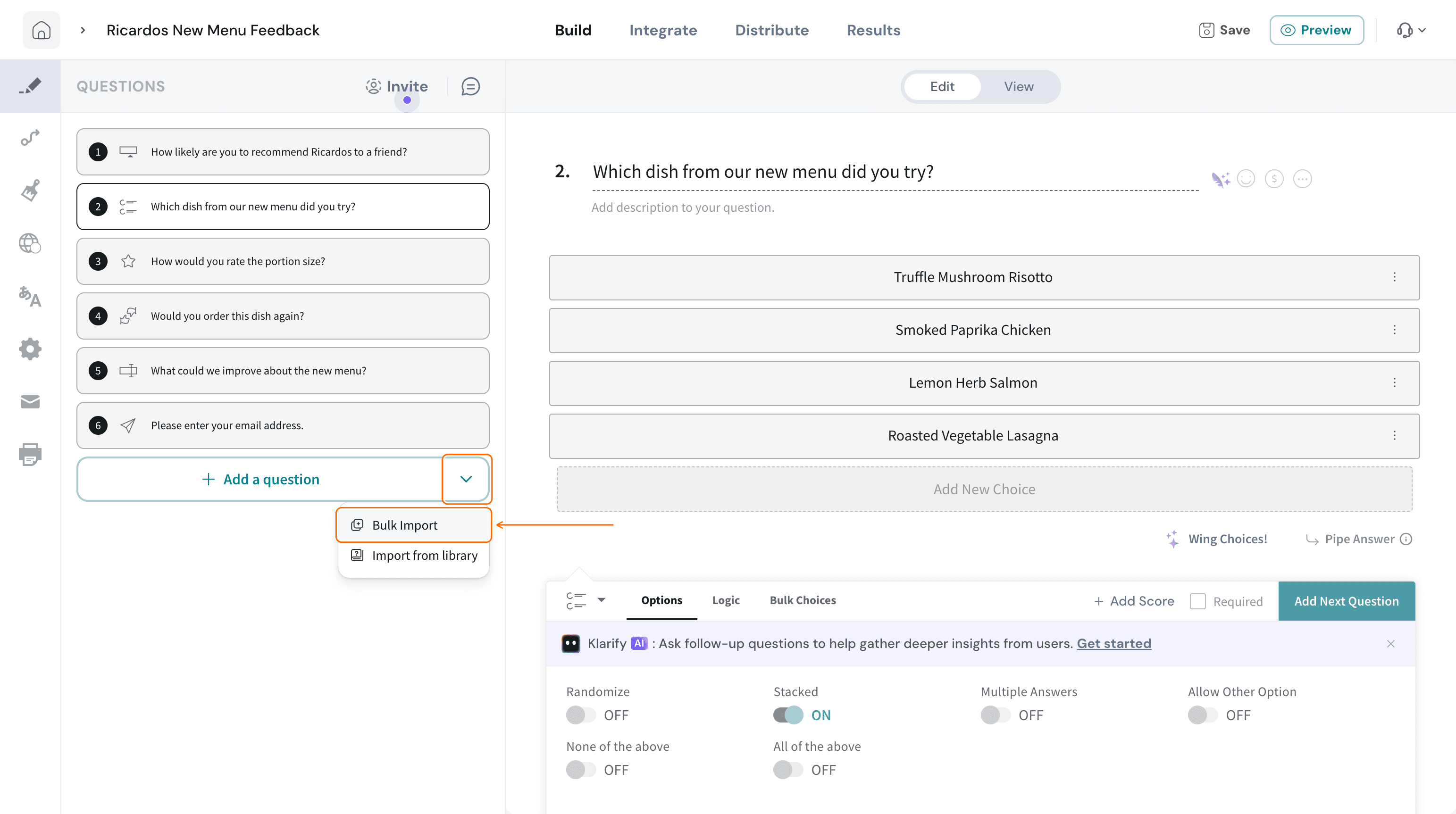
- In the dialog that opens, select the Add in Bulk tab.
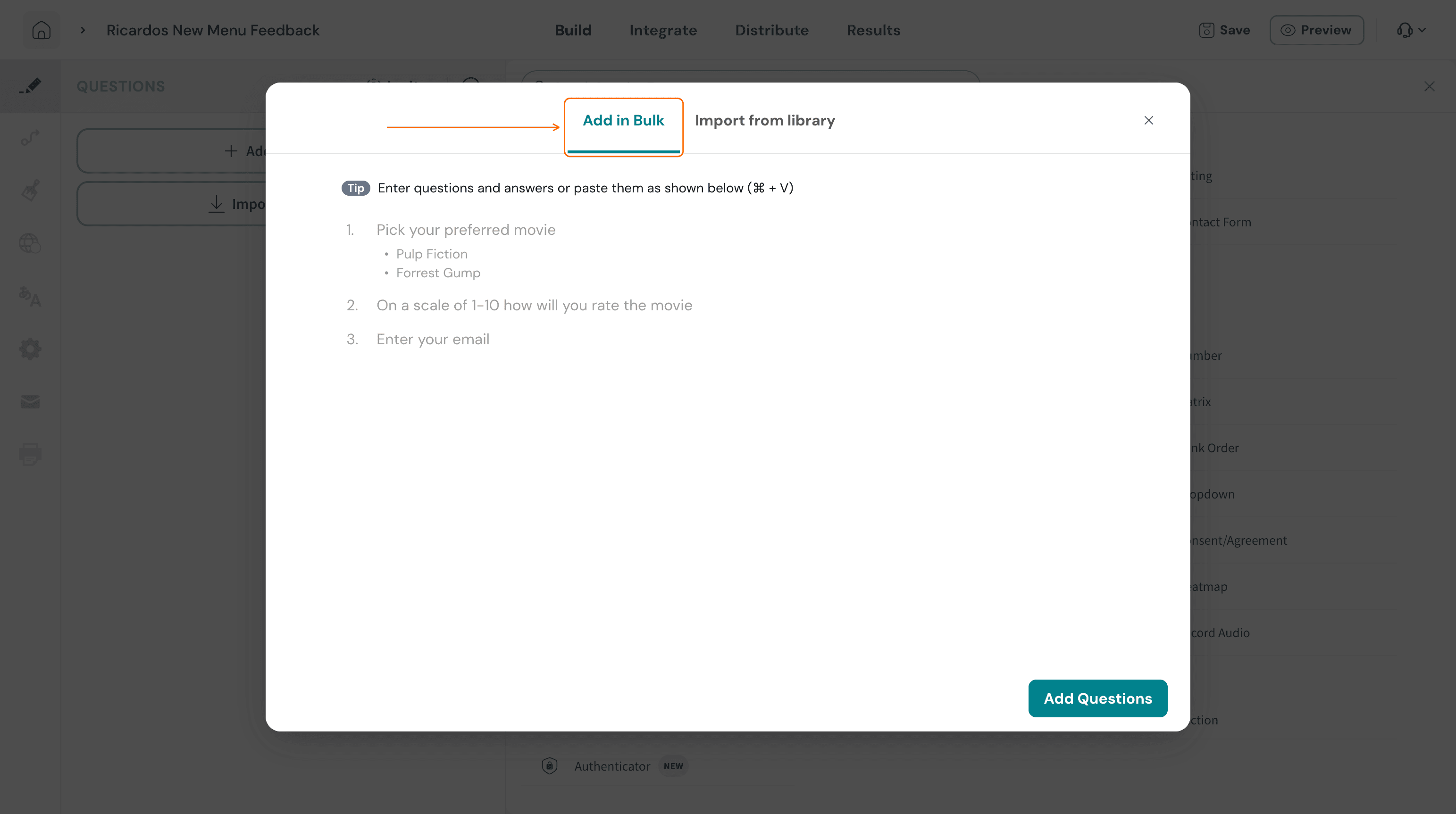
- Click in the empty box and paste your questions with ⌘ + V (Ctrl + V on Windows), or type them in. Each question gets a number, and the lines beneath it appear as bulleted choices.
- Set a type for each question. Hover over the red plus icon next to a question number, then click the small arrow that appears to its left. From the Change Types list, pick a type, such as Opinion Scale. Repeat for every question that still shows a red plus icon.
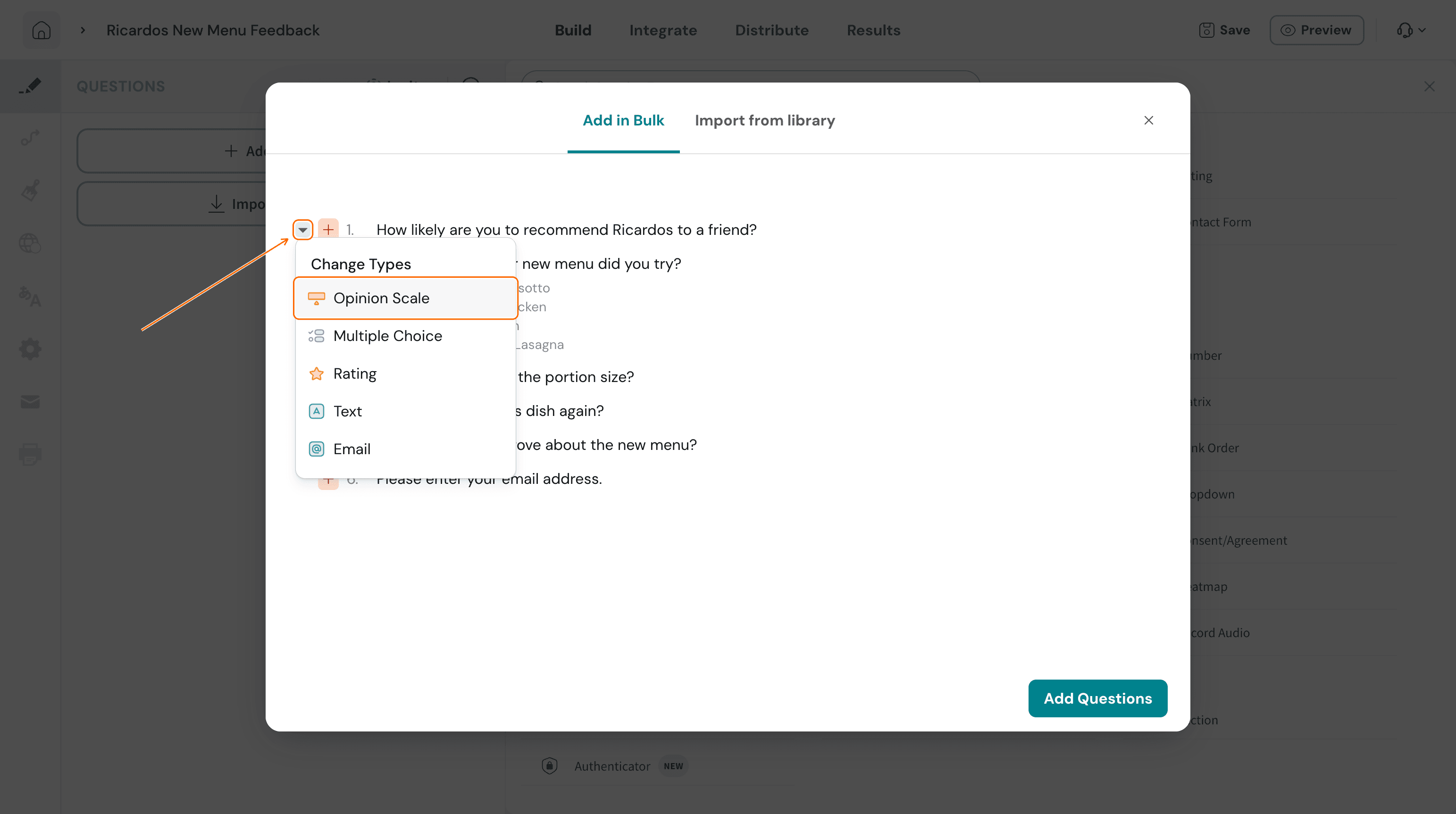
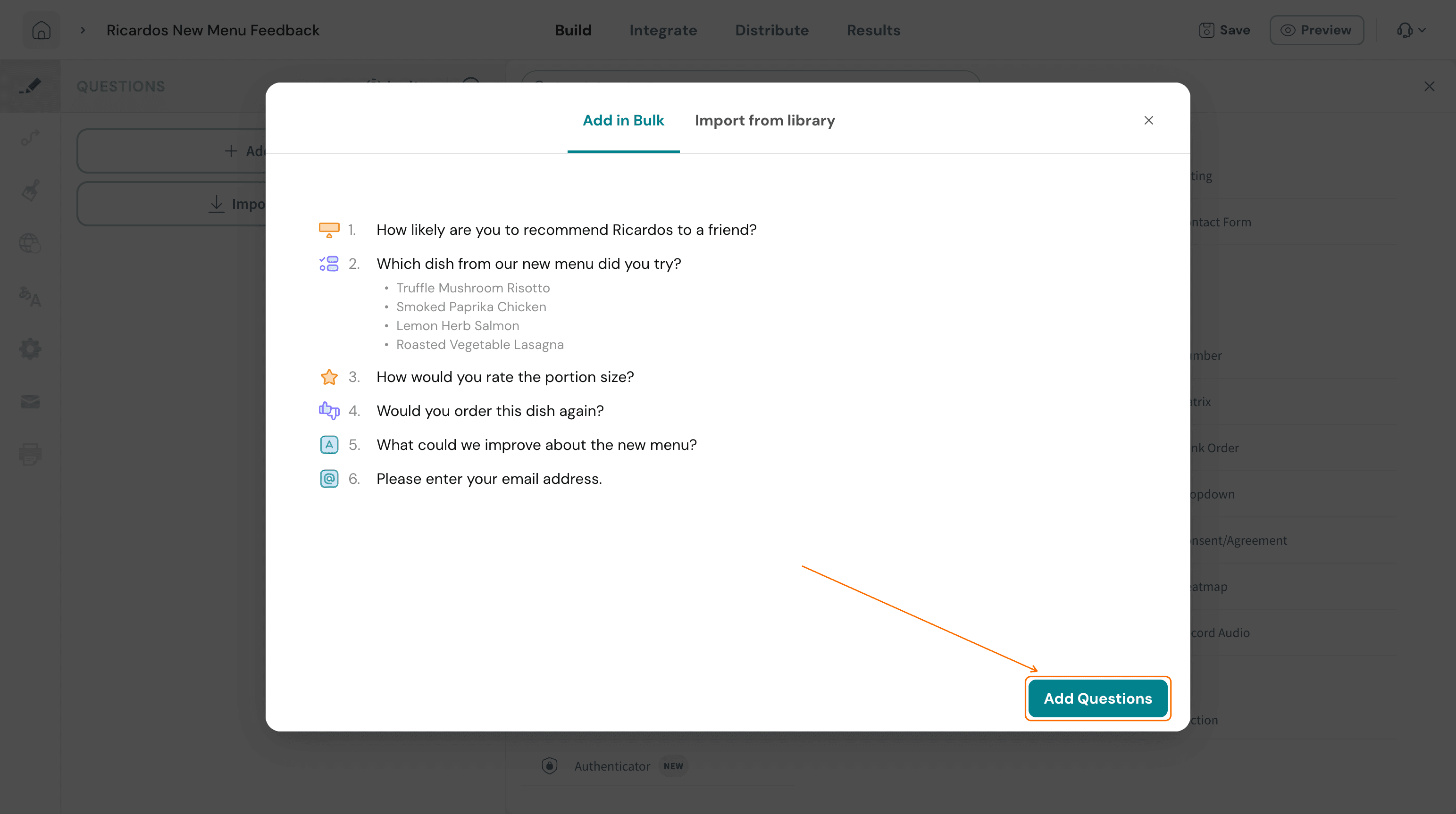
For a question with choices beneath it, pick a choice type such as Multiple Choice. The full list of types is in the FAQ below. - Check that every question shows its type icon, then click Add Questions.
Troubleshooting
All my questions landed in one question, and the rest became answer choices. There is no blank line between your questions. Every line directly under a question is read as one of its choices. Add a blank line before each new question and paste again.
Each answer choice became a separate question. You probably pasted into a box that already had text in it. Clear the box completely, then paste the whole list again. Also check there is no blank line between a question and its choices.
A question still shows a red plus icon. That question has no type yet. Hover over the icon, click the small arrow beside it, and choose a type from the list.
My images, bold text or tables did not come across. Bulk add takes plain text only. Add images and other media to each question in the builder after the questions are added.
I have more than 200 questions. You can add up to 200 questions at a time. Split a longer list into batches and add each batch separately.
I can't find Import from library. That button appears only while the survey has no questions. Once a survey has questions, use the arrow beside Add a question and choose Bulk Import.
FAQ
Can I add questions in bulk to a survey that already has questions?
Yes. Click the arrow beside Add a question and choose Bulk Import. The same dialog opens on the Add in Bulk tab, and the questions you add join your survey.
Which question types can I add in bulk?
The Change Types list offers these types:
Type | Type | Type |
|---|---|---|
Opinion Scale | Multiple Choice | Rating |
Text | Phone Number | |
Yes or No | Number | Slider |
Rank Order | Date | Dropdown |
Photo Capture | Upload | Website |
Signature | Record Audio | - |
For any other type, such as Matrix, add the question with Add a question after your bulk questions are in.
How many questions can I add at once?
Up to 200 questions at a time.
Can I edit the questions after adding them?
Yes. Bulk-added questions are ordinary questions. Select one in the left panel to change its text, choices, settings or logic.
Related articles
- Question Library: reuse saved questions from the Import from library tab of the same dialog.
- Create surveys using AI: generate a draft survey from a short description.
- Collaboration in building surveys: invite teammates to review and edit questions with you.
Please reach out to us if you have any questions. We're just a chat away!