
Echo Agents: Understanding Conversations

Now, we can monitor the Echo Agent’s performance after publishing to see how it does and identify areas for improvement.
Conversations
Overview
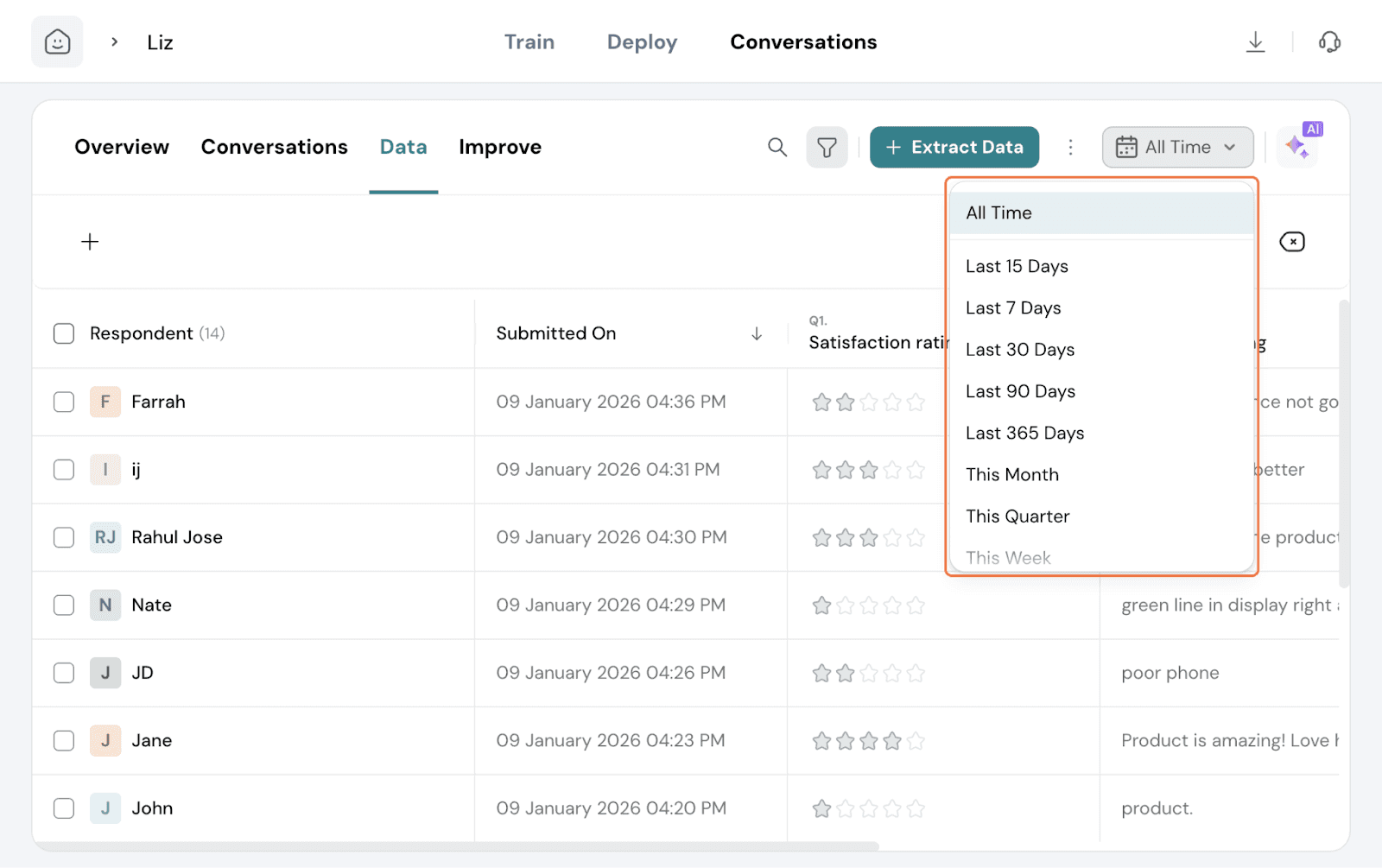
The Overview dashboard gives you a complete view of customer conversations, the insights Echo uncovered, and the actions taken to close the feedback loop. It helps you understand customer sentiment, monitor engagement, identify recurring issues, and measure how effectively Echo is resolving customer concerns.
CX Metrics
The CX Metrics section displays the customer experience metrics measured by your agent, such as NPS, CSAT, or CES, along with the question used to collect each metric.
For every metric, you can view how customers are distributed across its categories. For example, for NPS, customers are grouped into Promoters, Passives, and Detractors. Selecting any category lets you explore the customer comments and the complete conversations that contributed to that classification, helping you understand the reasons behind each score.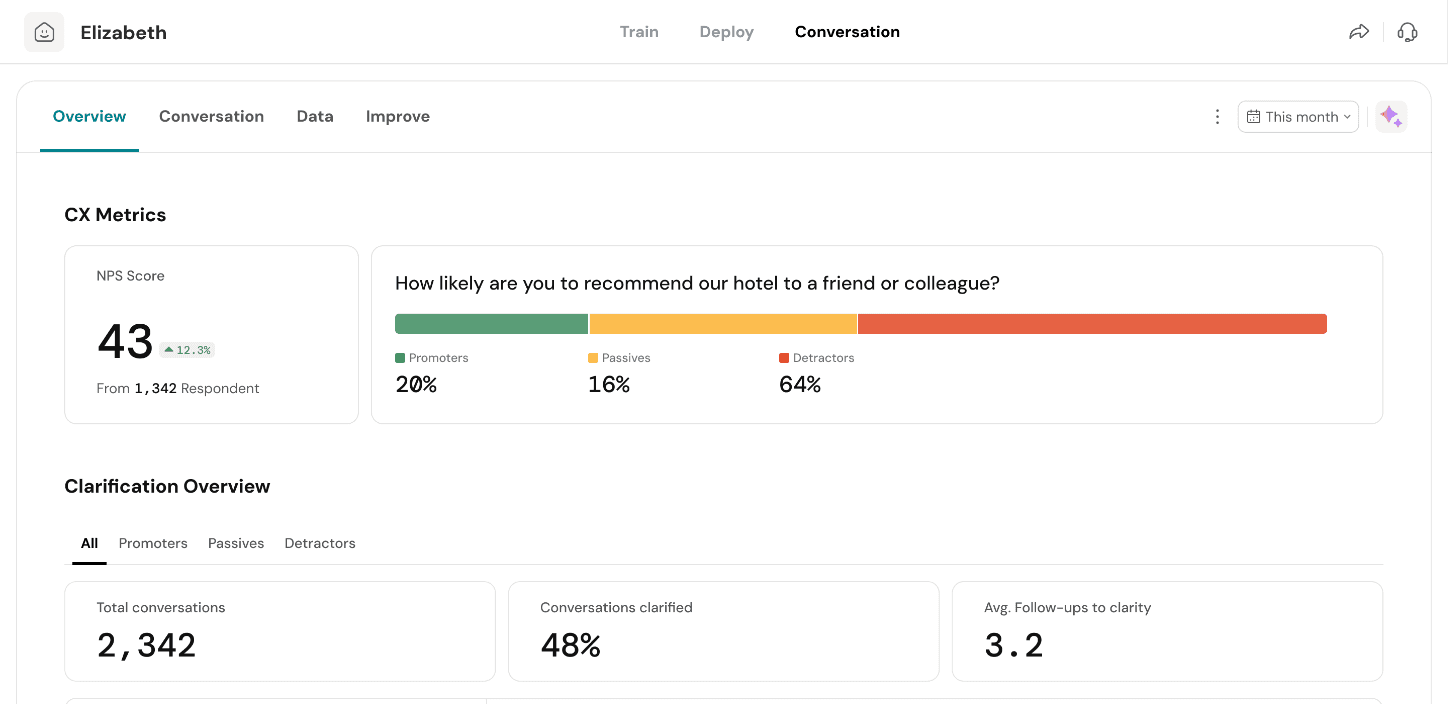
Conversation Insights
The Conversation Insights section provides an overview of how customers are engaging with your agent.
It includes:
- Total Conversations – The total number of conversations handled by Echo during the selected time period.
- Conversations Clarified – The percentage of conversations where Echo asked follow-up questions to gather deeper context beyond the initial response.
- Average Follow-ups to Clarify – The average number of follow-up questions Echo asked in each conversation to better understand customer feedback.

Topics Clarified
The Topics Clarified section shows the most common topics Echo uncovered while interacting with customers.
Each topic can be expanded to view subtopics, giving you a more detailed understanding of the specific issues customers raised. For example, a topic such as Delivery may include subtopics like Late Delivery, Damaged Package, or Lack of Delivery Updates.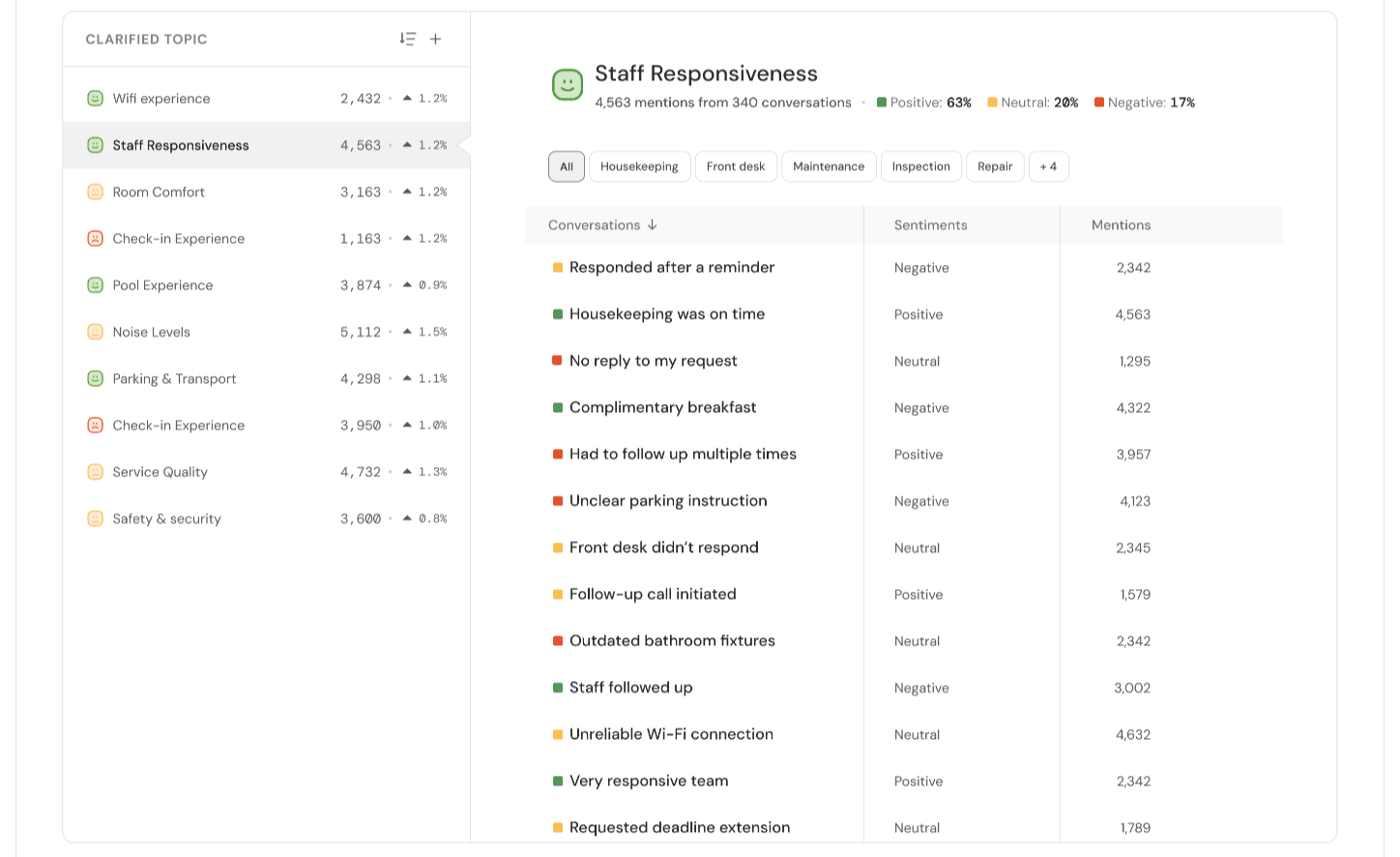
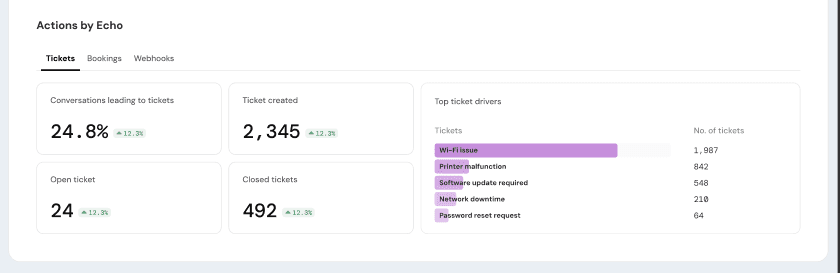
The Actions by Echo section provides visibility into the actions Echo performed during customer conversations to help close the feedback loop.
This section includes:
- Tickets Raised – Displays the number of support tickets Echo created automatically during conversations. You can review the tickets raised and the conversations that triggered them.
- Bookings Created – Shows the appointments or meetings scheduled by Echo, along with the conversations where the bookings were made.
- Webhooks Triggered – Displays the custom workflows Echo initiated by calling external APIs or connected systems. This helps you track automations such as updating CRM records, notifying internal systems, or triggering downstream business processes.
Conversations
Under this tab, you’ll find the detailed view of all conversations users had with the agent. You can read through the conversation if you prefer.
A summary is presented on the right side with pertinent information like the overall sentiment, channel of conversation, duration of the conversation, date, time, location, and the contact information.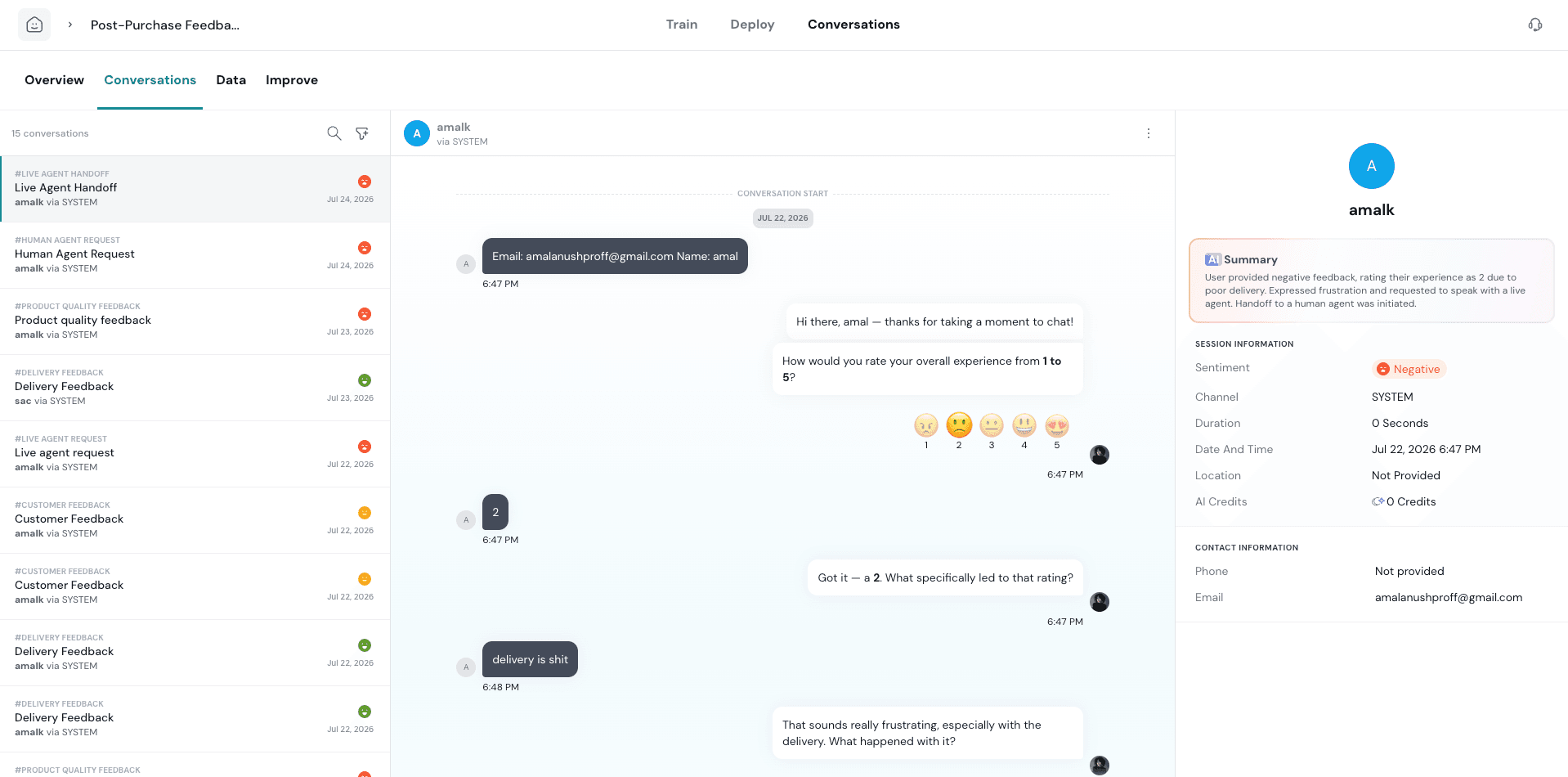
In this tab, you can extract data from all conversations had with the agent.
Click on Extract Data.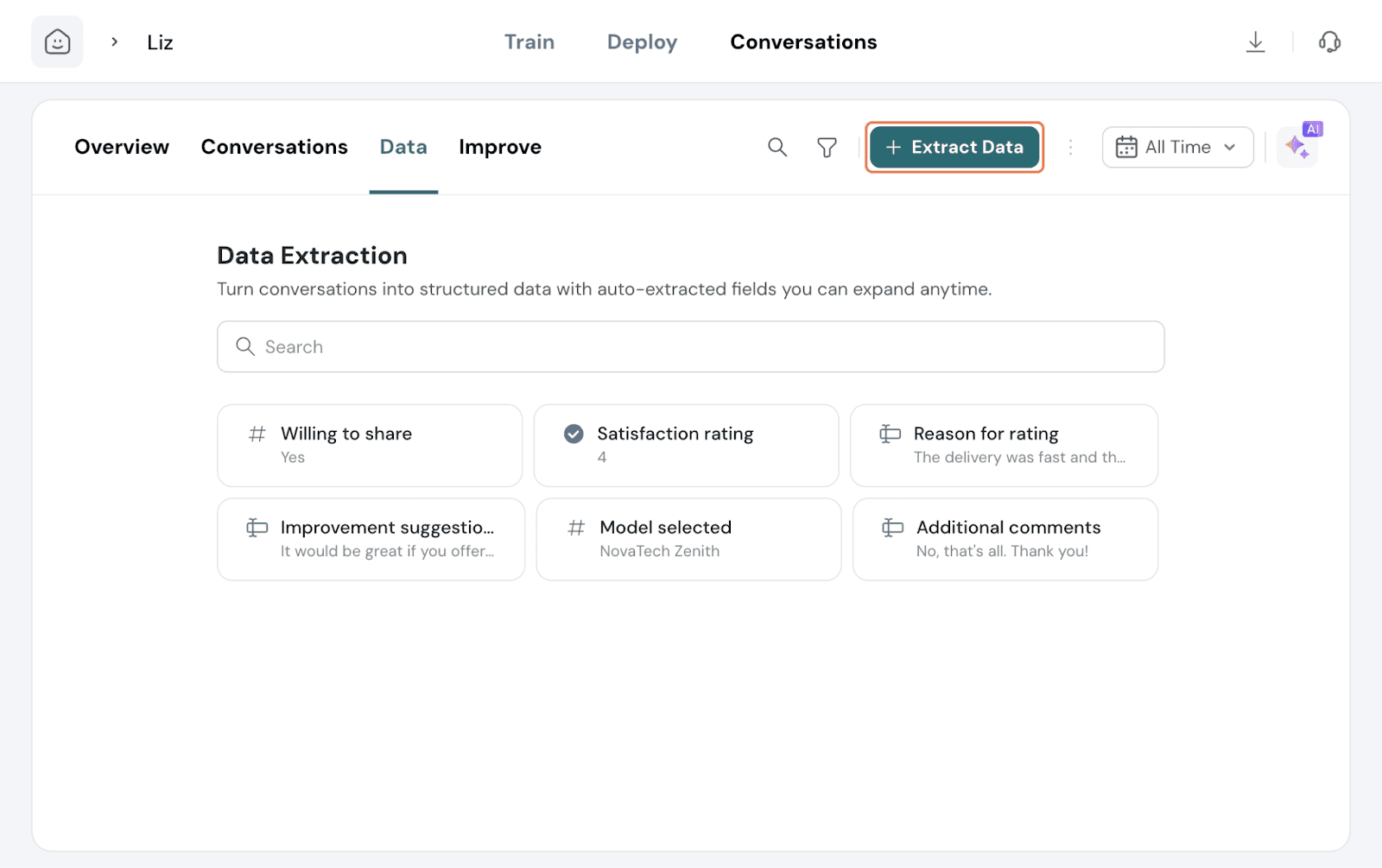
Once done, it will auto-populate fields by extracting data from future conversations as well.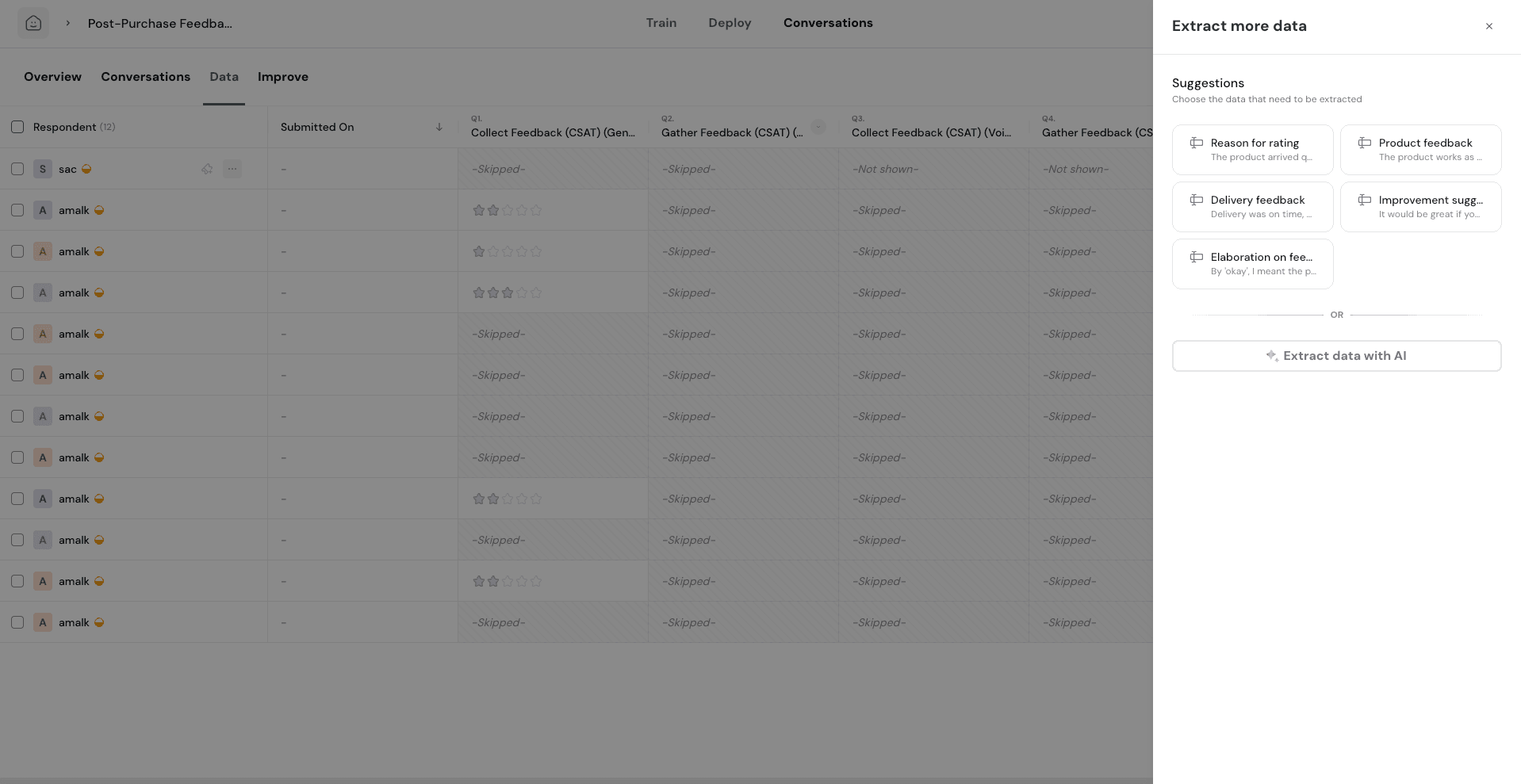
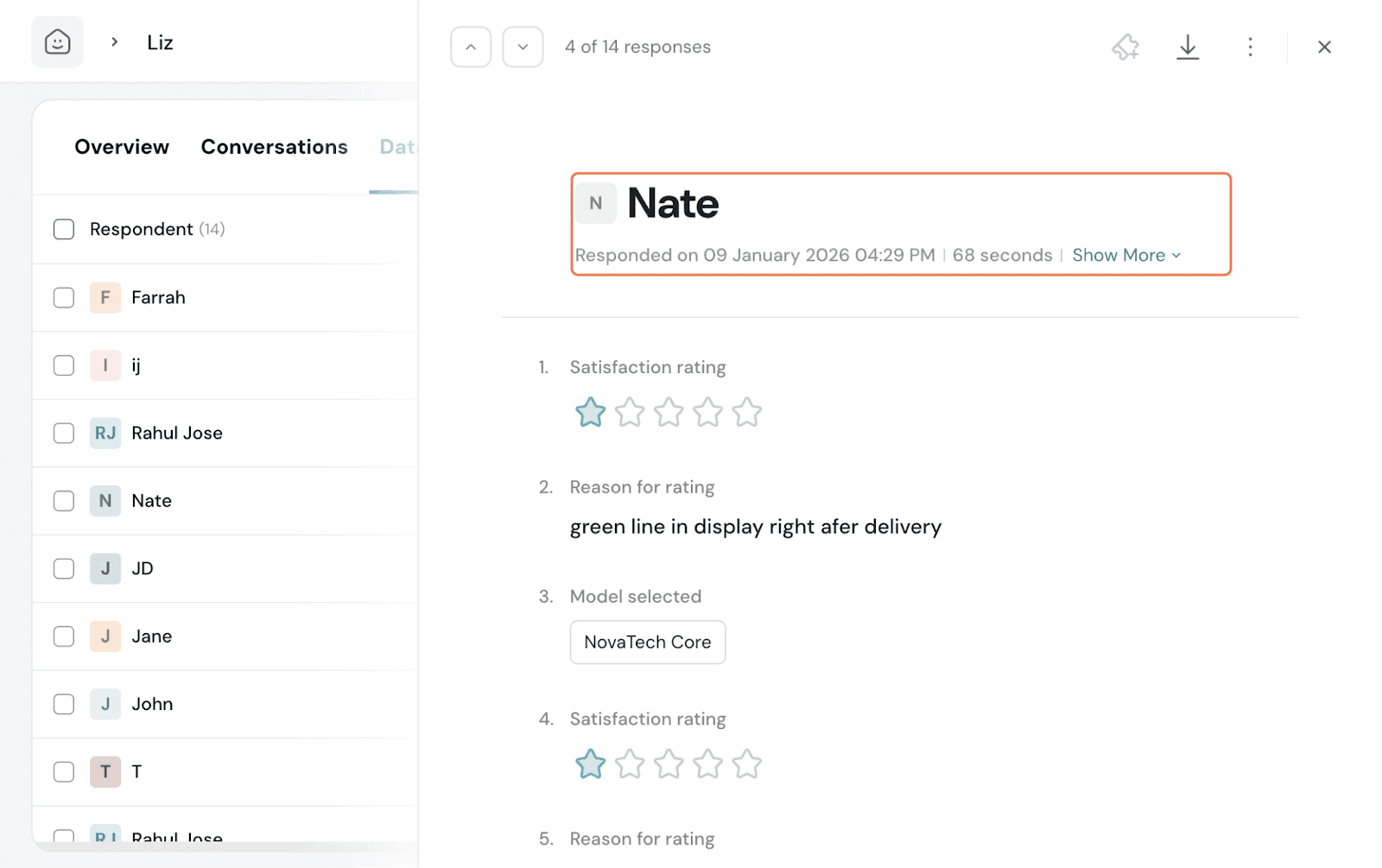
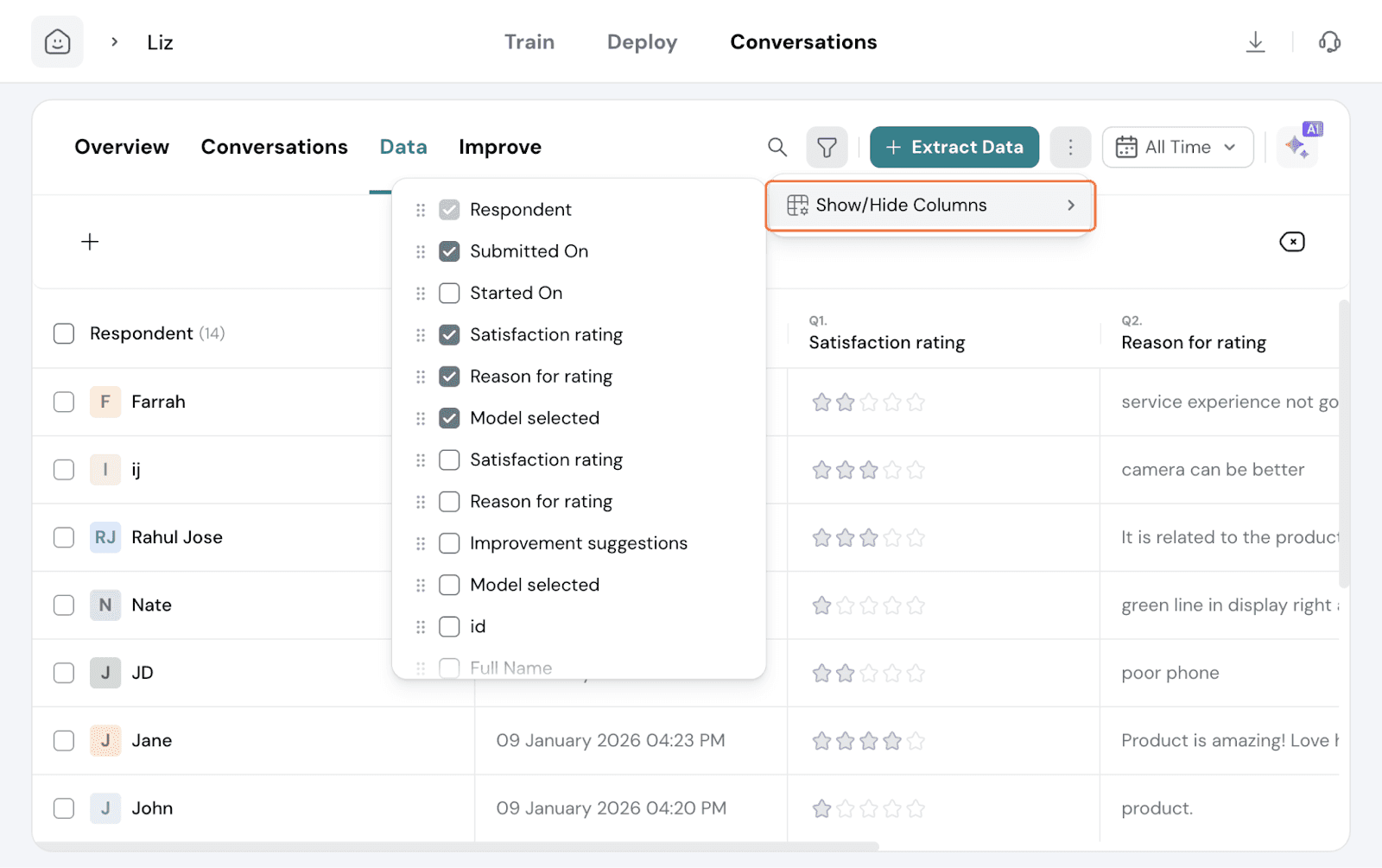
If you click the toggle on a column header, you get the options to Group by, Pin, Move the column left or right, and insert a new column.
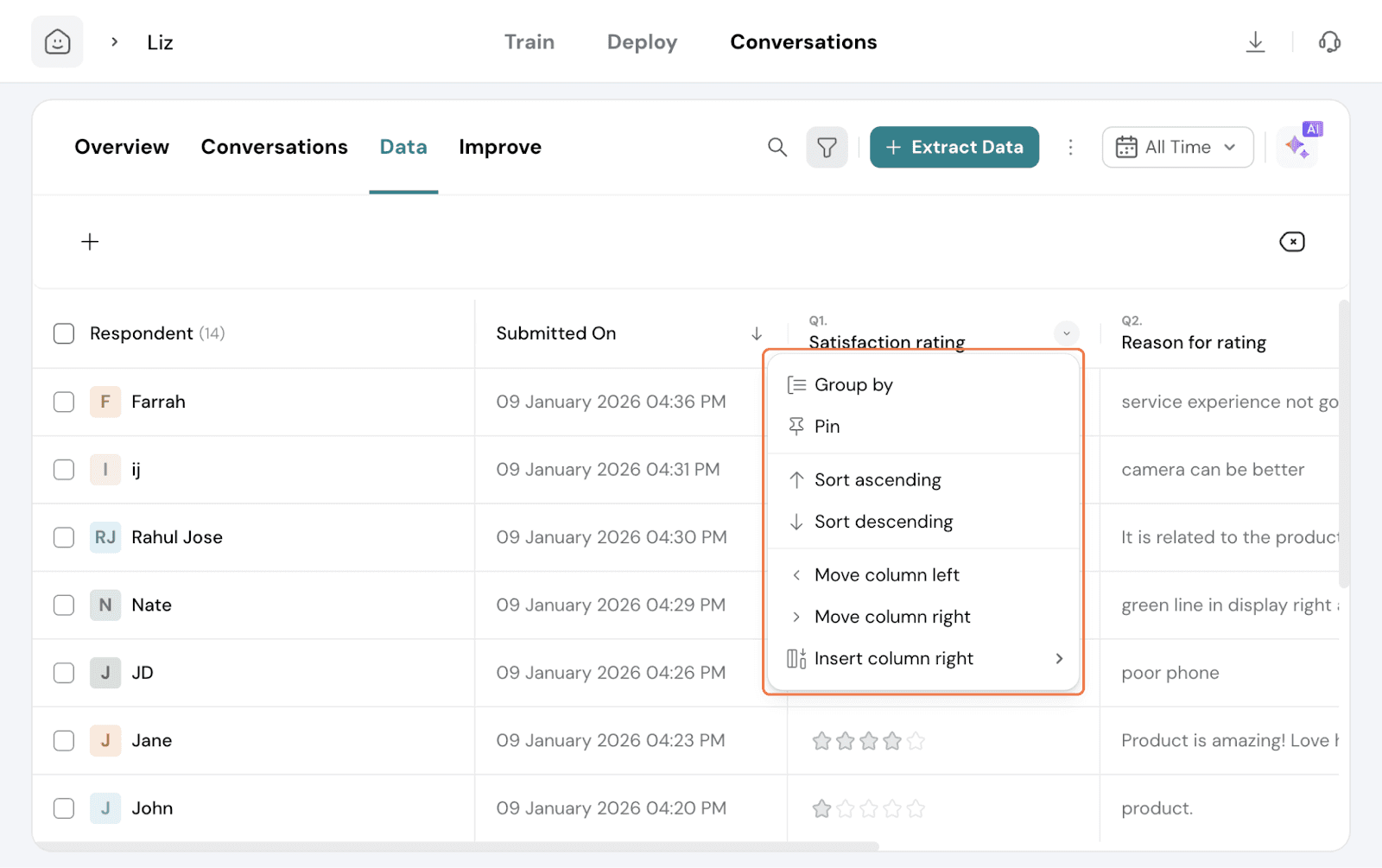
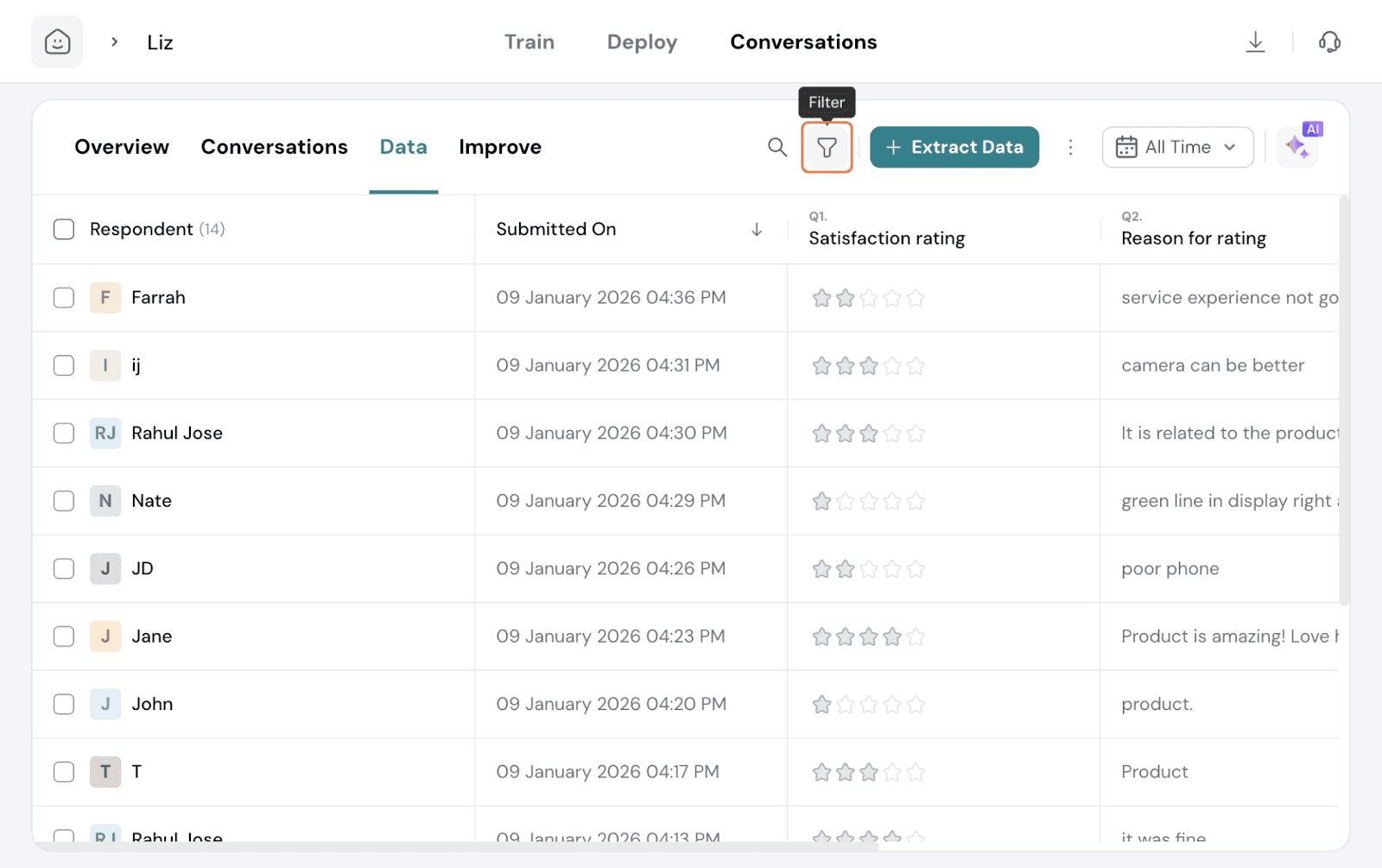
Filters are available to use and filter data accordingly. Click on the Filter icon and set up your filters.
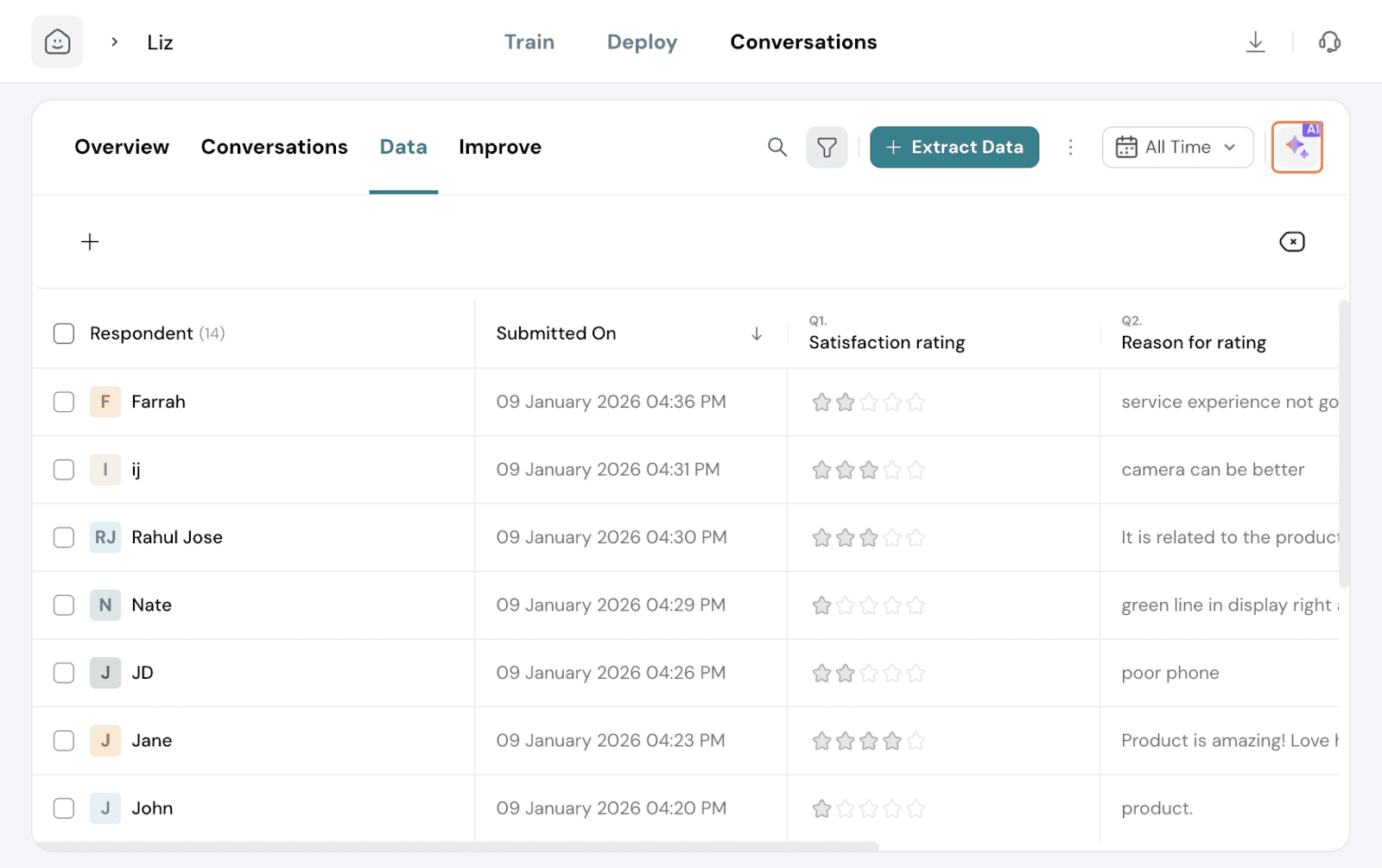
This tab displays the common issues encountered by your agent due to gaps in the knowledge base set up. It would list areas or specific topics that users enquired about, but the agent was unable to process the request correctly.
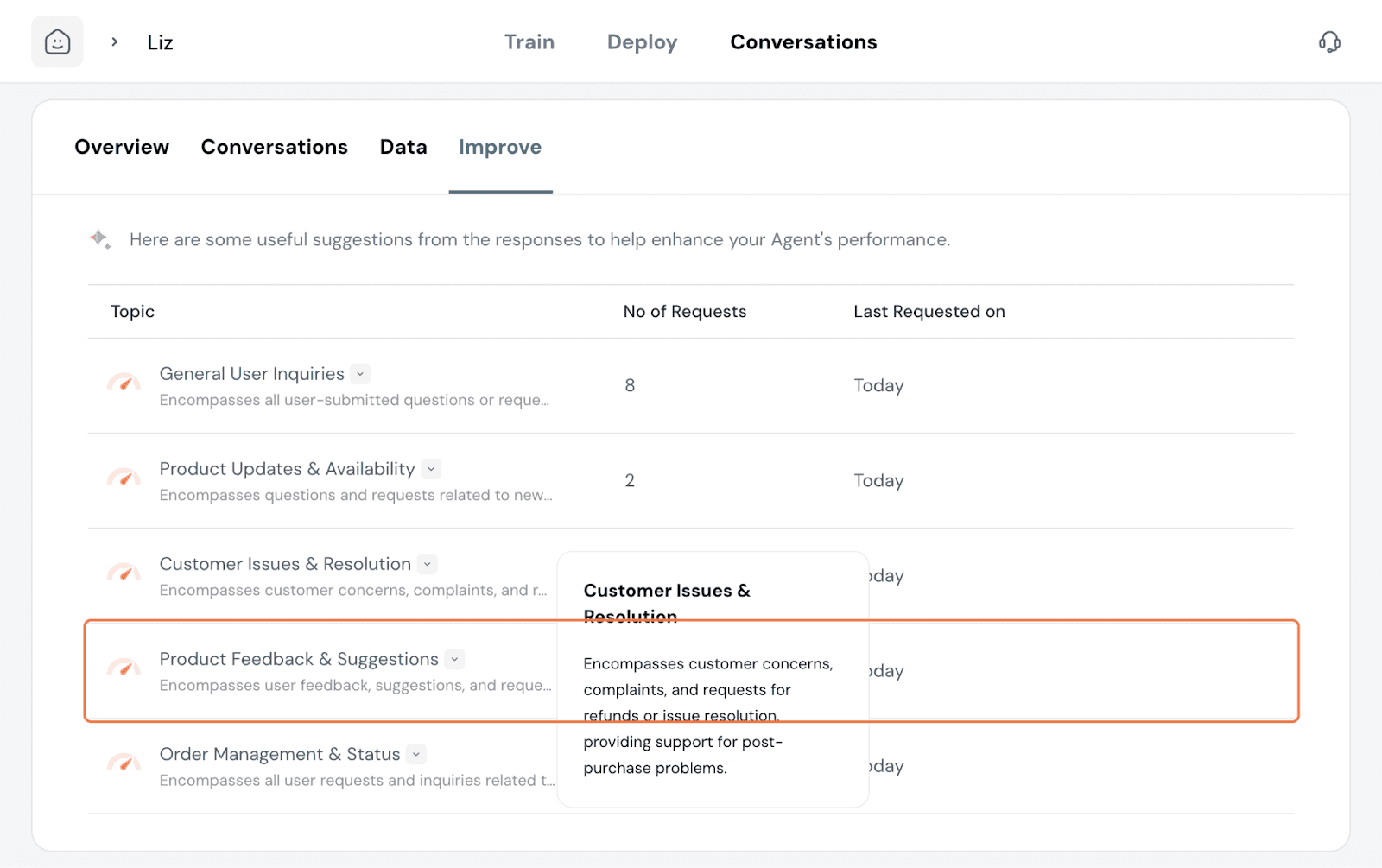
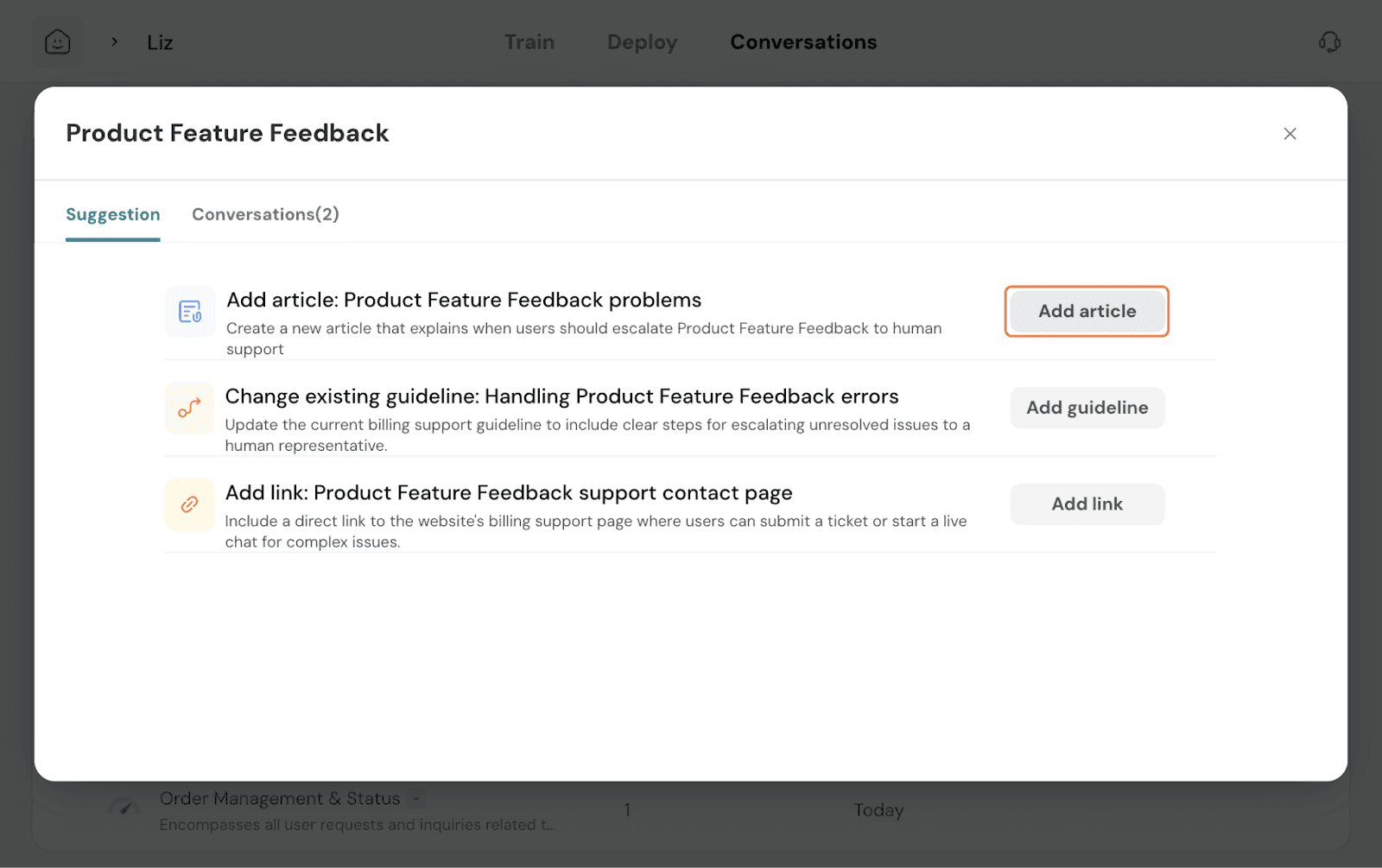
Here, you can see that users asked human agents to answer queries on Product. When clicking on Fix this, you get suggestions on what actions need to be taken to fix the gap.
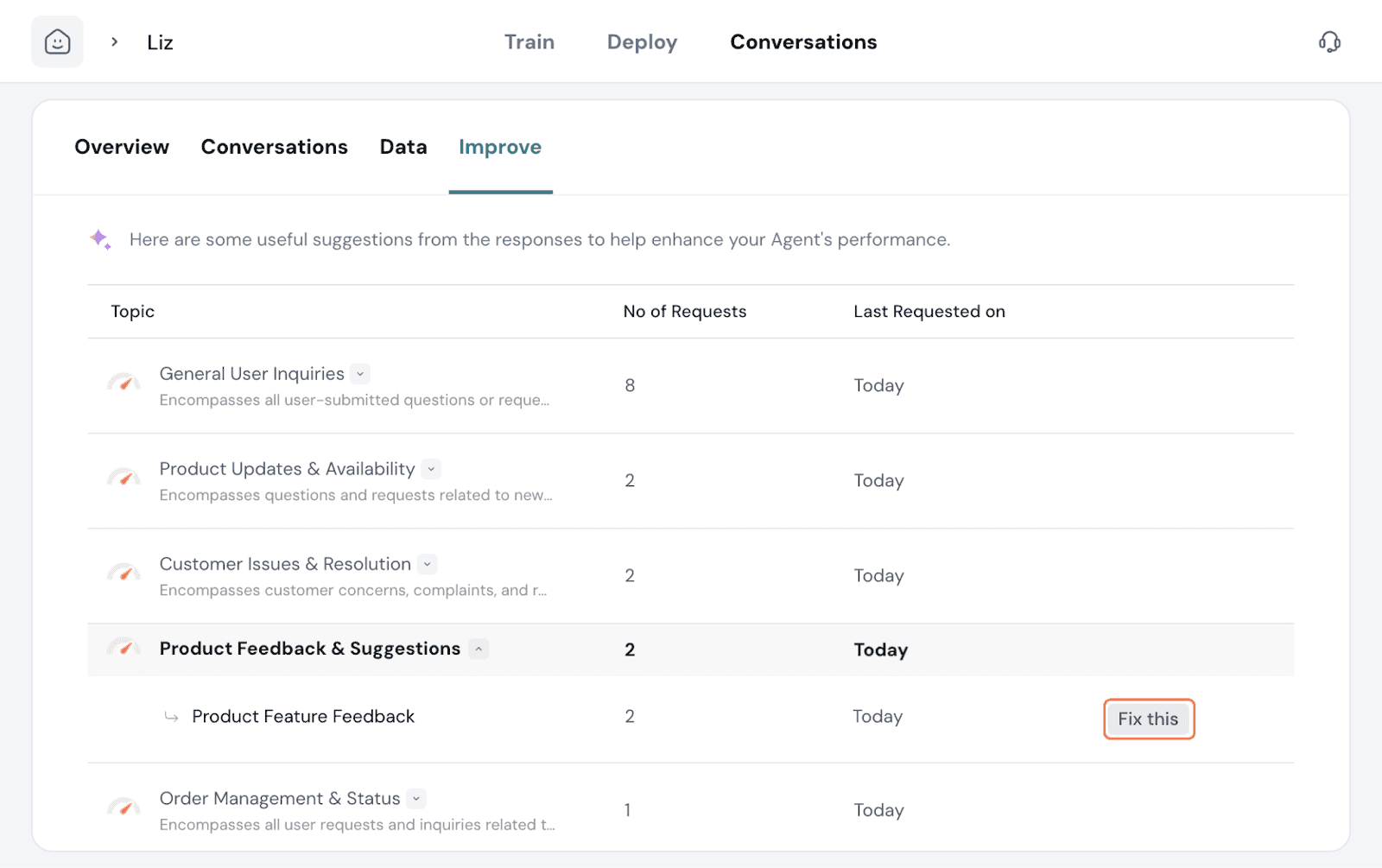
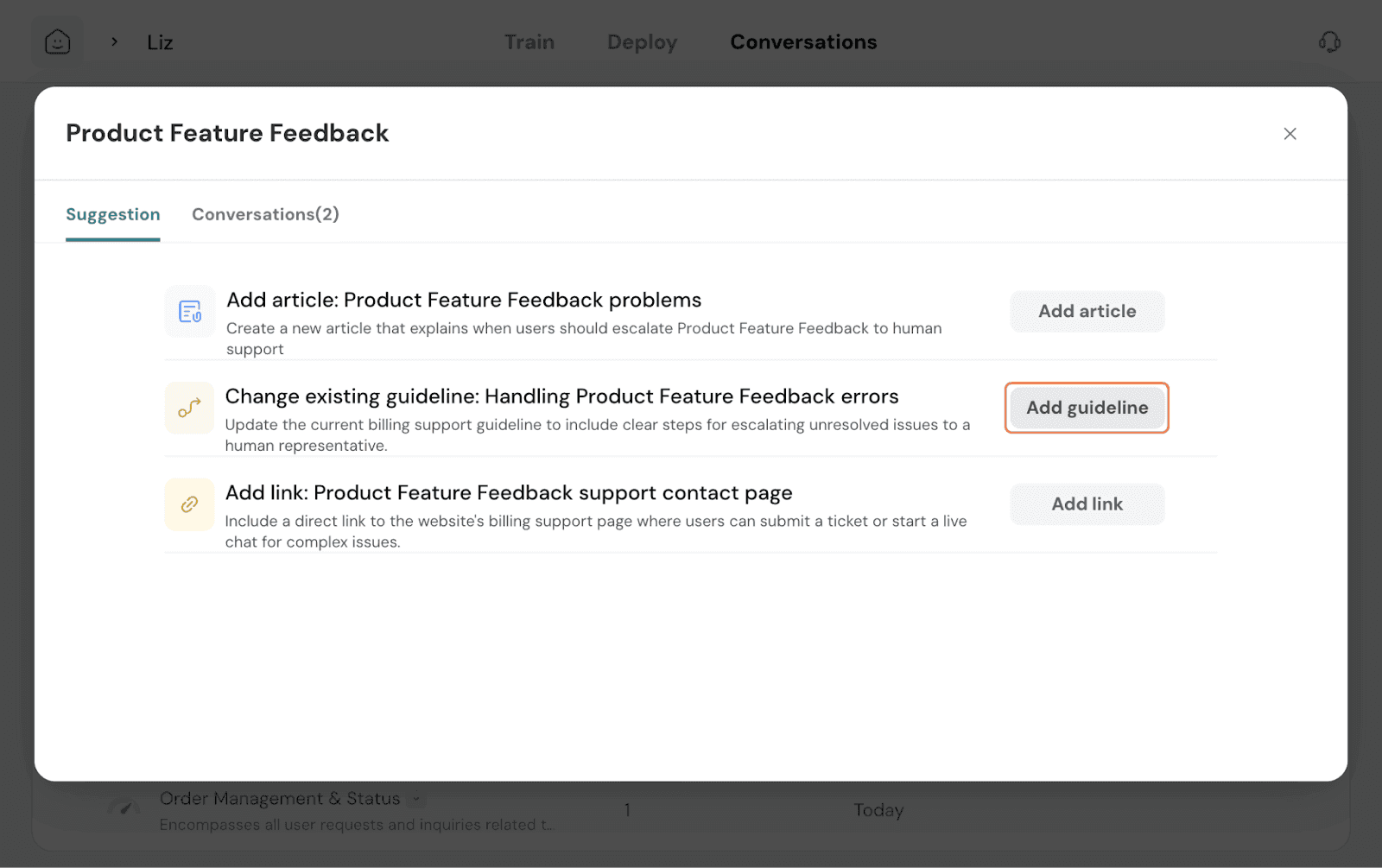
Under to answer, you get the suggested actions to take.
In some cases, the existing guideline is vague on what course of action to take. So amending and clarifying the guideline with precise instructions would rectify the issue. Click on Add guideline.
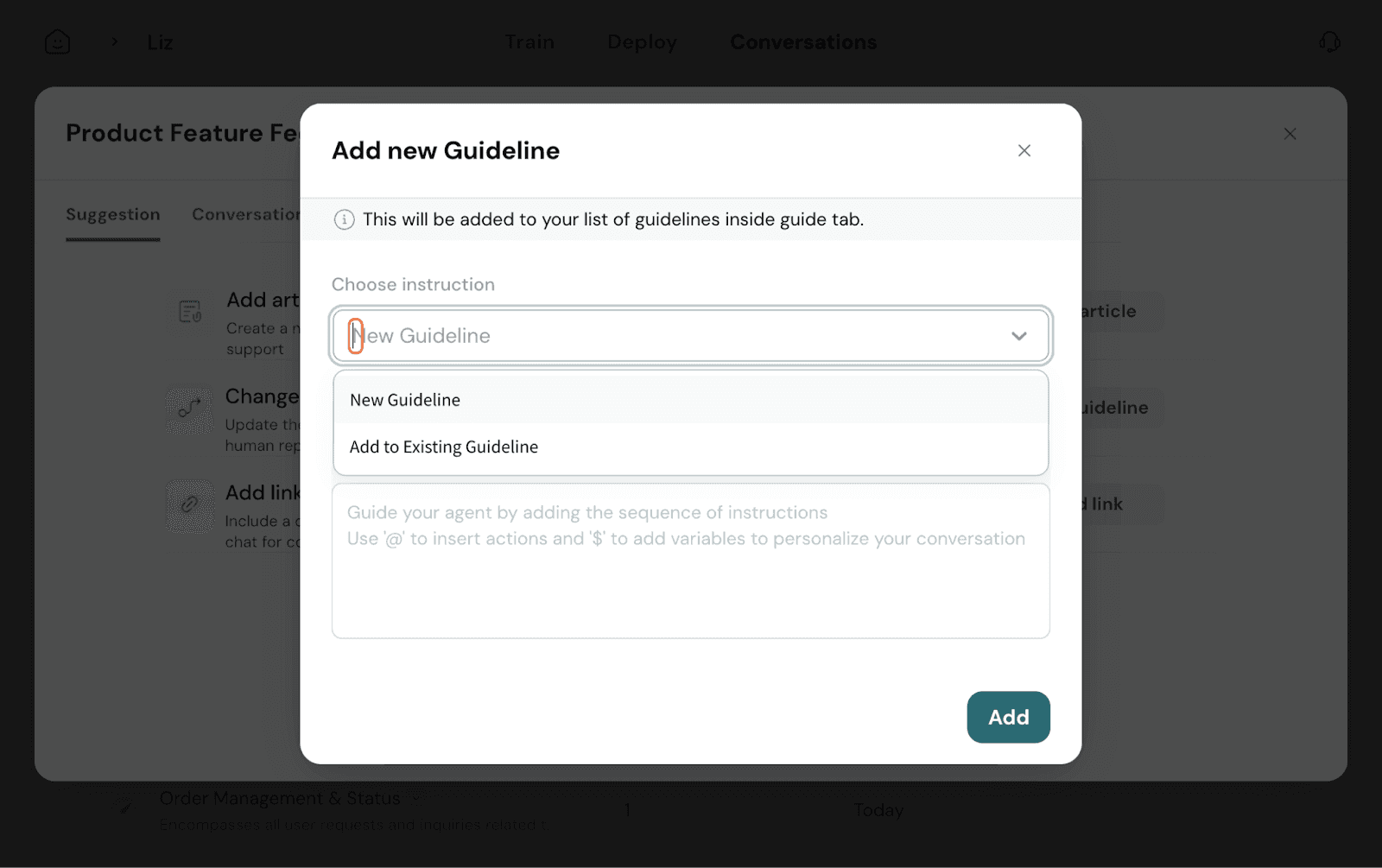
Set the trigger for the guideline. Write out the guideline and use actions and variables if needed. Once done, click Add.
In some other cases, it would be a true knowledge gap with people asking about topics your agent is not trained on. Once you feed the right material, the agent is retrained and equipped to handle the topics moving forward.
Here, if you click Add article you get to upload the specific documentation. If it’s a missing link, you can amend it as well.
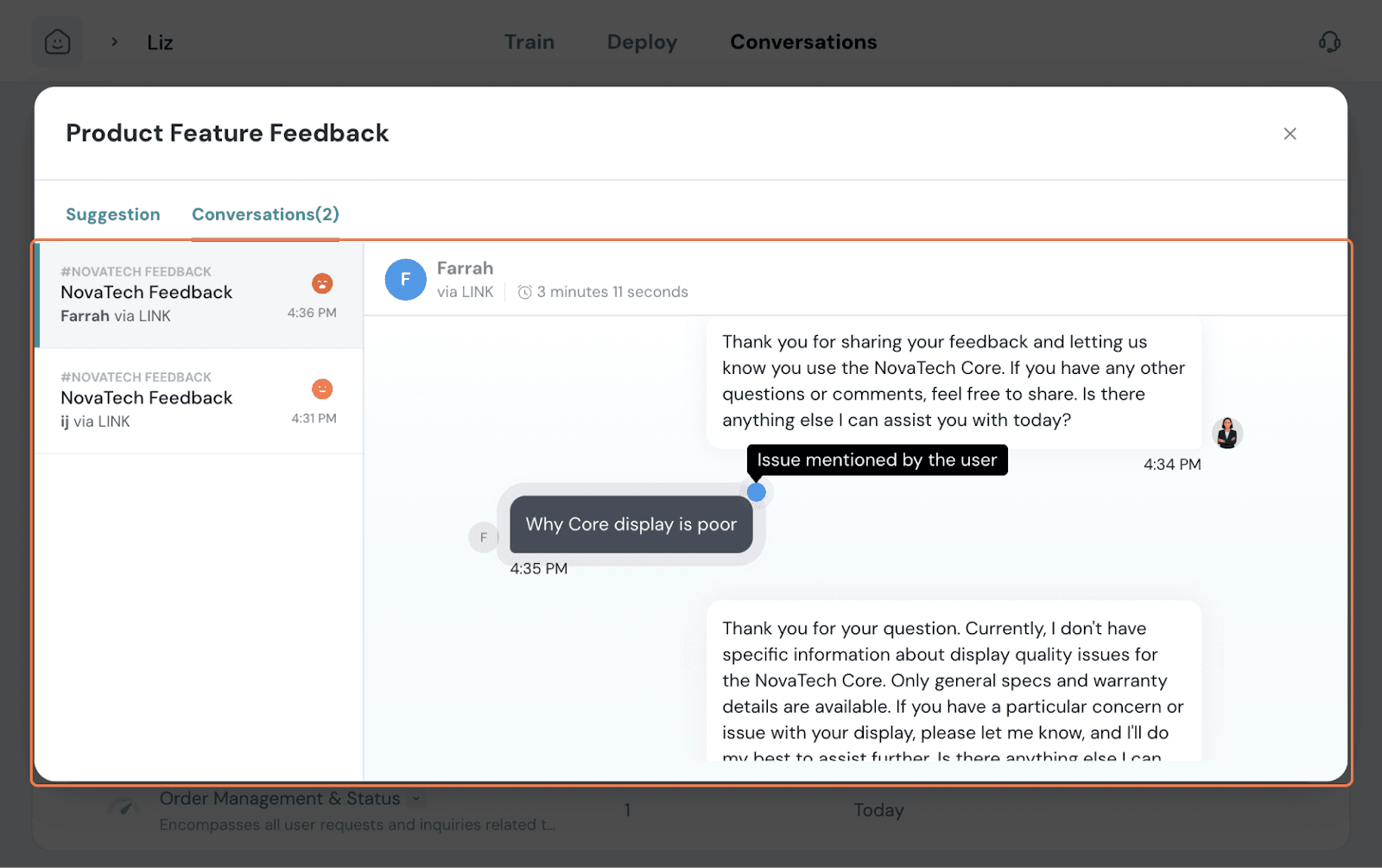
You can identify the causes of the specific issue by examining the conversations where the issue happened. Click on Conversations and read through the chats. This helps you make an effective decision.
And that’s it! This covers creating an Echo Agent end-to-end, from setup, training, deployment, to analytics, and improving its effectiveness.
Feel free to reach out to our community if you have any questions.