
Search

1. Add a Picture or a Multiple choice question type as your survey question. (Assume this to be your question for the poll)
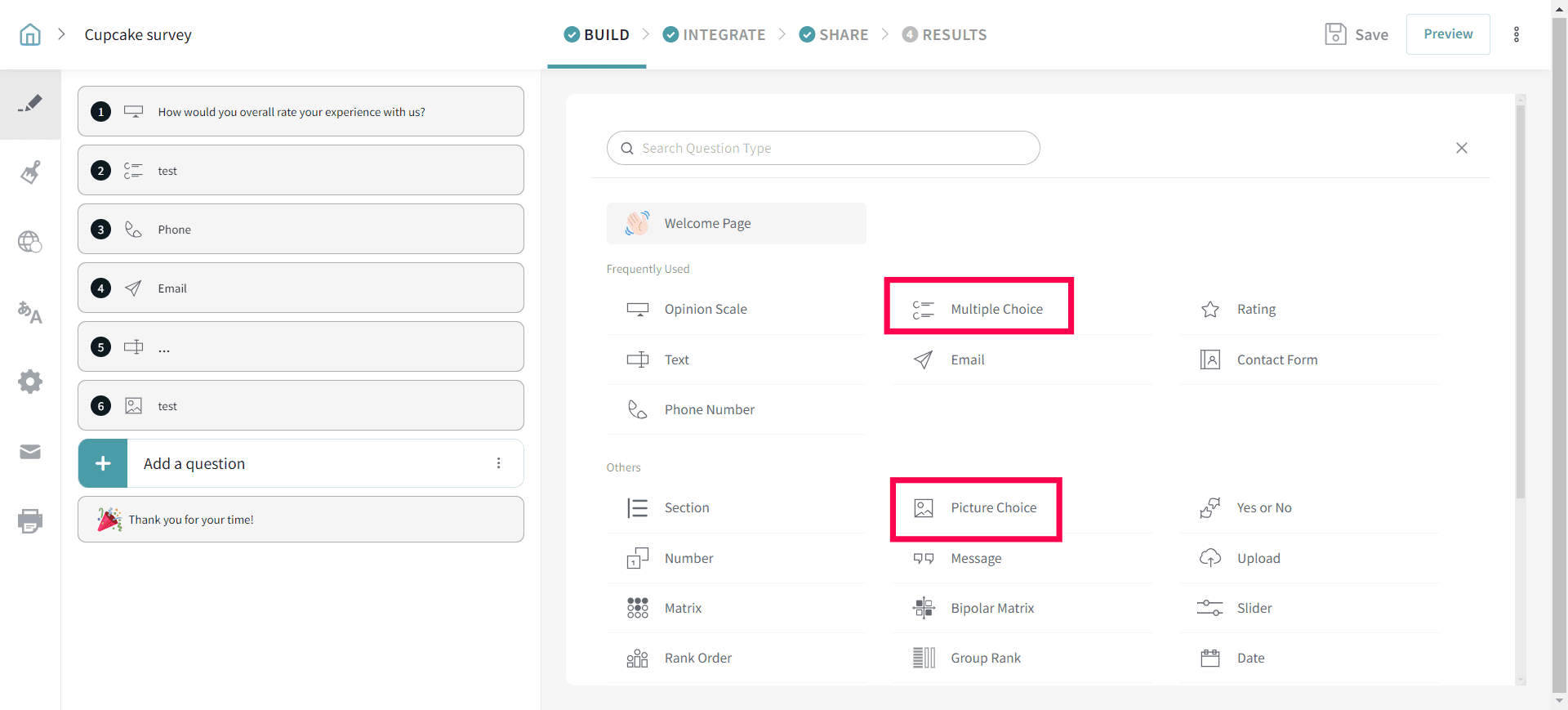
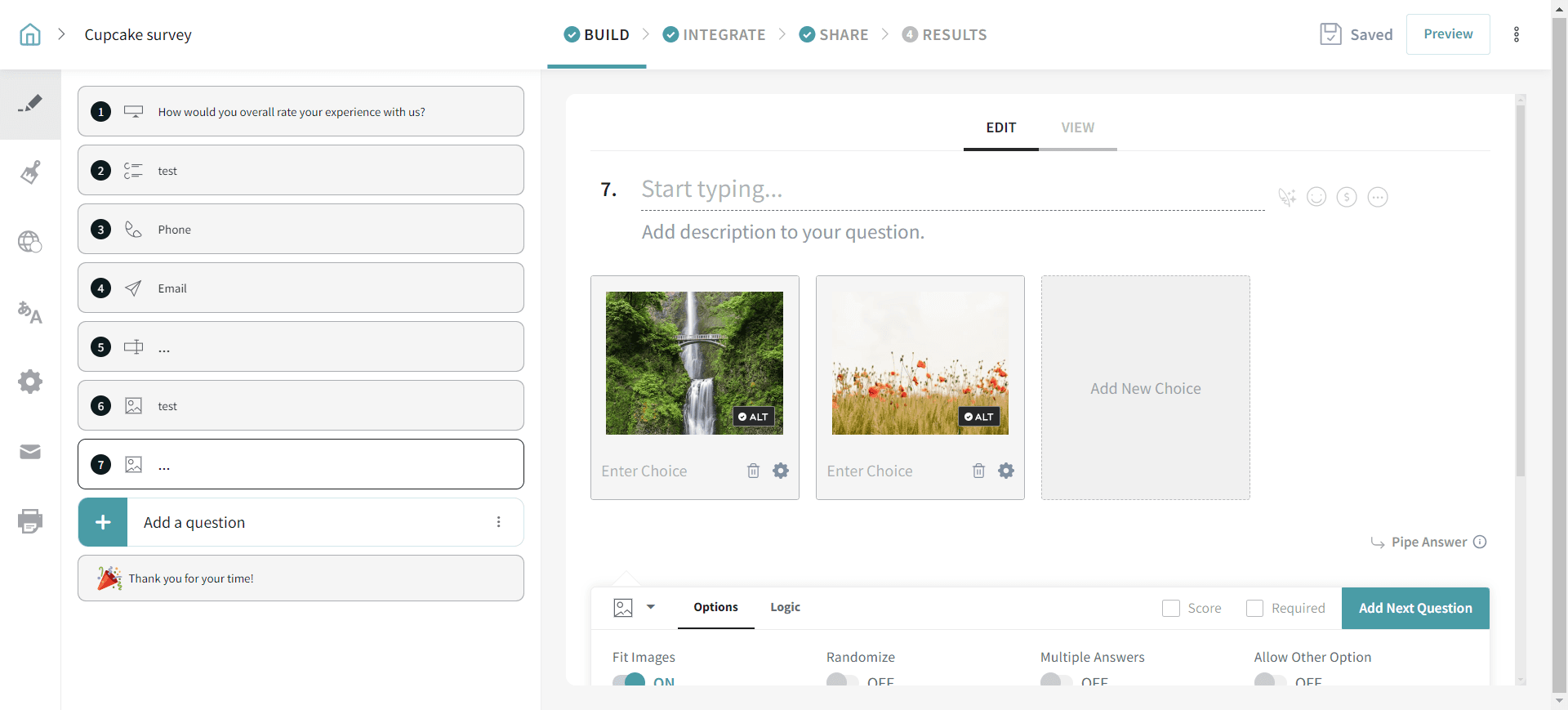
2. In Picture choice, add your question & pictures for your poll.
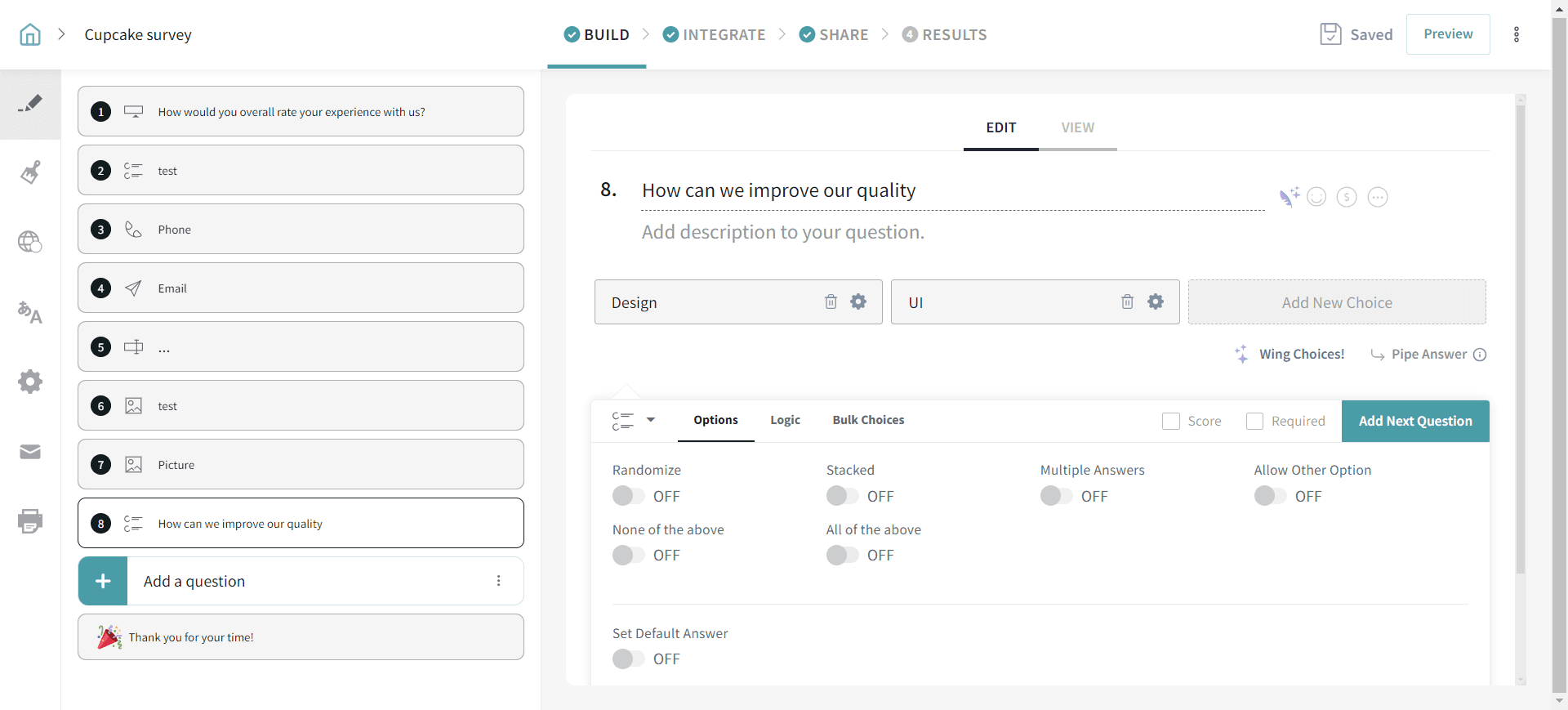
3. In Multiple choice, add a question and different choices for your poll.
4. Share it with your audience and collect the responses.
5. In the Results tab, select + New Custom Report and hide the result pages of other survey questions except for the MCQ question or picture type question (Which you used for the poll question).
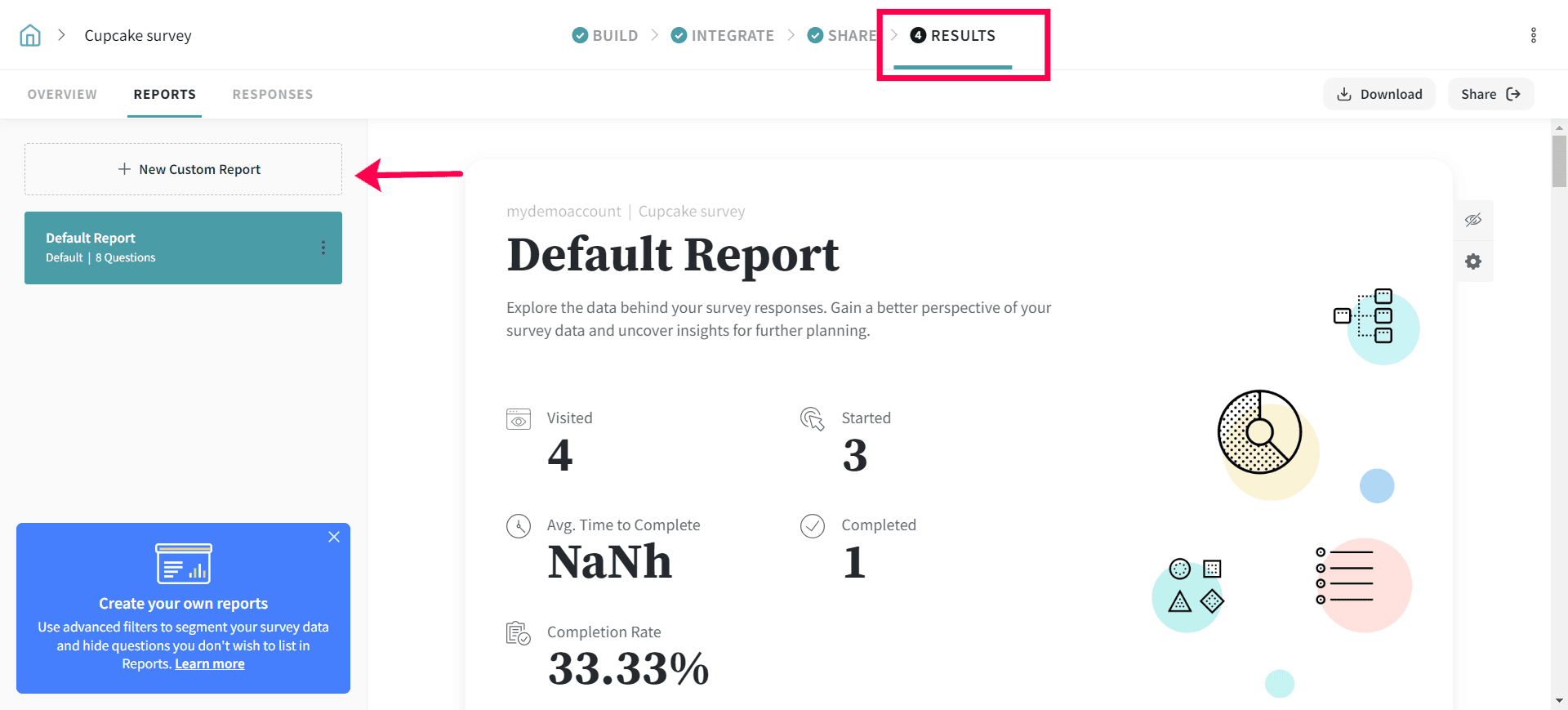
6. You can view the specific poll questions report by hiding the other question.
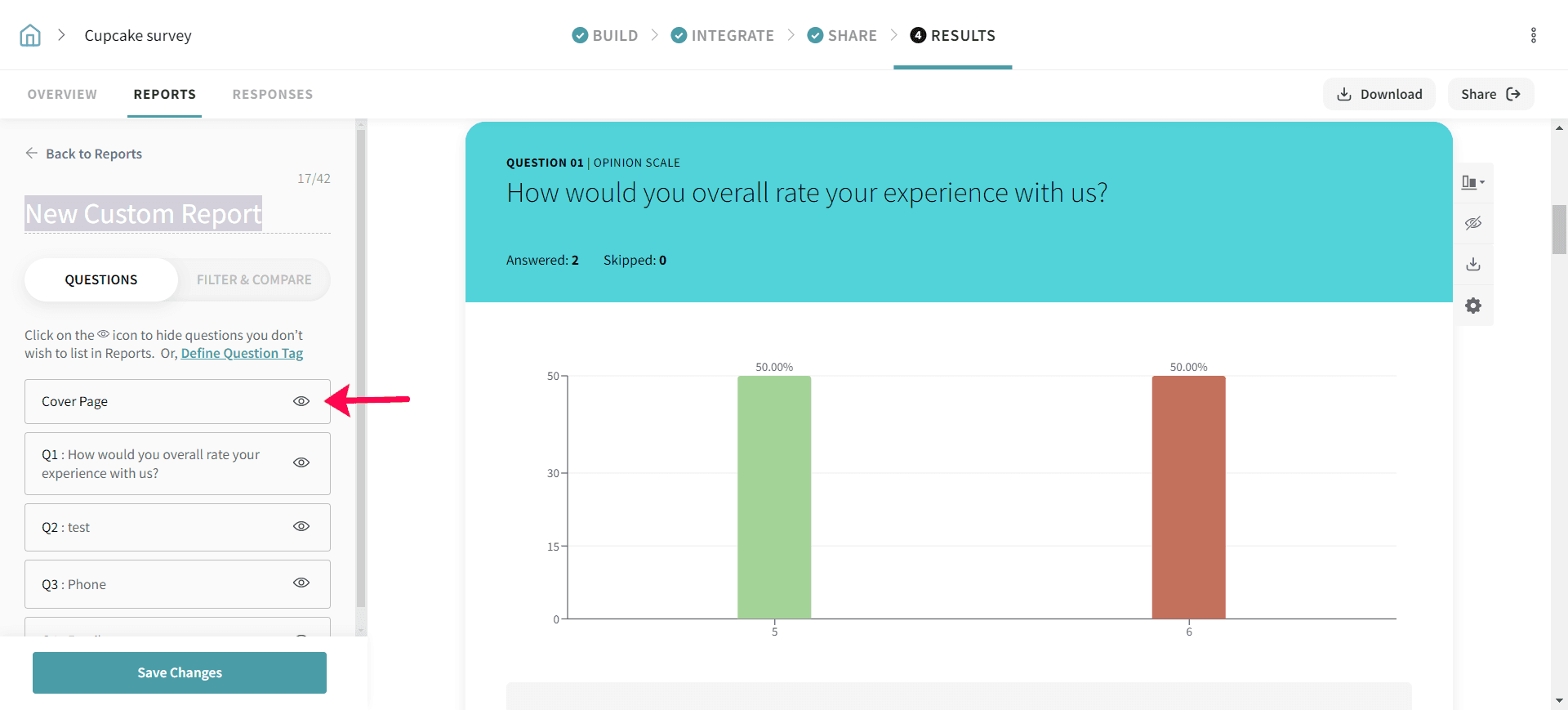
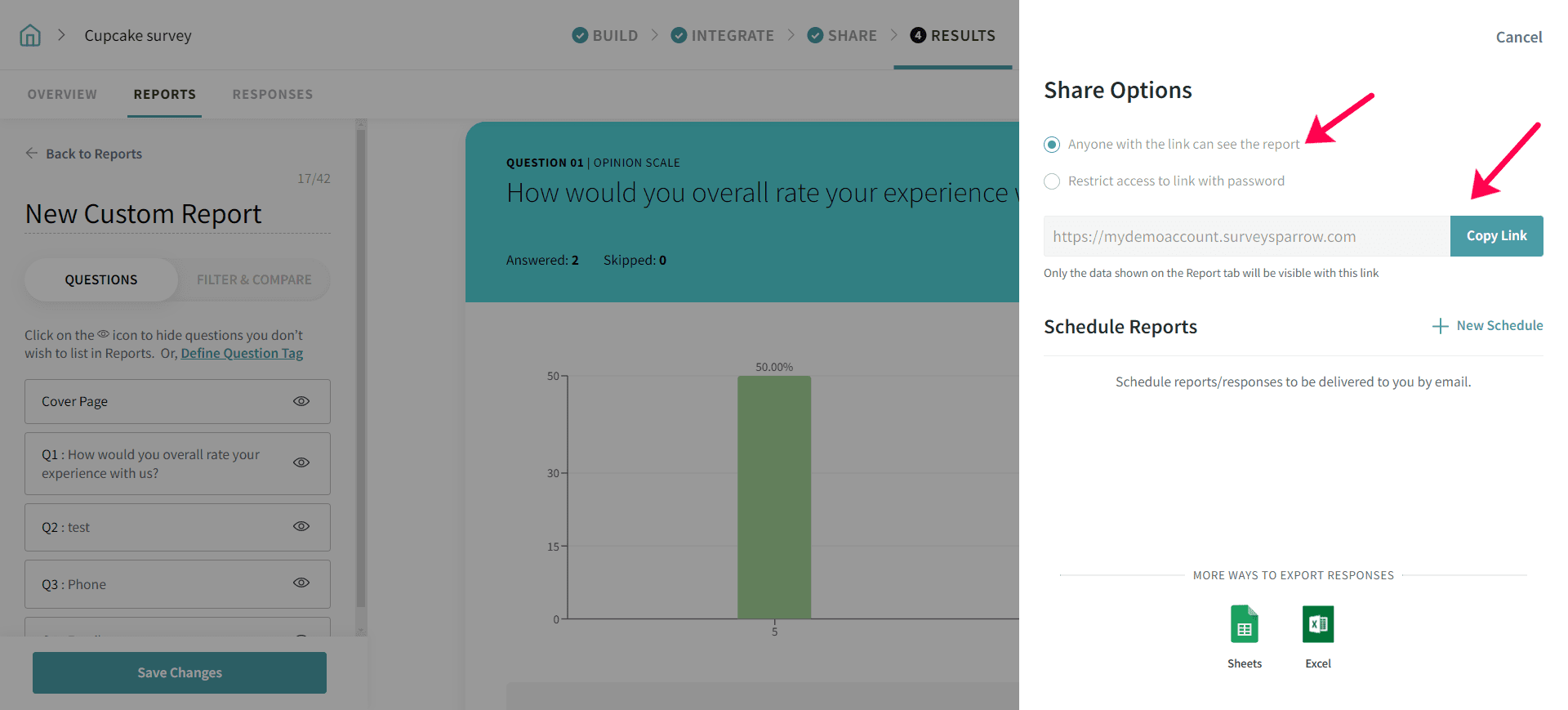
7. Copy the share report link. (Make sure the link is allowed to be shared with anyone). You can even download the report in different formats including .csv and .xlsx formats.
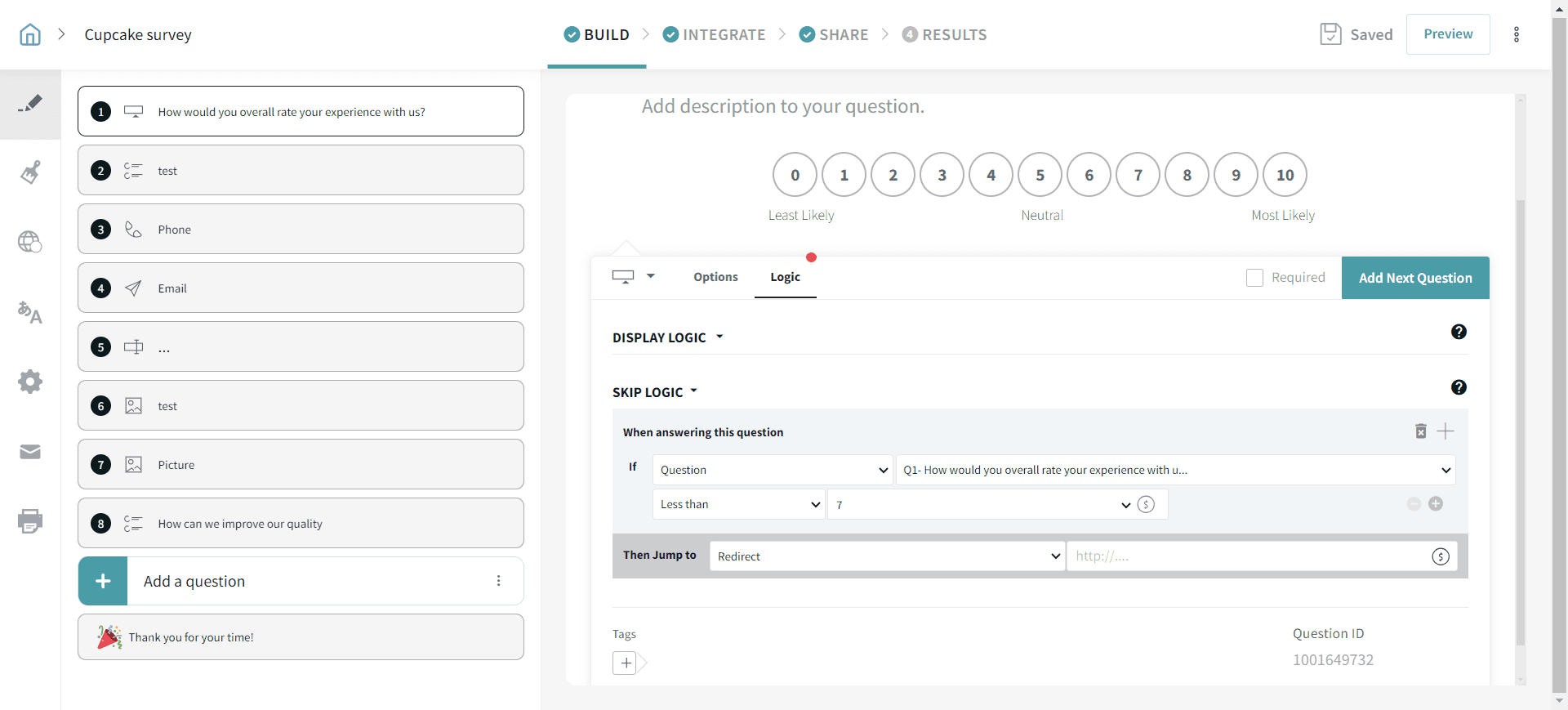
8. Set a Skip Logic as mentioned in the screenshot below and redirect the respondents to the report result. We can also redirect the respondents to the report page with the help of a thank you page depending on the use case.
Let's say the survey doesn't end with the MCQ question. In that case, it's recommended to use a thank you page to redirect the respondents to the report result.
Please reach out to us if you have any questions. We are just a chat away!
Powered By SparrowDesk